Why is W7 Saying Not Enough Backup Space?

RealGem

New member
Member
VIP
Local time
10:10 AM
Messages
269
Location
UK
Hi,

I have now tried two ways to do a Windows Backup. My desktop hard drive is only 250GB and I know I have 755GB fee on my 1TB external hard drive, because it told me (both in the System Image setup and on the drive properties; y'know with the pie diagram).

So I know I have over three times as much space as I need. But it won't let me do a Backup nor a System Image onto the external hard drive, and the reason given is "not enough free space"! :shock:

Anyone know why this might be?

Thanks a lot
 

My Computer

Computer type
PC/Desktop
Computer Manufacturer/Model Number
iBuild™ custom PC
OS
Windows 7 Home Premium 64 bit
CPU
Intel® Core™ i5 650 Dual Core 2x 3.2Ghz 4MB Cache
Motherboard
ASUS P7H55-M 6x Rear USB 2.0 2x Front
Memory
Samsung 4GB (2x2GB) DDR3 1333MHz
Graphics Card(s)
nvidia GT430 1GB Graphics Card
Sound Card
Built-in audio
Monitor(s) Displays
Videoseven CMC 17" AD
Screen Resolution
1280 x 1024
Hard Drives
250GB 7200RPM SATA II
Hitachi 1TB Serial ATA II 32MB cache
PSU
Corsair 500Watt PSU
Case
Gigabyte GZ-X2 Black ATX MIDI Tower Case
Cooling
Standard CPU Cooling Fan
Keyboard
Packard Bell 9205
Mouse
Microsoft IntelliMouse Optical
Internet Speed
Supposed to be 100mbps (Average: 54mbps!)
Other Info
Also Windows 7 64 Bit on my Acer i3 Laptop
Hi,

You may have to defragment the external HDD, if it's too fragmented it might not allow a backup the same as when shrinking a partition.

Also, what format is the HDD? NTSC or FAT32?
 

My Computer

Computer Manufacturer/Model Number
Compaq Desktop
OS
Windows 7 Ultimate x64
CPU
AMD Sempron Dual Core
Memory
3GB
Graphics Card(s)
NVIDIA GeForce 6150SE nForce 430
Screen Resolution
1024x768
Hard Drives
150GB Sata

My Computer

Computer type
PC/Desktop
Computer Manufacturer/Model Number
Self Assembled
OS
Microsoft Windows 10 Pro Insider Preview 64-bit
CPU
Intel(R) Core(TM) i3-4130 CPU @ 3.40GHz
Motherboard
Gigabyte Technology Co., Ltd. B85M-D3H
Memory
Corsair Vengence 4GB x2 (8.00GB Dual-Channel DDR3 @ 798MHz)
Graphics Card(s)
2047MB GeForce GTS 450 (ZOTAC International)
Sound Card
Onboard (Realtek High Definition Audio)
Monitor(s) Displays
LG Flatron E2040T
Screen Resolution
1600x900
Hard Drives
Western Digital 1 TB
Seagate 500 GB
PSU
Corsair VS550
Case
Cooler Master K380
Cooling
Cooler Master Seidon 120V Plus
Keyboard
Logitech MK260r
Mouse
Logitech MK260r
Internet Speed
PMPL Broadband
Antivirus
Windows Defender + MBAM
Browser
Firefox
Other Info
Dell Studio 15" Laptop
Check to be sure that your "system reserved" partition is not the one that is less then 50MB or whatever it is complaining about. I had that happen to me once. My C drive was fine, my external was fine, but the hidden System Reserved partition was causing the issue.

The strange part was why the system reserved was mostly full. A few reboots later and it had magically cleared up space on it's own and I was fine.
 

My Computer

Computer Manufacturer/Model Number
Self-Built in July 2009
OS
Windows 7 Ultimate x64
CPU
Intel Q9550 2.83Ghz OC'd to 3.40Ghz
Motherboard
Gigabyte GA-EP45-UD3R rev. 1.1, F12 BIOS
Memory
8GB G.Skill PI DDR2-800, 4-4-4-12 timings
Graphics Card(s)
EVGA 1280MB Nvidia GeForce GTX570
Sound Card
Realtek ALC899A 8 channel onboard audio
Monitor(s) Displays
23" Acer x233H
Screen Resolution
1920x1080
Hard Drives
Intel X25-M 80GB Gen 2 SSD
Western Digital 1TB Caviar Black, 32MB cache. WD1001FALS
PSU
Corsair 620HX modular
Case
Antec P182
Cooling
stock
Keyboard
ABS M1 Mechanical
Mouse
Logitech G9 Laser Mouse
Internet Speed
15/2 cable modem
Other Info
Windows and Linux enthusiast. Logitech G35 Headset.
Hi,

You may have to defragment the external HDD, if it's too fragmented it might not allow a backup the same as when shrinking a partition.

Also, what format is the HDD? NTSC or FAT32?

It is NTFS, but I just got a worrying error box; saying I will have to format the external HDD if I want to use it.

But it has everything from my old PC that I want to keep! (less than 200GB that's why I bought a 1TB ext hard drive). I'm assuming formatting will get rid of everything on it!

Yes, I will defrag it, but I will use my old PC, or the new one might format it.

Arc said:

I always used Syncback on the old PC, and was currently thinking of the paid version Syncback SE. I will look at your recommendations too, thanks

pparks1 said:
Check to be sure that your "system reserved" partition is not the one that is less then 50MB or whatever it is complaining about. I had that happen to me once. My C drive was fine, my external was fine, but the hidden System Reserved partition was causing the issue.

Thanks, how do I find out whether it is System Reserved causing the problem?
 

My Computer

Computer type
PC/Desktop
Computer Manufacturer/Model Number
iBuild™ custom PC
OS
Windows 7 Home Premium 64 bit
CPU
Intel® Core™ i5 650 Dual Core 2x 3.2Ghz 4MB Cache
Motherboard
ASUS P7H55-M 6x Rear USB 2.0 2x Front
Memory
Samsung 4GB (2x2GB) DDR3 1333MHz
Graphics Card(s)
nvidia GT430 1GB Graphics Card
Sound Card
Built-in audio
Monitor(s) Displays
Videoseven CMC 17" AD
Screen Resolution
1280 x 1024
Hard Drives
250GB 7200RPM SATA II
Hitachi 1TB Serial ATA II 32MB cache
PSU
Corsair 500Watt PSU
Case
Gigabyte GZ-X2 Black ATX MIDI Tower Case
Cooling
Standard CPU Cooling Fan
Keyboard
Packard Bell 9205
Mouse
Microsoft IntelliMouse Optical
Internet Speed
Supposed to be 100mbps (Average: 54mbps!)
Other Info
Also Windows 7 64 Bit on my Acer i3 Laptop
What is the precise error message? If it has a reference to "shadow..." then

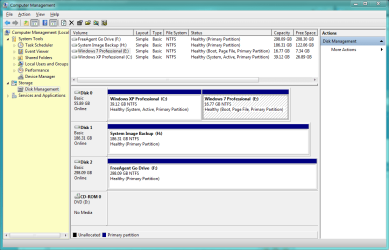
The system reserved partition needs shadow storage space. You can check this in Disk management (right click Computer>Manage>Disk Management) the system reserved (100MB) should be around 70% free. If you've got 50% free or more then this isn't your problem.

But you should also check the VSS space on the storage volume.
From an elevated command prompt
>vssadmin list shadowstorage

will show you the available shadow storage space on your backup volume.
 

My Computer

Computer type
PC/Desktop
Computer Manufacturer/Model Number
Own build
OS
Windows 7x64 Home Premium SP1
CPU
Intel i7 2600k
Motherboard
ASUS P8Z68 Deluxe
Memory
G.Skill Ripjaws (DDR3-1600) 2x4GB
Graphics Card(s)
Nvidia GeForce GTS 450; Intel HD Graphics 3000(GT2+)
Monitor(s) Displays
Dell Ultrasharp IPS panel U2311H, Samsung SyncMaster P2350
Screen Resolution
1920x1080
Hard Drives
Samsung 850 Pro SSD 256GB, Samsung SSD 840 120GB, Seagates 1TB Barracuda ST31000528AS x2
PSU
Seasonic M12II 520W
Case
Lian Li Lancool PC-K60
Cooling
Case: 1x120mm, 3x140mm CPU: Hyper 212+
Keyboard
Logitech MK520 (wireless)
Mouse
Logitech MK520
Internet Speed
6-7 Mbps
Antivirus
Norton Security Premium, Malwarebytes on 2 (MSE on 3rd PC)
Browser
FireFox
Other Info
Audio: Logitech Z523 2.1
What is the precise error message? If it has a reference to "shadow..." then

The system reserved partition needs shadow storage space. You can check this in Disk management (right click Computer>Manage>Disk Management) the system reserved (100MB) should be around 70% free. If you've got 50% free or more then this isn't your problem.

But you should also check the VSS space on the storage volume.
From an elevated command prompt
>vssadmin list shadowstorage

will show you the available shadow storage space on your backup volume.

Thanks, this may be a dumb question, but are you referring to the external HDD being more than 50%? (The C drive is only 46% I think). Because I'm afraid to even connect the external HDD now because of the problem mentioned above:
...error box; saying I will have to format the external HDD if I want to use it.

But it has everything from my old PC that I want to keep! (less than 200GB that's why I bought a 1TB ext hard drive). I'm assuming formatting will get rid of everything on it!


When I attempted the System Image, I got something mentioning the "Shadow..." I'll dig out the error screen shot I took.

2ex915c.png


Sorry but the last sentence in the box above doesn't even make sense to me. I must be thick, but I don't get it. I'm a lesdyxic (:confused:) visual learner, so diagrams are better than words (and numbers) for me.

But like I said, none of that makes any difference if the £100 external HDD I bought is gonna be formatted and I lose the last backup from my old PC!

That is my more pressing concern now, as this is a problem no matter what tool I use for backup, so anyone have any suggestions, other than buy another ext. HDD?

Thanks a lot
 

My Computer

Computer type
PC/Desktop
Computer Manufacturer/Model Number
iBuild™ custom PC
OS
Windows 7 Home Premium 64 bit
CPU
Intel® Core™ i5 650 Dual Core 2x 3.2Ghz 4MB Cache
Motherboard
ASUS P7H55-M 6x Rear USB 2.0 2x Front
Memory
Samsung 4GB (2x2GB) DDR3 1333MHz
Graphics Card(s)
nvidia GT430 1GB Graphics Card
Sound Card
Built-in audio
Monitor(s) Displays
Videoseven CMC 17" AD
Screen Resolution
1280 x 1024
Hard Drives
250GB 7200RPM SATA II
Hitachi 1TB Serial ATA II 32MB cache
PSU
Corsair 500Watt PSU
Case
Gigabyte GZ-X2 Black ATX MIDI Tower Case
Cooling
Standard CPU Cooling Fan
Keyboard
Packard Bell 9205
Mouse
Microsoft IntelliMouse Optical
Internet Speed
Supposed to be 100mbps (Average: 54mbps!)
Other Info
Also Windows 7 64 Bit on my Acer i3 Laptop
I'm about 99% sure it's the system reserved partition. The error message says for volumes under 500MB, you need at least 50MB free. Well, the System reserved partition is 100MB...and if you got less than 50MB of free space on it, you will get the error message that you see above.

Right click my computer, Manage, go to Disk Management. Right click on the System Reserved partition at the front. Choose change drive letter and path. Assign it a drive, like X. Then open My Computer and check the Free space. I'd bet a dollar to a donut that you have less than 50MB free.

Here is an article explaining this exact problem;
http://answers.microsoft.com/en-us/...80780119/e3d30717-5e1a-47ad-a774-efe2afa59b7c

In my case, the partition just magically cleaned itself up within a few hours and I was able to run backups. What caused it to drop for a period of time under 50MB is still a mystery to me.
 

My Computer

Computer Manufacturer/Model Number
Self-Built in July 2009
OS
Windows 7 Ultimate x64
CPU
Intel Q9550 2.83Ghz OC'd to 3.40Ghz
Motherboard
Gigabyte GA-EP45-UD3R rev. 1.1, F12 BIOS
Memory
8GB G.Skill PI DDR2-800, 4-4-4-12 timings
Graphics Card(s)
EVGA 1280MB Nvidia GeForce GTX570
Sound Card
Realtek ALC899A 8 channel onboard audio
Monitor(s) Displays
23" Acer x233H
Screen Resolution
1920x1080
Hard Drives
Intel X25-M 80GB Gen 2 SSD
Western Digital 1TB Caviar Black, 32MB cache. WD1001FALS
PSU
Corsair 620HX modular
Case
Antec P182
Cooling
stock
Keyboard
ABS M1 Mechanical
Mouse
Logitech G9 Laser Mouse
Internet Speed
15/2 cable modem
Other Info
Windows and Linux enthusiast. Logitech G35 Headset.
I'm about 99% sure it's the system reserved partition. The error message says for volumes under 500MB, you need at least 50MB free. Well, the System reserved partition is 100MB...and if you got less than 50MB of free space on it, you will get the error message that you see above.

Right click my computer, Manage, go to Disk Management. Right click on the System Reserved partition at the front. Choose change drive letter and path. Assign it a drive, like X. Then open My Computer and check the Free space. I'd bet a dollar to a donut that you have less than 50MB free.

Here is an article explaining this exact problem;
Windows 7 Enterprise Backup Image Error 0x80780119 - Microsoft Answers

In my case, the partition just magically cleaned itself up within a few hours and I was able to run backups. What caused it to drop for a period of time under 50MB is still a mystery to me.

And if one doesn't have a System Reserved Partition and gets this error, what would it be then?
 

My Computer

Computer Manufacturer/Model Number
Averatec 6130HS-20
OS
Windows 7 Professional 32-bit (6.1, Build 7600)
CPU
Intel(R) Pentium(R) 4 3.00 GHz HT
Memory
2.0 GB
Graphics Card(s)
ATI Mobility Radeon 9600 64MB
Sound Card
Realtek AC'97 Audio
Screen Resolution
1280 x 800
Hard Drives
Seagate 96023A 60GB 7200RPM -
Seagate FreeAgentDesktop 250GB
Cooling
20 Inch Box Fan
Mouse
Targus PAWM10 Wireless Optical Laptop Mouse
And if one doesn't have a System Reserved Partition and gets this error, what would it be then?
Perhaps a hidden recovery partition created by the manufacturer that is nearly full that they are unaware of. Again, you can check it just like I showed with the "System Reserved" partition.

I ran into this same issue when I first started using Windows 7. That's why I am always piping up saying, "hey check your System Reserved partition". It bit me once and confused me for awhile...until I really read through that error. I was positive my C and D drive had at least 1GB free and so did my external drive. So, I started looking elsewhere.
 

My Computer

Computer Manufacturer/Model Number
Self-Built in July 2009
OS
Windows 7 Ultimate x64
CPU
Intel Q9550 2.83Ghz OC'd to 3.40Ghz
Motherboard
Gigabyte GA-EP45-UD3R rev. 1.1, F12 BIOS
Memory
8GB G.Skill PI DDR2-800, 4-4-4-12 timings
Graphics Card(s)
EVGA 1280MB Nvidia GeForce GTX570
Sound Card
Realtek ALC899A 8 channel onboard audio
Monitor(s) Displays
23" Acer x233H
Screen Resolution
1920x1080
Hard Drives
Intel X25-M 80GB Gen 2 SSD
Western Digital 1TB Caviar Black, 32MB cache. WD1001FALS
PSU
Corsair 620HX modular
Case
Antec P182
Cooling
stock
Keyboard
ABS M1 Mechanical
Mouse
Logitech G9 Laser Mouse
Internet Speed
15/2 cable modem
Other Info
Windows and Linux enthusiast. Logitech G35 Headset.
Hi,

I have now tried two ways to do a Windows Backup. My desktop hard drive is only 250GB and I know I have 755GB fee on my 1TB external hard drive, because it told me (both in the System Image setup and on the drive properties; y'know with the pie diagram).

So I know I have over three times as much space as I need. But it won't let me do a Backup nor a System Image onto the external hard drive, and the reason given is "not enough free space"! :shock:

Anyone know why this might be?

Thanks a lot

When you do your backups through Windows Backup, check to see what drives it's including. My guess is that Windows Backup is including another drive when creating the image. This is where you could be running out of disk space.

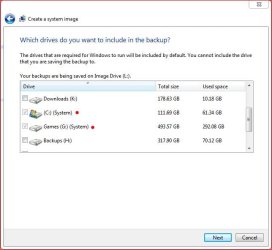
I have an issue (Issue with Windows Backup creating System Image) where Windows Backup (WBU) has a bug? where it automatically includes my Games (G-Drive) when trying to create a system image. Even though the G-Drive has NO boot files or folders on the drive! None.

My Issue: I have a 120Gig SSD Drive that I wanted to image using Windows Backup (WBU); however WBU for some strange reason keeps including my Games drive (G-Drive), despite the fact that there are absolutely no boot files/utilities on G-Drive. In fact I can disconnect the G-Drive, image my SSD drive, and restore it without issue. Yet when I reconnect G-Drive and I try to image the SSD drive..... It still wants to include G-Drive.

Bottom line..... it seems, and has been said, that Windows Backup is buggy when creating an image. Now, it works for backing up files, folders, and drives, it’s just borked when doing some images.

Bottom line there is my issue was never resolved; I still can’t create an image in Windows Backup without it including my G-Drive. In the end I went with Acronis True Image 2010 for my disk image.

You may be suffering the same problem I had. Check to see if the image you want to create is including another drive.

Good luck.
 

My Computer

Computer type
PC/Desktop
Computer Manufacturer/Model Number
Custom built by me.
OS
Windows 10 Pro
CPU
Intel Core i7-4770K (3.5Ghz)
Motherboard
Gigabyte G1 Sniper 5 (F10 Bios)
Memory
32 gig Corsair Dominator Platinum (4x8Gig)
Graphics Card(s)
Sapphire Tri-X R9 Fury
Sound Card
Soundblaster ZXR
Monitor(s) Displays
NEC PA242W 24" LCD Monitor
Screen Resolution
1920 x 1200
Hard Drives
Primary - Samsung 850 Pro (512gig), Samsung 840 Pro (256gig), 2TB WD Caviar Black.
PSU
EVGA Supernova 1000 G2
Case
Cooler Master HAF X
Cooling
Corsair H100i with Corsair Air Series SP120 Quiet Fans
Keyboard
Logitech Wireless Wave
Mouse
Logitech Performance MX
Internet Speed
High Speed Cable
Antivirus
Norton Security
Browser
IE11
Other Info
Memory Timings - 1866MHz @ 9-9-9-27-1T @ 1.5 volts
And if one doesn't have a System Reserved Partition and gets this error, what would it be then?
Perhaps a hidden recovery partition created by the manufacturer that is nearly full that they are unaware of. Again, you can check it just like I showed with the "System Reserved" partition.

I ran into this same issue when I first started using Windows 7. That's why I am always piping up saying, "hey check your System Reserved partition". It bit me once and confused me for awhile...until I really read through that error. I was positive my C and D drive had at least 1GB free and so did my external drive. So, I started looking elsewhere.

Here's what I have. Personally, I don't have clue at what any of it means so maybe you or someone can help.

Untitled.png

Untitled2.png


Initially when Win 7 was installed, I had the Backup/Image problems. All of a sudden it quit and went to working fine. I have plenty of Images made with the built in System Image but decided to do one the other day. Now it's back to not working again like it was right after Win 7 installed
 

My Computer

Computer Manufacturer/Model Number
Averatec 6130HS-20
OS
Windows 7 Professional 32-bit (6.1, Build 7600)
CPU
Intel(R) Pentium(R) 4 3.00 GHz HT
Memory
2.0 GB
Graphics Card(s)
ATI Mobility Radeon 9600 64MB
Sound Card
Realtek AC'97 Audio
Screen Resolution
1280 x 800
Hard Drives
Seagate 96023A 60GB 7200RPM -
Seagate FreeAgentDesktop 250GB
Cooling
20 Inch Box Fan
Mouse
Targus PAWM10 Wireless Optical Laptop Mouse
I'm about 99% sure it's the system reserved partition. The error message says for volumes under 500MB, you need at least 50MB free. Well, the System reserved partition is 100MB...and if you got less than 50MB of free space on it, you will get the error message that you see above.

Right click my computer, Manage, go to Disk Management. Right click on the System Reserved partition at the front. Choose change drive letter and path. Assign it a drive, like X. Then open My Computer and check the Free space. I'd bet a dollar to a donut that you have less than 50MB free.

OK I did that and yes it's 48%.

It says "for volumes under 500MB"??
I want to backup my whole hard drive; about 150GB!

So in that case I'd need 320mb in the system partition, right?

Or does volume mean something else?

(not that I understand what a System Partition is. Searching online has been futile too, as I can't find an explanation in layman's terms what it is or how it works).


When you do your backups through Windows Backup, check to see what drives it's including. My guess is that Windows Backup is including another drive when creating the image. This is where you could be running out of disk space.

Yes, you could be right. I seem to remember two destinations on the list, and the other one could only have been the C drive (in which case, no it definitely would not fit on there, as it's about 2/3 full).

1. Anyone know how to stop it including the C drive (or any other drive)?

2. Can anyone help me with the fact it wants to format my external HDD, and I don't want to lose my old PC's last backup?

3. Why does it want to format it anyway? It's only for backups! I don't have an OS on there or anything.

thanks
 

My Computer

Computer type
PC/Desktop
Computer Manufacturer/Model Number
iBuild™ custom PC
OS
Windows 7 Home Premium 64 bit
CPU
Intel® Core™ i5 650 Dual Core 2x 3.2Ghz 4MB Cache
Motherboard
ASUS P7H55-M 6x Rear USB 2.0 2x Front
Memory
Samsung 4GB (2x2GB) DDR3 1333MHz
Graphics Card(s)
nvidia GT430 1GB Graphics Card
Sound Card
Built-in audio
Monitor(s) Displays
Videoseven CMC 17" AD
Screen Resolution
1280 x 1024
Hard Drives
250GB 7200RPM SATA II
Hitachi 1TB Serial ATA II 32MB cache
PSU
Corsair 500Watt PSU
Case
Gigabyte GZ-X2 Black ATX MIDI Tower Case
Cooling
Standard CPU Cooling Fan
Keyboard
Packard Bell 9205
Mouse
Microsoft IntelliMouse Optical
Internet Speed
Supposed to be 100mbps (Average: 54mbps!)
Other Info
Also Windows 7 64 Bit on my Acer i3 Laptop
I'm about 99% sure it's the system reserved partition. The error message says for volumes under 500MB, you need at least 50MB free. Well, the System reserved partition is 100MB...and if you got less than 50MB of free space on it, you will get the error message that you see above.

Right click my computer, Manage, go to Disk Management. Right click on the System Reserved partition at the front. Choose change drive letter and path. Assign it a drive, like X. Then open My Computer and check the Free space. I'd bet a dollar to a donut that you have less than 50MB free.

Here is an article explaining this exact problem;
Windows 7 Enterprise Backup Image Error 0x80780119 - Microsoft Answers

In my case, the partition just magically cleaned itself up within a few hours and I was able to run backups. What caused it to drop for a period of time under 50MB is still a mystery to me.

And if one doesn't have a System Reserved Partition and gets this error, what would it be then?
See Post #6

"The system reserved partition needs shadow storage space. You can check this in Disk management (right click Computer>Manage>Disk Management) the system reserved (100MB) should be around 70% free. If you've got 50% free or more then this isn't your problem.

But you should also check the VSS space on the storage volume.
From an elevated command prompt
>vssadmin list shadowstorage

will show you the available shadow storage space on your backup volume."

RealGem,
As I indicate above you need to look in Disk management for the small 100MB (sometimes 200MB) partition marked system reserved NOT your main partitions. It should not have a letter assigned to it and will not be visible in Windows explorer.
It's required free space for shadows copies is defined here
http://technet.microsoft.com/en-us/library/dd799232(WS.10).aspx

  • Must have enough free space to create shadow copies of the partition.

    • If the partition is less than 500 MB, it must have at least 50 MB of free space.

    • If the partition is 500 MB or larger, it must have at least 320 MB of free space.

    • If the partition is larger than 1 gigabyte (GB), we recommend that it should have at least 1 GB free.

    dd799232.note%28en-us,WS.10%29.gif
    Note
    We recommend that no other files are placed on the system volume, and we recommend that you discourage end-users from storing files on this partition, to avoid filling up this space.
IF it is a backup volume shadowspace problem, the offending volume should be list in the error message. Then look at what
>vssadmin list shadowstorage
says about that volume. You may need to increase the shadow storage space allocation on that volume.

Windows imaging will insist on imaging both the system reserved (containing the boot manager & BCD) AND your Windows OS partition. Any additional partitions are user selected.
 
Last edited:

My Computer

Computer type
PC/Desktop
Computer Manufacturer/Model Number
Own build
OS
Windows 7x64 Home Premium SP1
CPU
Intel i7 2600k
Motherboard
ASUS P8Z68 Deluxe
Memory
G.Skill Ripjaws (DDR3-1600) 2x4GB
Graphics Card(s)
Nvidia GeForce GTS 450; Intel HD Graphics 3000(GT2+)
Monitor(s) Displays
Dell Ultrasharp IPS panel U2311H, Samsung SyncMaster P2350
Screen Resolution
1920x1080
Hard Drives
Samsung 850 Pro SSD 256GB, Samsung SSD 840 120GB, Seagates 1TB Barracuda ST31000528AS x2
PSU
Seasonic M12II 520W
Case
Lian Li Lancool PC-K60
Cooling
Case: 1x120mm, 3x140mm CPU: Hyper 212+
Keyboard
Logitech MK520 (wireless)
Mouse
Logitech MK520
Internet Speed
6-7 Mbps
Antivirus
Norton Security Premium, Malwarebytes on 2 (MSE on 3rd PC)
Browser
FireFox
Other Info
Audio: Logitech Z523 2.1
Thanks a lot MJF,

I have now sorted out the External Hard Drive problem (in another thread), so I am able to use SyncbackSE, which I am used to and find a lot more straightforward than Windows backup.

Thank you anyway though. I appreciate your help.
 

My Computer

Computer type
PC/Desktop
Computer Manufacturer/Model Number
iBuild™ custom PC
OS
Windows 7 Home Premium 64 bit
CPU
Intel® Core™ i5 650 Dual Core 2x 3.2Ghz 4MB Cache
Motherboard
ASUS P7H55-M 6x Rear USB 2.0 2x Front
Memory
Samsung 4GB (2x2GB) DDR3 1333MHz
Graphics Card(s)
nvidia GT430 1GB Graphics Card
Sound Card
Built-in audio
Monitor(s) Displays
Videoseven CMC 17" AD
Screen Resolution
1280 x 1024
Hard Drives
250GB 7200RPM SATA II
Hitachi 1TB Serial ATA II 32MB cache
PSU
Corsair 500Watt PSU
Case
Gigabyte GZ-X2 Black ATX MIDI Tower Case
Cooling
Standard CPU Cooling Fan
Keyboard
Packard Bell 9205
Mouse
Microsoft IntelliMouse Optical
Internet Speed
Supposed to be 100mbps (Average: 54mbps!)
Other Info
Also Windows 7 64 Bit on my Acer i3 Laptop
When you do your backups through Windows Backup, check to see what drives it's including. My guess is that Windows Backup is including another drive when creating the image. This is where you could be running out of disk space.

Yes, you could be right. I seem to remember two destinations on the list, and the other one could only have been the C drive (in which case, no it definitely would not fit on there, as it's about 2/3 full).

1. Anyone know how to stop it including the C drive (or any other drive)?

OK - Are you trying to image (make a copy) of your "C" drive? If so, this is what I'm talking about when I say Windows is "automatically" including drives when making an image. See below....

Capture.JPG

Notice how Windows Backup "automatically" (as in no choice, thus the grayed out check marks) included my games drive.

My issue with the above example is that there is NO reason whatsoever for my "Games" drive to be included in the image. There are NO boot files/folders on that drive. Yet I can not de-select that drive! Thus the bug!

My point is if you have limited space on the destination drive to place your "C" drive image, and Windows decides to include other drives, if the destination drive doesn't have enough space with the included in the image, you'll get a "not enough space" warning.

If you’re trying to create an image, you need to check to see if the Backup utility included any other drives "automatically"

Is that what you're experiencing???
 

My Computer

Computer type
PC/Desktop
Computer Manufacturer/Model Number
Custom built by me.
OS
Windows 10 Pro
CPU
Intel Core i7-4770K (3.5Ghz)
Motherboard
Gigabyte G1 Sniper 5 (F10 Bios)
Memory
32 gig Corsair Dominator Platinum (4x8Gig)
Graphics Card(s)
Sapphire Tri-X R9 Fury
Sound Card
Soundblaster ZXR
Monitor(s) Displays
NEC PA242W 24" LCD Monitor
Screen Resolution
1920 x 1200
Hard Drives
Primary - Samsung 850 Pro (512gig), Samsung 840 Pro (256gig), 2TB WD Caviar Black.
PSU
EVGA Supernova 1000 G2
Case
Cooler Master HAF X
Cooling
Corsair H100i with Corsair Air Series SP120 Quiet Fans
Keyboard
Logitech Wireless Wave
Mouse
Logitech Performance MX
Internet Speed
High Speed Cable
Antivirus
Norton Security
Browser
IE11
Other Info
Memory Timings - 1866MHz @ 9-9-9-27-1T @ 1.5 volts
When you do your backups through Windows Backup, check to see what drives it's including. My guess is that Windows Backup is including another drive when creating the image. This is where you could be running out of disk space.

Yes, you could be right. I seem to remember two destinations on the list, and the other one could only have been the C drive (in which case, no it definitely would not fit on there, as it's about 2/3 full).

1. Anyone know how to stop it including the C drive (or any other drive)?

OK - Are you trying to image (make a copy) of your "C" drive? If so, this is what I'm talking about when I say Windows is "automatically" including drives when making an image. See below....

View attachment 141938

Notice how Windows Backup "automatically" (as in no choice, thus the grayed out check marks) included my games drive.

My issue with the above example is that there is NO reason whatsoever for my "Games" drive to be included in the image. There are NO boot files/folders on that drive. Yet I can not de-select that drive! Thus the bug!

My point is if you have limited space on the destination drive to place your "C" drive image, and Windows decides to include other drives, if the destination drive doesn't have enough space with the included in the image, you'll get a "not enough space" warning.

If you’re trying to create an image, you need to check to see if the Backup utility included any other drives "automatically"

Is that what you're experiencing???


Yes, I was experiencing that.

But as I say above, I am no longer relying on Windows for backups. But thanks for your reply.

I looked at your photo site btw. Great photos!
 

My Computer

Computer type
PC/Desktop
Computer Manufacturer/Model Number
iBuild™ custom PC
OS
Windows 7 Home Premium 64 bit
CPU
Intel® Core™ i5 650 Dual Core 2x 3.2Ghz 4MB Cache
Motherboard
ASUS P7H55-M 6x Rear USB 2.0 2x Front
Memory
Samsung 4GB (2x2GB) DDR3 1333MHz
Graphics Card(s)
nvidia GT430 1GB Graphics Card
Sound Card
Built-in audio
Monitor(s) Displays
Videoseven CMC 17" AD
Screen Resolution
1280 x 1024
Hard Drives
250GB 7200RPM SATA II
Hitachi 1TB Serial ATA II 32MB cache
PSU
Corsair 500Watt PSU
Case
Gigabyte GZ-X2 Black ATX MIDI Tower Case
Cooling
Standard CPU Cooling Fan
Keyboard
Packard Bell 9205
Mouse
Microsoft IntelliMouse Optical
Internet Speed
Supposed to be 100mbps (Average: 54mbps!)
Other Info
Also Windows 7 64 Bit on my Acer i3 Laptop
Thanks for clarifying. That's what I thought the issue was. And yeah, switching to another backup program for images is best, however for "normal" non-image backups Windows Backup works well.

And thanks for the props for the photos.

Peace :cool:
 

My Computer

Computer type
PC/Desktop
Computer Manufacturer/Model Number
Custom built by me.
OS
Windows 10 Pro
CPU
Intel Core i7-4770K (3.5Ghz)
Motherboard
Gigabyte G1 Sniper 5 (F10 Bios)
Memory
32 gig Corsair Dominator Platinum (4x8Gig)
Graphics Card(s)
Sapphire Tri-X R9 Fury
Sound Card
Soundblaster ZXR
Monitor(s) Displays
NEC PA242W 24" LCD Monitor
Screen Resolution
1920 x 1200
Hard Drives
Primary - Samsung 850 Pro (512gig), Samsung 840 Pro (256gig), 2TB WD Caviar Black.
PSU
EVGA Supernova 1000 G2
Case
Cooler Master HAF X
Cooling
Corsair H100i with Corsair Air Series SP120 Quiet Fans
Keyboard
Logitech Wireless Wave
Mouse
Logitech Performance MX
Internet Speed
High Speed Cable
Antivirus
Norton Security
Browser
IE11
Other Info
Memory Timings - 1866MHz @ 9-9-9-27-1T @ 1.5 volts
Dear RealJem,

This is a long shot, but has a bearing on your problem! Kindly read this article : Not enough space for successful backup(0x81000014). Iam posting an excerpt from the link which has the most relevence.

Quote"
My case is: my volume to be backed up is too full. When doing backup in Vista/Win7/Server 2008/R2, VSS backup is the way to go. While VSS will attempt to allocate free space in the drive being backup for creating shadow copy. This is the default VSS behavior but can be altered by vssadmin.exe utility. Please note elevated priviledge is required for running vssadmin.exe.


So, if the drive you are going to backup is too full, you might hit this problem. That means, even if you have free space in other drive, by default VSS don't know how to leverage them"UNquote:cool:.

The EXTN. HDDs come pre-formatted, especially the NTFS ones, it's the partitions you have to make! I have two EXTN.HDDs, one is a Seagate Free Agent Pro 750GB and the other is a Western Digital Portable "elements"1TB and both came formatted!
Regards,
Sreedhav


What were the two methods you tried to create a manual backup, as you mentioned in your first post
 

My Computer

Computer Manufacturer/Model Number
Sony Vaio C series VPCCB35FN laptop
OS
MS Windows 7 Home Premium 64-bit SP1
CPU
IntelCore [email protected]; Sandy Bridge 32nm Tech.
Motherboard
Sony Vaio Version:C609NJYJ
Memory
4096Mb RAM; Single ChannelDDR3@665MHz; DRAM Freq:662MHz
Graphics Card(s)
AMD Radeon HD 6630M; GPU:Whistler;BIOS Core&mem Clock:123.36
Sound Card
REALTEK High Definition Audio Device; INTEL Display Card
Monitor(s) Displays
Generic PnP Intel HD;Resolution:1920*1040 Pixels; BPP:32bits
Screen Resolution
Current Resolution:1920*1080 Pixels; Monitor Frequency:60Hz
Hard Drives
Internal HD:TOSHIBA MK5061GSY; Real Size:488 GB;NTFS; 3 Partitions; SATA; HEADS:16

External HDD: WD Elements 1023 PORTABLE; Estimated Size: 1TB; NTFS; 3 Partitions
Cooling
Lateral Exhaust with a Cooling Pad Placed Beneath.
Keyboard
Logitech Bluetooth+ Generic Integrated K-B
Mouse
Logitech Bluetooth
Internet Speed
2MBPS
Other Info
1)Trend Micro Titanium Maximum Security Suite Version:3
2)SAS-PRO

3)MBAM--PRO


4)WATERFOX+IE9 +WOT+LINKEXTEND+ DRWEBCUREIT LINK CHECKER

5)SPYWAREBLASTER

6) WINPATROL PLUS

7) SANDBOXIE and
8) A BIT OF COMMON SENSE.
OK I did that and yes it's 48%.
It's 48% full, 48% free, or it has 48MB free. If it's got less than 50MB free...that is your issue....as I have been saying all along.
 

My Computer

Computer Manufacturer/Model Number
Self-Built in July 2009
OS
Windows 7 Ultimate x64
CPU
Intel Q9550 2.83Ghz OC'd to 3.40Ghz
Motherboard
Gigabyte GA-EP45-UD3R rev. 1.1, F12 BIOS
Memory
8GB G.Skill PI DDR2-800, 4-4-4-12 timings
Graphics Card(s)
EVGA 1280MB Nvidia GeForce GTX570
Sound Card
Realtek ALC899A 8 channel onboard audio
Monitor(s) Displays
23" Acer x233H
Screen Resolution
1920x1080
Hard Drives
Intel X25-M 80GB Gen 2 SSD
Western Digital 1TB Caviar Black, 32MB cache. WD1001FALS
PSU
Corsair 620HX modular
Case
Antec P182
Cooling
stock
Keyboard
ABS M1 Mechanical
Mouse
Logitech G9 Laser Mouse
Internet Speed
15/2 cable modem
Other Info
Windows and Linux enthusiast. Logitech G35 Headset.
Back
Top