Solved Need quick help about new hard disk partition on win 7 disk management

My Computer

Computer type
PC/Desktop
Computer Manufacturer/Model Number
Acer Veriton S670/G M670/G
OS
Windows 7 SP1 Ultimate x64
CPU
Intel(R) Core(TM) 2 Due cpu E8400 @ 3.0ghz
Motherboard
Acer EQ45M
Memory
3x2gb DDR3 PC3-10600
Graphics Card(s)
NVIDIA GeForce 9800 GT
Sound Card
Digital Audio (S/PDIF) (High Definition Audio Device)
Monitor(s) Displays
Asus VK222H 22" lcd HDMI wide.
Screen Resolution
1680x1050 @ 60 Hz
Hard Drives
2x1TB WD 10EAR
Internet Speed
4mbps
Browser
FireFox v27.01

My Computer

Computer type
PC/Desktop
Computer Manufacturer/Model Number
Acer Veriton S670/G M670/G
OS
Windows 7 SP1 Ultimate x64
CPU
Intel(R) Core(TM) 2 Due cpu E8400 @ 3.0ghz
Motherboard
Acer EQ45M
Memory
3x2gb DDR3 PC3-10600
Graphics Card(s)
NVIDIA GeForce 9800 GT
Sound Card
Digital Audio (S/PDIF) (High Definition Audio Device)
Monitor(s) Displays
Asus VK222H 22" lcd HDMI wide.
Screen Resolution
1680x1050 @ 60 Hz
Hard Drives
2x1TB WD 10EAR
Internet Speed
4mbps
Browser
FireFox v27.01
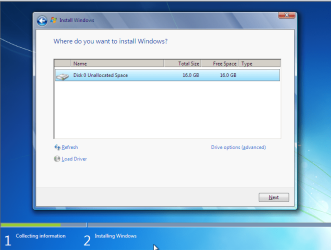
You can do the first partition for the OS at this screen.

1.png

In the above link.
 

My Computer

OS
ME/XP/Vista/Win7
ok, I creates partitions in windows seven installation process.
and tell me what is Advance Format Hard Drive.? is windows seven do already Advance format or we have to download a utility for it..?
 

My Computer

Computer type
PC/Desktop
Computer Manufacturer/Model Number
Acer Veriton S670/G M670/G
OS
Windows 7 SP1 Ultimate x64
CPU
Intel(R) Core(TM) 2 Due cpu E8400 @ 3.0ghz
Motherboard
Acer EQ45M
Memory
3x2gb DDR3 PC3-10600
Graphics Card(s)
NVIDIA GeForce 9800 GT
Sound Card
Digital Audio (S/PDIF) (High Definition Audio Device)
Monitor(s) Displays
Asus VK222H 22" lcd HDMI wide.
Screen Resolution
1680x1050 @ 60 Hz
Hard Drives
2x1TB WD 10EAR
Internet Speed
4mbps
Browser
FireFox v27.01
You can only have 4 Primary partitions.
This statement is misleading, though accurate.

Yes, you can only have four "PRIMARY" partitions on a drive. However one of those primary partitions can be the "Extended Partition", inside of which can be ANY NUMBER OF "LOGICAL" PARTITIONS.

So theoretically, you could have 1, 2, 3 or 4 primary partitions on a simple drive. Or, you could have 1 "extended partition" and ANY NUMBER of logical partitions inside of it. Or, you could have up to 3 other primary partitions plus 1 "extended partition" and ANY NUMBER of logical partitions inside of it.

The DISKMGMT screenshots show that he has a mixture of "primary" (dark blue bar over them) and "logical" partitions (lighter blue bar over them), and that there's nothing improper about a total of more than four TOTAL partitions. Some are primary, and some are logical. Perfectly valid. Not a problem.


I will never for the life of me understand why people use DISKMGMT and DISKPART and not Partition Wizard, to manage hard drive partitions. Downloading and burning the ISO for the standalone boot CD for Partition Wizard is also recommended, of course, for those special situations (like working with a brand new machine and hard drives, etc.).

It's just astonishing to me how many new threads are started by people having exactly the same issues, where they've gotten themselves into trouble because of the relatively non-intuitive interface of the stock built-in Windows disk management tools, as compared to the simple straightforward can't-go-wrong GUI interface (both under Windows as well as standalone boot CD) of PW.


[/rant-off]
 

My Computer

Computer type
PC/Desktop
Computer Manufacturer/Model Number
Home-built, two systems (1) and (2)
OS
Windows 7 Pro x64 (1), Win7 Pro X64 (2)
CPU
i5-3350p 3.1Ghz/6MB-cache (1); E8400 3.0Ghz/6MB-cache (2)
Motherboard
ASUS P8Z77-V Pro (1); ASUS P5Q3 (2)
Memory
8GB PC3-12800 DDR3 (1); 4GB PC3-10600 DDR3 (2)
Graphics Card(s)
ATI HD7750 (1), (see TV cards); ATI R7 250 (2)
Sound Card
Realtek ALC892 HD Audio (1); Realtek ALC1200 HD Audio (2)
Monitor(s) Displays
Eizo HD2441W LCD, Eizo S2433W (1); Eizo 24" S2433W (2)
Screen Resolution
1920x1200, 1920x1200 (1); 1920x1200 (2)
Hard Drives
(1) 1TB SATA-II (7200RPM), 2x2TB SATA-III (7200RPM), 250GB SATA-III (10000RPM) for OS; 2x2TB external USB 3.0

(2) 320GB SATA-II (7200RPM), 750GB SATA-II (7200RPM), 150GB SATA-II (10000RPM) for OS; 2TB external USB 3.0
PSU
Nesteq ECS-6001 600W (1); Nesteq ECS-5001 500W (2)
Case
Acousti-Case 360 (1) and (2)
Cooling
Noctua NH-U12P SE2 for CPU, 2x120mm case fans (1) and (2)
Keyboard
IBM PS/2 (1) and (2)
Mouse
Logitech MX Revolution wireless (1); Microsoft wired (2)
Internet Speed
100mbps down / 10mbps up
Antivirus
Microsoft Security Essentials; Malwarebyte Anti-Malware Pro
Browser
Firefox
Other Info
Ceton InfiniTV 4-tuner cablecard-enabled TV card as well as Hauppauge HVR-2250 OTA/ATSC 2-tuner TV card in (1), running under Win7 WMC
thanks dsperber for your full of info post.. actually windows disk management is commonly used for partitions, that's y v also use it. now I ll try Partition Wizard.
@Theog
in product feature link, wd vendor says that windows seven formatting is already had Advance Format.
 

My Computer

Computer type
PC/Desktop
Computer Manufacturer/Model Number
Acer Veriton S670/G M670/G
OS
Windows 7 SP1 Ultimate x64
CPU
Intel(R) Core(TM) 2 Due cpu E8400 @ 3.0ghz
Motherboard
Acer EQ45M
Memory
3x2gb DDR3 PC3-10600
Graphics Card(s)
NVIDIA GeForce 9800 GT
Sound Card
Digital Audio (S/PDIF) (High Definition Audio Device)
Monitor(s) Displays
Asus VK222H 22" lcd HDMI wide.
Screen Resolution
1680x1050 @ 60 Hz
Hard Drives
2x1TB WD 10EAR
Internet Speed
4mbps
Browser
FireFox v27.01
  • Primary partition - a primary partition can be used to boot an Operating System. Your Windows OS is installed on a primary partition.
  • Extended partition - an extended partition is used to hold logical drives.
  • Logical drives - logical drives hold files unrelated to the Operating System - pretty much everything else on your computer - data, audio, video, etc.
Just to be accurate here...

The "boot" partition (a) must be marked as the "active" partition on that hard drive, and (b) must be a "primary" partition, and (c) must reside on "hard disk #1" per the BIOS. That is the definition of the "boot" partition.

This partition does NOT need to contain the Windows OS, although it can. In fact, on a brand new empty drive installation of Win7, the "boot" partition (as I've defined it above) will be that 100MB "system reserved" partition in which the Win7 boot manager files will be installed. It will satisfy all the requirements of a "boot" partition, in that the Win7 installer ensures that (a) it is "primary" rather than "logical", (b) it is marked as the "active" partition on the hard drive, and (c) it resides on "hard disk #1" per the BIOS.

Just because that's the way Microsoft did things, by default there will then be a second "primary" partition in which the Win7 operating system itself will then be placed (typically a 50GB or larger partition, or even the rest of the hard drive if you don't take the time to partition the brand new drive during the Win7 install).

But in fact, you can install the Win7 operating system itself anywhere... in any other "primary" or "logical" partition, on the "hard disk #1" hard drive or on any other hard drive. In other words you do NOT have to place the real Win7 (or WinXP) operating system in a "primary" partition". It can go into a "logical" partition and still be 100% perfectly usable. And it can go on "hard disk #1" or you can place it on any other hard drive you want to place it on.

It is the "boot" partition which is the one and only required "primary" partition in the entire environment, be it one hard drive or multiple hard drives, and it can in fact be nothing more than that 100MB "system reserved" partition in which the boot manager files are placed.

Or, it can be the current bootable WinXP partition if you're adding Win7 as a second Windows OS to an existing WinXP configuration, planting the Win7 system into either another "logical" or "primary" partition on the same hard drive as WinXP already lives, or onto a "logical" or "primary" partition on some other hard drive. In this case, the Win7 boot manager files will be planted into the existing WinXP partition, because that "boot" WinXP partition by definition MUST be the "active" partition on "hard disk #1" per the BIOS, and of course must also be of type "primary". Had WinXP been added as a second OS then it could have gone into a "logical" or "primary" partition somewhere, but as the original bootable OS on "hard disk #1" per the BIOS in a single WinXP environment, the WinXP installer would have created that partition as "primary" and also marked it "active". In this case there is no need for the 100MB "system reserved" partition.

Or, it can be the Win7 partition itself, if you use EasyBCD (or triple-repair) to plant the Win7 boot manager files into the Win7 partition itself (assuming it's "primary") and mark that partition as "active", and make sure that this hard drive is set as 'hard disk #1" in the BIOS. Then again, there is no need for the 100MB "system reserved" partition.


So... there is nothing magic about "primary" partitions that makes them and them alone eligible to hold a Windows OS system partition. In fact, Windows can be installed into either "primary" or "logical" partitions.

And, there is ZERO requirement that ANY partition be "primary", other than the one single "boot" partition which MUST be "primary", MUST be marked "active", and MUST be on "hard disk #1" per the BIOS. It is into this one and only specific partition that the Win7 installer (or EasyBCD, or BCDEdit) will place the Win7 boot manager files.

All other partitions on this hard drive or any other hard drives can be "primary" (up to the limit of four primary partitions per hard drive) or "logical" (any number can be defined inside of the "extended partition", which is a type of "primary" partition of which one per hard drive is allowed... living within the constraint of four total primary partitions on a hard drive).

If you want, you can partition every one of your secondary hard drives to contain zero primary partitions other than the one "extended partition", and then inside that "extended partition" you can define ANY NUMBER OF "LOGICAL" PARTITIONS. In other words, every partition other than the "boot" partition can be "logical"... no matter what it contains, and no matter whether it's on "hard disk #1" or any other hard drive.

But if you define "primary" partitions then there is a limit of four maximum per hard drive, of which the "extended partition" inside of which all "logical" partitions live, counts as one of those four "primary" partitions allowed on the hard drive.
 

My Computer

Computer type
PC/Desktop
Computer Manufacturer/Model Number
Home-built, two systems (1) and (2)
OS
Windows 7 Pro x64 (1), Win7 Pro X64 (2)
CPU
i5-3350p 3.1Ghz/6MB-cache (1); E8400 3.0Ghz/6MB-cache (2)
Motherboard
ASUS P8Z77-V Pro (1); ASUS P5Q3 (2)
Memory
8GB PC3-12800 DDR3 (1); 4GB PC3-10600 DDR3 (2)
Graphics Card(s)
ATI HD7750 (1), (see TV cards); ATI R7 250 (2)
Sound Card
Realtek ALC892 HD Audio (1); Realtek ALC1200 HD Audio (2)
Monitor(s) Displays
Eizo HD2441W LCD, Eizo S2433W (1); Eizo 24" S2433W (2)
Screen Resolution
1920x1200, 1920x1200 (1); 1920x1200 (2)
Hard Drives
(1) 1TB SATA-II (7200RPM), 2x2TB SATA-III (7200RPM), 250GB SATA-III (10000RPM) for OS; 2x2TB external USB 3.0

(2) 320GB SATA-II (7200RPM), 750GB SATA-II (7200RPM), 150GB SATA-II (10000RPM) for OS; 2TB external USB 3.0
PSU
Nesteq ECS-6001 600W (1); Nesteq ECS-5001 500W (2)
Case
Acousti-Case 360 (1) and (2)
Cooling
Noctua NH-U12P SE2 for CPU, 2x120mm case fans (1) and (2)
Keyboard
IBM PS/2 (1) and (2)
Mouse
Logitech MX Revolution wireless (1); Microsoft wired (2)
Internet Speed
100mbps down / 10mbps up
Antivirus
Microsoft Security Essentials; Malwarebyte Anti-Malware Pro
Browser
Firefox
Other Info
Ceton InfiniTV 4-tuner cablecard-enabled TV card as well as Hauppauge HVR-2250 OTA/ATSC 2-tuner TV card in (1), running under Win7 WMC
thanks alot dear for such kind of info..
another thing I wanted to know,, is Partition Wizard partition utility had the option of "Advance Formatting".?
I bought the WD Caviar Green 1tb 64mb cache, and in the hard disk is written that it is better to format it with Advance format tool of wd align utility.
and I plane to remove my hdd Disk 0 and install only single 1tb hdd,, before installing 1tb wd, I was wanted to creates its partition,, and little confuse about windows seven partition. that's why I post my problem here...
 

My Computer

Computer type
PC/Desktop
Computer Manufacturer/Model Number
Acer Veriton S670/G M670/G
OS
Windows 7 SP1 Ultimate x64
CPU
Intel(R) Core(TM) 2 Due cpu E8400 @ 3.0ghz
Motherboard
Acer EQ45M
Memory
3x2gb DDR3 PC3-10600
Graphics Card(s)
NVIDIA GeForce 9800 GT
Sound Card
Digital Audio (S/PDIF) (High Definition Audio Device)
Monitor(s) Displays
Asus VK222H 22" lcd HDMI wide.
Screen Resolution
1680x1050 @ 60 Hz
Hard Drives
2x1TB WD 10EAR
Internet Speed
4mbps
Browser
FireFox v27.01
another thing I wanted to know,, is Partition Wizard partition utility had the option of "Advance Formatting".?
I don't think this special function is a feature of Partition Wizard.

PW "formats" partitions, e.g. to FAT32, NTFS, etc.

The Western Digital "advance formatting" you're referring to is a low-level format of the hard drive itself, which to be honest I don't think is needed at all. I believe the drive is "ready to be used immediately" right out of the carton.


I bought the WD Caviar Green 1tb 64mb cache, and in the hard disk is written that it is better to format it with Advance format tool of wd align utility.
Again, I'm not familiar with this drive but from what I read it's all set to go for Win7, with no special "formatting" at all.

But I don't think it could hurt to use the WD utility on the drive. I just honestly don't think it's necessary.

I believe that if you wanted to, you should be able to partition it immediately with Partition Wizard, booting from the standalone CD since it sounds like you're literally going to "start over" and replace your existing hard drive with the new 1TB WD drive and install Win7 from scratch. But for simplicity, I would NOT do the partitioning before the Win7 install. I'd do it AFTER, as described below. In other words, you can use Partition Wizard even after the Win7 install, to shrink the Win7 partition and allocate new partitions in the then available "unallocated" space.


and I plan to remove my hdd Disk 0 and install only single 1tb hdd,, before installing 1tb wd, I was wanted to creates its partition,, and little confuse about windows seven partition. that's why I post my problem here...
Here's my recommendation...

Assuming you remove your existing hard drive and replace it with the new WD drive, I believe your brand new 1TB drive will be usable immediately for a Win7 install, with zero need to run the WD formatting utility (although I don't think it will hurt anything if you do run it).

So go ahead and just install Win7 to this brand new empty hard drive. You will end up with two "primary" partitions on the drive as a result of the install process: (1) 100MB "system reserved", and (2) 980GB or so Win7 partition. Just let that happen. Don't do any partitioning with Partition Wizard before the install.


Now, after the Win7 installation to your new drive is complete, you can boot to the standalone Partition Wizard CD and now you can do whatever partitioning you want to in this PW standalone boot mode.

For example, first, you would first shrink your Win7 partition from 980GB down to say 100GB or whatever you think you might want. Win7 requires at least 30-40GB for the OS, and then the rest of that partition would be for \Users (documents, etc.), and allocating a 100GB partition seems reasonable. That would leave another 880GB for a second "data" partition, or even two "data" partitions, as you see fit. These would be allocated from within the newly available "unallocated space" that results from shrinking the Win7 partition.

I would allocate all of these additional partitions as "logical", rather than "primary", although as long as you don't want more than four total partitions on that drive they can all be "primary" (remembering that the "system reserved" counts for one of the four allowed "primary" partitions). But if you define them as "logical", then you have NO LIMIT WHATSOVER as to the maximum number on a hard drive.

Otherwise, aside from the maximum number consideration, "logical" and "primary" are functionally identical partition types.
 

My Computer

Computer type
PC/Desktop
Computer Manufacturer/Model Number
Home-built, two systems (1) and (2)
OS
Windows 7 Pro x64 (1), Win7 Pro X64 (2)
CPU
i5-3350p 3.1Ghz/6MB-cache (1); E8400 3.0Ghz/6MB-cache (2)
Motherboard
ASUS P8Z77-V Pro (1); ASUS P5Q3 (2)
Memory
8GB PC3-12800 DDR3 (1); 4GB PC3-10600 DDR3 (2)
Graphics Card(s)
ATI HD7750 (1), (see TV cards); ATI R7 250 (2)
Sound Card
Realtek ALC892 HD Audio (1); Realtek ALC1200 HD Audio (2)
Monitor(s) Displays
Eizo HD2441W LCD, Eizo S2433W (1); Eizo 24" S2433W (2)
Screen Resolution
1920x1200, 1920x1200 (1); 1920x1200 (2)
Hard Drives
(1) 1TB SATA-II (7200RPM), 2x2TB SATA-III (7200RPM), 250GB SATA-III (10000RPM) for OS; 2x2TB external USB 3.0

(2) 320GB SATA-II (7200RPM), 750GB SATA-II (7200RPM), 150GB SATA-II (10000RPM) for OS; 2TB external USB 3.0
PSU
Nesteq ECS-6001 600W (1); Nesteq ECS-5001 500W (2)
Case
Acousti-Case 360 (1) and (2)
Cooling
Noctua NH-U12P SE2 for CPU, 2x120mm case fans (1) and (2)
Keyboard
IBM PS/2 (1) and (2)
Mouse
Logitech MX Revolution wireless (1); Microsoft wired (2)
Internet Speed
100mbps down / 10mbps up
Antivirus
Microsoft Security Essentials; Malwarebyte Anti-Malware Pro
Browser
Firefox
Other Info
Ceton InfiniTV 4-tuner cablecard-enabled TV card as well as Hauppauge HVR-2250 OTA/ATSC 2-tuner TV card in (1), running under Win7 WMC
I will never for the life of me understand why people use DISKMGMT and DISKPART and not Partition Wizard, to manage hard drive partitions.


I'll tell you why, because in all the testing I've done with Partition Wizard, both the installed and the boot versions, I have seen it make format errors several times and completely mess up brand new installs and I haven't seen that using diskpart at all.

I prefer to use Windows to work on Windows whenever I can.
 

My Computer

Computer Manufacturer/Model Number
* BFK Customs *
OS
W 7 64-bit Ultimate
CPU
Intel Q9550 Yorkfield
Motherboard
ASUS P5Q Pro
Memory
8GB Dominator 8500C5D
Graphics Card(s)
ATI : XFX 5870
Sound Card
Realtek HD Audio 7-1
Monitor(s) Displays
1x 47" LCD HDMI & 3x 26" LCD HDMI
Screen Resolution
1920x1080P & 1920x1200
Hard Drives
1x 80GB Intel X25-M G2 SSD : 1x 500GB & 1x 640GB WD Caviar Black(s)
PSU
Corsair 620HX
Case
Cooler Master RC-690
Cooling
Tuniq Tower 120, 2x 140mm and 3x 120mm case fans
Keyboard
Microsoft 500
Mouse
Razer Diamondback 3G
Internet Speed
14 Mb/s
Other Info
1x Koutech 3Gb/s SATA HDD Hot Swap Rack
[/quote]

Now, after the Win7 installation to your new drive is complete, you can boot to the standalone Partition Wizard CD and now you can do whatever partitioning you want to in this PW standalone boot mode.

.[/QUOTE]

very nice information dear,, could you kindly give me the link of PW boot cd wizard tutorial.. means how I create partition with pw boot cd..?
 

My Computer

Computer type
PC/Desktop
Computer Manufacturer/Model Number
Acer Veriton S670/G M670/G
OS
Windows 7 SP1 Ultimate x64
CPU
Intel(R) Core(TM) 2 Due cpu E8400 @ 3.0ghz
Motherboard
Acer EQ45M
Memory
3x2gb DDR3 PC3-10600
Graphics Card(s)
NVIDIA GeForce 9800 GT
Sound Card
Digital Audio (S/PDIF) (High Definition Audio Device)
Monitor(s) Displays
Asus VK222H 22" lcd HDMI wide.
Screen Resolution
1680x1050 @ 60 Hz
Hard Drives
2x1TB WD 10EAR
Internet Speed
4mbps
Browser
FireFox v27.01
IamLEGEND said:
very nice information dear,, could you kindly give me the link of PW boot cd wizard tutorial.. means how I create partition with pw boot cd..?


Hello.

First download the Partition Wizard Bootable Disk (PWBD) ISO file to the desktop, be sure to get the PWBD and not the installed version; scroll down to see the download link for the bootable CD ISO file at this link below.

Partition Wizard Free Bootable CD


Then use ImgBurn to burn the ISO to a CD, at no greater than 4x speed with a verify; it was designed for use and works best from a CD rather that a DVD then boot the created CD to make the changes.

ImgBurn Free ISO Burning Software
 

My Computer

Computer Manufacturer/Model Number
* BFK Customs *
OS
W 7 64-bit Ultimate
CPU
Intel Q9550 Yorkfield
Motherboard
ASUS P5Q Pro
Memory
8GB Dominator 8500C5D
Graphics Card(s)
ATI : XFX 5870
Sound Card
Realtek HD Audio 7-1
Monitor(s) Displays
1x 47" LCD HDMI & 3x 26" LCD HDMI
Screen Resolution
1920x1080P & 1920x1200
Hard Drives
1x 80GB Intel X25-M G2 SSD : 1x 500GB & 1x 640GB WD Caviar Black(s)
PSU
Corsair 620HX
Case
Cooler Master RC-690
Cooling
Tuniq Tower 120, 2x 140mm and 3x 120mm case fans
Keyboard
Microsoft 500
Mouse
Razer Diamondback 3G
Internet Speed
14 Mb/s
Other Info
1x Koutech 3Gb/s SATA HDD Hot Swap Rack
Bare Fot Kid, the boot from cd/dvd that you gave to me I already know this how to set fist boot device, also we boot pc from cd/dvd from pressing F12 boot menu.
give me pw boot cd partition tutorial, if anyone creates it..
 

My Computer

Computer type
PC/Desktop
Computer Manufacturer/Model Number
Acer Veriton S670/G M670/G
OS
Windows 7 SP1 Ultimate x64
CPU
Intel(R) Core(TM) 2 Due cpu E8400 @ 3.0ghz
Motherboard
Acer EQ45M
Memory
3x2gb DDR3 PC3-10600
Graphics Card(s)
NVIDIA GeForce 9800 GT
Sound Card
Digital Audio (S/PDIF) (High Definition Audio Device)
Monitor(s) Displays
Asus VK222H 22" lcd HDMI wide.
Screen Resolution
1680x1050 @ 60 Hz
Hard Drives
2x1TB WD 10EAR
Internet Speed
4mbps
Browser
FireFox v27.01
I will never for the life of me understand why people use DISKMGMT and DISKPART and not Partition Wizard, to manage hard drive partitions.


I'll tell you why, because in all the testing I've done with Partition Wizard, both the installed and the boot versions, I have seen it make format errors several times and completely mess up brand new installs and I haven't seen that using diskpart at all.

I prefer to use Windows to work on Windows whenever I can.

:thumbsup::thumbsup:Best to stay away from 3rd party partitioning tools.

Now, after the Win7 installation to your new drive is complete, you can boot to the standalone Partition Wizard CD and now you can do whatever partitioning you want to in this PW standalone boot mode.

.[/QUOTE]

very nice information dear,, could you kindly give me the link of PW boot cd wizard tutorial.. means how I create partition with pw boot cd..?[/QUOTE]

Make sure your partition 1 is no less than 100 GB.
 
Last edited:

My Computer

OS
ME/XP/Vista/Win7
give me pw boot cd partition tutorial, if anyone creates it..
Go to this page on the Partition Wizard web site, for "video tutorials" of the functions.

Believe me, once you run the program (either under Win7, the installed version, or the standalone boot CD version which is identical except that you won't see the Windows drive letters for the partitions) it's intuitive.
 

My Computer

Computer type
PC/Desktop
Computer Manufacturer/Model Number
Home-built, two systems (1) and (2)
OS
Windows 7 Pro x64 (1), Win7 Pro X64 (2)
CPU
i5-3350p 3.1Ghz/6MB-cache (1); E8400 3.0Ghz/6MB-cache (2)
Motherboard
ASUS P8Z77-V Pro (1); ASUS P5Q3 (2)
Memory
8GB PC3-12800 DDR3 (1); 4GB PC3-10600 DDR3 (2)
Graphics Card(s)
ATI HD7750 (1), (see TV cards); ATI R7 250 (2)
Sound Card
Realtek ALC892 HD Audio (1); Realtek ALC1200 HD Audio (2)
Monitor(s) Displays
Eizo HD2441W LCD, Eizo S2433W (1); Eizo 24" S2433W (2)
Screen Resolution
1920x1200, 1920x1200 (1); 1920x1200 (2)
Hard Drives
(1) 1TB SATA-II (7200RPM), 2x2TB SATA-III (7200RPM), 250GB SATA-III (10000RPM) for OS; 2x2TB external USB 3.0

(2) 320GB SATA-II (7200RPM), 750GB SATA-II (7200RPM), 150GB SATA-II (10000RPM) for OS; 2TB external USB 3.0
PSU
Nesteq ECS-6001 600W (1); Nesteq ECS-5001 500W (2)
Case
Acousti-Case 360 (1) and (2)
Cooling
Noctua NH-U12P SE2 for CPU, 2x120mm case fans (1) and (2)
Keyboard
IBM PS/2 (1) and (2)
Mouse
Logitech MX Revolution wireless (1); Microsoft wired (2)
Internet Speed
100mbps down / 10mbps up
Antivirus
Microsoft Security Essentials; Malwarebyte Anti-Malware Pro
Browser
Firefox
Other Info
Ceton InfiniTV 4-tuner cablecard-enabled TV card as well as Hauppauge HVR-2250 OTA/ATSC 2-tuner TV card in (1), running under Win7 WMC
I think I create partition after windows seven installed on new 1tb hard disk, in win seven., because its very familiar and easy way, pw boot might problem for me...

thanks all, specially Theog, dsperber, and bare foot kid for such kind of awesome information..
.
tomorrow I do install win seven on new hdd, and after creating its partition, I'll update here..
 

My Computer

Computer type
PC/Desktop
Computer Manufacturer/Model Number
Acer Veriton S670/G M670/G
OS
Windows 7 SP1 Ultimate x64
CPU
Intel(R) Core(TM) 2 Due cpu E8400 @ 3.0ghz
Motherboard
Acer EQ45M
Memory
3x2gb DDR3 PC3-10600
Graphics Card(s)
NVIDIA GeForce 9800 GT
Sound Card
Digital Audio (S/PDIF) (High Definition Audio Device)
Monitor(s) Displays
Asus VK222H 22" lcd HDMI wide.
Screen Resolution
1680x1050 @ 60 Hz
Hard Drives
2x1TB WD 10EAR
Internet Speed
4mbps
Browser
FireFox v27.01
I think I create partition after windows seven installed on new 1tb hard disk, in win seven., because its very familiar and easy way, pw boot might problem for me...
This actually IS possible, at least to initiate the "shrinkage" of what will be the new C partition of your newly installed Win7 system on your new 1TB hard drive.

But since it is the OS system partition which you're wanting to re-size, Partition Wizard cannot actually DO that while Win7 is up and running... although you can set up the request to do the shrinkage while running PW under Win7.

So, once you get the re-size queued within PW under Win7, and then push the "apply" button, PW will tell you "I need to re-boot in order to complete the request" and you will respond OK.

The system will then shutdown and restart. At boot time, before Win7 actually is launched, PW will be kicked off at pre-boot time, to complete that C-partition re-size you requested earlier. You will be prompted for a few OK's to confirm, and then PW will quickly resize your C-partition down to the 100-150GB or whatever you've decided to shrink it to. You'll see the onscreen GUI (which by the way is identical at this moment to what you would see if you'd booted to the PW standalone CD and used that method in the first place).

When the C-partition resize completes, PW will then trigger the normal Win7 boot completion process, and you'll then be up and running with your freshly installed Win7 in the newly shrunken C-partition. The rest of the 1TB hard drive will now show up as "unallocated" when you now get back into Partition Wizard under Win7.

And now you CAN do the rest of your new partition(s) creating under Win7, creating [what I recommend should be "logical"] new partition(s) in that now "unallocated" space. These operations can be "queued" and "applied" right now, because they do not involve the Win7 system C-partition itself, but rather are involved only with the unallocated free space now on the remainder of that 1TB hard drive.


Honestly... it's really a piece of cake. I realize it's the first time you've done this type of thing, but you will very quickly be comfortable and secure with Partition Wizard... both running under Win7, and then also at pre-boot time to complete the C-partition re-size (which, again, is exactly what you'd see if you booted from the standalone CD).

Good luck.

Next time we hear from you tomorrow, I hope you'll have a story describing nothing but success.
 

My Computer

Computer type
PC/Desktop
Computer Manufacturer/Model Number
Home-built, two systems (1) and (2)
OS
Windows 7 Pro x64 (1), Win7 Pro X64 (2)
CPU
i5-3350p 3.1Ghz/6MB-cache (1); E8400 3.0Ghz/6MB-cache (2)
Motherboard
ASUS P8Z77-V Pro (1); ASUS P5Q3 (2)
Memory
8GB PC3-12800 DDR3 (1); 4GB PC3-10600 DDR3 (2)
Graphics Card(s)
ATI HD7750 (1), (see TV cards); ATI R7 250 (2)
Sound Card
Realtek ALC892 HD Audio (1); Realtek ALC1200 HD Audio (2)
Monitor(s) Displays
Eizo HD2441W LCD, Eizo S2433W (1); Eizo 24" S2433W (2)
Screen Resolution
1920x1200, 1920x1200 (1); 1920x1200 (2)
Hard Drives
(1) 1TB SATA-II (7200RPM), 2x2TB SATA-III (7200RPM), 250GB SATA-III (10000RPM) for OS; 2x2TB external USB 3.0

(2) 320GB SATA-II (7200RPM), 750GB SATA-II (7200RPM), 150GB SATA-II (10000RPM) for OS; 2TB external USB 3.0
PSU
Nesteq ECS-6001 600W (1); Nesteq ECS-5001 500W (2)
Case
Acousti-Case 360 (1) and (2)
Cooling
Noctua NH-U12P SE2 for CPU, 2x120mm case fans (1) and (2)
Keyboard
IBM PS/2 (1) and (2)
Mouse
Logitech MX Revolution wireless (1); Microsoft wired (2)
Internet Speed
100mbps down / 10mbps up
Antivirus
Microsoft Security Essentials; Malwarebyte Anti-Malware Pro
Browser
Firefox
Other Info
Ceton InfiniTV 4-tuner cablecard-enabled TV card as well as Hauppauge HVR-2250 OTA/ATSC 2-tuner TV card in (1), running under Win7 WMC
Back
Top