Solved Complete backup and shift to new HDD

CapnLuffy

New member
Local time
2:51 PM
Messages
13
My plans were continuously changing for the past 12 hours or so. But now I've finally decided to go ahead with it.

I'm getting a new HDD this week, and my current hdd contains a recent install of windows 7. I've got all the initial updates and installed all the important things needed to run for the few days. I first thought I'd do a fresh install of windows on my new HDD but I've decided against that.

I've read some articles, from them I've gathered the basic information that I can use the image backup to restore the settings on a new harddrive? Do I need to install windows there, then restore the image backup? Or is there any other way to shift my current windows without re-installing everything on the new hdd.
 

My Computer My Computer

OS
Windows 7 32bit
Processor: Intel core i3 530
Motherboard: Intel Corporation DH55TC
Ram: 4gb DDR3
Graphic card: Nvdia geforce 9600

I have two harddrives, one is 150gb and another is 300gb. I'm not so sure but I think they are western digital
 

My Computer My Computer

OS
Windows 7 32bit
If you image the partitions from your current drive (e.g. to an external disk or your other internal - space permitting), you need to do 2 things:

1. Define partitions on the new drive that are equal or bigger than the imaged partitions. You can do that with the bootable CD of Partition Wizard (last entry on the webpage). For that you need no operational OS. Else you use Disk Management.

2. Restore the imaged partitions using the Restore CD which you burnt from the imaging programs. I recommend to use free Macrium or free Paragon. Stay away from Win7 imaging. http://www.sevenforums.com/tutorials/73828-imaging-free-macrium.html?ltr=I
 

My Computer My Computer

Computer Manufacturer/Model Number
HP, Dell, Gateway, Toshiba - 4 laptops and 2 desktops
OS
Vista, Windows7, Mint Mate, Zorin, Windows 8
CPU
from 1.6GHz Duo to i7
Monitor(s) Displays
2x HP w2207
Hard Drives
5x HDD, 7x SSD, 12x Externals
Keyboard
with trackball - no mices
Mouse
Trackball mice
Internet Speed
DSL 6000
If you have a OEM manufacturer's PC like Dell, HP, Toshiba, Sony, etc.
Did you make your Recovery Disks?
 

My Computer My Computer

OS
ME/XP/Vista/Win7
If you image the partitions from your current drive (e.g. to an external disk or your other internal - space permitting), you need to do 2 things:

1. Define partitions on the new drive that are equal or bigger than the imaged partitions. You can do that with the bootable CD of Partition Wizard (last entry on the webpage). For that you need no operational OS. Else you use Disk Management.

2. Restore the imaged partitions using the Restore CD which you burnt from the imaging programs. I recommend to use free Macrium or free Paragon. Stay away from Win7 imaging. http://www.sevenforums.com/tutorials/73828-imaging-free-macrium.html?ltr=I

1 - I download the software, burn it to a cd and use it before I install the OS or can I just download the bootable cd to a external hd? to create partitions on the new drive is that right? (it'll be a bigger than the imaged partitions)

2 - So I should save the imaged partitions in a cd? Would an external hard drive work? Does the win7 imaging program cause problems? Just asking as that is how I plan to keep backups of my system after shift to new hdd (just had a recent data loss, so am kinda really cautious now)

If you have a OEM manufacturer's PC like Dell, HP, Toshiba, Sony, etc.
Did you make your Recovery Disks?

Its not an OEM manufacturer's pc, and I haven't yet made a recovery disk.
 
Last edited:

My Computer My Computer

OS
Windows 7 32bit
1. The bootable CD .iso you have to burn to a CD. This you use later to load Partition Wizard from the CD reader (have to change the BIOS boot order unless the CD reader is always first on your system). Test the CD after you burnt it to make sure it works.

2. You must use a hard drive (ecternal or internal other than the one from where you image). CDs are no good - you would need a few packs.
 

My Computer My Computer

Computer Manufacturer/Model Number
HP, Dell, Gateway, Toshiba - 4 laptops and 2 desktops
OS
Vista, Windows7, Mint Mate, Zorin, Windows 8
CPU
from 1.6GHz Duo to i7
Monitor(s) Displays
2x HP w2207
Hard Drives
5x HDD, 7x SSD, 12x Externals
Keyboard
with trackball - no mices
Mouse
Trackball mice
Internet Speed
DSL 6000
1. The bootable CD .iso you have to burn to a CD. This you use later to load Partition Wizard from the CD reader (have to change the BIOS boot order unless the CD reader is always first on your system). Test the CD after you burnt it to make sure it works.

2. You must use a hard drive (ecternal or internal other than the one from where you image). CDs are no good - you would need a few packs.

1 - Aha, so I burn it (using nero mostly?) and check if it works. I think my system has cd reader as first, but how do I make sure?

2 - I will be using a external hdd, so if I get this right

1 - Make an image using Macrium,
2 - Remove all current HDD's, put the new HDD.
3 - Load the parition wizard from the cd
4 - Create a larger or same size partition (do I also need to create the 100mb partition or is that done automatically?)
5 - Restore via Macrium (is there a tutorial for restoration? Should I just put in the rescue cd and then restore?)

My final question, is it better to re-install the OS all-together? Since currently, I decided to change the HDD due to recent problems. My C/ is just windows and its updates (antivirus software, and skype) but I can re-install my av and skype and all the other softwares which I need later. So, considering its just fresh without much data whats the better option?

Thanks for all the help :)
 

My Computer My Computer

OS
Windows 7 32bit
1. It is easy to make sure - turn the PC off. Put the CD into the CD reader, close the reader and power on the PC. If it wants to boot from CD, there will be a message :" Press any key ..." on the top right of the screen. Press the space bar and let it boot. Go thru a couple of steps of the recovery disk and then cancel. If that works, you are OK.

If it does not boot, you have to go into the BIOS boot menu and set it to the CD drive as first boot device.

2.
Your 2.1 is OK
Your 2.2. is not necessary
Your 2.3, 2.4 and 2.5 is OK
Here is a video tutorial I made. It also covers the recovery part: http://www.sevenforums.com/tutorials/73828-imaging-free-macrium.html?ltr=I

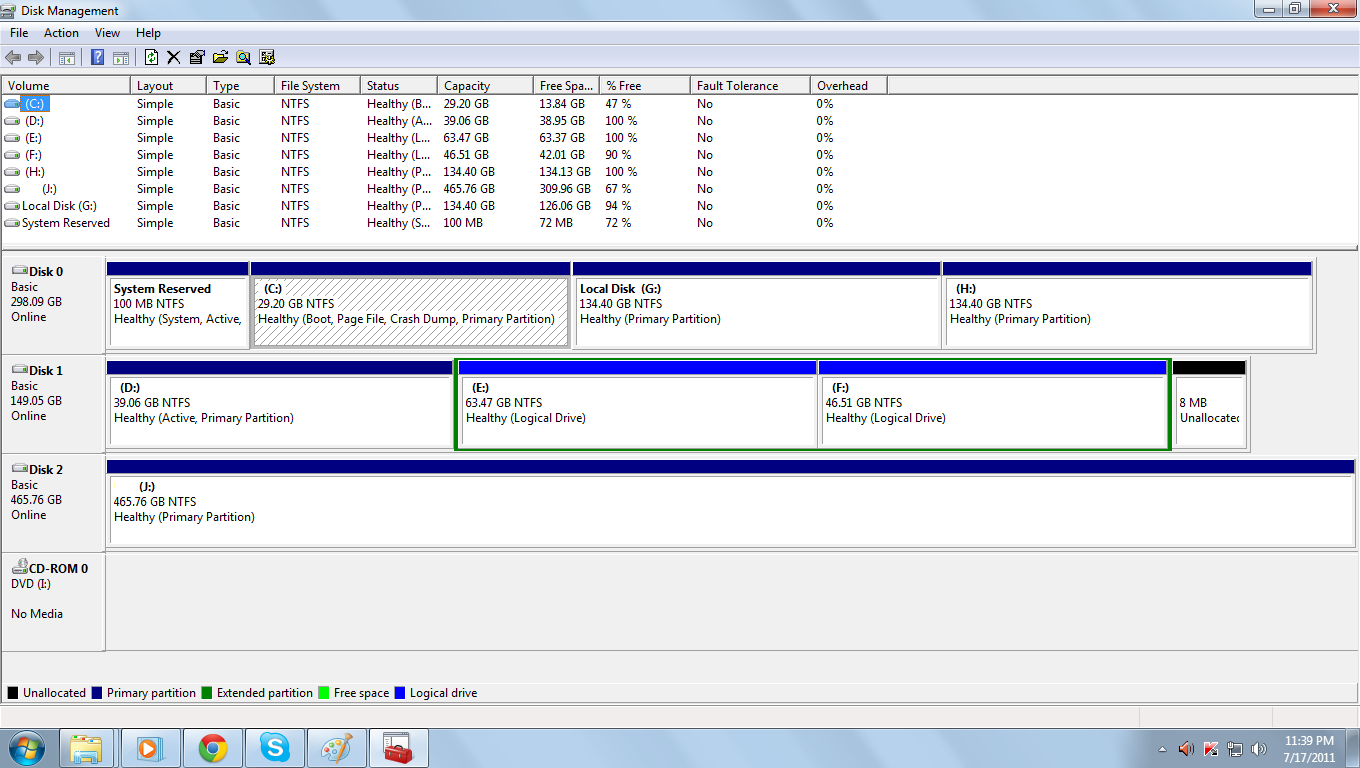
When you image and reinstall from the image, you get exactly the same system as it was when you took the image. No need to reinstall anything. If you have other partitions, you can image and reinstall those too (in case of the hidden 100MB active partition, this is compulsory. Else you will have no bootmgr). I suggest you post a picture of your disk management so that we can have a look. This is especially important since we must make sure what your status is regarding the 100MB active partition. If that is present, you need more guidance.
 

My Computer My Computer

Computer Manufacturer/Model Number
HP, Dell, Gateway, Toshiba - 4 laptops and 2 desktops
OS
Vista, Windows7, Mint Mate, Zorin, Windows 8
CPU
from 1.6GHz Duo to i7
Monitor(s) Displays
2x HP w2207
Hard Drives
5x HDD, 7x SSD, 12x Externals
Keyboard
with trackball - no mices
Mouse
Trackball mice
Internet Speed
DSL 6000
jDOKR.png


That is the disk management screenshot.

Thanks for all the help, once again :) You just made my life easier and i've confirmed my decision of just doing a image restore and not a full re-install. Thanks a lot, really!

Edit: That screenshot...it made me realize my time is set wrong -.-

Edit: I saw on your tutorial, about it not restoring from a USB3 attached disk. But my seagate external hdd is mostly usb3 (or am I wrong?)

Nvm with the external hdd usb3 problem. I can save the image backup on an internal drive and then select from that for restoring right? I just need to make sure that the backup is not on the same drive in which I'm restoring. So that issue is sorted out, I've provided the screenshot you asked for.
 
Last edited:

My Computer My Computer

OS
Windows 7 32bit
1. You do have the 100MB hidden active partition. You need to image and restore that one too. Just deal with it like with any other partition. You might want to give it a drive letter for easier identification (right click on it in Disk management - you'll see the option). When you create the 100MB partition with Partition Wizard, make sure you set it as "active". You find the control in the PW Partition tab > Modify. Your OS C partition must not be "active".

Note: Imaging is partition by partition. You can image several partitions in one run, but you can only restore one partition at the time. They are easy to select from the "bundled" image.

2. What do you plan to do with partitions G and H? Suggestion: You could copy the data from those partitions to a folder on your external USB3 drive. Then when your system runs again, recreate these two partitions with Disk Management and copy the data back. That would probably be the easiest. Use this copy function: http://www.sevenforums.com/tutorials/516-context-menu-add-copy-folder-move-folder.html

3. Yes there is a problem with USB3 in the recovery program (at least last time I tried it 3 months ago). You can image with Macrium to USB3 but the recovery CD (which runs on Linux) cannot deal with it. I did the image in USB3 mode and then attached the disk to the USB2 port for the recovery. If you have the option to switch the cable/port, that would work.
Else you can image to the other internal disk. You need about 10GBs (the image is compressed). Make a folder in one of the partitions on the other drive where you have 10GBs and image to that folder. As far as I can see you have enough space in all 3 partitions.

PS: I hope you will succeed - but at least you will learn some things along the way.
 

My Computer My Computer

Computer Manufacturer/Model Number
HP, Dell, Gateway, Toshiba - 4 laptops and 2 desktops
OS
Vista, Windows7, Mint Mate, Zorin, Windows 8
CPU
from 1.6GHz Duo to i7
Monitor(s) Displays
2x HP w2207
Hard Drives
5x HDD, 7x SSD, 12x Externals
Keyboard
with trackball - no mices
Mouse
Trackball mice
Internet Speed
DSL 6000
1 - So first I need to image both the 100 mb partition and the c drive. Then after I restore the 100mb, go on to restore c right? Sounds easy, I just hope I can get it right!

2 - I've already started to copy the files to my external HDD, there was a lot more on those two drives ^^ Even I thought it'd be just easier to move the folders to external drives and then put them back once the HDD has the OS. And its all my personal files, and software setup files. So I guess that'll work.

3 - I'm planning to retain the HDD I put in the latest (around a year back) and remove the HDD that was added first (around 3/4 and a half) years back. I guess I'll keep the 300gb dedicated for backups.

I plan to do the following now:
After everything is set up fine (hopefully) I'll create image backups everyday. The everday backups will be saved on the other internal drive (300gb). Then, every sunday I create a image which I save on my external HDD (so I have a weekly image on my external drive, and an everyday image on the internal). After the whole month is over, I have 4 sunday image backups on my external drive, and an everyday backup on my internal. So just incase my internal happens to fail I have external backups, I'll also save the first image I make to my external.

That should be fine? :)
 

My Computer My Computer

OS
Windows 7 32bit
1 . OK
2 - OK
3 - If you plan to retain the HDD that currently contains the OS, you must make sure you change the bootorder in the BIOS after you restored the images. Then, when everything is working, you can reformat that disk.
4 - Your imaging plan sounds fine. Just weed them out from time to time. You can schedule the images by right clicking on the XML file (click on the "xml definition files" button in the Macrium control panel and then right click on the xml file in question). Note: There is no need to reimage the 100MB partition all the time. Just keep one copy in stock.

Here is a tutorial I made that may give you some more ideas: http://www.sevenforums.com/backup-restore/128494-imaging-strategies.html

PS: Now that you tell me that you want to keep the 300GB drive (that is the one that currently has the OS - right?), I wonder why you want to move the OS. Why don't you just delete or move the other partitions (or parts of it) and make C bigger?
 

My Computer My Computer

Computer Manufacturer/Model Number
HP, Dell, Gateway, Toshiba - 4 laptops and 2 desktops
OS
Vista, Windows7, Mint Mate, Zorin, Windows 8
CPU
from 1.6GHz Duo to i7
Monitor(s) Displays
2x HP w2207
Hard Drives
5x HDD, 7x SSD, 12x Externals
Keyboard
with trackball - no mices
Mouse
Trackball mice
Internet Speed
DSL 6000
PS: Now that you tell me that you want to keep the 300GB drive (that is the one that currently has the OS - right?), I wonder why you want to move the OS. Why don't you just delete or move the other partitions (or parts of it) and make C bigger?

*facepalm*
:| Really, I feel like a fool now. Omg -.- ugh all this headahce and now I find out that I can just extend the drive coz I'm actually retaining it!

I feel really, really dumb now lol, how could I forget that I'm retaining it XD Can I change the partition with the partition manager?

Thanks for all the support once again, I hope I could rep you more but I need to spread some around lol.

Edit: I at least learnt how to backup and restore incase something should go wrong!So I'm happy, that if and when that crucial moment comes (hope it never comes!) I'm ready ^^
Thanks once again, the support you've provided has helped me a lot, to learn how to keep my files safe and avoid it getting lost.
 

My Computer My Computer

OS
Windows 7 32bit
There is no harm done and you learned a lot. Now here is what I suggest:

1. Copy the little stuff from your G partition to the USB3 drive
2. Delete the G partition in Disk management - you must get unallocated space.
3. Right click on the C partition and extend it as much as you need - you probably do not need the whole space
4. With the remainder of the unallocated space, make a new G partition and move the parked stuff back - but if you want to give all the space of G to C, move the items somwhere else.

PS: But you should still implement a good imaging strategy. If you want, I tell you how to make a test case where you cannot harm anything - just to make sure you once did the whole cycle.
 

My Computer My Computer

Computer Manufacturer/Model Number
HP, Dell, Gateway, Toshiba - 4 laptops and 2 desktops
OS
Vista, Windows7, Mint Mate, Zorin, Windows 8
CPU
from 1.6GHz Duo to i7
Monitor(s) Displays
2x HP w2207
Hard Drives
5x HDD, 7x SSD, 12x Externals
Keyboard
with trackball - no mices
Mouse
Trackball mice
Internet Speed
DSL 6000
Can I do that via disk manager, or should I use partition manager?

Yes, Indeed I've learned a lot! And all thanks to you.
 

My Computer My Computer

OS
Windows 7 32bit
I would use Disk Management. It is safer. The Partition Wizard is good, but I once lost a whole disk full of partitions. So I am always very careful when I need to use it.

And if you stick around, I am sure you will learn a lot more. It took me 53 years - wrote my first program in 1958.
 

My Computer My Computer

Computer Manufacturer/Model Number
HP, Dell, Gateway, Toshiba - 4 laptops and 2 desktops
OS
Vista, Windows7, Mint Mate, Zorin, Windows 8
CPU
from 1.6GHz Duo to i7
Monitor(s) Displays
2x HP w2207
Hard Drives
5x HDD, 7x SSD, 12x Externals
Keyboard
with trackball - no mices
Mouse
Trackball mice
Internet Speed
DSL 6000
Thanks a lot :) I've marked the topic as solved.
Regards.
 

My Computer My Computer

OS
Windows 7 32bit
Take care and visit often.
 

My Computer My Computer

Computer Manufacturer/Model Number
HP, Dell, Gateway, Toshiba - 4 laptops and 2 desktops
OS
Vista, Windows7, Mint Mate, Zorin, Windows 8
CPU
from 1.6GHz Duo to i7
Monitor(s) Displays
2x HP w2207
Hard Drives
5x HDD, 7x SSD, 12x Externals
Keyboard
with trackball - no mices
Mouse
Trackball mice
Internet Speed
DSL 6000
Back
Top