External Hard-Drive Not Showing Up

Shaaun

New member
Local time
6:41 PM
Messages
5
Hello SEVEN FORUMS,
Im here to write an HELP thread for my external hard drive.
Well first off its a SeaGate 250GB Hard-drive (USB) i plug it into the USB port with cable and the light comes on saying its connected.
I go onto my computer and nothing comes up? Its not in My Computer or anything.
DO i need to Do Something Thanks?

PS: im on Windows 7 Home Premium - 64-Bit

CHEERS
:)
 

My Computer My Computer

Computer Manufacturer/Model Number
HP
OS
Windows 7 Home Premium
Monitor(s) Displays
AOC 22'' TV/MONITOR
Hard Drives
920GB
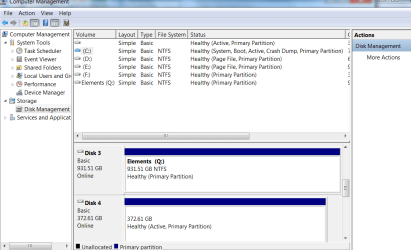
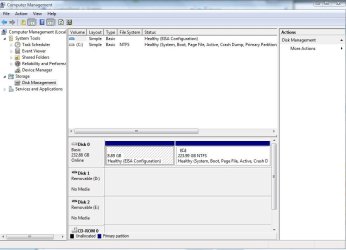
Heres a screen Shot: THANKS ( it's An Attachment *SORRY*)
 

Attachments

  • disk.png
    disk.png
    40.3 KB · Views: 6,010

My Computer My Computer

Computer Manufacturer/Model Number
HP
OS
Windows 7 Home Premium
Monitor(s) Displays
AOC 22'' TV/MONITOR
Hard Drives
920GB
Hi Shaun,
I have the same operating system and had the same problem with a new Buffalo Ministation 1tb external HDD. Try going to Start; right click on Computer; click on Manage; click on Disk Management under Storage on the left and your SeaGate should show up with a blue line. Right click on the blue line and select Change Drive Letter and Paths. This will allow you to choose a drive letter and the external HDD should then show up in Windows Explorer.
Good luck! Geoff.
 

My Computer My Computer

OS
Windows 7 Home Premium 64 bit
Heres a screen Shot: THANKS ( it's An Attachment *SORRY*)

If this is a new external hard drive, return to Retailer.
If not, check that all the cables are connected OK, in & outside ofthe case.
 

My Computer My Computer

OS
ME/XP/Vista/Win7
Heres a screen Shot: THANKS ( it's An Attachment *SORRY*)

If this is a new external hard drive, return to Retailer.
If not, check that all the cables are connected OK, in & outside ofthe case.

It is not brand new, i got it about 2years ago and i got an Windows 7 PC way after i bought it. Im sure windows 7 wasnt out when i bought it,
thanks.
 

My Computer My Computer

Computer Manufacturer/Model Number
HP
OS
Windows 7 Home Premium
Monitor(s) Displays
AOC 22'' TV/MONITOR
Hard Drives
920GB
Hi there
I've posted on this type of problem which can often be solved quite easily

Here's an example I had with an unrecognized USB drive.

Since your light comes on I don't think you've got a hardware problem.

I'm sure if you follw what I do -- happens with several drives since I'm always swapping them on quite a few different machines.

1) Control panel===>administrative tools===>computer management===>Disk management

2) You'll see a list of Disks (and partititions) and DVD's (if you have any) and you'll probably see something like Disk 1 with no partition letter assigned

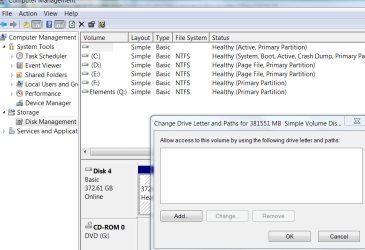
3) Right mouse click and choose Change drive letter and paths ===> add chose a letter from the drop down and the drive will be available.

Sometimes this happens when you switch USB drives between different computers and OS'es -- I think this is due to the "Disk ID" created by Windows .

anyway if you look at three screenshots I can now access the unrecognized drive as drive J.


Cheers
jimbo
 

Attachments

  • ext1.png
    ext1.png
    30.3 KB · Views: 3,150
  • ext2.png
    ext2.png
    29.6 KB · Views: 2,458
  • ext3.png
    ext3.png
    23.2 KB · Views: 1,901

My Computer My Computer

Computer type
PC/Desktop
Computer Manufacturer/Model Number
Custom built, several laptops HP/ASUS
OS
Linux CENTOS 7 / various Windows OS'es and servers
CPU
Intel i7 Intel i5
Memory
8GB, 16GB
Graphics Card(s)
On Motherboard
Sound Card
Realtek HD audio
Monitor(s) Displays
Apple Cinema display, Samsung LCD
Screen Resolution
1920 X 1080
Hard Drives
4 X 1TB SATA
Mouse
Toshiba wireless laser
Internet Speed
> 20MB up
1) Control panel===>administrative tools===>computer management===>Disk management

2) You'll see a list of Disks (and partititions) and DVD's (if you have any) and you'll probably see something like Disk 1 with no partition letter assigned

3) Right mouse click and choose Change drive letter and paths ===> add chose a letter from the drop down and the drive will be available.


what if the devise in question dosnt show here?
 

My Computer My Computer

Computer Manufacturer/Model Number
aspire 5714g
OS
windows 7 home edition 64 bit
CPU
i5
Memory
4mb
Graphics Card(s)
nvidea geforce gt 320m
i am having the same problem at present and the main issue with mine is when i go to select the options it is coming up with all grey and not allowing me to change the file path or assign a drive letter... any suggestions???
 

My Computer My Computer

OS
windows 7 premium 64 bit
Event Viewer, select Applications, Microsoft, Windows, DriverFrameworks-UserMode, Operational. Those are USB connection events.
 

My Computer My Computer

Computer type
PC/Desktop
Computer Manufacturer/Model Number
Custom
OS
Windows 7
CPU
AMD Phenom II X2 (dual-core)
Motherboard
GA-MA785GM-US2H
Memory
4G
Graphics Card(s)
integrated ATI HD 4200
Sound Card
integrated
Monitor(s) Displays
Samsung 24"
Screen Resolution
1920x1080
Hard Drives
1 SSD - Samsung 840 - 500 GB - OS and DATA partitions
1 SSD - Intel 320 - 120 GB (used for backups) - Misc/BACKUP
1 SATA HD - WD, 500 GB - BACKUP
PSU
Ultra X4 500W
Case
Ultra X-blaster
Keyboard
Microsoft Digital Media Pro
Mouse
Logitech WIRED!
Internet Speed
15 Mbps FIOS
I am having the exact same problem as matc01...

JimLewandowski I followed your guide, but now I have no idea what to do with it - can you please help me ??
 

My Computer My Computer

OS
Danmark
Hey,I'm having the same issue and whenever i try to change the disk's letter i get an error saying Disk Management isn't up-to-date and that i need to refresh or restart my PC, doing both of these leave me with the same error when i get back though. Screenshot by Lightshot
 

My Computer My Computer

OS
Windows 7 ultimate 32bit
i know this is like 9 months later...but external HDD's dont work using the front usb ports, try using the usb ports on the back of your pc...this is if its a desktop
 

My Computer My Computer

Computer type
PC/Desktop
OS
windows 7 ultimate x64
1) Control panel===>administrative tools===>computer management===>Disk management

2) You'll see a list of Disks (and partititions) and DVD's (if you have any) and you'll probably see something like Disk 1 with no partition letter assigned

3) Right mouse click and choose Change drive letter and paths ===> add chose a letter from the drop down and the drive will be available.


what if the devise in question dosnt show here?
I had to format my external hard drive. Just right click the black area and select add volume or something like that, go through the menus and wait for it to format.

1) Control panel===>administrative tools===>computer management===>Disk management

2) You'll see a list of Disks (and partititions) and DVD's (if you have any) and you'll probably see something like Disk 1 with no partition letter assigned

3) Right mouse click and choose Change drive letter and paths ===> add chose a letter from the drop down and the drive will be available.
Thanks, this was very helpful.
 

My Computer My Computer

Computer type
Laptop
Computer Manufacturer/Model Number
Lenovo Ideapad
OS
Windows 7 Home Premium 64bit
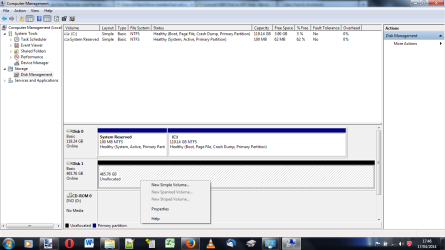
I am having a similar problem. However when I am disk management I do not get the option to rename the drive when I right click on the black bar. All I get is 'new simple volume'.

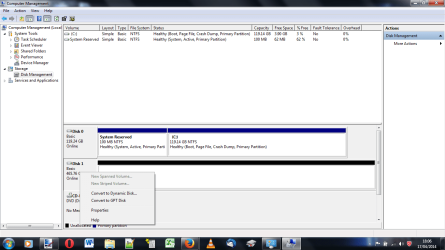
If I right click on disk 1 I get the option to 'convert to dynamic disk' or convert to GPT disk.

Any suggestions?

Thanks
 

Attachments

  • Untitled.png
    Untitled.png
    52.2 KB · Views: 1
  • dynamic disk.png
    dynamic disk.png
    50.9 KB · Views: 1

My Computer My Computer

Computer type
Laptop
Computer Manufacturer/Model Number
Dell
OS
windows 7 home 64 bit
Memory
6GB
The answer is... Disable "Fast Boot" in your Bios... Guaranteed.

It only enables Keyboard and Mouse when turned on.

This will also affect trying to recover drives with usb connections and recovery software.

Thank me later.
 

My Computer My Computer

Computer type
PC/Desktop
Computer Manufacturer/Model Number
Custom - "Apocalypse Now"
OS
Win 7 64 Ult
CPU
Intel i7 3930k (oc'd to 5Ghz air)
Motherboard
Asus X79 Sabertooth
Memory
32Gb G.Skill @ 1866mhz
Graphics Card(s)
EVGA 4Gb GTX680
Hard Drives
OCZ 500Gb SSD,
WD 1TB Green (2x int. - Sata III)
WD 3TB Green (2x ext. - USB 3)
WD 4TB Green (1x ext. - USB 3
Antivirus
Heh
Browser
Firefox, Win Explorer 9 & 11
External Hard drive not showing up

I have an older SimpleTech external hard drive and the original cord broke and I bought a new cord. But when I plug it in it does not show up show in My Computer even though the red light is on and I hear the hard drive.
I tried to follow the instructions above but when I right click the drive without the letter all I get is the option to click Help. I don't get the option to Change Drive Letter. Any suggestions?
 

Attachments

  • simpletech.JPG
    simpletech.JPG
    66.6 KB · Views: 1

My Computer My Computer

Computer type
Laptop
Computer Manufacturer/Model Number
Sony
OS
32 bit Windows XP
I had this and computer management would not give option of assigning a letter. I assigned a letter with Paragon Hard Disk Manager 14 and i can see in my computer use it etc. As far as i know Paragon Back Up and Recovery free will assign a letter too. No connection to Paragon
 

My Computer My Computer

Computer type
PC/Desktop
Computer Manufacturer/Model Number
Medion
OS
win 7 home premium 64 bit
Motherboard
ms 7616
Memory
16GB
Hard Drives
Two 1 TB
Back
Top