Dual Boot Installation with Windows 7 and XP

How to Setup a Dual Boot Installation with Windows 7 and XP


   Information
This will show you how to install Windows 7 and XP to dual boot with when you already have either Windows 7 or XP installed first.
   Note
With a dual boot installaton, you will have two operating systems (OS) installed. When you start the computer, you will have the choice to choose which OS you would like to start up to. This method is the easiest way of doing a dual boot with these two operating systems.
   Tip
When dual booting with another OS (ex: Vista or XP), you may not always have that OS partition show up in Computer with a driver letter in Windows 7. If this happens, then you will just need to add a drive letter to the OS (ex: Vista or XP) partition in Windows 7 Disk Management for it to show up in Computer with a driver letter.
   Warning
To stop XP from deleting your Windows 7 System Restore Points everytime XP is started, then see System Restore Points - Stop XP Dual Boot Delete to hide Windows 7 from XP.

Windows 7 Minimum Hardware Requirements


NOTE: For more information on this, see: Windows 7 system requirements
  • 1 GHz 32-bit or 64-bit processor
  • 1 GB RAM for 32-bit Windows 7 OR 2 GB RAM for 64-bit Windows 7
  • 16 GB available disk space 32-bit Windows 7 OR 20 GB for 64-bit Windows 7
  • Support for DirectX 9 graphics with 128 MB memory (in order to enable Aero theme)
  • DVD-R/W Drive
  • Internet or phone access to activate Windows 7.
Windows XP Minimum Hardware Requirements

NOTE: For more information on this, see: System requirements for Windows XP operating systems
  • PC with 300 megahertz (MHz) or higher processor clock speed recommended; 233-MHz minimum required;* Intel Pentium/Celeron family, AMD K6/Athlon/Duron family, or compatible processor recommended
  • 128 megabytes (MB) of RAM or higher recommended (64 MB minimum supported; may limit performance and some features)
  • 1.5 gigabyte (GB) of available hard disk space.*
  • Super VGA (800 × 600) or higher resolution video adapter and monitor
  • CD-ROM or DVD drive
  • Keyboard and Microsoft Mouse or compatible pointing device
EXAMPLE: Windows Boot Manager
NOTE: This is the boot screen where you select what operating system that you would like to start. By default, you have 30 seconds to choose another operating system before the default operating system will start automatically.
Example.jpg


OPTION ONE

When XP is Installed First


NOTE: If you have a RAID setup, you will need to have the Windows 7 RAID drivers on a USB flash drive available to select and load while installing Windows 7.
1. Do step 2 or 3 below for where you wanted to install Windows 7 at.

2. To Create a New Partition from the XP Hard Disk Drive
A) With your Windows 7 installation disc boot into the Command Prompt from the System Recovery Options screen.
NOTE: Make sure that the CD/DVD drive is selected first in the boot order in the BIOS.

B) In the command prompt, select and shrink the XP volume by how many MB (1024 MB = 1 GB) you want to have for this Windows 7 partition. (See screenshot below)
NOTE: You would do steps 2 to 9 in METHOD TWO at that link. Windows 7 will need a minimum of 16 GB (16384 MB).

XP-W7_1.jpg
C) Click on the X at the top right corner to close the command prompt. (See screenshot above)

D) Click on the X at the top right corner to close System Recovery Options. (See screenshot below)
XP-W7_2.jpg
E) Go to step 4.
3. To Use a Separate Hard Disk Drive than the XP Drive
A) Boot from your Windows 7 installation disc.
NOTE: Make sure that the CD/DVD drive is selected first in the boot order in the BIOS.
4. Click on the Install now button. (See screenshot below)

XP-W7_3.jpg
5. When you get to this point, select the partition (step 2) or hard drive to install Windows 7 on. (See screenshot below)

XP-W7_4.jpg
6. Finish installing Windows 7.
NOTE: You would start at step 9 in that link to finish installing Windows 7.

7. When finished, restart the computer to have the option to boot from XP (Earlier Verision of Windows) or Windows 7. (See screenshot below)

   Note
If you are only booting into Windows 7 and do not have XP listed in the Windows Boot Manager, then you can install only EasyBCD (step 8 Option Two below) to add XP (or Windows 7) while started in Windows 7 the same way to the boot list.

Example.jpg


OPTION TWO

When Windows 7 is Installed First


   Warning

1. To Create a New Partition from the Windows 7 Hard Disk Drive
NOTE: If you want to install XP on a separate internal hard drive instead, then skip this step and go to step 2.
A) In Windows 7, select and shrink the Windows 7 volume in Disk Management by how many MB (1024 MB = 1 GB) you want to have for this XP partition. (See screenshots below)
NOTE: You would do all of Method One at that link.

W7-XP-1.jpg

W7-XP-2.jpg

W7-XP-3.jpg
2. Insert your XP installation disc, then restart the computer and press any key to boot from it when prompted. (See screenshot below)
NOTE: Make sure that the CD/DVD drive is selected first in the boot order in the BIOS.

Step1.jpg
3. From XP Setup, Press Enter. (See screenshot below)


   Warning

W7-XP-4.jpg
4. Press F8. (See screenshot below)
NOTE: On some multimedia keyboards, you may need to press the F-Lock or Function key before pressing F8.
W7-XP-5.jpg
5. Select the partition (step 1) or hard drive that you want to install XP on using the arrow keys and press Enter.

W7-XP-6.jpg
6. Finish installing XP.


   Tip
If you get Error loading Operating System after XP restarts:
  • Using your Windows 7 installation disc, boot to the command prompt at startup.
  • Type in these comands below, and press enter after each one.
    • bootrec /FixMbr
    • bootrec /FixBoot
    • bootrec /RebuildBcd
  • Exit the command prompt and restart the computer.
  • At this point, Windows 7 should boot up the same way before trying to install XP.
  • Continue to step 8 below and run EasyBCD from Windows 7 instead.

7. In XP, download and install .Net Framework 2.0 (32-bit) version or .Net Framework 2.0 (64-bit) version first, and EasyBCD (free version) for your 32-bit (x86) or 64-bit (x86) XP.
NOTE: In XP, Net Framework is required to be installed to run EasyBCD. After you click on Register (at bottom of link) for the free EasyBCD, registration is not required to download it.

8. Run EasyBCD (free version).
NOTE: This is required to repair the Windows 7 boot file and add XP to the Windows Boot Manager list.

9. On the left side of EasyBCD, click on the Add New Entry button. (See screenshot below)
A) In the top section under Operating Systems, click on the Windows tab. (See screenshot below)
B) To the right of Type, select Windows NT/2k/XP/2k3 from the drop down menu. (See screenshot below)
:warn:WARNING: Be sure to leave the Automatically detect correct drive box checked.

C) To the right of Name, you can leave the default Microsoft Windows XP as the name to be displayed in the Windows Boot Manager, or you can type whatever name you would like to have instead. (See screenshot below)
D) Click on the Add Entry button. (See screenshot below)
W7-XP-7.jpg
10. On the left side of EasyBCD, click on the BCD Deployment button, select (dot) the Install the Windows Vista/7 bootloader to the MBR option, and click on the Write MBR button. (See screenshot below)

W7-XP-9.jpg
11. Close EasyBCD.

12. Restart the computer to have the option to boot from Microsoft Windows XP or Windows 7. (See screenshot below)

Example2.jpg
   Tip
If Windows 7 will not start up when selected, then use your Windows 7 installation DVD to do a Startup Repair.

That's it,
Shawn


Last edited:
Another idea that occurs to me is this: can I install the XP OS on an external caddy USB hard drive (I have a 100Gb one going spare) and then clone that to the partition I have ready for the XP installation on my Win7 HDD?
 

My Computer My Computer

At a glance

Windows 7 Home Premium SP1 64-bitCeleron P4600 2.00GHz2GbIntel HD Graphics
Computer Manufacturer/Model Number
Novatech
OS
Windows 7 Home Premium SP1 64-bit
CPU
Celeron P4600 2.00GHz
Motherboard
MicroStar, model not known
Memory
2Gb
Graphics Card(s)
Intel HD Graphics
Sound Card
Realtek onboard HD Audio
Screen Resolution
1366 x 768 @ 60Hz
Hard Drives
250Gb Toshiba SATA
Ok, scratch the above; thanks to theog I have managed to build a working XP installer disc and have successfully managed to install XP on a 10Gb partition on my drive, which partition I have originally called 'B:'

When in WinXP, however, that partition shows up as 'E:', and the 'C:' drive (with the Win7 partition on it) shows as 'system reserved'

Anyway that's not the issue, although it may be linked.

I am doing it the way round of Win7 first, then WinXP. When I tried to install EasyBCD (EBCD) under WinXP, it would not install correctly, with an 'Installation Cancelled' error message.

I therefore booted into Command Prompt/Safe Mode from the Win7 disc, and did the MBR repairs given on the first page of this thread. Although the Win7 disc kept trying to interrupt me by wanting to install Win7, I managed the repair successfully and my system booted up into a good Win7 installation.

Drive B: still contains the WinXP files, so it's still there.

However i have had some problems with EBCD in that I used it exactly as stated on the first page of this thread, and on startup the boot choice menu does not appear, it just boots straight into Win7.

I noted that I had to tell EBCD where the WinXP partition was, because it didn't know by itself, and also I have tried the 'Write MBR' on all my available partitions to no avail.

I also note that EBCD 2.1, which is the latest version and the one I am using, does not have the 'Bootloader Setup' button but instead has a 'BCD Deployment' button. However the functions are the same.

It looks as if, at last, I'm nearly there :) I just need to get this goldarned boot menu sorted. I can send in screenshots of what I've done if you need them.

Cheers
Tony
 

My Computer My Computer

At a glance

Windows 7 Home Premium SP1 64-bitCeleron P4600 2.00GHz2GbIntel HD Graphics
Computer Manufacturer/Model Number
Novatech
OS
Windows 7 Home Premium SP1 64-bit
CPU
Celeron P4600 2.00GHz
Motherboard
MicroStar, model not known
Memory
2Gb
Graphics Card(s)
Intel HD Graphics
Sound Card
Realtek onboard HD Audio
Screen Resolution
1366 x 768 @ 60Hz
Hard Drives
250Gb Toshiba SATA
Update. Just done the EBCD operation again after a prompt from theog, and this time it seems to work. Don't know what I did differently, but I performed it exactly as described and it worked.

From frustrated to happy in a mere few hours.

Thanks everyone for all your help :)
 

My Computer My Computer

At a glance

Windows 7 Home Premium SP1 64-bitCeleron P4600 2.00GHz2GbIntel HD Graphics
Computer Manufacturer/Model Number
Novatech
OS
Windows 7 Home Premium SP1 64-bit
CPU
Celeron P4600 2.00GHz
Motherboard
MicroStar, model not known
Memory
2Gb
Graphics Card(s)
Intel HD Graphics
Sound Card
Realtek onboard HD Audio
Screen Resolution
1366 x 768 @ 60Hz
Hard Drives
250Gb Toshiba SATA
Update. Just done the EBCD operation again after a prompt from theog, and this time it seems to work. Don't know what I did differently, but I performed it exactly as described and it worked.

From frustrated to happy in a mere few hours.

Thanks everyone for all your help :)

Well Done. :thumbsup:
 

My Computer My Computer

At a glance

ME/XP/Vista/Win7
OS
ME/XP/Vista/Win7
Thanks :)

It appears that the drive letters under XP are all mixed up; however I will not change them because it all seems to be working fine and I don't want to rock the boat. I will just leave well alone, I think :)

Cheers
Tony
 

My Computer My Computer

At a glance

Windows 7 Home Premium SP1 64-bitCeleron P4600 2.00GHz2GbIntel HD Graphics
Computer Manufacturer/Model Number
Novatech
OS
Windows 7 Home Premium SP1 64-bit
CPU
Celeron P4600 2.00GHz
Motherboard
MicroStar, model not known
Memory
2Gb
Graphics Card(s)
Intel HD Graphics
Sound Card
Realtek onboard HD Audio
Screen Resolution
1366 x 768 @ 60Hz
Hard Drives
250Gb Toshiba SATA
would love to know how you figured it out, i am border line near to loosing my temper with this dumb computer!

ive done this a hundred times and this once it fails to work!! stupid ebcd does not seem to save the setting at all!
 

My Computer My Computer

At a glance

Windows 7 Ultimate x64Quad Core4GBNvidia Geforce 6400 LE
Computer Manufacturer/Model Number
Asus
OS
Windows 7 Ultimate x64
CPU
Quad Core
Motherboard
P5Q Pro
Memory
4GB
Graphics Card(s)
Nvidia Geforce 6400 LE
Sound Card
Emu 1829M
Monitor(s) Displays
Samsung 206BW Landscape Dell19 Portrait
Hard Drives
Samsung F3 x 4
Case
Antec P180
would love to know how you figured it out, i am border line near to loosing my temper with this dumb computer!

ive done this a hundred times and this once it fails to work!! stupid ebcd does not seem to save the setting at all!

Please post back a screenshot of your maximized Disk Mgmt drive map using Snipping Tool in Start Menu, attach using paper clip in Reply box.

Please tell us which tutorial Method you used and exact steps that have not completed.
 
Greetings Dual Booting Brothers and Sisters!

I have a particular issue with this win7/XP dual booting situation, and am hoping someone can point me in the right direction. I have been unable to read all 147 pages of replies to this tutorial see if my issue is covered (I tried though), its simply too much info and goes of into so many directions, so please forgive me for this forum faux pas :-)

Heres the situation. There are three OS's on my PC. Two of them are Win7 x64. One of them is WinXP, which was installed last. Right now, I keep booting into XP even though I created an EBCD boot menu and tried everything to make this boot menu appear as the default instead of booting directly into XP every time.

Let me state I have read, comprehended and tried all the appropiate steps fom the tutorial. So, right now if I start my PC no boot menu appears, straight to XP, but if I use an advanced feaure of my BIOS which lets me choose which specific physical hard drive to boot into, and choose my drive with my original Win7 installation (the first one I installed), then I get the EBCD boot menu I created (as described in the tutorial), and can choose whichever OS I want and its all good. Problem is that to do this hard drive selection process through my BIOS is a long-winded hassle I dont want to have to do every single time I boot...

So, all OS's have the appropriate boot files avaialbe and are ultimately accesible and working. But no matter what I try, I cant get the EBCD boot menu to appear instead of booting directly to XP as the default (without going through the BIOS every time as I described). I even tried switching drives around in the case.

One detail that may be of importance is that I installed each OS on a physicaly seperate drive, and had only that particular one plugged in during install in order that each OS see itself as being installed onto a C: drive if you boot into it. Its a requirement of mine for technical reasons. Point is, that I dont really know how to force windows to boot from my original win7 C: Drive instead of from my new WinXP C: drive. At least thats what I think the problem is. Heres some screenshots that may help:

bcdedit-01.jpg

drive-set-up-01.jpg

Any help would be appreciated, peace!
Alex
 

My Computer My Computer

At a glance

Win7 Ultimate x64 & WinXP SP3 x86 Dual Boot
OS
Win7 Ultimate x64 & WinXP SP3 x86 Dual Boot
Hi greekhop

Reset the HD boot order to the Windows 7 HD first.

Boot order
1) CD/DVD Drive
2) 951.51 HD drive
3) 298.09 HD Drive
4) 111.79 Hd Drive

or if your second Windows 7 is E:
1) CD/DVD Drive
2) 951.51 HD drive
3) 111.79 Hd Drive
4) 298.09 HD Drive

You may need to reset EasyBCD.
 

My Computer My Computer

At a glance

ME/XP/Vista/Win7
OS
ME/XP/Vista/Win7
greekhop, did you try to repair the Windows 7 boot through the Windows 7 installation disk? You should load the installation DVD, go to Repair, and fix the Startup Repair. It will (hopefully) fix the problem, and bring the Windows Boot Menu up.

If this works, it's possible that the Windows XP boot files will be gone. You can either use EasyBCD to restore the files or directly copy the files from the XP installation CD to the root of the XP drive. You should be done after that. If you can load XP without any problems, you're don't need to do that, and you're set.
 

My Computer My Computer

At a glance

Windows 7 Ultimate SP1 x64 and Windows XP Pro...Intel Core i3-3110M @ 2.4 GHz16 GB DDR3 (2x8GB PC3-12800 Crucial Ram)Intel HD 4000
Computer type
Laptop
Computer Manufacturer/Model Number
HP ProBook 4540s
OS
Windows 7 Ultimate SP1 x64 and Windows XP Professional SP3 x32 (Dual Boot)
CPU
Intel Core i3-3110M @ 2.4 GHz
Memory
16 GB DDR3 (2x8GB PC3-12800 Crucial Ram)
Graphics Card(s)
Intel HD 4000
Screen Resolution
1366x768
Hard Drives
HGST 1TB 5400 RPM 2.5-inch Internal Hard Drive

Western Digital My Book Essentials 4 TB External Hard Drive

Western Digital My Passport Ultra 2 TB Portable Hard Drive
Antivirus
Microsoft Security Essentials 4.5.216.0
Browser
Mozilla Firefox 32.0
Hi TheoG & ShadowMario3,

Thanks for your quick responses, thats awesome!

ShadowMario3, I tried what you suggested, and let me tell you, just for the sake of sharing experiences what happened. The first time I tried it, was when I installed win XP after I already had my two Win7 OS's running for a few months (booting with an EBCD boot menu). After installation, I had the usual problem of only win XP booting and the win7 boot menu disappearing. I figured out on my own (Im very proud of this) how to fix it through the win7 install DVD and startup repair feature that you mentioned. That gave me back the windows generated boot menu (not the EBCD menu I had created and was using). So far so good, thats when I found this page, realized all I needed to do was use EBCD, and was almost ready to fix it all....

HOWEVER, that first attmept at installing winXP wasnt to my liking since it had installed into a D: drive, and I needed D: for another drive cause I got a million projects referencing D: as a default location for source files.

SO, I re-installed win XP, after unplugging my other physical drives, so that it installed itself onto a C: drive (on the only drive it could see at that moment).

And thats what changed everything. Now, running system restore, startup repair, or even manualy repairing the MBR and all that using bootrec at the command prompt (as suggested in the tutorial) has no result. Startup repair states that there are no startup related errors to fix. bootrec /RebuildBcd tells me no windows installations have been found.

For some reason, forcing win XP to install into a C: drive, even though the other OS's also see themselves as C: drives if you boot into them, has thrown off the available windows tools, the standard fixes have no effect.

TheoG, I have a childhood friend who goes by the same name, both online and offline, and since I know you're not him, Im going to have to ask you to cease and desist from using that handle! LOL

Seriously though, thanks for the assitance :-)

You said to "Reset the HD boot order". Where or how would I do that? The boot orders you proposed both look fine, as long as I can get the 931.51 GB drive to be the first hard drive to boot. Right now it seems to be loading off the 298.09 GB Drive with win XP on it.

I first used bcdedit after reading about it here, can I reset the boot order using that with that command? In my BIOS I cant specify boot order to that degree of detail, it doesnt allow for choosing individual hard drives in the standard settings, it only allows that in another menu seperate form the usual BIOS settings, and thats a one time choice, the setting doesnt hold till next time.

Im ready to reset my boot order... just need a few more pointers!
 

My Computer My Computer

At a glance

Win7 Ultimate x64 & WinXP SP3 x86 Dual Boot
OS
Win7 Ultimate x64 & WinXP SP3 x86 Dual Boot
TheoG, I have a childhood friend who goes by the same name, both online and offline, and since I know you're not him, Im going to have to ask you to cease and desist from using that handle! LOL


As I am over 60 years old, & I have been theog all my life. NO.

If you are happy with boot order, OK.
 
Last edited:

My Computer My Computer

At a glance

ME/XP/Vista/Win7
OS
ME/XP/Vista/Win7
The benefit of wisely installing OS's on separate HD's while the other is unplugged is that you can boot using the cleanest method: via the BIOS one-time Boot Menu key given on first boot screen.

This keeps the HD's independent to come and go as you please, whereas creating a Windows-managed Boot Menu interlocks them requiring surgery to remove one.

As you said this was clumsy in your OP, was waiting to see how it worked when you set BIOS boot order to Win7 as first HD to boot. You should then either get the menu, or it should boot Win7 so you can install EasyBCD to add XP if you want to use the Windows Boot Menu.

There is an additional problem evidenced by the screenshot: Win7 is apparently booting off of a System Reserved partition on Disk 2 which could create dysfunction. Since you said you unplugged the other HD's during XP install, we have to assume Win7 retained its boot via SysReserved which is marked System.

However, if Win7 fails to boot after setting it's HD as first to boot in BIOS setup, then I would mark Win7 partition Active in Disk Mgmt, power down to unplug all other HD's, then boot the Win7 DVD Repair console or Repair CD to run Startup Repair - Run 3 Separate Times until Win7 boots on its own. Then you can plug XP back in to boot via BIOS Boot Menu key as suggested, or add XP using EasyBCD from Win7.
 
Hi GregRocker, nice pic in your sig... thats the dream working on the beach, or even in the beach, your priorities are correct!
And thanks for the advice too, I think I have gotten myself into a mess by not fully understanding how windows7 installs and boots.

You mention the System Reserved partition on Disk 2, and after doing a bit of reading, Im starting to think this may have something to do with my problems. Thing is, I made a big mess by doing my own troubleshooting and installations before reading about it online.

Previously, I was running two win7 OS's happily with the EBCD created boot menu. Then, at some point my win7 (Office) on disk 2 wouldn't load, and I got it 'fixed' by setting its partition to active (dont know if it was already active before and something changed unbeknownst to me, or if it never was active to begin with) and then running startup repair from the installer because after that nothing would load. That gave me the default windows generated boot menu (both win7 OS's appearing with the same name). I dont know if I should have set the drive to active or not, I was just experimenting... I think startup repair alone to begin with would have done the trick, but I hadn't discovered it yet.

Anyways, I plodded along like that till I decided to install XP but WITHOUT unplugging the other drives first. That had the now well documented results. Still not having consulted online, I ran startup repair, got acces to win7, which now loaded by default (this is the state of affairs I want to restore!), then formated the WinXP partition and finally reinstalled XP now having unplugged the other drives.

So, Lord knows whats going on in my system reserved partition right now. Im also not sure which partitions should be marked active, and which not.

The only thing for sure is that I at least have access to all three OS's through the BIOS one off boot menu. But something is wrong for it to be booting into winXP as default and not seeing my EBCD created boot menu, all the while win7 installer startup repair does not find any problems.

I am going to now try what you suggest at the end, starting by carefully reading "Startup Repair - Run 3 Separate Times". Since this has to do with the sysreserved partition, it may be the solution. Will let you know if it works!
Thanks!
 

My Computer My Computer

At a glance

Win7 Ultimate x64 & WinXP SP3 x86 Dual Boot
OS
Win7 Ultimate x64 & WinXP SP3 x86 Dual Boot
Remember to mark Win7 on Disk0 Active before running the repairs until it will start on its own, with all other HD's unplugged. Partition - Mark as Active (Method Two)

Then plug back in the other HD's, set preferred OS to boot first in BIOS setup, then try booting the others using one-time BIOS Boot Menu hotkey at boot.

If you still have the Windows Boot menu when booting into Disk2, install EasyBCD to delete extra listing(s) on Edit Boot Menu tab.

If you want a Windows Boot menu rather than booting via BIOS, set Win7 on Disk2 first to boot, from EasyBCD add the other Win7 first, then XP next. Then all will be booted via SysReserved partition, however interlocked requiring surgery to remove later. And one may balk due to the condition of it's bcd store after previous edits.
 
Good day,
I'm new in this forum and unfortunately I'm new in Windows 7 too :)
I'm having trouble installing XP on my new partition made through the Disk Management in Windows 7. Every time I go into the XP setup, it detects my system and logical partitions but not the new one I made. It's labeled as unallocated and when i try to install XP there,of course there's an error but even I try to make a new partition on that unallocated space, nothing happens. Hope anyone here can help me. Thanks :)
 

My Computer My Computer

At a glance

Microsoft Windows 7 Ultimate 32-bit SP1Intel(R) Pentium(R) Dual CPU E2160 @ 1.80GHz2.50 GB DDR2SiS Mirage 3 Graphics
Computer Manufacturer/Model Number
Acer Veriton M261
OS
Microsoft Windows 7 Ultimate 32-bit SP1
CPU
Intel(R) Pentium(R) Dual CPU E2160 @ 1.80GHz
Motherboard
Acer F672CR
Memory
2.50 GB DDR2
Graphics Card(s)
SiS Mirage 3 Graphics
Sound Card
Realtek ALC1200 @ SiS High Definition Audio Controller
Monitor(s) Displays
Acer AL1716,17" LCD (SXGA)
Screen Resolution
1280 x 1024 x 32 bits @ 60 Hz
Hard Drives
Hitachi HDS721616PLA380 ATA Device (160 GB, 7200 RPM, SATA-II)
PSU
Acer - 250 W
Case
Desktop Case
Cooling
Built-in Cooling
Keyboard
Standard PS/2 Keyboard
Mouse
PS/2 Compatible Mouse
Internet Speed
768 kbps
Other Info
Overall...Uselss PC :D
Hello javacookies, welcome to Seven Forums!


From your post it sounds as though you have reached the limit of the amount of partitions allowed with the MBR partition structure and only have unallocated space available, which cannot be used for installation, to be sure have a look through the information below and post a snip so we can be sure.


   Information

Before we make any specific recommendations will you please post a snip/screen-shot of the entire Windows disk management drive map with a full description as to which drive/partition is which, so we can see what you have going on as there may be a fairly simple way to resolve the situation.

In the Windows start menu right click computer and click manage, in the left pane of the "Computer Management" window that opens click disk management and post a maximized snip of that.
How to Upload and Post a Screenshot and File in Seven Forums
 

My Computer My Computer

At a glance

W 7 64-bit UltimateIntel Q9550 Yorkfield8GB Dominator 8500C5DATI : XFX 5870
Computer Manufacturer/Model Number
* BFK Customs *
OS
W 7 64-bit Ultimate
CPU
Intel Q9550 Yorkfield
Motherboard
ASUS P5Q Pro
Memory
8GB Dominator 8500C5D
Graphics Card(s)
ATI : XFX 5870
Sound Card
Realtek HD Audio 7-1
Monitor(s) Displays
1x 47" LCD HDMI & 3x 26" LCD HDMI
Screen Resolution
1920x1080P & 1920x1200
Hard Drives
1x 80GB Intel X25-M G2 SSD : 1x 500GB & 1x 640GB WD Caviar Black(s)
PSU
Corsair 620HX
Case
Cooler Master RC-690
Cooling
Tuniq Tower 120, 2x 140mm and 3x 120mm case fans
Keyboard
Microsoft 500
Mouse
Razer Diamondback 3G
Internet Speed
14 Mb/s
Other Info
1x Koutech 3Gb/s SATA HDD Hot Swap Rack
Thanks for the welcome and quick response :)
Here's the snip
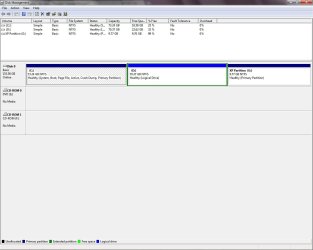
disk.jpg
As you can see I've managed to shrink the existing partition and make a new partition out of it.
But the problem comes when I'm in the XP setup. It detects the new partition as unallocated space and if I try to make a new partition...nothing happens. I hope there's a simple and quick solution for this because I did a little research and some said it could be the XP installer that cause the problem. They said it should be at least have SP1...I'm not sure if mine has it. thanks again
 

My Computer My Computer

At a glance

Microsoft Windows 7 Ultimate 32-bit SP1Intel(R) Pentium(R) Dual CPU E2160 @ 1.80GHz2.50 GB DDR2SiS Mirage 3 Graphics
Computer Manufacturer/Model Number
Acer Veriton M261
OS
Microsoft Windows 7 Ultimate 32-bit SP1
CPU
Intel(R) Pentium(R) Dual CPU E2160 @ 1.80GHz
Motherboard
Acer F672CR
Memory
2.50 GB DDR2
Graphics Card(s)
SiS Mirage 3 Graphics
Sound Card
Realtek ALC1200 @ SiS High Definition Audio Controller
Monitor(s) Displays
Acer AL1716,17" LCD (SXGA)
Screen Resolution
1280 x 1024 x 32 bits @ 60 Hz
Hard Drives
Hitachi HDS721616PLA380 ATA Device (160 GB, 7200 RPM, SATA-II)
PSU
Acer - 250 W
Case
Desktop Case
Cooling
Built-in Cooling
Keyboard
Standard PS/2 Keyboard
Mouse
PS/2 Compatible Mouse
Internet Speed
768 kbps
Other Info
Overall...Uselss PC :D
It's strange it would see the partitions at all if it needs SATA controller drivers. What happens when you try to use the XP CD to Create a New partition there as you should anyway to apply XP full formatting? Delete the XP partition you created to try it now.

Can you try this with a XP SP3 installer for your version (e.g retail or OEM, Pro or Home, etc). If forced to download one from internet be sure to check comments and scan with AV.

If not I'd try inserting or slipstreaming SATA Drivers - Load in Windows XP Setup on Dual Boot
SATA Drivers - Slipstream into Windows XP CD
 
I tried to delete the XP partition and make the partition in XP setup but this time it will only detect the 2 partitions and no unallocated space. Well I got an XP with SP3 now, I'll try it and I hope it work 'coz if the problem's the SATA driver...I don't know where to get it :( Anyway, I'll be back after I try it. Thanks :)
 

My Computer My Computer

At a glance

Microsoft Windows 7 Ultimate 32-bit SP1Intel(R) Pentium(R) Dual CPU E2160 @ 1.80GHz2.50 GB DDR2SiS Mirage 3 Graphics
Computer Manufacturer/Model Number
Acer Veriton M261
OS
Microsoft Windows 7 Ultimate 32-bit SP1
CPU
Intel(R) Pentium(R) Dual CPU E2160 @ 1.80GHz
Motherboard
Acer F672CR
Memory
2.50 GB DDR2
Graphics Card(s)
SiS Mirage 3 Graphics
Sound Card
Realtek ALC1200 @ SiS High Definition Audio Controller
Monitor(s) Displays
Acer AL1716,17" LCD (SXGA)
Screen Resolution
1280 x 1024 x 32 bits @ 60 Hz
Hard Drives
Hitachi HDS721616PLA380 ATA Device (160 GB, 7200 RPM, SATA-II)
PSU
Acer - 250 W
Case
Desktop Case
Cooling
Built-in Cooling
Keyboard
Standard PS/2 Keyboard
Mouse
PS/2 Compatible Mouse
Internet Speed
768 kbps
Other Info
Overall...Uselss PC :D
Back
Top