
Devices and Printers - Change Default Icon in Start Menu

How to Change the Default "Devices and Printers" Icon in the Windows 7 Start Menu

   Information
This will show you how to change the default Devices and Printers icon in the Windows 7 Start Menu to be a icon of your choice for all users or just your user account.

EXAMPLE: Devices and Printers in the Start Menu
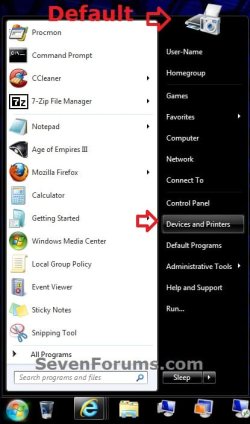
Default.jpg


OPTION ONE

For Current User Only


NOTE: This option will only change the default icon for the user account that you are currently logged in, and will override the icon from OPTION TWO below for only this user account. This option will not change the icon for all users like OPTION TWO below, but only for the current user.
1. To Change the "Devices and Printers" Icon for Current User
A) Click on the Download button below to download the file below.
Change_Current_User_Devices_and_Printers_Icon_in_Start_Menu.reg

Download


B) Click on Save, and save the .reg file to the desktop.

C) Right click the downloaded .reg file on the Desktop and click on Merge.

D) Click on Run, Yes, Yes, and OK when prompted.

E) Open the Start Menu, then type regedit in the search box and press Enter.

F) If prompted by UAC, then click on Yes.

G) In regedit, navigate to the location below. (see screenshot below)
NOTE: This will be the registry locations added from steps A to D.

Code:
HKEY_CURRENT_USER\Software\Microsoft\Windows\CurrentVersion\Explorer\CLSID\{A8A91A66-3A7D-4424-8D24-04E180695C7A}\DefaultIcon
Current_User.jpg
H) In the right pane of DefaultIcon, right click on (Default) and click on Modify. (see screenshot above)

I) Do either step J or K below depending on what icon you want to use.

J) To Use another Windows 7 Icon
J1) Download and install the free program IconViewer to add the Icons tab in the screenshot below step J2.
NOTE: Be sure to download the correct 32-bit or 64-bit version for your Windows 7.

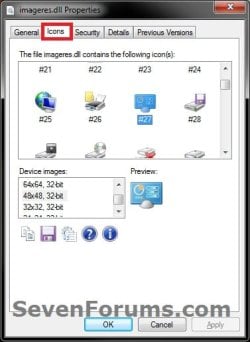
J2) In Windows Explorer navigate to the .exe (ex: for program icons) or .dll (ex: Windows 7 icons) file that contains the icon that you want to use, right click on the file, click on Properties, and the Icons tab. (see screenshot below)
NOTE: The most common Windows 7 icons are in the C:\Windows\System32\imageres.dll file.
Icons.jpg
J3) Make note of the icon number for the icon that you want to use instead. (see screenshot above)
NOTE: For example, the default Devices and Printers icon number is 1 in the C:\Windows\System32\DeviceCenter.dll file.

J4) In the Modify window from regedit, type in the full path of the .exe or .dll file followed by ,-icon# (full path,-####) and click on OK. (see screenshot below)
NOTE: For example, if I wanted to use the path (step J2) and the 1 icon (step J3), I would type:

%SystemRoot%\system32\DeviceCenter.dll,-1

OR

C:\Windows\System32\DeviceCenter.dll,-1
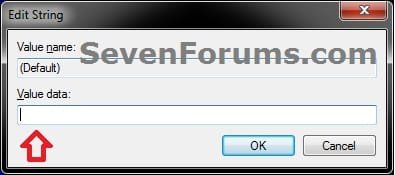
Modify.jpg
J5) When finished, go to step 3.
K) To Use a Custom Icon of Your Own
K1) In the Modify window from regedit, type in the full path of where the custom icon (.ico) file is saved at with the file extension in quotes, then click on OK. (see screenshot below)
WARNING: You will need to use a 256x256 pixel icon that was made for Windows 7 and Vista for them to display properly at all of the available icon view sizes in Windows 7. You will also need to leave the icon saved at the exact location you typed below for it to continue to work. If you delete or move this icon, then it will no longer be displayed.
Modify_Custom.jpg
L) When finished, go to step 3.
2. To Undo the Changed "Devices and Printers" Icon for Current User Only
NOTE: This will undo the changes made to the icon in OPTION ONE for only the current user, and restore the icon back to what the icon is set as in OPTION TWO below.
A) Click on the Download button below to download the file below.
Undo_Current_User_Devices_and_Printers_Icon_Change_in_Start_Menu.reg

Download


B) Click on Save, and save the .reg file to the desktop.

C) Right click the downloaded .reg file on the Desktop and click on Merge.

D) Click on Run, Yes, Yes, and OK when prompted.
3. Log off and log on, or restart the computer to apply.

4. When done, you can delete the downloaded .reg file if you like.


OPTION TWO

For All Users


NOTE: This option will change the default icon for all users on the computer. You will need to be logged in as an administrator to be able to do this option. OPTION ONE above will override this option's changed icon only in the user account that OPTION ONE was applied in.
1. To Change the "Devices and Printers" Icon for All Users
A) Open the Start Menu, then type regedit in the search box and press Enter.

B) If prompted by UAC, then click on Yes.

C) In regedit, navigate to the location below. (see screenshot below)

Code:
HKEY_CLASSES_ROOT\CLSID\{A8A91A66-3A7D-4424-8D24-04E180695C7A}\DefaultIcon
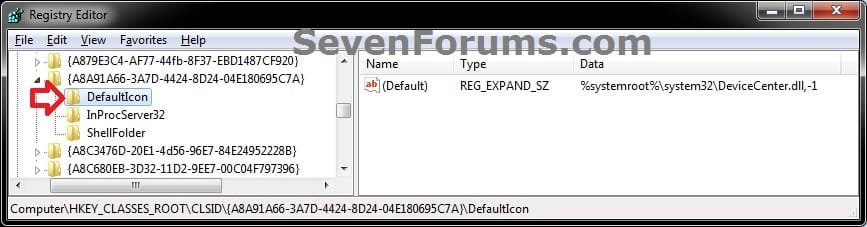
All_Users.jpg
D) In the left pane, right click on DefaultIcon, click on Permissions. (see screenshot above)

E) Select your Administrators account, check the Allow box for Full Control, then click on OK. (see screenshot below)
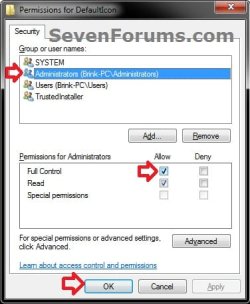
Permissions.jpg
F) In the right pane of DefaultIcon, right click on (Default) and click on Modify. (see screenshot below step 1C)

G) Do either step H or I below depending on what icon you want to use.

H) To Use another Windows 7 Icon
H1) Download and install the free program IconViewer to add the Icons tab in the screenshot below step H2.
NOTE: Be sure to download the correct 32-bit or 64-bit version for your Windows 7.

H2) In Windows Explorer navigate to the .exe (ex: for program icons) or .dll (ex: Windows 7 icons) file that contains the icon that you want to use, right click on the file, click on Properties, and the Icons tab. (see screenshot below)
NOTE: The most common Windows 7 icons come from the C:\Windows\System32\imageres.dll file.
Icons.jpg
H3) Make note of the icon number for the icon that you want to use instead. (see screenshot above)
NOTE: For example, the default Devices and Printers icon number is 1 in the C:\Windows\System32\DeviceCenter.dll file.

H4) In the Modify window from regedit, type in the full path of the .exe or .dll file followed by ,-icon# (full path,-####) and click on OK. (see screenshot below)
NOTE: For example, if I wanted to use the path (step H2) and the 1 icon (step H3), I would type:

%SystemRoot%\system32\DeviceCenter.dll,-1

OR

C:\Windows\System32\DeviceCenter.dll,-1
Modify.jpg
H5) When finished, go to step 3.
I) To Use a Custom Icon of Your Own
I1) In the Modify window from regedit, type in the full path of where the custom icon (.ico) file is saved at with the file extension in quotes, then click on OK. (see screenshot below)
WARNING: You will need to use a 256x256 pixel icon that was made for Windows 7 and Vista for them to display properly at all of the available icon view sizes in Windows 7. The icon will need to be saved in a location that all users have access to. For example, in a C:\Users\Public folder. You will also need to leave the icon saved at the exact location you typed below for it to continue to work. If you delete or move this icon, then it will no longer be displayed.
Modify_Custom.jpg
J) When finished, go to step 3.
2. To Restore the Default "Devices and Printers" Icon for All Users
NOTE: This will restore the default icon for your user account and all users except the user accounts that had applied OPTION ONE above.
A) Click on the Download button below to download the file below.
Restore_All_Users_Default_Devices_and_Printers_Icon_in_Start_Menu.reg

Download


B) Click on Save, and save the .reg file to the desktop.

C) Right click the downloaded .reg file on the Desktop and click on Merge.

D) Click on Run, Yes, Yes, and OK when prompted.
3. Log off and log on, or restart the computer to apply.

4. When done, you can delete the downloaded .reg file if you like.
That's it,
Shawn


Attachments

Last edited:
Using option1 for only my user account, I have not successfully managed to change this 1 icon from the start menu. :sarc:

I applied the registry merge, and when I located this string in the registry it was pointing to "C:\Windows\system32\imageres.dll,-100" According to my resource editor, the icon string 100 in the imageres.dll is for the "Run" icon., which is confusing. In this tutorial it mentions nothing about changing the string from one icon to another.:rolleyes:
I went ahead and modified this string value to the path of my chosen icon included the quotes, rebooted, and still nothing. Is there any more suggestions please? :sarc:

The O/S is Seven Ultimate, x64.. Thank you in advance..
 

My Computer My Computer

At a glance

Seven Ultimate x64, Vista HP x64
OS
Seven Ultimate x64, Vista HP x64
Hello AJ, and welcome to Seven Forums.

I'm sorry, but I don't understand what you mean. There's nothing in the tutorial for changing the icon to 100 in the imageres.dll file. Neither REG download in Option One changes it either. :huh:

Step 1 J in Option One does mention how to change the icon to a different icon number though, if that's what you wanted to do.

Is the custom icon that you used a 256x256 pixel .ico icon file?

Please double check through the steps completely in Option One again to see if you may have made a mistake somewhere.
 

My Computer My Computer

At a glance

64-bit Windows 11 Pro for WorkstationsIntel i7-8700K OC'd to 5 GHz64 GB (4x16GB) G.SKILL TridentZ RGB DDR4 3600...ASUS ROG-STRIX-GTX1080TI-O11G-GAMING
Computer type
PC/Desktop
Computer Manufacturer/Model Number
Self built custom
OS
64-bit Windows 11 Pro for Workstations
CPU
Intel i7-8700K OC'd to 5 GHz
Motherboard
ASUS ROG Maximus XI Formula Z390
Memory
64 GB (4x16GB) G.SKILL TridentZ RGB DDR4 3600 MHz
Graphics Card(s)
ASUS ROG-STRIX-GTX1080TI-O11G-GAMING
Sound Card
Integrated
Monitor(s) Displays
2 x Samsung Odyssey G7 27"
Screen Resolution
2560x1440
Hard Drives
1TB Samsung 990 PRO M.2,
4TB Samsung 990 PRO PRO M.2,
TerraMaster F8 SSD Plus NAS
PSU
Seasonic Prime Titanium 850W
Case
Thermaltake Core P3
Cooling
Corsair Hydro H115i
Keyboard
Logitech wireless K800
Mouse
Logitech MX Master 4
Internet Speed
2 Gb/s Download and 100 Mb/s Upload
Antivirus
Malwarebyte Anti-Malware Premium
Browser
Google Chrome
Other Info
Logitech Z625 speaker system,
Logitech BRIO 4K Pro webcam,
HP Color LaserJet Pro MFP M477fdn,
APC SMART-UPS RT 1000 XL - SURT1000XLI,
Galaxy S23 Plus phone
Hi Brink,
Thanks for the quick reply. Will try to clarify with some attachments.

I ran the registry merge. When I navigated to: "HKEY_CURRENT_USER\Software\Microsoft\Windows\CurrentVersion\Explorer\CLSID\{2559a1f3-21d7-11d4-bdaf-00c04f60b9f0}\DefaultIcon" as the instructions say, I found the value as shown in my attached Capture named "OriginalString". This original value in this string is pointing to the "Run" icon in the imageres.dll...

I went ahead and modified this value anyways as described in 1 K, (To Use a Custom Icon of Your Own ) as shown in my attachment named "NewStringPath". And yes, the custom icon is the correct size as needed. I keep a folder in system32 just for custom icons becuase it is a location that never moves which keeps the icon permanent. You mention this in the instructions (1 k, leave the icon saved at the exact location you typed below for it to continue to work.) I found that sometimes the name I gave a particular icon does not work because of the wording, but I don't think this is the case here. In the capture "NewstringPath" do you see anything wrong with the name in the path???:huh:

What I meant by confusing is why did the original string value (HKEY_CURRENT_USER\Software\Microsoft\Windows\CurrentVersion\Explorer\CLSID\{2559a1f3-21d7-11d4-bdaf-00c04f60b9f0}\DefaultIcon) point to the "Run" icon in imageres.dll (C:\Windows\System32\imereges.dll,-100). Is this what the value is suppose to be? I guess I was expecting to see the current Printers & Devices icon location.

After re-booting, there is still no change???:huh:
 

Attachments

  • OriginalString.PNG
    OriginalString.PNG
    8.3 KB · Views: 1,221
  • NewStringPath.PNG
    NewStringPath.PNG
    3 KB · Views: 1,158

My Computer My Computer

At a glance

Seven Ultimate x64, Vista HP x64
OS
Seven Ultimate x64, Vista HP x64
Ah, ok. I see why you are confused now.

This is for the Run icon in the Start Menu
Code:
HKEY_CURRENT_USER\Software\Microsoft\Windows\CurrentVersion\Explorer\CLSID\[B][COLOR=red]{2559a1f3-21d7-11d4-bdaf-00c04f60b9f0}[/COLOR][/B]\DefaultIcon

You want to do this at the location below for Devices and Printers instead.
Code:
HKEY_CURRENT_USER\Software\Microsoft\Windows\CurrentVersion\Explorer\CLSID\[B][COLOR=red]{A8A91A66-3A7D-4424-8D24-04E180695C7A}[/COLOR][/B]\DefaultIcon
 

My Computer My Computer

At a glance

64-bit Windows 11 Pro for WorkstationsIntel i7-8700K OC'd to 5 GHz64 GB (4x16GB) G.SKILL TridentZ RGB DDR4 3600...ASUS ROG-STRIX-GTX1080TI-O11G-GAMING
Computer type
PC/Desktop
Computer Manufacturer/Model Number
Self built custom
OS
64-bit Windows 11 Pro for Workstations
CPU
Intel i7-8700K OC'd to 5 GHz
Motherboard
ASUS ROG Maximus XI Formula Z390
Memory
64 GB (4x16GB) G.SKILL TridentZ RGB DDR4 3600 MHz
Graphics Card(s)
ASUS ROG-STRIX-GTX1080TI-O11G-GAMING
Sound Card
Integrated
Monitor(s) Displays
2 x Samsung Odyssey G7 27"
Screen Resolution
2560x1440
Hard Drives
1TB Samsung 990 PRO M.2,
4TB Samsung 990 PRO PRO M.2,
TerraMaster F8 SSD Plus NAS
PSU
Seasonic Prime Titanium 850W
Case
Thermaltake Core P3
Cooling
Corsair Hydro H115i
Keyboard
Logitech wireless K800
Mouse
Logitech MX Master 4
Internet Speed
2 Gb/s Download and 100 Mb/s Upload
Antivirus
Malwarebyte Anti-Malware Premium
Browser
Google Chrome
Other Info
Logitech Z625 speaker system,
Logitech BRIO 4K Pro webcam,
HP Color LaserJet Pro MFP M477fdn,
APC SMART-UPS RT 1000 XL - SURT1000XLI,
Galaxy S23 Plus phone
Yes sir, this did the trick. Did not have to log off or re-start, it changed this start menu icon immediately.

The revised registry location of:
HKEY_CURRENT_USER\Software\Microsoft\Windows\CurrentVersion\Explorer\CLSID\{A8A91A66-3A7D-4424-8D24-04E180695C7A}\DefaultIcon did not have a value listed, and as soon as I entered the path to the custom icon it changed..

Also after re-reading the above article again, I just now noticed that you mentioned the default location for this icon is located in the "devicecenter.dll". This helps answer why I could not for the life of me, find the original icon anywhere I looked in the usual DLL's like imageres.dll, or shell32.dll. This is a new one for me.

One more question if I may.. You typically mention a registry edit to change system icons, with only one time you mention using a resource editor like Resource Hacker. (referring to other articles about changing icons for default folders, etc.) Is there an avantage over one way or the other that you could share??? My goal has been to use Resource Hacker to create/modify specific custom DLL's and to keep backups in case of needing to do a fresh install sometime down the road.

Thank you for sharing this insight you have..
 

My Computer My Computer

At a glance

Seven Ultimate x64, Vista HP x64
OS
Seven Ultimate x64, Vista HP x64
Hi Shawn

Is this a global change or does it just affect the start menu icon

Danny
 

My Computer My Computer

At a glance

Windows 7 Home Premium x64 SP1intel(R)core(TM)2 duo CPU T6600 @ 2.20GHz3 gb ddr3ati radeon hd4570/512mb
Computer Manufacturer/Model Number
acer aspire 5935g
OS
Windows 7 Home Premium x64 SP1
CPU
intel(R)core(TM)2 duo CPU T6600 @ 2.20GHz
Motherboard
intel gm45/gm47 revision 07
Memory
3 gb ddr3
Graphics Card(s)
ati radeon hd4570/512mb
Monitor(s) Displays
lop156wh2-tle1 15.3 flat
Screen Resolution
1366x768
Hard Drives
OCZ-Agility3 60gig ssd
320gig external hdd
500gig external hdd
Mouse
Optical
Internet Speed
30Mbps Down/30Mbps Up
Yes sir, this did the trick. Did not have to log off or re-start, it changed this start menu icon immediately.

The revised registry location of:
HKEY_CURRENT_USER\Software\Microsoft\Windows\CurrentVersion\Explorer\CLSID\{A8A91A66-3A7D-4424-8D24-04E180695C7A}\DefaultIcon did not have a value listed, and as soon as I entered the path to the custom icon it changed..

Also after re-reading the above article again, I just now noticed that you mentioned the default location for this icon is located in the "devicecenter.dll". This helps answer why I could not for the life of me, find the original icon anywhere I looked in the usual DLL's like imageres.dll, or shell32.dll. This is a new one for me.

One more question if I may.. You typically mention a registry edit to change system icons, with only one time you mention using a resource editor like Resource Hacker. (referring to other articles about changing icons for default folders, etc.) Is there an avantage over one way or the other that you could share??? My goal has been to use Resource Hacker to create/modify specific custom DLL's and to keep backups in case of needing to do a fresh install sometime down the road.

Thank you for sharing this insight you have..

That's great news AJ. :)

I prefer to change a icon in registry whenever it's possible vs using Resource Hacker to modify the system file.

If you ever run a "sfc /scannow", changes made to the system file with Resource Hacker undone. Plus, a Windows Update that included a new version of the modified system file would undo any changes as well.

Changes made in the registry will not be undone like that. IMO, it's also a lot easier to make changes in the registry. Plus, you can create/export REG files to save somewhere to use and make doing the changes easier next time (ex: new installation) as well by just double clicking on the REG file vs manually in the registry.
 

My Computer My Computer

At a glance

64-bit Windows 11 Pro for WorkstationsIntel i7-8700K OC'd to 5 GHz64 GB (4x16GB) G.SKILL TridentZ RGB DDR4 3600...ASUS ROG-STRIX-GTX1080TI-O11G-GAMING
Computer type
PC/Desktop
Computer Manufacturer/Model Number
Self built custom
OS
64-bit Windows 11 Pro for Workstations
CPU
Intel i7-8700K OC'd to 5 GHz
Motherboard
ASUS ROG Maximus XI Formula Z390
Memory
64 GB (4x16GB) G.SKILL TridentZ RGB DDR4 3600 MHz
Graphics Card(s)
ASUS ROG-STRIX-GTX1080TI-O11G-GAMING
Sound Card
Integrated
Monitor(s) Displays
2 x Samsung Odyssey G7 27"
Screen Resolution
2560x1440
Hard Drives
1TB Samsung 990 PRO M.2,
4TB Samsung 990 PRO PRO M.2,
TerraMaster F8 SSD Plus NAS
PSU
Seasonic Prime Titanium 850W
Case
Thermaltake Core P3
Cooling
Corsair Hydro H115i
Keyboard
Logitech wireless K800
Mouse
Logitech MX Master 4
Internet Speed
2 Gb/s Download and 100 Mb/s Upload
Antivirus
Malwarebyte Anti-Malware Premium
Browser
Google Chrome
Other Info
Logitech Z625 speaker system,
Logitech BRIO 4K Pro webcam,
HP Color LaserJet Pro MFP M477fdn,
APC SMART-UPS RT 1000 XL - SURT1000XLI,
Galaxy S23 Plus phone
Hi Shawn

Is this a global change or does it just affect the start menu icon

Danny

Hello Danny,

It only changes the icon in the Start Menu. :)
 

My Computer My Computer

At a glance

64-bit Windows 11 Pro for WorkstationsIntel i7-8700K OC'd to 5 GHz64 GB (4x16GB) G.SKILL TridentZ RGB DDR4 3600...ASUS ROG-STRIX-GTX1080TI-O11G-GAMING
Computer type
PC/Desktop
Computer Manufacturer/Model Number
Self built custom
OS
64-bit Windows 11 Pro for Workstations
CPU
Intel i7-8700K OC'd to 5 GHz
Motherboard
ASUS ROG Maximus XI Formula Z390
Memory
64 GB (4x16GB) G.SKILL TridentZ RGB DDR4 3600 MHz
Graphics Card(s)
ASUS ROG-STRIX-GTX1080TI-O11G-GAMING
Sound Card
Integrated
Monitor(s) Displays
2 x Samsung Odyssey G7 27"
Screen Resolution
2560x1440
Hard Drives
1TB Samsung 990 PRO M.2,
4TB Samsung 990 PRO PRO M.2,
TerraMaster F8 SSD Plus NAS
PSU
Seasonic Prime Titanium 850W
Case
Thermaltake Core P3
Cooling
Corsair Hydro H115i
Keyboard
Logitech wireless K800
Mouse
Logitech MX Master 4
Internet Speed
2 Gb/s Download and 100 Mb/s Upload
Antivirus
Malwarebyte Anti-Malware Premium
Browser
Google Chrome
Other Info
Logitech Z625 speaker system,
Logitech BRIO 4K Pro webcam,
HP Color LaserJet Pro MFP M477fdn,
APC SMART-UPS RT 1000 XL - SURT1000XLI,
Galaxy S23 Plus phone

My Computer My Computer

At a glance

Windows 7 Home Premium x64 SP1intel(R)core(TM)2 duo CPU T6600 @ 2.20GHz3 gb ddr3ati radeon hd4570/512mb
Computer Manufacturer/Model Number
acer aspire 5935g
OS
Windows 7 Home Premium x64 SP1
CPU
intel(R)core(TM)2 duo CPU T6600 @ 2.20GHz
Motherboard
intel gm45/gm47 revision 07
Memory
3 gb ddr3
Graphics Card(s)
ati radeon hd4570/512mb
Monitor(s) Displays
lop156wh2-tle1 15.3 flat
Screen Resolution
1366x768
Hard Drives
OCZ-Agility3 60gig ssd
320gig external hdd
500gig external hdd
Mouse
Optical
Internet Speed
30Mbps Down/30Mbps Up
De nada. :)
 

My Computer My Computer

At a glance

64-bit Windows 11 Pro for WorkstationsIntel i7-8700K OC'd to 5 GHz64 GB (4x16GB) G.SKILL TridentZ RGB DDR4 3600...ASUS ROG-STRIX-GTX1080TI-O11G-GAMING
Computer type
PC/Desktop
Computer Manufacturer/Model Number
Self built custom
OS
64-bit Windows 11 Pro for Workstations
CPU
Intel i7-8700K OC'd to 5 GHz
Motherboard
ASUS ROG Maximus XI Formula Z390
Memory
64 GB (4x16GB) G.SKILL TridentZ RGB DDR4 3600 MHz
Graphics Card(s)
ASUS ROG-STRIX-GTX1080TI-O11G-GAMING
Sound Card
Integrated
Monitor(s) Displays
2 x Samsung Odyssey G7 27"
Screen Resolution
2560x1440
Hard Drives
1TB Samsung 990 PRO M.2,
4TB Samsung 990 PRO PRO M.2,
TerraMaster F8 SSD Plus NAS
PSU
Seasonic Prime Titanium 850W
Case
Thermaltake Core P3
Cooling
Corsair Hydro H115i
Keyboard
Logitech wireless K800
Mouse
Logitech MX Master 4
Internet Speed
2 Gb/s Download and 100 Mb/s Upload
Antivirus
Malwarebyte Anti-Malware Premium
Browser
Google Chrome
Other Info
Logitech Z625 speaker system,
Logitech BRIO 4K Pro webcam,
HP Color LaserJet Pro MFP M477fdn,
APC SMART-UPS RT 1000 XL - SURT1000XLI,
Galaxy S23 Plus phone
Hi Brink,

Thanks again for the quick reply, and for taking the time to share your experience. :cool:

I never knew this about system file checker and updates could un-do your custom changes to the DLL's. Very interesting, and concerning. This raises a couple more questions if I may.:what::what:

I know about double clicking registry files and merging into the registry, but can you tell me more about how to create these files. (I'm going to guess you all-ready have a tutorial somewhere that you can point me to.) You make it sound easy and like you can create backups for anything or everything in the registry???

And the last question, in reference to customizing system wide icons. Can any, and I mean any, icon be changed through a registry hack???

OK, one more question. I would need a reference of sorts to know where to find a Key/String for any given icon. Does something like this exist, or do you just have to amass a stack of notes, compile your own reference as you go along???

Thanks in advance for sharing..
 

My Computer My Computer

At a glance

Seven Ultimate x64, Vista HP x64
OS
Seven Ultimate x64, Vista HP x64
AJ,

LOL, yep. The tutorial below can show you more about how to export registry keys that you would like to backup to save or before making changes to them.
http://www.sevenforums.com/tutorials/4230-registry-backup-restore.html
I'm sure that there are many icons that can only be changed using Resource hacker and modifying the system file that contains them. However, there are many that can be changed in the registry. It's just a matter of finding where for both locations. This is a discussion that would be best to have in a new thread in the customization forum area though. :)
 

My Computer My Computer

At a glance

64-bit Windows 11 Pro for WorkstationsIntel i7-8700K OC'd to 5 GHz64 GB (4x16GB) G.SKILL TridentZ RGB DDR4 3600...ASUS ROG-STRIX-GTX1080TI-O11G-GAMING
Computer type
PC/Desktop
Computer Manufacturer/Model Number
Self built custom
OS
64-bit Windows 11 Pro for Workstations
CPU
Intel i7-8700K OC'd to 5 GHz
Motherboard
ASUS ROG Maximus XI Formula Z390
Memory
64 GB (4x16GB) G.SKILL TridentZ RGB DDR4 3600 MHz
Graphics Card(s)
ASUS ROG-STRIX-GTX1080TI-O11G-GAMING
Sound Card
Integrated
Monitor(s) Displays
2 x Samsung Odyssey G7 27"
Screen Resolution
2560x1440
Hard Drives
1TB Samsung 990 PRO M.2,
4TB Samsung 990 PRO PRO M.2,
TerraMaster F8 SSD Plus NAS
PSU
Seasonic Prime Titanium 850W
Case
Thermaltake Core P3
Cooling
Corsair Hydro H115i
Keyboard
Logitech wireless K800
Mouse
Logitech MX Master 4
Internet Speed
2 Gb/s Download and 100 Mb/s Upload
Antivirus
Malwarebyte Anti-Malware Premium
Browser
Google Chrome
Other Info
Logitech Z625 speaker system,
Logitech BRIO 4K Pro webcam,
HP Color LaserJet Pro MFP M477fdn,
APC SMART-UPS RT 1000 XL - SURT1000XLI,
Galaxy S23 Plus phone
Brink,

Thanks again for the speedy reply.

Guess I'll start looking for and documenting these locations as I go along.
Talk again soon, maybe in the customization forums..

PS, See you have a new signature.. Sweet !!!
 

My Computer My Computer

At a glance

Seven Ultimate x64, Vista HP x64
OS
Seven Ultimate x64, Vista HP x64
I'll be happy to help with the few that I know of. :)

Gary (Britton30) had made the sig for me as a surprise. I just love it.
 

My Computer My Computer

At a glance

64-bit Windows 11 Pro for WorkstationsIntel i7-8700K OC'd to 5 GHz64 GB (4x16GB) G.SKILL TridentZ RGB DDR4 3600...ASUS ROG-STRIX-GTX1080TI-O11G-GAMING
Computer type
PC/Desktop
Computer Manufacturer/Model Number
Self built custom
OS
64-bit Windows 11 Pro for Workstations
CPU
Intel i7-8700K OC'd to 5 GHz
Motherboard
ASUS ROG Maximus XI Formula Z390
Memory
64 GB (4x16GB) G.SKILL TridentZ RGB DDR4 3600 MHz
Graphics Card(s)
ASUS ROG-STRIX-GTX1080TI-O11G-GAMING
Sound Card
Integrated
Monitor(s) Displays
2 x Samsung Odyssey G7 27"
Screen Resolution
2560x1440
Hard Drives
1TB Samsung 990 PRO M.2,
4TB Samsung 990 PRO PRO M.2,
TerraMaster F8 SSD Plus NAS
PSU
Seasonic Prime Titanium 850W
Case
Thermaltake Core P3
Cooling
Corsair Hydro H115i
Keyboard
Logitech wireless K800
Mouse
Logitech MX Master 4
Internet Speed
2 Gb/s Download and 100 Mb/s Upload
Antivirus
Malwarebyte Anti-Malware Premium
Browser
Google Chrome
Other Info
Logitech Z625 speaker system,
Logitech BRIO 4K Pro webcam,
HP Color LaserJet Pro MFP M477fdn,
APC SMART-UPS RT 1000 XL - SURT1000XLI,
Galaxy S23 Plus phone
Back
Top