How to unlink WMP library from Windows Libraries

dbgarza

New member
Member
Local time
4:37 AM
Messages
38
After messing up with Windows Media Player 12 and the Windows Libraries I finally found the way to unlink Windows Libraries from Windows Media Player Library.

As you remember it has been commented to disable the Windows Media Player Network Sharing Service but I realized that isn't enough to stop the issue since WMP kept reading through the Windows Libraries and indexing them on its own library inside the player.

At first I just put in read only mode the media player database file but that was giving me a few problems since sometimes I closed the player but it won't close, the wmplayer.exe process would remain in the task manager so I had to put it back without the read only attribute.

Anyhow, checking the security tab on the folders My Pictures, My Videos and My Music, I noticed that between the authorized users to access those folders was one called WMPNetworkSvc. Yes, the very familiar Windows Media Player Networking Sharing Service.

And it remained there even with the service disabled.

So the solution is simple. after disabling the Windows Media Player Networking Sharing Service, go to %USERPROFILE% (copy and paste it just like I put it here, it will take you straight to the user folder of the account you're logged in), and right click on the folders My Pictures, My Music and My Videos and on the security tab click on edit and then click on WMPNetworkSvc and then click on remove and apply the changes. After that run Windows Media Player and to test it delete from the library the files already indexed on Music, Pictures or Videos (only delete from library, you don't want to permanently delete your files of course), and you will see that Media Player won't try to add them again to the library.

I don't know if this solution got already posted but if not there you have it, no more Media Player hogging Windows Libraries and you can work with Media Player library at your own will ^^

Edit 16/04/2011: forgot to mention, disable the WMPNetworkSvc on the security tab on the public movies, music and pictures folder too.

Edit 03/07/2011: Found another part where the WMPNetworkSvc process gets permission to access and it is on this folder: C:\Users\yourusername\AppData\Local\Microsoft\Media Player (where username you change it by your windows username). If you right click on the media player folder and then click on properties to go to the security tab, you will find that the WMPNetworkSvc appears listed there with permissions to access. You can remove it from there and apply the changes and after that no files will be added to the library anymore.

With this you use the library manually by adding the folders on your own by going to the media player library and right clicking on the music, pictures or videos and then on manage and there you add the folders you want to have on the library and the media player will search for media files on them.

It was the best solution I could find by experimenting myself with my Windows 7 Media Player 12, So use it at your own risk :)

Edit 04/07/2011: I did it! I had the solution in front of me all the time!

It is as easy as remove the folders from the libraries, but wait! you still can use the Windows 7 Libraries without having media player messing up.

Here is how:

Open the Windows explorer and on libraries remove the folders from the libraries that you don't want media player to keep updating.

From there simply right click the libraries icon and move down to new to create a new library. Put that library the name you want and to it add the folders you want it to hold.

Since it is a personalized library, Media Player won't have access to it. You even can rename say the default pictures to Media Player and it will be still linked to media player and the new library you created you simply name it pictures.

You even can hide the default libraries from showing on the navigation pane on windows explorer and only remain with your libraries you created.

That way you use Windows Libraries without Media player messing up

You even can use the following tutorial to customize your libraries icons:

http://www.sevenforums.com/tutorials/3011-libraries-icons-change.html

You get to use the Windows Libraries without Media Player hogging your CPU :)
 
Last edited:

My Computer My Computer

Computer type
PC/Desktop
Computer Manufacturer/Model Number
Generic PC built by me
OS
Windows 7 Ultimate 32 bits
CPU
3 Ghz Core i5 4 Cores/4 Threads
Motherboard
Asus P8B75-M/CSM
Memory
4 GB Kingston
Graphics Card(s)
2 GB Radeon R7 240
Sound Card
Via High Definition Audio
Monitor(s) Displays
15" LG 505G and a 19" LG 19LG30 LCD TV/Monitor
Screen Resolution
1366x768
Hard Drives
7200 RPM Seagate Barracude 1TB SATA Disk (Main disk)
7200 RPM Seagate Barracude 500 GB SATA Disk (Backup disk)
PSU
Cable Management TR2 600 Watts
Case
Active Cool Black Case
Cooling
CPU's included fan
Keyboard
Microsoft Keyboard
Mouse
Arteck RX5 Laser Mouse
Internet Speed
20mbps download and 3mbps upload
Antivirus
AVG Free 2015
Browser
Firefox and Chrome
This is awesome. I've been trying to find the SAME solution for the longest time.
 

My Computer My Computer

OS
Windows 7
Yeah, you, me and a lot of other people too :p

Who would said it was something as easy as removing WMPNetworkSvc from the authorized users in the folders' security tab? :geek:

As a suggestion, better keep the library empty, it is better to handle your media with the old .m3u playlist rather than use the full library feature on media player.

Also disable the options Add local media files to library when playing so no files will be added to your library when you play them.

This suggestion mostly for whoever still has a one core processor like myself, but hey, it may be a one core processor but it is a 3.2 Ghz one with Hyper Threading technology XD

But I rather keep my library clean and just use the player for what it is meant to be, to play media :)
 
Last edited:

My Computer My Computer

Computer type
PC/Desktop
Computer Manufacturer/Model Number
Generic PC built by me
OS
Windows 7 Ultimate 32 bits
CPU
3 Ghz Core i5 4 Cores/4 Threads
Motherboard
Asus P8B75-M/CSM
Memory
4 GB Kingston
Graphics Card(s)
2 GB Radeon R7 240
Sound Card
Via High Definition Audio
Monitor(s) Displays
15" LG 505G and a 19" LG 19LG30 LCD TV/Monitor
Screen Resolution
1366x768
Hard Drives
7200 RPM Seagate Barracude 1TB SATA Disk (Main disk)
7200 RPM Seagate Barracude 500 GB SATA Disk (Backup disk)
PSU
Cable Management TR2 600 Watts
Case
Active Cool Black Case
Cooling
CPU's included fan
Keyboard
Microsoft Keyboard
Mouse
Arteck RX5 Laser Mouse
Internet Speed
20mbps download and 3mbps upload
Antivirus
AVG Free 2015
Browser
Firefox and Chrome
WMP library only becomes a problem on my laptop when I attach external drives to my laptops. I have certain folders in the Library associated with specific external drives.
 

My Computer My Computer

OS
Windows 7
Here I am with another recommendation to keep Media Player's CPU usage low in low end PC's.

Every now and then clear the history for the quick lists and the cache for CDs, DVDs and Devices, because when it gets bigger the CPU usage starts to get up again, just now I was seeing media player using between 23% and 32% of CPU usage, it resulted to be the cache, as soon I deleted the cache the CPU usage on playing music CDs remained between 0% and 2%, most times between 0% and 1% while with music files (mp3, etc.) it didn't passed from 3% of CPU usage.

As an alternative you can choose to not save frequen/recently played files on the quick lists, That's what I did, I don't need the quick lists for Media Player much since I only play a file or two now and then so no need to waste disk space on a cache for that.

Now to do this you have to open media player, then go to tools menu and then to options, then go to the privacy tab and there at the bottom you will see the history section, there you can clear the cache for CDs, DVDs and Devices as well to clear the history and to select what do you want to save on the quick lists for frequently/recently used media.

Microsoft really needs to modify how Media Player handles the cache, history and library database files because I find ridiculous how they take lot of CPU usage.

I was playing a CD moments ago and it started fine, cpu usage low but as the tracks continued to be played, by the track 8 the player was using 22% of CPU. Heck even without the CD being played (aka just the player open without playing anything) it kept using CPU :confused:

So for the sake of my CPU's health (a one core 3.2 Ghz Pentium 4 HT) I decided to not save anything on quicklists and clear the cache for CDs now and then, mostly the cache for CDs.

I miss the old way the player showed the recently played files on the file menu :(
 

My Computer My Computer

Computer type
PC/Desktop
Computer Manufacturer/Model Number
Generic PC built by me
OS
Windows 7 Ultimate 32 bits
CPU
3 Ghz Core i5 4 Cores/4 Threads
Motherboard
Asus P8B75-M/CSM
Memory
4 GB Kingston
Graphics Card(s)
2 GB Radeon R7 240
Sound Card
Via High Definition Audio
Monitor(s) Displays
15" LG 505G and a 19" LG 19LG30 LCD TV/Monitor
Screen Resolution
1366x768
Hard Drives
7200 RPM Seagate Barracude 1TB SATA Disk (Main disk)
7200 RPM Seagate Barracude 500 GB SATA Disk (Backup disk)
PSU
Cable Management TR2 600 Watts
Case
Active Cool Black Case
Cooling
CPU's included fan
Keyboard
Microsoft Keyboard
Mouse
Arteck RX5 Laser Mouse
Internet Speed
20mbps download and 3mbps upload
Antivirus
AVG Free 2015
Browser
Firefox and Chrome
@dbgarza, I know this is an old thread, but this does not work for me...

I have the Windows Media Player Networking Sharing Service stopped and disabled.

I've even tried removing WMPNetworkSvc permissions in the Security tab as you said from My Music and My Videos. I've even tried removing WMPNetworkSvc permissions from the library folders, but WMP12 still keeps updating the library. I give up on using WMP...
 

My Computer My Computer

OS
Windows 7 Professional 64-bit
CPU
AMD Athlon 64 Processor 3000+
Motherboard
K8T Neo2-F
Memory
2GB
Graphics Card(s)
ATI Radeon HD 3850
Hard Drives
ST3500320AS (SATA)
did you disable it also from the public music, videos and pictures folders?

Also did you disabled the WMPNetworkSvc service in the services list in administrative tools?
 

My Computer My Computer

Computer type
PC/Desktop
Computer Manufacturer/Model Number
Generic PC built by me
OS
Windows 7 Ultimate 32 bits
CPU
3 Ghz Core i5 4 Cores/4 Threads
Motherboard
Asus P8B75-M/CSM
Memory
4 GB Kingston
Graphics Card(s)
2 GB Radeon R7 240
Sound Card
Via High Definition Audio
Monitor(s) Displays
15" LG 505G and a 19" LG 19LG30 LCD TV/Monitor
Screen Resolution
1366x768
Hard Drives
7200 RPM Seagate Barracude 1TB SATA Disk (Main disk)
7200 RPM Seagate Barracude 500 GB SATA Disk (Backup disk)
PSU
Cable Management TR2 600 Watts
Case
Active Cool Black Case
Cooling
CPU's included fan
Keyboard
Microsoft Keyboard
Mouse
Arteck RX5 Laser Mouse
Internet Speed
20mbps download and 3mbps upload
Antivirus
AVG Free 2015
Browser
Firefox and Chrome
okay it does seem to work now, but I but I also think I misunderstood what this would do.

I thought it would stop the scanning of the libraries in WMP for good. But it seems to only stop the rescanning of files that have already been indexed and removed from WMP library.

It will still scan new files that have been added to the library folders afterwards. I tried testing it by adding 1 new song to the My Music folder, and when I opened WMP, it only scanned that new song.

Is this how it works for you dbgarza?
 

My Computer My Computer

OS
Windows 7 Professional 64-bit
CPU
AMD Athlon 64 Processor 3000+
Motherboard
K8T Neo2-F
Memory
2GB
Graphics Card(s)
ATI Radeon HD 3850
Hard Drives
ST3500320AS (SATA)
Well I haven't tried to add a music file on the music folder anymore. My issue was more with the pictures folder. You see I have a lot of pictures on the pictures library, I like that library because it is fast to reach and very comfy to use, but the only issue was that it kept adding the pictures into the media player library. Since there were quite a lot of pictures, the media player kept adding them to the library causing that the cpu usage for the wmplayer process spiked up above 50% or more only going back to low numbers when I opened a menu on the media player. Sounds strange but that happened to me.

Sometimes media player adds one or two pictures but I remove them and they aren't added anymore.

It may not be a heck of a solution but at least keeps media player from searching for new files each time you remove them from the library because before if I removed the files from the library, on the next time I opened the media player, it started to index them again.
 

My Computer My Computer

Computer type
PC/Desktop
Computer Manufacturer/Model Number
Generic PC built by me
OS
Windows 7 Ultimate 32 bits
CPU
3 Ghz Core i5 4 Cores/4 Threads
Motherboard
Asus P8B75-M/CSM
Memory
4 GB Kingston
Graphics Card(s)
2 GB Radeon R7 240
Sound Card
Via High Definition Audio
Monitor(s) Displays
15" LG 505G and a 19" LG 19LG30 LCD TV/Monitor
Screen Resolution
1366x768
Hard Drives
7200 RPM Seagate Barracude 1TB SATA Disk (Main disk)
7200 RPM Seagate Barracude 500 GB SATA Disk (Backup disk)
PSU
Cable Management TR2 600 Watts
Case
Active Cool Black Case
Cooling
CPU's included fan
Keyboard
Microsoft Keyboard
Mouse
Arteck RX5 Laser Mouse
Internet Speed
20mbps download and 3mbps upload
Antivirus
AVG Free 2015
Browser
Firefox and Chrome
Sorry for the double post. I just added more info to my solution to my first post, so take a look at it, the new info is at the bottom of the post.

Edit: I did it! I had the solution in front of me all the time!

It is as easy as remove the folders from the libraries, but wait! you still can use the Windows 7 Libraries without having media player messing up.

Here is how:

Open the Windows explorer and on libraries remove the folders from the libraries that you don't want media player to keep updating.

From there simply right click the libraries icon and move down to new to create a new library. Put that library the name you want and to it add the folders you want it to hold.

Since it is a personalized library, Media Player won't have access to it. You even can rename say the default pictures to Media Player and it will be still linked to media player and the new library you created you simply name it pictures.

You even can hide the default libraries from showing on the navigation pane on windows explorer and only remain with your libraries you created.

That way you use Windows Libraries without Media player messing up

You even can use the following tutorial to customize your libraries icons:

http://www.sevenforums.com/tutorials/3011-libraries-icons-change.html

You get to use the Windows Libraries without Media Player hogging your CPU :)
 
Last edited:

My Computer My Computer

Computer type
PC/Desktop
Computer Manufacturer/Model Number
Generic PC built by me
OS
Windows 7 Ultimate 32 bits
CPU
3 Ghz Core i5 4 Cores/4 Threads
Motherboard
Asus P8B75-M/CSM
Memory
4 GB Kingston
Graphics Card(s)
2 GB Radeon R7 240
Sound Card
Via High Definition Audio
Monitor(s) Displays
15" LG 505G and a 19" LG 19LG30 LCD TV/Monitor
Screen Resolution
1366x768
Hard Drives
7200 RPM Seagate Barracude 1TB SATA Disk (Main disk)
7200 RPM Seagate Barracude 500 GB SATA Disk (Backup disk)
PSU
Cable Management TR2 600 Watts
Case
Active Cool Black Case
Cooling
CPU's included fan
Keyboard
Microsoft Keyboard
Mouse
Arteck RX5 Laser Mouse
Internet Speed
20mbps download and 3mbps upload
Antivirus
AVG Free 2015
Browser
Firefox and Chrome
i have been dealing with this since Windows 7 was released.

What i was doing was letting WMP index everything, then delete the indexed files from WMP.
Once it's done, it wont do it again. Time consuming considering i have 1TB of music.

Until i found this solution :)

SOLUTION:
1. turn off everything related to Media Sharing in WMP, and "WMP Network Service" in Services.msc.
2. Disable "Maintain my star ratings as global ratings in files" in WMP.

That will stop WMP from indexing altogether.

 
Last edited:

My Computer My Computer

Computer type
PC/Desktop
Computer Manufacturer/Model Number
HP Pavilion TS 14
OS
Windows 8.1 (x64)
CPU
AMD Quad-Core
Memory
4GB
Graphics Card(s)
Radeon 8 Series
Screen Resolution
1330x768
Internet Speed
Broadband
Antivirus
None
Browser
IE 11 (Gecko)
Other Info
TinyWall
i have been dealing with this since Windows 7 was released.

What i was doing was letting WMP index everything, then delete the indexed files from WMP.
Once it's done, it wont do it again. Time consuming considering i have 1TB of music.

Until i found this solution :)

SOLUTION:
1. turn off everything related to Media Sharing in WMP, and "WMP Network Service" in Services.msc.
2. Disable "Maintain my star ratings as global ratings in files" in WMP.

That will stop WMP from indexing altogether.


Nice solution but in my case the issue was with the pictures, I have no stars on them and they kept getting indexed o.o

In fact I did what you suggested a long ago, both things and didn't changed a thing when it comes to the pictures library, they kept getting added as soon I saved a new picture on a folder that was within the pictures libray.

That's why I simply created a new library for pictures which Media Player doesn't touches at all XD
 

My Computer My Computer

Computer type
PC/Desktop
Computer Manufacturer/Model Number
Generic PC built by me
OS
Windows 7 Ultimate 32 bits
CPU
3 Ghz Core i5 4 Cores/4 Threads
Motherboard
Asus P8B75-M/CSM
Memory
4 GB Kingston
Graphics Card(s)
2 GB Radeon R7 240
Sound Card
Via High Definition Audio
Monitor(s) Displays
15" LG 505G and a 19" LG 19LG30 LCD TV/Monitor
Screen Resolution
1366x768
Hard Drives
7200 RPM Seagate Barracude 1TB SATA Disk (Main disk)
7200 RPM Seagate Barracude 500 GB SATA Disk (Backup disk)
PSU
Cable Management TR2 600 Watts
Case
Active Cool Black Case
Cooling
CPU's included fan
Keyboard
Microsoft Keyboard
Mouse
Arteck RX5 Laser Mouse
Internet Speed
20mbps download and 3mbps upload
Antivirus
AVG Free 2015
Browser
Firefox and Chrome
i have been dealing with this since Windows 7 was released.

What i was doing was letting WMP index everything, then delete the indexed files from WMP.
Once it's done, it wont do it again. Time consuming considering i have 1TB of music.

Until i found this solution :)

SOLUTION:
1. turn off everything related to Media Sharing in WMP, and "WMP Network Service" in Services.msc.
2. Disable "Maintain my star ratings as global ratings in files" in WMP.

That will stop WMP from indexing altogether.


Nice solution but in my case the issue was with the pictures, I have no stars on them and they kept getting indexed o.o

In fact I did what you suggested a long ago, both things and didn't changed a thing when it comes to the pictures library, they kept getting added as soon I saved a new picture on a folder that was within the pictures libray.

That's why I simply created a new library for pictures which Media Player doesn't touches at all XD


you're right.. it doesn't work :(
it worked as soon as i implemented it..
but after a restart .. it started indexing again! wtf!

creating personal libraries is a pain because my folders are named exactly the same as "Music", "Pictures", "Videos", etc.. which if it's the same name.. it gets replaced by Windows' default Libraries.. and if you delete the default Libraries from Windows Explorer not the navigation pane. but inside Explorer.. WMP will put them back..

i know i can rename them and use "Win7 Library Tool" to change the Icons.. but i just don't like it..

What i do instead is let it index completely..
Then navigate to C:/users/user/appdata/local/Media Player
and backup the database..
this way.. i can just paste it to avoid reindexing..
then delete the indexed files from WMP which improves WMP's performance ..
and WMP won't re-index again... except if i add new files.. which is not too hard to delete..

I learned the hard way with CCleaner..
i accidentally cleaned WMP's database and had to re-index everything..
a pain in the butt..

i hope Win8 resolves this or atleast gives option to disable..
 

My Computer My Computer

Computer type
PC/Desktop
Computer Manufacturer/Model Number
HP Pavilion TS 14
OS
Windows 8.1 (x64)
CPU
AMD Quad-Core
Memory
4GB
Graphics Card(s)
Radeon 8 Series
Screen Resolution
1330x768
Internet Speed
Broadband
Antivirus
None
Browser
IE 11 (Gecko)
Other Info
TinyWall
I only got rid of the pictures library renaming it and creating a new one, then I hid the old one so it won't show on the left side panel on windows explorer so I only see my new non-linked to WMP library ^^

I have no problem with the music or videos ones because I have very few files there so is not much an issue as long as I don't save anything there.
 

My Computer My Computer

Computer type
PC/Desktop
Computer Manufacturer/Model Number
Generic PC built by me
OS
Windows 7 Ultimate 32 bits
CPU
3 Ghz Core i5 4 Cores/4 Threads
Motherboard
Asus P8B75-M/CSM
Memory
4 GB Kingston
Graphics Card(s)
2 GB Radeon R7 240
Sound Card
Via High Definition Audio
Monitor(s) Displays
15" LG 505G and a 19" LG 19LG30 LCD TV/Monitor
Screen Resolution
1366x768
Hard Drives
7200 RPM Seagate Barracude 1TB SATA Disk (Main disk)
7200 RPM Seagate Barracude 500 GB SATA Disk (Backup disk)
PSU
Cable Management TR2 600 Watts
Case
Active Cool Black Case
Cooling
CPU's included fan
Keyboard
Microsoft Keyboard
Mouse
Arteck RX5 Laser Mouse
Internet Speed
20mbps download and 3mbps upload
Antivirus
AVG Free 2015
Browser
Firefox and Chrome
I only got rid of the pictures library renaming it and creating a new one, then I hid the old one so it won't show on the left side panel on windows explorer so I only see my new non-linked to WMP library ^^

I have no problem with the music or videos ones because I have very few files there so is not much an issue as long as I don't save anything there.


thanks for the tip, i tried it, but whenever i deleted "Music", "Video", and "Pictures" in Windows Explorer, not the navigation pane, WMP would restore the folders with the default shared folders. No matter what i did.

10oqre1.jpg


I gave up, because backing up the Database does not work either.
I tried it yesterday, by pasting the old database in Local > Media Player
It still re-indexed everything.

That was the last straw.
I like WMP, but im on a Notebook and cannot deal with it constantly indexing 1TB worth of music.

I disabled it, and installed Foobar2000, and Media Player Classic - Home Cinema x64.
I LOVE Foobar because my music collection is strictly FLAC, which i create Cue sheets for, and it's able to use them gaplessly.

Media Player Classic is just great, but especially because it does not index.
 

My Computer My Computer

Computer type
PC/Desktop
Computer Manufacturer/Model Number
HP Pavilion TS 14
OS
Windows 8.1 (x64)
CPU
AMD Quad-Core
Memory
4GB
Graphics Card(s)
Radeon 8 Series
Screen Resolution
1330x768
Internet Speed
Broadband
Antivirus
None
Browser
IE 11 (Gecko)
Other Info
TinyWall
You got it wrong. You don't delete the folders what you do is right click on the library and then on properties and there you uncheck the box that says show in navigation pane.

That way they won't appear on the navigation pane on the left.

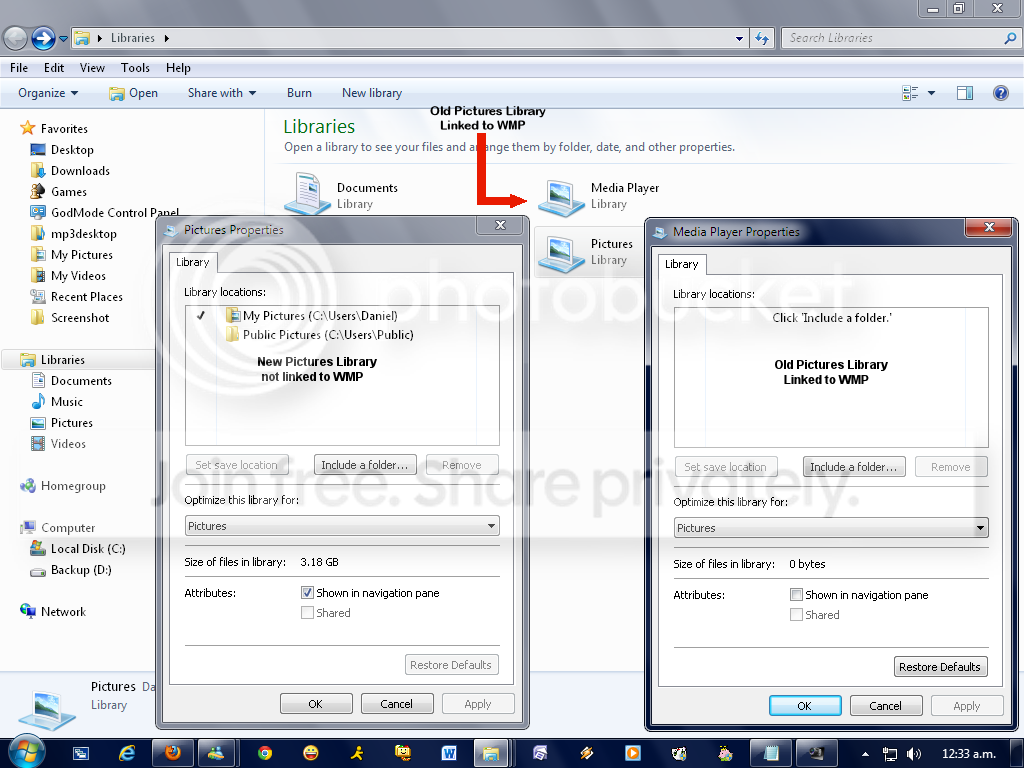
Now while seeing the properties of the library, remove the folders it will show, so Media Player won't index them anymore. Here is an screenshot of my libraries:

libraries.png


The library named Windows Media Player was the old Pictures library. If you see the navigation panel on the left, it only shows 4 libraries. The Pictures library on the navigation panel, is the new one not linked to media player.

Now pay attention to the two library properties windows. The one named pictures with folders added to it, is my current one active, while the other one is the system's default that is linked to media player. As you can see the one called Windows Media Player is empty and if you see the check boxes in the bottom, you can see how the one that says, show in navigation panel is unchecked. In that way it doesn't appears on the left and since on the navigation panel I have all of my libraries I don't need to see the list of libraries on the right side so I never see the old pictures library at all.
 

My Computer My Computer

Computer type
PC/Desktop
Computer Manufacturer/Model Number
Generic PC built by me
OS
Windows 7 Ultimate 32 bits
CPU
3 Ghz Core i5 4 Cores/4 Threads
Motherboard
Asus P8B75-M/CSM
Memory
4 GB Kingston
Graphics Card(s)
2 GB Radeon R7 240
Sound Card
Via High Definition Audio
Monitor(s) Displays
15" LG 505G and a 19" LG 19LG30 LCD TV/Monitor
Screen Resolution
1366x768
Hard Drives
7200 RPM Seagate Barracude 1TB SATA Disk (Main disk)
7200 RPM Seagate Barracude 500 GB SATA Disk (Backup disk)
PSU
Cable Management TR2 600 Watts
Case
Active Cool Black Case
Cooling
CPU's included fan
Keyboard
Microsoft Keyboard
Mouse
Arteck RX5 Laser Mouse
Internet Speed
20mbps download and 3mbps upload
Antivirus
AVG Free 2015
Browser
Firefox and Chrome
yea.. i understand how to do the left side..

but i also want the right side to match..

do you know of a way?
 

My Computer My Computer

Computer type
PC/Desktop
Computer Manufacturer/Model Number
HP Pavilion TS 14
OS
Windows 8.1 (x64)
CPU
AMD Quad-Core
Memory
4GB
Graphics Card(s)
Radeon 8 Series
Screen Resolution
1330x768
Internet Speed
Broadband
Antivirus
None
Browser
IE 11 (Gecko)
Other Info
TinyWall
So far there's no way for it to match, I have been trying to get that to work but no luck yet since as you said, if you delete it, they will return as soon you made something that involves call them back like using media player.
 

My Computer My Computer

Computer type
PC/Desktop
Computer Manufacturer/Model Number
Generic PC built by me
OS
Windows 7 Ultimate 32 bits
CPU
3 Ghz Core i5 4 Cores/4 Threads
Motherboard
Asus P8B75-M/CSM
Memory
4 GB Kingston
Graphics Card(s)
2 GB Radeon R7 240
Sound Card
Via High Definition Audio
Monitor(s) Displays
15" LG 505G and a 19" LG 19LG30 LCD TV/Monitor
Screen Resolution
1366x768
Hard Drives
7200 RPM Seagate Barracude 1TB SATA Disk (Main disk)
7200 RPM Seagate Barracude 500 GB SATA Disk (Backup disk)
PSU
Cable Management TR2 600 Watts
Case
Active Cool Black Case
Cooling
CPU's included fan
Keyboard
Microsoft Keyboard
Mouse
Arteck RX5 Laser Mouse
Internet Speed
20mbps download and 3mbps upload
Antivirus
AVG Free 2015
Browser
Firefox and Chrome

My Computer My Computer

Computer type
PC/Desktop
Computer Manufacturer/Model Number
HP Pavilion TS 14
OS
Windows 8.1 (x64)
CPU
AMD Quad-Core
Memory
4GB
Graphics Card(s)
Radeon 8 Series
Screen Resolution
1330x768
Internet Speed
Broadband
Antivirus
None
Browser
IE 11 (Gecko)
Other Info
TinyWall
Back
Top