Partition the Hard Drive in a Windows 7 Install

How to Partition the Hard Drive in a Windows 7 Install


   Information
The purpose of this tutorial is to see what tools are available to partition the hard drive while installing Windows 7. Although not a complete partitioning utility, you can delete existing partitions, create new partitions, extend partitions into unallocated space, shrink existing partitions, and format.
   Tip
It is not necessary to create the Windows 7 partitions on a new (empty) hard drive or format the partitions before installing Windows 7 as the installer will do that automatically.


Here's How:
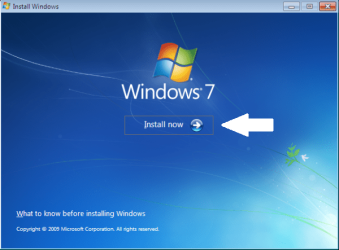
1. Boot your computer to the Windows 7 DVD. At this screen choose to install now.
partition_01.png
partition_02.png
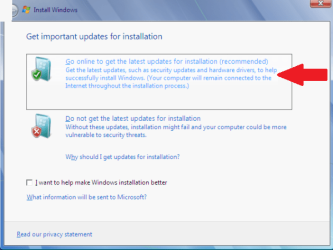
2. Select to "Go online" for latest updates.
partition_03.png
partition_04.png
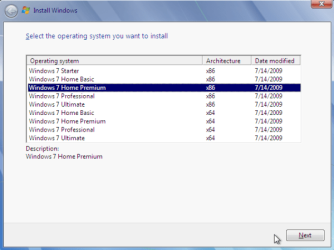
3. Select the Operating System you wish to install.
partition_05.png
4. Accept the license terms and click next.
partition_06.png
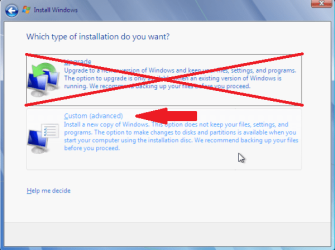
5. Select "Custom (advanced)".
partition_07.png
6. In this screen you see existing partitions (my test setup). Click "Drive options (advanced)".
partition_08.png
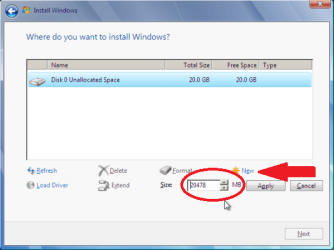
7. I used "Delete" to remove the existing partitions. Now select "New" to create new partitions in the Unallocated space.
partition_09.png
8. You can choose to use the entire empty space, or just a part of the space.
partition_10.png
9. In this screen, I have chosen to use half of the 20 GB available.
partition_11.png
10. Windows will, by default, create the "System Reserved" partition.
partition_12.png
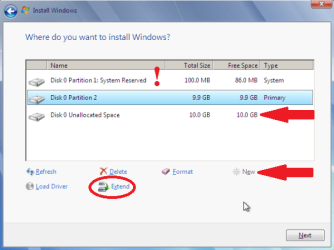
11. In this screen you see the "Reserved Partition" of 100 MB. I recommend keeping this. Next, you have the options of creating a new partition in the unallocated space, extending the selected partition into the unallocated space, shrinking the selected partition, or deleting one or all existing partitions.
partition_13.png
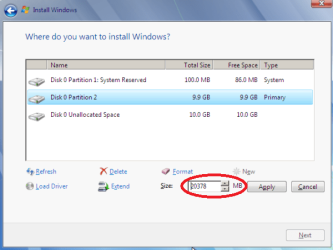
12. I have chosen to extend the partition into all the unallocated space.
partition_14.png
Now you can complete your Windows 7 installation in the partitions you have created. You can also cancel the installation process here while leaving the newly created partitions intact. Useful if you intend to install a different Operating System into one of the newly created partitions.

Conclusion:

While the Windows 7 hard drive partition utility is limited, it offers a convenient way to install Windows 7 without filling the entire hard drive. The leftover space can then be used for other purposes.


Last edited by a moderator:
Okay, thank you very much for all your help kind people!
 

My Computer My Computer

At a glance

Windows 7 x64 SP1Intel Core i5 - 2410M, 2,3 GHznVIDIA GeForce GT 540M
OS
Windows 7 x64 SP1
CPU
Intel Core i5 - 2410M, 2,3 GHz
Motherboard
K53SV
Graphics Card(s)
nVIDIA GeForce GT 540M
You're very welcome.

Don't hesitate to post back if you need further help.
 

My Computer My Computer

At a glance

Windows 7 Ultimate SP1 64-BitIntel Core i7 870 @ 2.93GHz8Gb Dual-Channel DDR3 @ 664MHznVidia GeForce GTX 460 1024MB dedicated RAM
Computer Manufacturer/Model Number
HP Pavilion Elite 495UK
OS
Windows 7 Ultimate SP1 64-Bit
CPU
Intel Core i7 870 @ 2.93GHz
Motherboard
MSI 2A9C (CPU1)
Memory
8Gb Dual-Channel DDR3 @ 664MHz
Graphics Card(s)
nVidia GeForce GTX 460 1024MB dedicated RAM
Sound Card
Realtek HD Audio
Monitor(s) Displays
HP2310i
Screen Resolution
1920 x 1080
Hard Drives
1x1954GB Hitachi HDS22020ALA 330 (RAID), 1x1954GB Hitachi External for backup and storage
PSU
460W
Case
HP Elite
Cooling
Air cooled
Keyboard
Logitech K750 solar-powered keyboard
Mouse
Logitech Wireless M180 mouse
Internet Speed
2Mb
Other Info
Pure Avanti Flow Internet Radio with iPod Dock, 64Gb iPod, HP USB Speakers, Sony MDR-V500 Headphones, Sony Vaio F-Series Laptop
Glad we could help. :)
 

My Computer My Computer

At a glance

64-bit Windows 11 Pro for WorkstationsIntel i7-8700K OC'd to 5 GHz64 GB (4x16GB) G.SKILL TridentZ RGB DDR4 3600...ASUS ROG-STRIX-GTX1080TI-O11G-GAMING
Computer type
PC/Desktop
Computer Manufacturer/Model Number
Self built custom
OS
64-bit Windows 11 Pro for Workstations
CPU
Intel i7-8700K OC'd to 5 GHz
Motherboard
ASUS ROG Maximus XI Formula Z390
Memory
64 GB (4x16GB) G.SKILL TridentZ RGB DDR4 3600 MHz
Graphics Card(s)
ASUS ROG-STRIX-GTX1080TI-O11G-GAMING
Sound Card
Integrated
Monitor(s) Displays
2 x Samsung Odyssey G7 27"
Screen Resolution
2560x1440
Hard Drives
1TB Samsung 990 PRO M.2,
4TB Samsung 990 PRO PRO M.2,
TerraMaster F8 SSD Plus NAS
PSU
Seasonic Prime Titanium 850W
Case
Thermaltake Core P3
Cooling
Corsair Hydro H115i
Keyboard
Logitech wireless K800
Mouse
Logitech MX Master 4
Internet Speed
2 Gb/s Download and 100 Mb/s Upload
Antivirus
Malwarebyte Anti-Malware Premium
Browser
Google Chrome
Other Info
Logitech Z625 speaker system,
Logitech BRIO 4K Pro webcam,
HP Color LaserJet Pro MFP M477fdn,
APC SMART-UPS RT 1000 XL - SURT1000XLI,
Galaxy S23 Plus phone
Hi,

May I know is it must to create an additional 100mb(system reserved) partition during windows installation?
Can I proceed with the installation without creating?

What is the purpose for creating an additional system reserved partition?

Thanks
 

My Computer My Computer

At a glance

windows 7 professional x64Intel i3 21004GB
OS
windows 7 professional x64
CPU
Intel i3 2100
Motherboard
Asus P8H67-M
Memory
4GB
Hi,

May I know is it must to create an additional 100mb(system reserved) partition during windows installation?
Can I proceed with the installation without creating?

What is the purpose for creating an additional system reserved partition?

Thanks
Hello highbreak and welcome to Windows Seven Forums!

The Windows 7 installer will automatically create partitions on an unpartitioned hard drive. Best results when only one hard drive is connected during the install.

The 100MB System Reserved partition holds some advantages, like helpful recovery utilities, and adds some security to your system. It also makes it easier to boot to more than one Operating System (as in dual booting).

However, you can install Windows 7 without the System Reserved partition and the advantages. Just create the Primary partition you want to install Windows 7 into and then install it there. The Windows 7 installer will skip the System Reserved partition.

See also this: http://www.sevenforums.com/performance-maintenance/51100-repair-cd-system-repair-disk.html

Cheers!
Robert
 

My Computer My Computer

At a glance

...
OS
...
Hi Robet, thanks a million.. i had been trying to figure this out for the past 1 week.

However, I'm still unable to get my new system that i bought a week ago to work successfully even after a series of troubleshooting (etc. windows update issues that slow down the system, keyboard & mouse freeze for couple of secs, system unable to detect primary drive once in a while)

Its driving me nuts!!
 
Last edited:

My Computer My Computer

At a glance

windows 7 professional x64Intel i3 21004GB
OS
windows 7 professional x64
CPU
Intel i3 2100
Motherboard
Asus P8H67-M
Memory
4GB
Hi Robort,

Is there any alternative ways to boot W7 in safe mode? From MS official website, it says that by pressing F8 before the Windows logo appears, it will prompt you with windows advance boot options.
However, it prompt me with Bios advance options instead of windows boot options after depressing F8.

I'm on Asus P8H67-M MB with UEFI BIOS interface.

Thanks
 

My Computer My Computer

At a glance

windows 7 professional x64Intel i3 21004GB
OS
windows 7 professional x64
CPU
Intel i3 2100
Motherboard
Asus P8H67-M
Memory
4GB
Hi Robort,

Is there any alternative ways to boot W7 in safe mode? From MS official website, it says that by pressing F8 before the Windows logo appears, it will prompt you with windows advance boot options.
However, it prompt me with Bios advance options instead of windows boot options after depressing F8.

I'm on Asus P8H67-M MB with UEFI BIOS interface.

Thanks
You get to Safe Mode after the BIOS boots but before Windows loads. I would suggest you enter the BIOS and disable the "quick boot" or what ever it is called on your system to make it easier for you to follow the boot process and know when to tap the F8 key to enter Safe Mode. You can always go back later and enable the quick boot again.

You should get a screen like the 6th image in this thread with the option to enter Safe Mode:

http://www.sevenforums.com/performance-maintenance/51100-repair-cd-system-repair-disk.html

Cheers!
Robert
 

My Computer My Computer

At a glance

...
OS
...
Is it really this simple?

Hi,

Helping my daughter. Her primary hard drive died. We got a replacement from Best Buy. She has ordered a Windows 7 recovery disk from HP. She is not a heavy user or does anything fancy. So.......

We should be able to just 1) install the new drive, 2)boot the recovery disk 3) and just do a Windows 7 install and use the default settings to let it partition the new drive and install. No real need to do any of our partitioning etc.

It sounds too simple???

jim
 

My Computer My Computer

At a glance

Windows 7 Home Premium 64
OS
Windows 7 Home Premium 64
Hi,

Helping my daughter. Her primary hard drive died. We got a replacement from Best Buy. She has ordered a Windows 7 recovery disk from HP. She is not a heavy user or does anything fancy. So.......

We should be able to just 1) install the new drive, 2)boot the recovery disk 3) and just do a Windows 7 install and use the default settings to let it partition the new drive and install. No real need to do any of our partitioning etc.

It sounds too simple???

jim
Hello Jim, and welcome to Windows Seven Forums!

You just described a project I finished tonight. A client brought me a HP computer with Vista that would not boot into Windows. Found the hard drive dead so I replaced it with a new one, ordered HP recovery disks, and restored the computer to its original condition. Just boot the recovery disk and let it do its thing! Simple enough.

Of course if anything does come up, we are here to help!

Cheers!
Robert
 

My Computer My Computer

At a glance

...
OS
...
Restore is hanging

Robert,

Well we installed the new drive, started the restore provided by HP. Drive partitioned fine. Installled windows, set the windows password bu then it went into the post recovery process -blue screen saying we might get several restarts etc but it just hangs there. Nothing is going on althouth the drive flashes once in a while. Pretty sure it is hung since the computer eventually goes into sleep mode. I know we are close but not sure what our problem is now. We can boot the computer, put in the password but then it goes straight to this same process. Help!!
 

My Computer My Computer

At a glance

Windows 7 Home Premium 64
OS
Windows 7 Home Premium 64
Robert,

Well we installed the new drive, started the restore provided by HP. Drive partitioned fine. Installled windows, set the windows password bu then it went into the post recovery process -blue screen saying we might get several restarts etc but it just hangs there. Nothing is going on althouth the drive flashes once in a while. Pretty sure it is hung since the computer eventually goes into sleep mode. I know we are close but not sure what our problem is now. We can boot the computer, put in the password but then it goes straight to this same process. Help!!
Aaargh! Might have to call HP?

If you do a redo, I skip the Windows password during setup and add it later to speed things up.

Also, might check the BIOS to see if your hard drive is set for IDE mode, AHCI, or Auto detect/RAID. I think IDE mode is safest bet, or Auto detect. Again might check with HP for their advice? I think Auto detect/RAID is default setting. You might try resetting the BIOS to a default setting and redo the restore disks?

Cheers!
Robert
 

My Computer My Computer

At a glance

...
OS
...
This is my first post here so please be gentle. :).
Here is my situation, I am doing a clean install of Windows 7 on a laptop that I just bought that does not have a previous OS installed on the HD.
I got to this portion of the installation and have the HD partitioned like this so far:

Disk 0 Partition 1: System Reserved 100.0 MB Total Size 86.0 MB Free Space Type = System

Disk 0 Partition 2 116.3 GB Total Size 116.3 GB Free Space Type = Primary

Disk 0 Partition 3 349.3 GB Total Size 349.3 GB Free Space Type = Primary

My goal after Win 7 is installed is to have drive C (Disk 0 Partition 2) contain Windows 7 and other program files while drive D (Disk 0 Partition 3) contain data files. Will this HD setup get me that setup, or is there a better way to get it as I want it?
TIA.
 

My Computer My Computer

At a glance

Windows 7 Home Premium 64 bit
OS
Windows 7 Home Premium 64 bit
This is my first post here so please be gentle. :).
Here is my situation, I am doing a clean install of Windows 7 on a laptop that I just bought that does not have a previous OS installed on the HD.
I got to this portion of the installation and have the HD partitioned like this so far:

Disk 0 Partition 1: System Reserved 100.0 MB Total Size 86.0 MB Free Space Type = System

Disk 0 Partition 2 116.3 GB Total Size 116.3 GB Free Space Type = Primary

Disk 0 Partition 3 349.3 GB Total Size 349.3 GB Free Space Type = Primary

My goal after Win 7 is installed is to have drive C (Disk 0 Partition 2) contain Windows 7 and other program files while drive D (Disk 0 Partition 3) contain data files. Will this HD setup get me that setup, or is there a better way to get it as I want it?
TIA.
Hello TIA, and welcome to Widows Seven Forums!

Your plan looks good to me ... please let us know how it turns out?

Cheers!
Robert
 

My Computer My Computer

At a glance

...
OS
...
Hi i am installing windows seven on my new Dell N5110 laptop.
Before installing its was showing the partion window to do the partition of unallocated space.
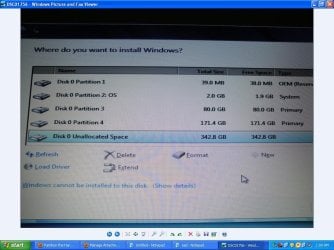
The unallocated space was approx 600 GB.Than i made 1 partion from it of about 80 GB and the
other Of 171.4 Gb.
Now i am trying to make more partition from reamaining unallocated 342.8 Gb but the after making above two partions the new
button is become disable.
Now the question is how can i make further more partitions from this unallocated space.I have attached
the screen shot so that u can more understand.
The partition 1 and partition 2 as u can see in the picture were already created in system.I only created the partition 3 and partition 4.

Please help me as soon as possible.I will be very thankfull to you.
 

Attachments

  • untitled.JPG
    untitled.JPG
    113.8 KB · Views: 227

My Computer My Computer

At a glance

Windows 7 Ultimate x64
OS
Windows 7 Ultimate x64
Only 4 primary partitions allowed.... I would just do the partitions for the OS install and do the rest using Disk Management from within Windows.
 

My Computer My Computer

At a glance

Windows 7 x64i7-2600K8 GGTX 480
Computer Manufacturer/Model Number
Homebuilt
OS
Windows 7 x64
CPU
i7-2600K
Motherboard
Asus P8Z77-v Pro
Memory
8 G
Graphics Card(s)
GTX 480
Sound Card
Onboard
Monitor(s) Displays
LG W2753V
Screen Resolution
1920x1080
Hard Drives
Crucial M4 128 G SSD
Hi i am installing windows seven on my new Dell N5110 laptop.
Before installing its was showing the partion window to do the partition of unallocated space.
The unallocated space was approx 600 GB.Than i made 1 partion from it of about 80 GB and the
other Of 171.4 Gb.
Now i am trying to make more partition from reamaining unallocated 342.8 Gb but the after making above two partions the new
button is become disable.
Now the question is how can i make further more partitions from this unallocated space.I have attached
the screen shot so that u can more understand.
The partition 1 and partition 2 as u can see in the picture were already created in system.I only created the partition 3 and partition 4.

Please help me as soon as possible.I will be very thankfull to you.
Hello Muhammad, and welcome to Windows Seven Forums.

Windows only allows 4 "Primary" partitions on each hard drive.

Understanding Disk Partitions

You should reconsider how to divide up all the space on your hard drive so you can use it?

Cheers!
Robert
 

My Computer My Computer

At a glance

...
OS
...
You can make more partitions, but they must be "logical" partitions, not "primary".

You would make one extended partition from that unallocated space and then make as many logical partitions as you would like inside that extended partition.
 

My Computer My Computer

At a glance

Windows 7 Home Premium SP1, 64-bitIntel Skylake i5-6600K, not overclocked8 GB HyperX DDR4-2666 (2 x 4 GB)none; graphics are integrated on CPU
Computer type
PC/Desktop
Computer Manufacturer/Model Number
Ignatz Special; 4 speed manual gearbox; factory air conditioning; one of one
OS
Windows 7 Home Premium SP1, 64-bit
CPU
Intel Skylake i5-6600K, not overclocked
Motherboard
AsRock Z170M Extreme 4, micro ATX
Memory
8 GB HyperX DDR4-2666 (2 x 4 GB)
Graphics Card(s)
none; graphics are integrated on CPU
Sound Card
onboard: Realtek ALC1150; external: USB Behringer UF0-202
Monitor(s) Displays
Dell S2340M 23 inch IPS
Screen Resolution
1600 x 900
Hard Drives
System: Crucial MX100 series SSD, 128 GB;
Data: Samsung Spinpoint 103SJ, 1 TB;
Backup: WD Caviar Green WD30EZRX-00D8PB0, 3 TB
PSU
Rosewill SilentNight 500 watt fanless, semi-modular
Case
Antec Solo II
Cooling
Noctua NH-U12S; Noctua F12 intake, Noctua S12A exhaust
Keyboard
Microsoft 200 6JH-00001 USB
Mouse
Dell or Microsoft optical wired; USB
Antivirus
Microsoft Security Essentials and Malwarebytes Premium
Browser
Pale Moon
Other Info
All fans PWM; speeds at idle: CPU circa 500 rpm; intake circa 600 rpm; exhaust circa 600 rpm; CPU temps 27 idle and 47 C load in a warm room (27 C/81 F) when running Intel Extreme Tuning Utility stress test.
can I delete pArtition 1 and partition 2 that i have not created and than make partitions of my own choice.
Doing this will effect any bad impact or not??
 

My Computer My Computer

At a glance

Windows 7 Ultimate x64
OS
Windows 7 Ultimate x64
can I delete pArtition 1 and partition 2 that i have not created and than make partitions of my own choice.
Doing this will effect any bad impact or not??
That would depend upon if there is anything in those partitions that you want to keep. If you delete them, any data there is lost.

According to your picture, Partition 1 is 39MB with 1MB of data.
Partition 2 is 2GB in size with maybe 100MB of data.

2GB is too small a space to install Windows 7, you would need at least 80GB to 100GB. But Partition 3 is 80GB so you could install Windows 7 there.

If you do not want to keep any of the old stuff, and want a "clean" install of your Windows 7, I would suggest to delete all 4 partitions and let Windows 7 make the partitions during the install. Then later you can shrink the Windows partition and make a second partition if that is what you want to do then.

The choice is up to what you want.

Cheers!
Robert
 

My Computer My Computer

At a glance

...
OS
...
Back
Top