How to find out the driver version of an already installed printer?

pstein

New member
Member
VIP
Local time
1:18 PM
Messages
244
I recently plugged in an USB Kyocera laser printer into my Win7 notebook and a printer driver was installed automatically. Fine.

How can I find out now the exact driver version of this printer?

When I go to

Control Panel\Hardware and Sound\Devices and Printers

and right click on the installed printer icon and select "printer properties" from context menu then I find NOWHERE a tab with the printer driver version number.

How else can I find it out?

Peter
 

My Computer My Computer

At a glance

win7pro 64bit
Computer type
PC/Desktop
OS
win7pro 64bit
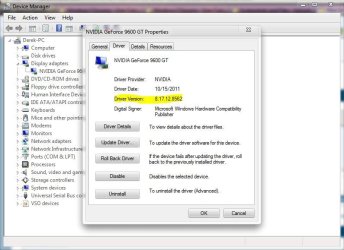
Go to device manager, I don't have a printer installed but it will look like this one for my GFX card,
 

Attachments

  • driver.JPG
    driver.JPG
    65.6 KB · Views: 224

My Computer My Computer

At a glance

Win 10 Pro x64Intel I5-2500K @3.3GHz16GB G.Skill Ripjaws X (4x4GB)EVGA GeForce 750 Ti SC 2GB
Computer type
PC/Desktop
Computer Manufacturer/Model Number
Self Built
OS
Win 10 Pro x64
CPU
Intel I5-2500K @3.3GHz
Motherboard
Asrock P67 Extreme4
Memory
16GB G.Skill Ripjaws X (4x4GB)
Graphics Card(s)
EVGA GeForce 750 Ti SC 2GB
Sound Card
ASUS Xonar DG 5.1 Channels 24-bit 96KHz PCI Interface Sound
Monitor(s) Displays
auria eq2367
Screen Resolution
1920 x 1080
Hard Drives
250GB Samsung 850 EVO SSD
1TB WD Blue
1TB Hitachi
PSU
SeaSonic X 650W 80 Plus Gold
Case
Corsair Obsidian 750D
Cooling
Corsair H60, Three 140mm case fans
Keyboard
Logitech Wireless Keyboard K520
Mouse
Logitech Wireless Mouse M310
Internet Speed
Wave Broadband ~ 100 dn 5 up
Antivirus
Windows Defender, Malwarebytes Premium
Browser
Edge, IE11, Chrome
Other Info
Laptop specs: HP g7-1365dx /
CPU: AMD A6-3420M APU with Radeon(tm) HD Graphics /
RAM: Crucial 8Gb (2x4Gb) /
SSD: Crucial M4-CT128M4SSD2 ATA Device/ FW 000F /
GFX: AMD Radeon HD 6520G /
OS: Windows 10 Pro x64
I visited Device Manager before and did NOT found the "printer" section and hence not the driver version.

Meanwhile I found out the trick:
The USB printer must be turned ON while looking in the Device Manager.
Most of the time it is off here.....

Thx anyway
 

My Computer My Computer

At a glance

win7pro 64bit
Computer type
PC/Desktop
OS
win7pro 64bit
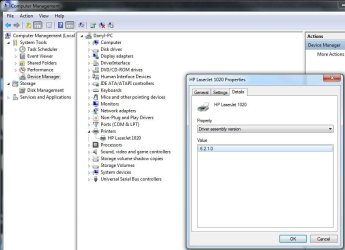
In the Device Manager tree, the printer may be hidden, even if the printer is turned on.
Click on View, Show hidden devices.
Open Printers.
Go to Properties, Details, Driver assembly version.

Capture.JPG
 

My Computer My Computer

At a glance

Windows 7 Home Premium 64 bitIntel Core i7-4790G.SKILL 8GB (2 x 4GB) DDR3 F3-10666CL9D-8GBNTAMD Radeon R7 250
Computer type
PC/Desktop
Computer Manufacturer/Model Number
Custom Build
OS
Windows 7 Home Premium 64 bit
CPU
Intel Core i7-4790
Motherboard
GA-Z87X-D3H
Memory
G.SKILL 8GB (2 x 4GB) DDR3 F3-10666CL9D-8GBNT
Graphics Card(s)
AMD Radeon R7 250
Sound Card
Realtek ALC892
Monitor(s) Displays
Samsung UN32EH5000, Dell 1703FPT
Screen Resolution
1920 x 1080, 1280 x 1024
Hard Drives
WD5003AZEX
WD10EZEX
Samsung HD103SJ
Samsung 128 GB 840 PRO
PSU
SeaSonic M12II SS-500GM
Case
Fractal Design Define R4
Cooling
Zalman CNPS9900ALED
Keyboard
Logitech K800
Mouse
Logitech M705
Internet Speed
16 Mbps
Antivirus
Avast
Browser
Firefox
Other Info
Bose Companion 2 Multimedia Speakers
In the Device Manager tree, the printer may be hidden, even if the printer is turned on.
Click on View, Show hidden devices.
Open Printers.
Go to Properties, Details, Driver assembly version.

Even if I enable "Show hidden devices" a turned OFF printer is NOT listed.

Turning ON the device seems to be the only way.

:-(
 

My Computer My Computer

At a glance

win7pro 64bit
Computer type
PC/Desktop
OS
win7pro 64bit
Back
Top