Solved Installing WinXP as dual-boot with existing Win7, partition confusion

thejtrain

New member
Local time
1:50 PM
Messages
8
Acer Aspire 7551 laptop, came with Win7 Home Premium x64 already installed, and I've done very little (if anything, really) to tweak or change anything, until now. I'm trying to install WinXP for dual-booting (for playing a few older games that don't like Win7 at all).

Followed this thread's instructions (step 1 of the "Win7 installed first" method) which led me to this thread to prepare the single HDD with a new partition, 100GB in size, gave it drive letter X: and named it WinXP.

Trouble is, in following the steps in that thread to create the new partition, Win7 Disk Management never asks me whether I want the new volume to be a Primary Partition or an Extended Partition/Logical Drive, and it defaults to creating X: as a 100GB Logical Drive - which isn't detected by the WinXP setup CD. It never gives me the option to choose to make a Primary Partition. What am I missing here?

Partitions visible in Disk Management:
[no name][no drive letter] - 12.70GB - Healthy (Recovery Partition)
System Reserved [no drive letter] - 100MB - Healthy (System, Active, Primary Partition)
ACER C: - 351.40GB - Healthy (Boot, Page File, Crash Dump, Primary Partition)
Unallocated space - 101.56GB

I did find this answers.microsoft.com thread whose answer is that I must convert the disk to "dynamic", however, the thread here (linked above, creating the new partition) warns in Step 10 specifically NOT to change to dynamic, as it could make Win7 unbootable. ??? Confused...
 

My Computer My Computer

At a glance

Win7 Professional x64 & Win7 Home Premium x64AMD Phenom II N850 Triple-core 2.20 GHz8 GBAMD/ATI Radeon Mobility HD 56xx
Computer Manufacturer/Model Number
DIY desktop and ACER Aspire 7551 laptop
OS
Win7 Professional x64 & Win7 Home Premium x64
CPU
AMD Phenom II N850 Triple-core 2.20 GHz
Motherboard
ACER Aspire 7551 Laptop
Memory
8 GB
Graphics Card(s)
AMD/ATI Radeon Mobility HD 56xx
Screen Resolution
1600 x 900
Hard Drives
WD 500GB
Use free Partition Wizard bootable CD to create a fourth Primary partition for XP install.

If you need to add any further partitions, you'll need to convert one of the OS partitions to Logical to add within it.
 
Awesome, thank you, looks like this will do the trick. One question though, it is "seeing" the other partitions, but doesn't seem to be "seeing" the C: drive letter on the ACER volume. And when creating the new partition, I can select to make it a Primary Partition, but it won't allow me to assign a drive letter, neither during creation or after (using the Partition -> Change Letter menu item). Is it critical that the new partition gets a drive letter, or can I assign one afterwards in Win7 Disk Management?

EDIT: Nvm, got it - PW was just showing *s for all partitions, but I went ahead and created a new one, and as expected it wouldn't let me change the letter, but Disk Mgmt in Win7 showed me that PW gave the new partition E:, and let me change it in 3 clicks. Should be all set now!
 
Last edited:

My Computer My Computer

At a glance

Win7 Professional x64 & Win7 Home Premium x64AMD Phenom II N850 Triple-core 2.20 GHz8 GBAMD/ATI Radeon Mobility HD 56xx
Computer Manufacturer/Model Number
DIY desktop and ACER Aspire 7551 laptop
OS
Win7 Professional x64 & Win7 Home Premium x64
CPU
AMD Phenom II N850 Triple-core 2.20 GHz
Motherboard
ACER Aspire 7551 Laptop
Memory
8 GB
Graphics Card(s)
AMD/ATI Radeon Mobility HD 56xx
Screen Resolution
1600 x 900
Hard Drives
WD 500GB
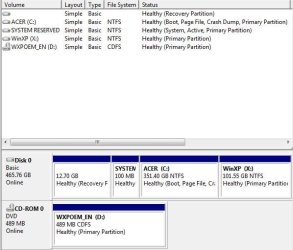
Well, not so much. Disk Management in Win7 shows all the Partitions, and my new one is X: Healthy, Primary Partition, 101.55GB. Only the SYSTEM RESERVED (no drive letter) partition is noted as Active, while the C: partition is noted as Boot, Page File, Crash Dump, Primary Partition and is 351GB in size with 184GB free.

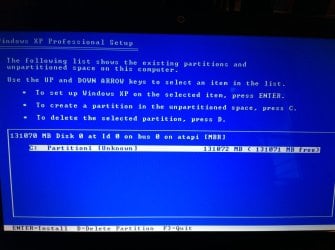
Booting into the XP Setup disk however, it still only detects one partition, C:, with a size of 131GB, all free (that number appears completely arbitrary since it doesn't match any number anywhere else). It was seeing the same thing before when I was only able to create the X: partition as a Logical Drive, before my OP.

So my confusion is in following the Dual-Boot install tutorial, the screenshots from Step 1 showing the partitions in Disk Management look just like what I see, but his screenshot from Step 5 (partition selection from within the WinXP Setup) shows all three partitions including the new one created in Step 1, but I only see one partition (existing C: ), not the one I created in Step 1 (new X: ).

Almost thinking I should remove the partition and boot into WinXP setup with unallocated space, and let WinXP Setup create a new partition itself with that unallocated space. Would that work, or cause more problems? I'd really like to follow the tutorial steps one-by-one, but I'm stuck here.

Here's a screenshot of Disk Management:
DiskMgmt.JPG
and here's a cameraphone pic of the WinXP setup partition selection screen:
photo.jpg
 
Last edited:

My Computer My Computer

At a glance

Win7 Professional x64 & Win7 Home Premium x64AMD Phenom II N850 Triple-core 2.20 GHz8 GBAMD/ATI Radeon Mobility HD 56xx
Computer Manufacturer/Model Number
DIY desktop and ACER Aspire 7551 laptop
OS
Win7 Professional x64 & Win7 Home Premium x64
CPU
AMD Phenom II N850 Triple-core 2.20 GHz
Motherboard
ACER Aspire 7551 Laptop
Memory
8 GB
Graphics Card(s)
AMD/ATI Radeon Mobility HD 56xx
Screen Resolution
1600 x 900
Hard Drives
WD 500GB
Yes, if XP setup won't see the partition you made then delete it in Disk Mgmt and see XP CD then detects it and will create it as a New partiiton, full NTFS format before install.
 
Bummer - I deleted the partition in Disk Mgmt, leaving unallocated space, but WinXP Setup still only sees the C: partition and no unallocated space from which to create a new partition for itself. The only thought I have is that the storage drivers in WinXP Setup still aren't fully compatible with the hardware (I already ran into the 0x0000007b BSOD during Setup and changed the SATA setting in BIOS from AHCI to IDE just to get to where WinXP Setup would run), but unfortunately Acer's support site has only Win7 drivers for my model (Aspire 7551), so I'm not sure there's anything to be done from here.
 

My Computer My Computer

At a glance

Win7 Professional x64 & Win7 Home Premium x64AMD Phenom II N850 Triple-core 2.20 GHz8 GBAMD/ATI Radeon Mobility HD 56xx
Computer Manufacturer/Model Number
DIY desktop and ACER Aspire 7551 laptop
OS
Win7 Professional x64 & Win7 Home Premium x64
CPU
AMD Phenom II N850 Triple-core 2.20 GHz
Motherboard
ACER Aspire 7551 Laptop
Memory
8 GB
Graphics Card(s)
AMD/ATI Radeon Mobility HD 56xx
Screen Resolution
1600 x 900
Hard Drives
WD 500GB
I tried XP Mode last year (it was one of the first things I did after installing Win7 Pro on my desktop), can't remember why I didn't like it or why it didn't work well for what I wanted, but I remember uninstalling it and not trying again. Might be worth another look. Unfortunately it's not an option here as I only have Home Premium on the laptop this thread is about. I've updated my specs in the User CP.

In other news, I had a flash of inspiration and remembered that I had slipstreamed SP3 into a WinXP install disc a while ago, but I had been using the original for all my efforts outlined above. Thinking maybe there'd be an updated driver in SP3 for my ACER's hardware, I dug it out and gave it a shot - like magic, WinXP Setup now sees all of the partitions, even the two non-C: ones for System and Recovery, and the unallocated space (and that's after setting the SATA setting in BIOS back to AHCI). Sheesh. How much work & frustration I could have avoided if I had just started out with "the latest and greatest" version. :o

Thanks gregrocker and theog!
 

My Computer My Computer

At a glance

Win7 Professional x64 & Win7 Home Premium x64AMD Phenom II N850 Triple-core 2.20 GHz8 GBAMD/ATI Radeon Mobility HD 56xx
Computer Manufacturer/Model Number
DIY desktop and ACER Aspire 7551 laptop
OS
Win7 Professional x64 & Win7 Home Premium x64
CPU
AMD Phenom II N850 Triple-core 2.20 GHz
Motherboard
ACER Aspire 7551 Laptop
Memory
8 GB
Graphics Card(s)
AMD/ATI Radeon Mobility HD 56xx
Screen Resolution
1600 x 900
Hard Drives
WD 500GB
We'll need to remember to check for SP3 installer as this can solve these issues on its own. It's hard to remember everything about XP when we've got so many fixes for Win7 to recall. But this has solved issues before so it should be tried first.

Good work in sorting this out on your own! :geek:

You can mark your thread solved at the top.
 
gregrocker - thanks, will do.

theog - yep, had that thread bookmarked and it was on my to-do list! :D

It's installing now, and there was one bit of curiosity when WinXP Setup was displaying the partition selection: the drive letters didn't match Disk Mgmt in Win7.
Disk Mgmt showed this:
Recovery (no drive letter)
System Reserved (no drive letter)
ACER (C: )
WinXP (X: )

WinXP Setup showed this:
Recovery (G: )
System Reserved (C: )
ACER (D: )
WinXP (E: )

I went ahead with the install, hoping that if there were drive-letter problems on the WinXP install I would still be able to boot into Win7 normally and start over. Should I be worried? :huh:
 

My Computer My Computer

At a glance

Win7 Professional x64 & Win7 Home Premium x64AMD Phenom II N850 Triple-core 2.20 GHz8 GBAMD/ATI Radeon Mobility HD 56xx
Computer Manufacturer/Model Number
DIY desktop and ACER Aspire 7551 laptop
OS
Win7 Professional x64 & Win7 Home Premium x64
CPU
AMD Phenom II N850 Triple-core 2.20 GHz
Motherboard
ACER Aspire 7551 Laptop
Memory
8 GB
Graphics Card(s)
AMD/ATI Radeon Mobility HD 56xx
Screen Resolution
1600 x 900
Hard Drives
WD 500GB
XP will choose the drive letter it wants. There's little you can do to affect drive letter choice in XP unless you install it first to claim C, then correctly boot Win7 to install next which will also claim C when booted.

System Reserved should have no drive letter in either DIsk Mgmt after install. If so, remove it so nothing will write to it and take up the free space necessary for staging an image: http://www.sevenforums.com/tutorials/82994-drive-letter-add-change-remove-windows-7-a.html
 
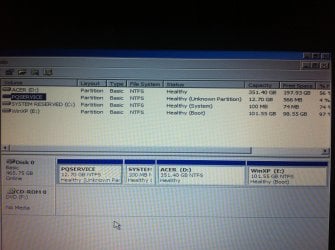
Ok now I'm a bit worried 'cause System Reserved does show with a drive letter in WinXP Disk Mgmt (and it's C:!). I'm hesitant to remove that because it was OEM-installed and I want to muck with as little as possible when it comes to the original Win7 install. See the smartphone picture below of WinXP Disk Mgmt - should I be worried? I'm going to continue the Dual-Boot Install tutorial with the EasyBCD steps hoping that I'll still be able to boot into Win7 and be able to check Disk Mgmt there to see what it looks like now after the WinXP install.
photoXP.jpg
 

My Computer My Computer

At a glance

Win7 Professional x64 & Win7 Home Premium x64AMD Phenom II N850 Triple-core 2.20 GHz8 GBAMD/ATI Radeon Mobility HD 56xx
Computer Manufacturer/Model Number
DIY desktop and ACER Aspire 7551 laptop
OS
Win7 Professional x64 & Win7 Home Premium x64
CPU
AMD Phenom II N850 Triple-core 2.20 GHz
Motherboard
ACER Aspire 7551 Laptop
Memory
8 GB
Graphics Card(s)
AMD/ATI Radeon Mobility HD 56xx
Screen Resolution
1600 x 900
Hard Drives
WD 500GB
Then leave it. As stated the risk is a program will write to it and clog the space needed for SysvolInfo file which enables a Win7 backup image. You can wait until that happens if you want.

There is no risk in removing a drive letter from SysReserved, only an OS.
 
gregrocker - thanks, will do.

theog - yep, had that thread bookmarked and it was on my to-do list! :D

It's installing now, and there was one bit of curiosity when WinXP Setup was displaying the partition selection: the drive letters didn't match Disk Mgmt in Win7.
Disk Mgmt showed this:
Recovery (no drive letter)
System Reserved (no drive letter)
ACER (C: )
WinXP (X: )

WinXP Setup showed this:
Recovery (G: )
System Reserved (C: )
ACER (D: )
WinXP (E: )

I went ahead with the install, hoping that if there were drive-letter problems on the WinXP install I would still be able to boot into Win7 normally and start over. Should I be worried? :huh:

Drive Letters as seen from Windows XP & Windows 7.

Drive Letters XP.PNG
 

My Computer My Computer

At a glance

ME/XP/Vista/Win7
OS
ME/XP/Vista/Win7
Thanks for showing that, theog - makes me less nervous seeing that what I was seeing wasn't unusual.

However, when I went into EasyBCD I was left very confused by the drive letter assignment that it automatically picked up for the WinXP installation (which was C:, even though Disk Mgmt in WinXP showed it was E: ), so I chickened out and didn't go through with the write to the MBR, instead using a Win7 Installation disk to get to a command console to be able to boot back into Win7 again. Where I saw that the drive letters and partition attributes were back to "normal", and Win7 is working normally.

I think I decided to not dual-boot my laptop after all, after seeing the inside of the WinXP installation w/SP3 and how virtually none of the devices were loaded and working (no network, no wireless, no sound, gimped display resolutions, etc.), and searching Acer's support site for WinXP device drivers and finding they only provide Win7 drivers for my model. Guess it's too new? I think I'll give XP Mode another shot on my Win7 Pro desktop (DIY so I still have XP drivers for everything), and if I still don't like it, I'll try dual-booting it instead.

Thanks for the help guys! I may very well be back but I've learned a bit about what to look for in the future.
 

My Computer My Computer

At a glance

Win7 Professional x64 & Win7 Home Premium x64AMD Phenom II N850 Triple-core 2.20 GHz8 GBAMD/ATI Radeon Mobility HD 56xx
Computer Manufacturer/Model Number
DIY desktop and ACER Aspire 7551 laptop
OS
Win7 Professional x64 & Win7 Home Premium x64
CPU
AMD Phenom II N850 Triple-core 2.20 GHz
Motherboard
ACER Aspire 7551 Laptop
Memory
8 GB
Graphics Card(s)
AMD/ATI Radeon Mobility HD 56xx
Screen Resolution
1600 x 900
Hard Drives
WD 500GB
If you still have XP partition on the HD you can add it from Win7 using EasyBCD Add OS tab. It works a lot better and has no risks.

Then you can spend time when you have it in XP trying to find its drivers by googling the actual device model + XP driver. It takes some detective work. If you start with the network driver you can get quite a few delivered via Custom Windows Updates. Consider it a project over time rather than standing it up all at once.
 
i CAN boot from the DVD. the installation starts fine, finds the hard drives, i choose the drive D, it formats the drive & copies the files, then reboots and nothing happens.

The "Press any key to boot from CD'' appears but nothing happens after that.

any ideas ?

96117901.jpg
 

My Computer My Computer

At a glance

Windows 7 Ultimate 32bit.
OS
Windows 7 Ultimate 32bit.
Back
Top