Solved Is there a way to disable the default "copy" when you highlight items?

bd74

New member
Member
Local time
1:26 AM
Messages
59
Is there a way to disable the default "copy" when you highlight items?

If I highlight several items in a folder, windows automatically creates a copy of those items. Is there a way to disable this?
 

My Computer My Computer

Computer type
PC/Desktop
Computer Manufacturer/Model Number
Compaq Presario CQ5205Y Desktop PC
OS
Windows 7 Home Premium 64-bit SP1
CPU
AMD Sempron Processor LE-1300 2.30 GHz
Memory
4 GB RAM
Graphics Card(s)
Integrated graphics using nVidia GeForce 6150SE
Sound Card
Integrated Realtek ALC888S Audio
Screen Resolution
1280x1024
Hard Drives
250 GB
Internet Speed
12 Mbps
Browser
Firefox
Are you talking about highlighting and dragging?
If so right click drag to destination location then release. Select one of the options - copy, move,...cancel. Even though it says "copy" when dragging you get the options.
 

My Computer My Computer

Computer type
PC/Desktop
Computer Manufacturer/Model Number
Own build
OS
Windows 7x64 Home Premium SP1
CPU
Intel i7 2600k
Motherboard
ASUS P8Z68 Deluxe
Memory
G.Skill Ripjaws (DDR3-1600) 2x4GB
Graphics Card(s)
Nvidia GeForce GTS 450; Intel HD Graphics 3000(GT2+)
Monitor(s) Displays
Dell Ultrasharp IPS panel U2311H, Samsung SyncMaster P2350
Screen Resolution
1920x1080
Hard Drives
Samsung 850 Pro SSD 256GB, Samsung SSD 840 120GB, Seagates 1TB Barracuda ST31000528AS x2
PSU
Seasonic M12II 520W
Case
Lian Li Lancool PC-K60
Cooling
Case: 1x120mm, 3x140mm CPU: Hyper 212+
Keyboard
Logitech MK520 (wireless)
Mouse
Logitech MK520
Internet Speed
6-7 Mbps
Antivirus
Norton Security Premium, Malwarebytes on 2 (MSE on 3rd PC)
Browser
FireFox
Other Info
Audio: Logitech Z523 2.1
If you select these files using the Control key and accidentally move your mouse as you do so, Windows assumes you've dragged the files and want to copy them.
 

My Computer My Computer

Computer Manufacturer/Model Number
Dell Inspiron 580s
OS
Windows 7 Home Premium SP1
CPU
i3
Memory
6 GB
Graphics Card(s)
ATI Radeon
If you select these files using the Control key and accidentally move your mouse as you do so, Windows assumes you've dragged the files and want to copy them.
I suppose that's the case -- that I accidentally moved the mouse. But is there a way to disable it altogether, or no?
 

My Computer My Computer

Computer type
PC/Desktop
Computer Manufacturer/Model Number
Compaq Presario CQ5205Y Desktop PC
OS
Windows 7 Home Premium 64-bit SP1
CPU
AMD Sempron Processor LE-1300 2.30 GHz
Memory
4 GB RAM
Graphics Card(s)
Integrated graphics using nVidia GeForce 6150SE
Sound Card
Integrated Realtek ALC888S Audio
Screen Resolution
1280x1024
Hard Drives
250 GB
Internet Speed
12 Mbps
Browser
Firefox
Don't keep the mouse button pressed.
 

My Computer My Computer

Computer type
PC/Desktop
Computer Manufacturer/Model Number
Own build
OS
Windows 7x64 Home Premium SP1
CPU
Intel i7 2600k
Motherboard
ASUS P8Z68 Deluxe
Memory
G.Skill Ripjaws (DDR3-1600) 2x4GB
Graphics Card(s)
Nvidia GeForce GTS 450; Intel HD Graphics 3000(GT2+)
Monitor(s) Displays
Dell Ultrasharp IPS panel U2311H, Samsung SyncMaster P2350
Screen Resolution
1920x1080
Hard Drives
Samsung 850 Pro SSD 256GB, Samsung SSD 840 120GB, Seagates 1TB Barracuda ST31000528AS x2
PSU
Seasonic M12II 520W
Case
Lian Li Lancool PC-K60
Cooling
Case: 1x120mm, 3x140mm CPU: Hyper 212+
Keyboard
Logitech MK520 (wireless)
Mouse
Logitech MK520
Internet Speed
6-7 Mbps
Antivirus
Norton Security Premium, Malwarebytes on 2 (MSE on 3rd PC)
Browser
FireFox
Other Info
Audio: Logitech Z523 2.1
You can also hold Shift to explicitly move instead of copy. And there's a registry setting HKEY_CURRENT_USER\Control Panel\Desktop\DragWidth that specifies how many pixels (default is 4) you need to drag something for it to copy while holding Ctrl, but I don't know if the poster is comfortable editing the registry.

It's still not clear what's going on here though. bd74, exactly what combination of key presses and mouse movements/clicks are we talking about?
 

My Computer My Computer

OS
Windows 7 Professional x64
Keyboard + Mouse Combos

Most of these actions were mentioned above.
I've collated them here.

Keyboard + Mouse (2 Buttons + Wheel) Combos

Copy
Ctrl + drag (left mouse button)
Move
Shift + drag (left mouse button)
Create Link/Shortcut
Alt + drag (left mouse button)
Zoom (in & out)
Ctrl + Scroll Wheel
Scroll (left & right)
Alt + Scroll Wheel
OR
Shift + Scroll Wheel
This action depends on the program you are using (e.g. IIRC, Photoshop uses Alt and GIMP uses Shift).
Auto-Scroll (up & down, left & right)
Scroll Wheel Button
Some programs allow auto-scrolling (e.g. Word, IE, Firefox).
This places a marker on the page.
The distance and location that you move the mouse pointer (relative to the marker) controls the speed and scroll direction.
You can also use drag (right mouse button), which will give you a menu of options (when you release it) including "Cancel".


This only applies to Windows (in Linux, the GUI uses the mouse differently).
 
Last edited:

My Computer My Computer

Computer type
PC/Desktop
Computer Manufacturer/Model Number
n/a
OS
W7 Ultimate SP1, LM19.2 MATE, W10 Home 1703, W10 Pro 1703 VM, #All 64 bit
CPU
AMD Phenom II x6 1100T, 3.3 GHz
Motherboard
ASUS M4A88T-M/USB3 (AM3)
Memory
12GB DDR3 1333 G-Skill (4GB x 2), G-Skill (2GB x 2)
Graphics Card(s)
NVIDIA GeForce GTX 660
Sound Card
Realtek?
Monitor(s) Displays
Samsung S23B350
Screen Resolution
1920x1080
Hard Drives
WD Green 2TB (SATA), WD Green 3TB (SATA), WD Blue 4TB (SATA), WD Blue 6TB (SATA)
PSU
Cooler Master
Case
Antec GX300 Tower
Cooling
3x Antec TRICOOL 120mm Fans
Mouse
Wired Optical
Internet Speed
DSL
Antivirus
Avast
Browser
Pale Moon (64 bit)
Other Info
2018-12-27 Upgraded HDDs
2015-12-10 Upgraded case, graphics card, storage
2015-08-15 Upgraded motherboard & RAM
2015-07-15 Upgraded LM17.1 to LM17.2
Hello bd74, there is no way to disable this in Windows.:(

While selecting be careful not to accidently drag it/them or it will make copies.
 

My Computer My Computer

Computer type
PC/Desktop
Computer Manufacturer/Model Number
Home Built Desktop By DataTech
OS
Windows 7 Ultimate X64 SP1
CPU
Intel i5-2550K, Differing ~4.4-4.8GHz No built in GPU
Motherboard
ASUS P8Z68-V PRO/GEN3
Memory
16GB G.Skill Sniper 1866MHz @ 2133MHz 2x8GB
Graphics Card(s)
ASUS GTX650TIB-DC2OC-2GD5, (650TI Boost)
Sound Card
Onboard Realtek 5-1
Monitor(s) Displays
Samsung P2570HD
Screen Resolution
1920x1080
Hard Drives
Samsung 840 Pro 256GB SSD for OS, 500GB Seagate Constellation (Enterprise drive) for Data
PSU
Corsair HX650W
Case
Inwin Dragon Rider
Cooling
Hyper 212 EVO w/two Noctua fans, push-pull, @1300 RPM
Keyboard
E-Z Eyes, bright yellow keys with large characters
Mouse
steelseries SENSEI Laser Pro Gaming
Internet Speed
48-51Mbs Mbs down, 11 Mbs up Xfinity Cable
Antivirus
Norton Internet Security 2013
Browser
IE 10, Opera, Pale Moon if needed
Other Info
4 case fans, LG BluRay-RE, ASUS DVD-RW, Mr. Fusion power supply, 1.21 gigawatts.
The best way to copy multiple files in a folder without accidental copying is as follows.

1. Select the files using the keyboard.

For continuous files, move the file selection to the first file using arrow keys. Press and hold Shift key and move the arrow key to select subsequent files.

For non continuous files, press CTRL key and select the required files by clicking on the required files by mouse.

2. Copy / Move procedure
Once the selection is complete, press CTRL+C to copy the files. To move the files instead of copying Press CTRL+X.

Open another explorer window, navigate to the target window and press CTRL+V.

Once got used to this procedure, it is really fast to copy / move the files.
 

My Computer My Computer

Computer Manufacturer/Model Number
Toshiba Satellite P775-S7232
OS
MS Windows 7 Ultimate 64-bit SP1
CPU
i5-2410M 2.3GHz (2.9GHz Turbo-Boost) Sandy Bridge 32nm
Motherboard
Toshiba PHRAA ver. PSBY1U-00F003
Memory
4GB+4GB Samsung DDR3 PC3-10700 (1333 MHz)
Graphics Card(s)
Video Intel(R) HD Graphics Family, 1696MB available memory
Sound Card
Realtek High Definition Audio version=6.0.1.6323
Monitor(s) Displays
17.3 " Trubrite TFT LCD, LED Backlit
Screen Resolution
1600x900 32 bit, Native support for 720P content
Hard Drives
TOSHIBA MK6476GSXN
580.614 [GB] partitioned C: 80GB and D: 500GB with hidden recovery partitons.

Spare bay for 2nd HDD but no SATA connector :-(
PSU
Toshiba AC/DC Adapter
Case
Notebook
Cooling
Built-in Fan
Keyboard
Premium Raised Tile keyboard
Mouse
Logitech M215 wireless mouse
Internet Speed
Not fast enough
Other Info
Built-in Harman Kardon speakers with Dolby Advanced Audio, Waves MaxxAudio® 3. HDMI, 1xUSB3+3xUSB2 ports, WebCam, Battery life 4hrs 11mins, 4GB Readyboost SDHC card, WD My Book Essential Ext HDDs 2 TB, 2x1TB, My Passport SE 1TB and WDTV 1st Gen for Multimedia playing on a Sony Wega 32" LCD.
Recent addition to my toys are Asus Transformer Pad TF300T with 32GB onboard sd card + 32GB microsd card.
I have the same issue. When selecting multiple files using CTRL, I move the mouse wrong and Windows thinks I want to copy them. I already know how to copy. I don't WANT to copy them or move them. I don't need to know other ways to copy, or other keyboard shortcuts, same as the gentleman who first posted. I may be selecting files to do something to the id tags, if they're music files, or there are a number of other things I might want to do that have no relationship to copying. I merely want to select them. I'm talking about folders that have hundreds of files in them, in which the files I want to select cannot be arranged any way to make the files I want contiguous. If I were looking for all of one file type, or all files created on one particular day, it would be easy to order them to select them without using CTRL. As it is, I usually compromise when manipulating large numbers of files by doing them in small batches, in the hope that I can select a reasonable number before I mess up moving the mouse, and have to undo the copies and then reselect the files. Isn't there some way to disable the default copy? We already have perfectly satisfactory ways to copy things. I had a similar issue one time with accidentally selecting "create shortcut"--which I use maybe once a year--instead of delete from the context menu, not a lot, but often enough that it was an annoyance, and someone came up with a registry fix to remove it. There's got to be a registry key somewhere that you can edit to keep Windows from copying.

 

My Computer My Computer

Computer Manufacturer/Model Number
ASUS G75VW
OS
Win8 Pro 64-bit
CPU
ntel(R) Core(TM) i7-3630QM @2.40GHz, 2401 Mhz, 4 Core
Memory
16.0 GB
Graphics Card(s)
NVIDIA GTX670M
Sound Card
integrated
Hard Drives
256GB SSD, 750 GB HDD
Mouse
Microsoft Windows Wireless Mouse 5000
Internet Speed
AT&T Molasses DSL
Options

I merely want to select them.
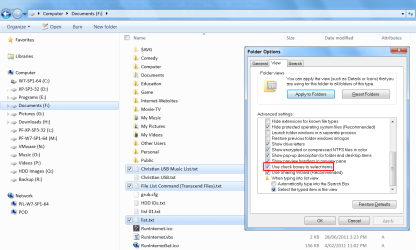
Have you tried "Use check boxes to select items"?
Select (Check Boxes).png
I may be selecting files to do something to the id tags, if they're music files, or there are a number of other things I might want to do that have no relationship to copying. I merely want to select them. I'm talking about folders that have hundreds of files in them, in which the files I want to select cannot be arranged any way to make the files I want contiguous. If I were looking for all of one file type, or all files created on one particular day, it would be easy to order them to select them without using CTRL.
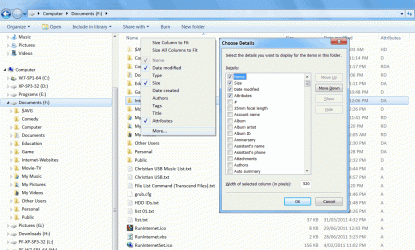
Do you use "Details" view?
You can "Sort" and "Group" based on the "Details" you have chosen.
Click on thumbnail for animation
Details, Sort & Group.gif
 
Last edited:

My Computer My Computer

Computer type
PC/Desktop
Computer Manufacturer/Model Number
n/a
OS
W7 Ultimate SP1, LM19.2 MATE, W10 Home 1703, W10 Pro 1703 VM, #All 64 bit
CPU
AMD Phenom II x6 1100T, 3.3 GHz
Motherboard
ASUS M4A88T-M/USB3 (AM3)
Memory
12GB DDR3 1333 G-Skill (4GB x 2), G-Skill (2GB x 2)
Graphics Card(s)
NVIDIA GeForce GTX 660
Sound Card
Realtek?
Monitor(s) Displays
Samsung S23B350
Screen Resolution
1920x1080
Hard Drives
WD Green 2TB (SATA), WD Green 3TB (SATA), WD Blue 4TB (SATA), WD Blue 6TB (SATA)
PSU
Cooler Master
Case
Antec GX300 Tower
Cooling
3x Antec TRICOOL 120mm Fans
Mouse
Wired Optical
Internet Speed
DSL
Antivirus
Avast
Browser
Pale Moon (64 bit)
Other Info
2018-12-27 Upgraded HDDs
2015-12-10 Upgraded case, graphics card, storage
2015-08-15 Upgraded motherboard & RAM
2015-07-15 Upgraded LM17.1 to LM17.2
Yes, I do use details view, but most of the time I'm selecting files based on nothing that is sortable by Windows. I had never noticed the "use check boxes to select items" before. I just switched to that option, and it appears to be exactly what I want. Now I can take my time and not have to worry about whether or not the CTRL key is pressed and what the mouse is doing. Thanks.

After using the check box method just now, I see that it has its own similar nightmare, though: you do not dare click outside the box, or everything gets unchecked, like selecting messages in Hotmail. And if, before you begin, you decide to click inside the window you are working on, which, after many years, you would probably be in the habit of doing, to activate the window, you may accidentally check a file before you begin without realizing it.
 
Last edited:

My Computer My Computer

Computer Manufacturer/Model Number
ASUS G75VW
OS
Win8 Pro 64-bit
CPU
ntel(R) Core(TM) i7-3630QM @2.40GHz, 2401 Mhz, 4 Core
Memory
16.0 GB
Graphics Card(s)
NVIDIA GTX670M
Sound Card
integrated
Hard Drives
256GB SSD, 750 GB HDD
Mouse
Microsoft Windows Wireless Mouse 5000
Internet Speed
AT&T Molasses DSL
Windows Explorer Elements

... you do not dare click outside the box, or everything gets unchecked, ...
It's not perfect. :(
MS didn't really think that option through properly.

If you don't click inside of the main window, the check boxes stay ticked.


You can swap between the various Windows Explorer elements using "F6" (or "Shift + F6" to reverse direction):

  • "Address Bar"
  • "Command Bar"
  • "Navigation Pane"
  • "File & Folder window"
  • "Column Headers" (in "Details" view)
  • Editable fields in the "Details pane" (if you select a file and the file has editable details and isn't set to "Read only").
It can be difficult to see which element is active. :(
 

My Computer My Computer

Computer type
PC/Desktop
Computer Manufacturer/Model Number
n/a
OS
W7 Ultimate SP1, LM19.2 MATE, W10 Home 1703, W10 Pro 1703 VM, #All 64 bit
CPU
AMD Phenom II x6 1100T, 3.3 GHz
Motherboard
ASUS M4A88T-M/USB3 (AM3)
Memory
12GB DDR3 1333 G-Skill (4GB x 2), G-Skill (2GB x 2)
Graphics Card(s)
NVIDIA GeForce GTX 660
Sound Card
Realtek?
Monitor(s) Displays
Samsung S23B350
Screen Resolution
1920x1080
Hard Drives
WD Green 2TB (SATA), WD Green 3TB (SATA), WD Blue 4TB (SATA), WD Blue 6TB (SATA)
PSU
Cooler Master
Case
Antec GX300 Tower
Cooling
3x Antec TRICOOL 120mm Fans
Mouse
Wired Optical
Internet Speed
DSL
Antivirus
Avast
Browser
Pale Moon (64 bit)
Other Info
2018-12-27 Upgraded HDDs
2015-12-10 Upgraded case, graphics card, storage
2015-08-15 Upgraded motherboard & RAM
2015-07-15 Upgraded LM17.1 to LM17.2
This is why I always select with the left mouse button but drag with the right mouse button so it always asks for confirmation of which action you'd like to perform (move or copy) before it performs it in the destination area.
 

My Computer My Computer

OS
XP / Win7 x64 Pro
CPU
Intel Quad-Core Q9450 @ 3.2GHz
Motherboard
Asus P5-E
Memory
2x2GB GSkill DDR2
Graphics Card(s)
NVIDIA GeForce 8600 GTS (EVGA)
Monitor(s) Displays
Dell 2408WFP
Screen Resolution
1920x1200
Back
Top