Solved Invisible files/folders -- what's Windows hiding?

pawprint

New member
Local time
10:50 PM
Messages
7
Hello,

I recently had a problem where my jump lists stopped working. The solution I found on a blog site was to navigate to the folder c:\Users\username\Recent\automaticDestinations\ and delete the entire contents of this folder. What is funny about this folder, though, is that it's invisible in windows explorer. You would never even know that it's there---not even if you have "show hidden files," etc. turned on. You have to actually type this path into the location bar to view its contents.

After thinking about it for a while, I am sure I have encountered a similar thing at least once before, when I had to solve a ticket at work dealing with MS Outlook. I forget the details, but basically it was an invisible folder that you couldn't get to unless you knew it was there and manually typed it into the location bar.

This folder also will show up with a "dir" command from a command prompt. Looking at the attributes, it does not appear to be flagged as system or hidden. What is the mechanism at work here, then? Why wasn't it good enough to just flag the folder as hidden? Makes me wonder what other secrets are hiding deep in the jungle of the Windows 7 user profile, or in other places. And I would prefer to not have to "dir" my entire drive just to know that this stuff exists; I would much rather have it just show up in explorer, especially since I specifically turned off all the "hide stuff" options.

I spent at least an hour trying to dig up information on this, and can't find anything relevant. Maybe I'm just missing some specific keyword in google? Can anyone shed any light on this? Does anyone know of any other "secret" folders like this?

Thanks!
 

My Computer My Computer

At a glance

7 pro
OS
7 pro
That would be because that is not the actual location of the file but just a link to it - the actual location being -

C:\Users\username\AppData\Roaming\Microsoft\windows\recent\automaticdestinations\

and this applies to many other files too.

If you have CCleaner installed (possibly with added items) then ticking 'More Recent Items' (Applications - Windows) will show where these items are actually located.

;) :)

Correction: Although the location is as above these appear to be superhidden files and although I managed to see the Custom Destinations folder in Explorer it seems to vanish and not be available coyly hiding - no sign of the Automatic Destinations folder! Not sure how one would ever know about these files as you commented. Apologies.

If you are really paranoid then using something like Directory Snoop will enable you to see all these hidden files but it might take quite a while to locate them all and to understand their purpose.

:rolleyes: :rolleyes: :rolleyes:

ps If you navigate to the actual location and right click then you can clear both of these Recent folders - assuming in admin mode.
 
Last edited:

My Computer My Computer

At a glance

Windows 7 x64 SP1Athlon II x2 2154.0 GBOnboard
Computer Manufacturer/Model Number
Compaq desktop
OS
Windows 7 x64 SP1
CPU
Athlon II x2 215
Memory
4.0 GB
Graphics Card(s)
Onboard
Sound Card
Creative SB X-Fi Titanium HD (nice)
Monitor(s) Displays
24" Dell LCD
Screen Resolution
1900 x 1200
Hard Drives
320 GB, 500 GB and 750 GB 7200 rpm
PSU
430w
Keyboard
USB
Mouse
USB
Internet Speed
approx 10 Mbps
Thanks for your comment pincushion.

Besides the fact that I don't like the idea of hidden easter eggs like this in my filesystem, what concerns me more is that I have to wonder what's stopping malware and various other nasties from using the same trick---however it works---to evade detection, short of more forensic forms of filesystem analysis. As it is, I could just drop a file into one of these existing folders, and no one would ever see it in explorer unless they thought to type the location in manually and check. And who knows how many more folders like this exist in a Windows 7 environment?

I checked out the Directory Snoop application, but it seems buggy and always crashes with "out of memory" while analyzing my drive. I have 6 gigs.......Oh well. I will have to look around for a similar tool next time I get the chance.
 

My Computer My Computer

At a glance

7 pro
OS
7 pro
Besides the fact that I don't like the idea of hidden easter eggs like this in my filesystem, what concerns me more is that I have to wonder what's stopping malware and various other nasties from using the same trick
Ahhh, but malware and other nasties can and do 'hide' themselves :p
 

My Computer My Computer

At a glance

Windows 7 Ultimate 32bit SP1Intel(R) Core(TM)2 Quad CPU @ 2.40GHz, 2400 MHz4 GBATI Radeon HD 2600 Pro
Computer type
PC/Desktop
Computer Manufacturer/Model Number
Bruce ... somewhere in his 40's
OS
Windows 7 Ultimate 32bit SP1
CPU
Intel(R) Core(TM)2 Quad CPU @ 2.40GHz, 2400 MHz
Motherboard
INTEL/D975XBX2
Memory
4 GB
Graphics Card(s)
ATI Radeon HD 2600 Pro
Monitor(s) Displays
Samsung SyncMaster 914v
Screen Resolution
1280 x 1024
Hard Drives
2/500GB each ... ST3500630AS ATA Device.
One is not connected
PSU
Rocketfish 700 W
Case
G.Skill Gigabyte Chassis
Keyboard
Standard PS/2 Keyboard
Mouse
Microsoft PS/2 Mouse
Internet Speed
DSL
Antivirus
Avira Internet Security
Browser
IE 11
Other Info
ATI HDMI Audio
There is another folder hidden in the same directory:

C:\Users\username\AppData\Roaming\Microsoft\Windows\Recent\CustomDestinations

What I found on Google was:

"for those using windows 7/2008 server with mandatory profiles. i have just found where the jump lists are contained. i.e. adding a user specific word file to a pinned word app on the taskbar or a perticular folder to the windows explorer they are here.

%USERPROFILE%\AppData\Roaming\Microsoft\Windows\Recent\AutomaticDestinations
%USERPROFILE%\AppData\Roaming\Microsoft\Windows\Recent\CustomDestinations"

Source: http://www.apug.info/viewtopic.php?t=970&p=3493
 

My Computer My Computer

At a glance

1. Windows 7 Home Premium sp1 - 64bit 2. Wind...1. AMD Phenom II x2 511 3.4GHz 2. Intel i7-47...1. 5 GB - DDR3 2. 8GB DDR3-1600MHzIntegrated 1. ATI Radeon 4200 2. Intel HD Gra...
Computer type
PC/Desktop
Computer Manufacturer/Model Number
1. HP p6733w Desktop 2. HP Envy 700-515xt Desktop
OS
1. Windows 7 Home Premium sp1 - 64bit 2. Windows 7 Pro sp1 - 64bit
CPU
1. AMD Phenom II x2 511 3.4GHz 2. Intel i7-4790 Quad 4.0GHz
Motherboard
1. N-Alvorix-RS880-uATX 2. Kaili2
Memory
1. 5 GB - DDR3 2. 8GB DDR3-1600MHz
Graphics Card(s)
Integrated 1. ATI Radeon 4200 2. Intel HD Graphics 4600
Sound Card
1. Realtek High Definition Audio 2. Realtek (Neutered Beats)
Monitor(s) Displays
1. Acer V193L 2. HP 2311 Series Wide LCD
Screen Resolution
1. 1280 x 1024 2. 1920 x 1080
Hard Drives
1. 750 GB - 7200 RPM SATA 2. 1TB 7200 RPM SATA
PSU
1. 250w 2. 300w
Cooling
Stock
Keyboard
Logitech USB keyboard
Mouse
Logitech USB optical mouse
Internet Speed
1.0 - 2.0 mbps
Antivirus
Eset Smart Security v9.0.349.0
Browser
Pale Moon
Ahhh, but malware and other nasties can and do 'hide' themselves :p

Well yeah---and as one who does not want any nasties on my system, nor on the hundreds of systems I am responsible for maintaining in my workplace, it behooves one to be aware of its potential hiding places, don't you agree? :geek:

There is another folder hidden in the same directory:

C:\Users\username\AppData\Roaming\Microsoft\Windows\Recent\CustomDestinations

What I found on Google was:

"for those using windows 7/2008 server with mandatory profiles. i have just found where the jump lists are contained. i.e. adding a user specific word file to a pinned word app on the taskbar or a perticular folder to the windows explorer they are here.

%USERPROFILE%\AppData\Roaming\Microsoft\Windows\Recent\AutomaticDestinations
%USERPROFILE%\AppData\Roaming\Microsoft\Windows\Recent\CustomDestinations"

Source: AppSense User Groups • View topic - Personlizing pinned items to Apps in taskbar (jump lists)


Thanks. That is similar to the article I was reading, although as pincushion pointed out, the path I mentioned in OP is really a link to that absolute location.

So far, I'm aware of at least these two paths, based on having to deal with previously mentioned problem. If anyone knows of any additional "easter egg" locations like this, or what mechanism is causing them to be invisible in explorer, I would be most curious to hear!


ETA: I was just experimenting with this, and it appears that this is tied in with desktop.ini, and the way explorer presents special folders, such as this one. Navigate to your recent items from the command line, and then open up your desktop.ini with notepad and delete the CLSID= line, and suddenly the secret folders become visible. Add the line back, and they vanish again.

I tried to create my own replica of this folder by copying the desktop.ini out of it, but was unable to recreate the same effect manually. So, apparently there is a little more to it than that.

Based on this info, I think the locations are probably not truly hidden, as the folders seem to be just normal folders. I'm guessing it is purely a presentation trick used by Explorer. I still think that is weird, but now I have a starting point to look for further info. I think that is probably good enough for me, so I am going to just mark this thread as solved; however if anyone has any related info to add, please do so. :)
 
Last edited:

My Computer My Computer

At a glance

7 pro
OS
7 pro
Thanks for your comment pincushion.

Besides the fact that I don't like the idea of hidden easter eggs like this in my filesystem, what concerns me more is that I have to wonder what's stopping malware and various other nasties from using the same trick---however it works---to evade detection, short of more forensic forms of filesystem analysis. As it is, I could just drop a file into one of these existing folders, and no one would ever see it in explorer unless they thought to type the location in manually and check. And who knows how many more folders like this exist in a Windows 7 environment?

I checked out the Directory Snoop application, but it seems buggy and always crashes with "out of memory" while analyzing my drive. I have 6 gigs.......Oh well. I will have to look around for a similar tool next time I get the chance.

I've rarely had a problem with Directory Snoop but I know there are many other utilities out there that can do the same sort of thing. As someone who always has all files and extensions shown for safety reasons I also do not like the way things can be hidden from a user and although I know the lack of wisdom in doing so I always run as admin because it is more convenient to do it this way. Perhaps other replacements for Explorer - there seem to be quite a few - can show these files?

;) :) ;)
 

My Computer My Computer

At a glance

Windows 7 x64 SP1Athlon II x2 2154.0 GBOnboard
Computer Manufacturer/Model Number
Compaq desktop
OS
Windows 7 x64 SP1
CPU
Athlon II x2 215
Memory
4.0 GB
Graphics Card(s)
Onboard
Sound Card
Creative SB X-Fi Titanium HD (nice)
Monitor(s) Displays
24" Dell LCD
Screen Resolution
1900 x 1200
Hard Drives
320 GB, 500 GB and 750 GB 7200 rpm
PSU
430w
Keyboard
USB
Mouse
USB
Internet Speed
approx 10 Mbps
Ahhh, but malware and other nasties can and do 'hide' themselves :p

Well yeah---and as one who does not want any nasties on my system, nor on the hundreds of systems I am responsible for maintaining in my workplace, it behooves one to be aware of its potential hiding places, don't you agree? :geek:

There is another folder hidden in the same directory:

C:\Users\username\AppData\Roaming\Microsoft\Windows\Recent\CustomDestinations

What I found on Google was:

"for those using windows 7/2008 server with mandatory profiles. i have just found where the jump lists are contained. i.e. adding a user specific word file to a pinned word app on the taskbar or a perticular folder to the windows explorer they are here.

%USERPROFILE%\AppData\Roaming\Microsoft\Windows\Recent\AutomaticDestinations
%USERPROFILE%\AppData\Roaming\Microsoft\Windows\Recent\CustomDestinations"

Source: AppSense User Groups • View topic - Personlizing pinned items to Apps in taskbar (jump lists)


Thanks. That is similar to the article I was reading, although as pincushion pointed out, the path I mentioned in OP is really a link to that absolute location.

So far, I'm aware of at least these two paths, based on having to deal with previously mentioned problem. If anyone knows of any additional "easter egg" locations like this, or what mechanism is causing them to be invisible in explorer, I would be most curious to hear!


ETA: I was just experimenting with this, and it appears that this is tied in with desktop.ini, and the way explorer presents special folders, such as this one. Navigate to your recent items from the command line, and then open up your desktop.ini with notepad and delete the CLSID= line, and suddenly the secret folders become visible. Add the line back, and they vanish again.

I tried to create my own replica of this folder by copying the desktop.ini out of it, but was unable to recreate the same effect manually. So, apparently there is a little more to it than that.

Based on this info, I think the locations are probably not truly hidden, as the folders seem to be just normal folders. I'm guessing it is purely a presentation trick used by Explorer. I still think that is weird, but now I have a starting point to look for further info. I think that is probably good enough for me, so I am going to just mark this thread as solved; however if anyone has any related info to add, please do so. :)

Great solution-idea. Many thanks :D
 

My Computer My Computer

At a glance

Win 7 64 bitIntel i732GBnone
Computer type
PC/Desktop
Computer Manufacturer/Model Number
Asus
OS
Win 7 64 bit
CPU
Intel i7
Motherboard
Asus P8Z77-V
Memory
32GB
Graphics Card(s)
none
Hard Drives
1 sdd, 2, 7200 rpm sata 6 drives
Antivirus
Bitdefender and MalwareBytes
Browser
Chrome
CustomDestinations

C:\Users\Username\AppData\Roaming\Microsoft\Windows\Recent\CustomDestinations

On my machine this folder is shown - I guess because hidden files and folders is set to "show" in folder view options.

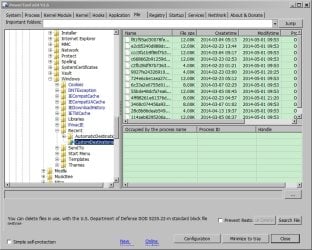
In the C:\Users\Username\AppData\Roaming\Microsoft\Windows directory on my machine the following folders shown highlighted in blue are the superhidden ones.

PowerTool x64 V1.jpg

If I want to view all hidden files using a single application I tend to make use of:

Hidden File Finder : Free Tool to Find and Unhide/Remove all the Hidden Files | www.SecurityXploded.com

It shows all hidden files and folders. Note: Just because they're hidden it doesn't automatically mean that there's a problem.
 

My Computer My Computer

At a glance

Microsoft Windows 7 Home Premium 64-bit 7601 ...AMD C-60 APU with Radeon(tm) HD Graphics4.00 GBAMD Radeon HD 6290 Graphics
Computer type
Laptop
Computer Manufacturer/Model Number
ASUS
OS
Microsoft Windows 7 Home Premium 64-bit 7601 Multiprocessor Free Service Pack 1
CPU
AMD C-60 APU with Radeon(tm) HD Graphics
Motherboard
ASUSTeK COMPUTER INC. X501U
Memory
4.00 GB
Graphics Card(s)
AMD Radeon HD 6290 Graphics
Sound Card
(1) AMD High Definition Audio Device (2) Realtek High Defi
Screen Resolution
1366 x 768 x 32 bits (4294967296 colors) @ 60 Hz
Hard Drives
Hitachi HTS545050A7E380 SATA Disk Device
Antivirus
Comodo CIS & FW, SecureAplus App Whitelisting, Threatfire
Browser
Cyberfox 64bit, Opera 64bit, Airfox
Other Info
Spy-The-Spy, HitmanPro.Alert, Norton Connect Safe, MJRegWatcher, BitDefender TrafficLight, Voodoo Shield, Zemana AntiMalware
Back
Top