Can't Access External HD To Change Security Permissions

mtnpoet7

New member
Local time
9:08 AM
Messages
15
I can't remember doing anything this stupid to my computers in a long time, but seriously need help now.

I was working with a 2TB external hard drive when I selected to change the security permission access and then realized that wasn't what I wanted to do, so stopped the process midway. A warning box popped up that the permissions were mixed on this external drive and that was it. I closed this box and thought I could get back and alter the permission settings for "everyone" but can't access the drive to change anything.

My OS is Windows 7 Ultimate and the External HD is a 2TB WD Book.

I then reboot the main HP computer to see if this would reset something only to find that the External Drive no longer shows up in Windows Explorer except under 'Network'. I can click on the drive there but can't access it to change anything - getting the same "Access Denied" error message.

After trying everything else I could think of I moved the external HD to another Windows 7 computer but it wouldn't show up there at all in Explorer so I moved it back to the system where this mistake was made.

It's been many years since I've done any DOS commands but did find one named SUBINACL.exe - but the instructions for this command only showed how to use it for an internal drive not an external drive, so this explanation confused me. Which may mean I need more specific instructions because DOS is now almost like a foreign language to me.

When trying to access this External Hard Drive I can get to the Properties box and it appears like I can alter permissions and add back an Admin profile, but when I go to close these boxes the access denied comes back and nothing is changed. All that shows up now is Everyone, and this only has Read Permission...nothing else is left.

I can't afford to pull out anymore of my hair :eek:, can anyone help me please?

Thanks in advance.
 

My Computer My Computer

At a glance

Windows 7 Ultimate
OS
Windows 7 Ultimate
Instead of left-clicking on the external drive (on the original problem machine) and getting "Access Denied", have you tried right-clicking and going through the "change ownership" steps?

You can easily add "change ownership" to the context menu using this tutorial.

Then right-click on the drive in Explorer and see if you can get that external drive back under your control.
 

My Computer My Computer

At a glance

Windows 7 Pro x64 (1), Win7 Pro X64 (2)i5-3350p 3.1Ghz/6MB-cache (1); E8400 3.0Ghz/6...8GB PC3-12800 DDR3 (1); 4GB PC3-10600 DDR3 (2)ATI HD7750 (1), (see TV cards); ATI R7 250 (2)
Computer type
PC/Desktop
Computer Manufacturer/Model Number
Home-built, two systems (1) and (2)
OS
Windows 7 Pro x64 (1), Win7 Pro X64 (2)
CPU
i5-3350p 3.1Ghz/6MB-cache (1); E8400 3.0Ghz/6MB-cache (2)
Motherboard
ASUS P8Z77-V Pro (1); ASUS P5Q3 (2)
Memory
8GB PC3-12800 DDR3 (1); 4GB PC3-10600 DDR3 (2)
Graphics Card(s)
ATI HD7750 (1), (see TV cards); ATI R7 250 (2)
Sound Card
Realtek ALC892 HD Audio (1); Realtek ALC1200 HD Audio (2)
Monitor(s) Displays
Eizo HD2441W LCD, Eizo S2433W (1); Eizo 24" S2433W (2)
Screen Resolution
1920x1200, 1920x1200 (1); 1920x1200 (2)
Hard Drives
(1) 1TB SATA-II (7200RPM), 2x2TB SATA-III (7200RPM), 250GB SATA-III (10000RPM) for OS; 2x2TB external USB 3.0

(2) 320GB SATA-II (7200RPM), 750GB SATA-II (7200RPM), 150GB SATA-II (10000RPM) for OS; 2TB external USB 3.0
PSU
Nesteq ECS-6001 600W (1); Nesteq ECS-5001 500W (2)
Case
Acousti-Case 360 (1) and (2)
Cooling
Noctua NH-U12P SE2 for CPU, 2x120mm case fans (1) and (2)
Keyboard
IBM PS/2 (1) and (2)
Mouse
Logitech MX Revolution wireless (1); Microsoft wired (2)
Internet Speed
100mbps down / 10mbps up
Antivirus
Microsoft Security Essentials; Malwarebyte Anti-Malware Pro
Browser
Firefox
Other Info
Ceton InfiniTV 4-tuner cablecard-enabled TV card as well as Hauppauge HVR-2250 OTA/ATSC 2-tuner TV card in (1), running under Win7 WMC
Hi, I was right clicking on the external drive in Windows Explorer each time, but just in case I missed something I will try again. Thanks for responding so quickly.
 

My Computer My Computer

At a glance

Windows 7 Ultimate
OS
Windows 7 Ultimate
Taking Ownership Registry Change Didn't Work

Hi DSPERBER,

I was so hopeful that registry key "Take Ownership" was going to help but alas, it did not. It is now in my right-click Menu but to no avail.

After installing the file you suggested I was able to do all the same things I'd tried before which includes going through the steps in the External HD Properties Box, but when I go to Apply the Changes (giving all permissions back) I get this same error message - Windows Cannot Access/...Drive...

Is this because I can only see the external drive under Network and not in My Computer like it used to be?

Are there any other ideas that might work?!?

Thanks for the suggestion.
 

My Computer My Computer

At a glance

Windows 7 Ultimate
OS
Windows 7 Ultimate
I don't know if this adds anything to this problem, but here is the other error message I get after attempting to change pemissions - 'An error occurred while trying to modify share<drive name>. Access denied.'

*Heavy sigh...thanks for offering a solution.


Instead of left-clicking on the external drive (on the original problem machine) and getting "Access Denied", have you tried right-clicking and going through the "change ownership" steps?

You can easily add "change ownership" to the context menu using this tutorial.

Then right-click on the drive in Explorer and see if you can get that external drive back under your control.
 

My Computer My Computer

At a glance

Windows 7 Ultimate
OS
Windows 7 Ultimate
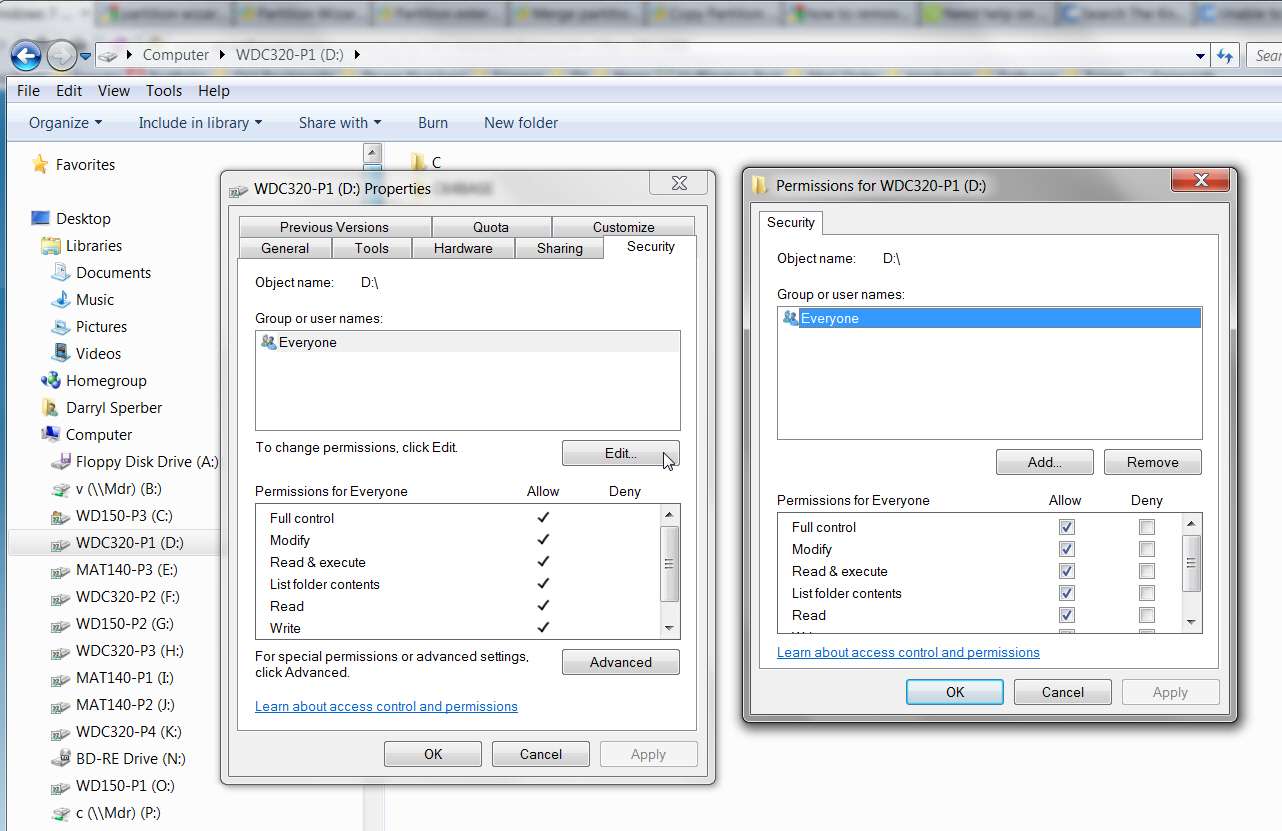
Can you not simply right-click on the drive and add "EVERYONE" with "FULL CONTROL" permission?

1. Right-click the file or folder or drive, and then click Properties.
2. Click the Security tab, and then click Edit.
3. To set permissions for a user that is not listed under Group or user names, click Add, type Everyone as the name of the user or group, click OK, select the permissions (full control), and then click OK.


everyonez.jpg


I have done this for all of my drives, so that I can access any folder on any drive from either of my two machines on my home LAN, no matter whether I'm booted to Win7 or WinXP at either machine.

Setting up access for "Everyone" as a user, with "full access", eliminates any headaches.
 

My Computer My Computer

At a glance

Windows 7 Pro x64 (1), Win7 Pro X64 (2)i5-3350p 3.1Ghz/6MB-cache (1); E8400 3.0Ghz/6...8GB PC3-12800 DDR3 (1); 4GB PC3-10600 DDR3 (2)ATI HD7750 (1), (see TV cards); ATI R7 250 (2)
Computer type
PC/Desktop
Computer Manufacturer/Model Number
Home-built, two systems (1) and (2)
OS
Windows 7 Pro x64 (1), Win7 Pro X64 (2)
CPU
i5-3350p 3.1Ghz/6MB-cache (1); E8400 3.0Ghz/6MB-cache (2)
Motherboard
ASUS P8Z77-V Pro (1); ASUS P5Q3 (2)
Memory
8GB PC3-12800 DDR3 (1); 4GB PC3-10600 DDR3 (2)
Graphics Card(s)
ATI HD7750 (1), (see TV cards); ATI R7 250 (2)
Sound Card
Realtek ALC892 HD Audio (1); Realtek ALC1200 HD Audio (2)
Monitor(s) Displays
Eizo HD2441W LCD, Eizo S2433W (1); Eizo 24" S2433W (2)
Screen Resolution
1920x1200, 1920x1200 (1); 1920x1200 (2)
Hard Drives
(1) 1TB SATA-II (7200RPM), 2x2TB SATA-III (7200RPM), 250GB SATA-III (10000RPM) for OS; 2x2TB external USB 3.0

(2) 320GB SATA-II (7200RPM), 750GB SATA-II (7200RPM), 150GB SATA-II (10000RPM) for OS; 2TB external USB 3.0
PSU
Nesteq ECS-6001 600W (1); Nesteq ECS-5001 500W (2)
Case
Acousti-Case 360 (1) and (2)
Cooling
Noctua NH-U12P SE2 for CPU, 2x120mm case fans (1) and (2)
Keyboard
IBM PS/2 (1) and (2)
Mouse
Logitech MX Revolution wireless (1); Microsoft wired (2)
Internet Speed
100mbps down / 10mbps up
Antivirus
Microsoft Security Essentials; Malwarebyte Anti-Malware Pro
Browser
Firefox
Other Info
Ceton InfiniTV 4-tuner cablecard-enabled TV card as well as Hauppauge HVR-2250 OTA/ATSC 2-tuner TV card in (1), running under Win7 WMC
If only it were that simple. I have tried what you suggested several times, going back to those same steps after trying something new (example: after adding TAKE CONTROL) and after going through those step when I try and save the changes (or "apply" them) I get this error - 'An error occurred while trying to modify share<drive name>. Access denied.'

Initially what showed up after I mistakenly stopped changing permission process midway was - only 1 user showing, which was Everyone with attribute Read-Only.
The Admin user had disappeared, as did my User name.

So I've tried adding one or more users back and granting them & 'Everybody' User all access, and I just can't apply or save any such changes.

As you suggested, this external HD was set so Everyone/Anyone could do anything so I could move the drive around to different computers without running into ownership an/or permission issues. So why on earth I elected to change these settings and then stop the process mid-way is anybody's guess. I must have had my head screwed on elswhere because it was all working fine before I did this, thinking to simply make the drive access a little more secure. As in - this was really really dumb.

Point being, the drive lost two users leaving only Everyone with Read-Only access. I guess because this was the lowest common denominator to what I was doing?!

Also, when I get in and try to see who has ownership of this drive, the user(s) in box below are grayed out. Messing around with it this way leads me to the same error message, which ends up not saving any changes.

Open to any more ideas that may exist out there.

I'm guessing that maybe the problem then lies with only 'Everyone' having only Read permision and there being no other User listed with anything else?

Sorry to be so long winded...
 

My Computer My Computer

At a glance

Windows 7 Ultimate
OS
Windows 7 Ultimate
I realize this is frustrating, and that you have essentially irreplaceable data on that drive... which unfortunately has no secondary backup (e.g. to DAT tape as I have, for my invaluable data backups, along with external USB drive for everyday recovery convenience).

Here's yet another "recipe" for trying to acquire permissions and control over the drive, from another MS article:

Grant ownership and permission to the administrator and to the system

To assign permissions to the system:
  1. Open Windows Explorer. To do this, click Start, click Programs, and then click Windows Explorer.
  2. Expand My Computer.
  3. Right-click the system drive (this is typically drive C), and then click Properties.
  4. Click the Security tab, and then click Advanced to open the Access Control Settings for Local Disk dialog box.
  5. Click the Owner tab, click to select the Replace Owner on Sub containers and Objects check box, and then click Apply.

    If you receive the following error message, click Continue: An error has occurred applying security information to %systemdrive%\Pagefile.sys
  6. If you receive the following error message, click Yes: You do not have permission to read the contents of directory %systemdrive%\System Volume Information - Do you want to replace the directory permission - All permission will be replaced granting you Full Control
  7. Click OK to close the dialog box.
  8. Click Add.
  9. Add the following users, and then grant them the Full Control NTFS permission:
    • Administrator
    • System
    • Creator Owner
  10. After you have added these NTFS permissions, click Advanced, click to select the Reset permission on all child objects and enable propagation of inheritable permissions check box, and then click Apply.
  11. If you receive the following error message, click Continue: An error has occurred applying security information to %systemdrive%\Pagefile.sys
  12. After you have reset NTFS permissions, click OK.

Now I would modify this recipe in step 9 to also add EVERYONE.

Does this also fail, the same way your other attempts have failed?
 

My Computer My Computer

At a glance

Windows 7 Pro x64 (1), Win7 Pro X64 (2)i5-3350p 3.1Ghz/6MB-cache (1); E8400 3.0Ghz/6...8GB PC3-12800 DDR3 (1); 4GB PC3-10600 DDR3 (2)ATI HD7750 (1), (see TV cards); ATI R7 250 (2)
Computer type
PC/Desktop
Computer Manufacturer/Model Number
Home-built, two systems (1) and (2)
OS
Windows 7 Pro x64 (1), Win7 Pro X64 (2)
CPU
i5-3350p 3.1Ghz/6MB-cache (1); E8400 3.0Ghz/6MB-cache (2)
Motherboard
ASUS P8Z77-V Pro (1); ASUS P5Q3 (2)
Memory
8GB PC3-12800 DDR3 (1); 4GB PC3-10600 DDR3 (2)
Graphics Card(s)
ATI HD7750 (1), (see TV cards); ATI R7 250 (2)
Sound Card
Realtek ALC892 HD Audio (1); Realtek ALC1200 HD Audio (2)
Monitor(s) Displays
Eizo HD2441W LCD, Eizo S2433W (1); Eizo 24" S2433W (2)
Screen Resolution
1920x1200, 1920x1200 (1); 1920x1200 (2)
Hard Drives
(1) 1TB SATA-II (7200RPM), 2x2TB SATA-III (7200RPM), 250GB SATA-III (10000RPM) for OS; 2x2TB external USB 3.0

(2) 320GB SATA-II (7200RPM), 750GB SATA-II (7200RPM), 150GB SATA-II (10000RPM) for OS; 2TB external USB 3.0
PSU
Nesteq ECS-6001 600W (1); Nesteq ECS-5001 500W (2)
Case
Acousti-Case 360 (1) and (2)
Cooling
Noctua NH-U12P SE2 for CPU, 2x120mm case fans (1) and (2)
Keyboard
IBM PS/2 (1) and (2)
Mouse
Logitech MX Revolution wireless (1); Microsoft wired (2)
Internet Speed
100mbps down / 10mbps up
Antivirus
Microsoft Security Essentials; Malwarebyte Anti-Malware Pro
Browser
Firefox
Other Info
Ceton InfiniTV 4-tuner cablecard-enabled TV card as well as Hauppauge HVR-2250 OTA/ATSC 2-tuner TV card in (1), running under Win7 WMC
Here's yet another suggested idea..

1. Right click on the drive on which the folder resides which you want to recover on the ntfs drive and go to properties.

2. Click on the tools tab>>Backup now ,a wizard will get started which you can customize to select the folder which you want to back up.

In case of windows either with windows xp or windows vista there are some default user groups which are on different levels according to the respective privileges.


One of these groups is the Power Users Group and all the administrator’s of the operating system are a part of the power users by default so any administrator of the operating system which is not able to access those ntfs protected data but can take the customized back up and then after restore the back to obtain the files on some other location or drive.


So by following the procedure above you will be able to create a backup file which you can restore as the files you want on any other drive. I think that the restore process may allow you to NOT RESTORE ACL PERMISSIONS to the new location.


I don't know if this will really work, and that "backup" will actually be able to read these folders which currently have permissions problems, but maybe yes!

Depending on how much space you have available on your external drive and/or internal drives, if you use Partition Wizard (standalone boot CD) to repartition your external hard drive you can create a second "target" partition on that drive. Then after the backup is complete restore it to the newly allocated second empty partition, opting to NOT restore ACL permissions.

I'm kind of just thinking out loud here, reading ideas from the web, and have never actually used them myself.
 

My Computer My Computer

At a glance

Windows 7 Pro x64 (1), Win7 Pro X64 (2)i5-3350p 3.1Ghz/6MB-cache (1); E8400 3.0Ghz/6...8GB PC3-12800 DDR3 (1); 4GB PC3-10600 DDR3 (2)ATI HD7750 (1), (see TV cards); ATI R7 250 (2)
Computer type
PC/Desktop
Computer Manufacturer/Model Number
Home-built, two systems (1) and (2)
OS
Windows 7 Pro x64 (1), Win7 Pro X64 (2)
CPU
i5-3350p 3.1Ghz/6MB-cache (1); E8400 3.0Ghz/6MB-cache (2)
Motherboard
ASUS P8Z77-V Pro (1); ASUS P5Q3 (2)
Memory
8GB PC3-12800 DDR3 (1); 4GB PC3-10600 DDR3 (2)
Graphics Card(s)
ATI HD7750 (1), (see TV cards); ATI R7 250 (2)
Sound Card
Realtek ALC892 HD Audio (1); Realtek ALC1200 HD Audio (2)
Monitor(s) Displays
Eizo HD2441W LCD, Eizo S2433W (1); Eizo 24" S2433W (2)
Screen Resolution
1920x1200, 1920x1200 (1); 1920x1200 (2)
Hard Drives
(1) 1TB SATA-II (7200RPM), 2x2TB SATA-III (7200RPM), 250GB SATA-III (10000RPM) for OS; 2x2TB external USB 3.0

(2) 320GB SATA-II (7200RPM), 750GB SATA-II (7200RPM), 150GB SATA-II (10000RPM) for OS; 2TB external USB 3.0
PSU
Nesteq ECS-6001 600W (1); Nesteq ECS-5001 500W (2)
Case
Acousti-Case 360 (1) and (2)
Cooling
Noctua NH-U12P SE2 for CPU, 2x120mm case fans (1) and (2)
Keyboard
IBM PS/2 (1) and (2)
Mouse
Logitech MX Revolution wireless (1); Microsoft wired (2)
Internet Speed
100mbps down / 10mbps up
Antivirus
Microsoft Security Essentials; Malwarebyte Anti-Malware Pro
Browser
Firefox
Other Info
Ceton InfiniTV 4-tuner cablecard-enabled TV card as well as Hauppauge HVR-2250 OTA/ATSC 2-tuner TV card in (1), running under Win7 WMC
Yet one more idea from a "guru"...

I am sure that his reference to manipulating a specific folder (and sub-folders) can be extrapolated up, to apply to the drive itself.


I'm a command-line kinda guy, and thus I use the Windows Command Prompt.

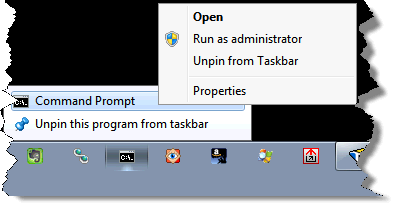
The first step is to get one with Administrative privileges. Typically, that means you can right click on the icon and click on Run as administrator.

If the icon is in your Windows 7 Taskbar, right click on it, then right click on the Command Prompt in the popup many that appears to get the option:


win7runasadmin.png


Now you have a Windows Command Prompt with full administrative access.


"CD" to the location of the folder who's contents you want to access. In my example, case that's (keystrokes shown in blue):

Microsoft Windows [Version 6.1.7600]
Copyright (c) 2009 Microsoft Corporation. All rights reserved.

C:\Windows\system32>cd /d c:\dell

c:\dell>


There are two commands that are extremely useful in this scenario; often either one alone is sufficient, but both pretty much guarantee access:

c:\dell>takeown /F * /R

SUCCESS: The file (or folder): "c:\dell\drivers" now owned by user "NOTENXPS\LeoN".

...


The "takeown" command shown above takes ownership of the named folder, or in this case "/F *" means all files and folders in the current folder. Ownership is assigned to the account you are currently logged in as.

"/R" means to also recurse into any folders and keep assigning ownership to everything found in any and all subfolders. You'll see a long list of "SUCCESS" messages as ownership is reassigned.

"takeown /?" will display a full list of options.


The other approach is to use a more complicated program called "icacls". Icacls is a command line utility for managing access control lists - i.e. file access permissions. It has plethora of options that are fairly confusing.

Here's what I use:

c:\dell>icacls * /grant:r everyone:f /t
processed file: drivers
...

Successfully processed 66 files; Failed processing 0 files

Once again "*" means all the files and folders in the current folder, "/grant" means we're granting permissions, ":r" means we're replacing any existing permissions, "everyone" means that everyone gets the permission we're about to grant, ":f" indicates that we're granting full control, and finally "/t" means to perform the operation on all subfolders as well.

"icacls" without any arguments at all will print the lengthy list of things you can do with it.

ICacls should be used with caution. It's very easy to accidentally remove or assign permissions that boil down to no permission at all. If you do that to the wrong files or folders you could cause some serious problems.
 

My Computer My Computer

At a glance

Windows 7 Pro x64 (1), Win7 Pro X64 (2)i5-3350p 3.1Ghz/6MB-cache (1); E8400 3.0Ghz/6...8GB PC3-12800 DDR3 (1); 4GB PC3-10600 DDR3 (2)ATI HD7750 (1), (see TV cards); ATI R7 250 (2)
Computer type
PC/Desktop
Computer Manufacturer/Model Number
Home-built, two systems (1) and (2)
OS
Windows 7 Pro x64 (1), Win7 Pro X64 (2)
CPU
i5-3350p 3.1Ghz/6MB-cache (1); E8400 3.0Ghz/6MB-cache (2)
Motherboard
ASUS P8Z77-V Pro (1); ASUS P5Q3 (2)
Memory
8GB PC3-12800 DDR3 (1); 4GB PC3-10600 DDR3 (2)
Graphics Card(s)
ATI HD7750 (1), (see TV cards); ATI R7 250 (2)
Sound Card
Realtek ALC892 HD Audio (1); Realtek ALC1200 HD Audio (2)
Monitor(s) Displays
Eizo HD2441W LCD, Eizo S2433W (1); Eizo 24" S2433W (2)
Screen Resolution
1920x1200, 1920x1200 (1); 1920x1200 (2)
Hard Drives
(1) 1TB SATA-II (7200RPM), 2x2TB SATA-III (7200RPM), 250GB SATA-III (10000RPM) for OS; 2x2TB external USB 3.0

(2) 320GB SATA-II (7200RPM), 750GB SATA-II (7200RPM), 150GB SATA-II (10000RPM) for OS; 2TB external USB 3.0
PSU
Nesteq ECS-6001 600W (1); Nesteq ECS-5001 500W (2)
Case
Acousti-Case 360 (1) and (2)
Cooling
Noctua NH-U12P SE2 for CPU, 2x120mm case fans (1) and (2)
Keyboard
IBM PS/2 (1) and (2)
Mouse
Logitech MX Revolution wireless (1); Microsoft wired (2)
Internet Speed
100mbps down / 10mbps up
Antivirus
Microsoft Security Essentials; Malwarebyte Anti-Malware Pro
Browser
Firefox
Other Info
Ceton InfiniTV 4-tuner cablecard-enabled TV card as well as Hauppauge HVR-2250 OTA/ATSC 2-tuner TV card in (1), running under Win7 WMC
Marvelous, another new suggestion for which I'm grateful and will try.

The essentially irreplacable data is a music collection that took me around 15 years to accumulate. This external HD was the backup to all my music. So though I own all the CDs, I can't imagine what kind of time it would take me to backup this all up again.

The moral to this story is " Never assume that two backups should be good enough, in case of user stupidity."

I think it would have been a easy rescue mission if I'd not stopped the changing permission process part way through leaving something incomplete or way out of whack. But this is merely another guess on my part.

I'm off to try your newest suggestion.
 

My Computer My Computer

At a glance

Windows 7 Ultimate
OS
Windows 7 Ultimate
What about trying to boot with a Linux disc to see if you can access and copy the files that way?
 

My Computer My Computer

At a glance

Multi-Boot W7_Pro_x64 W8.1_Pro_x64 W10_Pro_x6...AMD Athlon II x4 6206GB GSkill DDR2 800AMD 4670 GPU + AMD 4200 IGP
Computer type
PC/Desktop
Computer Manufacturer/Model Number
home built
OS
Multi-Boot W7_Pro_x64 W8.1_Pro_x64 W10_Pro_x64 +Linux_VMs +Chromium_VM
CPU
AMD Athlon II x4 620
Motherboard
Gigabyte GA-MA785G-UD3H
Memory
6GB GSkill DDR2 800
Graphics Card(s)
AMD 4670 GPU + AMD 4200 IGP
Sound Card
on board Realtek ALC889A
Monitor(s) Displays
RCA 40" LCD TV, Insignia 32" LCD TV, HP 15" LCD monitor
Screen Resolution
1680 x 1050
Hard Drives
OCZ Vertex 3 120GB,
Samsung F3 1TB (3),
Several others - WD, Seagate, Hitachi, ...
PSU
Corsair 500 W
Case
Rosewill mid tower
Cooling
CM 90mm rifle
Keyboard
Gyration wireless, Logitech wireless, Dell USB wired
Mouse
Gyration wireless, Logitech wireless, V7 USB wired
Internet Speed
Spectrum - 100Mbps D / 10Mbps U
Antivirus
Avast, MBAM3, EMET, WinPatrol
Browser
Pale Moon, Firefox, IE
Other Info
2 multi-boot PC's
Mainly HTPC/Office/Gen purpose (no gaming).
Trendnet USB KVM.
LG DVD burner/Blue Ray Player.
Tray system for removable SATA backup drives.

Not currently OCd, under-volted.
I use Hybrid sleep, rarely re-boot or shutdown.

Hauppauge HD-PVR, Avermedia PCIe TV Tuner, Hauppauge PCI TV Tuner.
I'm not sure which of these are the 'OWNER' and can't identify the owner using another way into drive properies for external HD.

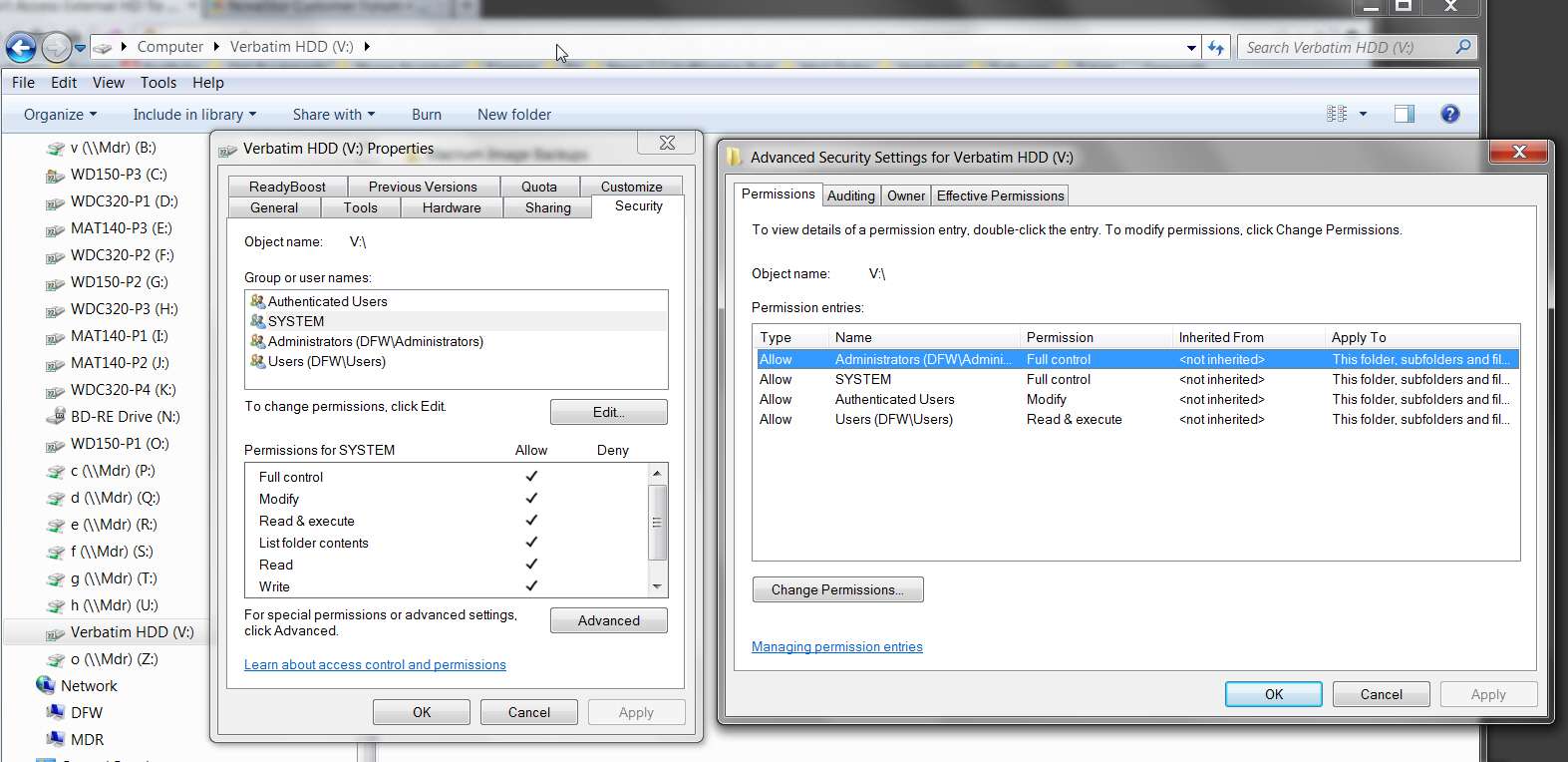
So here is what is in the Advanced Security Box -

Administrators - Full Control
SYSTEM - Full Control
Users - Read & Execute
Authenticated Users - Special
Authenticated Users - Create folders/app....

Which one of these is the one I should change in your directions below?
Adminisrators or SYSTEM?

Thanks.


I realize this is frustrating, and that you have essentially irreplaceable data on that drive... which unfortunately has no secondary backup (e.g. to DAT tape as I have, for my invaluable data backups, along with external USB drive for everyday recovery convenience).

Here's yet another "recipe" for trying to acquire permissions and control over the drive, from another MS article:

Grant ownership and permission to the administrator and to the system


To assign permissions to the system:
  1. Open Windows Explorer. To do this, click Start, click Programs, and then click Windows Explorer.
  2. Expand My Computer.
  3. Right-click the system drive (this is typically drive C), and then click Properties.
  4. Click the Security tab, and then click Advanced to open the Access Control Settings for Local Disk dialog box.
  5. Click the Owner tab, click to select the Replace Owner on Sub containers and Objects check box, and then click Apply.

    If you receive the following error message, click Continue: An error has occurred applying security information to %systemdrive%\Pagefile.sys
  6. If you receive the following error message, click Yes: You do not have permission to read the contents of directory %systemdrive%\System Volume Information - Do you want to replace the directory permission - All permission will be replaced granting you Full Control
  7. Click OK to close the dialog box.
  8. Click Add.
  9. Add the following users, and then grant them the Full Control NTFS permission:
    • Administrator
    • System
    • Creator Owner
  10. After you have added these NTFS permissions, click Advanced, click to select the Reset permission on all child objects and enable propagation of inheritable permissions check box, and then click Apply.
  11. If you receive the following error message, click Continue: An error has occurred applying security information to %systemdrive%\Pagefile.sys
  12. After you have reset NTFS permissions, click OK.
Now I would modify this recipe in step 9 to also add EVERYONE.

Does this also fail, the same way your other attempts have failed?
 

My Computer My Computer

At a glance

Windows 7 Ultimate
OS
Windows 7 Ultimate
Yet one more idea...

I use a backup/restore program for my ordinary data named NovaBackup (I use Macrium Reflect for my "system image" backups). As with all similar programs I've used over the years, NovaBackup has the ability to optionally backup the ACL permissions for NTFS or not.

Furthermore, in the restore functionality, there is again the option to restore the ACL permissions for NTFS or not.

The product is available for trial, so it can't hurt for you to at least install it and see if it can solve the problem.

For the experiment you'd set up a backup say of one folder, try to run the backup to see if the program can even read that folder or if it also gets the equivalent of "access denied" and fails to even be able to read the data you want backed up. I'd un-check the "backup ACL permissions" option.

But if it can read the test folder, you can thern restore it to a second location, and see if you can then read the restored data from that second location.

If this is successful, now the issue is how to plot out the logistics for doing this backup-without-ACL and restore-to-new-location for the large volume of data you have. I'd probably use Partition Wizard to shrink your existing partition and create a new second partition on that external drive (or put the backup output onto a second drive, somewhere, if available) as the output target for this migration process.

Of course it might be just as unsuccessful as all of your current attempts have been to deal with these problem folders. And if NovaBackup can also NOT read them, then the whole idea can be tossed.

But... you might try it. You might even decide to buy NovaBackup.

You can download the trial version of NovaBackup here.
 

My Computer My Computer

At a glance

Windows 7 Pro x64 (1), Win7 Pro X64 (2)i5-3350p 3.1Ghz/6MB-cache (1); E8400 3.0Ghz/6...8GB PC3-12800 DDR3 (1); 4GB PC3-10600 DDR3 (2)ATI HD7750 (1), (see TV cards); ATI R7 250 (2)
Computer type
PC/Desktop
Computer Manufacturer/Model Number
Home-built, two systems (1) and (2)
OS
Windows 7 Pro x64 (1), Win7 Pro X64 (2)
CPU
i5-3350p 3.1Ghz/6MB-cache (1); E8400 3.0Ghz/6MB-cache (2)
Motherboard
ASUS P8Z77-V Pro (1); ASUS P5Q3 (2)
Memory
8GB PC3-12800 DDR3 (1); 4GB PC3-10600 DDR3 (2)
Graphics Card(s)
ATI HD7750 (1), (see TV cards); ATI R7 250 (2)
Sound Card
Realtek ALC892 HD Audio (1); Realtek ALC1200 HD Audio (2)
Monitor(s) Displays
Eizo HD2441W LCD, Eizo S2433W (1); Eizo 24" S2433W (2)
Screen Resolution
1920x1200, 1920x1200 (1); 1920x1200 (2)
Hard Drives
(1) 1TB SATA-II (7200RPM), 2x2TB SATA-III (7200RPM), 250GB SATA-III (10000RPM) for OS; 2x2TB external USB 3.0

(2) 320GB SATA-II (7200RPM), 750GB SATA-II (7200RPM), 150GB SATA-II (10000RPM) for OS; 2TB external USB 3.0
PSU
Nesteq ECS-6001 600W (1); Nesteq ECS-5001 500W (2)
Case
Acousti-Case 360 (1) and (2)
Cooling
Noctua NH-U12P SE2 for CPU, 2x120mm case fans (1) and (2)
Keyboard
IBM PS/2 (1) and (2)
Mouse
Logitech MX Revolution wireless (1); Microsoft wired (2)
Internet Speed
100mbps down / 10mbps up
Antivirus
Microsoft Security Essentials; Malwarebyte Anti-Malware Pro
Browser
Firefox
Other Info
Ceton InfiniTV 4-tuner cablecard-enabled TV card as well as Hauppauge HVR-2250 OTA/ATSC 2-tuner TV card in (1), running under Win7 WMC
You are simply wonderful. That too is a very good suggestion.

In the midst of our chat I decided to try the backup software I already had installed on main computer which is Acronis Home Image 2011 just to see if there was someway to backup onto another drive. In setting this up Acronis did give one error message initially which their website tech instruction said to Ignore.

I did that and this back up image is being made as I write this... but your suggestions sound better. But I'm afraid to abort this imaging process given what happened when I aborted the last one leading to this mess.

What do you think? Should I move on to your 2nd suggestion, and on to #'s 3 & 4 if that one doesn't work?

The point being I'm willing to wait for Acronis to finish but don't want you to wait around in case you come up with the wonder solution, at which point I will be back proclaiming your wisdom to the moon... ? :-)

Thanks again.

Cynthia
 

My Computer My Computer

At a glance

Windows 7 Ultimate
OS
Windows 7 Ultimate
I'm not sure which of these are the 'OWNER' and can't identify the owner using another way into drive properies for external HD.

So here is what is in the Advanced Security Box -

Administrators - Full Control
SYSTEM - Full Control
Users - Read & Execute
Authenticated Users - Special
Authenticated Users - Create folders/app....

Which one of these is the one I should change in your directions below?
Adminisrators or SYSTEM?
Well, my guess would be to use Adminstrators, but either of the two that show "Full control" probably would work.

Here's my current "Permissions" for my own external USB drive (that supports full access):

externaldrivepermission.jpg


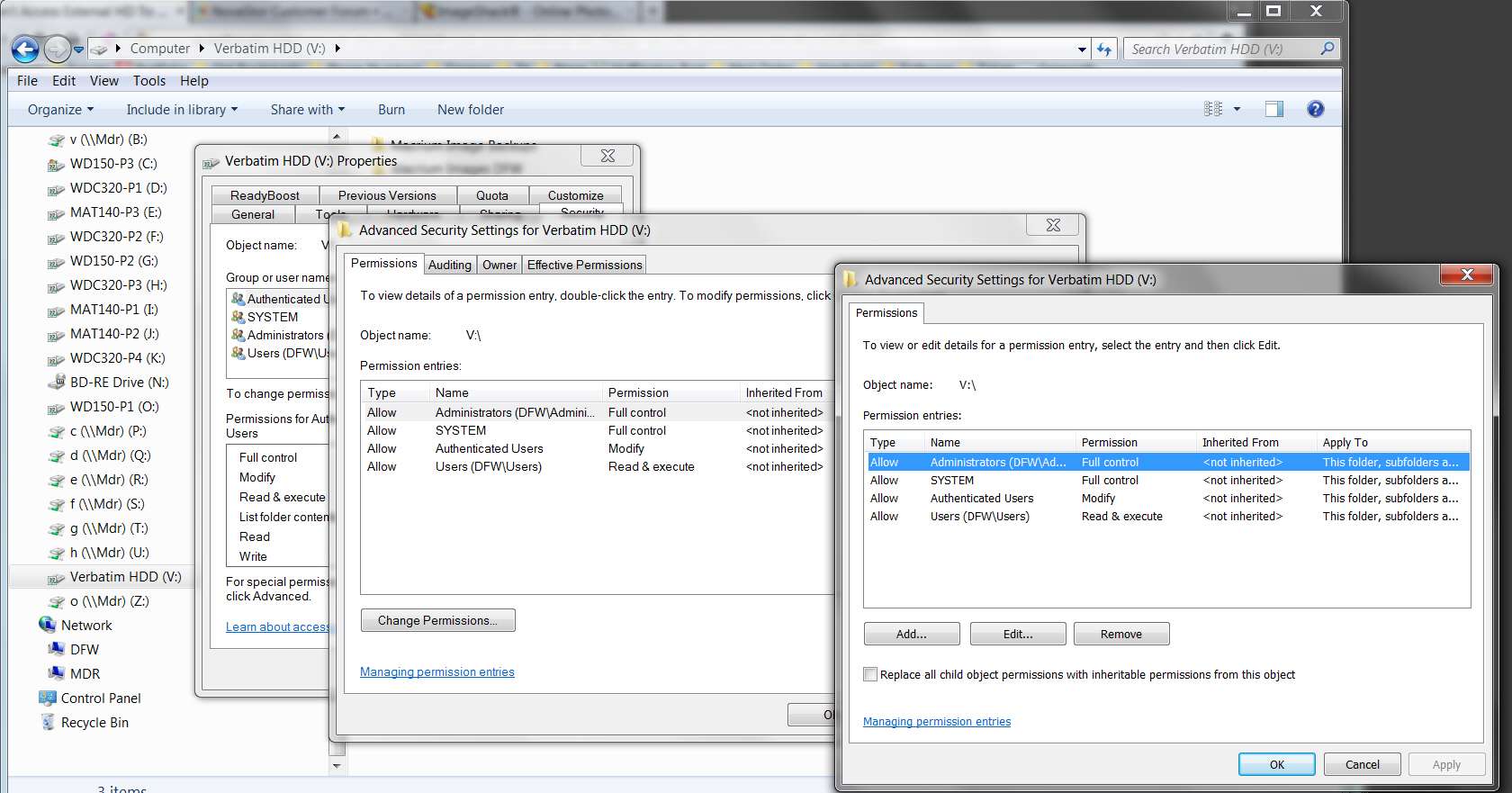
And here's my current "Owner" for the same drive:

externaldriveowner.jpg


I've never done any manual adjustments for this drive, so whatever is there got installed automatically by Win7 and apparently fully supports unlimited access to me, from both of my machines.
 

My Computer My Computer

At a glance

Windows 7 Pro x64 (1), Win7 Pro X64 (2)i5-3350p 3.1Ghz/6MB-cache (1); E8400 3.0Ghz/6...8GB PC3-12800 DDR3 (1); 4GB PC3-10600 DDR3 (2)ATI HD7750 (1), (see TV cards); ATI R7 250 (2)
Computer type
PC/Desktop
Computer Manufacturer/Model Number
Home-built, two systems (1) and (2)
OS
Windows 7 Pro x64 (1), Win7 Pro X64 (2)
CPU
i5-3350p 3.1Ghz/6MB-cache (1); E8400 3.0Ghz/6MB-cache (2)
Motherboard
ASUS P8Z77-V Pro (1); ASUS P5Q3 (2)
Memory
8GB PC3-12800 DDR3 (1); 4GB PC3-10600 DDR3 (2)
Graphics Card(s)
ATI HD7750 (1), (see TV cards); ATI R7 250 (2)
Sound Card
Realtek ALC892 HD Audio (1); Realtek ALC1200 HD Audio (2)
Monitor(s) Displays
Eizo HD2441W LCD, Eizo S2433W (1); Eizo 24" S2433W (2)
Screen Resolution
1920x1200, 1920x1200 (1); 1920x1200 (2)
Hard Drives
(1) 1TB SATA-II (7200RPM), 2x2TB SATA-III (7200RPM), 250GB SATA-III (10000RPM) for OS; 2x2TB external USB 3.0

(2) 320GB SATA-II (7200RPM), 750GB SATA-II (7200RPM), 150GB SATA-II (10000RPM) for OS; 2TB external USB 3.0
PSU
Nesteq ECS-6001 600W (1); Nesteq ECS-5001 500W (2)
Case
Acousti-Case 360 (1) and (2)
Cooling
Noctua NH-U12P SE2 for CPU, 2x120mm case fans (1) and (2)
Keyboard
IBM PS/2 (1) and (2)
Mouse
Logitech MX Revolution wireless (1); Microsoft wired (2)
Internet Speed
100mbps down / 10mbps up
Antivirus
Microsoft Security Essentials; Malwarebyte Anti-Malware Pro
Browser
Firefox
Other Info
Ceton InfiniTV 4-tuner cablecard-enabled TV card as well as Hauppauge HVR-2250 OTA/ATSC 2-tuner TV card in (1), running under Win7 WMC
In the midst of our chat I decided to try the backup software I already had installed on main computer which is Acronis Home Image 2011 just to see if there was someway to backup onto another drive. In setting this up Acronis did give one error message initially which their website tech instruction said to Ignore.

I did that and this back up image is being made as I write this... but your suggestions sound better. But I'm afraid to abort this imaging process given what happened when I aborted the last one leading to this mess.
I don't use Acronis. Tried it when I went to Win7 (and had to give up Backup MyPC which I'd been using for years) and couldn't figure it out. Tried various others, and finally decided to go with NovaBackup. It's not perfect, but it gives me what I need for folder/file backup capability. I use Macrium Reflect for "system image" (i.e. my boot drive), using NovaBackup for the rest of my data... doing normal monthly FULL backups and daily INCREMENTAL backups to external USB, with secondary monthly backup to TAPE.

Anyway, I am not surprised that if you're running an Acronis "image" backup of some type, that it's just copying sectors and doesn't care what's in those sectors. So I wouldn't hold out too much hope for any different result if you then restore that "image" to a second drive or disk area somewhere.

The only way you can truly deal with the ACL permissions problem is to drop them... either in the backup or the restore... by a "data backup" of folders/files, not an "image backup". That would be my guess.


What do you think? Should I move on to your 2nd suggestion, and on to #'s 3 & 4 if that one doesn't work?
Well, I've found several optional approaches from the web (which I, myself, have never used personally, so I can't vouch for any of them). Certainly that command-prompt "takeown" idea is easy enough to try.

And the second "icacls" idea could also be easy enough to try, although the warning about possible misuse if not careful kind of frightens me.

For sure, the Windows backup idea is similar to what I suggested using NovaBackup (where I KNOW the options regarding ACL are present), but I have been unable to learn where in Windows backup or restore you can deal with the NTFS permissions. So I don't understand how that is supposed to work.

And of course all of these ideas may be thwarted by whatever happened to your external drive that now has an apparent "hybrid" situation for NTFS permissions.


The point being I'm willing to wait for Acronis to finish but don't want you to wait around in case you come up with the wonder solution, at which point I will be back proclaiming your wisdom to the moon... ? :-)
Well, let's just try one thing at a time until we're completely out of ideas.

The key, of course, is if any of these proposed ideas and possible solutions can actually overcome the apparent obstacles which have shown up when trying the earlier possible solutions... where you see something like "access denied" when it would be completely unexpected, since that's what the steps you're taking are intended to overcome.

Anyway, I think "takeown" would be the easiest next possible solution. I'd never heard of it before now:
Takeown

The takeown command is used to regain access to a file that that an administrator was denied access to when reassigning ownership of the file..
 
Last edited:

My Computer My Computer

At a glance

Windows 7 Pro x64 (1), Win7 Pro X64 (2)i5-3350p 3.1Ghz/6MB-cache (1); E8400 3.0Ghz/6...8GB PC3-12800 DDR3 (1); 4GB PC3-10600 DDR3 (2)ATI HD7750 (1), (see TV cards); ATI R7 250 (2)
Computer type
PC/Desktop
Computer Manufacturer/Model Number
Home-built, two systems (1) and (2)
OS
Windows 7 Pro x64 (1), Win7 Pro X64 (2)
CPU
i5-3350p 3.1Ghz/6MB-cache (1); E8400 3.0Ghz/6MB-cache (2)
Motherboard
ASUS P8Z77-V Pro (1); ASUS P5Q3 (2)
Memory
8GB PC3-12800 DDR3 (1); 4GB PC3-10600 DDR3 (2)
Graphics Card(s)
ATI HD7750 (1), (see TV cards); ATI R7 250 (2)
Sound Card
Realtek ALC892 HD Audio (1); Realtek ALC1200 HD Audio (2)
Monitor(s) Displays
Eizo HD2441W LCD, Eizo S2433W (1); Eizo 24" S2433W (2)
Screen Resolution
1920x1200, 1920x1200 (1); 1920x1200 (2)
Hard Drives
(1) 1TB SATA-II (7200RPM), 2x2TB SATA-III (7200RPM), 250GB SATA-III (10000RPM) for OS; 2x2TB external USB 3.0

(2) 320GB SATA-II (7200RPM), 750GB SATA-II (7200RPM), 150GB SATA-II (10000RPM) for OS; 2TB external USB 3.0
PSU
Nesteq ECS-6001 600W (1); Nesteq ECS-5001 500W (2)
Case
Acousti-Case 360 (1) and (2)
Cooling
Noctua NH-U12P SE2 for CPU, 2x120mm case fans (1) and (2)
Keyboard
IBM PS/2 (1) and (2)
Mouse
Logitech MX Revolution wireless (1); Microsoft wired (2)
Internet Speed
100mbps down / 10mbps up
Antivirus
Microsoft Security Essentials; Malwarebyte Anti-Malware Pro
Browser
Firefox
Other Info
Ceton InfiniTV 4-tuner cablecard-enabled TV card as well as Hauppauge HVR-2250 OTA/ATSC 2-tuner TV card in (1), running under Win7 WMC
OK, I think I'll try Administrator since messing with the SYSTEM this way makes me a little nervous.

After all this is said and done I'll be making new images and backups of all my external drives which is how I backup as a default position for the past few years after having internal RAID drives fail.

Now I am going to wait for Acronis to image the drive just in case this could acually work. It just might because it appears that this software could access the drive even though it does not show up in My Computer like it used to. I wonder why that is!?

The external HD did show up in My Computer along with all the other drives until I rebooted hoping to reset something. Now the only way I can even see the drive is through the Network icon in Windows Explorer.

I mention this only because I do not understand why this happened, and is this even an important factor to consider?

I'll be back sometime later as I'm not sure how long the Acronis imaging will take on 1.5 TB. It said one and a half days (eek) but it's already showing to be over a third of the way done.


Ever onward....
Thnx

I'm not sure which of these are the 'OWNER' and can't identify the owner using another way into drive properies for external HD.

So here is what is in the Advanced Security Box -

Administrators - Full Control
SYSTEM - Full Control
Users - Read & Execute
Authenticated Users - Special
Authenticated Users - Create folders/app....

Which one of these is the one I should change in your directions below?
Adminisrators or SYSTEM?
Well, my guess would be to use Adminstrators, but either of the two that show "Full control" probably would work.

Here's my current "Permissions" for my own external USB drive (that supports full access):

externaldrivepermission.jpg


And here's my current "Owner" for the same drive:

externaldriveowner.jpg


I've never done any manual adjustments for this drive, so whatever is there got installed automatically by Win7 and apparently fully supports unlimited access to me, from both of my machines.
 

My Computer My Computer

At a glance

Windows 7 Ultimate
OS
Windows 7 Ultimate
A very good point and you're probably correct in that imaging the drive won't change the problem with the hybrid permissions. A very good way to put it BTW. But since I'm afraid of another abort, will move on directly to the Takedown option when done.

I appreciate all your suggestions about what you use since I've only been using Acronis for a year or two and have never had to restore something using it. I do try to be careful, but sometimes one can get ahead of oneself. I realize now that I was doing two tasks when I made the wrong call, as in major whoops.

I'm going to download NovaBackup because I do want something better now.

Ever onward and upward....?
We shall see.
Thnx


In the midst of our chat I decided to try the backup software I already had installed on main computer which is Acronis Home Image 2011 just to see if there was someway to backup onto another drive. In setting this up Acronis did give one error message initially which their website tech instruction said to Ignore.

I did that and this back up image is being made as I write this... but your suggestions sound better. But I'm afraid to abort this imaging process given what happened when I aborted the last one leading to this mess.
I don't use Acronis. Tried it when I went to Win7 (and had to give up Backup MyPC which I'd been using for years) and couldn't figure it out. Tried various others, and finally decided to go with NovaBackup. It's not perfect, but it gives me what I need for folder/file backup capability. I use Macrium Reflect for "system image" (i.e. my boot drive), using NovaBackup for the rest of my data... doing normal monthly FULL backups and daily INCREMENTAL backups to external USB, with secondary monthly backup to TAPE.

Anyway, I am not surprised that if you're running an Acronis "image" backup of some type, that it's just copying sectors and doesn't care what's in those sectors. So I wouldn't hold out too much hope for any different result if you then restore that "image" to a second drive or disk area somewhere.

The only way you can truly deal with the ACL permissions problem is to drop them... either in the backup or the restore... by a "data backup" of folders/files, not an "image backup". That would be my guess.


What do you think? Should I move on to your 2nd suggestion, and on to #'s 3 & 4 if that one doesn't work?
Well, I've found several optional approaches from the web (which I, myself, have never used personally, so I can't vouch for any of them). Certainly that command-prompt "takedown" idea is easy enough to try.

And the second "icacls" idea could also be easy enough to try, although the warning about possible misuse if not careful kind of frightens me.

For sure, the Windows backup idea is similar to what I suggested using NovaBackup (where I KNOW the options regarding ACL are present), but I have been unable to learn where in Windows backup or restore you can deal with the NTFS permissions. So I don't understand how that is supposed to work.

And of course all of these ideas may be thwarted by whatever happened to your external drive that now has an apparent "hybrid" situation for NTFS permissions.


The point being I'm willing to wait for Acronis to finish but don't want you to wait around in case you come up with the wonder solution, at which point I will be back proclaiming your wisdom to the moon... ? :-)
Well, let's just try one thing at a time until we're completely out of ideas.

The key, of course, is if any of these proposed ideas and possible solutions can actually overcome the apparent obstacles which have shown up when trying the earlier possible solutions... where you see something like "access denied" when it would be completely unexpected, since that's what the steps you're taking are intended to overcome.

Anyway, I think "takedown" would be the easiest next possible solution. I'd never heard of it before now:
Takedown

The takedown command is used to regain access to a file that that an administrator was denied access to when reassigning ownership of the file..
 

My Computer My Computer

At a glance

Windows 7 Ultimate
OS
Windows 7 Ultimate
Just FYI...when I moved the external drive to another PC it asked if I wanted to format the drive?! It couldn't be read on another computer at all - for whatever that's worth.

This is Hybrid hell, ha.
 

My Computer My Computer

At a glance

Windows 7 Ultimate
OS
Windows 7 Ultimate
Back
Top