
WAN miniport drivers vanished,can't reinstall PLEASE help.

DamnWanMiniPort

New member
Local time
9:57 AM
Messages
1
Hello, this is my first post i don't have much time to write it so i will go straight to the point!

Today while i was trying to connect to the internet i discovered that my network card and some other components showed up in device manager with the following message "This device is not working properly because Windows cannot load the drivers required for this device. (Code 31)""

I don't know why this has happened , i did nothing to cause it, no recent installs or other modifications it just happened for no apparent reason.

I have managed to install my network card and 2-3 other things from the Network category back but i still have a lot of WAN miniports that i can't install , i have been trying for more than 5 hours to resolve this issue with no success.

I need the WAN miniports to be installed in order to connect to the internet since i have to dial a connection, please if someone could guide me in resolving this issue it would be a VERY big help for me since i don't want to reinstall my windows :(.

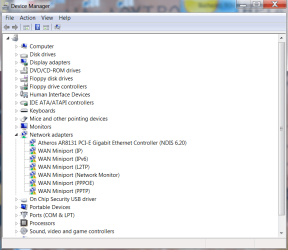
I have attached a screen shot from the task manager with the WAN miniports that still have the error31 message.

Thank you in advance !
 

Attachments
  • Untitled.png
    Untitled.png
    33.6 KB · Views: 408

My Computer My Computer

At a glance

win7 32b
OS
win7 32b

My Computer My Computer

At a glance

Windows 7 Ultimate SP1 64-BitIntel Core i7 870 @ 2.93GHz8Gb Dual-Channel DDR3 @ 664MHznVidia GeForce GTX 460 1024MB dedicated RAM
Computer Manufacturer/Model Number
HP Pavilion Elite 495UK
OS
Windows 7 Ultimate SP1 64-Bit
CPU
Intel Core i7 870 @ 2.93GHz
Motherboard
MSI 2A9C (CPU1)
Memory
8Gb Dual-Channel DDR3 @ 664MHz
Graphics Card(s)
nVidia GeForce GTX 460 1024MB dedicated RAM
Sound Card
Realtek HD Audio
Monitor(s) Displays
HP2310i
Screen Resolution
1920 x 1080
Hard Drives
1x1954GB Hitachi HDS22020ALA 330 (RAID), 1x1954GB Hitachi External for backup and storage
PSU
460W
Case
HP Elite
Cooling
Air cooled
Keyboard
Logitech K750 solar-powered keyboard
Mouse
Logitech Wireless M180 mouse
Internet Speed
2Mb
Other Info
Pure Avanti Flow Internet Radio with iPod Dock, 64Gb iPod, HP USB Speakers, Sony MDR-V500 Headphones, Sony Vaio F-Series Laptop
Not sure, if this will help? ;)

Here are the steps to re-install WAN miniport devices

Step 1: Uninstall WAN Miniport Devices


1. Open Device Manager (devmgmt.msc) and on the view menu select Show hidden devices

2. Under Network adapters, you will see WAN miniport devices (IP, L2TP, Pppoe, PPTP). If you don’t see these, skip to the Step 2 section

3. Open Registry editor (regedit.exe)

4. Browse to the HKEY_LOCAL_MACHINE\SYSTEM\CurrentControlSet\Control\Class\{4D36E972-E325-11CE-BFC1-08002BE10318} and Export this registry subkey

5. Click each of the registry subkeys under this key. Look up the data value in DriverDesc. Find the subkey that corresponds to the miniport device for example, WAN Miniport (IP).

6. Right click the subkey (for example 005), and then click delete. Click Yes to confirm deletion

7. Go into Device Manager and right click the miniport device that corresponds to the subkey that was deleted. Select uninstall and confirm uninstallation

8. Repeat this process for all miniport devices that you need to uninstall

Step 2: Reinstall WAN Miniport Devices


9. Find netrasa.inf in c:\windows\inf

10. Make a copy of this file (netrasa.bak)

11. Open netrasa.inf and comment out the following section:
Before

[ControlFlags]
ExcludeFromSelect =\
SW\{eeab7790-c514-11d1-b42b-00805fc1270e},\
MS_IrdaMiniport,\
MS_IrModemMiniport, \
MS_L2tpMiniport,MS_PptpMiniport,\
MS_PppoeMiniport, \
MS_NdisWanBh,\
MS_NdisWanIp,\
MS_NdisWanIpv6,\
MS_NdisWanNbfIn,MS_NdisWanNbfOut

After

[ControlFlags]
;ExcludeFromSelect =\
; SW\{eeab7790-c514-11d1-b42b-00805fc1270e},\
; MS_IrdaMiniport,\
; MS_IrModemMiniport, \
; MS_L2tpMiniport,MS_PptpMiniport,\
; MS_PppoeMiniport, \
; MS_NdisWanBh,\
; MS_NdisWanIp,\
; MS_NdisWanIpv6,\
; MS_NdisWanNbfIn,MS_NdisWanNbfOut
12. Start the Add Hardware Wizard from control panel

13. Select Yes, I have already connected the hardware, then Next

14. Select Add a new hardware device, then Next

15. Select Install the hardware that I manually select from a list (Advanced), then Next

16. Select Network Adapters, then Next

17. Select Microsoft in the Manufacturer section and then on the Network Adapter, select the desired WAN Miniport device, then Next and Finish the wizard

18. Repeat 13 – 18 for each device you are re-installing

19. After the devices are re-installed, reboot the system

20. Run netsh int ip reset c:\resetlog.txt and reboot the system again (Resetting the TCP/IP stack)

21. Check the network connections in device manager and in Network Connection (ncpa.cpl)

22. Delete c:\windows\inf\netrasa.inf and rename netrasa.bak to netrasa.inf
 

My Computer My Computer

At a glance

windows 7 home premium 64 bitAMD Phenom(tm) II X4 830 Processor, 2800 Mhz,...12.00 GBATI Radeon 4200
Computer Manufacturer/Model Number
HP/ Pavilion P6751C
OS
windows 7 home premium 64 bit
CPU
AMD Phenom(tm) II X4 830 Processor, 2800 Mhz, 4 core
Motherboard
N-Alvorix-RS880-uATX (Alvorix) motherboard
Memory
12.00 GB
Graphics Card(s)
ATI Radeon 4200
Sound Card
Creative Labs Sound Blaster Recon3D
Monitor(s) Displays
46" Sony TV KDL-46NX810
Screen Resolution
1920x1090P
Hard Drives
1 TB
PSU
Internal 250W
Case
Mid-size ATX
Cooling
1 rear case fan
Keyboard
Logitech USB Wireless K800
Mouse
Logitech USB Wireless M305
Internet Speed
22mb-28mb

My Computer My Computer

At a glance

Windows 7 Ult, Windows 8.1 Pro,Q9650-4.275GHz, E8600 4.5GHz, E6750-3.8GHzG.Skill PC2 9600 1200Mhz 5 5 5 15 2TGTX480
Computer type
PC/Desktop
Computer Manufacturer/Model Number
Home built
OS
Windows 7 Ult, Windows 8.1 Pro,
CPU
Q9650-4.275GHz, E8600 4.5GHz, E6750-3.8GHz
Motherboard
Evga 780i FTW
Memory
G.Skill PC2 9600 1200Mhz 5 5 5 15 2T
Graphics Card(s)
GTX480
Sound Card
Asus Xonar D2
Monitor(s) Displays
HannsG
Screen Resolution
1680X1050
Hard Drives
GSkill Phoenix Pro 120GB SSD
PSU
ThermalTake Toughpower 1000Watt modular
Case
ThermalTake XaserV
Cooling
Xigmatek S1283
Keyboard
Logitech G15
Mouse
Logitech G9
Internet Speed
T1
Not sure, if this will help? ;)

Here are the steps to re-install WAN miniport devices

Step 1: Uninstall WAN Miniport Devices


1. Open Device Manager (devmgmt.msc) and on the view menu select Show hidden devices

2. Under Network adapters, you will see WAN miniport devices (IP, L2TP, Pppoe, PPTP). If you don’t see these, skip to the Step 2 section

3. Open Registry editor (regedit.exe)

4. Browse to the HKEY_LOCAL_MACHINE\SYSTEM\CurrentControlSet\Control\Class\{4D36E972-E325-11CE-BFC1-08002BE10318} and Export this registry subkey

5. Click each of the registry subkeys under this key. Look up the data value in DriverDesc. Find the subkey that corresponds to the miniport device for example, WAN Miniport (IP).

6. Right click the subkey (for example 005), and then click delete. Click Yes to confirm deletion

7. Go into Device Manager and right click the miniport device that corresponds to the subkey that was deleted. Select uninstall and confirm uninstallation

8. Repeat this process for all miniport devices that you need to uninstall

Step 2: Reinstall WAN Miniport Devices


9. Find netrasa.inf in c:\windows\inf

10. Make a copy of this file (netrasa.bak)

11. Open netrasa.inf and comment out the following section:
Before

[ControlFlags]
ExcludeFromSelect =\
SW\{eeab7790-c514-11d1-b42b-00805fc1270e},\
MS_IrdaMiniport,\
MS_IrModemMiniport, \
MS_L2tpMiniport,MS_PptpMiniport,\
MS_PppoeMiniport, \
MS_NdisWanBh,\
MS_NdisWanIp,\
MS_NdisWanIpv6,\
MS_NdisWanNbfIn,MS_NdisWanNbfOut

After

[ControlFlags]
;ExcludeFromSelect =\
; SW\{eeab7790-c514-11d1-b42b-00805fc1270e},\
; MS_IrdaMiniport,\
; MS_IrModemMiniport, \
; MS_L2tpMiniport,MS_PptpMiniport,\
; MS_PppoeMiniport, \
; MS_NdisWanBh,\
; MS_NdisWanIp,\
; MS_NdisWanIpv6,\
; MS_NdisWanNbfIn,MS_NdisWanNbfOut
12. Start the Add Hardware Wizard from control panel

13. Select Yes, I have already connected the hardware, then Next

14. Select Add a new hardware device, then Next

15. Select Install the hardware that I manually select from a list (Advanced), then Next

16. Select Network Adapters, then Next

17. Select Microsoft in the Manufacturer section and then on the Network Adapter, select the desired WAN Miniport device, then Next and Finish the wizard

18. Repeat 13 – 18 for each device you are re-installing

19. After the devices are re-installed, reboot the system

20. Run netsh int ip reset c:\resetlog.txt and reboot the system again (Resetting the TCP/IP stack)

21. Check the network connections in device manager and in Network Connection (ncpa.cpl)

22. Delete c:\windows\inf\netrasa.inf and rename netrasa.bak to netrasa.inf

How do you comment out the area and how do you save it, mine comes up saying access denied
 

My Computer My Computer

At a glance

Windows 7 Home Premium 64bit
OS
Windows 7 Home Premium 64bit
Back
Top