Dual Boot Installation with Windows 7 and XP

How to Setup a Dual Boot Installation with Windows 7 and XP


   Information
This will show you how to install Windows 7 and XP to dual boot with when you already have either Windows 7 or XP installed first.
   Note
With a dual boot installaton, you will have two operating systems (OS) installed. When you start the computer, you will have the choice to choose which OS you would like to start up to. This method is the easiest way of doing a dual boot with these two operating systems.
   Tip
When dual booting with another OS (ex: Vista or XP), you may not always have that OS partition show up in Computer with a driver letter in Windows 7. If this happens, then you will just need to add a drive letter to the OS (ex: Vista or XP) partition in Windows 7 Disk Management for it to show up in Computer with a driver letter.
   Warning
To stop XP from deleting your Windows 7 System Restore Points everytime XP is started, then see System Restore Points - Stop XP Dual Boot Delete to hide Windows 7 from XP.

Windows 7 Minimum Hardware Requirements


NOTE: For more information on this, see: Windows 7 system requirements
  • 1 GHz 32-bit or 64-bit processor
  • 1 GB RAM for 32-bit Windows 7 OR 2 GB RAM for 64-bit Windows 7
  • 16 GB available disk space 32-bit Windows 7 OR 20 GB for 64-bit Windows 7
  • Support for DirectX 9 graphics with 128 MB memory (in order to enable Aero theme)
  • DVD-R/W Drive
  • Internet or phone access to activate Windows 7.
Windows XP Minimum Hardware Requirements

NOTE: For more information on this, see: System requirements for Windows XP operating systems
  • PC with 300 megahertz (MHz) or higher processor clock speed recommended; 233-MHz minimum required;* Intel Pentium/Celeron family, AMD K6/Athlon/Duron family, or compatible processor recommended
  • 128 megabytes (MB) of RAM or higher recommended (64 MB minimum supported; may limit performance and some features)
  • 1.5 gigabyte (GB) of available hard disk space.*
  • Super VGA (800 × 600) or higher resolution video adapter and monitor
  • CD-ROM or DVD drive
  • Keyboard and Microsoft Mouse or compatible pointing device
EXAMPLE: Windows Boot Manager
NOTE: This is the boot screen where you select what operating system that you would like to start. By default, you have 30 seconds to choose another operating system before the default operating system will start automatically.
Example.jpg


OPTION ONE

When XP is Installed First


NOTE: If you have a RAID setup, you will need to have the Windows 7 RAID drivers on a USB flash drive available to select and load while installing Windows 7.
1. Do step 2 or 3 below for where you wanted to install Windows 7 at.

2. To Create a New Partition from the XP Hard Disk Drive
A) With your Windows 7 installation disc boot into the Command Prompt from the System Recovery Options screen.
NOTE: Make sure that the CD/DVD drive is selected first in the boot order in the BIOS.

B) In the command prompt, select and shrink the XP volume by how many MB (1024 MB = 1 GB) you want to have for this Windows 7 partition. (See screenshot below)
NOTE: You would do steps 2 to 9 in METHOD TWO at that link. Windows 7 will need a minimum of 16 GB (16384 MB).

XP-W7_1.jpg
C) Click on the X at the top right corner to close the command prompt. (See screenshot above)

D) Click on the X at the top right corner to close System Recovery Options. (See screenshot below)
XP-W7_2.jpg
E) Go to step 4.
3. To Use a Separate Hard Disk Drive than the XP Drive
A) Boot from your Windows 7 installation disc.
NOTE: Make sure that the CD/DVD drive is selected first in the boot order in the BIOS.
4. Click on the Install now button. (See screenshot below)

XP-W7_3.jpg
5. When you get to this point, select the partition (step 2) or hard drive to install Windows 7 on. (See screenshot below)

XP-W7_4.jpg
6. Finish installing Windows 7.
NOTE: You would start at step 9 in that link to finish installing Windows 7.

7. When finished, restart the computer to have the option to boot from XP (Earlier Verision of Windows) or Windows 7. (See screenshot below)

   Note
If you are only booting into Windows 7 and do not have XP listed in the Windows Boot Manager, then you can install only EasyBCD (step 8 Option Two below) to add XP (or Windows 7) while started in Windows 7 the same way to the boot list.

Example.jpg


OPTION TWO

When Windows 7 is Installed First


   Warning

1. To Create a New Partition from the Windows 7 Hard Disk Drive
NOTE: If you want to install XP on a separate internal hard drive instead, then skip this step and go to step 2.
A) In Windows 7, select and shrink the Windows 7 volume in Disk Management by how many MB (1024 MB = 1 GB) you want to have for this XP partition. (See screenshots below)
NOTE: You would do all of Method One at that link.

W7-XP-1.jpg

W7-XP-2.jpg

W7-XP-3.jpg
2. Insert your XP installation disc, then restart the computer and press any key to boot from it when prompted. (See screenshot below)
NOTE: Make sure that the CD/DVD drive is selected first in the boot order in the BIOS.

Step1.jpg
3. From XP Setup, Press Enter. (See screenshot below)


   Warning

W7-XP-4.jpg
4. Press F8. (See screenshot below)
NOTE: On some multimedia keyboards, you may need to press the F-Lock or Function key before pressing F8.
W7-XP-5.jpg
5. Select the partition (step 1) or hard drive that you want to install XP on using the arrow keys and press Enter.

W7-XP-6.jpg
6. Finish installing XP.


   Tip
If you get Error loading Operating System after XP restarts:
  • Using your Windows 7 installation disc, boot to the command prompt at startup.
  • Type in these comands below, and press enter after each one.
    • bootrec /FixMbr
    • bootrec /FixBoot
    • bootrec /RebuildBcd
  • Exit the command prompt and restart the computer.
  • At this point, Windows 7 should boot up the same way before trying to install XP.
  • Continue to step 8 below and run EasyBCD from Windows 7 instead.

7. In XP, download and install .Net Framework 2.0 (32-bit) version or .Net Framework 2.0 (64-bit) version first, and EasyBCD (free version) for your 32-bit (x86) or 64-bit (x86) XP.
NOTE: In XP, Net Framework is required to be installed to run EasyBCD. After you click on Register (at bottom of link) for the free EasyBCD, registration is not required to download it.

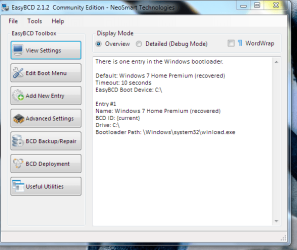
8. Run EasyBCD (free version).
NOTE: This is required to repair the Windows 7 boot file and add XP to the Windows Boot Manager list.

9. On the left side of EasyBCD, click on the Add New Entry button. (See screenshot below)
A) In the top section under Operating Systems, click on the Windows tab. (See screenshot below)
B) To the right of Type, select Windows NT/2k/XP/2k3 from the drop down menu. (See screenshot below)
:warn:WARNING: Be sure to leave the Automatically detect correct drive box checked.

C) To the right of Name, you can leave the default Microsoft Windows XP as the name to be displayed in the Windows Boot Manager, or you can type whatever name you would like to have instead. (See screenshot below)
D) Click on the Add Entry button. (See screenshot below)
W7-XP-7.jpg
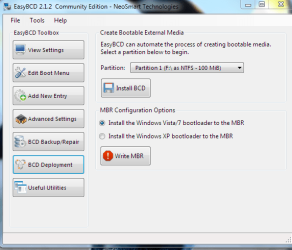
10. On the left side of EasyBCD, click on the BCD Deployment button, select (dot) the Install the Windows Vista/7 bootloader to the MBR option, and click on the Write MBR button. (See screenshot below)

W7-XP-9.jpg
11. Close EasyBCD.

12. Restart the computer to have the option to boot from Microsoft Windows XP or Windows 7. (See screenshot below)

Example2.jpg
   Tip
If Windows 7 will not start up when selected, then use your Windows 7 installation DVD to do a Startup Repair.

That's it,
Shawn


Last edited:
Where did you get the XP CD? Is it SP3? You'd do best to find an XP CD for your version with SP3, making sure it's correctly OEM- or retail-specific. Then boot it to see if you get the correct install screens as shown.

I'm using the same disk I used for the previous Vista/XP dual boot set up (XP with SP2). Both the Vista/XP and the current Windows 7/XP are on Dell laptops, and the XP was purchased from a retail office supply chain.

I'm wondering if there is a file, or files, still lingering from the initial time I inserted the disk and tried to install XP while the systen was up and running, before I found the correct procedure on this forum (it's been a few years since I did the Vista/XP set up, and I did not remember the procedure perfectly). That install failed because a newer version of Windows was alrready installed, according to the error message. But I wonder if the computer still thinks it's in the middle of an incomplete install and goes right to the installation process without the initial set of screens.

Thanks for the assistance.

- Steve R.
 

My Computer My Computer

At a glance

Windows 7 Home Premium X64Intel CORE i5
Computer Manufacturer/Model Number
Dell/Inspiron 15R
OS
Windows 7 Home Premium X64
CPU
Intel CORE i5
To check this delete the XP partition in 7 Disk Management, boot the XP CD to see if you can now create and format a partition.

If not then I would track down an XP installer with SP3 as this solves problems we've come across similar to this here earlier.
 
Thanks for this great site which has helped my get dual booted before. This time I'm stuck where it says:

If you have a SATA drive, then you will need to do either one of these options to load the SATA drivers for XP for your specific motherboard.
How to Slipstream SATA drivers into Windows XP setup CD with Dual Boot of Windows 7 or Vista

I can't get the SATA drivers for XP. I tried Seagate but they said they don't provide drivers because it's already in the install CD and operating system and bios. They said if I can see the drives in bios (I can) then I don't need to install them.

Can I skip creating the xp install cd with the drivers by slipstreaming them together, and just proceed with the normal XP install disk?

Thanks again
Jim
 

My Computer My Computer

At a glance

Microsoft Windows 7 Professional 64-bit 7601 ...Intel(R) Core(TM)2 Duo CPU E8400 @ 3.00GHz16.00 GBATI Radeon HD 5450
Computer type
PC/Desktop
Computer Manufacturer/Model Number
Dell Optiplex 780
OS
Microsoft Windows 7 Professional 64-bit 7601 Multiprocessor Free Service Pack 1
CPU
Intel(R) Core(TM)2 Duo CPU E8400 @ 3.00GHz
Motherboard
Dell Inc. 0C27VV
Memory
16.00 GB
Graphics Card(s)
ATI Radeon HD 5450
Sound Card
(1) AMD High Definition Audio Device (2) High Definition A
Screen Resolution
1920 x 1200 x 32 bits (4294967296 colors) @ 60 Hz
Hard Drives
(1) ST2000DM001-1CH164 (2) ST31000528AS (3) WD My Book 1130 USB Device
Sure I would try the XP with SP3 CD first to see if it has drivers for your SATA controller (not HD). If it errors please post back exact error message or code and when/what happens.

If it fails it's likely you'll need the XP SATA controller drivers for your computer or mobo make. These are a component of your chipset which if necessary can be extracted to locate the correct one(s).
 
I've eliminated and re-established the E: partition, although I am only able to make it a "logical drive" and not a "primary partition" in the Windows Disk Management utility (I was able to make it a primary partition using third party software, but that didn't seem to make a difference).

I have looked for Windows XP/SP3 on the internet, but I could only find the SP2 version. The fact that I'm not getting the "Install/Repair/Uninstall" option or the license agreement (and we all know how into licence agreement Microsoft is) makes me think there's something on the C: drive akin to a partial install that I need to eliminate, if I could find it.

- Steve R.
 

My Computer My Computer

At a glance

Windows 7 Home Premium X64Intel CORE i5
Computer Manufacturer/Model Number
Dell/Inspiron 15R
OS
Windows 7 Home Premium X64
CPU
Intel CORE i5
Thanks for this great site which has helped my get dual booted before. This time I'm stuck where it says:

If you have a SATA drive, then you will need to do either one of these options to load the SATA drivers for XP for your specific motherboard.
How to Slipstream SATA drivers into Windows XP setup CD with Dual Boot of Windows 7 or Vista

I can't get the SATA drivers for XP. I tried Seagate but they said they don't provide drivers because it's already in the install CD and operating system and bios. They said if I can see the drives in bios (I can) then I don't need to install them.

Can I skip creating the xp install cd with the drivers by slipstreaming them together, and just proceed with the normal XP install disk?

Thanks again
Jim

Hi river251
You need the XP Drivers for your SATA controller on the Mobo, not your HD drive drivers.
 

My Computer My Computer

At a glance

ME/XP/Vista/Win7
OS
ME/XP/Vista/Win7
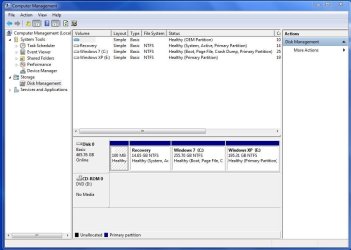
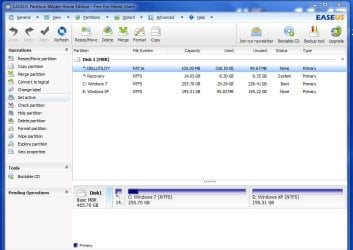
Here are the windows for the Disk Management utility and EaseUS partition tool (which I used to convert the E: drive from a logical drive to a primary partition) (see attached files).

The last time I set up a dual boot system, I used EaseUS partition tool for the entire job and had no problem even though the XP drive is still a logical drive.

Thanks for all your assistance.

- Steve R.
 

Attachments

  • Disk Mgmt.JPG
    Disk Mgmt.JPG
    76.3 KB · Views: 131
  • EaseUS.jpg
    EaseUS.jpg
    74.6 KB · Views: 122

My Computer My Computer

At a glance

Windows 7 Home Premium X64Intel CORE i5
Computer Manufacturer/Model Number
Dell/Inspiron 15R
OS
Windows 7 Home Premium X64
CPU
Intel CORE i5
It should work with those partitions if XP has the SATA driver. I'd prefer to delete and Full Format the XP partition with the XP CD.
 
Theod and gregrocker:
Thanks. I see I need the SATA driver, not the SATA HD drivers.
Wouldn't the XP install CD have them?
Or, can you tell me where to get them?

Thanks,
Jim
 

My Computer My Computer

At a glance

Microsoft Windows 7 Professional 64-bit 7601 ...Intel(R) Core(TM)2 Duo CPU E8400 @ 3.00GHz16.00 GBATI Radeon HD 5450
Computer type
PC/Desktop
Computer Manufacturer/Model Number
Dell Optiplex 780
OS
Microsoft Windows 7 Professional 64-bit 7601 Multiprocessor Free Service Pack 1
CPU
Intel(R) Core(TM)2 Duo CPU E8400 @ 3.00GHz
Motherboard
Dell Inc. 0C27VV
Memory
16.00 GB
Graphics Card(s)
ATI Radeon HD 5450
Sound Card
(1) AMD High Definition Audio Device (2) High Definition A
Screen Resolution
1920 x 1200 x 32 bits (4294967296 colors) @ 60 Hz
Hard Drives
(1) ST2000DM001-1CH164 (2) ST31000528AS (3) WD My Book 1130 USB Device
Have you considered virtualizing XP from within Win7 using freeware like XP Mode, Virtual Player, VMWare, Virtual Box. It's a lot easier than trying to install XP on new hardware.

When I google XP Home OEM SP3 or XP Home Retail SP3 downloads I get links to several downloads. If you use a torrent I'd read the comments to make sure nothing is added, especially an illegal activation crack, since you have the Product Key to use.

If an SP3 installer doesn't work outright then you'll need the SATA or Storage controller driver which is a component of the chipset, which can be found on the computer or mobo maker's Support Downloads webpage for your model. SATA Drivers - Slipstream into Windows XP CD


http://www.sevenforums.com/tutorials/72185-sata-drivers-slipstream-into-windows-xp-cd.html?ltr=S
 
Thanks gregrocker. I have used this site to dual boot my 64 bit Windows 7 Dell e6410 laptop, which is much newer than the 64 bit Windows 7 Dell Optiplex 780 Im trying to install XP to now. I can't go the VMware route. This is a work machine, so would prefer not trying to get the OS from anywhere except the official CD my IT people require I use. Not sure how to do all that streaming anyway. I succeeded with my laptop without doing those things though I don't remember if/how I dealt with this driver issue.

I have been through installing nLite, etc., on the link you provide but got stopped at finding the drivers. The first thing on that link is:

How to slipstream SATA drivers into Windows XP setup CD, on your dual boot PC with Windows 7 or Vista

When you install Win XP, setup can not find your Hard Drive.

So, I'm a little lost at this point. Can you point me to where it explains "when you install win XP"? Maybe I can just try to install the XP OS from my XP CD without trying to slipstream the drivers?
Under OPTION TWO it has the warning:

If you have a SATA drive, then you will need to do either one of these options to load the SATA drivers for XP for your specific motherboard.
I still do not understand how to get the SATA drivers. So should I just skip this warning, and proceed with

1. To Create a New Partition from the Windows 7 Hard Disk Drive

without worrying about the driver warning? That MUST be how I did it with my laptop, because I don't remember messing with any of this driver stuff and it went smooth as butter.


Thanks much!
Jim
 

My Computer My Computer

At a glance

Microsoft Windows 7 Professional 64-bit 7601 ...Intel(R) Core(TM)2 Duo CPU E8400 @ 3.00GHz16.00 GBATI Radeon HD 5450
Computer type
PC/Desktop
Computer Manufacturer/Model Number
Dell Optiplex 780
OS
Microsoft Windows 7 Professional 64-bit 7601 Multiprocessor Free Service Pack 1
CPU
Intel(R) Core(TM)2 Duo CPU E8400 @ 3.00GHz
Motherboard
Dell Inc. 0C27VV
Memory
16.00 GB
Graphics Card(s)
ATI Radeon HD 5450
Sound Card
(1) AMD High Definition Audio Device (2) High Definition A
Screen Resolution
1920 x 1200 x 32 bits (4294967296 colors) @ 60 Hz
Hard Drives
(1) ST2000DM001-1CH164 (2) ST31000528AS (3) WD My Book 1130 USB Device
Thanks

Thanks works great, i did have quite a lot of trouble, but through persistent reading, trial and error, finally got every aspect of the tutorial to work.
 

My Computer My Computer

At a glance

64-bit win 7 ultimate & 32-bit xp
OS
64-bit win 7 ultimate & 32-bit xp
Jim - Have you tried installing with the XP CD first to see if it sees the HD? You may not need the SATA drivers. If it errors or cannot see the HD then you need to insert via floppy or slipstream the SATA drivers which I've now twice explained for you how to obtain.
 
Thanks gregrocker. I have used this site to dual boot my 64 bit Windows 7 Dell e6410 laptop, which is much newer than the 64 bit Windows 7 Dell Optiplex 780 Im trying to install XP to now. I can't go the VMware route. This is a work machine, so would prefer not trying to get the OS from anywhere except the official CD my IT people require I use. Not sure how to do all that streaming anyway. I succeeded with my laptop without doing those things though I don't remember if/how I dealt with this driver issue.

I have been through installing nLite, etc., on the link you provide but got stopped at finding the drivers. The first thing on that link is:

How to slipstream SATA drivers into Windows XP setup CD, on your dual boot PC with Windows 7 or Vista

When you install Win XP, setup can not find your Hard Drive.

So, I'm a little lost at this point. Can you point me to where it explains "when you install win XP"? Maybe I can just try to install the XP OS from my XP CD without trying to slipstream the drivers?
Under OPTION TWO it has the warning:


If you have a SATA drive, then you will need to do either one of these options to load the SATA drivers for XP for your specific motherboard.
I still do not understand how to get the SATA drivers. So should I just skip this warning, and proceed with

1. To Create a New Partition from the Windows 7 Hard Disk Drive

without worrying about the driver warning? That MUST be how I did it with my laptop, because I don't remember messing with any of this driver stuff and it went smooth as butter.


Thanks much!
Jim

Jim - Have you tried installing with the XP CD first to see if it sees the HD? You may not need the SATA drivers. If it errors or cannot see the HD then you need to insert via floppy or slipstream the SATA drivers which I've now twice explained for you how to obtain.

Hi Greg & Jim.


Is this the Dell PC you are talking about?

Dell OptiPlex 780 Specs (Core 2 Duo E8400 3 GHz) - Desktops - CNET Reviews

Operating System / Software

OS Provided: Microsoft Windows 7 Professional / XP Professional downgrade

If Yes,

1) Install XP Mode.

http://www.sevenforums.com/tutorials/8247-windows-xp-mode-install-setup.html?ltr=W

OR

2) Reformat the HD Drive & Install XP Pro with the Dell XP Professional downgrade rights DVD. No drivers needed.
 

My Computer My Computer

At a glance

ME/XP/Vista/Win7
OS
ME/XP/Vista/Win7
Loosing mind :)

Hi, tried and followed instructions but somewhere on the roud lost.

Method 2
First OS - Windows 7 Home Premium 64bit
Second OS - XP Pro SP3 32 with sata slipped
Laptop Samsung 300E5A , one sata hard drive, Recovery win 7 disc, XP Pro install disc.

I managed to boot to XP and install some apps, reason for all this hustle.
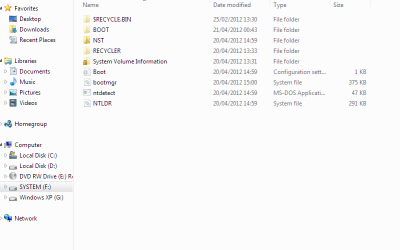
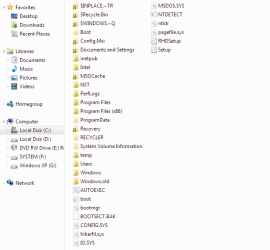
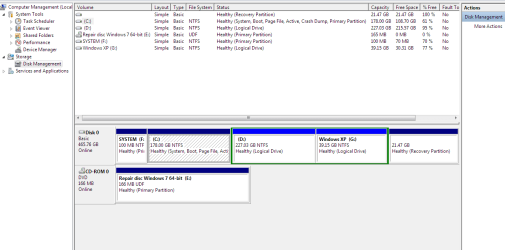
But after i restarted and tried to boot to Win 7 i got BSD 00007B. I used EasyBSD to add XP and have XP on boot list at startup but cant boot anymore, so i recovered windows 7. Strange thing is after all this i got system 100MB partition visible as normal partition. I will post all screens i got. Is it possible reason for all this 64 and 32 bit OS.
Can you help me?
 

Attachments

  • Capture4.PNG
    Capture4.PNG
    14.6 KB · Views: 142
  • Capture3.PNG
    Capture3.PNG
    16.2 KB · Views: 431
  • Capture2.PNG
    Capture2.PNG
    21 KB · Views: 487
  • Capture1.PNG
    Capture1.PNG
    26.3 KB · Views: 469
  • Capture.PNG
    Capture.PNG
    22 KB · Views: 153
  • Capture5.PNG
    Capture5.PNG
    14 KB · Views: 134

My Computer My Computer

At a glance

Windows 7 Home Premium 64bit
OS
Windows 7 Home Premium 64bit
also this

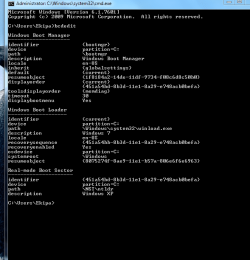
Also to post bcdedit screen.
 

Attachments

  • Capture6.PNG
    Capture6.PNG
    18.4 KB · Views: 443

My Computer My Computer

At a glance

Windows 7 Home Premium 64bit
OS
Windows 7 Home Premium 64bit
Somehow the Active flag was moved from System Reserved boot partition to C when 7 was restarted. I would try to move it back by marking Active the System Reserved partition, then running Startup Repair - Run 3 Separate Times to repair or rewrite the System boot files to it. Partition - Mark as Active (Method Two)

Once 100mb holds the System Active flags, install EasyBCD in Win7, on Add OS Entry tab add XP by name, type, accept any offered XP boot files, let it autocomplete. It isn't listed now in screenshot, but if it is then first delete it.
 
Somehow the Active flag was moved from System Reserved boot partition to C when 7 was restarted. I would try to move it back by marking Active the System Reserved partition, then running Startup Repair - Run 3 Separate Times to repair or rewrite the System boot files to it. Partition - Mark as Active (Method Two)

Once 100mb holds the System Active flags, install EasyBCD in Win7, on Add OS Entry tab add XP by name, type, accept any offered XP boot files, let it autocomplete. It isn't listed now in screenshot, but if it is then first delete it.

Ok, first of all, thank you for you're help.
Now F: or System reserved are active partition (still visible somehow). In meantime i formatted xp and now installing again. One thing where i believe i made a mistake is step 10 in EasyBCD, BCD deployment when i wrote MBR on partition, now my question is on which partition i should wrote MBR when i finish XP installation (System Reserved, C: where windows 7 is or E: where XP will be)?
 

My Computer My Computer

At a glance

Windows 7 Home Premium 64bit
OS
Windows 7 Home Premium 64bit
Why are you reinstalling XP - this was not at all suggested? This will again steal the boot from Win7 requiring you to start it up again to add XP using EasyBCD.

To do this mark Win7 Active and run up to 3 separate Startup Repairs.
 
Back
Top