Disk Defragmenter - Open and Use

How to Use Windows 7 Disk Defragmenter

   Information
Fragmentation makes your hard disk do extra work that can slow down your computer. Removable storage devices such as USB flash drives can also become fragmented. Disk Defragmenter rearranges fragmented data so your disks and drives can work more efficiently. While Disk Defragmenter can run on a schedule, this will show you how to open and use Disk Defragmenter to manually analyze and defragment your disks and drives in Windows 7.
   Note

  • If the disk is already in exclusive use by another program, or if the disk is formatted using a file system other than NTFS file system, FAT, or FAT32, then it cannot be defragmented.
  • Network locations cannot be defragmented.
  • If a disk that you're expecting to see under Current status is not showing up there, it might be because it contains an error. You should try to repair the disk first with Disk Check, then return to Disk Defragmenter to try again.
   Warning
Solid State Drives (SSD) and USB flash key drives do not need to be defragmented. Doing so may shorten the lifespan of them.


OPTION ONE

Using "Disk Deframenter" in Windows 7
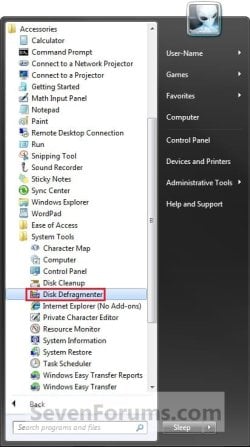
1. Open the Start Menu, and double click on to expand All Programs, Accessories, System Tools, and click on Disk Defragmenter. (See screenshot below) Step1.jpg
A) Go to step 3.
OR

2. Open the Start Menu, then type dfrgui into the search line and press Enter.

3. To Anaylze a Disk
NOTE: This will anaylze the selected disk to see what percentage fragmented it is. If the number is above 10%, you should defragment the disk. A) Select a disk, and click on the Anaylze disk button. (See screenshot below) Step2.jpg
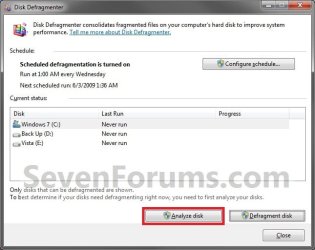
4. To Defragment a Disk
NOTE: Disk Defragmenter might take from several minutes to a few hours to finish, depending on the size and degree of fragmentation of your hard disk. You can still use your computer during the defragmentation process. A) Select a disk, and click on the Defragment disk button. (See screenshot below) Step3.jpg
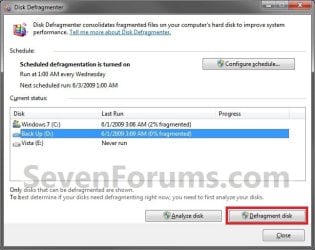
B) You will now see the disk being defragmented. (See screenshot below)
NOTE: You can abort the defragmentation of the selected disk at anytime by clicking on the Stop operation button. Step4.jpg
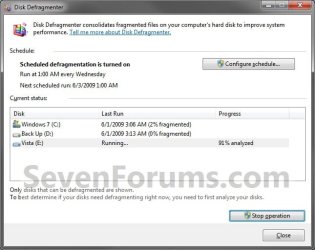
5. When finished, click on Close. (See screenshot below) Step5.jpg


OPTION TWO

Run Defragmenter from Drive's Properties Page

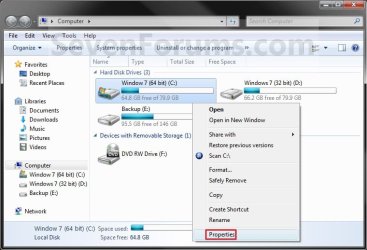
1. Open the Start Menu and click on the Computer button on the right dark side.

2. Right click the hard disk drive that you want to check, and click on Properties. (see screenshot below) Computer.jpg
3. Click on the Tools tab, and click on the Defragment now button. (see screenshot below) Computer-2.jpg
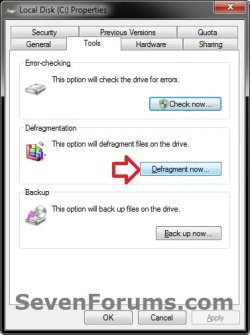
4. You can now do either step 3 or 4 in OPTION ONE above.


OPTION THREE

Run Defragmenter in a Command Prompt

1. Do step 2 or 3 below for how you would like to run the defrag command.

2. To Use an Elevated Command Prompt in Windows 7 A) Open an elevated command prompt.

B) Go to step 4.
3. To Use a Command Prompt at Boot A) Open a command prompt at startup.

B) In the command prompt, type diskpart and press Enter.

C) In the command prompt, type list volume and press Enter.
NOTE: Make note of the drive letter that you want to run defrag on. The drive letter for the drive will not always be the same at boot as it is in Windows 7.

D) In the command prompt, type exit and press Enter.

E) Continue on to step 4.
4. In the command prompt, type in the following command below followed by one or more switches (flags) that you would like to use below with a space between each switch and press Enter.
NOTE: For example, the most common command to run defrag on your C: drive is:

defrag C: /F defrag [drive letter]: [switches]

   Tip
If you would like to defrag more than one drive letter at once, then you can just include as many separate drive letters in the command like below for the ones you want to defrag. For example, with drive letters C, E, and H.

defrag C: E: H: /F


Switches:
NOTE: The ones in red below are new to Windows 7.

  • /A - Perform analysis on the specified volumes.
  • /B - Boot optimization to defrags the boot sector of the boot volume (ex: Windows drive). This will not work on a SSD.
  • /C - Perform the operation on all volumes.
  • /E - Perform the operation on all volumes except those specified.
  • /F - Forces defragmentation of the volume when free space is low.
  • /H - Run the operation at normal priority (default is low).
  • /M - Run the operation on each volume in parallel in the background.
  • /R - Performs partial defragmentation (default). Attempts to consolidate only fragments smaller than 64 megabytes (MB).
  • /T - Track an operation already in progress on the specified volume.
  • /U - Print the progress of the operation on the screen.
  • /V - Print verbose output containing the fragmentation statistics.
  • /X - Perform free space consolidation on the specified volumes.
CMD-1.jpg


That's it,
Shawn


Last edited:
Yep, I fully understand your question.
 

My Computer My Computer

Computer type
PC/Desktop
Computer Manufacturer/Model Number
Self built custom
OS
64-bit Windows 11 Pro for Workstations
CPU
Intel i7-8700K OC'd to 5 GHz
Motherboard
ASUS ROG Maximus XI Formula Z390
Memory
64 GB (4x16GB) G.SKILL TridentZ RGB DDR4 3600 MHz
Graphics Card(s)
ASUS ROG-STRIX-GTX1080TI-O11G-GAMING
Sound Card
Integrated
Monitor(s) Displays
2 x Samsung Odyssey G7 27"
Screen Resolution
2560x1440
Hard Drives
1TB Samsung 990 PRO M.2,
4TB Samsung 990 PRO PRO M.2,
TerraMaster F8 SSD Plus NAS
PSU
Seasonic Prime Titanium 850W
Case
Thermaltake Core P3
Cooling
Corsair Hydro H115i
Keyboard
Logitech wireless K800
Mouse
Logitech MX Master 4
Internet Speed
2 Gb/s Download and 100 Mb/s Upload
Antivirus
Malwarebyte Anti-Malware Premium
Browser
Google Chrome
Other Info
Logitech Z625 speaker system,
Logitech BRIO 4K Pro webcam,
HP Color LaserJet Pro MFP M477fdn,
APC SMART-UPS RT 1000 XL - SURT1000XLI,
Galaxy S23 Plus phone
Yep, I fully understand your question.

Thanks , Maybe the simple said is "Plugged in the charger / charging when middle of defragging / Process Defragging" :D
 

My Computer My Computer

OS
Windows 7 Home Premium 64bit
Brink , i want ask again, if we often do defrag maybe like a week once, that will damaged the Harddisk / decrease Harddisk Lifespan? simple said is "if often do disk defrag it will damaged the Harddisk?" Thanks :)
 

My Computer My Computer

OS
Windows 7 Home Premium 64bit
Hello sle3pingz,

No, you will be fine. :)
 

My Computer My Computer

Computer type
PC/Desktop
Computer Manufacturer/Model Number
Self built custom
OS
64-bit Windows 11 Pro for Workstations
CPU
Intel i7-8700K OC'd to 5 GHz
Motherboard
ASUS ROG Maximus XI Formula Z390
Memory
64 GB (4x16GB) G.SKILL TridentZ RGB DDR4 3600 MHz
Graphics Card(s)
ASUS ROG-STRIX-GTX1080TI-O11G-GAMING
Sound Card
Integrated
Monitor(s) Displays
2 x Samsung Odyssey G7 27"
Screen Resolution
2560x1440
Hard Drives
1TB Samsung 990 PRO M.2,
4TB Samsung 990 PRO PRO M.2,
TerraMaster F8 SSD Plus NAS
PSU
Seasonic Prime Titanium 850W
Case
Thermaltake Core P3
Cooling
Corsair Hydro H115i
Keyboard
Logitech wireless K800
Mouse
Logitech MX Master 4
Internet Speed
2 Gb/s Download and 100 Mb/s Upload
Antivirus
Malwarebyte Anti-Malware Premium
Browser
Google Chrome
Other Info
Logitech Z625 speaker system,
Logitech BRIO 4K Pro webcam,
HP Color LaserJet Pro MFP M477fdn,
APC SMART-UPS RT 1000 XL - SURT1000XLI,
Galaxy S23 Plus phone
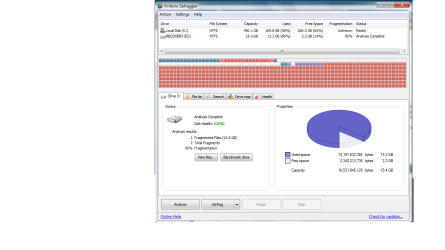
er I'm a little puzzled some people say don't defrag your recovery drive/ recovery partition ( D in my HP laptop ) and some say it's OK , look how much mine is fragmented defragresults.png
what should I do , is it OK to defrag my recovery drive ?
and just to add my C drive is fine I defrag that when ever it's needed but I've been fear-ful of de-fragging my recovery drive D
 

My Computer My Computer

Computer Manufacturer/Model Number
HP G62 Notebook PC
OS
Microsoft Windows 7 Home Premium 64-bit SP1
CPU
AMD Phenom II N830 / AMD Phenom II N830 Triple-Core Proces
Motherboard
Hewlett-Packard 143B (Socket S1G4)
Memory
2x 2GB DIMM Samsung 1334MHz ( total 4GB system memory )
Graphics Card(s)
AMD M880G with ATI Mobility Radeon HD 4250 (HP)
Sound Card
Realtek High Definition/ ATI High Definition Audio Device
Monitor(s) Displays
39.6cm(15.6")diagonal HD LED HP BrightView Widescreen
Screen Resolution
(1366x768@60Hz)
Hard Drives
TOSHIBA MK5056GSY SATA Disk Device 450.07 GB (300.79 GB free), File System NTFS
Internet Speed
1.98MB/s<<download) 0.12MB/s <<upload) 63ms<<ping) 23/12/12
Browser
Chrome Version 25.0.1364.152 / Firefox 19.0.2
Other Info
Xbox 360 / 250GB HDD model
Hello Juxxize,

Usually it's not recommended to defrag the recovery partition. I would say let it be since if anything went wrong with it, you would no longer be able to do a factory recovery of Windows with it.

It's not going to hurt anything since you are not supposed to be using this partition for anything other that doing a factory recovery as needed.

If you have not already, I would also recommend to create a set of recovery discs or save a recovery image to a USB flash drive as a backup.
HP PCs - Creating Recovery Discs or Saving a Recovery Image to a USB Flash Drive (Windows 7) - c01867124 - HP Business Support Center

Hope this helps, :)
Shawn
 

My Computer My Computer

Computer type
PC/Desktop
Computer Manufacturer/Model Number
Self built custom
OS
64-bit Windows 11 Pro for Workstations
CPU
Intel i7-8700K OC'd to 5 GHz
Motherboard
ASUS ROG Maximus XI Formula Z390
Memory
64 GB (4x16GB) G.SKILL TridentZ RGB DDR4 3600 MHz
Graphics Card(s)
ASUS ROG-STRIX-GTX1080TI-O11G-GAMING
Sound Card
Integrated
Monitor(s) Displays
2 x Samsung Odyssey G7 27"
Screen Resolution
2560x1440
Hard Drives
1TB Samsung 990 PRO M.2,
4TB Samsung 990 PRO PRO M.2,
TerraMaster F8 SSD Plus NAS
PSU
Seasonic Prime Titanium 850W
Case
Thermaltake Core P3
Cooling
Corsair Hydro H115i
Keyboard
Logitech wireless K800
Mouse
Logitech MX Master 4
Internet Speed
2 Gb/s Download and 100 Mb/s Upload
Antivirus
Malwarebyte Anti-Malware Premium
Browser
Google Chrome
Other Info
Logitech Z625 speaker system,
Logitech BRIO 4K Pro webcam,
HP Color LaserJet Pro MFP M477fdn,
APC SMART-UPS RT 1000 XL - SURT1000XLI,
Galaxy S23 Plus phone
Thank-you Brink, i have a back-up and system image i made on an external hard-drive ( although it's about time i did a fresh back-up ) and i made a system repair disk a while back although i may make another just to be on the safe side . I've not heard of the Recovery Disc Creation/ Recovery Media Creation which is the second option mentioned in the page of the link you posted so i will look into that but having a repair, backup and system image i made along with the back-up i should be OK. It is odd my recovery drive has got so fragmented isn't it when it isn't used. I factory reset my laptop a few months ago but apart from that it's never used so it's odd indeed, thanks again.
 

My Computer My Computer

Computer Manufacturer/Model Number
HP G62 Notebook PC
OS
Microsoft Windows 7 Home Premium 64-bit SP1
CPU
AMD Phenom II N830 / AMD Phenom II N830 Triple-Core Proces
Motherboard
Hewlett-Packard 143B (Socket S1G4)
Memory
2x 2GB DIMM Samsung 1334MHz ( total 4GB system memory )
Graphics Card(s)
AMD M880G with ATI Mobility Radeon HD 4250 (HP)
Sound Card
Realtek High Definition/ ATI High Definition Audio Device
Monitor(s) Displays
39.6cm(15.6")diagonal HD LED HP BrightView Widescreen
Screen Resolution
(1366x768@60Hz)
Hard Drives
TOSHIBA MK5056GSY SATA Disk Device 450.07 GB (300.79 GB free), File System NTFS
Internet Speed
1.98MB/s<<download) 0.12MB/s <<upload) 63ms<<ping) 23/12/12
Browser
Chrome Version 25.0.1364.152 / Firefox 19.0.2
Other Info
Xbox 360 / 250GB HDD model
Back
Top