System Image Not Found on External USB HDD with Image as Root Folder

GAR

New member
Local time
7:38 AM
Messages
16
I have read about 50 threads in regard to the topic. I'm just looking for clarity here. I have a homebuilt system that got a virus Alureon.gen!k. Before researching it I let windows fix it. Computer won't open any applications now.
Decided to go to my Image to save time (NOT!). The image is on a USB external HDD currently attached directly to the computer. I can't get it to find the bleepin' Image!

The HDD was attached to an NAS over the network where it saved my windows images and backup files from the NAS. The drive's structure looks like this:

E: R6 Backup
Office Server
Office WindowsImageBackup MediaID.bin Data Drive Backup Files

Inside the Office folder are three items: Office, WindowsImageBackup, and a MediaID.bin. The Office folder has file backups. The WindowsImageBackup contains the expected image folders and files.

I understand from the threads that the WindowsImageBackup needs to be in the root of E: so I have done this two ways, neither of whiched worked. First I simply renamed the Root Office folder, and then I undid the rename and moved the WindowsImageBackup out of the Office folder and into the root of E:.

Windows sees the drive. Within the recovery you have the option under advanced to load drivers. I was doing this trying to use eSata to no avail so I switched to USB where you can clearly see the drive and all its contents. No matter, windows still won't recognize the image.

Is there anything I am missing here or is there a fault with Windows that is killing me? I will be using another tool Acronis or whatever in the future but as of right now it seems I am doing everything as I should. I guess I'm looking for conformation before a complete reinstall.

Thanks for whatever I get, unless it's someone telling me to use search for the answer which I did already for the better part of 1.5 days. :p
 

My Computer My Computer

At a glance

Windows 7 Ultimate 64bit
OS
Windows 7 Ultimate 64bit
I installed Acronis after seeing someone's post about converting the Windows Image file to an Acronis and just booting from that, but it is telling me it won't work and possibly the windows file is corrupted. Has anyone seen this or been able to fix a so called corrupted .img file?
 

My Computer My Computer

At a glance

Windows 7 Ultimate 64bit
OS
Windows 7 Ultimate 64bit
Sorry you're not getting help here, and I don't have an answer.
The Win 7 imaging utility has been a problem for many, and you're not the first to encounter this problem.
All I can say is look into other imaging software for your future imaging.
Many here use free Macrium. I use Ghost 15.
I'm hoping somebody here with Win 7 imaging utily experience will jump in, but I can't recall seeing a solution to this. Hope I'm wrong about that.
 

My Computer My Computer

At a glance

Windows 7 Ultimate x64QuadCore Intel Core i7 920, 2666 MHz (20 x 133)6134 MB (DDR3-1333 DDR3 SDRAM)(2 - SLI) NVIDIA GeForce GTS 250 (1024 MB)
Computer Manufacturer/Model Number
Home Built
OS
Windows 7 Ultimate x64
CPU
QuadCore Intel Core i7 920, 2666 MHz (20 x 133)
Motherboard
Asus P6T
Memory
6134 MB (DDR3-1333 DDR3 SDRAM)
Graphics Card(s)
(2 - SLI) NVIDIA GeForce GTS 250 (1024 MB)
Sound Card
Onboard Realtek ALC888/1200 @ Intel 82801JB IC
Monitor(s) Displays
HDMII
Screen Resolution
1280 x 800
Hard Drives
Crucial M4 (64 GB SSD)
WD Caviar Blacks
WD5001AALS-00J7B1 ATA Device (465 GB)
WD5001AALS-00L3B2 ATA Device (465 GB)
WD Elements USB External (250 GB)
PSU
Corsair 550
Case
iStarUSA S-10000BL Black
Not sure whether this will help or not since Windows Imaging is a bit picky, but try moving the MediaID.bin into the root as well.
 

My Computer My Computer

At a glance

Microsoft Windows 7 Home Premium 64-bit Servi...Intel(R) Core(TM) i3 CPU M 330 @ 2.13GHz8 GB DDR3Intel(R) HD Graphics
Computer type
Laptop
Computer Manufacturer/Model Number
Hewlett-Packard/G62-107SA Notebook
OS
Microsoft Windows 7 Home Premium 64-bit Service Pack 1
CPU
Intel(R) Core(TM) i3 CPU M 330 @ 2.13GHz
Motherboard
Hewlett-Packard 1425
Memory
8 GB DDR3
Graphics Card(s)
Intel(R) HD Graphics
Sound Card
Realtek High Definition Audio
Monitor(s) Displays
Builtin
Screen Resolution
1366 x 768 x 32 bits (4294967296 colors) @ 60 Hz
Hard Drives
250 GB SATA Hard Disk Drive 7200 rpm
2TB Seagate GoFlex USB 2 Drive
1TB Iomega Prestige USB 2 Drive
1.5TB Iomega Prestige USB 2 Drive (Samsung)
2TB WD MyBook Live NAS.
Mouse
Logitech Anywhere MX
Internet Speed
152 Mbs download 10 Mbs upload
Antivirus
Norton 360
Browser
Chrome

My Computer My Computer

At a glance

Windows 7 Ultimate x64QuadCore Intel Core i7 920, 2666 MHz (20 x 133)6134 MB (DDR3-1333 DDR3 SDRAM)(2 - SLI) NVIDIA GeForce GTS 250 (1024 MB)
Computer Manufacturer/Model Number
Home Built
OS
Windows 7 Ultimate x64
CPU
QuadCore Intel Core i7 920, 2666 MHz (20 x 133)
Motherboard
Asus P6T
Memory
6134 MB (DDR3-1333 DDR3 SDRAM)
Graphics Card(s)
(2 - SLI) NVIDIA GeForce GTS 250 (1024 MB)
Sound Card
Onboard Realtek ALC888/1200 @ Intel 82801JB IC
Monitor(s) Displays
HDMII
Screen Resolution
1280 x 800
Hard Drives
Crucial M4 (64 GB SSD)
WD Caviar Blacks
WD5001AALS-00J7B1 ATA Device (465 GB)
WD5001AALS-00L3B2 ATA Device (465 GB)
WD Elements USB External (250 GB)
PSU
Corsair 550
Case
iStarUSA S-10000BL Black
You may be able to mount the vhd and image the mounted vhd with any imaging app.

I told whs about it along time ago.

He explains on that thread he tried it with disk mgmt and Macrium.

If you have any difficulty with that - let me know.
 

My Computers My Computers

  • At a glance

    7 X64i5 84002x8gb 3200mhz
    Computer type
    PC/Desktop
    OS
    7 X64
    CPU
    i5 8400
    Motherboard
    gigabyte b365m ds3h
    Memory
    2x8gb 3200mhz
    Hard Drives
    various
    PSU
    pure power 11 400w cm
    Case
    Coolermaster
    Cooling
    cryorig m9i
  • At a glance

    7x64g54008gb ddr4 2400
    Computer type
    PC/Desktop
    OS
    7x64
    CPU
    g5400
    Motherboard
    ga b365m ds3h
    Memory
    8gb ddr4 2400
    PSU
    xfx pro 450w
Can I ask why you put the NAS hard drive directly on your system? Did you try recovering the image from the network first?

On my NAS, the drive is formatted as ext3, which doesn't work well with Windows. Maybe you just have an external drive connected to the NAS, and not in it.

But if the drive is a USB 3.0 device, the 3.0 ports may not work in the recovery environment.

Try leaving the drive off during the boot into the Recovery environment. After it searches for an image, turn on the drive and let it search again.

If you want to check the backup image, you can mount it by using Disk Management and the Action option to Attach VHD. Make sure you have the partition with the Windows Backup Image selected, but look for the .vhd file in one of the folders.
 

My Computer My Computer

At a glance

Windows 7 x64i7-2600K8 GGTX 480
Computer Manufacturer/Model Number
Homebuilt
OS
Windows 7 x64
CPU
i7-2600K
Motherboard
Asus P8Z77-v Pro
Memory
8 G
Graphics Card(s)
GTX 480
Sound Card
Onboard
Monitor(s) Displays
LG W2753V
Screen Resolution
1920x1080
Hard Drives
Crucial M4 128 G SSD

My Computer My Computer

At a glance

Vista, Windows7, Mint Mate, Zorin, Windows 8from 1.6GHz Duo to i7
Computer Manufacturer/Model Number
HP, Dell, Gateway, Toshiba - 4 laptops and 2 desktops
OS
Vista, Windows7, Mint Mate, Zorin, Windows 8
CPU
from 1.6GHz Duo to i7
Monitor(s) Displays
2x HP w2207
Hard Drives
5x HDD, 7x SSD, 12x Externals
Keyboard
with trackball - no mices
Mouse
Trackball mice
Internet Speed
DSL 6000
Hi guys and thanks for the responses.
The NAS was not connected directly it was networked via ethernet on the router. My back up drive was connected to the NAS via usb.
Coincedentally my power supply on the NAS broke so I can't network to the back up drive. So, I connected the back up drive direct to the pc in question. It is connected via 2.0 and the drive can be seen in the advanced tab when working restore.
I will try moving the MediaBin file too.
I'm wondering if: IF the drive was connected to the NAS, perhaps it can only be recovered through the network? No way to tell until I get my replacement power supply from Iomega I guess.
I've never attempted to mount an image. Is this done and then recovered from there, or does the mounted image become your C drive?
Thanks agian
 

My Computer My Computer

At a glance

Windows 7 Ultimate 64bit
OS
Windows 7 Ultimate 64bit
I ran a test the other day where I moved a backup image from the NAS to my system and one from my system back to the NAS. Both images were still recoverable, so I don't think just moving it makes much difference. It does matter for a drive connected to your system, that the folder be on the root directory.

If you decide to use the networked NAS again, loading a driver for your Network Adapter using the Advanced button, is not hard to do.

I looks like now we need to determine if the Windows backup image is bad, or your drive is bad. I don't suppose you have a second internal hard drive you could copy the image to? Mounting the image using the VHD option would just see if you could read it. Someone else may know if you can do more.

You might test by renaming the current backup folder and making a new backup, assuming it would work. You certainly want to keep the system after a re-image using that, but you could test the external drive that way.

Have you ever used a image created on the external to restore your system?

I am not sure if I missed it, but how are you getting into the Windows Recovery Environment? If you aren't using an Install DVD to boot, something on your system may be involved.
 

My Computer My Computer

At a glance

Windows 7 x64i7-2600K8 GGTX 480
Computer Manufacturer/Model Number
Homebuilt
OS
Windows 7 x64
CPU
i7-2600K
Motherboard
Asus P8Z77-v Pro
Memory
8 G
Graphics Card(s)
GTX 480
Sound Card
Onboard
Monitor(s) Displays
LG W2753V
Screen Resolution
1920x1080
Hard Drives
Crucial M4 128 G SSD
Your WindowsImageBackup folder needs to have this structure.
WindowsImageBackup.jpg
The MediaId file is expected in the location shown.

I have mounted the OS vhd, imaged it with Macrium then successfully restored as described here
http://www.sevenforums.com/backup-r...image-my-computer-problems-5.html#post1394148
Correction:
The Macrium Reflect V5 appears to have no problem imaging System Reserved partition (System active). So there should be no problems.
 
Last edited:

My Computer My Computer

At a glance

Windows 7x64 Home Premium SP1Intel i7 2600kG.Skill Ripjaws (DDR3-1600) 2x4GBNvidia GeForce GTS 450; Intel HD Graphics 300...
Computer type
PC/Desktop
Computer Manufacturer/Model Number
Own build
OS
Windows 7x64 Home Premium SP1
CPU
Intel i7 2600k
Motherboard
ASUS P8Z68 Deluxe
Memory
G.Skill Ripjaws (DDR3-1600) 2x4GB
Graphics Card(s)
Nvidia GeForce GTS 450; Intel HD Graphics 3000(GT2+)
Monitor(s) Displays
Dell Ultrasharp IPS panel U2311H, Samsung SyncMaster P2350
Screen Resolution
1920x1080
Hard Drives
Samsung 850 Pro SSD 256GB, Samsung SSD 840 120GB, Seagates 1TB Barracuda ST31000528AS x2
PSU
Seasonic M12II 520W
Case
Lian Li Lancool PC-K60
Cooling
Case: 1x120mm, 3x140mm CPU: Hyper 212+
Keyboard
Logitech MK520 (wireless)
Mouse
Logitech MK520
Internet Speed
6-7 Mbps
Antivirus
Norton Security Premium, Malwarebytes on 2 (MSE on 3rd PC)
Browser
FireFox
Other Info
Audio: Logitech Z523 2.1
I've never attempted to mount an image. Is this done and then recovered from there, or does the mounted image become your C drive?
Mounting a VHD is dead simple. It becomes a temporary volume in Computer and you can deal with it like any other volume you see in Computer. But it does NOT become your C partition. For that to happen you have to image and restore it.
 

My Computer My Computer

At a glance

Vista, Windows7, Mint Mate, Zorin, Windows 8from 1.6GHz Duo to i7
Computer Manufacturer/Model Number
HP, Dell, Gateway, Toshiba - 4 laptops and 2 desktops
OS
Vista, Windows7, Mint Mate, Zorin, Windows 8
CPU
from 1.6GHz Duo to i7
Monitor(s) Displays
2x HP w2207
Hard Drives
5x HDD, 7x SSD, 12x Externals
Keyboard
with trackball - no mices
Mouse
Trackball mice
Internet Speed
DSL 6000
Well, I guess moving it isn't a problem. Does it matter if there is another folder unrelated to restore in the root?

Okay, simple things first. I did go ahead with a clean install. Had a bit of problems getting all the updates to take, but somehow got it all done. (made another image after all the basics were installed to protect myself, LOL!)

Anyway I had previously tried restore through the windows installation AND off a boot disk.

So, now I have tried to get at the image again and its still not recognized. Taking some of your tips, I have moved the files back into the root of the drive and also moved the Mediaid.bin file to the root as well...but alas...nothing!

I can get into the folder through windows and see all the files and the structure seems to match the new image I made.

I have used this drive before to recover a year ago or more.
 

My Computer My Computer

At a glance

Windows 7 Ultimate 64bit
OS
Windows 7 Ultimate 64bit
I am going to see about mounting it now. If I can see it and navigate it (assuming I mount correctly) then the image is solid and there is a different issue. First I'm going to relocate the MediaID.bin file to the location in the jpeg.
 

My Computer My Computer

At a glance

Windows 7 Ultimate 64bit
OS
Windows 7 Ultimate 64bit
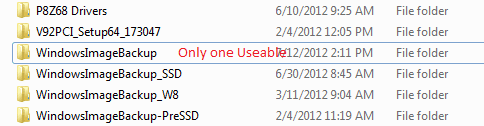
Just in case, here is a graphic of my Backups. The only one useable is because it has to have that annotation for Windows to find it.
 

Attachments

  • Backups.PNG
    Backups.PNG
    4.2 KB · Views: 16

My Computer My Computer

At a glance

Windows 7 x64i7-2600K8 GGTX 480
Computer Manufacturer/Model Number
Homebuilt
OS
Windows 7 x64
CPU
i7-2600K
Motherboard
Asus P8Z77-v Pro
Memory
8 G
Graphics Card(s)
GTX 480
Sound Card
Onboard
Monitor(s) Displays
LG W2753V
Screen Resolution
1920x1080
Hard Drives
Crucial M4 128 G SSD
I am greatly interested in an answer to this as well. I've scoured the internet and various forums for the better part of 2 days trying to get a clear and concise answer to no avail. The one thing I have been able to reach concesus on is that Window's Imaging Back-up is a poorly coded, unreliable hunk of steaming poo and Windows should have never integrated and touted such a program if it had this degree of questionable integrity, especially considering the vital lifeline roll they knew it would play for users in the event of a system failure.

Now that my vent is over, I'll quickly layout the specs of my system:
- Win 7 Ultimate
- Seagate GoFlex running on USB 3.0 base.
- Dell D830 Laptop
- 3 month old harddrive
- Back-up Image is in the Root folder (F: )


My particular issue:
Late Friday afternoon my system would not boot into Windows. It would not even let me go into Safe Mode. After the BIOS screen, the screen would go black with a flashing cursor in the upper left.

Steps taken:
- I used my recovery disk to soft boot into the system and scanned everything which returned no errors.

- Next I ran a system rollback. No change.

- Subsequently, I decided to run a system restore from an image I backed up on my Seagate GoFlex External 3 months ago when I bought a new hardrive for this machine. Let's call this Back-up (Old)


NOTE: When I ran the image restore 3 months ago there was no problem. The system recognized the image and transferred everything with perfect calibration afterward.

- This time I was met with a roadblock; although I have used this very same image just 3 months prior on this machine, it refused to recognize the image instead asking me to install a driver, which is thoroughly confusing because if the drivers were not installed it ought not be able to recognize the external HDD.


- I suspected whatever had caused the original boot error might be the culprit, so I did a 'clean-all' wipe of the drive (All 0's) and reinstalled Windows 7.


- I re-ran the image restore. Again, no luck. It refused to recognize the image although I could see it in the file manager view.

- To test the restore function itself, I created a new back-up image of my new installed bare bones Win 7 (Let's call this Back-Up (New)) and mapped the destination to the external (F:). When it was completed, I re-ran the image restore function and my machine immediately recognized Back-Up (New).

- I next attempted to trick the machine by moving all the files from Back-Up (Old) into Back-Up (New)'s directory. I restarted the restore function and it recognized the Back-Up (New) directory. I ran image restore but I could tell by how fast it completed the task, which barely lasted 2 minutes, it didn't take.

- Machine restarted and nothing changed. It's still a bare bones Windows 7 system.

I am utterly at a loss. Windows is asking me for a 'driver' in order to see the old/use the old image and I cannot think of any other way to force Windows to see the image.

Any help would be appreciated.


Please note: I am not super technical. With clear, layman terms instructions, and detailed steps I have no problem hacking my way around in DOS or the Windows environment itself.

Thx.
 

My Computer My Computer

At a glance

Windows 7 x32Intel Core Duo4GB
Computer Manufacturer/Model Number
Dell D820
OS
Windows 7 x32
CPU
Intel Core Duo
Memory
4GB

My Computer My Computer

At a glance

Vista, Windows7, Mint Mate, Zorin, Windows 8from 1.6GHz Duo to i7
Computer Manufacturer/Model Number
HP, Dell, Gateway, Toshiba - 4 laptops and 2 desktops
OS
Vista, Windows7, Mint Mate, Zorin, Windows 8
CPU
from 1.6GHz Duo to i7
Monitor(s) Displays
2x HP w2207
Hard Drives
5x HDD, 7x SSD, 12x Externals
Keyboard
with trackball - no mices
Mouse
Trackball mice
Internet Speed
DSL 6000
There have been quite a few incidents like that with win sys img.

I can't answer why it happens.

If you really need it - best thing is to mount the .vhd and image the mounted .vhd with something else.

Then use that newly created macrium\paragon\whatever image to restore.

I did exactly that a few years back as a test. It worked fine, so I have been suggesting it as a workaround ever since.
 

My Computers My Computers

  • At a glance

    7 X64i5 84002x8gb 3200mhz
    Computer type
    PC/Desktop
    OS
    7 X64
    CPU
    i5 8400
    Motherboard
    gigabyte b365m ds3h
    Memory
    2x8gb 3200mhz
    Hard Drives
    various
    PSU
    pure power 11 400w cm
    Case
    Coolermaster
    Cooling
    cryorig m9i
  • At a glance

    7x64g54008gb ddr4 2400
    Computer type
    PC/Desktop
    OS
    7x64
    CPU
    g5400
    Motherboard
    ga b365m ds3h
    Memory
    8gb ddr4 2400
    PSU
    xfx pro 450w
There have been quite a few incidents like that with win sys img.

I can't answer why it happens.

If you really need it - best thing is to mount the .vhd and image the mounted .vhd with something else.

Then use that newly created macrium\paragon\whatever image to restore.

I did exactly that a few years back as a test. It worked fine, so I have been suggesting it as a workaround ever since.
That's the approach described in the tutorial I linked.
 

My Computer My Computer

At a glance

Vista, Windows7, Mint Mate, Zorin, Windows 8from 1.6GHz Duo to i7
Computer Manufacturer/Model Number
HP, Dell, Gateway, Toshiba - 4 laptops and 2 desktops
OS
Vista, Windows7, Mint Mate, Zorin, Windows 8
CPU
from 1.6GHz Duo to i7
Monitor(s) Displays
2x HP w2207
Hard Drives
5x HDD, 7x SSD, 12x Externals
Keyboard
with trackball - no mices
Mouse
Trackball mice
Internet Speed
DSL 6000
The tut is useful is useful for beginners who want step by step stuff.

Heist doesn't need that - he can understand what is meant just from my few words.
 

My Computers My Computers

  • At a glance

    7 X64i5 84002x8gb 3200mhz
    Computer type
    PC/Desktop
    OS
    7 X64
    CPU
    i5 8400
    Motherboard
    gigabyte b365m ds3h
    Memory
    2x8gb 3200mhz
    Hard Drives
    various
    PSU
    pure power 11 400w cm
    Case
    Coolermaster
    Cooling
    cryorig m9i
  • At a glance

    7x64g54008gb ddr4 2400
    Computer type
    PC/Desktop
    OS
    7x64
    CPU
    g5400
    Motherboard
    ga b365m ds3h
    Memory
    8gb ddr4 2400
    PSU
    xfx pro 450w
Back
Top