Solved How do I make a Win7 hard drive NOT bootable?

SteveH

New member
Member
Local time
8:52 AM
Messages
29
I am adding an additional used hard drive to my new system. This disk has Win7-32 on it that I plan to eventually reformat. After installing this disk in my new Win7-64 PC it starts as a dual boot. "Windows 7" or "Windows 7". Neither will boot. Unplugging that drive, it starts fine. I'd rather not format this drive yet unless I have to. What are my options?
 

My Computer My Computer

OS
Win7-64 (Pro)
CPU
Intel i7-2600K (3.40 GHz)
Motherboard
Intel Z77GA70K
Memory
16 Gb
Graphics Card(s)
NVIDIA Quadro 4000
Sound Card
Focusrite Saffire Pro40
So if both drives attached you see a boot menu with 2 boot options?
If you detach one of them it boot fine (from the other one).

Attach the old none working disk only. Or attach both.
Boot from win7 system repair disk or win7 install dvd. Then do http://www.sevenforums.com/tutorials/197157-partition-mark-inactive.html
Mark all volumes inactive on NON BOOTING disk only! To find correct volumes.... check the size of volume. Does it boot now?

Both are sata drives? Can you swap the sata cables, so working one is tried first
 
Last edited by a moderator:

My Computer My Computer

Computer type
Laptop
Computer Manufacturer/Model Number
ACER ASPIRE 5742G
OS
Microsoft Windows 7 Home Premium 64-bits 7601 Multiprocessor Free Service Pack 1
CPU
Intel(R) Core(TM) i3 CPU M 370 @ 2.40GHz
Motherboard
Acer Aspire 5742G
Memory
4,00 GB
Graphics Card(s)
ATI Mobility Radeon HD 5400 Series
Sound Card
(1) AMD High Definition Audio Device (2) Realtek High Defi
Screen Resolution
1366 x 768 x 32 bits (4294967296 colors) @ 60 Hz
Hard Drives
WDC WD5000BEVT-22ZAT0
Yes, both drives (2 Win7s) I had 2 boot options, one drive, one option. Both SATA.

<<Then do Partition - Mark as Inactive Mark all volumes inactive on NON BOOTING disk only!>>
This worked. However it said "Volume was already inactive" but I don't think it was. Upon rebooting I again had two options, I chose the first. It went to a 'partition repair' or something like that then back to the dual boot screen. Both options said "Windows 7 (repaired)" . Chose the 1st again and all is well. I still get dual boot but just choose the 1st.
 

My Computer My Computer

OS
Win7-64 (Pro)
CPU
Intel i7-2600K (3.40 GHz)
Motherboard
Intel Z77GA70K
Memory
16 Gb
Graphics Card(s)
NVIDIA Quadro 4000
Sound Card
Focusrite Saffire Pro40
I always like to ask for a snipping tool picture of your Disk Management window. Then we can tell what is actually going on. After you take the picture, attach using the paperclip.
 

My Computer My Computer

Computer Manufacturer/Model Number
Homebuilt
OS
Windows 7 x64
CPU
i7-2600K
Motherboard
Asus P8Z77-v Pro
Memory
8 G
Graphics Card(s)
GTX 480
Sound Card
Onboard
Monitor(s) Displays
LG W2753V
Screen Resolution
1920x1080
Hard Drives
Crucial M4 128 G SSD
Partially working

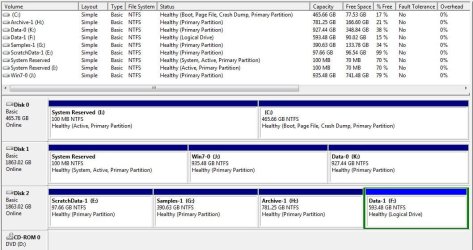
Here is where I stand now (See attached). I still get dual boot screen and both options say "Windows 7 (Recovered)" but once I get in, it seems to be running normally. I expect to be reformatting Disk1 (J: and K:) soon.
 

Attachments

  • Clipboard01.jpg
    Clipboard01.jpg
    94.6 KB · Views: 62

My Computer My Computer

OS
Win7-64 (Pro)
CPU
Intel i7-2600K (3.40 GHz)
Motherboard
Intel Z77GA70K
Memory
16 Gb
Graphics Card(s)
NVIDIA Quadro 4000
Sound Card
Focusrite Saffire Pro40
As suggested mark Disk 1 SysReservd partition Inactive: Partition - Mark as Inactive - Windows 7 Forums

Then mark DIsk0 SysReserved partition Active: Mark Partition Active. Reboot into BIOS setup to make sure DIsk0 is set first HD to boot..

Now boot into the Win7 DVD System Recovery Options or the System Repair Disk to run Startup Repair - Run 3 Separate Times until Win7 on C starts and Disk0 SysReserved partition holds the System Active flags.

You can now delete and format the partitions on Disk1, repartition as desired in Disk Mgmt. If a ghost boot listing appears, delete it in msconfig>Boot tab.

If Disk1 interferes with the Repairs, unplug it and start over.
 
Last edited:
Yes, both drives (2 Win7s) I had 2 boot options, one drive, one option. Both SATA.

<<Then do Partition - Mark as Inactive Mark all volumes inactive on NON BOOTING disk only!>>
This worked. However it said "Volume was already inactive" but I don't think it was. Upon rebooting I again had two options, I chose the first. It went to a 'partition repair' or something like that then back to the dual boot screen. Both options said "Windows 7 (repaired)" . Chose the 1st again and all is well. I still get dual boot but just choose the 1st.
If you marked all volumes inactive on NON BOOTING disk... you can't boot from it. So you boot from other disk as always. You should still have ONE boot option. After "startup repair" it can discover other bootable win7/vista OS's and add it to boot menu.

If you select the 2nd in dual boot list... does it boot as well? Wanna keep it?

Please post screenshot of "disk management".
 

My Computer My Computer

Computer type
Laptop
Computer Manufacturer/Model Number
ACER ASPIRE 5742G
OS
Microsoft Windows 7 Home Premium 64-bits 7601 Multiprocessor Free Service Pack 1
CPU
Intel(R) Core(TM) i3 CPU M 370 @ 2.40GHz
Motherboard
Acer Aspire 5742G
Memory
4,00 GB
Graphics Card(s)
ATI Mobility Radeon HD 5400 Series
Sound Card
(1) AMD High Definition Audio Device (2) Realtek High Defi
Screen Resolution
1366 x 768 x 32 bits (4294967296 colors) @ 60 Hz
Hard Drives
WDC WD5000BEVT-22ZAT0
I ended up going to msconfig and just deleting the 2nd boot option. That disk will be reformatted soon anyway.
 

My Computer My Computer

OS
Win7-64 (Pro)
CPU
Intel i7-2600K (3.40 GHz)
Motherboard
Intel Z77GA70K
Memory
16 Gb
Graphics Card(s)
NVIDIA Quadro 4000
Sound Card
Focusrite Saffire Pro40
You only hid the problem, which is that the boot files are on a disk you no longer intend to use and plan to format. You won't even be able to format DIsk 1 while it holds the System flag, and if you force it then it will cause C to become unbootable.

You must move the System flag from Disk1 to System Reserved on Disk0 following the steps I gave you. Why would you ignore steps which I typed out to do something we've helped countless thousands of users do here successfully?
 
a new problem?

You only hid the problem, which is that the boot files are on a disk you no longer intend to use and plan to format. You won't even be able to format DIsk 1 while it holds the System flag, and if you force it then it will cause C to become unbootable.

You must move the System flag from Disk1 to System Reserved on Disk0 following the steps I gave you. Why would you ignore steps which I typed out to do something we've helped countless thousands of users do here successfully?

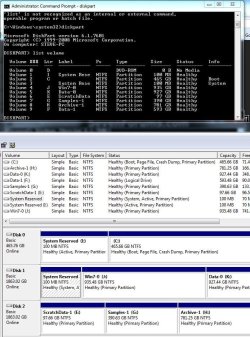
I'm trying to do that but ran into a problem (See attached). I want to make vol3/Disk0 inactive but it doesn't have a letter that I need to select. It is also marked as 'SYSTEM'. Is it possible the system flag is on disk1 and the OS on disk0? I want to use disk0 for both (I: and C:) and reformat disk1
 

Attachments

  • Clipboard02.jpg
    Clipboard02.jpg
    123.1 KB · Views: 21

My Computer My Computer

OS
Win7-64 (Pro)
CPU
Intel i7-2600K (3.40 GHz)
Motherboard
Intel Z77GA70K
Memory
16 Gb
Graphics Card(s)
NVIDIA Quadro 4000
Sound Card
Focusrite Saffire Pro40
That's why I also gave you the steps to move the System boot files in Post 6.

But since you're ready to reformat now, move your files off of Disk1, power down to unplug it.

Power up, enter BIOS setup to set DISK0 first HD to boot, after DVD drive.

Then boot into the Win7 DVD System Recovery Options or System Repair Disk to run Startup Repair - Run 3 Separate Times until Win7 starts and Disk0 System Reserved holds the System Active flags.

You can then power down to plug back in DISK1, from a Win7 Elevated Command Prompt run Diskpart Clean Command on DIsk1, then repartition it in Disk Mgmt as you please. Make doubly sure you choose DISK1 (by size) to wipe so you don't accidentally wipe Disk2.
 
That's why I also gave you the steps to move the System boot files in Post 6.

But since you're ready to reformat now, move your files off of Disk1, power down to unplug it.

Power up, enter BIOS setup to set DISK0 first HD to boot, after DVD drive.

Then boot into the Win7 DVD System Recovery Options or System Repair Disk to run Startup Repair - Run 3 Separate Times until Win7 starts and Disk0 System Reserved holds the System Active flags.

You can then power down to plug back in DISK1, from a Win7 Elevated Command Prompt run Diskpart Clean Command on DIsk1, then repartition it in Disk Mgmt as you please. Make doubly sure you choose DISK1 (by size) to wipe so you don't accidentally wipe Disk2.

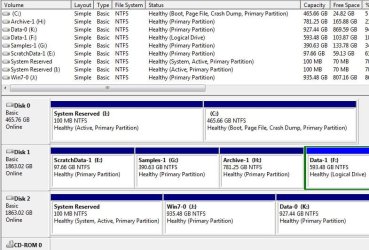
Even though I'm ready to reformat my drive (now labeled disc 2 in the current attachment), the 'system reserve' partition still says "System" where it doesn't in drive "I", my bootable disc. I DID do all steps in post #6 running startup repair 3+ times, each time it said something like 'bad start-up partition', but said it was repaired. The PC DID start start fine with Disc2 removed, the attached screenshot is when reinstalled. OK to "Clean" disc2 even though labeled "System,Active, Primary Partition"? How do I tell if disc0 holds the system active flags?

PS: I did not have to set disc0 as first HD to boot to, it already was when other disc was removed.
 

Attachments

  • Clipboard02.jpg
    Clipboard02.jpg
    80.7 KB · Views: 22

My Computer My Computer

OS
Win7-64 (Pro)
CPU
Intel i7-2600K (3.40 GHz)
Motherboard
Intel Z77GA70K
Memory
16 Gb
Graphics Card(s)
NVIDIA Quadro 4000
Sound Card
Focusrite Saffire Pro40
Remove all other disk but the one labeled Disk0. Start the system if it boots to Win 7 that disk holds all the info need to boot. Connect the other drives.
 

My Computer My Computer

OS
7 x64
I was just worried that Disk0 has a drive letter I: and the "System" label while Disk2 has neither. No issue?
 

My Computer My Computer

OS
Win7-64 (Pro)
CPU
Intel i7-2600K (3.40 GHz)
Motherboard
Intel Z77GA70K
Memory
16 Gb
Graphics Card(s)
NVIDIA Quadro 4000
Sound Card
Focusrite Saffire Pro40
It is not correct that SysReserved should have a drive letter. YOu can remove it here: Drive Letter - Add, Change, or Remove in Windows 7 - Windows 7 Forums

It is also not correct that it is not marked System on Disk0 because that flag signifies the system boot files are onboard. So we have no reason to believe Disk0 is booting itself and not being booted by DIsk2 System partition. This is why edWar wants you to unplug all but Disk0 to check this, since the flags can sometimes be off. Test that now.

Is DISK0 the HD you ran Startup Repair three times upon after unplugging all others?
 
It is not correct that SysReserved should have a drive letter. YOu can remove it here: Drive Letter - Add, Change, or Remove in Windows 7 - Windows 7 Forums

It is also not correct that it is not marked System on Disk0 because that flag signifies the system boot files are onboard. So we have no reason to believe Disk0 is booting itself and not being booted by DIsk2 System partition. This is why edWar wants you to unplug all but Disk0 to check this, since the flags can sometimes be off. Test that now.

Is DISK0 the HD you ran Startup Repair three times upon after unplugging all others?

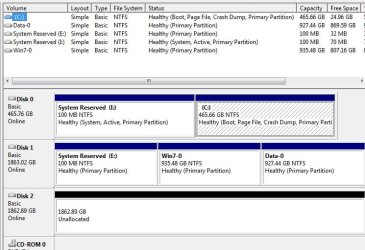
Since I was able to boot without disk2 connected, I thought I was fine and tried to clean disk2. I got the error message in the first attached image. I read that I had to boot to the command prompt to clean a disk with a system partition, boot file or something like that. I confirm disk2 was correct (image2) then I booted to the prompt and cleaned disk2. I am 100% sure I typed select disk 2 (it said disk 2 selected). I CLEANED successfully. Image 3 show disk1 was erased. I don't suppose there is any way to get it back?
 

Attachments

  • Clipboard03.jpg
    Clipboard03.jpg
    27.5 KB · Views: 13
  • Clipboard04.jpg
    Clipboard04.jpg
    80.8 KB · Views: 12
  • Clipboard05.jpg
    Clipboard05.jpg
    59.2 KB · Views: 10

My Computer My Computer

OS
Win7-64 (Pro)
CPU
Intel i7-2600K (3.40 GHz)
Motherboard
Intel Z77GA70K
Memory
16 Gb
Graphics Card(s)
NVIDIA Quadro 4000
Sound Card
Focusrite Saffire Pro40
You can recover all Cleaned partitions using Partition Wizard Partition Recovery Wizard - Video Help.

Once recovered and confirmed data is intact, unplug the disk, boot back into Win7 to confirm you unplugged the data disk. Then Clean the correct HD .

I notice I is System Active in Image 3 but also still has its drive letter. Did you repair it? Remove it's letter as given earlier.

If you received a failure to Clean Disk2 in Image 1 what did you do to bypass the error besides choose Disk1?

You can confirm the correct same-size Disk by its partitioning using List partition on the disk in focus.
 
Last edited:
The fact that Diskpart reported the error on the clean command confirms you were really booting from Disk2.

And it looks to me like you had physically swapped disks/ports between screenshots 2 & 3. (Disk2 now in Disk1's old port and 1 in 2's). I think that's how you mistakenly cleaned the wrong disk.
 

My Computer My Computer

OS
Windows 7 Ultimate x64
Getting close

<<The fact that Diskpart reported the error on the clean command confirms you were really booting from Disk2.>> ... Or disk1? (see below)

Partition Wizard seemed to work (I think). *HUGE RELIEF*. In 'Disk Management' it shows up similar to before but no drive letter, which is why I assume they don't show up in My Computer.
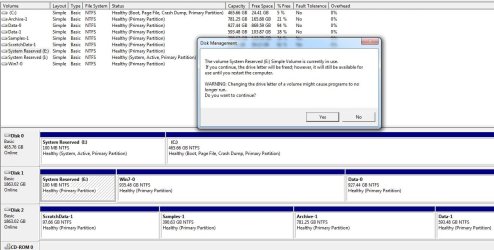
I went to assign the drive letter as they were previously. "E" is to be my 1st partition on disk2 but it got assigned to Disk1, the disk I want to reformat (this was disk2 before, see post #16). When I tried to remove the E designation from disk1 is says 'E volume in use'. Which tells me it it booting from that drive. When unplugged, it boots from disk0. Why does the disk I want to reformat keep switching from disk1 to disk2. I have never changed cables, can't due to the lengths.

<<I notice I is System Active in Image 3 but also still has its drive letter. Did you repair it? Remove it's letter as given earlier.>> No, it just appeared when I cleaned disk2 (disk1). I didn't try to reassign any letters until after Partition Wizard when I tried to remove "E".

(Thanks for staying with me on this everyone)

Steve
 

Attachments

  • Clipboard06.jpg
    Clipboard06.jpg
    106.1 KB · Views: 10

My Computer My Computer

OS
Win7-64 (Pro)
CPU
Intel i7-2600K (3.40 GHz)
Motherboard
Intel Z77GA70K
Memory
16 Gb
Graphics Card(s)
NVIDIA Quadro 4000
Sound Card
Focusrite Saffire Pro40
Since you're now familiar with Partition Wizard, rightclick on each partition you no longer want to Wipe Partition. E shouldn't complain since it's no longer Active.


Be sure to choose correctly as zeroing is not recoverable.

It's not quite as clean as with wiping the whole HD but unless old boot code interferes in some way it's enough.
 
Back
Top