Hello Windows Seven Forums,
I have read plenty of forums trying to solve my current issue and it appears this community is the most knowledgeable and friendly. Therefore, I figured a post might actually be worth it before I give up on this.
Quick Story:
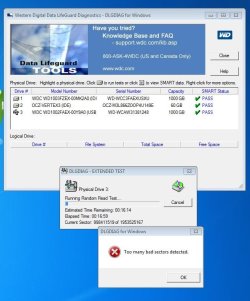
I was connecting remotely to my desktop at home as I normally would and suddenly I noticed the connection seemed slow, eventually it got stuck and disconnected (randomly). When I got home I noticed my desktop was on but stuck on a black screen with a blinking underscore. I restarted my machine and have not been able to boot into my Windows 7 ever since.
This is relating to a WD Black Drive - 1TB and Win7 64-bit installed on it.
What I have done:
- I began by reseating the RAM and all the power/data connections.
- I eventually got a "BOOTMGR is Missing" display so I googled on how to fix this
- I've used the Win7 install DVD to try and repair but the OS will not pick up (so I googled how to fix that)
- I created a system repair disc and tried to see if it would work like that, still would not pick up the Win7 OS but I was able to reach the System Recover Options. I tried to run Bootrec.exe tool and the steps suggested on this post http://www.sevenforums.com/tutorials/219533-troubleshooting-windows-7-failure-boot.html . I was unsuccessful due to files not being found.
- I removed the HDD and connected it to laptop to see if I can access data and to check disk management but I was not able to see the drive (never loaded) so I read on here to use PW to make sure partition is active and assign letters to partitions. I did that and was able to get the drive to show up on "My Computer" on my laptop but I was not able to access the partitions, it kept asking me to format them, which I did not.
- I tried to see if the drive would pick up from a Linux Mint LiveCD ... did not pick up so I couldn't even try to get my data out that way.
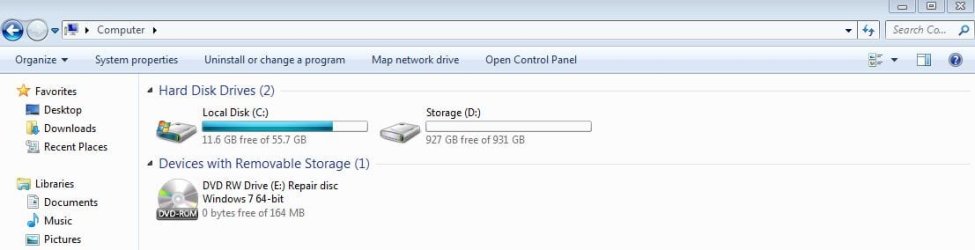
- I installed a fresh copy of Win7 onto a 60 gb SSD and bought a new WD Black 1TB hard drive to use as a data drive.
- To my surprise I was able to see the old HDD once I connected it via USB so I tried to take ownership of the the user folder and was successful. Only thing is that it will not let me take ownership of the "Desktop", "Documents", "Pictures" etc folders. I do see that my data is still on the drive, which makes me a bit happier although I cannot transfer it out. At this point, I'm tired and I just want to get my data out and put into the new HDD.
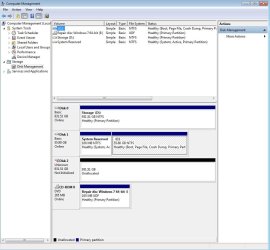
Well, great news! For the first time in 1 week I am able to see my old HDD on the Disk Management and I noticed something rather alarming but may lead towards a solution, finally.
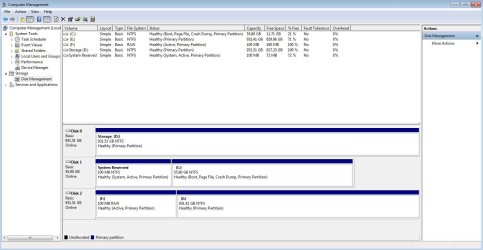
My old drive (not booting) is Disk 2, which shows (2) partitions.
Partition F: is suppose to be where my system files/boot info is stored (to my understanding) and is suppose to show as System, Active, Primary Partition (like Disk 1).
Partition E: is suppose to be where my Win7 is located with my data (to my understanding) and is suppose to show as Boot, Page File, Crash Dump, Primary Partition.
As you can see from the screen shot, that's not the case. This might be why it is not booting?
Disk 1: is my 60 gb SSD which I have a new Win7 installation on
Disk 0: is the new WD 1 TB HDD being used as a data drive
What I would like to do (if possible):
I would like to fix the F: partition so that it has the correct required files to boot the E: partition AND to also fix the E: partition so that it can properly boot once F: is back to normal. I have read that it might be possible to just combine all that is needed to boot into one partition which I would assume to be E: in my case.
I have about 200 gb of data that I use almost on a daily basis and need to get this system back up like before or get the data transferred out of that drive.
This is my last hope and I'd be extremely grateful if anybody can assist me in providing a solution.
Thanks
I have read plenty of forums trying to solve my current issue and it appears this community is the most knowledgeable and friendly. Therefore, I figured a post might actually be worth it before I give up on this.
Quick Story:
I was connecting remotely to my desktop at home as I normally would and suddenly I noticed the connection seemed slow, eventually it got stuck and disconnected (randomly). When I got home I noticed my desktop was on but stuck on a black screen with a blinking underscore. I restarted my machine and have not been able to boot into my Windows 7 ever since.
This is relating to a WD Black Drive - 1TB and Win7 64-bit installed on it.
What I have done:
- I began by reseating the RAM and all the power/data connections.
- I eventually got a "BOOTMGR is Missing" display so I googled on how to fix this
- I've used the Win7 install DVD to try and repair but the OS will not pick up (so I googled how to fix that)
- I created a system repair disc and tried to see if it would work like that, still would not pick up the Win7 OS but I was able to reach the System Recover Options. I tried to run Bootrec.exe tool and the steps suggested on this post http://www.sevenforums.com/tutorials/219533-troubleshooting-windows-7-failure-boot.html . I was unsuccessful due to files not being found.
- I removed the HDD and connected it to laptop to see if I can access data and to check disk management but I was not able to see the drive (never loaded) so I read on here to use PW to make sure partition is active and assign letters to partitions. I did that and was able to get the drive to show up on "My Computer" on my laptop but I was not able to access the partitions, it kept asking me to format them, which I did not.
- I tried to see if the drive would pick up from a Linux Mint LiveCD ... did not pick up so I couldn't even try to get my data out that way.
- I installed a fresh copy of Win7 onto a 60 gb SSD and bought a new WD Black 1TB hard drive to use as a data drive.
- To my surprise I was able to see the old HDD once I connected it via USB so I tried to take ownership of the the user folder and was successful. Only thing is that it will not let me take ownership of the "Desktop", "Documents", "Pictures" etc folders. I do see that my data is still on the drive, which makes me a bit happier although I cannot transfer it out. At this point, I'm tired and I just want to get my data out and put into the new HDD.
Well, great news! For the first time in 1 week I am able to see my old HDD on the Disk Management and I noticed something rather alarming but may lead towards a solution, finally.
My old drive (not booting) is Disk 2, which shows (2) partitions.
Partition F: is suppose to be where my system files/boot info is stored (to my understanding) and is suppose to show as System, Active, Primary Partition (like Disk 1).
Partition E: is suppose to be where my Win7 is located with my data (to my understanding) and is suppose to show as Boot, Page File, Crash Dump, Primary Partition.
As you can see from the screen shot, that's not the case. This might be why it is not booting?
Disk 1: is my 60 gb SSD which I have a new Win7 installation on
Disk 0: is the new WD 1 TB HDD being used as a data drive
What I would like to do (if possible):
I would like to fix the F: partition so that it has the correct required files to boot the E: partition AND to also fix the E: partition so that it can properly boot once F: is back to normal. I have read that it might be possible to just combine all that is needed to boot into one partition which I would assume to be E: in my case.
I have about 200 gb of data that I use almost on a daily basis and need to get this system back up like before or get the data transferred out of that drive.
This is my last hope and I'd be extremely grateful if anybody can assist me in providing a solution.
Thanks
My Computer
At a glance
Florida
- Computer type
- PC/Desktop
- OS
- Florida