Internet Connection Lost on Restart

JLSchutt

New member
Local time
10:04 AM
Messages
11
Location
Scottsdale AZ
I posted the message below on another popular Windows 7 forum two weeks ago. So far the message has been viewed 267 times, yet not a single reply proposing a solution has been posted. I am hoping that there may be an expert on this forum who can shed some light on the problem and hopefully propose a solution.

=====================

For several months I have lost my Internet connection whenever I restart my Windows 7 Home Premium computer. Fortunately I use the sleep function at night and only restart two or three times a week. I have found a way to connect to the Internet following a restart that works almost every time, but it is a nuisance to go through the steps. I am hoping that a description of the procedure I use will prompt someone to suggest a permanent fix to the problem so the computer will come up with an Internet connection following a restart.

After a restart and no Internet connection the Network and Sharing Center shows two networks when there should be only one. They are:

Network - Home network - Connection: Mynetworkname Broadband

Unidentified network - Public network - Connection: Mynetworkname Broadband

I have no idea why the second network is present, but it is probably at the heart of the problem. My correction procedure is the following:

Click Mynetworkname Broadband and then click Disable.

Both of the networks described above disappear, and the message "You are currently not connected to any networks." appears. This statement is accurate at this point.

Next I click Troubleshoot problems and Internet connections. A message says, "Troubleshoot and help prevent computer problems." I click Next and then Troubleshoot my connection to the Internet.

I am told, "The Mynetworkname Broadband adapter is disabled" (which of course it is). I click Try these repairs as an administrator, and Resolving problems is displayed.

The word Fixed appears after the statement "The Mynetworkname Broadband adapter is disabled", and I click Close the troubleshooter.

At this point the Internet connection becomes operational, and the Network and Sharing Center shows only one network - the first one shown above and not the unidentified network.

Any ideas or advice?

--Jim--
 

My Computer

Computer Manufacturer/Model Number
Dell XPS 420
OS
Windows Vista Home Premium SP2
Memory
4 GB
Monitor(s) Displays
Dell 22" with webcam
Hard Drives
500 GB
Internet Speed
Cable (10+ mbs)
according to your listed specs--this is a Vista machine?

the 'unidentified' network may be referring to a 'wireless' setup--are you using a router? are you setup wireless?

an easier way to accomplish the procedure that you described is--simply open 'device manager' disable network adapter--then 'enable' it--which should make it function


it would make it easier to assist you if you describe your connection--for example:
modem>router>computer(laptop or desktop?)>wireless enabled? etc
 

My Computer

Computer Manufacturer/Model Number
SALEON model 2.2b
OS
win7 ultimate 32bit
CPU
core2 Extreme QX6850-OCd to 3.15 GHz
Motherboard
ASUS P5G41-M LE
Memory
4 GB
Graphics Card(s)
NVidia 8600 GT
Monitor(s) Displays
23" acer
Hard Drives
one SATA 250GB partitioned equally in half
one SATA 160GB-internal storage
PSU
500W Thermaltake
Case
mini tower
according to your listed specs--this is a Vista machine?

the 'unidentified' network may be referring to a 'wireless' setup--are you using a router? are you setup wireless?

an easier way to accomplish the procedure that you described is--simply open 'device manager' disable network adapter--then 'enable' it--which should make it function.

it would make it easier to assist you if you describe your connection--for example:
modem>router>computer(laptop or desktop?)>wireless enabled? etc

Thanks for your response, tman69. I will try to provide the info you requested. Although my desktop PC was originally delivered with Vista, I upgraded it to Windows 7 Home Premium more than three years ago. It is only in the last 2 or 3 months that the problem I describe first appeared.

The computer is connected by a cable to a Cisco router, which in turn is connected to a Motorola modem. The computer does not have a wireless adapter. The router provides a home network to one other almost identical desktop computer, as well as to an occasional laptop, an iPhone, an iPad, an Android phone, and an Android tablet.

The next time I have the problem I will use your Device Manager procedure.
 

My Computer

Computer Manufacturer/Model Number
Dell XPS 420
OS
Windows Vista Home Premium SP2
Memory
4 GB
Monitor(s) Displays
Dell 22" with webcam
Hard Drives
500 GB
Internet Speed
Cable (10+ mbs)
an easier way to accomplish the procedure that you described is--simply open 'device manager' disable network adapter--then 'enable' it--which should make it function

Just restarted the PC for the first time since seeing your message. No Internet access following restart. Used your disable/enable technique and it worked just fine. Thanks! Still don't know why the basic problem occurs.
 

My Computer

Computer Manufacturer/Model Number
Dell XPS 420
OS
Windows Vista Home Premium SP2
Memory
4 GB
Monitor(s) Displays
Dell 22" with webcam
Hard Drives
500 GB
Internet Speed
Cable (10+ mbs)
it's good to hear that the 'simpler' solution works for you.

as far as the basic problem...

you said "The router provides a home network to one other almost identical desktop computer"

does the same situation (no network connection) happen with the other computer?
 

My Computer

Computer Manufacturer/Model Number
SALEON model 2.2b
OS
win7 ultimate 32bit
CPU
core2 Extreme QX6850-OCd to 3.15 GHz
Motherboard
ASUS P5G41-M LE
Memory
4 GB
Graphics Card(s)
NVidia 8600 GT
Monitor(s) Displays
23" acer
Hard Drives
one SATA 250GB partitioned equally in half
one SATA 160GB-internal storage
PSU
500W Thermaltake
Case
mini tower
it's good to hear that the 'simpler' solution works for you.

as far as the basic problem...

you said "The router provides a home network to one other almost identical desktop computer"

does the same situation (no network connection) happen with the other computer?

Interesting that you should ask. The other computer (connected wirelessly) is my wife's. It experiences different problems. Every day or two it loses the Internet connection at random times, not when it is restarted. When its Internet connection is off, mine is still on. The disable/enable trick that fixes my connection does not fix hers. The fix for her problem (at least the only one I've found so far) is to power cycle the router - off for about 10 seconds and then back on. This of course also kills my Internet connection briefly, but then both computers come back onto the Internet.
 

My Computer

Computer Manufacturer/Model Number
Dell XPS 420
OS
Windows Vista Home Premium SP2
Memory
4 GB
Monitor(s) Displays
Dell 22" with webcam
Hard Drives
500 GB
Internet Speed
Cable (10+ mbs)
the 'mystery' (Unidentified network - Public network) network you're experiencing--is your wife's 'wireless' connected machine.
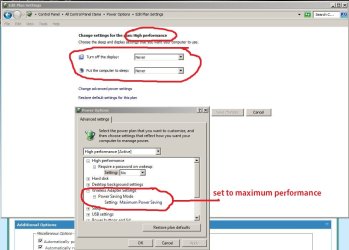
Check to see if her wireless adapter is set to 'sleep/hibernate' (it shouldn't be, as this 'could' be the cause of the problem). Also check to see her 'power options'. see attached pic
I believe you actually have 'two' networks--one wired and one wireless.
(make sure the wireless is 'secured' with a password).
note to properly power cycle:
Power off everything (unplug modem).
Wait several minutes.
Power up modem.
Wait for modem to sync with ISP (a minute or so).
Power up router.
Wait for router to sync with modem.
Power up computer(s)
 

Attachments

  • Capture.JPG
    Capture.JPG
    79.4 KB · Views: 8

My Computer

Computer Manufacturer/Model Number
SALEON model 2.2b
OS
win7 ultimate 32bit
CPU
core2 Extreme QX6850-OCd to 3.15 GHz
Motherboard
ASUS P5G41-M LE
Memory
4 GB
Graphics Card(s)
NVidia 8600 GT
Monitor(s) Displays
23" acer
Hard Drives
one SATA 250GB partitioned equally in half
one SATA 160GB-internal storage
PSU
500W Thermaltake
Case
mini tower
Check to see if her wireless adapter is set to 'sleep/hibernate' (it shouldn't be, as this 'could' be the cause of the problem). Also check to see her 'power options'. see attached pic
I believe you actually have 'two' networks--one wired and one wireless.
(make sure the wireless is 'secured' with a password).

All settings are as recommended. Wireless network is secured with WPA.

I don't believe there are two different networks. Both my PC and my wife's show up as members of the same network in both the Windows 7 network diagram and the one produced by the Network Magic program.

These computers and the network have been operating for more than three years, and these problems have surfaced in the last couple of months.

Maybe it's time to upgrade to Windows 8? :rolleyes:
 

My Computer

Computer Manufacturer/Model Number
Dell XPS 420
OS
Windows Vista Home Premium SP2
Memory
4 GB
Monitor(s) Displays
Dell 22" with webcam
Hard Drives
500 GB
Internet Speed
Cable (10+ mbs)
The unidentified network problem is no doubt the cause of network connection problem, until that problem is taken care of this problem will persist.

Do you have iTunes or Adobe CS3 installed on this system?

Which anti virus software are you running?

Can you post the ipconfig/all so we can see any other potential problems.

I have a good idea of what this problem is but I need to see the ipconfig to make sure and the other questions are important.
 

My Computer

Computer type
PC/Desktop
Computer Manufacturer/Model Number
Home built
OS
Windows 7 Ult, Windows 8.1 Pro,
CPU
Q9650-4.275GHz, E8600 4.5GHz, E6750-3.8GHz
Motherboard
Evga 780i FTW
Memory
G.Skill PC2 9600 1200Mhz 5 5 5 15 2T
Graphics Card(s)
GTX480
Sound Card
Asus Xonar D2
Monitor(s) Displays
HannsG
Screen Resolution
1680X1050
Hard Drives
GSkill Phoenix Pro 120GB SSD
PSU
ThermalTake Toughpower 1000Watt modular
Case
ThermalTake XaserV
Cooling
Xigmatek S1283
Keyboard
Logitech G15
Mouse
Logitech G9
Internet Speed
T1
The unidentified network problem is no doubt the cause of network connection problem, until that problem is taken care of this problem will persist.

Do you have iTunes or Adobe CS3 installed on this system?

Which anti virus software are you running?

Can you post the ipconfig/all so we can see any other potential problems.

I have a good idea of what this problem is but I need to see the ipconfig to make sure and the other questions are important.

I will try to provide all requested information.

iTunes is installed on my wife's computer (she has an iPad) but not on mine.

Photoshop Elements 8 (not CS3) is installed on my wife's computer but not on mine.

We are both running Trend Micro Titanium Maximum Security 2012 software.

=========================================================

Here is the ipconfig /all report for my computer (cabled router connection):

Windows IP Configuration

Host Name . . . . . . . . . . . . : Jim-XPS
Primary Dns Suffix . . . . . . . :
Node Type . . . . . . . . . . . . : Hybrid
IP Routing Enabled. . . . . . . . : No
WINS Proxy Enabled. . . . . . . . : No
DNS Suffix Search List. . . . . . : ph.cox.net

Ethernet adapter Eaglenet Broadband:

Connection-specific DNS Suffix . : ph.cox.net
Description . . . . . . . . . . . : Intel(R) 82566DC-2 Gigabit Network Connection
Physical Address. . . . . . . . . : 00-1D-09-2F-BF-E2
DHCP Enabled. . . . . . . . . . . : Yes
Autoconfiguration Enabled . . . . : Yes
Link-local IPv6 Address . . . . . : fe80::a921:831b:1283:e987%9(Preferred)
IPv4 Address. . . . . . . . . . . : 192.168.1.100(Preferred)
Subnet Mask . . . . . . . . . . . : 255.255.255.0
Lease Obtained. . . . . . . . . . : Thursday, December 06, 2012 8:27:11 AM
Lease Expires . . . . . . . . . . : Saturday, December 08, 2012 7:58:49 AM
Default Gateway . . . . . . . . . : 192.168.1.1
DHCP Server . . . . . . . . . . . : 192.168.1.1
DHCPv6 IAID . . . . . . . . . . . : 201334025
DHCPv6 Client DUID. . . . . . . . : 00-01-00-01-0F-51-22-2D-00-1D-09-2F-BF-E2
DNS Servers . . . . . . . . . . . : 208.67.222.222
208.67.220.220
68.105.28.12
NetBIOS over Tcpip. . . . . . . . : Enabled

Tunnel adapter isatap.ph.cox.net:

Media State . . . . . . . . . . . : Media disconnected
Connection-specific DNS Suffix . :
Description . . . . . . . . . . . : Microsoft ISATAP Adapter
Physical Address. . . . . . . . . : 00-00-00-00-00-00-00-E0
DHCP Enabled. . . . . . . . . . . : No
Autoconfiguration Enabled . . . . : Yes

Tunnel adapter Teredo Tunneling Pseudo-Interface:

Media State . . . . . . . . . . . : Media disconnected
Connection-specific DNS Suffix . :
Description . . . . . . . . . . . : Teredo Tunneling Pseudo-Interface
Physical Address. . . . . . . . . : 00-00-00-00-00-00-00-E0
DHCP Enabled. . . . . . . . . . . : No
Autoconfiguration Enabled . . . . : Yes

=========================================================

Here is the ipconfig /all report for my wife's computer (wireless router connection):

Windows IP Configuration

Host Name . . . . . . . . . . . . : Lynn-XPS
Primary Dns Suffix . . . . . . . :
Node Type . . . . . . . . . . . . : Hybrid
IP Routing Enabled. . . . . . . . : No
WINS Proxy Enabled. . . . . . . . : No
DNS Suffix Search List. . . . . . : ph.cox.net

Ethernet adapter Bluetooth Network Connection:

Media State . . . . . . . . . . . : Media disconnected
Connection-specific DNS Suffix . :
Description . . . . . . . . . . . : Bluetooth Device (Personal Area Network)
Physical Address. . . . . . . . . : 00-19-7E-E9-15-97
DHCP Enabled. . . . . . . . . . . : Yes
Autoconfiguration Enabled . . . . : Yes

Wireless LAN adapter Wireless Network Connection:

Connection-specific DNS Suffix . : ph.cox.net
Description . . . . . . . . . . . : Dell Wireless 1505 Draft 802.11n WLAN Mini-Card
Physical Address. . . . . . . . . : 00-1E-4C-97-4F-9D
DHCP Enabled. . . . . . . . . . . : Yes
Autoconfiguration Enabled . . . . : Yes
Link-local IPv6 Address . . . . . : fe80::75a7:3fdd:fec1:2921%11(Preferred)
IPv4 Address. . . . . . . . . . . : 192.168.1.102(Preferred)
Subnet Mask . . . . . . . . . . . : 255.255.255.0
Lease Obtained. . . . . . . . . . : Friday, December 07, 2012 8:23:50 AM
Lease Expires . . . . . . . . . . : Saturday, December 08, 2012 8:23:53 AM
Default Gateway . . . . . . . . . : 192.168.1.1
DHCP Server . . . . . . . . . . . : 192.168.1.1
DHCPv6 IAID . . . . . . . . . . . : 167779916
DHCPv6 Client DUID. . . . . . . . : 00-01-00-01-0F-87-08-B4-00-1D-09-30-A2-CC
DNS Servers . . . . . . . . . . . : 208.67.222.222
208.67.220.220
68.105.28.12
NetBIOS over Tcpip. . . . . . . . : Enabled

Ethernet adapter Local Area Connection:

Media State . . . . . . . . . . . : Media disconnected
Connection-specific DNS Suffix . :
Description . . . . . . . . . . . : Intel(R) 82566DC-2 Gigabit Network Connection
Physical Address. . . . . . . . . : 00-1D-09-30-A2-CC
DHCP Enabled. . . . . . . . . . . : Yes
Autoconfiguration Enabled . . . . : Yes

Tunnel adapter isatap.ph.cox.net:

Media State . . . . . . . . . . . : Media disconnected
Connection-specific DNS Suffix . :
Description . . . . . . . . . . . : Microsoft ISATAP Adapter
Physical Address. . . . . . . . . : 00-00-00-00-00-00-00-E0
DHCP Enabled. . . . . . . . . . . : No
Autoconfiguration Enabled . . . . : Yes

Tunnel adapter Teredo Tunneling Pseudo-Interface:

Media State . . . . . . . . . . . : Media disconnected
Connection-specific DNS Suffix . :
Description . . . . . . . . . . . : Teredo Tunneling Pseudo-Interface
Physical Address. . . . . . . . . : 00-00-00-00-00-00-00-E0
DHCP Enabled. . . . . . . . . . . : No
Autoconfiguration Enabled . . . . : Yes
 

My Computer

Computer Manufacturer/Model Number
Dell XPS 420
OS
Windows Vista Home Premium SP2
Memory
4 GB
Monitor(s) Displays
Dell 22" with webcam
Hard Drives
500 GB
Internet Speed
Cable (10+ mbs)
The only real problem I'm seeing here is with the false DNS server listed at 68.105.28.12 which appears to actually be a WAN IP address from Baton Rouge Lou. cox cable. That WAN IP address is not supposed to be there.

Is this WAN IP in your IPv4 properties for some reason? If not where is it typed in?

If that doesn't work you will want to uninstall Trend Micro completely from your system per the instructions below.
http://esupport.trendmicro.com/solution/en-us/1059018.aspx
 
Last edited:

My Computer

Computer type
PC/Desktop
Computer Manufacturer/Model Number
Home built
OS
Windows 7 Ult, Windows 8.1 Pro,
CPU
Q9650-4.275GHz, E8600 4.5GHz, E6750-3.8GHz
Motherboard
Evga 780i FTW
Memory
G.Skill PC2 9600 1200Mhz 5 5 5 15 2T
Graphics Card(s)
GTX480
Sound Card
Asus Xonar D2
Monitor(s) Displays
HannsG
Screen Resolution
1680X1050
Hard Drives
GSkill Phoenix Pro 120GB SSD
PSU
ThermalTake Toughpower 1000Watt modular
Case
ThermalTake XaserV
Cooling
Xigmatek S1283
Keyboard
Logitech G15
Mouse
Logitech G9
Internet Speed
T1
The only real problem I'm seeing here is with the false DNS server listed at 68.105.28.12 which appears to actually be a WAN IP address from Baton Rouge Lou. cox cable. That WAN IP address is not supposed to be there.

Is this WAN IP in your IPv4 properties for some reason? If not where is it typed in?

If that doesn't work you will want to uninstall Trend Micro completely from your system per the instructions below.
Uninstalling Trend Micro Titanium using Diagnostic Toolkit

I have no idea where the WAN IP address 68.105.28.12 came from, although Cox is my Internet provider. I'm in Arizona, not Louisiana, however. I checked IPv4 and IPv6 properties, and both specify Obtain DNS server address automatically. No specific DNS servers are present.

Why would I want to uninstall Trend Micro?
 

My Computer

Computer Manufacturer/Model Number
Dell XPS 420
OS
Windows Vista Home Premium SP2
Memory
4 GB
Monitor(s) Displays
Dell 22" with webcam
Hard Drives
500 GB
Internet Speed
Cable (10+ mbs)
The only real problem I'm seeing here is with the false DNS server listed at 68.105.28.12 which appears to actually be a WAN IP address from Baton Rouge Lou. cox cable. That WAN IP address is not supposed to be there.

Is this WAN IP in your IPv4 properties for some reason? If not where is it typed in?

If that doesn't work you will want to uninstall Trend Micro completely from your system per the instructions below.
Uninstalling Trend Micro Titanium using Diagnostic Toolkit

I have no idea where the WAN IP address 68.105.28.12 came from, although Cox is my Internet provider. I'm in Arizona, not Louisiana, however. I checked IPv4 and IPv6 properties, and both specify Obtain DNS server address automatically. No specific DNS servers are present.

Why would I want to uninstall Trend Micro?

That WAN address isn't supposed to be there. I think there may be another modem or a second router involved here or something but I believe it's the source of the unidentified network problem.

Trend Micro or just about any A/V software is capable of creating and causing connection problems. The only way to test that out is to remove the A/V software. But besides those two things I can't see any other problems in the ipconfig.
 

My Computer

Computer type
PC/Desktop
Computer Manufacturer/Model Number
Home built
OS
Windows 7 Ult, Windows 8.1 Pro,
CPU
Q9650-4.275GHz, E8600 4.5GHz, E6750-3.8GHz
Motherboard
Evga 780i FTW
Memory
G.Skill PC2 9600 1200Mhz 5 5 5 15 2T
Graphics Card(s)
GTX480
Sound Card
Asus Xonar D2
Monitor(s) Displays
HannsG
Screen Resolution
1680X1050
Hard Drives
GSkill Phoenix Pro 120GB SSD
PSU
ThermalTake Toughpower 1000Watt modular
Case
ThermalTake XaserV
Cooling
Xigmatek S1283
Keyboard
Logitech G15
Mouse
Logitech G9
Internet Speed
T1
Back
Top