"Limited Access" plaguing my laptop.

Draeren

New member
Local time
3:04 AM
Messages
5
Hi, so my laptop has been having some majors errors for the past few days. Essentially, I can start using my internet for a few minutes at a time, then I notice nothing will load, and I no longer have internet access. It still shows 5 bars in the bottom right corner for a few seconds, then changes to "Limited Access", with the little yellow warning triangle. As soon as I click "Open Network and Sharing Center", it takes a few seconds, then my internet works again. Every time I open it, it works again for a few minutes. I have to constantly do this, and it renders me unable to play games online, and such, as I get disconnected every 2 minutes.

As far as I've noticed (Haven't checked it in detail yet) , this only happens with my network, not the neighbours, friend's house, etc.

My laptop is a TOSHIBA Satellite P755 -0M6
I am running Windows 7, I haven't had this error in the past.
I'll list any details needed, if you just ask. I'm not sure myself what information is relevant, so I'll let you guys ask the questions.

Thank you very much for reading, please let me know if you have any solutions.
 

My Computer My Computer

OS
Windows 7 Home Premium 64bit
Hi, so my laptop has been having some majors errors for the past few days. Essentially, I can start using my internet for a few minutes at a time, then I notice nothing will load, and I no longer have internet access. It still shows 5 bars in the bottom right corner for a few seconds, then changes to "Limited Access", with the little yellow warning triangle. As soon as I click "Open Network and Sharing Center", it takes a few seconds, then my internet works again. Every time I open it, it works again for a few minutes. I have to constantly do this, and it renders me unable to play games online, and such, as I get disconnected every 2 minutes.

As far as I've noticed (Haven't checked it in detail yet) , this only happens with my network, not the neighbours, friend's house, etc.

My laptop is a TOSHIBA Satellite P755 -0M6
I am running Windows 7, I haven't had this error in the past.
I'll list any details needed, if you just ask. I'm not sure myself what information is relevant, so I'll let you guys ask the questions.

Thank you very much for reading, please let me know if you have any solutions.

If you can post a screen shot of the ipconfig/all from this machine it would be very helpful.
Just type the ipconfig/all command into an elevated command prompt and use the snipping tool to get the screen shot.

Posting a screen shot of Xirrus WiFi inspector can also be helpful.
http://www.xirrus.com/Products/Wi-Fi-Inspector
 

My Computer My Computer

Computer type
PC/Desktop
Computer Manufacturer/Model Number
Home built
OS
Windows 7 Ult, Windows 8.1 Pro,
CPU
Q9650-4.275GHz, E8600 4.5GHz, E6750-3.8GHz
Motherboard
Evga 780i FTW
Memory
G.Skill PC2 9600 1200Mhz 5 5 5 15 2T
Graphics Card(s)
GTX480
Sound Card
Asus Xonar D2
Monitor(s) Displays
HannsG
Screen Resolution
1680X1050
Hard Drives
GSkill Phoenix Pro 120GB SSD
PSU
ThermalTake Toughpower 1000Watt modular
Case
ThermalTake XaserV
Cooling
Xigmatek S1283
Keyboard
Logitech G15
Mouse
Logitech G9
Internet Speed
T1
Here's my ipconfig /all, note; This is when my internet is up for the few minutes it's working, not when it's off. Tell me if I should try again when it's not working.
 

My Computer My Computer

OS
Windows 7 Home Premium 64bit
For some reason you are showing an overload of tunnel adaptor's. This is a fairly common problem and it usually indicates that the wireless adaptor requires an updated driver.

Getting rid of the extra tunnel adaptors should fix this problem.

To remove the extra tunnel adaptors click on the file below, unzip and choose x86 or X64 depending on your system then run the batch file or application. That should get rid of those extra adaptors. Reboot and see if anything changes.

Post the ipconfig/all again so we can see if they are removed and we can go from there.
 

Attachments

My Computer My Computer

Computer type
PC/Desktop
Computer Manufacturer/Model Number
Home built
OS
Windows 7 Ult, Windows 8.1 Pro,
CPU
Q9650-4.275GHz, E8600 4.5GHz, E6750-3.8GHz
Motherboard
Evga 780i FTW
Memory
G.Skill PC2 9600 1200Mhz 5 5 5 15 2T
Graphics Card(s)
GTX480
Sound Card
Asus Xonar D2
Monitor(s) Displays
HannsG
Screen Resolution
1680X1050
Hard Drives
GSkill Phoenix Pro 120GB SSD
PSU
ThermalTake Toughpower 1000Watt modular
Case
ThermalTake XaserV
Cooling
Xigmatek S1283
Keyboard
Logitech G15
Mouse
Logitech G9
Internet Speed
T1
Can you please also download xirrus as well please what chev65 linked to and post a screenshot of that in your next reply.

It will show us important information about your signal and if there is any channel interference.

Your ipconfig looks ok for me you are receiving an ip address and default gateway and dns from shaw.
 

My Computer My Computer

Computer Manufacturer/Model Number
HP Compaq 6715B
OS
Windows 7 Ultimate x64
CPU
AMD turion 64x2 TL-64 2.2Ghz
Motherboard
HC030
Memory
Sodimm DDR2 4GB
Graphics Card(s)
ATI Radeon 1250 128MB IGP
Hard Drives
Fujitsu Siemens 500GB sata 3.0 Gb/s
Well the Xirrus thing had a "fatal error" when I launched it, so that's a no-go. And the thing you suggested didn't work, chev65. I'm not sure what to do.
 

My Computer My Computer

OS
Windows 7 Home Premium 64bit
Well the Xirrus thing had a "fatal error" when I launched it, so that's a no-go. And the thing you suggested didn't work, chev65. I'm not sure what to do.

If you can't run Xirrus then it's likely there are other problems with your system besides just a networking problem. The file I posted was just to remove the extra tunnel adaptors, you didn't post the ipconfig/all again so I can't tell if they are gone or not.

Suggest you run virus scans first.

You should also run the sfc/scannow command to see if there are any file problems.
 

My Computer My Computer

Computer type
PC/Desktop
Computer Manufacturer/Model Number
Home built
OS
Windows 7 Ult, Windows 8.1 Pro,
CPU
Q9650-4.275GHz, E8600 4.5GHz, E6750-3.8GHz
Motherboard
Evga 780i FTW
Memory
G.Skill PC2 9600 1200Mhz 5 5 5 15 2T
Graphics Card(s)
GTX480
Sound Card
Asus Xonar D2
Monitor(s) Displays
HannsG
Screen Resolution
1680X1050
Hard Drives
GSkill Phoenix Pro 120GB SSD
PSU
ThermalTake Toughpower 1000Watt modular
Case
ThermalTake XaserV
Cooling
Xigmatek S1283
Keyboard
Logitech G15
Mouse
Logitech G9
Internet Speed
T1

My Computer My Computer

Computer Manufacturer/Model Number
HP Compaq 6715B
OS
Windows 7 Ultimate x64
CPU
AMD turion 64x2 TL-64 2.2Ghz
Motherboard
HC030
Memory
Sodimm DDR2 4GB
Graphics Card(s)
ATI Radeon 1250 128MB IGP
Hard Drives
Fujitsu Siemens 500GB sata 3.0 Gb/s
It may look like a time graph but it's a channel use bandwidth chart. We need to see the entire chart.

I would also like to see the ipconfig/all again to see if those extra tunnel adaptors are gone, they can and will bring your system to a crawl.

Have you tried starting up in safe mode to see if the problem persists?
 

My Computer My Computer

Computer type
PC/Desktop
Computer Manufacturer/Model Number
Home built
OS
Windows 7 Ult, Windows 8.1 Pro,
CPU
Q9650-4.275GHz, E8600 4.5GHz, E6750-3.8GHz
Motherboard
Evga 780i FTW
Memory
G.Skill PC2 9600 1200Mhz 5 5 5 15 2T
Graphics Card(s)
GTX480
Sound Card
Asus Xonar D2
Monitor(s) Displays
HannsG
Screen Resolution
1680X1050
Hard Drives
GSkill Phoenix Pro 120GB SSD
PSU
ThermalTake Toughpower 1000Watt modular
Case
ThermalTake XaserV
Cooling
Xigmatek S1283
Keyboard
Logitech G15
Mouse
Logitech G9
Internet Speed
T1
With signal strength at -70 you won't be having a reliable connection. The 2.4Ghz is the one we need to see but this one shows the signal strength pretty well.

How many walls is this going through or how far away are you from the router?
 

My Computer My Computer

Computer type
PC/Desktop
Computer Manufacturer/Model Number
Home built
OS
Windows 7 Ult, Windows 8.1 Pro,
CPU
Q9650-4.275GHz, E8600 4.5GHz, E6750-3.8GHz
Motherboard
Evga 780i FTW
Memory
G.Skill PC2 9600 1200Mhz 5 5 5 15 2T
Graphics Card(s)
GTX480
Sound Card
Asus Xonar D2
Monitor(s) Displays
HannsG
Screen Resolution
1680X1050
Hard Drives
GSkill Phoenix Pro 120GB SSD
PSU
ThermalTake Toughpower 1000Watt modular
Case
ThermalTake XaserV
Cooling
Xigmatek S1283
Keyboard
Logitech G15
Mouse
Logitech G9
Internet Speed
T1
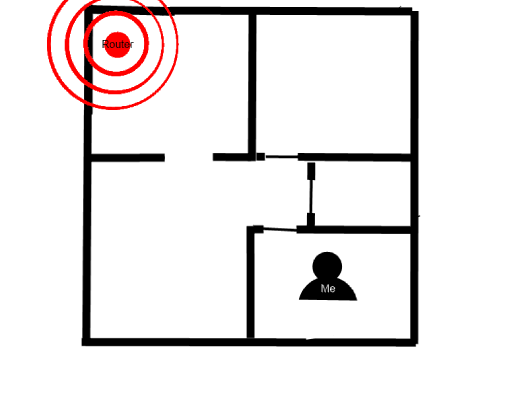
This is a rough sketch to give you a visual, it's only a couple of meters away, just in the kitchen, which sits next to my room. You can see below.
Th21e.png
 

My Computer My Computer

OS
Windows 7 Home Premium 64bit
This is a rough sketch to give you a visual, it's only a couple of meters away, just in the kitchen, which sits next to my room. You can see below.
Th21e.png

You would think that would work but in reality wireless is not so good at going through certain types of walls. More than two plaster walls won't be good, three walls you can forget it, plus anything else in the way just makes it worse. You should try moving close to the router "same room" to determine if this is in fact just a weak signal problem. If the situation doesn't change then try updating the firmware on your DIR-655.

Wireless routers tend to work much better in a larger room with no obstacle's in the way. So the real problem is that this router is stuffed way back in a corner behind some walls so it's signal isn't really getting out. Mine has pretty much the same problem. You can try to reposition the router and then test in other areas of the house, this would be the cheapest way to fix the problem.

I have the same router so I know it's limitations, mine is in a similar position but in my case I have an older house with plaster walls, mine had to go through a big metal heater and a huge cement fire place plus three walls and if I get on the other side of the fireplace the connection cuts out completely. This router also has the best reviews of just about any router on the market today so it's not the routers fault.

Because of this I have installed an access point DAP-1522 on the other side of the house. This covers my entire backyard, other end of the house and the garage which is 30 feet away with a perfect signal. I did need to run an Ethernet wire to a switch and then to the access point, I ran this Ethernet cable under my house which made it easy. There are also A/P's that can work through your house wiring, but I'm not familiar with them. The link I posted shows one from D-Link just below the DAP-1522.

I tried to give you settings for best possible wireless N speeds. But with poor connection strength they won't help much. We get people in here all the time with the same problem, weak signal going through too many walls. Wireless is only as good as you make it.
 

My Computer My Computer

Computer type
PC/Desktop
Computer Manufacturer/Model Number
Home built
OS
Windows 7 Ult, Windows 8.1 Pro,
CPU
Q9650-4.275GHz, E8600 4.5GHz, E6750-3.8GHz
Motherboard
Evga 780i FTW
Memory
G.Skill PC2 9600 1200Mhz 5 5 5 15 2T
Graphics Card(s)
GTX480
Sound Card
Asus Xonar D2
Monitor(s) Displays
HannsG
Screen Resolution
1680X1050
Hard Drives
GSkill Phoenix Pro 120GB SSD
PSU
ThermalTake Toughpower 1000Watt modular
Case
ThermalTake XaserV
Cooling
Xigmatek S1283
Keyboard
Logitech G15
Mouse
Logitech G9
Internet Speed
T1
Yes agree you have a weak signal you could buy a couple of powerline adapters plug one in the kitchen and connect the ethernet cable from one of the Lan ports on the router to the Lan port on the powerline adapter which you plug into the wall socket.

Then plug the other powerline adapter into a socket in your room where your computer is and connect an ethernet cable from computer ethernet port ot Lan port on powerline adapter and get a ggod connection to your router.

They are not that expensive and pretty easy to configure.
 

My Computer My Computer

Computer Manufacturer/Model Number
HP Compaq 6715B
OS
Windows 7 Ultimate x64
CPU
AMD turion 64x2 TL-64 2.2Ghz
Motherboard
HC030
Memory
Sodimm DDR2 4GB
Graphics Card(s)
ATI Radeon 1250 128MB IGP
Hard Drives
Fujitsu Siemens 500GB sata 3.0 Gb/s
Back
Top