Transfering Windows 7 to SSD from HDD on new laptop?

Actually I was able to download and install the ethernet driver so i'm all set. thanks again
 

My Computer My Computer

At a glance

Windows 7 Home 64bit3rd gen i7 3517U8 GB DDR3NVIDIA® GeForce® GT 630M with 1GB GDDR5 VRAM
Computer Manufacturer/Model Number
Dell XPS 14
OS
Windows 7 Home 64bit
CPU
3rd gen i7 3517U
Memory
8 GB DDR3
Graphics Card(s)
NVIDIA® GeForce® GT 630M with 1GB GDDR5 VRAM
Hard Drives
500 GB HDD
120 GB SSD
Yes, Windows will be on both the SSD and the HDD, but it will boot from the SSD because the SSD will be your C: drive automatically. Your HDD will become something else. You want to leave your files on the HDD until the SSD is working OK. We can talk about getting the Win 7 off the HDD later.

I've managed to correctly get windows 7 on the SSD + download and install all correct drivers. I'm now going to reconnect the old HDD that has windows 7 on it as well. I don't need any information on it, would you guys recommend dragging everything into the trash bin or using 1 of the many wiping tutorials?

Thanks again, I really appreciate it
 

My Computer My Computer

At a glance

Windows 7 Home 64bit3rd gen i7 3517U8 GB DDR3NVIDIA® GeForce® GT 630M with 1GB GDDR5 VRAM
Computer Manufacturer/Model Number
Dell XPS 14
OS
Windows 7 Home 64bit
CPU
3rd gen i7 3517U
Memory
8 GB DDR3
Graphics Card(s)
NVIDIA® GeForce® GT 630M with 1GB GDDR5 VRAM
Hard Drives
500 GB HDD
120 GB SSD
After reconnecting the old HDD I booted the laptop up to find out it had jumped back into the driver seat and is now the C drive yet again?

I have no idea why or what I should do at this point? My computers identical to before I had touched the SSD
 

My Computer My Computer

At a glance

Windows 7 Home 64bit3rd gen i7 3517U8 GB DDR3NVIDIA® GeForce® GT 630M with 1GB GDDR5 VRAM
Computer Manufacturer/Model Number
Dell XPS 14
OS
Windows 7 Home 64bit
CPU
3rd gen i7 3517U
Memory
8 GB DDR3
Graphics Card(s)
NVIDIA® GeForce® GT 630M with 1GB GDDR5 VRAM
Hard Drives
500 GB HDD
120 GB SSD
Thanks for all of the help, much appreciated.

Can someone clarify how to do this:

"If you booted from the USB drive to install Windows 7, then you may need to change the hard drive back to being listed before the USB key in the boot order in BIOS after the computer restarts during installation to prevent the computer from booting right back into the USB key starting the installation process over and over."

After you install Windows, go back in your Bios and change the boot order. It should be your DVD first and then your Hard Drive with your Windows on it next. You must have changed the boot order before you installed Windows. Just go in the same way and change the boot order again as I described above.

Alright, wouldn't I make the SSD 1st because I don't have a DVD drive?

I think i'm going to try it tonight, I have my USB made up.

On a side note, will I need to repeat this process of unplugging the HD when I do a factory reset in the future?

Sorry, yes the first boot should be the SSD with the Windows. I doubt you will be able to do the factory reset since you did a clean install. You will always be safe by unplugging everything when installing to your SSD.
 

My Computer My Computer

At a glance

Windows 7 Home Premium 32-Bit - Build 7600 SP1Intel Core i3-2120 3.30GhzKingston 4 GB DDR3 1333 mhzAMD Radeon HD6670
Computer type
PC/Desktop
Computer Manufacturer/Model Number
Custom Build
OS
Windows 7 Home Premium 32-Bit - Build 7600 SP1
CPU
Intel Core i3-2120 3.30Ghz
Motherboard
Asus P8Z68-V LX Intel Z68 Socket H2 ATX
Memory
Kingston 4 GB DDR3 1333 mhz
Graphics Card(s)
AMD Radeon HD6670
Sound Card
Sound Blaster Audigy SE 24-Bit
Monitor(s) Displays
Asus VE228
Screen Resolution
1440 X 900
Hard Drives
OCZ Vertex 3 120 GB Sata 3 SSD ==
Kingston SH103/S3 120 G Hyper X 120 GB SSD ==
Western Digital 500 GB Caviar Green 7200 RPM ==
PSU
Corsair CX600M == 600 Watt
Case
NZXT Apollo - Silver with Clear Side Panel
Cooling
Three 120 mm Fans
Keyboard
Microsoft Natural 4000
Mouse
Microsoft Custom Optical 3000
Internet Speed
AT&T Fiber Optic Wireless Network
Antivirus
Microsoft Security Essentials
Browser
Chrome
Other Info
120 mm Blue LED Fan -- Three Blue LED Lazer Light Sticks

My Computer My Computer

At a glance

Windows 7 Home Premium 32-Bit - Build 7600 SP1Intel Core i3-2120 3.30GhzKingston 4 GB DDR3 1333 mhzAMD Radeon HD6670
Computer type
PC/Desktop
Computer Manufacturer/Model Number
Custom Build
OS
Windows 7 Home Premium 32-Bit - Build 7600 SP1
CPU
Intel Core i3-2120 3.30Ghz
Motherboard
Asus P8Z68-V LX Intel Z68 Socket H2 ATX
Memory
Kingston 4 GB DDR3 1333 mhz
Graphics Card(s)
AMD Radeon HD6670
Sound Card
Sound Blaster Audigy SE 24-Bit
Monitor(s) Displays
Asus VE228
Screen Resolution
1440 X 900
Hard Drives
OCZ Vertex 3 120 GB Sata 3 SSD ==
Kingston SH103/S3 120 G Hyper X 120 GB SSD ==
Western Digital 500 GB Caviar Green 7200 RPM ==
PSU
Corsair CX600M == 600 Watt
Case
NZXT Apollo - Silver with Clear Side Panel
Cooling
Three 120 mm Fans
Keyboard
Microsoft Natural 4000
Mouse
Microsoft Custom Optical 3000
Internet Speed
AT&T Fiber Optic Wireless Network
Antivirus
Microsoft Security Essentials
Browser
Chrome
Other Info
120 mm Blue LED Fan -- Three Blue LED Lazer Light Sticks
I'm now going to reconnect the old HDD that has windows 7 on it as well. I don't need any information on it, would you guys recommend dragging everything into the trash bin or using 1 of the many wiping tutorials?

This question was also anticipated and answered for you yesterday:
Once everything is running fine and you're ready you can wipe the HD with Diskpart Clean Command and repartition in Disk Mgmt.

After reconnecting the old HDD I booted the laptop up to find out it had jumped back into the driver seat and is now the C drive yet again?

I have no idea why or what I should do at this point? My computers identical to before I had touched the SSD

Why would you have no idea what to do when several posts earlier I had anticipated this and told you:

Once you've installed to the SSD you can plug back in the other HDD making sure SSD remains set first HD to boot in BIOS setup.

And even after I repeated the rules for drivers from the tutorial several times you still downloaded 3000 driver files?

Run all Optional and IMportant Windows Updates after enabling Automatically deliver drivers via Windows Update (Step 3). Once all rounds of Updates are done for any drivers still missing in Device manager browse to the HD Windows/System32 to pick up the driver for install. Driver Install - Device Manager

Why would you ignore advice given repeatedly to prevent you from having the very issues you encountered? And why when you're given a tutorial promising to result in a perfect install would you go out of your way to ignore it, even the attempt to spoon feed you quotes from it? :confused:
 
Last edited:
gregrocker, sorry I must have read over it by accident, thanks for reiterating everything.

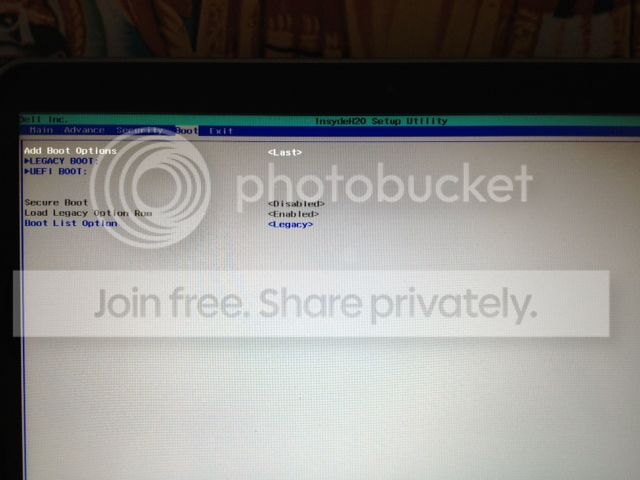
i do however have a valid question. i've searched how to change boot order in bios and can't seem to apply it to my bios menu. i've attached a photo of what i'm looking at.

photo-6_zps3ab9870a.jpg
 

My Computer My Computer

At a glance

Windows 7 Home 64bit3rd gen i7 3517U8 GB DDR3NVIDIA® GeForce® GT 630M with 1GB GDDR5 VRAM
Computer Manufacturer/Model Number
Dell XPS 14
OS
Windows 7 Home 64bit
CPU
3rd gen i7 3517U
Memory
8 GB DDR3
Graphics Card(s)
NVIDIA® GeForce® GT 630M with 1GB GDDR5 VRAM
Hard Drives
500 GB HDD
120 GB SSD
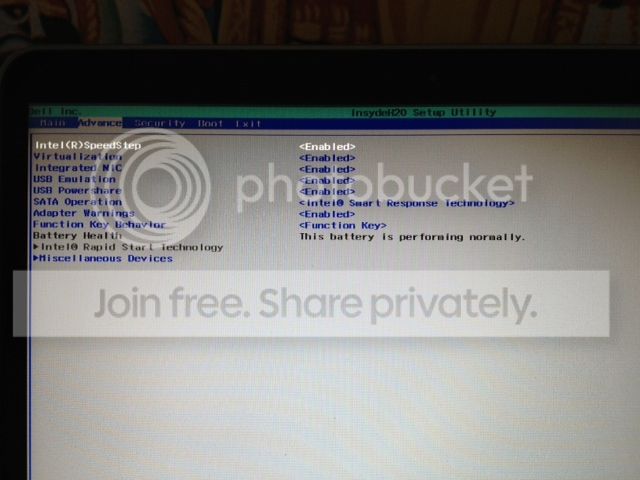
Here is a photo of the advance tab if its needed

photo2-7_zps18b31ca4.jpg
 

My Computer My Computer

At a glance

Windows 7 Home 64bit3rd gen i7 3517U8 GB DDR3NVIDIA® GeForce® GT 630M with 1GB GDDR5 VRAM
Computer Manufacturer/Model Number
Dell XPS 14
OS
Windows 7 Home 64bit
CPU
3rd gen i7 3517U
Memory
8 GB DDR3
Graphics Card(s)
NVIDIA® GeForce® GT 630M with 1GB GDDR5 VRAM
Hard Drives
500 GB HDD
120 GB SSD
As you have an EFI BIOS I would use it in Legacy Mode which allows install to MBR disk. So you'd want to expand the Legacy Boot options to look them over.

However if your old install was in EFI mode your HD may be in GPT format now. Will it boot now in Legacy mode?
 
As you have an EFI BIOS I would use it in Legacy Mode which allows install to MBR disk. So you'd want to expand the Legacy Boot options to look them over.

However if your old install was in EFI mode your HD may be in GPT format now. Will it boot now in Legacy mode?

Legacy boot option shows me the following:

Normal Boot Menu > Normal and Advance (Normal is selected)
Boot Type Order> Floppy Drive, Hard Disk Drive, CD/DVD rom Drive, USB, Other (in that order)
Hard Disc Drive> Hard Drive, mini SSD (in that order)
Others> Network


Is the solution to put the Hard Disk Drive before the Floppy Drive (under Boot Type Order) and then put the mini SSD before the Hard Drive (under hard drive)?

Or would I need to reinstall windows 7 like theog mentions

Thanks again
 

My Computer My Computer

At a glance

Windows 7 Home 64bit3rd gen i7 3517U8 GB DDR3NVIDIA® GeForce® GT 630M with 1GB GDDR5 VRAM
Computer Manufacturer/Model Number
Dell XPS 14
OS
Windows 7 Home 64bit
CPU
3rd gen i7 3517U
Memory
8 GB DDR3
Graphics Card(s)
NVIDIA® GeForce® GT 630M with 1GB GDDR5 VRAM
Hard Drives
500 GB HDD
120 GB SSD
What are the Advanced choices under Normal boot menu?

I would remove Floppy from all menus, which may be accomplished just by uninstalling the floppy drive which is best anyway.

Then if you can trigger DVD or USB drive from its own one-time BIOS Boot Menu at boot, I'd set HD to boot first as it appears to be now.

And yes, I would set SSD first under HDD since you want to install to it.

Those choice are for legacy BIOS. Is your Win7 installed now in EFI mode or Legacy?

If EFI mode you may want to keep it there to transfer or reinstall to SSD in UEFI (Unified Extensible Firmware Interface) - Install Windows 7 with - Windows 7 Forums.

If you choose to change from UEFI to Legacy mode you'll need to wipe the HD to convert to MBR disk as demonstrated in Bypass UEFI to Install WIn7
 
Last edited:
What are the Advanced choices under Normal boot menu?

I would remove Floppy from all menus, which may be accomplished just by uninstalling the floppy drive which is best anyway.

Then if you can trigger DVD or USB driver from its own one-time BIOS Boot Menu at boot, I'd set HD to boot first as it appears to be now.

And yes, I would set SSD first under HDD since you want to install to it.

Those choice are for legacy BIOS. Is your Win7 installed now in EFI mode or Legacy?

If EFI mode you may want to keep it there to transfer or reinstall to SSD in UEFI (Unified Extensible Firmware Interface) - Install Windows 7 with - Windows 7 Forums.

If you choose to change from UEFI to Legacy mode you'll need to wipe the HD to convert to MBR disk as demonstrated in Bypass UEFI to Install WIn7

Sorry for being ignorant but I'm not really following you. I'm not that familiar with the technical side of windows 7 so I'm not aware of the terms you're using.

I tried to uninstall the floppy drive but it didn't show up in my device manager (I searched online and the device manager is where you would normally uninstall or disable it).

When you say, "Then if you can trigger DVD or USB driver from its own one-time BIOS Boot Menu at boot, I'd set HD to boot first as it appears to be now." do you mean instead of pressing F2 for setup, press F12 for boot manager? When I go into boot manager I now find: Legacy boot: mini ssd, hard drive, network and Other Options: Diagnostics, Enter setup

I did however change the boot order under legacy boot> boot type order to Hard disk drive 1st. I also changed the SSD to the 1st spot under legacy boot> Hard Disk Drive.

Right now i'm guessing that my PC runs legacy boot because there is nothing in UEFI Boot, would I be correct in saying that? I honestly don't know the difference between the two or what they even mean.

Any help would be much appreciated, thank you for being so patient.
 

My Computer My Computer

At a glance

Windows 7 Home 64bit3rd gen i7 3517U8 GB DDR3NVIDIA® GeForce® GT 630M with 1GB GDDR5 VRAM
Computer Manufacturer/Model Number
Dell XPS 14
OS
Windows 7 Home 64bit
CPU
3rd gen i7 3517U
Memory
8 GB DDR3
Graphics Card(s)
NVIDIA® GeForce® GT 630M with 1GB GDDR5 VRAM
Hard Drives
500 GB HDD
120 GB SSD
It looks like my computer boots up to the SSD now!

The is however an extra D drive called "Recovery" thats showing in "my computer"

Theres:
Datapart1 (C: ) (which is my SSD)
Recovery (D: )
OSDisk (E: ) (which is my 500 gb hdd)
 

My Computer My Computer

At a glance

Windows 7 Home 64bit3rd gen i7 3517U8 GB DDR3NVIDIA® GeForce® GT 630M with 1GB GDDR5 VRAM
Computer Manufacturer/Model Number
Dell XPS 14
OS
Windows 7 Home 64bit
CPU
3rd gen i7 3517U
Memory
8 GB DDR3
Graphics Card(s)
NVIDIA® GeForce® GT 630M with 1GB GDDR5 VRAM
Hard Drives
500 GB HDD
120 GB SSD
You uninstall the floppy drive by finding it listed in BIOS to disable, or pulling the cables off of it in case.

Yes, use the F12 menu to trigger the installer DVD or USB flash stick. Will it boot? See how far it gets in the steps to Clean Install Windows 7.

But first I'd read a bit on EFI to at least have some info on it: The 30-year-long Reign of BIOS is Over: Why UEFI W... - Input Output
Technical Note: UEFI BIOS vs. Legacy BIOS - YouTube

UEFI (Unified Extensible Firmware Interface) - Install Windows 7 with - Windows 7 Forums
Bypass UEFI to Install WIn7
 
You uninstall the floppy drive by finding it listed in BIOS to disable, or pulling the cables off of it in case.

Yes, use the F12 menu to trigger the installer DVD or USB flash stick. Will it boot? See how far it gets in the steps to Clean Install Windows 7.

But first I'd read a bit on EFI to at least have some info on it: The 30-year-long Reign of BIOS is Over: Why UEFI W... - Input Output
Technical Note: UEFI BIOS vs. Legacy BIOS - YouTube

UEFI (Unified Extensible Firmware Interface) - Install Windows 7 with - Windows 7 Forums
Bypass UEFI to Install WIn7

1. I've looked everywhere in BIOS and cannot find how to disable floppy drive. I don't have a floppy drive in my laptop to disconnect.

2. You want me to do a clean install again? Right now my computer boots from the SSD but for some reason non of the drivers I installed are showing up. It also seems like the boot time and shut down time are a lot slower than when I had the SSD in alone. When I had the SSD in alone my computer shut down in 6 seconds flat, now it takes around 15-18 seconds, somethings not right.

3. I read the article and watched the 20 minute video on legacy v. UEFI and have a basic knowledge of what the two do and why UEFI is better. However I'm not exactly sure which my computer is running, i'm assuming UEFI. My Bios version is A13 (the person in the video explains how to tell the difference between the two but the method doesn't apply to my laptop because the versions don't match

I understand this process must be very frustrating for you, I appreciate your patience.
 

My Computer My Computer

At a glance

Windows 7 Home 64bit3rd gen i7 3517U8 GB DDR3NVIDIA® GeForce® GT 630M with 1GB GDDR5 VRAM
Computer Manufacturer/Model Number
Dell XPS 14
OS
Windows 7 Home 64bit
CPU
3rd gen i7 3517U
Memory
8 GB DDR3
Graphics Card(s)
NVIDIA® GeForce® GT 630M with 1GB GDDR5 VRAM
Hard Drives
500 GB HDD
120 GB SSD
1. I've looked everywhere in BIOS and cannot find how to disable floppy drive. I don't have a floppy drive in my laptop to disconnect.

Try this. == Go into Device Manager. You should see Floppy Drive. Right click and click on "Disable"
 

My Computer My Computer

At a glance

Windows 7 Home Premium 32-Bit - Build 7600 SP1Intel Core i3-2120 3.30GhzKingston 4 GB DDR3 1333 mhzAMD Radeon HD6670
Computer type
PC/Desktop
Computer Manufacturer/Model Number
Custom Build
OS
Windows 7 Home Premium 32-Bit - Build 7600 SP1
CPU
Intel Core i3-2120 3.30Ghz
Motherboard
Asus P8Z68-V LX Intel Z68 Socket H2 ATX
Memory
Kingston 4 GB DDR3 1333 mhz
Graphics Card(s)
AMD Radeon HD6670
Sound Card
Sound Blaster Audigy SE 24-Bit
Monitor(s) Displays
Asus VE228
Screen Resolution
1440 X 900
Hard Drives
OCZ Vertex 3 120 GB Sata 3 SSD ==
Kingston SH103/S3 120 G Hyper X 120 GB SSD ==
Western Digital 500 GB Caviar Green 7200 RPM ==
PSU
Corsair CX600M == 600 Watt
Case
NZXT Apollo - Silver with Clear Side Panel
Cooling
Three 120 mm Fans
Keyboard
Microsoft Natural 4000
Mouse
Microsoft Custom Optical 3000
Internet Speed
AT&T Fiber Optic Wireless Network
Antivirus
Microsoft Security Essentials
Browser
Chrome
Other Info
120 mm Blue LED Fan -- Three Blue LED Lazer Light Sticks
You uninstall the floppy drive by finding it listed in BIOS to disable, or pulling the cables off of it in case.

Yes, use the F12 menu to trigger the installer DVD or USB flash stick. Will it boot? See how far it gets in the steps to Clean Install Windows 7.

But first I'd read a bit on EFI to at least have some info on it: The 30-year-long Reign of BIOS is Over: Why UEFI W... - Input Output
Technical Note: UEFI BIOS vs. Legacy BIOS - YouTube

UEFI (Unified Extensible Firmware Interface) - Install Windows 7 with - Windows 7 Forums
Bypass UEFI to Install WIn7

1. I've looked everywhere in BIOS and cannot find how to disable floppy drive. I don't have a floppy drive in my laptop to disconnect.

Try this. == Go into Device Manager. You should see Floppy Drive. Right click and click on "Disable"

That's what I originally tried, there is no device called floppy drive. I must not have a floppy drive driver on my computer, it was probably just in the bios as a default.
 

My Computer My Computer

At a glance

Windows 7 Home 64bit3rd gen i7 3517U8 GB DDR3NVIDIA® GeForce® GT 630M with 1GB GDDR5 VRAM
Computer Manufacturer/Model Number
Dell XPS 14
OS
Windows 7 Home 64bit
CPU
3rd gen i7 3517U
Memory
8 GB DDR3
Graphics Card(s)
NVIDIA® GeForce® GT 630M with 1GB GDDR5 VRAM
Hard Drives
500 GB HDD
120 GB SSD
Haven't started yet, which one of the two methods should I try using? (Installing 7 with uefi or the method bypassing efi) Also, should I pull the 500gb hdd out before installing this time?

Were you able to read one of my previous messages, "2. You want me to do a clean install again? Right now my computer boots from the SSD but for some reason none of the drivers I installed are showing up. It also seems like the boot time and shut down time are a lot slower than when I had the SSD in alone. When I had the SSD in alone my computer shut down in 6 seconds flat, now it takes around 15-18 seconds, somethings not right."
 
Last edited:

My Computer My Computer

At a glance

Windows 7 Home 64bit3rd gen i7 3517U8 GB DDR3NVIDIA® GeForce® GT 630M with 1GB GDDR5 VRAM
Computer Manufacturer/Model Number
Dell XPS 14
OS
Windows 7 Home 64bit
CPU
3rd gen i7 3517U
Memory
8 GB DDR3
Graphics Card(s)
NVIDIA® GeForce® GT 630M with 1GB GDDR5 VRAM
Hard Drives
500 GB HDD
120 GB SSD
Back
Top