Windows 7 Installation - Transfer to a New Computer

How to Transfer your Complete Windows 7 Installation to New Computer

To start, a warning from Microsoft:

   Note
Important

You must use the Sysprep /generalize command to generalize a complete Windows installation before you can use the installation for deployment to a new computer, whether you use imaging, hard disk duplication, or another method. Moving or copying a Windows image to a different computer without running the Sysprep /generalize command is not supported.

This tutorial will show you how to do the transfer.

   Information
Windows 7 System Preparation Tool is a powerful, native Windows tool. When for instance used in so called Audit Mode, it let's you to freely configure Windows 7 to be then deployed to other computers as hardware independent image.

In this tutorial we use System Preparation Tool (sysprep) to prepare your Windows 7 installation to be moved to a new computer, keeping all your installed applications, program settings and user profiles. You can use this method for instance when you have bought a new PC and want to transfer your existing setup completely, without need to reinstall everything, or when you want to make major hardware changes like change the motherboard or GPU, which would usually cause Windows to stop booting normally.

   Warning
Using this method causes Windows 7 to lose all activation information, and it needs to be reactivated afterwards. If your Windows 7 is an OEM version, you might not be able to reactivate it, at least not without phone activation option.

I do not recommend to use this method on RAID systems. All experiments on RAID I know have failed.

With the speed of today's hardware evolution, most of us geeks are upgrading the hardware more often than operating system. Upgrading hardware can be painfully slow process if we need to reinstall the operating system and all our installed applications, plus transfer program settings and user profiles.

Using sysprep makes this easy. Changing the motherboard, or for instance an old ATI GPU to a new nVidia GPU quite often causes Windows 7 not to be able to boot anymore. This fact is usually accepted by the user, who then reinstalls the OS and all applications and transfers user profiles from a backup location.

Same thing when buying a new computer with completely different hardware setup compared to the old one, or trying to restore a system image to different hardware setup. Normally this would include a complete reinstallation of Windows 7 and all applications.

Why not use sysprep to avoid reinstalling? Here are the different scenarios where you can use it.


   Warning

An upgraded Windows cannot be sysprepped. As this method is based in sysprepping, this tutorial is valid only for Windows setups which have not been upgraded.

This means that if you have for instance in-place upgraded Vista to Seven, or using Anytime Upgrade upgraded for instance a Home Premium to Ultimate, you cannot sysprep and this tutorial cannot be used in your case.

Notice that a repair install is also an upgrade install, so if you have ever done a repair install (= in-place upgrade to same edition), you cannot sysprep.


PLEASE DO NOT FORGET TO CREATE A SYSTEM IMAGE BEFORE PROCEEDING!​


As you can read on this thread, on rare occasions this method does not work. If this happens, you can always restore your system using your backup image.

Backup Complete Computer - Create an Image Backup
System Image Recovery

IE10 Users: Please read this article first: Sysprep Fatal Error With IE 10 (FIX) | System Administration


METHOD ONE

Changing hardware components but keeping old hard disk(s)


Use this method if you:
- Change other hardware components but keep your old HD containing Windows 7
- Move the HD containing Windows 7 to another computer
  1. Before installing new hardware, boot Windows 7 normally
  2. Disconnect all external hardware except mouse, keyboard and main display. If your system folders are located only on C: drive, disconnect all other hard disks except that containing the C:. In case of relocated system folders, for instance the profile folder Users located in another drive and other system folders on C:, first move the relocated system folders back to C: then disconnect all other drives. Reboot after this
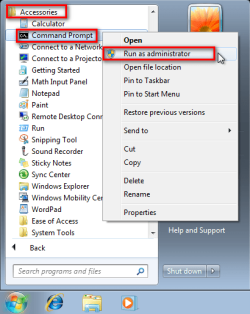
  3. Run Command Prompt as administrator
    .
    Audit_1.png
    .
  4. Type to Command Prompt: %windir%\System32\Sysprep\Sysprep.exe, and hit Enter
    .
    sysprep_start.png
    .
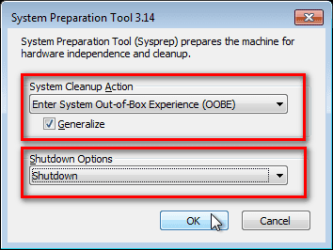
  5. In sysprep dialog that opens, choose System Cleanup Action as Enter System Out-of-Box-Experience (OOBE), select Generalize, select Shutdown Options Shutdown. Click OK
    .
    Sysprep_Run_and_generalize.png
    .
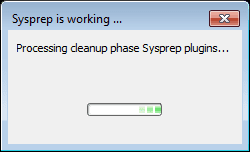
  6. Sysprep generalizes now your Windows 7 setup and shuts down your computer. Do not run any other programs during this phase!
    .
    Sysprep_Run_and_generalize_2.png
    .
    Sysprep_Run_and_generalize_3.png
    .
  7. Switch the main power of your PC off and install the new hardware OR dismount the hard disk(s) and mount it (them) to a new computer
  8. Boot the PC from sysprep generalized hard disk. You will notice Windows booting as if it was the first boot after installation, installing default drivers and updating registry. One or two reboots are needed, depending on your system specifications
    .

    Sysprep_Reinstalling_devices.png
    .
    Sysprep_Registry_settings.png
    .
    Sysprep_Reboot_needed.png
    .
  9. When Windows finally boots up, you will need to enter all information as if this really was a new, fresh installation
    .
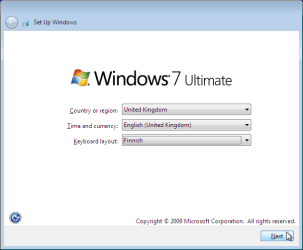
    Sysprep_First_boot_2.png
    .
  10. Because your old user profiles already exist, Windows does not accept your normal username, but instead you have to create a new temporary user. I use username Test for this purpose
    .
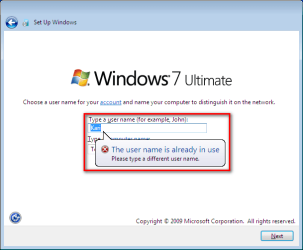
    Sysprep_First_boot_3.png
    .
  11. When login screen appears, choose your old user account to login
    .

    Sysprep_First_boot_5.png
    .
  12. Windows boots now to default OOBE first boot desktop, with default 800*600 resolution and default theme. All your installed applications are there, as well as your old user profiles and folders. Windows has installed the default drivers for your setup, you can update them if needed
    .
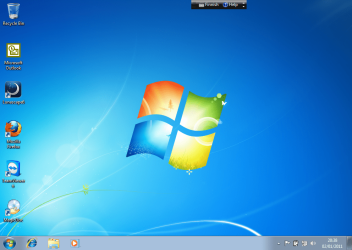
    Sysprep_First_boot_6.png
    .
  13. Go to Control Panel > User Accounts and delete the temporary user account (in this case Test) that you just created


METHOD TWO

Change the hard disk(s) or move Windows 7 setup to a new computer using third party imaging software

Use this method if you:
- Replace the HD containing Windows 7 on your old computer
- Move Windows 7 to a new HD on another computer
  1. Follow steps 1 through 5 above (method 1)
  2. Boot PC with an imaging CD/DVD (Paragon, Macrium etc.). See Macrium Reflect Free:at our sister site TenForums.com: Backup and Restore with Macrium Reflect Windows 10 Backup Restore Tutorials . Also see this post for a practical tip to create a Macrium system image.
  3. Create an image of your system
  4. Turn PC off, change the hard disk(s) and reboot with imaging application, restoring the image OR boot the new computer with imaging software and restore the image
  5. Continue from step 7 above (method 1)

This procedure is failsafe, and works every time. There is nothing to worry, but of course it is recommended to make a backup before trying this. I have even used this method when some serious driver issues caused the PC to constantly crash (BSOD), to reset all drivers to Windows defaults and then reinstalling them one by one to find the culprit.

   Note
What does Sysprep generalizing do to my Windows 7 setup?
  • All system specific information is removed or uninstalled
  • Security ID (SID) of your hardware setup is reseted
  • All system restore points are deleted
  • All event logs are deleted
  • All personalization is removed (taskbar, toolbars, folder options, start orb etc.)
  • Built-in administrator account is disabled (if it was enabled) and needs to be re-enabled after the transfer if needed

What happens when booting first time after sysprep generalizing?
  • First boot configuration is run
  • New SID is created
  • Re-arm counter is reseted if not already re-armed three times
  • Windows 7 is booted using first boot default drivers and settings


I have tested all above mentioned methods with all versions of Windows 7, from Starter to Enterprise. It works every time, with one exception: for reasons unknown to me, sysprep seems sometimes dislike Windows Media Player networking service, which is by default started every time Windows 7 starts. In about every third time I've done this, I've got an error message when trying to generalize:
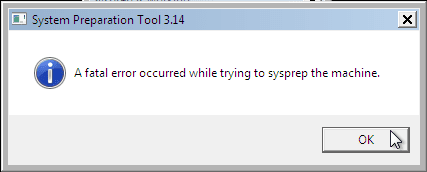
Sysprep_Fatal_Error.png

However, this is not a big problem. You just need to stop the WMP networking service, and run sysprep with generalize option again. You can stop the service in question by typing net stop WMPNetworkSvc to command prompt, and hitting Enter:

Sysprep_Stop_WMP_service.png

If you have any questions, do not hesitate to ask.

Happy computing!

Kari

EDIT: A Useful tip from xxxwea, as later confirmed by Victor:
Kari, just a suggestion.

You might note in the tutorial that if on first booting Windows can't finish configuring, a reboot into safe mode, then a normal reboot will allow it to finish successfully.

This has happened to me both times I used a sysprepped system drive in a new computer. I found the answer to this problem buried deep in this thread the first time I ran into it, and the same thing happened yesterday on a different computer.

It's a seemingly very silly solution, but it works. I do believe many people have abandoned their sysprep work when they encounter the problem.

I think the solution deserves more visibility.
 
Last edited:
i havent read all of the newer posts on this tutorial but i did see some of you talking about the UEFI stuff,,, i thought i would mention that i just built this set up:

✔ NEW AMD A4-3300 APU with radeon HD Graphics running at 2.5Ghz with 1Gb for graphics
✔ NEW Stock AMD heatsink and fan
✔ NEW MSI A55M-P33 Motherboard with VGA and DVI connections
✔ NEW 4gb DDR3 Patriot Signature line PC3=10600 1333 Mhz
✔ NEW 120MM Led fan
✔ NEW LG 24X DVD-RW Multi-drive Sata - Cyberlink Media suite included -
✔ Asus Ares mid Tower case - Black with chrome strip and clear side window
✔ Western digital 320Gb 7200RPM Sata hard drive
✔ 450 Watt Raidmax Powersupply with two 80mm fans

I have used this system to install windows 7 on a couple hard drives and then tried to transfer them to other systems and it doesnt work im guessing possibly because of the APU with HD Raedeon built in,, I forget the exact error now but once transfered to another system boot fails to a post reguarding HAL.
Sorry thats the best info i can give right now but i thought maybe with the newer APU's and motherboards that are out this might help someone else b4 they waste thier time,,,, I have not yet generalized and then tried to reinstall back in the same system but im guessing it would work with that.
 

My Computer My Computer

At a glance

Win 7 64 UltimateAMD 8350 Bulldozer 4ghz6gbATI Radeon HD 5770 X 2
Computer type
PC/Desktop
Computer Manufacturer/Model Number
JRockZ
OS
Win 7 64 Ultimate
CPU
AMD 8350 Bulldozer 4ghz
Motherboard
Asus M5a97 R2
Memory
6gb
Graphics Card(s)
ATI Radeon HD 5770 X 2
Sound Card
Board
Monitor(s) Displays
Dual Gateway 19" and 32" TV 3 displays at once :D
Screen Resolution
1440X900
Hard Drives
OCZ Agility SSD Patriot Blaze 120
PSU
750 Watt Thermaltake Tough Power
Case
Diablotek EVO Mid Tower Case CPA-6170 - 8X 120mm case fans
Cooling
Corsair Liquid Cooled
Antivirus
NAV
Browser
Always IE
Successful use of sysprep

Hello all,
This tutorial/thread was so useful to me that I thought I'd share my successful story of using it. There were three things I was unsure of before I started this process: if method 1 would work using OEM Windows 7, if method 1 would work after changing CPU vendors and if method 1 would work after changing motherboard manufactures. I searched the 'net extensively beforehand, but was unable to find an example that replicated what I wanted to do. According to Microsoft they don't support sysprep when changing motherboard manufacturers, but they do support changing CPU brands (if using Windows 7). I also read that this method would not work with an OEM version of Windows 7 because of activation issues.

Well, yesterday I upgraded my old Gigabyte MB and AMD Phenom II x4 965 CPU to a new ASrock MB and i7 3770k CPU with OEM Windows 7 64bit Home Premium using method 1 sysprep as described in the tutorial. The process worked flawlessly, however I did have to use the "boot into safe mode, then reboot into normal" trick to avoid the "windows couldn't finish the configuration" error. After all was done I activated Windows 7 again using the automated phone service. I hope sharing my experience helps!
 

My Computer My Computer

At a glance

Windows 7 Home Premium 64bit
OS
Windows 7 Home Premium 64bit
Changing motherboard, CPU, ram

Kari,

I want to use your tutorial and hope it can help me, but I do have one question. I am changing my motherboard & CPU because my old one just died. Therefore, I can not run the sysprep on the windows 7 HDD prior to changing. I there a way to install the HDD and start the 'new' PC in safe mode or something to be able to do the sysprep? I can access the HDD from another computer via USB connection, so is there a way to run sysprep on the HDD connected that way?

I really don't want to start all over with having to reinstall everything if there is another way. What would happen if I just installed the windows 7 HDD and started the new system without the sysprep?

Thanks,
 

My Computer My Computer

At a glance

Windows 7 64-bit Enterprise
OS
Windows 7 64-bit Enterprise
I have UEFI on my AsRock z77 motherboard and it has no effect on my imaged Win7.

I imaged from an AMD Phenom 965 to Intel 3570, and Nvidia graphics to ATI 7970 graphics, and my only issue was with the Intel HD (as mentioned in my first post).

The new system has been running for close to two months now, and I see no issues looming on the horizon
that would stem from the imaged 'install'.
I also activated on line with the key from my new OEM disk. No problem.
.
 

My Computer My Computer

At a glance

Windows 7 HP 64bit
OS
Windows 7 HP 64bit
This looks like what I need but I am not sure. My mobo died in my main office machine. I have the hard disc mounted on another machine (as drive e: ) so I can get all my files but I need to get a new mobo/cpu. Can I use sysprep on this drive e: so I can maintain my system with the new mobo? Or will I have to clean install? I have a bunch of applications installed so would prefer the sysprep route. win 7 home premium 64
 

My Computer My Computer

At a glance

win 7 home premium 64bit
OS
win 7 home premium 64bit
It is only possible to sysprep a system disk, the very Windows setup you are running. You can not take a system disk containing a Windows installation and put it on another computer to be sysprepped. It's never going to work, forget it.

Simply: You can not use this method if the motherboard is dead.

Kari
 

My Computer My Computer

At a glance

Windows 10 Pro x64 EN-GB1.6 GHz Intel Core i7-720QM Processor6 GBATI Mobility Radeon HD 5850 Graphics
Computer type
Laptop
Computer Manufacturer/Model Number
HP ENVY 17-1150eg
OS
Windows 10 Pro x64 EN-GB
CPU
1.6 GHz Intel Core i7-720QM Processor
Memory
6 GB
Graphics Card(s)
ATI Mobility Radeon HD 5850 Graphics
Sound Card
Beats sound system with integrated subwoofer
Monitor(s) Displays
17" laptop display, 22" LED and 32" Full HD TV through HDMI
Screen Resolution
1600*900 (1), 1920*1080 (2&3)
Hard Drives
Internal: 2 x 500 GB SATA Hard Disk Drive 7200 rpm
External: 2TB for backups, 3TB USB3 network drive for media
Cooling
As Envy runs a bit warm, I have it on a Cooler Master pad
Keyboard
Logitech diNovo Media Desktop Laser (bluetooth)
Mouse
Logitech Performance Mouse MX
Internet Speed
50/10 Mbps VDSL
Antivirus
Windows Defender 4.3.9431.0
Browser
Maxthon 3.5.2., IE11
So only option is clean install? I really appreciate the help.
 

My Computer My Computer

At a glance

win 7 home premium 64bit
OS
win 7 home premium 64bit
There are some methods to edit the registry and settings, remove device drivers and so on even if you can not boot to your Windows by connecting HDD to another computer and using for instance Linux live boot disks, but as I do not know how these methods work and as I have understood they are quite risky, I am afraid I am not able to help you.

In my opinion a fresh clean install is the best you could do now, but you could post your questions regarding this to our Installation & Setup subforum: Installation & Setup - Windows 7 Forums

Kari
 

My Computer My Computer

At a glance

Windows 10 Pro x64 EN-GB1.6 GHz Intel Core i7-720QM Processor6 GBATI Mobility Radeon HD 5850 Graphics
Computer type
Laptop
Computer Manufacturer/Model Number
HP ENVY 17-1150eg
OS
Windows 10 Pro x64 EN-GB
CPU
1.6 GHz Intel Core i7-720QM Processor
Memory
6 GB
Graphics Card(s)
ATI Mobility Radeon HD 5850 Graphics
Sound Card
Beats sound system with integrated subwoofer
Monitor(s) Displays
17" laptop display, 22" LED and 32" Full HD TV through HDMI
Screen Resolution
1600*900 (1), 1920*1080 (2&3)
Hard Drives
Internal: 2 x 500 GB SATA Hard Disk Drive 7200 rpm
External: 2TB for backups, 3TB USB3 network drive for media
Cooling
As Envy runs a bit warm, I have it on a Cooler Master pad
Keyboard
Logitech diNovo Media Desktop Laser (bluetooth)
Mouse
Logitech Performance Mouse MX
Internet Speed
50/10 Mbps VDSL
Antivirus
Windows Defender 4.3.9431.0
Browser
Maxthon 3.5.2., IE11
So only option is clean install? I really appreciate the help.

It's worth trying to use your old HDD on the new motherboard. What do you have to loose ?

While I recognise that the sysprep method would be the most desirable, I didn't use it. I didn't know
about it until I came here looking for a fix for my Intel integrated graphics issue. This was my only
real problem after moving from a totally different system, and I was able to fix this probelm.

I did image my old Win7 from my old machine to a new SSD using Acronis True Image WD version, but this is basically the same as using the old HDD on the new machine anyway.
After installing the new SSD into the new machine I went through Programs and Features and uninstalled
all my machines drivers. After rebooting I ran Driver Sweeper (now known as Driver Fusion) and finished
the driver clean-up. I also went through the Registry and deleted all files I was certain related to the components on the old machine (if there were any left after running Driver Sweeper, I don't honestly recall ).
Once I had the drivers sorted out I activated using the genuine Win7 key that came with my new OEM
disk.
The only other issues I had were re-activating several games re-setting a lot of newer game configurations as they recognised the new hardware. This was mostly just re-setting to higher res.

I would have never even attempted this on XP, but with well over 100 games installed and a fair bit of software I had to give it a go.
btw - most of my software, and all games are on a platter type HDD.

One caveat - Thinking back I may have had a HDD with an illegitimate Win7 Ultimate (which the punk kid I bought it from was running) still in the machine, but I don't see how this would affect my ability to boot into my old Win7 Home Premium install on a separate SSD.

.
 

My Computer My Computer

At a glance

Windows 7 HP 64bit
OS
Windows 7 HP 64bit
So only option is clean install? I really appreciate the help.

I have read on this forum that Acronis True Image with Universal Restore and Paragon Adaptive Restore
will strip old drivers and inject new drivers when you install the old hard drive into the new computer.
You would boot from a CD containing the mentioned software to perform the transition.
I haven't used either, so can't comment further.
But it might be worth looking into if you are allergic to reinstalls. I have that allergy myself.
 

My Computer My Computer

At a glance

Windows 7 Ultimate x64QuadCore Intel Core i7 920, 2666 MHz (20 x 133)6134 MB (DDR3-1333 DDR3 SDRAM)(2 - SLI) NVIDIA GeForce GTS 250 (1024 MB)
Computer Manufacturer/Model Number
Home Built
OS
Windows 7 Ultimate x64
CPU
QuadCore Intel Core i7 920, 2666 MHz (20 x 133)
Motherboard
Asus P6T
Memory
6134 MB (DDR3-1333 DDR3 SDRAM)
Graphics Card(s)
(2 - SLI) NVIDIA GeForce GTS 250 (1024 MB)
Sound Card
Onboard Realtek ALC888/1200 @ Intel 82801JB IC
Monitor(s) Displays
HDMII
Screen Resolution
1280 x 800
Hard Drives
Crucial M4 (64 GB SSD)
WD Caviar Blacks
WD5001AALS-00J7B1 ATA Device (465 GB)
WD5001AALS-00L3B2 ATA Device (465 GB)
WD Elements USB External (250 GB)
PSU
Corsair 550
Case
iStarUSA S-10000BL Black
Both posts here above are telling about alternative methods to survive when motherboard has burned. I decided to give rep to both Dinwiddie and Victor S for these tips, hoping that users with similar issues can see these posts.

Thanks guys.

Kari
 

My Computer My Computer

At a glance

Windows 10 Pro x64 EN-GB1.6 GHz Intel Core i7-720QM Processor6 GBATI Mobility Radeon HD 5850 Graphics
Computer type
Laptop
Computer Manufacturer/Model Number
HP ENVY 17-1150eg
OS
Windows 10 Pro x64 EN-GB
CPU
1.6 GHz Intel Core i7-720QM Processor
Memory
6 GB
Graphics Card(s)
ATI Mobility Radeon HD 5850 Graphics
Sound Card
Beats sound system with integrated subwoofer
Monitor(s) Displays
17" laptop display, 22" LED and 32" Full HD TV through HDMI
Screen Resolution
1600*900 (1), 1920*1080 (2&3)
Hard Drives
Internal: 2 x 500 GB SATA Hard Disk Drive 7200 rpm
External: 2TB for backups, 3TB USB3 network drive for media
Cooling
As Envy runs a bit warm, I have it on a Cooler Master pad
Keyboard
Logitech diNovo Media Desktop Laser (bluetooth)
Mouse
Logitech Performance Mouse MX
Internet Speed
50/10 Mbps VDSL
Antivirus
Windows Defender 4.3.9431.0
Browser
Maxthon 3.5.2., IE11
Not sure if this has been asked and answered, but here goes.

I currently have win 7 pro 64 installed on a SSD, and want to transfer this drive to a new computer build, and planned on using sysprep. However my user data, pictures, videos, backups, etc, are on a 2TB RAID 1 HDD setup, which will also be transfered.

If I run sysprep on the SSD, what will happen to my RAID setup, will it still be viable and linked. Is there something else I have to do? Any help appreciated as I hope to have my new system up and running in 2 days. Thanks.
 

My Computer My Computer

At a glance

Win 7 pro 64
OS
Win 7 pro 64
I would not sysprep a RAID system.

If you decide to try, please be sure you have backed up the system. Theoretically generalizing with sysprep idoes not really care where the system folders are located as long as the system is working properly but I have not tested this in a setup like what you described.

Kari
 

My Computer My Computer

At a glance

Windows 10 Pro x64 EN-GB1.6 GHz Intel Core i7-720QM Processor6 GBATI Mobility Radeon HD 5850 Graphics
Computer type
Laptop
Computer Manufacturer/Model Number
HP ENVY 17-1150eg
OS
Windows 10 Pro x64 EN-GB
CPU
1.6 GHz Intel Core i7-720QM Processor
Memory
6 GB
Graphics Card(s)
ATI Mobility Radeon HD 5850 Graphics
Sound Card
Beats sound system with integrated subwoofer
Monitor(s) Displays
17" laptop display, 22" LED and 32" Full HD TV through HDMI
Screen Resolution
1600*900 (1), 1920*1080 (2&3)
Hard Drives
Internal: 2 x 500 GB SATA Hard Disk Drive 7200 rpm
External: 2TB for backups, 3TB USB3 network drive for media
Cooling
As Envy runs a bit warm, I have it on a Cooler Master pad
Keyboard
Logitech diNovo Media Desktop Laser (bluetooth)
Mouse
Logitech Performance Mouse MX
Internet Speed
50/10 Mbps VDSL
Antivirus
Windows Defender 4.3.9431.0
Browser
Maxthon 3.5.2., IE11
I would not sysprep a RAID system.

If you decide to try, please be sure you have backed up the system. Theoretically generalizing with sysprep idoes not really care where the system folders are located as long as the system is working properly but I have not tested this in a setup like what you described.

Kari
Hum Kari won't the poster need to contact Microsoft to transfer that OS if it is an OEM particularly? as he is only transferring the SSD and the OS being tied to the original motherboard?

John
 

My Computer My Computer

At a glance

Desk1 7 Home Prem / Desk2 10 Pro / Main lap A...Desk1 i5 3750K / Laptop i7 GTX 860M / Desk2 i...Desk1 8GB (1866) / Desk2 16GB (1333) / Laptop...Desk 1& 2NVidia GTX 650 & Laptops on board Intel
Computer type
PC/Desktop
Computer Manufacturer/Model Number
Own build (new) Desk1 / Asus ROG Win 7 / Desk2 1st build
OS
Desk1 7 Home Prem / Desk2 10 Pro / Main lap Asus ROG 10 Pro 2 laptop Toshiba 7 Pro Asus P2520 7 & 10
CPU
Desk1 i5 3750K / Laptop i7 GTX 860M / Desk2 i5 2500
Motherboard
Desk1 Asus P877-V / Desk2 Gigabyte H67 UD3H / Laptop ?
Memory
Desk1 8GB (1866) / Desk2 16GB (1333) / Laptop 8Gb DDR3
Graphics Card(s)
Desk 1& 2NVidia GTX 650 & Laptops on board Intel
Sound Card
Desk 1 & 2 -XONAR DG Realtek High Def audio Laptop
Monitor(s) Displays
Desk 1 Benq HD 2450 / Desk2 Philips 24" / Laptop 17.5"
Screen Resolution
1920x1080 D1 & D2 & Laptop 1
Hard Drives
Desk1 Samsung 120GB 830 SSD
Asus ROG 256GB 850 Pro SSD
Desk2 Samsung 840 256 SSD
Toshiba 120GB EVO
PSU
Desk 1 Corsair HX 1050/ Laptop ? / Desk 2 Corsair HX 650
Case
Desk 1 Cooler HAF XM ? Toshiba laptop / Desk2 Coolermaster
Cooling
Fans on all Desk1 -2 Desk2 - all Coolermasters 5 Laptop ?
Keyboard
Desk 1 MS Sidewinder X6 Desk 2 MS Sidewinder X 4
Mouse
Desk 1&2 - Gigabyte MS 900 gamer - laptop - Logitec wireless
Internet Speed
ADSL2+
Other Info
One other Desktop (tester) and spare Toshba laptop both with SSD's
Running Kaspersky 2016 ISS on all machines config'd identically
Logitec audio stereo systems on each machine (x3)
Canon MG5250MFC
Router/modem TP-Link running WPA2SK
I would not sysprep a RAID system.

If you decide to try, please be sure you have backed up the system. Theoretically generalizing with sysprep idoes not really care where the system folders are located as long as the system is working properly but I have not tested this in a setup like what you described.

Kari
Hum Kari won't the poster need to contact Microsoft to transfer that OS if it is an OEM particularly? as he is only transferring the SSD and the OS being tied to the original motherboard?

John
John, this quote is from the beginning of this tutorial:

   Warning
Using this method causes Windows 7 to lose all activation information, and it needs to be reactivated afterwards. If your Windows 7 is an OEM version, you might not be able to reactivate afterwards, at least not without phone activation option.
 

My Computer My Computer

At a glance

Windows 10 Pro x64 EN-GB1.6 GHz Intel Core i7-720QM Processor6 GBATI Mobility Radeon HD 5850 Graphics
Computer type
Laptop
Computer Manufacturer/Model Number
HP ENVY 17-1150eg
OS
Windows 10 Pro x64 EN-GB
CPU
1.6 GHz Intel Core i7-720QM Processor
Memory
6 GB
Graphics Card(s)
ATI Mobility Radeon HD 5850 Graphics
Sound Card
Beats sound system with integrated subwoofer
Monitor(s) Displays
17" laptop display, 22" LED and 32" Full HD TV through HDMI
Screen Resolution
1600*900 (1), 1920*1080 (2&3)
Hard Drives
Internal: 2 x 500 GB SATA Hard Disk Drive 7200 rpm
External: 2TB for backups, 3TB USB3 network drive for media
Cooling
As Envy runs a bit warm, I have it on a Cooler Master pad
Keyboard
Logitech diNovo Media Desktop Laser (bluetooth)
Mouse
Logitech Performance Mouse MX
Internet Speed
50/10 Mbps VDSL
Antivirus
Windows Defender 4.3.9431.0
Browser
Maxthon 3.5.2., IE11
Ok Kari didn't think to look back there:o
 

My Computer My Computer

At a glance

Desk1 7 Home Prem / Desk2 10 Pro / Main lap A...Desk1 i5 3750K / Laptop i7 GTX 860M / Desk2 i...Desk1 8GB (1866) / Desk2 16GB (1333) / Laptop...Desk 1& 2NVidia GTX 650 & Laptops on board Intel
Computer type
PC/Desktop
Computer Manufacturer/Model Number
Own build (new) Desk1 / Asus ROG Win 7 / Desk2 1st build
OS
Desk1 7 Home Prem / Desk2 10 Pro / Main lap Asus ROG 10 Pro 2 laptop Toshiba 7 Pro Asus P2520 7 & 10
CPU
Desk1 i5 3750K / Laptop i7 GTX 860M / Desk2 i5 2500
Motherboard
Desk1 Asus P877-V / Desk2 Gigabyte H67 UD3H / Laptop ?
Memory
Desk1 8GB (1866) / Desk2 16GB (1333) / Laptop 8Gb DDR3
Graphics Card(s)
Desk 1& 2NVidia GTX 650 & Laptops on board Intel
Sound Card
Desk 1 & 2 -XONAR DG Realtek High Def audio Laptop
Monitor(s) Displays
Desk 1 Benq HD 2450 / Desk2 Philips 24" / Laptop 17.5"
Screen Resolution
1920x1080 D1 & D2 & Laptop 1
Hard Drives
Desk1 Samsung 120GB 830 SSD
Asus ROG 256GB 850 Pro SSD
Desk2 Samsung 840 256 SSD
Toshiba 120GB EVO
PSU
Desk 1 Corsair HX 1050/ Laptop ? / Desk 2 Corsair HX 650
Case
Desk 1 Cooler HAF XM ? Toshiba laptop / Desk2 Coolermaster
Cooling
Fans on all Desk1 -2 Desk2 - all Coolermasters 5 Laptop ?
Keyboard
Desk 1 MS Sidewinder X6 Desk 2 MS Sidewinder X 4
Mouse
Desk 1&2 - Gigabyte MS 900 gamer - laptop - Logitec wireless
Internet Speed
ADSL2+
Other Info
One other Desktop (tester) and spare Toshba laptop both with SSD's
Running Kaspersky 2016 ISS on all machines config'd identically
Logitec audio stereo systems on each machine (x3)
Canon MG5250MFC
Router/modem TP-Link running WPA2SK
Is it possible to leave the user customization as it is?
I don't want to lose taskbar/folder/etc customizations.

Also, I'm worried that it could affect other things besides the ones specified.

What does Sysprep generalizing do to my Windows 7 setup?
All system specific information is removed or uninstalled
Security ID (SID) of your hardware setup is reseted
All system restore points are deleted
All event logs are deleted
All personalization is removed (taskbar, toolbars, folder options, start orb etc.)
Built-in administrator account is disabled (if it was enabled) and needs to be re-enabled if needed
 

My Computer My Computer

At a glance

Windows 7 Pro x64
OS
Windows 7 Pro x64
Hi Expansion, welcome to the Seven Forums.

Sysprepping with generalize switch is the only fully automated native method to remove all hardware specific information from Windows. It does not offer options like "generalize this but leave that", so the answer is no.

If you generalize, all user customization is lost.

Kari
 

My Computer My Computer

At a glance

Windows 10 Pro x64 EN-GB1.6 GHz Intel Core i7-720QM Processor6 GBATI Mobility Radeon HD 5850 Graphics
Computer type
Laptop
Computer Manufacturer/Model Number
HP ENVY 17-1150eg
OS
Windows 10 Pro x64 EN-GB
CPU
1.6 GHz Intel Core i7-720QM Processor
Memory
6 GB
Graphics Card(s)
ATI Mobility Radeon HD 5850 Graphics
Sound Card
Beats sound system with integrated subwoofer
Monitor(s) Displays
17" laptop display, 22" LED and 32" Full HD TV through HDMI
Screen Resolution
1600*900 (1), 1920*1080 (2&3)
Hard Drives
Internal: 2 x 500 GB SATA Hard Disk Drive 7200 rpm
External: 2TB for backups, 3TB USB3 network drive for media
Cooling
As Envy runs a bit warm, I have it on a Cooler Master pad
Keyboard
Logitech diNovo Media Desktop Laser (bluetooth)
Mouse
Logitech Performance Mouse MX
Internet Speed
50/10 Mbps VDSL
Antivirus
Windows Defender 4.3.9431.0
Browser
Maxthon 3.5.2., IE11
Thank you!

In this case, what do you think about upgrading from Intel P43 to Intel Z77 just by removing all the drivers and restarting Windows?
It's my personal PC, it's not in a domain, but I'm going to build another PC with the old P43 motherboard, and place it the same home network.

Do you know where can I read more about what is lost?
All personalization is removed (taskbar, toolbars, folder options, start orb etc.)
 

My Computer My Computer

At a glance

Windows 7 Pro x64
OS
Windows 7 Pro x64
It is quite simple. This from Microsoft TechNet article Sysprep Command-Line Syntax:

Generalize prepares the Windows installation to be imaged. If this option is specified, all unique system information is removed from the Windows installation. The security ID (SID) resets, any system restore points are cleared, and event logs are deleted.

Kari
 

My Computer My Computer

At a glance

Windows 10 Pro x64 EN-GB1.6 GHz Intel Core i7-720QM Processor6 GBATI Mobility Radeon HD 5850 Graphics
Computer type
Laptop
Computer Manufacturer/Model Number
HP ENVY 17-1150eg
OS
Windows 10 Pro x64 EN-GB
CPU
1.6 GHz Intel Core i7-720QM Processor
Memory
6 GB
Graphics Card(s)
ATI Mobility Radeon HD 5850 Graphics
Sound Card
Beats sound system with integrated subwoofer
Monitor(s) Displays
17" laptop display, 22" LED and 32" Full HD TV through HDMI
Screen Resolution
1600*900 (1), 1920*1080 (2&3)
Hard Drives
Internal: 2 x 500 GB SATA Hard Disk Drive 7200 rpm
External: 2TB for backups, 3TB USB3 network drive for media
Cooling
As Envy runs a bit warm, I have it on a Cooler Master pad
Keyboard
Logitech diNovo Media Desktop Laser (bluetooth)
Mouse
Logitech Performance Mouse MX
Internet Speed
50/10 Mbps VDSL
Antivirus
Windows Defender 4.3.9431.0
Browser
Maxthon 3.5.2., IE11
Back
Top