I can see all Folders

graphicsman

New member
Member
Local time
5:59 AM
Messages
64
I have switched a laptop to Ubuntu 12.04 and installed networking on it. However when I log into the network section I can click on the windows 7 computer and it shows and gives me to access to ALL the folders and hdds theres. I have checked to see if anything is being shared and it is not. I did setup on shared folder for the network. How can I turn off the ability for all the drives to be accessible?
 

My Computer My Computer

At a glance

Windows 7 pro x64
OS
Windows 7 pro x64
They can probably be easily accessible because your username and password are the same on ubuntu.

Back to your windows machine.
Navigate to Computer Management

Click Start, Right Click on Computer
Select manage (You might have to accept UAC prompt)
Once Computer Management opens you will want to focus on the left side.
Select Shared Folders
Then Shares
From here you can see everything that's being shared on your PC.

From here you can do 1 of 2 things. You can right click on the share and choose stop sharing, or you can navigate to each folder and stop sharing.

The (DriveLetter)$ "DriveLetter" are hidden shares created by the system for administrative purposes. Keep them, remove them its up to you.

the IPC$ is a whole different story though. I would just leave that enabled, more information below.

Description of the IPC$ share | File Sharing | Smallvoid.com

More on hidden shares:
http://support.microsoft.com/kb/314984
 

My Computer My Computer

At a glance

Windows 7 Ultimate x64
OS
Windows 7 Ultimate x64
ok it disappears and after reboot it reappears... its not permanent. So I am half way there
 

My Computer My Computer

At a glance

Windows 7 pro x64
OS
Windows 7 pro x64
Which ones came back after reboot?
 

My Computer My Computer

At a glance

Windows 7 Ultimate x64
OS
Windows 7 Ultimate x64
All of the folders show up on reboot that I removed sharing.
 

My Computer My Computer

At a glance

Windows 7 pro x64
OS
Windows 7 pro x64
Try going into the actual folders and stop the share by right clicking and going to properties then shares
 

My Computer My Computer

At a glance

Windows 7 Ultimate x64
OS
Windows 7 Ultimate x64
I did and a message pops saying at reboot it will go back
 

My Computer My Computer

At a glance

Windows 7 pro x64
OS
Windows 7 pro x64
With Windows 7 the entire User folder is shared out by default.

To lock the User folder back down again go to C:>Users folder, right click to properties, click the Sharing tab, uncheck the share and click OK. The User folders and all folders that reside in the User folder are now locked down for sharing.
 

My Computer My Computer

At a glance

Windows 7 Ult, Windows 8.1 Pro,Q9650-4.275GHz, E8600 4.5GHz, E6750-3.8GHzG.Skill PC2 9600 1200Mhz 5 5 5 15 2TGTX480
Computer type
PC/Desktop
Computer Manufacturer/Model Number
Home built
OS
Windows 7 Ult, Windows 8.1 Pro,
CPU
Q9650-4.275GHz, E8600 4.5GHz, E6750-3.8GHz
Motherboard
Evga 780i FTW
Memory
G.Skill PC2 9600 1200Mhz 5 5 5 15 2T
Graphics Card(s)
GTX480
Sound Card
Asus Xonar D2
Monitor(s) Displays
HannsG
Screen Resolution
1680X1050
Hard Drives
GSkill Phoenix Pro 120GB SSD
PSU
ThermalTake Toughpower 1000Watt modular
Case
ThermalTake XaserV
Cooling
Xigmatek S1283
Keyboard
Logitech G15
Mouse
Logitech G9
Internet Speed
T1
With Windows 7 the entire User folder is shared out by default.

To lock the User folder back down again go to C:>Users folder, right click to properties, click the Sharing tab, uncheck the share and click OK. The User folders and all folders that reside in the User folder are now locked down for sharing.

thats just it.

1. its not the folder its the drive.
2. In the advanced sharing tab it IS unchecked.

In ubuntu I can see everything that is listed in Computer Management > Shared Folders > Shares
 

My Computer My Computer

At a glance

Windows 7 pro x64
OS
Windows 7 pro x64
The only thing that could override that setting is if somebody went into the Security tab someplace in the C drive and then added Everyone to the permissions list. You don't want to see Everyone there.

In fact there are quite a few places those folders could be shared from. If those folders are listed under Computer Management, Shared Folders, then they are shared out, it's no wonder you can see them.

This could also happen if the Windows 7 machine has any Library folders set to share with Everyone, this would include all drives connected to the Library's as well.
 

My Computer My Computer

At a glance

Windows 7 Ult, Windows 8.1 Pro,Q9650-4.275GHz, E8600 4.5GHz, E6750-3.8GHzG.Skill PC2 9600 1200Mhz 5 5 5 15 2TGTX480
Computer type
PC/Desktop
Computer Manufacturer/Model Number
Home built
OS
Windows 7 Ult, Windows 8.1 Pro,
CPU
Q9650-4.275GHz, E8600 4.5GHz, E6750-3.8GHz
Motherboard
Evga 780i FTW
Memory
G.Skill PC2 9600 1200Mhz 5 5 5 15 2T
Graphics Card(s)
GTX480
Sound Card
Asus Xonar D2
Monitor(s) Displays
HannsG
Screen Resolution
1680X1050
Hard Drives
GSkill Phoenix Pro 120GB SSD
PSU
ThermalTake Toughpower 1000Watt modular
Case
ThermalTake XaserV
Cooling
Xigmatek S1283
Keyboard
Logitech G15
Mouse
Logitech G9
Internet Speed
T1
so what should I do?? Also, how would I go about correcting the issue because its all the drives installed and not just the C drive. Also it shows the ADMIN$ folder. I want to be able to allow users to sign in the network but only want them to see certain drives.
 

My Computer My Computer

At a glance

Windows 7 pro x64
OS
Windows 7 pro x64
You should work through what chev65 posted here. http://www.sevenforums.com/network-sharing/274511-i-can-see-all-folders.html#post2261710

Is your login for both machines the same thing? If so this is why you can access everything. If not you really need to look into your security tab to make sure Everyone is not entered as Chev65 stated.

This is why i like to use the authenticated users special identifier This only allows users who are actually authenticated to the system access (people that can actually log on).
 

My Computer My Computer

At a glance

Windows 7 Ultimate x64
OS
Windows 7 Ultimate x64
You should work through what chev65 posted here. http://www.sevenforums.com/network-sharing/274511-i-can-see-all-folders.html#post2261710

Is your login for both machines the same thing? If so this is why you can access everything. If not you really need to look into your security tab to make sure Everyone is not entered as Chev65 stated.

This is why i like to use the authenticated users special identifier This only allows users who are actually authenticated to the system access (people that can actually log on).

Yes you are correct about the authenticated users access, it seems to be the only one that can be substituted for Everyone.

I haven't spent enough time to determine exactly what constitutes an authenticated user but I guess it would be anyone in the Workgroup who signs into a Windows machine with Admin credentials.

I imagine with the Authenticated Users setting, a User with Admin credentials signing into a Windows machine that is part of the local Workgroup would have access, but not the standard users with no Admin rights. For Standard or non Authenticated Windows Users to have access it would require you to replace Authenticated Users with Everyone in order to gain access.

Or at least this is what I imagine it means, because I haven't really tested this out yet, what do you think about this one Parman?

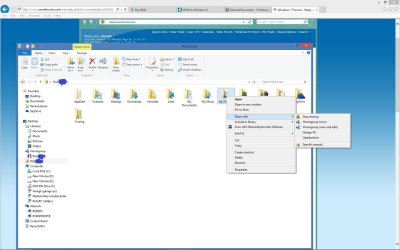
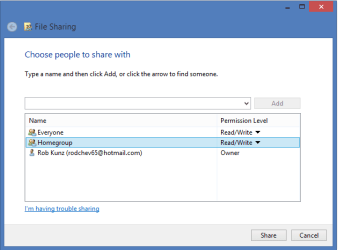
Windows 8 also has a new feature where you can share any folder that resides in the C:User folder by using the default Homegroup share settings, as in right click the folder, "Share With" Specific People, choose Everyone to share outside the Homegroup. Picture of the new all User Folders Sharing feature below.

This feature allows a Homegroup member to share any User folder outside the Homegroup with everyone in the local Workgroup, without ever having to mess with the NTFS security permissions. Needless to say this is a much more secure method for sharing individual User folders outside the Homegroup.

Windows 7 only offered this feature for the Library folders.

This confirms that the sharing method we discussed earlier has even more support with Windows 8.

Microsoft is adding feature's that make it much easier to avoid messing with the NTFS security settings which in most cases is best avoided like the plague.

 

Attachments

  • Screenshot (1).jpg
    Screenshot (1).jpg
    122 KB · Views: 8
  • Everyone added to share with.PNG
    Everyone added to share with.PNG
    6.8 KB · Views: 9

My Computer My Computer

At a glance

Windows 7 Ult, Windows 8.1 Pro,Q9650-4.275GHz, E8600 4.5GHz, E6750-3.8GHzG.Skill PC2 9600 1200Mhz 5 5 5 15 2TGTX480
Computer type
PC/Desktop
Computer Manufacturer/Model Number
Home built
OS
Windows 7 Ult, Windows 8.1 Pro,
CPU
Q9650-4.275GHz, E8600 4.5GHz, E6750-3.8GHz
Motherboard
Evga 780i FTW
Memory
G.Skill PC2 9600 1200Mhz 5 5 5 15 2T
Graphics Card(s)
GTX480
Sound Card
Asus Xonar D2
Monitor(s) Displays
HannsG
Screen Resolution
1680X1050
Hard Drives
GSkill Phoenix Pro 120GB SSD
PSU
ThermalTake Toughpower 1000Watt modular
Case
ThermalTake XaserV
Cooling
Xigmatek S1283
Keyboard
Logitech G15
Mouse
Logitech G9
Internet Speed
T1
Its my understanding that anyone that can logon is considered an authenticated user.

As far as only administrator account. This doesn't matter I believe its because even an administrative account still uses a standard user token unless they plan to do an administrative task. Then the UAC steps in and replaces the standard user token with the admin token.

I did test this. I was able to connect to a share with a standard user logon, but then I realized by default windows gave users NTFS permissions to the folder by default. So I removed them and tried it again. With the same results.

Now so you think anyone can that know any account information. This is when we dig into the local security policy.
Local Policy< user right assignment < access this computer over the network.

Currently Everyone is added. If this is removed and replaced with user accounts on the PC any account that you do not specify (can also be groups or special ids or other PC/users if on a domain.)

But a better and easier option is to look at
Local Policy< user right assignment < Deny access this computer over the network.

I personally would leave the access the PC left alone and just adjust the deny access. Adding my users a created for this test. "Test" i added the test user to my deny access policy. I could no longer access the share. This is another place that you can add groups and special ID's you can set this to users and then only accounts with administrative rights can access your shares.

As you can see this is a lot of work for someone that is not familiar with or comfortable with setting these permissions.

It has always seemed if your network is straight windows the best and easiest thing to do is create a homegroup.

Chev windows 8 looks like its doing good things with homegroup. I'm ready to get mine so i can test them out.
 

My Computer My Computer

At a glance

Windows 7 Ultimate x64
OS
Windows 7 Ultimate x64
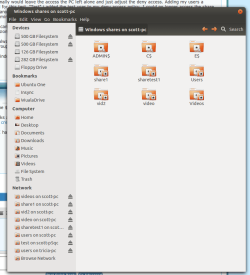
I see the $ADMIN and $C hidden shares on Ubuntu network browse as well.

This talks about deleting hidden or administrative shares
How to create and delete hidden or administrative shares on client computers

Which I have not tried. How can anyone login to those? My home network shows this and I dont care.

Hidden administrative shares that are created by the computer (such as ADMIN$ and C$) can be deleted, but the computer re-creates them after you stop and restart the Server service or restart your computer. Hidden shares that are created by users can be deleted, and they are not re-created after you restart your computer. Microsoft Windows XP Home Edition does not create hidden administrative shares.

To delete a hidden share, follow these steps:
In Control Panel, double-click Administrative Tools, and then double-click Computer Management.
Expand Shared Folders, and then click Shares..
In the Shared Folder column, right-click the share that you want to delete, click Stop sharing, and then click OK.

Not clear to me if they will be recreated even after you turn the sharing off.
 

Attachments

  • Screenshot from 2013-01-22 06:09:13.png
    Screenshot from 2013-01-22 06:09:13.png
    35.4 KB · Views: 3

My Computer My Computer

At a glance

Windows 7 Ultimate x64
OS
Windows 7 Ultimate x64
Administrative share - Wikipedia, the free encyclopedia

How to disable

Microsoft does not detail any method to disable administrative shares. The command:

NET SHARE C$ /delete

can be executed in order to disable the root share in a networked computer. The problem is that after a reboot, the share will be automatically recreated.

A common workaround is to create a batch file with commands to disable all administrative shares (they can be viewed by running the "NET SHARE" command), and then scheduling the script to run at every system startup by using the Windows Task Scheduler.

Usually, the following commands, under a batch file, can successfully disable shares on a Windows XP or Windows Vista system:

NET SHARE C$ /delete
NET SHARE D$ /delete
NET SHARE admin$ /delete
 

My Computer My Computer

At a glance

Windows 7 Ultimate x64
OS
Windows 7 Ultimate x64
Back
Top