Transfering Windows 7 to SSD from HDD on new laptop?

Yes, but there's always someone here who can help.

Many know laptop hardware better than I do.

 
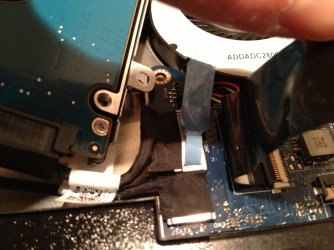
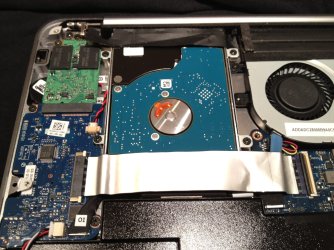
Here's the configuration, I'm not really sure how I would re-wire things but would definitely be up to trying if it's a feasible possibility.
 

Attachments

  • Photo1.jpg
    Photo1.jpg
    272.5 KB · Views: 3
  • Photo3.jpg
    Photo3.jpg
    281 KB · Views: 3
  • photo4.JPG
    photo4.JPG
    180 KB · Views: 3
  • photo5.JPG
    photo5.JPG
    218.5 KB · Views: 2

My Computer My Computer

At a glance

Windows 7 Home 64bit3rd gen i7 3517U8 GB DDR3NVIDIA® GeForce® GT 630M with 1GB GDDR5 VRAM
Computer Manufacturer/Model Number
Dell XPS 14
OS
Windows 7 Home 64bit
CPU
3rd gen i7 3517U
Memory
8 GB DDR3
Graphics Card(s)
NVIDIA® GeForce® GT 630M with 1GB GDDR5 VRAM
Hard Drives
500 GB HDD
120 GB SSD
I see the HD but not the SSD. Wonder even if its a chip on the mobo. Trace the SATA cable to its port and see if any other ports are nearby, what connects to them.

I'm not sure whether I'd ask your Tech Support about this since it may void hardware warranty. Did you break any stickers for that purpose? You could ask them hypothetically but I wouldn't offer that you've done it. They may or may not help, but might reveal enough to let you know whether this could be the issue.

I was thinking maybe there were two accessible drive ports you could swap around. I don't know if I'd go much deeper into it since there are risks involved with proceeding regarding static electricity (no carpets, touch metal case before touching anything inside) and how easy some plastic parts can snap inside a laptop.

I'll ask for some hardware expertise.
 
I see the HD but not the SSD. Wonder even if its a chip on the mobo. Trace the SATA cable to its port and see if any other ports are nearby, what connects to them.

Sorry I didn't specify, the SSD is the green chip in the back.

I will draw some lines to show you the paths each HDD take
 

My Computer My Computer

At a glance

Windows 7 Home 64bit3rd gen i7 3517U8 GB DDR3NVIDIA® GeForce® GT 630M with 1GB GDDR5 VRAM
Computer Manufacturer/Model Number
Dell XPS 14
OS
Windows 7 Home 64bit
CPU
3rd gen i7 3517U
Memory
8 GB DDR3
Graphics Card(s)
NVIDIA® GeForce® GT 630M with 1GB GDDR5 VRAM
Hard Drives
500 GB HDD
120 GB SSD
Here is a map explanation, you'll be able to read the labels of some of the ports when you look at the other detailed photos. Let me know if that helps.

The pink line connects to JSATA ports while the blue line connects to a JHDD port
 

Attachments

  • Photomarks.jpg
    Photomarks.jpg
    267.9 KB · Views: 3

My Computer My Computer

At a glance

Windows 7 Home 64bit3rd gen i7 3517U8 GB DDR3NVIDIA® GeForce® GT 630M with 1GB GDDR5 VRAM
Computer Manufacturer/Model Number
Dell XPS 14
OS
Windows 7 Home 64bit
CPU
3rd gen i7 3517U
Memory
8 GB DDR3
Graphics Card(s)
NVIDIA® GeForce® GT 630M with 1GB GDDR5 VRAM
Hard Drives
500 GB HDD
120 GB SSD
This is above my pay grade. I'd wait for hardware help I've asked for, or call Toshiba tech support to probe them for info without acknowledging at all that you have even opened your case.

Just troubleshoot the prob with slow boot and ask if it could be port, and if ports are changeable.

Problem is they work from scripts and won't have that deep of information, unless agent is tech savvy on this. So it's worth asking a few of them to see if you get lucky, or wait for someone who knows here.
 
no problem, i'll wait for someone who knows here. i'll just keep checking the thread
 

My Computer My Computer

At a glance

Windows 7 Home 64bit3rd gen i7 3517U8 GB DDR3NVIDIA® GeForce® GT 630M with 1GB GDDR5 VRAM
Computer Manufacturer/Model Number
Dell XPS 14
OS
Windows 7 Home 64bit
CPU
3rd gen i7 3517U
Memory
8 GB DDR3
Graphics Card(s)
NVIDIA® GeForce® GT 630M with 1GB GDDR5 VRAM
Hard Drives
500 GB HDD
120 GB SSD
Do the cables and ports look like the drives could be switched around?

I think until you hear back from hardware experts who think that switching around the drives will work I would carefully put it back together, boot into BIOS and check the SATA controller setting. Is it AHCI? This might make a difference. AHCI : Enable in Windows 7 / Vista - Windows 7 Forums

Also let's make sure if its installed to EFI BIOS or Legacy BIOS. What are the exact settings for Legacy BIOS? What are the devices shown in BIOS Boot Priority order? Is any EFI device listed?

Do you have a Compatibility Settings Modes (CSM), what is chosen and what are the other choices?

Is the SSD formatted as MBR format? To check this look in Disk Mgmt at the map to find the SSD drive, rightclick on the box same as the one outlined in red for Disk1 below, see if the same choice "Convert to GPT Disk" shown in the red box appears but do not click any choice.

29324d1253818059-convert-mbr-disk-gpt-disk-step2.jpg


This means you have an MBR formatted HD which could only be a Legacy BIOS install.

Now check the same thing for the HDD.

It is very strange that Dell set up a laptop where the HD had the OS while the much faster SSD was for secondary storage. I would actually use your free Tech Support to ask them why they did this, and what they recommend for installing the OS to the SSD. They may tell you to install in UEFI mode to get better performance, even faster boots. If they don't tell you this I still think it would be worth trying.

UEFI (Unified Extensible Firmware Interface) - Install Windows 7 with - Windows 7 Forums
 
Last edited:
What it appears to me is you have a mSATA SSD and a SATA HDD. The two connectors are not compatible.
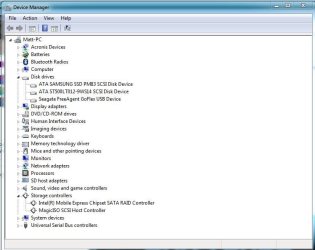
Post a snip of Device Manager with Disk Drives and Storage Controllers expanded.

As has been suggested, if you are booting from the SSD OK and have drivers installed, wipe, or Clean the HDD. Don't get too concerned about boot or shut down times of 30 seconds, I'm sure the laptop will perform very fast.
 
Last edited:

My Computer My Computer

At a glance

Windows 7 Ultimate X64 SP1Intel i5-2550K, Differing ~4.4-4.8GHz No buil...16GB G.Skill Sniper 1866MHz @ 2133MHz 2x8GBASUS GTX650TIB-DC2OC-2GD5, (650TI Boost)
Computer type
PC/Desktop
Computer Manufacturer/Model Number
Home Built Desktop By DataTech
OS
Windows 7 Ultimate X64 SP1
CPU
Intel i5-2550K, Differing ~4.4-4.8GHz No built in GPU
Motherboard
ASUS P8Z68-V PRO/GEN3
Memory
16GB G.Skill Sniper 1866MHz @ 2133MHz 2x8GB
Graphics Card(s)
ASUS GTX650TIB-DC2OC-2GD5, (650TI Boost)
Sound Card
Onboard Realtek 5-1
Monitor(s) Displays
Samsung P2570HD
Screen Resolution
1920x1080
Hard Drives
Samsung 840 Pro 256GB SSD for OS, 500GB Seagate Constellation (Enterprise drive) for Data
PSU
Corsair HX650W
Case
Inwin Dragon Rider
Cooling
Hyper 212 EVO w/two Noctua fans, push-pull, @1300 RPM
Keyboard
E-Z Eyes, bright yellow keys with large characters
Mouse
steelseries SENSEI Laser Pro Gaming
Internet Speed
48-51Mbs Mbs down, 11 Mbs up Xfinity Cable
Antivirus
Norton Internet Security 2013
Browser
IE 10, Opera, Pale Moon if needed
Other Info
4 case fans, LG BluRay-RE, ASUS DVD-RW, Mr. Fusion power supply, 1.21 gigawatts.
Agree with Britton30, the SSD is mSATA and the HDD is SATA connection, they can't be swapped, different connections.
Need to see the Disk Management snip and if it is MBR or GPT.

Dell drivers will auto install from Windows, they probably went to the HDD OS.

In your post #28 you have 'Intel Smart Response Technology' enabled, this may need to be disabled, leave it unless you are having more problems.
Intel® Smart Response Technology User Guide
The Definitive Guide to Clean Install OS on a mSSD Cache Equipped Laptop
Found this quote in the above link, post #19:
Also the master boot record has to be on the sata0 disc drive. I also followed the definitive guide also you can not delete the other os untill you set up a mbr.

Note: I would not use a large SSD (40GB or larger) as a cache system (Intel Smart Response Tech), installing the OS on the mSATA SSD will have much better performance.

I had a similar issue when I installed W7 and Windows 8 UEFI/GPT on a new SSD, had W7 installed on my HDD and couldn't boot until I secure erased the HDD, formatting the System Reserved and OS partitions didn't help, it must have been the MFT (Master File Table) on the HDD. Another HDD that had no OS installed did not affect the boot process. When the problem HDD was erased and added to the system, it would boot normally.
This is probably causing your long boot and shutdown times, the BIOS and OS are searching the HDD for OS installations. Wipe/clean the HDD, if you don't have anything on there that you want to keep.
 
Last edited:

My Computer My Computer

At a glance

Windows 7 Ult x64 - SP1/ Windows 8 Pro x64Intel Core i5-3570K 4.6GHz8GB (2X4GB) DDR3 1600 Corsair Vengeance CL8 1.5vSapphire HD 7770 Vapor-X OC 1GB DDR5
Computer type
PC/Desktop
Computer Manufacturer/Model Number
76~2.0
OS
Windows 7 Ult x64 - SP1/ Windows 8 Pro x64
CPU
Intel Core i5-3570K 4.6GHz
Motherboard
Gigabyte GA-Z77X UD3H, f18
Memory
8GB (2X4GB) DDR3 1600 Corsair Vengeance CL8 1.5v
Graphics Card(s)
Sapphire HD 7770 Vapor-X OC 1GB DDR5
Sound Card
Onboard VIA VT2021
Monitor(s) Displays
22" LCD Dell
Screen Resolution
1680x1050
Hard Drives
Samsung 840Pro 128GB SSD,
Seagate Barracuda 500GB SATA2 7200rpm 32MB cache, Seagate Barracuda 1TB SATA2 7200rpm 32MB cache,
PSU
Corsair HX650W
Case
Cooler Master Storm Scout
Cooling
Corsair H80 2x12cm Noctua NF P12 , 2x14cm case fans
Keyboard
Logitech Wave
Mouse
CM Sentinel
Internet Speed
Dismal
Antivirus
Avast
Browser
Opera Next
Other Info
Haswell laptop: HP Envy 17t-j, i7-4700MQ, GeForce 740M 2GB DDR3, 17.3" Full HD 1920x1080, 16GB RAM, Samsung 840 Pro 128GB, 1TB Hitachi 7200 HDD,
Desktop: eSATA ports,
External eSATA Seagate 500GB SATA2 7200rpm,
External WD USB 500GB
Do the cables and ports look like the drives could be switched around?

I think until you hear back from hardware experts who think that switching around the drives will work I would carefully put it back together, boot into BIOS and check the SATA controller setting. Is it AHCI? This might make a difference. AHCI : Enable in Windows 7 / Vista - Windows 7 Forums

Also let's make sure if its installed to EFI BIOS or Legacy BIOS. What are the exact settings for Legacy BIOS? What are the devices shown in BIOS Boot Priority order? Is any EFI device listed?

Do you have a Compatibility Settings Modes (CSM), what is chosen and what are the other choices?

Is the SSD formatted as MBR format? To check this look in Disk Mgmt at the map to find the SSD drive, rightclick on the box same as the one outlined in red for Disk1 below, see if the same choice "Convert to GPT Disk" shown in the red box appears but do not click any choice.

I will upload photos of every bios page ether later tonight or early tomorrow morning, I'm using the computer to compose some documents at the moment.

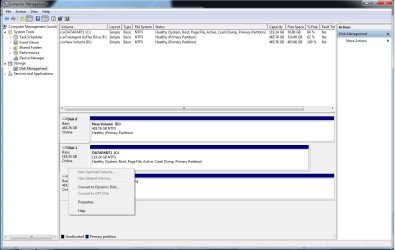
I did however look into how the drives are formatted and found the following, both drives give me the option to "COVERT TO DYNAMIC DISK". I do not get the other option you were referring to.
 

My Computer My Computer

At a glance

Windows 7 Home 64bit3rd gen i7 3517U8 GB DDR3NVIDIA® GeForce® GT 630M with 1GB GDDR5 VRAM
Computer Manufacturer/Model Number
Dell XPS 14
OS
Windows 7 Home 64bit
CPU
3rd gen i7 3517U
Memory
8 GB DDR3
Graphics Card(s)
NVIDIA® GeForce® GT 630M with 1GB GDDR5 VRAM
Hard Drives
500 GB HDD
120 GB SSD
That's not a choice you'd get if you right clicked on the Disk Mgmt panel shown in the red box in the screenshot. Try again in the correct place.
 
What it appears to me is you have a mSATA SSD and a SATA HDD. The two connectors are not compatible.
Post a snip of Device Manager with Disk Drives and Storage Controllers expanded.

As has been suggested, if you are booting from the SSD OK and have drivers installed, wipe, or Clean the HDD. Don't get too concerned about boot or shut down times of 30 seconds, I'm sure the laptop will perform very fast.

Here is the photo as requested. OS boots from the SSD and the old HDD was wiped clean. I would take the 500GB HDD out all together before loosing the the quick boot/shutdown time (it's hard to pass on it once i've experienced the ultra fast speed).
 

Attachments

  • Capture4.JPG
    Capture4.JPG
    50.9 KB · Views: 3

My Computer My Computer

At a glance

Windows 7 Home 64bit3rd gen i7 3517U8 GB DDR3NVIDIA® GeForce® GT 630M with 1GB GDDR5 VRAM
Computer Manufacturer/Model Number
Dell XPS 14
OS
Windows 7 Home 64bit
CPU
3rd gen i7 3517U
Memory
8 GB DDR3
Graphics Card(s)
NVIDIA® GeForce® GT 630M with 1GB GDDR5 VRAM
Hard Drives
500 GB HDD
120 GB SSD
That's not a choice you'd get if you right clicked on the Disk Mgmt panel shown in the red box in the screenshot. Try again in the correct place.

I get this box when right clicking on both of the "disK" harddrive boxes
 

Attachments

  • capture 5.jpg
    capture 5.jpg
    94.1 KB · Views: 6

My Computer My Computer

At a glance

Windows 7 Home 64bit3rd gen i7 3517U8 GB DDR3NVIDIA® GeForce® GT 630M with 1GB GDDR5 VRAM
Computer Manufacturer/Model Number
Dell XPS 14
OS
Windows 7 Home 64bit
CPU
3rd gen i7 3517U
Memory
8 GB DDR3
Graphics Card(s)
NVIDIA® GeForce® GT 630M with 1GB GDDR5 VRAM
Hard Drives
500 GB HDD
120 GB SSD
Your snip of Device manager confirms both drives are SATA which I couldn't tell from the pics.
 

My Computer My Computer

At a glance

Windows 7 Ultimate X64 SP1Intel i5-2550K, Differing ~4.4-4.8GHz No buil...16GB G.Skill Sniper 1866MHz @ 2133MHz 2x8GBASUS GTX650TIB-DC2OC-2GD5, (650TI Boost)
Computer type
PC/Desktop
Computer Manufacturer/Model Number
Home Built Desktop By DataTech
OS
Windows 7 Ultimate X64 SP1
CPU
Intel i5-2550K, Differing ~4.4-4.8GHz No built in GPU
Motherboard
ASUS P8Z68-V PRO/GEN3
Memory
16GB G.Skill Sniper 1866MHz @ 2133MHz 2x8GB
Graphics Card(s)
ASUS GTX650TIB-DC2OC-2GD5, (650TI Boost)
Sound Card
Onboard Realtek 5-1
Monitor(s) Displays
Samsung P2570HD
Screen Resolution
1920x1080
Hard Drives
Samsung 840 Pro 256GB SSD for OS, 500GB Seagate Constellation (Enterprise drive) for Data
PSU
Corsair HX650W
Case
Inwin Dragon Rider
Cooling
Hyper 212 EVO w/two Noctua fans, push-pull, @1300 RPM
Keyboard
E-Z Eyes, bright yellow keys with large characters
Mouse
steelseries SENSEI Laser Pro Gaming
Internet Speed
48-51Mbs Mbs down, 11 Mbs up Xfinity Cable
Antivirus
Norton Internet Security 2013
Browser
IE 10, Opera, Pale Moon if needed
Other Info
4 case fans, LG BluRay-RE, ASUS DVD-RW, Mr. Fusion power supply, 1.21 gigawatts.

My Computer My Computer

At a glance

Windows 7 Home 64bit3rd gen i7 3517U8 GB DDR3NVIDIA® GeForce® GT 630M with 1GB GDDR5 VRAM
Computer Manufacturer/Model Number
Dell XPS 14
OS
Windows 7 Home 64bit
CPU
3rd gen i7 3517U
Memory
8 GB DDR3
Graphics Card(s)
NVIDIA® GeForce® GT 630M with 1GB GDDR5 VRAM
Hard Drives
500 GB HDD
120 GB SSD
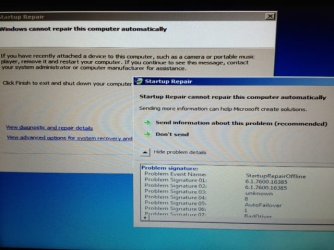
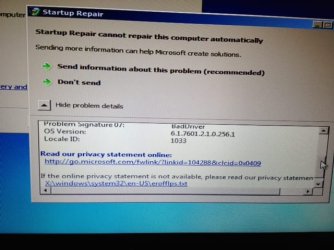
For some reason I can no longer boot up the laptop, the computer just stalls at the starting windows logo.

Here are the errors I got after launching startup repair... (I can give a detailed "view diagnostic and repair details" if necessary)

Thanks again
 

Attachments

  • photo-12.JPG
    photo-12.JPG
    43.4 KB · Views: 4
  • photo-13.JPG
    photo-13.JPG
    39.1 KB · Views: 3

My Computer My Computer

At a glance

Windows 7 Home 64bit3rd gen i7 3517U8 GB DDR3NVIDIA® GeForce® GT 630M with 1GB GDDR5 VRAM
Computer Manufacturer/Model Number
Dell XPS 14
OS
Windows 7 Home 64bit
CPU
3rd gen i7 3517U
Memory
8 GB DDR3
Graphics Card(s)
NVIDIA® GeForce® GT 630M with 1GB GDDR5 VRAM
Hard Drives
500 GB HDD
120 GB SSD
Remember how I pleaded with you a dozen times to follow the steps in Clean Reinstall - Factory OEM Windows 7 for handling drivers in Win7, how you ignored this and merrily went on to install every driver on the Dell Downloads page, ignoring whether Win7 had delivered another driver it wanted?

Well look at the reason your Startup cannot now be repaired in the last, fatal Problem Signature 7! :geek:

Work through these steps which provide everything possible for Troubleshooting Windows 7 Failure to Start leading up to if necessary a Clean Reinstall, this time following the steps to get a perfect install. Wipe the SSD first with Diskpart Clean Command; disable the HDD in BIOS if possible.

Or maybe there is a Restore Point to run from System Recovery Options before you did your own thing and wasted our time and yours.
 
Wipe the SSD first with Diskpart Clean Command; disable the HDD in BIOS if possible.

Or maybe there is a Restore Point to run from System Recovery Options before you did your own thing and wasted our time and yours.

I will try the troubleshooting steps in your article.

I read somewhere on the forum that it isn't good to repeatedly wipe SSD's because it makes them more prone to early failure. When should this worry me? I don't want to wipe it repeatedly in the process of trying to achieve a perfect setup. There are multiple ways to get windows 7, I just want to make sure to choose the right one and follow it to a t this time. Clean Reinstall - Factory OEM Windows 7 and UEFI (Unified Extensible Firmware Interface) - Install Windows 7 with - Windows 7 Forums as examples
 

My Computer My Computer

At a glance

Windows 7 Home 64bit3rd gen i7 3517U8 GB DDR3NVIDIA® GeForce® GT 630M with 1GB GDDR5 VRAM
Computer Manufacturer/Model Number
Dell XPS 14
OS
Windows 7 Home 64bit
CPU
3rd gen i7 3517U
Memory
8 GB DDR3
Graphics Card(s)
NVIDIA® GeForce® GT 630M with 1GB GDDR5 VRAM
Hard Drives
500 GB HDD
120 GB SSD
Back
Top