Dual Boot - Delete a OS

How to Properly Delete a OS in a Dual Boot

   Information
Deleting a double booted OS may seem simple - you just delete the partition with the OS you want to get rid of and you are done. Well, it is not that easy. With said approach you may get yourself into a lot of trouble. This tutorial describes a safe way how to properly delete a double booted OS.


Step 1 - Check where the bootmgr resides
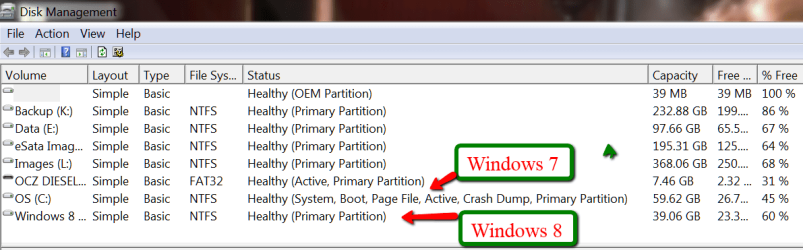
Open Disk Management and find the partition that is marked "active". That is the partition that contains the bootmgr. If there are several active partitions, you have to look for the system flag - best seen in Computer.

The active partition is usually from the OS that was on the system first - e.g. if you installed Windows 7 on an XP system, the XP system would be the active partition. But there are also other cases.

If Windows 7 was the first OS on the system, then your bootmgr resides most likely in a separate system partition which is usually small.

If you installed Windows 7 as first OS to a disk that was not attached to the Sata port0, it can very well be that the bootmgr resides on an arbitrary partition on the disk that is attached to port0.

If you have e.g. a Dell system, your bootmgr may be on the recovery partition. Other OEMs may do the same, but I was not able to verify that.

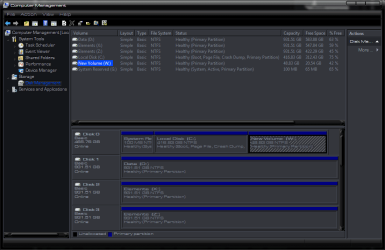
This is the example of my current system. Note the two last partitions which are Windows 7 and Windows 8. The Windows 7 partition is marked as active. You also see that I have no small system partition because I have eliminated that partition after I moved the bootmgr from that small system partition to the Windows 7 partition.

pic 1.png

If I would delete the Windows 7 partition, my Windows 8 would not boot any more because it would have lost it's bootmgr that is in cohabitation with the Windows7 bootmgr.

In order to avoid such an unfortunate situation, we launch the system that we want to retain and move the bootmgr to that system's OS partition. Here is how.
Step 2 - Delete the unwanted OS partition and reuse the space (Optional)
Stay in the OS that you want to keep and open Disk Management. Right click on the partition that contains the OS you want to delete and Delete Volume. Then right click on the deleted volume and Delete Partition. Now you should have "Freespace" where this partition originally was.

With Disk Management, you can define a new partition in that freespace or you can add it to the partition that shows to the left of that freespce. Just click on the partition which is to the left and Extend Volume.

If, however, you want to add that freespace to a partition that is to the right of the freespace, then you have to use an external tool. I suggest the bootable CD of Partition Wizard. Here is how.

A word of caution: before you manipulate partitions with Partition Wizard, make an image of all partitions on that disk. I once lost all my partitions on a disk because I made a small mistake manipulating one partition with Partition Wizard. For imaging I recommend Free Macrium. Here is how.
Step 3 - Cleanup the bootmgr
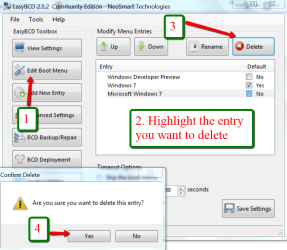
Now that we removed one OS, we have a surplus entry in the bootmgr. We will remove this entry with EasyBCD. As you can see in the picture, the operation takes only 4 clicks.

EasyBCD is a very handy tool for a variety of operations on the bootmgr. You should have that in your toolkit anyhow.

pic 2.png


If you stop at this step, the MBR is still in a double boot configuration and when you boot, the BIOS will present you the black screen where you have to choose the operating sytem - although only one operating system is present. This is not a disaster, but it is an unnecessary step that requires your intervention.

The next two steps will reset the MBR to your current OS and then your system will automatically boot into that.

Important: You absolutely have to execute both Steps 4 and Step 5. If you only do Step 4, your system will not boot any more.

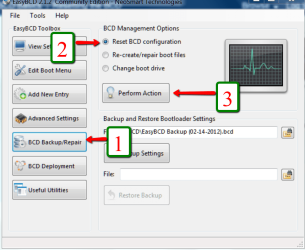
Step 4 - Clean the MBR
Pic 3.png


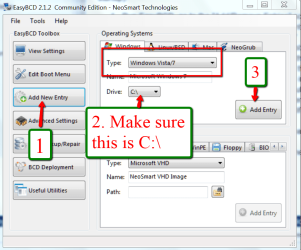
Step 5 - Reset MBR with the entry of the current OS
Pic 4.png


Last edited:
Is there any alternative to step 2 as I cannot delete the partiton. I have more than 60gb of data in that partition and no space to backup. Is there any other way so that I can just delete the windows folder in that partition?
 

My Computer My Computer

OS
Windows 7 Ultimate x64
Is there any alternative to step 2 as I cannot delete the partiton. I have more than 60gb of data in that partition and no space to backup. Is there any other way so that I can just delete the windows folder in that partition?
Step 2 is really optional. I have updated the tutorial accordingly. So you can leave the partition as is if you do not want to use the space otherwise.
 

My Computer My Computer

Computer Manufacturer/Model Number
HP, Dell, Gateway, Toshiba - 4 laptops and 2 desktops
OS
Vista, Windows7, Mint Mate, Zorin, Windows 8
CPU
from 1.6GHz Duo to i7
Monitor(s) Displays
2x HP w2207
Hard Drives
5x HDD, 7x SSD, 12x Externals
Keyboard
with trackball - no mices
Mouse
Trackball mice
Internet Speed
DSL 6000
Nice tutorial, whs.

I have a quick question... does this tutorial work when deleting a Win 8 partition? I heard a rumor that Win 8 "takes over" the boot process, and deleting it means rebuilding the MBR. Naturally, I'd like to avoid that...

I think I'm OK, but I'd like an expert opinion (if you don't mind)...

Disc Management.PNG

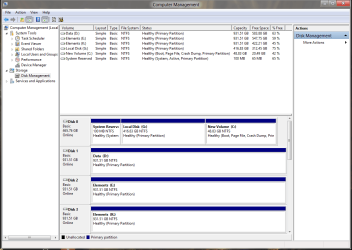
I'd like to delete partition W. I think the 100MB System Reserved partition is marked "active". Am I good to go..?
 

My Computer My Computer

Computer Manufacturer/Model Number
me / #1
OS
windows 7 x64 Home Premium
CPU
intel q6600
Motherboard
gigbyte ga ep45 ud3l
Memory
g.skill 8gb ddr2 1066 (pc2 8500)
Graphics Card(s)
evga geforce 9800 gtx 512 mb
Screen Resolution
1680 x 1050
Hard Drives
wd caviar black 500 gb
wd caviar black 1tb
wd elements 1tb external hd x2
PSU
raidmax 500w
Case
smilodon (yes, t'was the pretty blue lites that got me!)
I am sorry but I have only 40% vision and see absolutely nothing on your picture - only black.

However, I would be careful with Windows 8. There were reports that Windows 8 is not yet well covered in EasyBCD.
 

My Computer My Computer

Computer Manufacturer/Model Number
HP, Dell, Gateway, Toshiba - 4 laptops and 2 desktops
OS
Vista, Windows7, Mint Mate, Zorin, Windows 8
CPU
from 1.6GHz Duo to i7
Monitor(s) Displays
2x HP w2207
Hard Drives
5x HDD, 7x SSD, 12x Externals
Keyboard
with trackball - no mices
Mouse
Trackball mice
Internet Speed
DSL 6000
Hello Stevie,

Ooof. I hear you Wolfgang. That was hard to read.

From your screenshot, you should be good to go to delete the W partition that Windows 8 is installed on since W7 is installed on C, and the active partition is the original 100 MB "System Reserved" from W7.

Dual Boot Windows 7 and Windows 8 - Delete Windows 8

Hope this helps. :)
 

My Computer My Computer

Computer type
PC/Desktop
Computer Manufacturer/Model Number
Self built custom
OS
64-bit Windows 11 Pro for Workstations
CPU
Intel i7-8700K OC'd to 5 GHz
Motherboard
ASUS ROG Maximus XI Formula Z390
Memory
64 GB (4x16GB) G.SKILL TridentZ RGB DDR4 3600 MHz
Graphics Card(s)
ASUS ROG-STRIX-GTX1080TI-O11G-GAMING
Sound Card
Integrated
Monitor(s) Displays
2 x Samsung Odyssey G7 27"
Screen Resolution
2560x1440
Hard Drives
1TB Samsung 990 PRO M.2,
4TB Samsung 990 PRO PRO M.2,
TerraMaster F8 SSD Plus NAS
PSU
Seasonic Prime Titanium 850W
Case
Thermaltake Core P3
Cooling
Corsair Hydro H115i
Keyboard
Logitech wireless K800
Mouse
Logitech MX Master 4
Internet Speed
2 Gb/s Download and 100 Mb/s Upload
Antivirus
Malwarebyte Anti-Malware Premium
Browser
Google Chrome
Other Info
Logitech Z625 speaker system,
Logitech BRIO 4K Pro webcam,
HP Color LaserJet Pro MFP M477fdn,
APC SMART-UPS RT 1000 XL - SURT1000XLI,
Galaxy S23 Plus phone
Sorry about that. I like dark themes... real dark.

Disk Management.PNG

Is this better?

On this snip, it would be partition G I am eliminating. I took this snip in Win 8, and according to disk management in Win 8 the active partition is still listed as the System Reserved (same as in Win 7) which is good, but the boot files are now listed on the Win 8 partition!

Hmmm... perhaps both 7 and 8 have their own boot files.
 

My Computer My Computer

Computer Manufacturer/Model Number
me / #1
OS
windows 7 x64 Home Premium
CPU
intel q6600
Motherboard
gigbyte ga ep45 ud3l
Memory
g.skill 8gb ddr2 1066 (pc2 8500)
Graphics Card(s)
evga geforce 9800 gtx 512 mb
Screen Resolution
1680 x 1050
Hard Drives
wd caviar black 500 gb
wd caviar black 1tb
wd elements 1tb external hd x2
PSU
raidmax 500w
Case
smilodon (yes, t'was the pretty blue lites that got me!)
Nar, it's just that whatever OS is running will have the C drive letter.

You will need to do this in Windows 7 to delete the Windows 8 partition, but you are good to go. It'll be like in this tutorial below as well.

Dual Boot Windows 7 and Windows 8 - Delete Windows 8
 

My Computer My Computer

Computer type
PC/Desktop
Computer Manufacturer/Model Number
Self built custom
OS
64-bit Windows 11 Pro for Workstations
CPU
Intel i7-8700K OC'd to 5 GHz
Motherboard
ASUS ROG Maximus XI Formula Z390
Memory
64 GB (4x16GB) G.SKILL TridentZ RGB DDR4 3600 MHz
Graphics Card(s)
ASUS ROG-STRIX-GTX1080TI-O11G-GAMING
Sound Card
Integrated
Monitor(s) Displays
2 x Samsung Odyssey G7 27"
Screen Resolution
2560x1440
Hard Drives
1TB Samsung 990 PRO M.2,
4TB Samsung 990 PRO PRO M.2,
TerraMaster F8 SSD Plus NAS
PSU
Seasonic Prime Titanium 850W
Case
Thermaltake Core P3
Cooling
Corsair Hydro H115i
Keyboard
Logitech wireless K800
Mouse
Logitech MX Master 4
Internet Speed
2 Gb/s Download and 100 Mb/s Upload
Antivirus
Malwarebyte Anti-Malware Premium
Browser
Google Chrome
Other Info
Logitech Z625 speaker system,
Logitech BRIO 4K Pro webcam,
HP Color LaserJet Pro MFP M477fdn,
APC SMART-UPS RT 1000 XL - SURT1000XLI,
Galaxy S23 Plus phone
Cool. Thanks guys!
 

My Computer My Computer

Computer Manufacturer/Model Number
me / #1
OS
windows 7 x64 Home Premium
CPU
intel q6600
Motherboard
gigbyte ga ep45 ud3l
Memory
g.skill 8gb ddr2 1066 (pc2 8500)
Graphics Card(s)
evga geforce 9800 gtx 512 mb
Screen Resolution
1680 x 1050
Hard Drives
wd caviar black 500 gb
wd caviar black 1tb
wd elements 1tb external hd x2
PSU
raidmax 500w
Case
smilodon (yes, t'was the pretty blue lites that got me!)
You're welcome. Glad we could help. :)
 

My Computer My Computer

Computer type
PC/Desktop
Computer Manufacturer/Model Number
Self built custom
OS
64-bit Windows 11 Pro for Workstations
CPU
Intel i7-8700K OC'd to 5 GHz
Motherboard
ASUS ROG Maximus XI Formula Z390
Memory
64 GB (4x16GB) G.SKILL TridentZ RGB DDR4 3600 MHz
Graphics Card(s)
ASUS ROG-STRIX-GTX1080TI-O11G-GAMING
Sound Card
Integrated
Monitor(s) Displays
2 x Samsung Odyssey G7 27"
Screen Resolution
2560x1440
Hard Drives
1TB Samsung 990 PRO M.2,
4TB Samsung 990 PRO PRO M.2,
TerraMaster F8 SSD Plus NAS
PSU
Seasonic Prime Titanium 850W
Case
Thermaltake Core P3
Cooling
Corsair Hydro H115i
Keyboard
Logitech wireless K800
Mouse
Logitech MX Master 4
Internet Speed
2 Gb/s Download and 100 Mb/s Upload
Antivirus
Malwarebyte Anti-Malware Premium
Browser
Google Chrome
Other Info
Logitech Z625 speaker system,
Logitech BRIO 4K Pro webcam,
HP Color LaserJet Pro MFP M477fdn,
APC SMART-UPS RT 1000 XL - SURT1000XLI,
Galaxy S23 Plus phone
Removing Dual Boot problem.

Disk Management 1.jpg

Disk Management 2.jpg

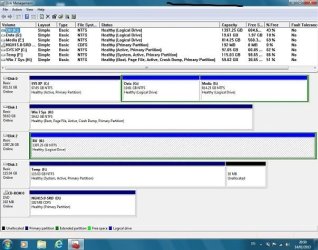
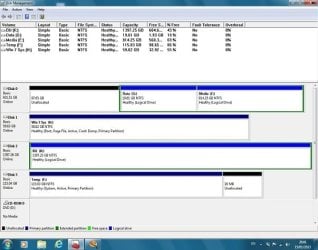
I have been using Win XP & have now installed Win 7 Home Premium as a Dual boot. I had XP on the C:
Drive & Win7 on the H: Drive which is an SDD. The Boot manager resides on the F: drive.
Win7 is up and running OK but I would now like to recover the space the C: drive took and allocate it
to the g: drive. I think I can do this OK with Paragon Partition Magic.
Following your instructions I could not find an option in Disk Management to Delete the old C:
partition. Following your link to Free Macrium I could only find a 64 bit version. In step 5 Reset
MBR I did not have a C: option so used H: as before.
I want now if possible to Change H: to C: and move the Boot Manager also to C:. I could use Disk
Management to change H: to C: but will all the programs referencing the H: drive follow this move.
Also how do I move the Boot Manager.


Regards John.
 
Last edited by a moderator:

My Computer My Computer

OS
win 7 Home Premium 32bit

My Computer My Computer

Computer Manufacturer/Model Number
HP, Dell, Gateway, Toshiba - 4 laptops and 2 desktops
OS
Vista, Windows7, Mint Mate, Zorin, Windows 8
CPU
from 1.6GHz Duo to i7
Monitor(s) Displays
2x HP w2207
Hard Drives
5x HDD, 7x SSD, 12x Externals
Keyboard
with trackball - no mices
Mouse
Trackball mice
Internet Speed
DSL 6000
Thanks for reply. When I try this C: is not available. I have however moved it to the H: drive so the system & Bootmgr are on the same drive.

After doing this I tried to rename the H: drive C: but Computer Management would not alow this.
Regards John
 

My Computer My Computer

OS
win 7 Home Premium 32bit
Don't muck around with the lettering. Let the system manage that.

Btw: the bootmgr is only being copied, not really moved. I should have chosen another title when I made the tutorial. So wherever it was before, it still is also. But it will not have any effect because EasyBCD has deactivated that partition.
 

My Computer My Computer

Computer Manufacturer/Model Number
HP, Dell, Gateway, Toshiba - 4 laptops and 2 desktops
OS
Vista, Windows7, Mint Mate, Zorin, Windows 8
CPU
from 1.6GHz Duo to i7
Monitor(s) Displays
2x HP w2207
Hard Drives
5x HDD, 7x SSD, 12x Externals
Keyboard
with trackball - no mices
Mouse
Trackball mice
Internet Speed
DSL 6000
Thanks, I have managed to stop windows including the F: drive in a system image by using EasyBCD to copy BootMng to the h: drive then Format the f:drive. I will leave the system Drive as h:
So I am home and dry.
Regards John
 

My Computer My Computer

OS
win 7 Home Premium 32bit
Hi!

Thanks for the great tut !! However, after a long research (and about 4/5 boot files repair with WinRE), I believe it misses a very important part, which will cause the system NOT to boot : it cant find any boot file.


You miss a final step 6 !
Under "BCD BACKUP", you have to launch "Re-create boot files" !

I have tested this many times to make sure. Without doing it, the bios wont find the "boot files"
But when doing Step 4 - Reset the BCD / Step 5 - Adding a new entry / Step 6 - Reset the Mbr it works


To my "understanding", there are two parts : the boot files // the boot data config
- When hitting Reset BCD, I guess it will erase everything, files included.
- When adding new entry, you setup the boot data again, but not the files
- When hitting Recreate boot file, you copy the file again.

Files + data = Boot :p
 

My Computer My Computer

OS
Win7 Ultimate x64
Note: Of course, I might be totaly wrong in my understanding, but in my situation (VaioZ Win7 ultimate x64 with only 1 system installed) it didnt work another way.

I am using the 350Mb system reserved partition, and boot files were there for a long time.. that's why I believe the boot files were deleted when hitting reset BCD. At least that's what the bios says.


I should go on esayBCD forum to check what's going on exactly when hitting the reset button / recreate button
 

My Computer My Computer

OS
Win7 Ultimate x64
That is strange. I have done it several times as described and never had a problem. I wonder why that was different in your case.
 

My Computer My Computer

Computer Manufacturer/Model Number
HP, Dell, Gateway, Toshiba - 4 laptops and 2 desktops
OS
Vista, Windows7, Mint Mate, Zorin, Windows 8
CPU
from 1.6GHz Duo to i7
Monitor(s) Displays
2x HP w2207
Hard Drives
5x HDD, 7x SSD, 12x Externals
Keyboard
with trackball - no mices
Mouse
Trackball mice
Internet Speed
DSL 6000
Alright .. ;)

I have spent some time on the esayBCD online user guide. It's a nice guide, pretty well done.


This page explain what you did in the first page of this guide ;) :
Resetting the BCD - EasyBCD - NeoSmart Technologies Wiki


Then, this one explain some more "possibilities".
Recovering the Windows Bootloader with EasyBCD - EasyBCD - NeoSmart Technologies Wiki

Option 3 is the last one they give, so I guess I was in this situation.

What really *is* odd, is that the missing files were due to the "Reset BCD" first step, for sure. Tested 4 times in a row. So, it is strange indeed they do not advise to "Recreate" the boot files after a "Reset BCD", even if they know its deleting some files.


Anyway, hope my posts might help someone else with the same situation I was, it'es never fun to see a "no operating system" screen just after a fresh install ^^
 

My Computer My Computer

OS
Win7 Ultimate x64
Hey guys

I ended up this tutorial with Windows Boot Manager error:
File: \Boot\BCD
Status: 0xc0000098
Info: The windows Boot Configuration Data file does not contain a valid OS entry.


I have not recovery disk and F8 doesn't work :cry:

I found this tutorial which explains how to fix problem, but it required full EBCD version software which I can't afford. :cry:

Any advice how to fix this problem?
Thanks in advance
 

My Computer My Computer

Computer type
PC/Desktop
OS
Windows 7 Home 64bit
thx

Hi,

I want to thank you for a very well and good explaind step-by-step guide. After I bought a new SSD for my gf's laptop , I installed the os by hooking it up to my desktop. Ever since I had the ' problem ' . Looked everywhere , device manager bios..etc. Should've looked here first :) . So thank you !
 

My Computer My Computer

Computer type
PC/Desktop
Computer Manufacturer/Model Number
custom
OS
w7 64b
CPU
a8 3870 BE
Motherboard
f1
Antivirus
yes
Browser
moz, chr
Back
Top