How to extend an Extended Partition; leave logical volumes intact

I assume the app you purchased are the home editions, and come from:
PARAGON Software Group - partition manager, drive backup, hard disk partitioning

The features of Hard Disk Manager 11 Suite look impressive, see
Hard Disk Manager Suite - Disk management: hard disk backup, partitioning, defrag, disposal

From the screenshots of yours, it appears Paragon home editions can format and partition according to Win7 rules; that implies that partitions in Advanced Format Drives (AFDs) are automatically aligned. However, in WinXP it is not obvious at all to create 4KiB aligned partitions/volumes on AFDs. So, have you seen anything in your Paragon (home version) apps which could indicate the Paragon apps are able in a WinXP environment to adjust or align partitions with the 4KiB boundary of an AFD? I've been looking for in the HDM11 features but couldn't the answer.

The same previous question for SSDs? Lot of home users nowadays have an SSD in their laptop, and so will I have in the near future too. It would be handy if the home versions of Paragon could deal with (and optimize) SSD partitions, so that I don't have resort to a more expensive business edition. Also here couldn't find the answer in the HDM11 features.

Johan
 

My Computer My Computer

At a glance

Window 7 Home Premium 64-bit
OS
Window 7 Home Premium 64-bit
If you set the option to align according to nt6 rules ( vista and later) it will be fine for SSD and also for 4k512e drives.

If you are running paragon from within XP you may need to set that dropdown under the main screen Settings Tab
 

My Computers My Computers

  • At a glance

    7 X64i5 84002x8gb 3200mhz
    Computer type
    PC/Desktop
    OS
    7 X64
    CPU
    i5 8400
    Motherboard
    gigabyte b365m ds3h
    Memory
    2x8gb 3200mhz
    Hard Drives
    various
    PSU
    pure power 11 400w cm
    Case
    Coolermaster
    Cooling
    cryorig m9i
  • At a glance

    7x64g54008gb ddr4 2400
    Computer type
    PC/Desktop
    OS
    7x64
    CPU
    g5400
    Motherboard
    ga b365m ds3h
    Memory
    8gb ddr4 2400
    PSU
    xfx pro 450w
Thanks for the info, siw2, it was helpful.
johan
 

My Computer My Computer

At a glance

Window 7 Home Premium 64-bit
OS
Window 7 Home Premium 64-bit
For your information, the problem of extending an NTFS extended partition shell (front-end and back-end) while leaving the logical volumes inside the extended partition intact, has been solved. Some time ago, I burnt a live CD with GPartEd v.0.12.02 and booted from it (maybe there is already a later version).
GPartEd can stretch the front and back end of an extended partition while leaving the logical volumes intact/unmoved. Also, GPartEd can do its operations with partition alignment according to NT6 (Win Vista/7) rules, i.e., offsets of multiples of 1 MiB (=2028 X 512 byte sectors), or according to the legacy 63 sector offset system (WinXP and earlier).

johan
 

My Computer My Computer

At a glance

Window 7 Home Premium 64-bit
OS
Window 7 Home Premium 64-bit
That is a Paragon app.

They do free one - I don't think the free one has many functions - and it doesn't come with a boot disc.

If you are able to chuck it into winpe - that is fine.

Otherwise there is not much point bothering with the free paragon.

The paid versions are very good.

That particular one in the photo is backup and recovery 11.

They will be sending me a copy of the next version ( Hard Disk Manager 12 ) in the near future.
I know this is an old thread, but it is a direct bulls eye hit on my dilemma. I have Paragon 11 Suite and a Lenovo V570 laptop with 3 primary partitions (2 of which are hidden proprietary partitions) and 1 extended proprietary partition. The net result is a huge C drive, and 3 inaccessible partitions that, to date, according to the Lenovo community forums, are impossible to re-configure without disabling at least some functionality (One Key Restore, Finger Print Reader, etc.)

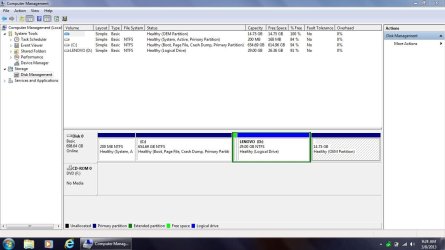
At the far left is a 200 MB primary active partition, then there's the huge 655 GB C drive, then the 29 GB extended partition which contains a 29 GB proprietary logical partition, and finally a 14 GB proprietary primary partition. What I would like to be able to do is shrink the huge C drive to around 65 GB, then create one 500 GB logical drive and a second 90 GB logical drive inside the extended partition, bringing the total number of logical drives inside the extended partition to 3.

I'm not particularly tech savvy, but from what I've read, extended partitions should be able to have any number of logical drives in them. But for some reason, no one at Lenovo has been able to figure out how to pull off this reallocation of space, although a number of users would really like to be able to do this. Nobody wants one big "C" drive with system and data all lumped together. The only alternative so far has been to totally nuke the two proprietary drives to the right of "C", and then create more rationally configured partitions. It works -- I've done it -- but some Lenovo features end up being thrown out in the process. I did that with my first V570. I just got a second one and was hoping for a more amicable solution.

There is no problem shrinking the big "C" drive to 65 GB, which then creates 590 GB of unallocated space. The problem is getting that space inside the extended partition. I've worked with Paragon, but not with extended partitions. If there's a way to do this, not only would you make me very happy, but I know you would make a lot of folks with V570's happy as well. Thanks in advance.

NOTE: I use Paragon outside of Windows, run off a bootable CD. It's slower, but it's less problematic.
 
Last edited:

My Computer My Computer

At a glance

Windows 7 Pro 32-bitIntel I-7 2nd gen8GB
OS
Windows 7 Pro 32-bit
CPU
Intel I-7 2nd gen
Memory
8GB
Could you start Disk Management, expand it to maximum width, take a screenshot and put it on the forum. It makes things clearer.
 

My Computer My Computer

At a glance

Window 7 Home Premium 64-bit
OS
Window 7 Home Premium 64-bit

My Computer My Computer

At a glance

Windows 10 Pro x64 ; Xubuntu x64Intel i7 860 @ 2.80 GHz O/C'ed to 4.0GHz16GB Corsair Vengance DDR3 @ 661 MHz Dual Cha...EVGA NVidia GTX 560 1024MB
Computer type
PC/Desktop
Computer Manufacturer/Model Number
Golden Mk. I.4
OS
Windows 10 Pro x64 ; Xubuntu x64
CPU
Intel i7 860 @ 2.80 GHz O/C'ed to 4.0GHz
Motherboard
Gigabyte P55A-UD3R Rev.1. Award BIOS F13
Memory
16GB Corsair Vengance DDR3 @ 661 MHz Dual Channel (9-9-9-24)
Graphics Card(s)
EVGA NVidia GTX 560 1024MB
Sound Card
Realtek Integrated
Monitor(s) Displays
Dual Samsung SyncMaster 2494HS
Screen Resolution
1920*1080 and 1920*1080
Hard Drives
1*Samsung 840 EVO 120GB SSD;
1*OCZ Vertex 2 60GB SSD;
2*Samsung F3 SpinPoint 1TB in RAID0;
1*Samsung F1 SpinPoint 1TB;
2*Western Digital 1TB External USB 3.0
1*Western Digital 500GB External USB 3.0
1*Seagate 500GB External USB 2.0
PSU
Thermaltake ToughPower QFan 750W
Case
Thermaltake Element S VK60001W2Z
Cooling
Corsair H60 Water Cooling, 2*230mm and 2*80mm case fans
Keyboard
Logitech G110
Mouse
Logitech MX518
Could you start Disk Management, expand it to maximum width, take a screenshot and put it on the forum. It makes things clearer.
Sure. N/P.

Note: Also, like DiracDeBroglie, I need to keep the contents of the 29 GB Lenovo logical drive that's already on the extended partition intact.
 

Attachments

  • Lenovo V570 hard drive partitions.JPG
    Lenovo V570 hard drive partitions.JPG
    93.9 KB · Views: 14

My Computer My Computer

At a glance

Windows 7 Pro 32-bitIntel I-7 2nd gen8GB
OS
Windows 7 Pro 32-bit
CPU
Intel I-7 2nd gen
Memory
8GB
Use the cool new Partition Wizard boot CD Extend feature which allows you to add/subtract from any other partition even if it's not adjacent, plus PW always treats Primary and Logical the same for resizing purposes: How to extend partition easily with Partition Wizard - video help.

Remember that you're only required to keep the OEM partitions if you intend to use the factory image which is a corrupt install to begin with, and which no tech enthusiast would keep. Instead you can make your Recovery disks and then delete all partitions to create new as you wish during a Clean Reinstall - Factory OEM Windows 7.
 
So you want to shrink the C partition, which is not a problem in DM, and shift the BEGINNING of the Extented partition (dark green encapsulation) towards the left, absorbing all the newly created unallocated space, thereby leaving the D partition untouched.

The answer is in my last post #24, just prior to your first post. Your problem can be solved using GParted, which you can downloaded from:
GParted -- About

Burn a Live CD/USB from it and boot into GParted. You'll see a DM like representation of the partitions of the internal HDD. If you have already shrunk the C partition to 65GB then next is to move the beginning of Extended partition to the left.

In GParted, just click the /dev/sda3 |_| extended line and in the graphical representation on top you'll see a dashed line popping up which encapsulates all that is inside the extended partition (that is, the D logical partition and some unallocated space in your specific case).

Then in the menu go to Partition->Resize/Move and stretch the left side of the extended partition completely to the left, encapsulating all the unallocated space. NOTE, as you are using Win7 the partition alignment goes in steps of 2048 sectors, meaning in blocks of 1MiB assuming sectors of 512 bytes. HENCE that you need to put the option Align to: MiB. Do NOT leave the option on Cylinder (which is the legacy 63 sector alignment prior to Win Vista) or on None. Put the option for sure on MiB!!

Finish the operation by going in the menu Edit->Apply All Operations and you should be set.

Also, prior to doing all this: BACKUP ALL YOUR DATA!!

If you're not sure about the partition alignment scheme that is being used on your HDD, right-click /dev/sda3 |_| extended and show Information. A new Info pane shows up with at the bottom info about the First Sector, Last Sector and Total Sectors. Take the numbers of First Sector and Total Sectors and divide those numbers by 2048: it the outcome is a round figure (integer), then the partition scheme is a 2048-sector partition scheme and the option |Align to| must be set on MiB. If you doubt, copy the numbers into this forum and we'll see.

If you're not comfortable with all this, or are not at all to sure, you can test GParted on an old external Hard Drive of even an USB flash drive. Best is to experiment with an old HDD, which you can buy from any website for a few dollars, put it into an external USB enclosure and you're all set to go for the most entertaining experiments. GPared will definitely see any USB external HDD, if at least, the enclosure has a USB 2.0 port; USB 3.0 ports could be a problem for GParted.

Let us know how it went, ok. I've been using GParted a lot for those kind of operations and it all worked fine.

johan
 

My Computer My Computer

At a glance

Window 7 Home Premium 64-bit
OS
Window 7 Home Premium 64-bit
Use the cool new Partition Wizard boot CD Extend feature which allows you to add/subtract from any other partition even if it's not adjacent, plus PW always treats Primary and Logical the same for resizing purposes: How to extend partition easily with Partition Wizard - video help.

Remember that you're only required to keep the OEM partitions if you intend to use the factory image which is a corrupt install to begin with, and which no tech enthusiast would keep. Instead you can make your Recovery disks and then delete all partitions to create new as you wish during a Clean Reinstall - Factory OEM Windows 7.
Thanks. I already made the Lenovo default factory recovery DVDs; it was the first thing I did after the first start up where I set the language, computer name, p/w, etc. And those discs will restore the laptop to its out of the box status, even restoring deleted partitions, for purposes of warranty support. And as I stated, on my first V570 laptop I nuked everything and started from scratch. The thing about that is that it requires having copies of all of the V570 drivers, and some parts (like the Power2Go software) aren't even in the proprietary back up folders. If I can avoid that while at the same time accomplishing what I want, that'd be the best solution.

PW sounds fine, but since I already have Paragon, and am somewhat familiar with how it works, I wanted to know from SIW2 if it could be used to do what I want. If not, I'll certainly check out PW on the CD.

Also, it may be a matter of semantics, but what I want to do is increase the size of the extended partition, not the logical drive already in the extended partition. That's where I think things get a bit tricky. There's no actual drive letter for the extended partition; only "D", the logical drive housed inside. I don't want to change "D" in any way; it messes up the Lenovo routines. That's why I said I'm not particularly savvy when it comes to these fine details. I'm savvy enough to get the major pieces in place when things work well with the software I'm using, but this is a very weird thing because if it weren't, the solution would have been posted a long time ago on the Leonvo community forum.
 

My Computer My Computer

At a glance

Windows 7 Pro 32-bitIntel I-7 2nd gen8GB
OS
Windows 7 Pro 32-bit
CPU
Intel I-7 2nd gen
Memory
8GB
So you want to shrink the C partition, which is not a problem in DM, and shift the BEGINNING of the Extented partition (dark green encapsulation) towards the left, absorbing all the newly created unallocated space, thereby leaving the D partition untouched.

The answer is in my last post #24, just prior to your first post. Your problem can be solved using GParted, which you can downloaded from:
GParted -- About

Burn a Live CD/USB from it and boot into GParted. You'll see a DM like representation of the partitions of the internal HDD. If you have already shrunk the C partition to 65GB then next is to move the beginning of Extended partition to the left.

In GParted, just click the /dev/sda3 |_| extended line and in the graphical representation on top you'll see a dashed line popping up which encapsulates all that is inside the extended partition (that is, the D logical partition and some unallocated space in your specific case).

Then in the menu go to Partition->Resize/Move and stretch the left side of the extended partition completely to the left, encapsulating all the unallocated space. NOTE, as you are using Win7 the partition alignment goes in steps of 2048 sectors, meaning in blocks of 1MiB assuming sectors of 512 bytes. HENCE that you need to put the option Align to: MiB. Do NOT leave the option on Cylinder (which is the legacy 63 sector alignment prior to Win Vista) or on None. Put the option for sure on MiB!!

Finish the operation by going in the menu Edit->Apply All Operations and you should be set.

Also, prior to doing all this: BACKUP ALL YOUR DATA!!

If you're not sure about the partition alignment scheme that is being used on your HDD, right-click /dev/sda3 |_| extended and show Information. A new Info pane shows up with at the bottom info about the First Sector, Last Sector and Total Sectors. Take the numbers of First Sector and Total Sectors and divide those numbers by 2048: it the outcome is a round figure (integer), then the partition scheme is a 2048-sector partition scheme and the option |Align to| must be set on MiB. If you doubt, copy the numbers into this forum and we'll see.

If you're not comfortable with all this, or are not at all to sure, you can test GParted on an old external Hard Drive of even an USB flash drive. Best is to experiment with an old HDD, which you can buy from any website for a few dollars, put it into an external USB enclosure and you're all set to go for the most entertaining experiments. GPared will definitely see any USB external HDD, if at least, the enclosure has a USB 2.0 port; USB 3.0 ports could be a problem for GParted.

Let us know how it went, ok. I've been using GParted a lot for those kind of operations and it all worked fine.

johan
Thanks Johan. It sounds like this should work. But like I said to gregrocker, IF SIW2 responds and tells me that Paragon 11 will do what I want, I'd prefer to use that program since I already have it burned to a CD and know some of its particulars.

And just to make sure...I just burned an .iso of the latest GParted LIVE onto a CD. Is that the right version to use to boot into the program pre-Windows?
 

My Computer My Computer

At a glance

Windows 7 Pro 32-bitIntel I-7 2nd gen8GB
OS
Windows 7 Pro 32-bit
CPU
Intel I-7 2nd gen
Memory
8GB
In that case I would shrink C by as much as you want for the new Logical partition, create it using PW CD so you can select Logical, then it will create it as a contiguous Logical partition.

I wish you would have asked here before saving all those useless OEM partitions when doing a Clean Reinstall - Factory OEM Windows 7 as we could have told you that 1) Win7 is driver-complete provided in the installer and via Optional Windows Updates when you enable Automatically deliver drivers via Windows Update (Step 3), and 2) after all rounds of Important and Optional Updates are done, any drivers missing in Device Manager can be found on the Support Downloads webpage for your model PC. Drivers disks and folders are dated as soon as they leave the factory.

If you feel there are some special drivers stored in one of the OEM partitions you can back them up, but all drivers are also stored in C:/Windows?System32/Drivers which can also be backed up to browse into for any missing drivers.

So when ready you can delete and Resize C into all of those useless OEM partitions since you stated you wisely have no plans to go back to the factory image or want it wasting space when you've already made the disks.
 
[/QUOTE]Thanks Johan. It sounds like this should work. But like I said to gregrocker, IF SIW2 responds and tells me that Paragon 11 will do what I want, I'd prefer to use that program since I already have it burned to a CD and know some of its particulars.[/QUOTE]

Remember to double check the partition alignment in Paragon when shifting front or back of a partition; that is 63-sector alignment (Cylinder in GParted) or 2048-sector alignment (1MiB).
j
 

My Computer My Computer

At a glance

Window 7 Home Premium 64-bit
OS
Window 7 Home Premium 64-bit
All of that is automated in Partition Wizard. We use the modern automated tools here which work best for Win7.

PW CD has helped here with countless thousands of complicated partitioning operations, making it one of the most valuable tools we use here and propelling it to the top of it's field. It also is the only one besides Disk Mgmt which will not fail during resizing causing data loss.
 
In that case I would shrink C by as much as you want for the new Logical partition, create it using PW CD so you can select Logical, then it will create it as a contiguous Logical partition.

I wish you would have asked here before saving all those useless OEM partitions when doing a Clean Reinstall - Factory OEM Windows 7 as we could have told you that 1) Win7 is driver-complete provided in the installer and via Optional Windows Updates when you enable Automatically deliver drivers via Windows Update (Step 3), and 2) after all rounds of Important and Optional Updates are done, any drivers missing in Device Manager can be found on the Support Downloads webpage for your model PC. Drivers disks and folders are dated as soon as they leave the factory.

If you feel there are some special drivers stored in one of the OEM partitions you can back them up, but all drivers are also stored in C:/Windows?System32/Drivers which can also be backed up to browse into for any missing drivers.

So when ready you can delete and Resize C into all of those useless OEM partitions since you stated you wisely have no plans to go back to the factory image or want it wasting space when you've already made the disks.
Supposedly, Lenovo has optimized their drivers to work the best, and they do not recommend using any other drivers. That's not to say they're right, but I only go to their site for updates; I never use the Windows 7 recommended/optional driver updates.

And what you're saying is that PW will then create one new logical drive/partition consisting of the space created by shrinking C INSIDE the extended partition that's currently housing the Lenovo "D" logical drive? After that, can I then split THAT logical drive into 2 -- one 500 GB, and the other 90 GB?

Finally, does PW leave the existing Lenovo "D" logical drive intact?
 

My Computer My Computer

At a glance

Windows 7 Pro 32-bitIntel I-7 2nd gen8GB
OS
Windows 7 Pro 32-bit
CPU
Intel I-7 2nd gen
Memory
8GB
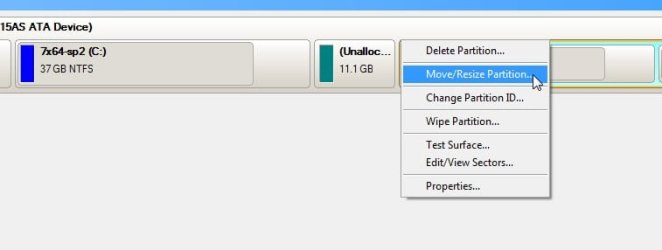
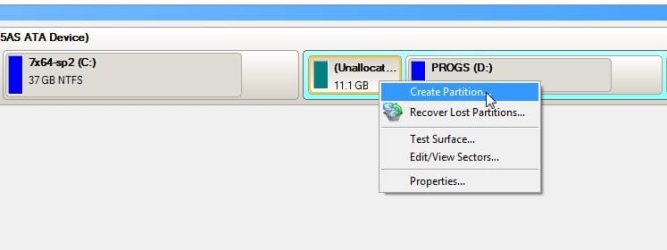
With Paragon:

1) Shrink c drive - you will then have unallocated space on the left of the extended partition.

2.) Resize the extended partition to the left to incorportae the unallocated space. NOTE - you need to select the extended partition - NOT the logical drive inside it. You should see it go gold around the edge.

3) You now have free space inside the extended partition. It will be on the left of the lenovo logical drive.

4) Create partitions from that free space.

Unallocated space after shrinking c :

1.jpg

Resize extended partition to the left:

1-2.jpg

Unallocated space is now inside extended partition:

1-3.jpg

Create new partition(s) from that unallocated space:

1-4.jpg

It will show you the changes Virtually first - Click Apply when you have got it how you want.
 
Last edited:

My Computers My Computers

  • At a glance

    7 X64i5 84002x8gb 3200mhz
    Computer type
    PC/Desktop
    OS
    7 X64
    CPU
    i5 8400
    Motherboard
    gigabyte b365m ds3h
    Memory
    2x8gb 3200mhz
    Hard Drives
    various
    PSU
    pure power 11 400w cm
    Case
    Coolermaster
    Cooling
    cryorig m9i
  • At a glance

    7x64g54008gb ddr4 2400
    Computer type
    PC/Desktop
    OS
    7x64
    CPU
    g5400
    Motherboard
    ga b365m ds3h
    Memory
    8gb ddr4 2400
    PSU
    xfx pro 450w
Excuse me, this is the top site on the web for Clean Reinstall - Factory OEM Windows 7 where we have helped tens of thousands of users get perfect reinstalls without a single complaint.

If you want to live in an imaginary XPired world where drivers are still handled manually that's fine, but don't assume that's how things are done with the first driver-complete OS. Win7 provides the drivers it wants, with few exceptions. Any drivers that might provide better performance will be found on the OEM's Support webpage anyway.

What are you going to do in Win8 where there is no user interaction with drivers which are all handled in the background? These advancements were developed in Win7.
 
Excuse me, this is the top site on the web for Clean Reinstall - Factory OEM Windows 7 where we have helped tens of thousands of users get perfect reinstalls without a single complaint.

If you want to live in an imaginary XPired world where drivers are still handled manually that's fine, but don't assume that's how things are done with the first driver-complete OS. Win7 provides the drivers it wants, with few exceptions. Any drivers that might provide better performance will be found on the OEM's Support webpage anyway.

What are you going to do in Win8 where there is no user interaction with drivers which are all handled in the background? These advancements were developed in Win7.
I really don't think it's necessary to cop the attitude you're displaying here. It's really counter productive, okay?
 

My Computer My Computer

At a glance

Windows 7 Pro 32-bitIntel I-7 2nd gen8GB
OS
Windows 7 Pro 32-bit
CPU
Intel I-7 2nd gen
Memory
8GB
It's not an attitude, it's my advice. Take it or leave it.
 
Last edited:
Back
Top