Solved Virus - Access denied - H:\system volume information

Jamal NUMAN

New member
Member
VIP
Local time
8:06 AM
Messages
144
Access denied - H:\system volume information,

I’m confronting serious problem due the virus that

[FONT=&quot]1. [/FONT]Hides folders
[FONT=&quot]2. [/FONT]Generate shortcuts

Through the search in the web, none of the solutions could remove this virus!

According to one of the advices, the hidden file on a particular hard drive can be shown by applying the command

F:\>attrib –s –h *.* /s /d

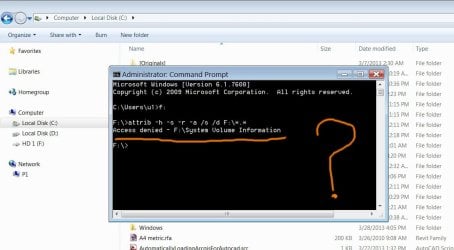
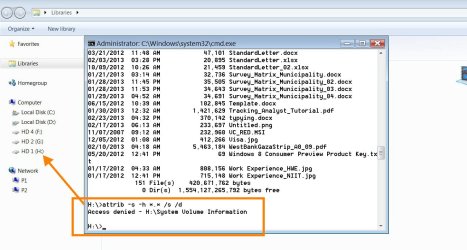
I tried it, But it ended up with (also attached):

Access denied - H:\system volume information,


What might be the issue here?

I don’t know the use of the antivirus software! They do nothing! Nothing at all


Thank you

Best

Jamal
 

Attachments

  • Clip_635.jpg
    Clip_635.jpg
    105.9 KB · Views: 26

My Computer My Computer

At a glance

Windows 7 Ultimate x64
OS
Windows 7 Ultimate x64
Jamal NUMAN,

Let's see if we can get to the root of the problem...

Please download RogueKiller:
Tlcharger RogueKiller (Site Officiel)

When you get to the website, go to where it says:
(Download link) Lien de téléchargement:
Select the version that applies to your system: x64.
Click the dark-blue button that applies.
Save to the Desktop

Close all windows and browsers

Right-click RogueKiller and select: Run as Administrator

Press: SCAN

When done, a report opens on the Desktop: RKreport.txt

Please provide the RKreport.txt (Mode: Scan) in your reply.
(Please do not delete anything!)
 

My Computer My Computer

At a glance

Windows 7 Home Premium
Computer type
PC/Desktop
Computer Manufacturer/Model Number
An ol' eMachines
OS
Windows 7 Home Premium
Internet Speed
Fine for me...I'm retired!
System Volume Information folder is NOT a virus. This folder stores Windows System Restore points.

This folder is inaccessible to the user by default. There's no trouble with it. Leave it alone.
 
System Volume Information folder is NOT a virus. This folder stores Windows System Restore points.

This folder is inaccessible to the user by default. There's no trouble with it. Leave it alone.


Many thanks nilank for the answer,

My issue here is not the “System Volume Information”

I wanted to remove the virus that:

[FONT=&quot]1. [/FONT]Hides folders
[FONT=&quot]2. [/FONT]creates shortcuts for all folder in the root drive (flash)

This is what I’m looking a solution for!

Best

Jamal
 

My Computer My Computer

At a glance

Windows 7 Ultimate x64
OS
Windows 7 Ultimate x64
Jamal NUMAN,

Go back to Post #2, and use RogueKiller.

I wanted to remove the virus that:

[FONT=&quot]1. [/FONT]Hides folders
[FONT=&quot]2. [/FONT]creates shortcuts for all folder in the root drive (flash)

Removing that virus is what RogueKiller does.
 

My Computer My Computer

At a glance

Windows 7 Home Premium
Computer type
PC/Desktop
Computer Manufacturer/Model Number
An ol' eMachines
OS
Windows 7 Home Premium
Internet Speed
Fine for me...I'm retired!
Jamal NUMAN,

Go back to Post #2, and use RogueKiller.

I wanted to remove the virus that:

[FONT=&quot]1. [/FONT]Hides folders
[FONT=&quot]2. [/FONT]creates shortcuts for all folder in the root drive (flash)
Removing that virus is what RogueKiller does.

Many thanks cottonball for the help,

I couldn’t figure out what does this software do?

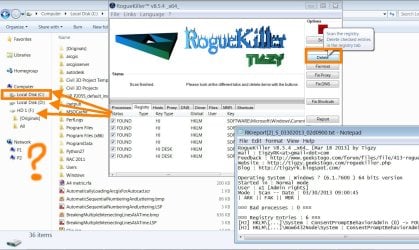
[FONT=&quot]1. [/FONT]I clicked scan! But couldn’t know which drive is being scanned! There is no option to choose the target drive!

[FONT=&quot]2. [/FONT]I got result and report (attached)

[FONT=&quot]3. [/FONT]Should I click “delete”?

In this case, do I get rid of

[FONT=&quot]1. [/FONT]Shortcuts created by the virus?
[FONT=&quot]2. [/FONT]Are folders unhidden?


By the way, what is the name of this virus (that creates shortcuts and hides folders)?

Thanks

Best

Jamal
 

Attachments

My Computer My Computer

At a glance

Windows 7 Ultimate x64
OS
Windows 7 Ultimate x64
Is the F:\ drive the drive with the problem?

Is the F:\ drive a USB flash drive, fixed disk, or an external hard disc drive?

Try the following once again:

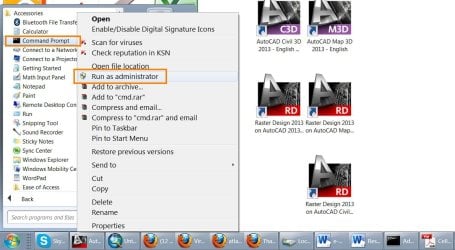
Go to Start > All Programs > Accessories > Command Prompt

When you get to the Command Prompt, right-click, and select: Run as Administrator

At the blinking cursor of the Command Prompt type in the following text inside the code box (do not use the word 'code'):
You can copy/paste the text, only if you use the mouse to hilite, then Copy, and Paste. Do not use the keyboard to Copy > Paste)

Code:
attrib -h -s -r -a /s /d F:\*.*

Press: Enter (on the keyboard)

Check drive F:\

Post back.
 

My Computer My Computer

At a glance

Windows 7 Home Premium
Computer type
PC/Desktop
Computer Manufacturer/Model Number
An ol' eMachines
OS
Windows 7 Home Premium
Internet Speed
Fine for me...I'm retired!
Is the F:\ drive the drive with the problem?

Is the F:\ drive a USB flash drive, fixed disk, or an external hard disc drive?

Try the following once again:

Go to Start > All Programs > Accessories > Command Prompt

When you get to the Command Prompt, right-click, and select: Run as Administrator

At the blinking cursor of the Command Prompt type in the following text inside the code box (do not use the word 'code'):
You can copy/paste the text, only if you use the mouse to hilite, then Copy, and Paste. Do not use the keyboard to Copy > Paste)

Code:
attrib -h -s -r -a /s /d F:\*.*
Press: Enter (on the keyboard)

Check drive F:\

Post back.


Many thanks cottonball for the prompt help and support,

· Correct, the F is my external hard drive
· I followed the instruction that you have already supplied but sounds not to work. I got the same message (attached) despite the fact that it is run as administrator.

By the way, I couldn’t figure out

[FONT=&quot]1. [/FONT]What does the RogueKillerX64.exe do?
[FONT=&quot]2. [/FONT]What does the “attrib -h -s -r -a /s /d F:\*.*”

At the end of the day,

Do they

[FONT=&quot]1. [/FONT]Unhide the hidden folders
[FONT=&quot]2. [/FONT]Delete the shortcuts of the folders?
[FONT=&quot]3. [/FONT]Kill the virus itself?

Best

Jamal
 

Attachments

  • Clip_708.jpg
    Clip_708.jpg
    74.3 KB · Views: 8
  • Clip_709.jpg
    Clip_709.jpg
    95.6 KB · Views: 5

My Computer My Computer

At a glance

Windows 7 Ultimate x64
OS
Windows 7 Ultimate x64
Jamal

Attrib commands and what they do

- :ar: Clears an attribute.

R :ar: Read-only file attribute.

A :ar: Archive file attribute.

S :ar: System file attribute.

H :ar: Hidden file attribute.
 

My Computer My Computer

At a glance

Windows 7 Ultimate 32-Bit & Windows 7 Ultimat...Intel Core i7 CPU 950 @ 3.07GHzOCZ 6GB (3 x 2GB) 240-Pin DDR3 SDRAM DDR3 160...ATI Radeon HD 5700 Series
Computer Manufacturer/Model Number
Custom Built
OS
Windows 7 Ultimate 32-Bit & Windows 7 Ultimate 64-Bit
CPU
Intel Core i7 CPU 950 @ 3.07GHz
Motherboard
ASUS P6T DELUXE V2
Memory
OCZ 6GB (3 x 2GB) 240-Pin DDR3 SDRAM DDR3 1600 OCZ3X1600R2
Graphics Card(s)
ATI Radeon HD 5700 Series
Sound Card
OnBoard
Hard Drives
WD6400AACS-00M3B0 (640GB SATA )
PSU
CORSAIR 850w
Case
NZXT LEXA
Cooling
Intel Stock Heatsink Fan
Keyboard
Microsoft Wireless Laser Keyboard 7000
Mouse
Microsoft Wireless Laser Mouse 7000
Jamal

Attrib commands and what they do

- :ar: Clears an attribute.

R :ar: Read-only file attribute.

A :ar: Archive file attribute.

S :ar: System file attribute.

H :ar: Hidden file attribute.


Many thanks VistaKing,

[FONT=&quot]1. [/FONT]Then what does the RogueKillerX64.exe do?

[FONT=&quot]2. [/FONT]Why I got the message “access is denied” as I applied the command “attrib -h -s -r -a /s /d F:\*.*”

[FONT=&quot]3. [/FONT]How about the shortcuts generated by the virus? How can we remove them automatically?

[FONT=&quot]4. [/FONT]How to remove the virus itself?
 

My Computer My Computer

At a glance

Windows 7 Ultimate x64
OS
Windows 7 Ultimate x64
Jamal NUMAN,

RogueKiller is a program created by Tigzy, in France.
The author describes it as a program that scans processes running, and kills those that are malicious and block the execution of malware removal programs.

The program also cleans the Windows Registry, and has evolved to handle the following:
Read / Fix DNS Hijacks (DNS Fix button)
Read / Fix Proxy Hijacks (Proxy Fix button)
Read / Fix Hosts Hijacks (Hosts Fix button)
Restore shortcuts / files hidden by rogues of type "Fake HDD"
Read / Fix malicious Master Boot Record (MBR) -- Even hidden by rootkit
Find and restore system files patched / faked by a rootkit
It is also able to remove many infections, including ZeroAccess, TDSS, all rogues, and Ransomwares.


On your particular predicament, let's see if this helps...

Please go to Start > Run (or, press Windows key and the R key)
In the open area of the Run prompt, type the following and press OK: control folders
In Folder Options, click: View
Check: Show hidden files and folders
Uncheck: Hide protected operating system files
Press: OK

Now, please download RKill:
RKill Download
Save to the Desktop.

If rkill.exe does not run, then download and try to run iExplore.exe (a renamed RKill.exe), or RKill.com
You only need to get one of these to run.

If your antivirus warns you about this tool, ignore the warning, or temporarily disable your antivirus.
Info: How To Temporarily Disable Your Anti-virus, Firewall And Anti-malware Programs - BleepingComputer.com

Right-click on the downloaded RKill file and select: Run as Administrator

When the tool runs, a black DOS box briefly flashes and then disappears. This is normal and indicates the tool ran successfully.

>>Do not reboot the computer after running Rkill, as the malware programs will start again!
If the computer reboots, run Rkill again before continuing to the next step.<<

When the scan is done, Notepad opens with the RKill report.

Please post the RKill report in your reply.

The RKill report provides information on:
Malware services stopped
Processes terminated
Malware related Registry settings
...and other items.


Next, use avast! Free Antivirus to perform a complete scan of your external hard drive:

Download: AVAST 2013 | Download Free Antivirus Software for Virus Protection
Scroll down to: avast! Free Antivirus – World's most popular antivirus
Save to the Desktop

Temporarily disable your current antivirus.
Info: How To Temporarily Disable Your Anti-virus, Firewall And Anti-malware Programs - BleepingComputer.com

Double-click on the file to launch the installation of avast! Free, and follow the prompts.

If asked to run a Scan, hold off, and do the following:
Make sure the external drive’s power cable is plugged into a wall outlet before proceeding.

At the avast! program console, main menu, click: Scan Computer (left side)
The window that opens, Scan Now, features controls that allow you to scan the external hard drive.

Locate the section: Removable media scan
Click: More Details to expand this section.
In the Removable media scan section, click: Start

Any viruses or other types of infected files that are identified are immediately quarantined by avast!
Wait for the scan to complete. It may take a while depending on the size of the drive.

To get a report of what the program found, on the left side, click: Scan Logs

Please provide the avast! scan log in your reply.

Once we get the RKill and the avast! information, we will proceed.

 

My Computer My Computer

At a glance

Windows 7 Home Premium
Computer type
PC/Desktop
Computer Manufacturer/Model Number
An ol' eMachines
OS
Windows 7 Home Premium
Internet Speed
Fine for me...I'm retired!
Jamal NUMAN,

RogueKiller is a program created by Tigzy, in France.
The author describes it as a program that scans processes running, and kills those that are malicious and block the execution of malware removal programs.

The program also cleans the Windows Registry, and has evolved to handle the following:
Read / Fix DNS Hijacks (DNS Fix button)
Read / Fix Proxy Hijacks (Proxy Fix button)
Read / Fix Hosts Hijacks (Hosts Fix button)
Restore shortcuts / files hidden by rogues of type "Fake HDD"
Read / Fix malicious Master Boot Record (MBR) -- Even hidden by rootkit
Find and restore system files patched / faked by a rootkit
It is also able to remove many infections, including ZeroAccess, TDSS, all rogues, and Ransomwares.


On your particular predicament, let's see if this helps...

Please go to Start > Run (or, press Windows key and the R key)
In the open area of the Run prompt, type the following and press OK: control folders
In Folder Options, click: View
Check: Show hidden files and folders
Uncheck: Hide protected operating system files
Press: OK

Now, please download RKill:
RKill Download
Save to the Desktop.

If rkill.exe does not run, then download and try to run iExplore.exe (a renamed RKill.exe), or RKill.com
You only need to get one of these to run.

If your antivirus warns you about this tool, ignore the warning, or temporarily disable your antivirus.
Info: How To Temporarily Disable Your Anti-virus, Firewall And Anti-malware Programs - BleepingComputer.com

Right-click on the downloaded RKill file and select: Run as Administrator

When the tool runs, a black DOS box briefly flashes and then disappears. This is normal and indicates the tool ran successfully.

>>Do not reboot the computer after running Rkill, as the malware programs will start again!
If the computer reboots, run Rkill again before continuing to the next step.<<

When the scan is done, Notepad opens with the RKill report.

Please post the RKill report in your reply.

The RKill report provides information on:
Malware services stopped
Processes terminated
Malware related Registry settings
...and other items.


Next, use avast! Free Antivirus to perform a complete scan of your external hard drive:

Download: AVAST 2013 | Download Free Antivirus Software for Virus Protection
Scroll down to: avast! Free Antivirus – World's most popular antivirus
Save to the Desktop

Temporarily disable your current antivirus.
Info: How To Temporarily Disable Your Anti-virus, Firewall And Anti-malware Programs - BleepingComputer.com

Double-click on the file to launch the installation of avast! Free, and follow the prompts.

If asked to run a Scan, hold off, and do the following:
Make sure the external drive’s power cable is plugged into a wall outlet before proceeding.

At the avast! program console, main menu, click: Scan Computer (left side)
The window that opens, Scan Now, features controls that allow you to scan the external hard drive.

Locate the section: Removable media scan
Click: More Details to expand this section.
In the Removable media scan section, click: Start

Any viruses or other types of infected files that are identified are immediately quarantined by avast!
Wait for the scan to complete. It may take a while depending on the size of the drive.

To get a report of what the program found, on the left side, click: Scan Logs

Please provide the avast! scan log in your reply.

Once we get the RKill and the avast! information, we will proceed.

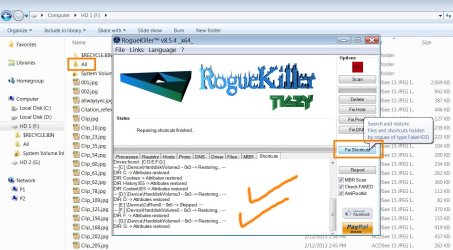
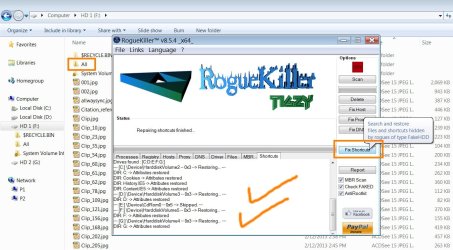
Thank you cottonball for the very integrated piece of answer. It worked like a charm.

I clicked the “fix shortcuts” and all issues are fixed.

Appreciated

Best

Jamal
 

Attachments

  • Clip_748.jpg
    Clip_748.jpg
    139.6 KB · Views: 10

My Computer My Computer

At a glance

Windows 7 Ultimate x64
OS
Windows 7 Ultimate x64
Outstanding!! Good work, Jamal!!

Was not sure that RogueKiller was going to act on anything other than drive C:\, but, it did.

I believe at one point the program only scanned C:\, but I could be wrong. This program has developed by leaps and bounds, and is one of my favorites.

If you do not mind posting the RKreport (Shortcut Fix), it will help others with similar problems.

Thank you!! :D
 

My Computer My Computer

At a glance

Windows 7 Home Premium
Computer type
PC/Desktop
Computer Manufacturer/Model Number
An ol' eMachines
OS
Windows 7 Home Premium
Internet Speed
Fine for me...I'm retired!
Outstanding!! Good work, Jamal!!

Was not sure that RogueKiller was going to act on anything other than drive C:\, but, it did.

I believe at one point the program only scanned C:\, but I could be wrong. This program has developed by leaps and bounds, and is one of my favorites.

If you do not mind posting the RKreport (Shortcut Fix), it will help others with similar problems.

Thank you!! :D

Hi cottonball,

The “fix shortcuts” is an option in the Rogue Killer X64 software. Please, have a look on the attached screenshot


The only issue that remains unsolved is that the Rogue Killer does fix the problem but fails to kill the virus itself.

Best

Jamal
 

Attachments

My Computer My Computer

At a glance

Windows 7 Ultimate x64
OS
Windows 7 Ultimate x64
Did you run avast! on your external drive?

Did it find anything? Do you have the avast! scan log ?
 

My Computer My Computer

At a glance

Windows 7 Home Premium
Computer type
PC/Desktop
Computer Manufacturer/Model Number
An ol' eMachines
OS
Windows 7 Home Premium
Internet Speed
Fine for me...I'm retired!
Also, we can take a look at the system before Windows starts, but, we need to run a special tool.

However, to do so, need some info from you:
Do you have the Repair your computer option in the Advanced Boot Options menu?


To find out:
Restart the computer.
As soon as the BIOS is loaded begin tapping the F8 key until the Advanced Boot Options menu appears.

Is the Repair your computer option listed?


If you do not have the option, do you have your Windows 7 installation CD/DVD available?


~~~~
>>> If you have the Repair your computer option, please run FRST from your bootable computer, as follows:


First, please check the size an name of the Hard Drive that has Windows Seven installed.
Start > double-click: Computer (Take note of the info.)


Also, you may want to print these instructions for reference after the process starts.


Next, download the Farbar Recovery Scan Tool:
http://www.bleepingcomputer.com/download/farbar-recovery-scan-tool/
Select the version that applies to computer (64-bit)

Save FRST64.exe to the Desktop


Right-click Start, and select: Open Windows Explorer

Look for drive C:\

On the Desktop, right-click FRST.exe, and move it into C:\
Confirm that FRST.exe is in C:\.


>>Restart the computer.


Tap the F8 key until the Advanced Boot Options menu appears.

Select: Repair your Computer

Select language settings, and User account. (In the User Account leave the passworrd field blank, if you do not have one.)


On the System Recovery Options menu, select: Command Prompt


In the Command Prompt window, at the blinking cursor, type: notepad

In Notepad, under the File menu selec: Open
Double-click: Computer
Double-click on the OS drive (May not show as C:\ in the Recovery Environment, but you already found out its size.)
Press: Open


At the Command Prompt window type: X:\frst64.exe, and press: Enter
(Replace X with the letter of drive that now shows.)


The tool starts and presents a prompt with:
The tool is setting up to read the Local Disk. Please wait...

Click OK to continue.


When presented with the disclaimer, press: Yes


When the FRST console appears, press the Scan button.


Once the scan finishes, a prompt appears stating:
Scan completed. The frst.txt has been saved in the same location FRST tool is run.

Close this prompt. Notepad shows that a log was created.


Close FRST64, and close everything else except System Recovery Options.
Press: Restart


Back in Windows, right-click Start, and select: Open Windows Explorer
Look for drive C:\, and open it.
A folder named: FRST is there.

Inside the FRST folder, there are three folders.
One of them is named: Logs

Open the Logs folder to find the text document resulting from the scan.


Please post the FRST.txt in your reply.
 

My Computer My Computer

At a glance

Windows 7 Home Premium
Computer type
PC/Desktop
Computer Manufacturer/Model Number
An ol' eMachines
OS
Windows 7 Home Premium
Internet Speed
Fine for me...I'm retired!
Also, we can take a look at the system before Windows starts, but, we need to run a special tool.

However, to do so, need some info from you:
Do you have the Repair your computer option in the Advanced Boot Options menu?


To find out:
Restart the computer.
As soon as the BIOS is loaded begin tapping the F8 key until the Advanced Boot Options menu appears.

Is the Repair your computer option listed?


If you do not have the option, do you have your Windows 7 installation CD/DVD available?


~~~~
>>> If you have the Repair your computer option, please run FRST from your bootable computer, as follows:


First, please check the size an name of the Hard Drive that has Windows Seven installed.
Start > double-click: Computer (Take note of the info.)


Also, you may want to print these instructions for reference after the process starts.


Next, download the Farbar Recovery Scan Tool:
http://www.bleepingcomputer.com/download/farbar-recovery-scan-tool/
Select the version that applies to computer (64-bit)

Save FRST64.exe to the Desktop


Right-click Start, and select: Open Windows Explorer

Look for drive C:\

On the Desktop, right-click FRST.exe, and move it into C:\
Confirm that FRST.exe is in C:\.


>>Restart the computer.


Tap the F8 key until the Advanced Boot Options menu appears.

Select: Repair your Computer

Select language settings, and User account. (In the User Account leave the passworrd field blank, if you do not have one.)


On the System Recovery Options menu, select: Command Prompt


In the Command Prompt window, at the blinking cursor, type: notepad

In Notepad, under the File menu selec: Open
Double-click: Computer
Double-click on the OS drive (May not show as C:\ in the Recovery Environment, but you already found out its size.)
Press: Open


At the Command Prompt window type: X:\frst64.exe, and press: Enter
(Replace X with the letter of drive that now shows.)


The tool starts and presents a prompt with:
The tool is setting up to read the Local Disk. Please wait...

Click OK to continue.


When presented with the disclaimer, press: Yes


When the FRST console appears, press the Scan button.


Once the scan finishes, a prompt appears stating:
Scan completed. The frst.txt has been saved in the same location FRST tool is run.

Close this prompt. Notepad shows that a log was created.


Close FRST64, and close everything else except System Recovery Options.
Press: Restart


Back in Windows, right-click Start, and select: Open Windows Explorer
Look for drive C:\, and open it.
A folder named: FRST is there.

Inside the FRST folder, there are three folders.
One of them is named: Logs

Open the Logs folder to find the text document resulting from the scan.


Please post the FRST.txt in your reply.

[FONT=&quot]Hi cottonball,[/FONT]

[FONT=&quot]Sorry for the delay to get back to you.[/FONT]

· [FONT=&quot]For the time being, I’m using Kespersky but is sounds to do noting as all other antivirus software! They just do nothing.[/FONT]
· [FONT=&quot]From time to time, the issue of hidden folders and shortcuts appear on the machine[/FONT]

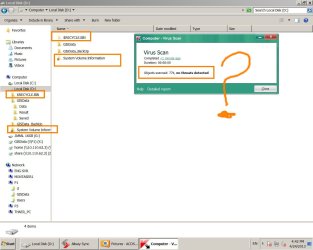
· [FONT=&quot]Other three folders are created also due to the virus: $RECYCLE.BIN/ RECYCLER/ System Volume Information (attached)[/FONT]

[FONT=&quot]Unfortunately, I couldn’t follow the instructions that you have sent! Sounds to be long and I got confused.[/FONT]

[FONT=&quot]By the way, as an end user, do I need to struggle all my life just to kill this virus![/FONT]

[FONT=&quot]I’m not sure to to get rid of this virus from my machines![/FONT]
· [FONT=&quot]I do have antivirus[/FONT]
· [FONT=&quot]I do user the “RogueKillerX64.exe”[/FONT]
[FONT=&quot]BUT the virus is still there![/FONT]

[FONT=&quot]Best[/FONT]

[FONT=&quot]Jamal


[/FONT]
 

Attachments

  • Clip_32.jpg
    Clip_32.jpg
    89.9 KB · Views: 5

My Computer My Computer

At a glance

Windows 7 Ultimate x64
OS
Windows 7 Ultimate x64
Please use the Autorun Exterminator (free) - Download
Save to the Desktop
Right-click the downloaded file and select: Extract to AutoRunExterminator-1.8\
Double-click the new AutoRunExterminator folder on the Desktop
Inside it, double=click the AutoRunExterminator application

Now, plug your external hard drive into the USB port you normally use.

If an autorun.inf file is detected, the program console reports the occurrence.
Right-click the red x in the yellow square on the Taskbar
Select: Config/About
When the program console appears, press: Open log
If available, please provide the contents of the report on your reply.


Now, assuming your external hard drive is H:\
And, you used the following command to remove attributes:
attrib -h -r -s /s /d h:\*.*


Set your current AntiVirus to scan removable drives, or, temporarily disable your AV program and use avast!:
http://www.sevenforums.com/system-s...-system-volume-information-2.html#post2345034
 

My Computer My Computer

At a glance

Windows 7 Home Premium
Computer type
PC/Desktop
Computer Manufacturer/Model Number
An ol' eMachines
OS
Windows 7 Home Premium
Internet Speed
Fine for me...I'm retired!
Back
Top