@ deanolfc
Startup Programs - Change
http://www.sevenforums.com/tutorials/1401-startup-programs-change.html
Failed
Disabled/unchecked "Windows Defender" in ... System Configuration > Services
Applied > OK
Rebooted
"Windows Defender" opened with reboot
System Configuration > Services > [ ] Windows Defender ... is still unchecked after reboot
-----
@ Layback Bear
"Turn off Windows defender"
http://www.sevenforums.com/tutorials/6397-windows-defender-turn-off.html
- sevenforums images are nothing like my Win7-64bit
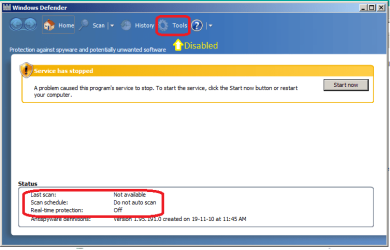
Control Panel > Windows Defender > Tools <<< is DISABLED
- cannot progress any further
-----
View attachment 262559
I now suspect I should be "Administrator" ... BUT ...
There is no "Administrator" access via context menu. nor Login as Administrator
Admin-Password as empty-string fails, I have not created a admin-password.
PC is standalone one user, me.
Could I use a password hack tool?
Please read thru this entire novel before you take any actions.
First, I want say to everyone in this thread that it is not my intentions to be rude to anyone in this thread or to GrayGhost2 - I'll try and say these next two things as nicely as I can:
1) One of the problems in forums like this is you might get a lot of advice between when you first post and when you check back. In this case, the order that the advice was given has worked against you. To be clear, I am not saying to the others that are helping you: "Stay out of this thread, I'm helping this OP." And I'm not saying that the info suggested by others was wrong. To the contrary, I was wrong, others had better ideas.
2) Either you (GrayGhost2)...
...made an error as you detailed the actions that you took
...or you misread what deanolfc wrote
...or you assumed that deanolfc made a typo, so you took other actions
...or you did what I suggested but used deanolfc's method to do that
...or something else went wrong in the communications
...or I don't have a clue what is going on

deanolfc suggested:
msconfig in start menu 'enter' and in start up tab untick windows defender.
You wrote that you:
Disabled/unchecked "Windows Defender" in ... System Configuration >
Services
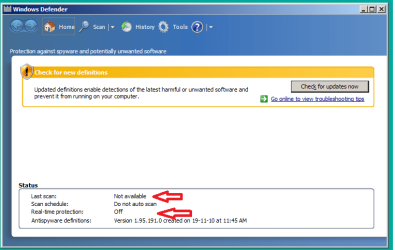
Since you have disabled the the Windows Defender (WD) service, you will not be able to complete the steps suggested by Layback Bear. The
Tools option within the WD app will remain disabled until you re-enable and start the WD service. Please note, that the normal start method for the WD service is Automatic (Delayed). When you restart your computer, then logon and you see the WD app window,
you will see an error in that window because the WD service has not had time to start. The window will look just like you showed in post #5. Just wait for it to start. It can take a several minutes. (Obviously, the WD service will never start if you leave it disabled. Please use msconfig to re-enable the WD service.)
I think that you were sort of quoting what deanolfc posted when you posted a link to the
Startup Programs - Change tutorial. But right under link you wrote
failed. (I added the red font to "failed" in your original post that I quoted above.)
Does this mean that you worked thru all six methods in the tutorial and that all six methods have failed to stop the Windows Defender app from opening each time the you boot/logon - please clarify.
Next, I would like tell you why I only posted the three lines that I did instead of jumping right to the part about stopping the Window Defender (WD) window from appearing.
1st post: you stated that you don't want/need security apps and that the WD window opens
2nd post: I mentioned paths to infections and suggest disabling the WD service
~~~I had hoped for this:
3rd post: you acknowledge the risks and say that you still want no protection via WD.
4th and subsequent posts: we look for WD in all of the many app startup places.
My suggestion to disable WD's service was not meant to stop the WD window from appearing. It is the first thing that I would do if I was not going to use WD on a computer like you described. There is no sense in the service running if you are not going to use WD. That said, I was wrong to suggest disabling the WD service since turning WD off (as Layback Bear suggested) is simpler and that prevents the WD service from running (unless some other app is starting it the service).
However, something is not normal with this computer of yours. So doing the normal things like turning WD off is not going to fix that anomaly. The WD window should not open each time the you boot/logon no matter if the WD app is turned on, turned off or the WD service is running, stopped or disabled.
Now, Let's work thru all six methods mentioned in the tutorial in deanolfc's post.
[The tutorial that Brink (forum admin) added to deanolf's post.]
1) Once you re-enable the WD service, then you can do what Layback Bear suggested. This is what method one in the tutorial is asking you to do. (Again, this will have no impact on the WD window appearing with each boot.)
2) For method two, you will need to check:
the folder mentioned in
method two > option one
and the folder mentioned in
method two > option two.
3) Method three is what deanolfc suggested. Please let us know if the WD app is listed in the
startup tab.
4) Method four - be careful. Let us know if WD is starting from any of those locations. The exe that you are looking for is: C:\Program Files\Windows Defender\
MSASCui.exe (unless some other app is starting WD)
5) You probably want to skip this one for this computer. Others might disagree.
6) Method 6 - let us know if you need help determining if a scheduled task to opening the WD window for you. Again, the exe that you are looking for is: C:\Program Files\Windows Defender\
MSASCui.exe (unless some other app is starting WD)
Now to speak to the last part of the post that I quoted above:
Do not use a password hack tool and do not go searching for one on the internet. We can help you with that latter if need be. Just use whatever account you normally use and let us know if you have any problems doing the steps mentioned just above this paragraph.
Now to speak to the post that you made while I was writing this novel of a post:
I suspect I am going to need a "Account Recovery Disc"
Am I too late if I don't already have one ?

I cannot login as administrator.
EDIT:
Can I make a "Recovery Disc" on my clean Win7 32bit PC
and use the CD to fix the Win7 64bit PC
Please stop working on this and try the steps in the tutorial that I've detailed above. We can answer your questions pertaining to various accounts later. You do not need the
built-in administrator account enabled in order to do the steps mentioned in my novel above. It already sounds like the one normal user account has the rights that it needs to get things done.





 icnic:

