Windows Explorer Taskbar Icon - Change Open To Target

How to Change the Windows 7 Pinned Windows Explorer Taskbar Icon Open To Target


   Information
This will show you how to change the Windows 7 pinned Windows Explorer taskbar icon from the default Open To the Libraries window target to Open To the Computer window target or other possible locations that are available to choose from instead when you click on the Windows Explorer icon on the taskbar.
   Note
Special thanks to Chappy (aka: Dave) for pointing this out to me, and to Limneos for the additional locations.
   Warning
By design in Windows, these shortcuts will open a new window in a new process (explorer.exe) each time you use the shortcut. When you close the opened window from the shortcut, the extra explorer.exe process will close with it as well a few moments afterwards.

EXAMPLE: Windows Explorer icon pinned to the taskbar
3580d1232887815-windows-explorer-taskbar-icon-change-open-target-taskbar.jpg

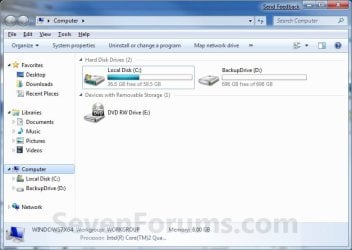
EXAMPLE: Opens to Libraries (default) or Computer
NOTE: You can also select from the other available options below.
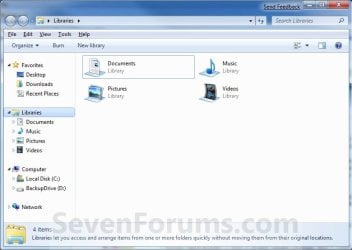
Libraries.jpg

Computer.jpg

Here's How:
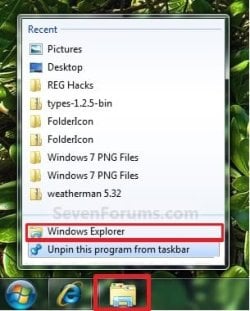
1. Right click on the pinned Windows Explorer taskbar icon, then right click on Windows Explorer in the Jump List and click on Properties. (see screenshot below)
Unpin.jpg
2. In the Shortcut tab, make sure that the field box to the right of Start in is empty.

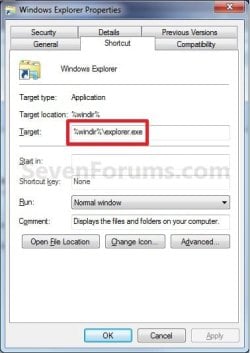
3. In the Shortcut tab and to the right of Target, type or copy the path (code) for the location below that you want the Windows Explorer icon to open to instead, then click on OK. (see screenshot below)

NOTE: You can do this for any item that you know it's {CLSID} registry entry for. You can also specify a specific folder e.g. :
%windir%\explorer.exe /n, /e, /select, C:\somefolder
Target_Properties.jpg

   Note
Using the Explorer.exe Command Line Syntax/:


%windir%\explorer.exe [/n][/e][,/root],X,[[/Select],Y]
  • X - Secifies the object, and optionally with sub-object Y.
  • /e - Uses Windows Explorer view. Shows the left Windows Explorer tree view in the navigation pane together with the right pane in list view.
  • /n - Opens in a new window.
  • /root - Will have Explorer.exe explore the root object X and objects belonging to X. On the other hand, when the /root switch is not present, Explorer.exe explores the object X, its children, and other Explorer objects as well.
  • /Select - Puts the focus on a file or folder. The parent folder is opened and the specified object is selected.
  • /Separate - Opens in a separate process.
For example:

Code:
%windir%\explorer.exe /N,/Select,%WinDir%\system32\calc.exe
The command above will explore the C:\Windows\System32 folder and put the focus on the calc.exe (calculator) program.
   Tip
If you want the navigation pane to exand open to the item in Windows 8, then you will need to turn on "Expand to Current Folder" in the navigation pane.


  • Windows Explorer (default) (opens to Libraries)
(Windows 7)
Code:
%windir%\explorer.exe
(Windows 8)
Code:
%AppData%\Microsoft\Windows\Start Menu\Programs\System Tools\File Explorer.lnk

  • Computer
(Opens in new process)
Code:
%windir%\explorer.exe /n /Separate,::{20D04FE0-3AEA-1069-A2D8-08002B30309D}

OR
Code:
%windir%\explorer.exe shell:MyComputerFolder

  • My Documents
(Opens in new process)
Code:
%windir%\explorer.exe /n /Separate,::{450D8FBA-AD25-11D0-98A8-0800361B1103}

  • Documents Library
Code:
%UserProfile%\AppData\Roaming\Microsoft\Windows\Libraries\Documents.library-ms

  • Downloads
Code:
%UserProfile%\Downloads

  • Recycle Bin
(Opens in new process)
Code:
%windir%\explorer.exe /n /Separate,::{645FF040-5081-101B-9F08-00AA002F954E

  • Network Neighborhood
(Opens in new process)
Code:
%windir%\explorer.exe /n /Separate,::{208D2C60-3AEA-1069-A2D7-08002B30309D}

  • Default Web Browser (ex: Internet Explorer)
(Opens in new process)
Code:
%windir%\explorer.exe /n /Separate,::{871C5380-42A0-1069-A2EA-08002B30309D}

  • Computer Search Results Folder
(Opens in new process)
Code:
%windir%\explorer.exe /n /Separate,::{1F4DE370-D627-11D1-BA4F-00A0C91EEDBA}

  • Network Search Results Folder
(Opens in new process)
Code:
%windir%\explorer.exe /n /Separate,::{E17D4FC0-5564-11D1-83F2-00A0C90DC849}

  • Web Folders
(Opens in new process)
Code:
%windir%\explorer.exe /n /Separate,::{20D04FE0-3AEA-1069-A2D8-08002B30309D}\::{BDEADF00-C265-11D0-BCED-00A0C90AB50F}

  • Control Panel
(Opens in new process)
Code:
%windir%\explorer.exe /n /Separate,::{20D04FE0-3AEA-1069-A2D8-08002B30309D}\::{21EC2020-3AEA-1069-A2DD-08002B30309D}

  • Printers and Faxes
(Opens in new process)
Code:
%windir%\explorer.exe /n /Separate,::{20D04FE0-3AEA-1069-A2D8-08002B30309D}\::{21EC2020-3AEA-1069-A2DD-08002B30309D}\::{2227A280-3AEA-1069-A2DE-08002B30309D}

  • Scanners and Cameras
(Opens in new process)
Code:
%windir%\explorer.exe /n /Separate,::{20D04FE0-3AEA-1069-A2D8-08002B30309D}\::{21EC2020-3AEA-1069-A2DD-08002B30309D}\::{E211B736-43FD-11D1-9EFB-0000F8757FCD}

  • Fonts
(Opens in new process)
Code:
%windir%\explorer.exe /n /Separate,::{20D04FE0-3AEA-1069-A2D8-08002B30309D}\::{21EC2020-3AEA-1069-A2DD-08002B30309D}\::{D20EA4E1-3957-11d2-A40B-0C5020524152}

  • Network Connections or My Network Place
(Opens in new process)
Code:
%windir%\explorer.exe /n /Separate,::{20D04FE0-3AEA-1069-A2D8-08002B30309D}\::{21EC2020-3AEA-1069-A2DD-08002B30309D}\::{7007ACC7-3202-11D1-AAD2-00805FC1270E}

  • Administrative Tools
(Opens in new process)
Code:
%windir%\explorer.exe /n /Separate,::{20D04FE0-3AEA-1069-A2D8-08002B30309D}\::{21EC2020-3AEA-1069-A2DD-08002B30309D}\::{D20EA4E1-3957-11d2-A40B-0C5020524153}

  • Tasks Scheduler
(Opens in new process)
Code:
%windir%\explorer.exe /n /Separate,::{20D04FE0-3AEA-1069-A2D8-08002B30309D}\::{21EC2020-3AEA-1069-A2DD-08002B30309D}\::{D6277990-4C6A-11CF-8D87-00AA0060F5BF}

  • User Profile (personal) Folder
Code:
%windir%\explorer.exe shell:Profile

That's it,
Shawn


Attachments

  • Taskbar.jpg
    Taskbar.jpg
    8.5 KB · Views: 194,553
Last edited:
All of these solutions result in an extra instance of the explorer.exe process each time the modified shortcut is used, and they accumulate until you logoff.

A simpler and better solution is simply to replace all of the "Windows Explorer.lnk" shortcuts throughout the system with an ordinary folder shortcut named "Windows Explorer.lnk" that points to whatever folder you've chosen.

Here's a little procedure that does this for Windows 7 and 8, where the replacement shortcut points to the %USERPROFILE% folder. The standard admonition should you try this is to first make a restore point as a precaution.

http://reliancepc.com/menu/tips/Downloads/ReplaceDefaultExplorerShortcuts.zip

Once unzipped, you can use 7zip to look inside the resulting .exe (which is a 7z SFX) and see what it does and that nothing nefarious is inside.
 

My Computer My Computer

Computer Manufacturer/Model Number
Panasonic CF-53
OS
Windows 7 Professional
CPU
Intel I5
All of these solutions result in an extra instance of the explorer.exe process each time the modified shortcut is used, and they accumulate until you logoff....
If you use the /N switch, then you should get a new instance...
...if you don't use that switch, then you should not get a new instance.

The new instances of explorer should go away soon after closing the explorer window.

There are good reasons to want/use a 2nd or 3rd instance of explorer :-)
 

My Computer My Computer

Computer type
Laptop
Computer Manufacturer/Model Number
Employer provided Dell Latitude
OS
W7 Pro SP1 64bit
CPU
i7
Memory
8GB
Graphics Card(s)
Intel HD Graphics
Hard Drives
crappy SSD
Antivirus
Employer mandated Symantec Endpoint Protection
Browser
Pale Moon 64bit, IE11 64bit & Chrome 64bit
Make Computer Default across all users

I have some machines that have a dozen users. Is there a way for me to change the target directory to "Computer" across all users in one operation, rather than having to open each user and change the Windows Explorer target 2 times for each user?
 

My Computer My Computer

OS
Win7Prox64
Hello Richard, and welcome to Seven Forums.

Not that I'm aware of.

However, you might see if using the tutorial below may work as a workaround for you. You could set a taskbar to have a pinned items you want it on one computer as a generic template, back up the pinned items on the taskbar, and restore the backup on each user account to make their taskbar to be the same. Of course, you will not be able to have pinned programs included if they are not installed on the other computers.

http://www.sevenforums.com/tutorials/212923-taskbar-backup-restore-pinned-items-windows-7-a.html

Hope this helps some, :)
Shawn
 

My Computer My Computer

Computer type
PC/Desktop
Computer Manufacturer/Model Number
Self built custom
OS
64-bit Windows 11 Pro for Workstations
CPU
Intel i7-8700K OC'd to 5 GHz
Motherboard
ASUS ROG Maximus XI Formula Z390
Memory
64 GB (4x16GB) G.SKILL TridentZ RGB DDR4 3600 MHz
Graphics Card(s)
ASUS ROG-STRIX-GTX1080TI-O11G-GAMING
Sound Card
Integrated
Monitor(s) Displays
2 x Samsung Odyssey G7 27"
Screen Resolution
2560x1440
Hard Drives
1TB Samsung 990 PRO M.2,
4TB Samsung 990 PRO PRO M.2,
TerraMaster F8 SSD Plus NAS
PSU
Seasonic Prime Titanium 850W
Case
Thermaltake Core P3
Cooling
Corsair Hydro H115i
Keyboard
Logitech wireless K800
Mouse
Logitech MX Master 4
Internet Speed
2 Gb/s Download and 100 Mb/s Upload
Antivirus
Malwarebyte Anti-Malware Premium
Browser
Google Chrome
Other Info
Logitech Z625 speaker system,
Logitech BRIO 4K Pro webcam,
HP Color LaserJet Pro MFP M477fdn,
APC SMART-UPS RT 1000 XL - SURT1000XLI,
Galaxy S23 Plus phone
FAVORITES

Shawn, fantastic tips! Thanks.

I'm trying to get Win Exp. to open to FAVORITES, not MyFavorites (under my user name) but the new section that appears at the very top of Win Exp. navigation pane. I was able to drag the Favorites to the desktop and create a shortcut, but was then unable to pin it to my taskbar.

Any suggestions? Thank you in advance.

JoeKVI
 

My Computer My Computer

Computer type
PC/Desktop
Computer Manufacturer/Model Number
Dell xps 8500
OS
Win7 Pro x64

My Computer My Computer

Computer type
PC/Desktop
Computer Manufacturer/Model Number
Self built custom
OS
64-bit Windows 11 Pro for Workstations
CPU
Intel i7-8700K OC'd to 5 GHz
Motherboard
ASUS ROG Maximus XI Formula Z390
Memory
64 GB (4x16GB) G.SKILL TridentZ RGB DDR4 3600 MHz
Graphics Card(s)
ASUS ROG-STRIX-GTX1080TI-O11G-GAMING
Sound Card
Integrated
Monitor(s) Displays
2 x Samsung Odyssey G7 27"
Screen Resolution
2560x1440
Hard Drives
1TB Samsung 990 PRO M.2,
4TB Samsung 990 PRO PRO M.2,
TerraMaster F8 SSD Plus NAS
PSU
Seasonic Prime Titanium 850W
Case
Thermaltake Core P3
Cooling
Corsair Hydro H115i
Keyboard
Logitech wireless K800
Mouse
Logitech MX Master 4
Internet Speed
2 Gb/s Download and 100 Mb/s Upload
Antivirus
Malwarebyte Anti-Malware Premium
Browser
Google Chrome
Other Info
Logitech Z625 speaker system,
Logitech BRIO 4K Pro webcam,
HP Color LaserJet Pro MFP M477fdn,
APC SMART-UPS RT 1000 XL - SURT1000XLI,
Galaxy S23 Plus phone
Brink,

Bleeping Fantastic!!! Thanks very much. Works perfectly!

Joe
 

My Computer My Computer

Computer type
PC/Desktop
Computer Manufacturer/Model Number
Dell xps 8500
OS
Win7 Pro x64
Favorites

Well...almost perfect.

When I pin it to the Taskbar and then click on the icon to open it, it opens a second Icon on task bar. Other icons just "illuminate" when opened from the Taskbar and if I open multiple instances, the subsequent instances are stacked behind the first icon on the taskbar...something is still a little goofy. Any thoughts as to why?

Thank you again.

Joe B.
 

My Computer My Computer

Computer type
PC/Desktop
Computer Manufacturer/Model Number
Dell xps 8500
OS
Win7 Pro x64
No worries.

If you have another pinned explorer shortcut to the left of this pinned Favorites that also uses explorer, then the pinned Favorites will open a new window each time it's clicked, and the taskbar thumbnail preview for them will show on the pinned explorer at the farthest left. This is normal.

For what you want, you could drag the pinned Favorites to be the farthest left one instead, but then you would have the same issue with any other pinned explorer items to the right of the pinned Favorites.

One solution would be to unpin all pinned explorer items on the taskbar except the pinned Favorites.
 

My Computer My Computer

Computer type
PC/Desktop
Computer Manufacturer/Model Number
Self built custom
OS
64-bit Windows 11 Pro for Workstations
CPU
Intel i7-8700K OC'd to 5 GHz
Motherboard
ASUS ROG Maximus XI Formula Z390
Memory
64 GB (4x16GB) G.SKILL TridentZ RGB DDR4 3600 MHz
Graphics Card(s)
ASUS ROG-STRIX-GTX1080TI-O11G-GAMING
Sound Card
Integrated
Monitor(s) Displays
2 x Samsung Odyssey G7 27"
Screen Resolution
2560x1440
Hard Drives
1TB Samsung 990 PRO M.2,
4TB Samsung 990 PRO PRO M.2,
TerraMaster F8 SSD Plus NAS
PSU
Seasonic Prime Titanium 850W
Case
Thermaltake Core P3
Cooling
Corsair Hydro H115i
Keyboard
Logitech wireless K800
Mouse
Logitech MX Master 4
Internet Speed
2 Gb/s Download and 100 Mb/s Upload
Antivirus
Malwarebyte Anti-Malware Premium
Browser
Google Chrome
Other Info
Logitech Z625 speaker system,
Logitech BRIO 4K Pro webcam,
HP Color LaserJet Pro MFP M477fdn,
APC SMART-UPS RT 1000 XL - SURT1000XLI,
Galaxy S23 Plus phone
This is awesome Brink, this is what I wanted to do from the past hundred years, lol but never cared to find a solution. Suddenly reached here through benjy's link. Thankyou man. But the fact that a new explorer.exe opens up is pretty bad, any workaround?
 

My Computer My Computer

Computer type
PC/Desktop
OS
Windows 7 Home Premium x64
Hello Robot Man,

Actually, that could be useful if you needed to quickly open multiple explorer windows.

I'm not sure how you can stop it from opening new windows each time you click on the icon other than not clicking on the icon again. :(
 

My Computer My Computer

Computer type
PC/Desktop
Computer Manufacturer/Model Number
Self built custom
OS
64-bit Windows 11 Pro for Workstations
CPU
Intel i7-8700K OC'd to 5 GHz
Motherboard
ASUS ROG Maximus XI Formula Z390
Memory
64 GB (4x16GB) G.SKILL TridentZ RGB DDR4 3600 MHz
Graphics Card(s)
ASUS ROG-STRIX-GTX1080TI-O11G-GAMING
Sound Card
Integrated
Monitor(s) Displays
2 x Samsung Odyssey G7 27"
Screen Resolution
2560x1440
Hard Drives
1TB Samsung 990 PRO M.2,
4TB Samsung 990 PRO PRO M.2,
TerraMaster F8 SSD Plus NAS
PSU
Seasonic Prime Titanium 850W
Case
Thermaltake Core P3
Cooling
Corsair Hydro H115i
Keyboard
Logitech wireless K800
Mouse
Logitech MX Master 4
Internet Speed
2 Gb/s Download and 100 Mb/s Upload
Antivirus
Malwarebyte Anti-Malware Premium
Browser
Google Chrome
Other Info
Logitech Z625 speaker system,
Logitech BRIO 4K Pro webcam,
HP Color LaserJet Pro MFP M477fdn,
APC SMART-UPS RT 1000 XL - SURT1000XLI,
Galaxy S23 Plus phone
@Brink,
The note under step 3 states:
...while /n hides the left navigation pane
That switch seems to cause a new instance of explorer. If the nav pane was turned on when explorer was last closed, there does not seem to be a way to programmatically open explorer with the nav pane closed/off/hidden. Or am I missing something?
 

My Computer My Computer

Computer type
Laptop
Computer Manufacturer/Model Number
Employer provided Dell Latitude
OS
W7 Pro SP1 64bit
CPU
i7
Memory
8GB
Graphics Card(s)
Intel HD Graphics
Hard Drives
crappy SSD
Antivirus
Employer mandated Symantec Endpoint Protection
Browser
Pale Moon 64bit, IE11 64bit & Chrome 64bit
The problem is not that a new explorer.exe process opens up on clicking it, the problem is, the new explorer.exe process does not end automatically after closing the window. Each new explorer.exe uses around 5 MB of RAM, so if you click it 10 times, 50 MB of your RAM will remain captured and will not free up unless those processes are ended manually. :(

Anyway thanks for great tip! ;)
 

My Computer My Computer

Computer type
PC/Desktop
OS
Windows 7 Home Premium x64
My post was not directly tied to yours. I was looking for a way to open explorer without the nav pane showing.

However, all of those explorer instances should automatically end once the explorer windows are closed if you give it some time. Also, have you tried whatever it is you are doing without using the /n switch?
 

My Computer My Computer

Computer type
Laptop
Computer Manufacturer/Model Number
Employer provided Dell Latitude
OS
W7 Pro SP1 64bit
CPU
i7
Memory
8GB
Graphics Card(s)
Intel HD Graphics
Hard Drives
crappy SSD
Antivirus
Employer mandated Symantec Endpoint Protection
Browser
Pale Moon 64bit, IE11 64bit & Chrome 64bit
My post was not directly tied to yours. I was looking for a way to open explorer without the nav pane showing.

However, all of those explorer instances should automatically end once the explorer windows are closed if you give it some time. Also, have you tried whatever it is you are doing without using the /n switch?

Thanks UI for your reply. Yes, I see the new instances closing automatically after sometime. This is perfect then. But I'm afraid to tell ya, removing the /n switch has no effect (or am I doing something wrong, can you throw some light on this please? :confused: )
 

My Computer My Computer

Computer type
PC/Desktop
OS
Windows 7 Home Premium x64
It would help me to help you if you posted the line that you are using for the shortcut target.

If I click on Start > Run and paste this in
%windir%\explorer.exeI do not see a new instance of explorer within task manager. I can repeat that several times and have several explorer windows open, but still only one instance of explorer showing within task manager.
If I use the /n switch, I see the a new explorer window open and a new instance of explorer within task manager.
%windir%\explorer.exe /n

If you happen to be working with an application that is causing explorer to crash (thus taking down your desktop and taskbar), it is nice to open a new instance of explorer and then open the problematic app via that new instance. That way, when the app crashes, it does not take out the desktop/taskbar.
 

My Computer My Computer

Computer type
Laptop
Computer Manufacturer/Model Number
Employer provided Dell Latitude
OS
W7 Pro SP1 64bit
CPU
i7
Memory
8GB
Graphics Card(s)
Intel HD Graphics
Hard Drives
crappy SSD
Antivirus
Employer mandated Symantec Endpoint Protection
Browser
Pale Moon 64bit, IE11 64bit & Chrome 64bit
@UsernameIssues,

The /n switch only has it open in a separate "new process" of explorer.exe instead. This isn't the same as opening a new window.

@Robot Man,

Normally when you close the explorer window, it's explorer.exe process will automatically close on it's own after a few moments. If you used the /n switch, then each one you open will have a separate explorer.exe process listed in Task Manager.

Hope this helps some guys. :)
 

My Computer My Computer

Computer type
PC/Desktop
Computer Manufacturer/Model Number
Self built custom
OS
64-bit Windows 11 Pro for Workstations
CPU
Intel i7-8700K OC'd to 5 GHz
Motherboard
ASUS ROG Maximus XI Formula Z390
Memory
64 GB (4x16GB) G.SKILL TridentZ RGB DDR4 3600 MHz
Graphics Card(s)
ASUS ROG-STRIX-GTX1080TI-O11G-GAMING
Sound Card
Integrated
Monitor(s) Displays
2 x Samsung Odyssey G7 27"
Screen Resolution
2560x1440
Hard Drives
1TB Samsung 990 PRO M.2,
4TB Samsung 990 PRO PRO M.2,
TerraMaster F8 SSD Plus NAS
PSU
Seasonic Prime Titanium 850W
Case
Thermaltake Core P3
Cooling
Corsair Hydro H115i
Keyboard
Logitech wireless K800
Mouse
Logitech MX Master 4
Internet Speed
2 Gb/s Download and 100 Mb/s Upload
Antivirus
Malwarebyte Anti-Malware Premium
Browser
Google Chrome
Other Info
Logitech Z625 speaker system,
Logitech BRIO 4K Pro webcam,
HP Color LaserJet Pro MFP M477fdn,
APC SMART-UPS RT 1000 XL - SURT1000XLI,
Galaxy S23 Plus phone
We are saying the same thing:
That switch seems to cause a new instance of explorer.
I was using instance to mean process. I should have just said process.

But - is the info in the note under step 3 in the tut correct?
Should the /n switch hide the nav pane like the note says it will?
 

My Computer My Computer

Computer type
Laptop
Computer Manufacturer/Model Number
Employer provided Dell Latitude
OS
W7 Pro SP1 64bit
CPU
i7
Memory
8GB
Graphics Card(s)
Intel HD Graphics
Hard Drives
crappy SSD
Antivirus
Employer mandated Symantec Endpoint Protection
Browser
Pale Moon 64bit, IE11 64bit & Chrome 64bit
Yep, we sure are. :D

No. Step 3 was not correct. It's now updated.
 

My Computer My Computer

Computer type
PC/Desktop
Computer Manufacturer/Model Number
Self built custom
OS
64-bit Windows 11 Pro for Workstations
CPU
Intel i7-8700K OC'd to 5 GHz
Motherboard
ASUS ROG Maximus XI Formula Z390
Memory
64 GB (4x16GB) G.SKILL TridentZ RGB DDR4 3600 MHz
Graphics Card(s)
ASUS ROG-STRIX-GTX1080TI-O11G-GAMING
Sound Card
Integrated
Monitor(s) Displays
2 x Samsung Odyssey G7 27"
Screen Resolution
2560x1440
Hard Drives
1TB Samsung 990 PRO M.2,
4TB Samsung 990 PRO PRO M.2,
TerraMaster F8 SSD Plus NAS
PSU
Seasonic Prime Titanium 850W
Case
Thermaltake Core P3
Cooling
Corsair Hydro H115i
Keyboard
Logitech wireless K800
Mouse
Logitech MX Master 4
Internet Speed
2 Gb/s Download and 100 Mb/s Upload
Antivirus
Malwarebyte Anti-Malware Premium
Browser
Google Chrome
Other Info
Logitech Z625 speaker system,
Logitech BRIO 4K Pro webcam,
HP Color LaserJet Pro MFP M477fdn,
APC SMART-UPS RT 1000 XL - SURT1000XLI,
Galaxy S23 Plus phone
:::wishes that it had been correct:::
:::wishes for a way to control that nav pane/pain:::
 

My Computer My Computer

Computer type
Laptop
Computer Manufacturer/Model Number
Employer provided Dell Latitude
OS
W7 Pro SP1 64bit
CPU
i7
Memory
8GB
Graphics Card(s)
Intel HD Graphics
Hard Drives
crappy SSD
Antivirus
Employer mandated Symantec Endpoint Protection
Browser
Pale Moon 64bit, IE11 64bit & Chrome 64bit
Back
Top