Windows 7 Remote Desktop Keeps Reappearing

jackbn

New member
Local time
1:13 PM
Messages
9
Using Norton 360 with Windows 7 for a long time, with no obvious problems.

Recently, however, Remote Desktop shows up when I clean files with CCleaner. This is apparently unrelated to a particular website.

Norton 360 is fully enabled.
Norton 360 controls the Windows 7 firewall.
Remote Desktop is disabled via Control Panel.
File sharing is disabled.

Remote Desktop still often appears in a CCleaner list of deleted files.
This occurs with Firefox or Chrome; haven't tried IE.

I have gone to Control Panel, Administrative Tools, Computer Management, Services and Applications, Services

There I have disabled Remote Desktop on three sequential places. HOWEVER something is resetting at least one of these.

I see no evidence on-screen of Remote Desktop, but wonder whether someone is accessing my computer.

What is going on, and how to stop it?
 

My Computer

Computer Manufacturer/Model Number
Selfbuilt
OS
Windows 7 Professional 64bit
CPU
i7-2600K
Motherboard
ASUS P8Z68-V
Memory
8GB Gskill DDR3
Graphics Card(s)
Sapphire HD5670
Sound Card
None
Monitor(s) Displays
Samsung 19"
Hard Drives
Crucial M4SSD 256GB
PSU
OCZ ModXStream 600
Case
Lian Li
Cooling
Cooler Master 212+

My Computer

Computer type
Laptop
Computer Manufacturer/Model Number
Employer provided Dell Latitude
OS
W7 Pro SP1 64bit
CPU
i7
Memory
8GB
Graphics Card(s)
Intel HD Graphics
Hard Drives
crappy SSD
Antivirus
Employer mandated Symantec Endpoint Protection
Browser
Pale Moon 64bit, IE11 64bit & Chrome 64bit
If someone connected to your computer via RDT then it would be sitting at the login screen when you returned. Of course that doesn't help if that's where it is normally when you go to use it the next time.
 

My Computer

Computer type
PC/Desktop
Computer Manufacturer/Model Number
Lenovo IdeaCenter 450
OS
Windows 10 Pro X64
CPU
Intel Quad Core i7-4770 @ 3.4Ghz
Memory
16.0GB PC3-12800 DDR3 SDRAM 1600 MHz
Graphics Card(s)
Intel Integrated HD Graphics
Sound Card
Realtek HD Audio
Monitor(s) Displays
HP 22" LCD
Screen Resolution
1680 x 1050
Hard Drives
250GB Samsung EVO SATA-3 SSD
2TB Seagate ST2000DM001 SATA-2
1.5TB Seagate ST3150041AS SATA
Keyboard
Dell USB
Mouse
Lenovo USB
Internet Speed
Cable via Road Runner 3MB Upload, 30MB Download
Antivirus
Windows Defender, MBAM Pro, MBAE
Browser
Seamonkey
Other Info
UEFI/GPT
PLDS DVD-RW DH16AERSH
Thanks for your interest.
Here is CCleaner, main screen, and details on Remote Desktop item.
 

Attachments

  • CCleaner.jpg
    CCleaner.jpg
    71.2 KB · Views: 8
  • CCleanerB.jpg
    CCleanerB.jpg
    61 KB · Views: 10

My Computer

Computer Manufacturer/Model Number
Selfbuilt
OS
Windows 7 Professional 64bit
CPU
i7-2600K
Motherboard
ASUS P8Z68-V
Memory
8GB Gskill DDR3
Graphics Card(s)
Sapphire HD5670
Sound Card
None
Monitor(s) Displays
Samsung 19"
Hard Drives
Crucial M4SSD 256GB
PSU
OCZ ModXStream 600
Case
Lian Li
Cooling
Cooler Master 212+
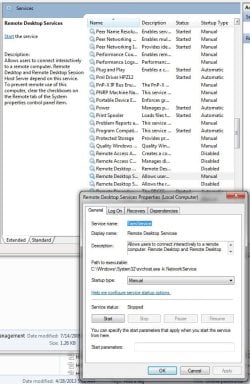
And here is one of the Remote Desktop settings.
I had set it to disabled hours ago, but this is how it looks now, just after running the CCleaner I posted.

The other three items I have been setting are immediatelly above the window. The window is for the middle one. The other two remain disabled, but Remote Desktop just ran minutes ago anyway.
 

Attachments

  • RemoteDesktop.jpg
    RemoteDesktop.jpg
    96.2 KB · Views: 9

My Computer

Computer Manufacturer/Model Number
Selfbuilt
OS
Windows 7 Professional 64bit
CPU
i7-2600K
Motherboard
ASUS P8Z68-V
Memory
8GB Gskill DDR3
Graphics Card(s)
Sapphire HD5670
Sound Card
None
Monitor(s) Displays
Samsung 19"
Hard Drives
Crucial M4SSD 256GB
PSU
OCZ ModXStream 600
Case
Lian Li
Cooling
Cooler Master 212+
@jackbn,
Thanks for the screenshots.
When the Remote Desktop Services server service is disabled or not running, that should prevent incoming connections to your computer.

The cache file in your screenshot is created by Remote Desktop Connection (RDC). RDC is used to make outgoing connections that let you control another computer. The time stamp on the cache file should reflect the time that the RDC session ended.

RDC is Microsoft's client application. Remote Desktop Protocol (RDP) is the method that RDC uses to connect to and control another computer. There are browser based apps that use RDP to get stuff too... I just don't know if they use the cache folder that CCleaner is showing you.

If an outgoing RDC connection was established, then there should be a log entry. Look in the Windows Event Viewer > Security log. Event ID 4634 (RDC disconnect) should have a time stamp that roughly correlates to the time stamp on the cache file that CCleaner is showing you. (Use the find/search feature to search for 4634.)

Event ID 4648 (RDC connect) should have info about the RDC connection... we just don't know how long the outbound RDC session was, so we don't know how far back in the log to look. So use the search feature.


We will deal with the Remote Desktop Services that you disable and someone or something sets to manual after you let us know what you learned from the Windows Event logs.
 
Last edited:

My Computer

Computer type
Laptop
Computer Manufacturer/Model Number
Employer provided Dell Latitude
OS
W7 Pro SP1 64bit
CPU
i7
Memory
8GB
Graphics Card(s)
Intel HD Graphics
Hard Drives
crappy SSD
Antivirus
Employer mandated Symantec Endpoint Protection
Browser
Pale Moon 64bit, IE11 64bit & Chrome 64bit
If someone connected to your computer via RDT then it would be sitting at the login screen when you returned. Of course that doesn't help if that's where it is normally when you go to use it the next time.
There is a way to disconnect and unlock the remote computer:

Code:
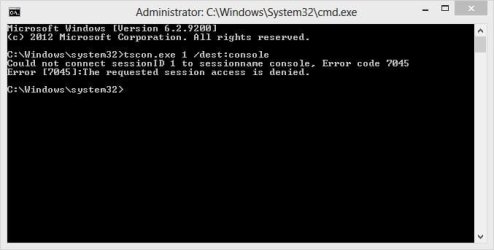
tscon.exe 1 /dest:console


Sorry about the bad video quality. It really does not like the VMs at those screen resolutions.

Edit: I've replaced the video with a better one - still a bit fuzzy.
For those that might not know:
click on play
select the gear to change the resolution to 720P
click on full screen

vid-info.png
 
Last edited:

My Computer

Computer type
Laptop
Computer Manufacturer/Model Number
Employer provided Dell Latitude
OS
W7 Pro SP1 64bit
CPU
i7
Memory
8GB
Graphics Card(s)
Intel HD Graphics
Hard Drives
crappy SSD
Antivirus
Employer mandated Symantec Endpoint Protection
Browser
Pale Moon 64bit, IE11 64bit & Chrome 64bit
I noticed from OP's specs he is using Windows 7 Professional which makes him eligible for Windows XP Mode.

Using the XP Mode or any other Microsoft Virtual PC vm is done over RDP connection, in other words if you run XP Mode you need RDP.

Kari
 

My Computer

Computer type
Laptop
Computer Manufacturer/Model Number
HP ENVY 17-1150eg
OS
Windows 10 Pro x64 EN-GB
CPU
1.6 GHz Intel Core i7-720QM Processor
Memory
6 GB
Graphics Card(s)
ATI Mobility Radeon HD 5850 Graphics
Sound Card
Beats sound system with integrated subwoofer
Monitor(s) Displays
17" laptop display, 22" LED and 32" Full HD TV through HDMI
Screen Resolution
1600*900 (1), 1920*1080 (2&3)
Hard Drives
Internal: 2 x 500 GB SATA Hard Disk Drive 7200 rpm
External: 2TB for backups, 3TB USB3 network drive for media
Cooling
As Envy runs a bit warm, I have it on a Cooler Master pad
Keyboard
Logitech diNovo Media Desktop Laser (bluetooth)
Mouse
Logitech Performance Mouse MX
Internet Speed
50/10 Mbps VDSL
Antivirus
Windows Defender 4.3.9431.0
Browser
Maxthon 3.5.2., IE11
Can you describe it in words? I can't follow the video, it's to small.
 

My Computer

Computer type
PC/Desktop
Computer Manufacturer/Model Number
Lenovo IdeaCenter 450
OS
Windows 10 Pro X64
CPU
Intel Quad Core i7-4770 @ 3.4Ghz
Memory
16.0GB PC3-12800 DDR3 SDRAM 1600 MHz
Graphics Card(s)
Intel Integrated HD Graphics
Sound Card
Realtek HD Audio
Monitor(s) Displays
HP 22" LCD
Screen Resolution
1680 x 1050
Hard Drives
250GB Samsung EVO SATA-3 SSD
2TB Seagate ST2000DM001 SATA-2
1.5TB Seagate ST3150041AS SATA
Keyboard
Dell USB
Mouse
Lenovo USB
Internet Speed
Cable via Road Runner 3MB Upload, 30MB Download
Antivirus
Windows Defender, MBAM Pro, MBAE
Browser
Seamonkey
Other Info
UEFI/GPT
PLDS DVD-RW DH16AERSH
Can you describe it in words? I can't follow the video, it's to small.
Even at 480p and full screened it does looks pretty bad:-(

While you are connected, the remote screen will be locked (per the norm). But if you disconnect from the RDC session using this line in a batch file...
Code:
tscon.exe 1 /dest:console
...then the remote computer should unlock.

The batch file must be run as admin and the number 1 might be another number if there are more than one person logged on to the remote computer (switch user). Task manager can show you the session that you are disconnecting from by adding the Session ID column to the Processes tab.
 

My Computer

Computer type
Laptop
Computer Manufacturer/Model Number
Employer provided Dell Latitude
OS
W7 Pro SP1 64bit
CPU
i7
Memory
8GB
Graphics Card(s)
Intel HD Graphics
Hard Drives
crappy SSD
Antivirus
Employer mandated Symantec Endpoint Protection
Browser
Pale Moon 64bit, IE11 64bit & Chrome 64bit
Kari's post led me to the answer.

I use XP Mode to run my 1991 DOS genealogy program (a specialized database).

I have never updated my genealogy software (have tried several windows genealogy programs).
Some of the windows programs can migrate my data, but the results are far from adequate,
so another 5000 (FIVE THOUSAND) hours would be necessary to clean it up.
I have many tens of thousands of people in this database, along with lots of stats and also text files associated with many of them.

ANYWAY, I had never noticed before the correlation between using XP Mode and Remote Desktop appearing in in the CCleaner list.
Perhaps it's been in the CCleaner list for quite a while, but I noticed it only recently.

SEVERAL times now, I have tried the following:
1) Run CCleaner
2) Open XP Mode
3) Run CCleaner with XP Mode running -- NO Remote Desktop on CCleaner list.
4) Close XP Mode
5) Run CCleaner -- There's Remote Desktop, always

Hence, I believe that I had no problem with intruders, just with understanding.

Thanks for the help, guys.

:D
 

My Computer

Computer Manufacturer/Model Number
Selfbuilt
OS
Windows 7 Professional 64bit
CPU
i7-2600K
Motherboard
ASUS P8Z68-V
Memory
8GB Gskill DDR3
Graphics Card(s)
Sapphire HD5670
Sound Card
None
Monitor(s) Displays
Samsung 19"
Hard Drives
Crucial M4SSD 256GB
PSU
OCZ ModXStream 600
Case
Lian Li
Cooling
Cooler Master 212+
Reading this thread I started to think it might be this simple. Good to know you have no intruders :).

This from Wikipedia:
Windows XP Mode (XPM) is a virtual machine package for Windows Virtual PC containing a pre-installed, licensed copy of Windows XP Professional with Service Pack 3 as its guest OS. Previously, both the CPU and motherboard of the host had to support hardware virtualization, but an update in early 2010 eliminated this requirement. Pre-installed integration components allow applications running within the virtualized environment to appear as if running directly on the host, sharing the native desktop and Start Menu of Windows 7 as well as participating in file type associations. Windows XP Mode applications run in a Terminal Services session in the virtualized Windows XP, and are accessed via Remote Desktop Protocol by a client running on the Windows 7 host.

Applications running in Windows XP Mode do not have compatibility issues, as they are actually running inside a Windows XP virtual machine and redirected using RDP to the Windows 7 host. Windows XP Mode may be used to run 16-bit applications; it includes NTVDM although it might be impossible to run 16-bit applications that require hardware acceleration, as Windows Virtual PC does not have hardware acceleration.

Kari
 

My Computer

Computer type
Laptop
Computer Manufacturer/Model Number
HP ENVY 17-1150eg
OS
Windows 10 Pro x64 EN-GB
CPU
1.6 GHz Intel Core i7-720QM Processor
Memory
6 GB
Graphics Card(s)
ATI Mobility Radeon HD 5850 Graphics
Sound Card
Beats sound system with integrated subwoofer
Monitor(s) Displays
17" laptop display, 22" LED and 32" Full HD TV through HDMI
Screen Resolution
1600*900 (1), 1920*1080 (2&3)
Hard Drives
Internal: 2 x 500 GB SATA Hard Disk Drive 7200 rpm
External: 2TB for backups, 3TB USB3 network drive for media
Cooling
As Envy runs a bit warm, I have it on a Cooler Master pad
Keyboard
Logitech diNovo Media Desktop Laser (bluetooth)
Mouse
Logitech Performance Mouse MX
Internet Speed
50/10 Mbps VDSL
Antivirus
Windows Defender 4.3.9431.0
Browser
Maxthon 3.5.2., IE11
And here is one of the Remote Desktop settings.
I had set it to disabled hours ago, but this is how it looks now, just after running the CCleaner I posted.

The other three items I have been setting are immediatelly above the window. The window is for the middle one. The other two remain disabled, but Remote Desktop just ran minutes ago anyway.
So, it looks like W7's XP Mode app is changing that disabled service. You could test that and let us know.

Also, I'm curious to know what you see in the Event logs. Does it show you the XP computer name like a normal RDC connection?

@Kari,
Thanks for posting the solution. It is always fun to learn something. Your rep has been added to :-)
 

My Computer

Computer type
Laptop
Computer Manufacturer/Model Number
Employer provided Dell Latitude
OS
W7 Pro SP1 64bit
CPU
i7
Memory
8GB
Graphics Card(s)
Intel HD Graphics
Hard Drives
crappy SSD
Antivirus
Employer mandated Symantec Endpoint Protection
Browser
Pale Moon 64bit, IE11 64bit & Chrome 64bit
I noticed the rep, could not thank you as I usually do for you have visitor messages turned off :).

This is important to understand if you want to run XP Mode or any other Windows Virtual PC vm in Windows 7. In Windows 8 and its Hyper-V virtualization it is important because the Hyper-V vm connection app is so basic that to really utilize your vm you need to connect to vm using remote desktop instead of the built-in solution.

Kari
 

My Computer

Computer type
Laptop
Computer Manufacturer/Model Number
HP ENVY 17-1150eg
OS
Windows 10 Pro x64 EN-GB
CPU
1.6 GHz Intel Core i7-720QM Processor
Memory
6 GB
Graphics Card(s)
ATI Mobility Radeon HD 5850 Graphics
Sound Card
Beats sound system with integrated subwoofer
Monitor(s) Displays
17" laptop display, 22" LED and 32" Full HD TV through HDMI
Screen Resolution
1600*900 (1), 1920*1080 (2&3)
Hard Drives
Internal: 2 x 500 GB SATA Hard Disk Drive 7200 rpm
External: 2TB for backups, 3TB USB3 network drive for media
Cooling
As Envy runs a bit warm, I have it on a Cooler Master pad
Keyboard
Logitech diNovo Media Desktop Laser (bluetooth)
Mouse
Logitech Performance Mouse MX
Internet Speed
50/10 Mbps VDSL
Antivirus
Windows Defender 4.3.9431.0
Browser
Maxthon 3.5.2., IE11
Doesn't work for me. Still leaves me at the login screen asking for the password.
 

My Computer

Computer type
PC/Desktop
Computer Manufacturer/Model Number
Lenovo IdeaCenter 450
OS
Windows 10 Pro X64
CPU
Intel Quad Core i7-4770 @ 3.4Ghz
Memory
16.0GB PC3-12800 DDR3 SDRAM 1600 MHz
Graphics Card(s)
Intel Integrated HD Graphics
Sound Card
Realtek HD Audio
Monitor(s) Displays
HP 22" LCD
Screen Resolution
1680 x 1050
Hard Drives
250GB Samsung EVO SATA-3 SSD
2TB Seagate ST2000DM001 SATA-2
1.5TB Seagate ST3150041AS SATA
Keyboard
Dell USB
Mouse
Lenovo USB
Internet Speed
Cable via Road Runner 3MB Upload, 30MB Download
Antivirus
Windows Defender, MBAM Pro, MBAE
Browser
Seamonkey
Other Info
UEFI/GPT
PLDS DVD-RW DH16AERSH

My Computer

Computer type
Laptop
Computer Manufacturer/Model Number
HP ENVY 17-1150eg
OS
Windows 10 Pro x64 EN-GB
CPU
1.6 GHz Intel Core i7-720QM Processor
Memory
6 GB
Graphics Card(s)
ATI Mobility Radeon HD 5850 Graphics
Sound Card
Beats sound system with integrated subwoofer
Monitor(s) Displays
17" laptop display, 22" LED and 32" Full HD TV through HDMI
Screen Resolution
1600*900 (1), 1920*1080 (2&3)
Hard Drives
Internal: 2 x 500 GB SATA Hard Disk Drive 7200 rpm
External: 2TB for backups, 3TB USB3 network drive for media
Cooling
As Envy runs a bit warm, I have it on a Cooler Master pad
Keyboard
Logitech diNovo Media Desktop Laser (bluetooth)
Mouse
Logitech Performance Mouse MX
Internet Speed
50/10 Mbps VDSL
Antivirus
Windows Defender 4.3.9431.0
Browser
Maxthon 3.5.2., IE11

My Computer

Computer type
PC/Desktop
Computer Manufacturer/Model Number
Lenovo IdeaCenter 450
OS
Windows 10 Pro X64
CPU
Intel Quad Core i7-4770 @ 3.4Ghz
Memory
16.0GB PC3-12800 DDR3 SDRAM 1600 MHz
Graphics Card(s)
Intel Integrated HD Graphics
Sound Card
Realtek HD Audio
Monitor(s) Displays
HP 22" LCD
Screen Resolution
1680 x 1050
Hard Drives
250GB Samsung EVO SATA-3 SSD
2TB Seagate ST2000DM001 SATA-2
1.5TB Seagate ST3150041AS SATA
Keyboard
Dell USB
Mouse
Lenovo USB
Internet Speed
Cable via Road Runner 3MB Upload, 30MB Download
Antivirus
Windows Defender, MBAM Pro, MBAE
Browser
Seamonkey
Other Info
UEFI/GPT
PLDS DVD-RW DH16AERSH
Sorry, that was a response to this post: http://www.sevenforums.com/performa...te-desktop-keeps-reappearing.html#post2384336

Maybe I should have quoted it.
I made a bigger (hopefully better) video for this post:
http://www.sevenforums.com/performa...te-desktop-keeps-reappearing.html#post2383610
Try watching it at 720p and full screened.

If you still cannot get it to work, then please...
...RDC to the computer of interest
...open task manager on the remote computer
...add the Session ID column to task manager on the remote computer
...take note of the session number

...place the batch file on the desktop of the remote computer
(tscon.exe 1 /dest:console)
...open that batch file in notepad
...replace the 1 with the session number noted above

...add pause as the last line of the batch file
(so that you can see any errors)
...save the batch file.

Before you run that batch file on the remote computer, please grab a screenshot that shows the batch file in notepad and task manager that shows the Session ID column.

Run the the batch file as admin.

The end result should be that you are disconnected from the remote computer and the remote computer is left logged on (not locked). The user that is logged on to the remote computer will be the one that you used during the RDC session.

If you are not seeing the expected results, then we might need to see what version of RDP you have on both boxes.
 

My Computer

Computer type
Laptop
Computer Manufacturer/Model Number
Employer provided Dell Latitude
OS
W7 Pro SP1 64bit
CPU
i7
Memory
8GB
Graphics Card(s)
Intel HD Graphics
Hard Drives
crappy SSD
Antivirus
Employer mandated Symantec Endpoint Protection
Browser
Pale Moon 64bit, IE11 64bit & Chrome 64bit
I'm on Windows 8 Pro X64 system with all updates using RDT to a Windows 7 Pro X64 system at SP1 + all updates. It doesn't work.

I connect from Win 8 to the Win 7 system via RDT.

This is Task Manager on WIn 8
RDTonWin8.jpg

This is a elevated cmd prompt
AdminCMDonWin8.jpg

This is a batch file Run as Administrator
AdminBATonWin8.jpg

Also, query user returns:
Code:
 USERNAME              SESSIONNAME        ID  STATE   IDLE TIME  LOGON TIME
>rrkurtz               console             1  Active      none   5/3/2013 3:43 PM
so session id 1 is correct.
 

My Computer

Computer type
PC/Desktop
Computer Manufacturer/Model Number
Lenovo IdeaCenter 450
OS
Windows 10 Pro X64
CPU
Intel Quad Core i7-4770 @ 3.4Ghz
Memory
16.0GB PC3-12800 DDR3 SDRAM 1600 MHz
Graphics Card(s)
Intel Integrated HD Graphics
Sound Card
Realtek HD Audio
Monitor(s) Displays
HP 22" LCD
Screen Resolution
1680 x 1050
Hard Drives
250GB Samsung EVO SATA-3 SSD
2TB Seagate ST2000DM001 SATA-2
1.5TB Seagate ST3150041AS SATA
Keyboard
Dell USB
Mouse
Lenovo USB
Internet Speed
Cable via Road Runner 3MB Upload, 30MB Download
Antivirus
Windows Defender, MBAM Pro, MBAE
Browser
Seamonkey
Other Info
UEFI/GPT
PLDS DVD-RW DH16AERSH
~~~
If you still cannot get it to work, then please...
...RDC to the computer of interest
...open task manager on the remote computer
~~~

I connect from Win 8 to the Win 7 system via RDT.

This is Task Manager on WIn 8
~~~
You should be getting the session ID via task manager on the remote system; in your case, the W7 box.

You should be running the batch file on the remote system.

Error code 7045 is what you would get if you ran the batch file on the local Win 8 computer.
 

My Computer

Computer type
Laptop
Computer Manufacturer/Model Number
Employer provided Dell Latitude
OS
W7 Pro SP1 64bit
CPU
i7
Memory
8GB
Graphics Card(s)
Intel HD Graphics
Hard Drives
crappy SSD
Antivirus
Employer mandated Symantec Endpoint Protection
Browser
Pale Moon 64bit, IE11 64bit & Chrome 64bit
Back
Top