
Remote Desktop Connection (RDC) - Network

How to Enable Windows to Make and Accept a Remote Desktop Connection

   Information
This tutorial will show you how to enable Remote Desktop Connection, and to connect remotely in Vista, Windows 7, and Windows 8.


   Warning
While all editions of Vista, Windows 7, and Windows 8 can be a remote desktop client...
  • Only the Vista Business, Ultimate, and Enterprise editions can host a remote desktop connection.
  • Only the Windows 7 Professional, Ultimate, and Enterprise editions can host a remote desktop connection.
  • Only the Windows 8 Pro and Enterprise editions can host a remote desktop connection.


FIRST

To Enable Remote Connection


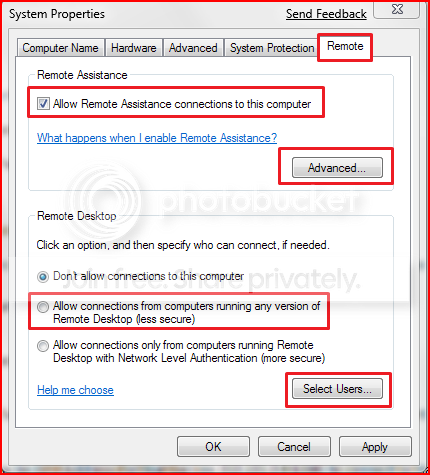
1. Go to Control Panel>System>Advanced System Settings
SystemProperties.png

2. Go to Remote tab.

3. Under Remote Assistance, put a check mark on Allow Remote Assistance connections to this computer.
Note: This automatically adds Remote Desktop exception to Windows Firewall.

4. Click on Apply.


OPTION ONE

To Connect to a Remote Desktop (Local Area Connectivity)


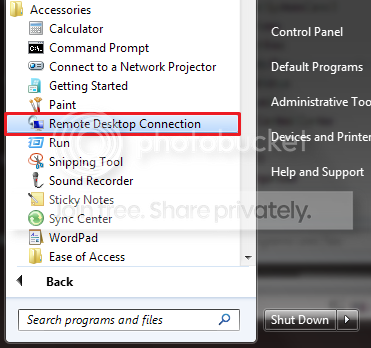
1. Go to Start>All Programs>Accessories>Remote Desktop Connection
NOTE: You could also press the Windows + R keys to open the Run dialog, type mstsc.exe, and press Enter.
RDCLocation.png

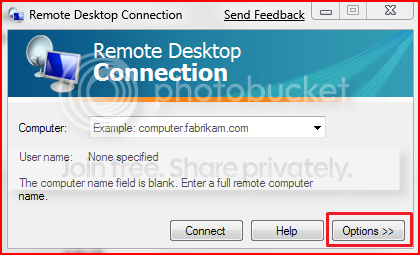
2. Enter the Computer Name or IP address of the computer you wish to connect to.
RemoteDesktopConnection.png

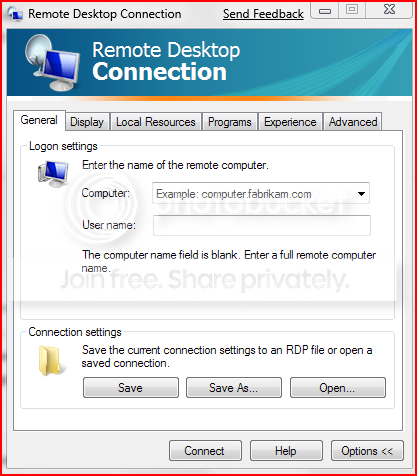
3. For more connection options, click on Options
NOTE: Here you can save the connection profile, adjust display properties, run specified programs upon connection, adjust connection bandwidth, etc. For more information on specific tabs, click on Help.
RemoteDesktopConnectionExpanded.png

4. Click on Connect.

5. Enter your log in credentials of a user account on the remote computer that is allowed to do a remote desktop connection.
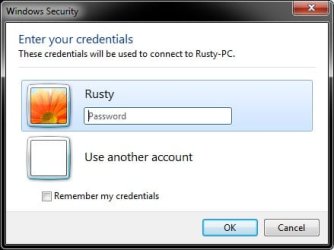
Credentials.jpg


OPTION TWO

Enable Windows to Accept Remote Desktop Connection (Local Area Connectivity)


1. Go to Control Panel>System>Advanced System Settings
SystemProperties.png

2. Go to Remote tab.

3. Under Remote Assistance, put a check mark on Allow Remote Assistance connections to this computer
Note: This automatically adds Remote Desktop exception in Windows Firewall.

4. Click on Advanced...
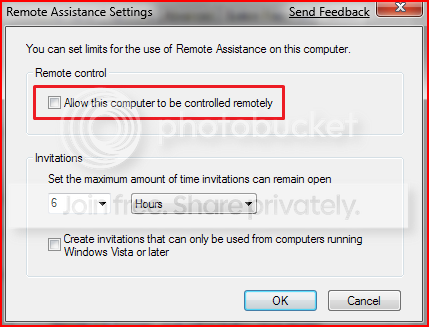
RemoteAssistantSettings.png

5. Put a check mark on Allow this computer to be controlled remotely.

6. Click on OK.
Note: This automatically adds Remote Assistance exception in Windows Firewall.

7. Remote Desktop Connection behind a router (Single computer)
A) Configure your router's port forwarding to allow connections on port 3389
B) Now in RDC just type the IP address supplied by your ISP
8. Remote Desktop Connection behind a router (Multiple computers)
A) For each computer you want to remotely connect to you have to configure each computer to listen to different ports to avoid port conflicts by changing the registry key in:

HKEY_LOCAL_MACHINE\System\CurrentControlSet\Control\Terminal Server\WinStations\RDP-Tcp\PortNumber
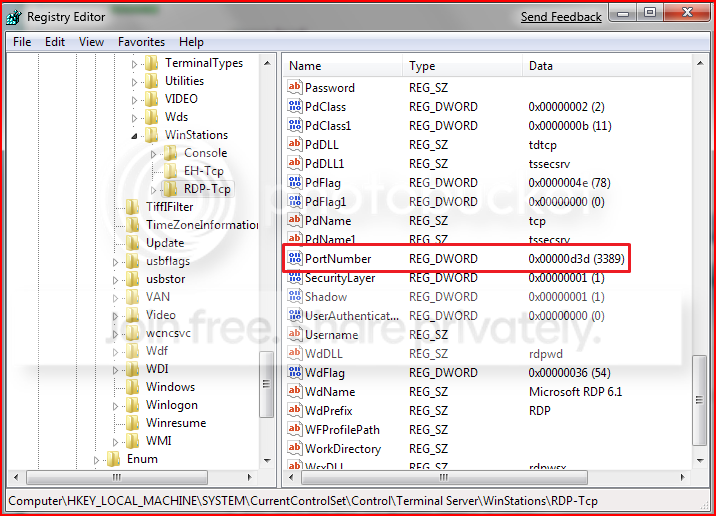
PortConfiguration.png

B) Port Numbers are in Decimal format
Note: To avoid conflict with other programs it is suggested to select a port between 49152 and 65535.

C) Now take that number you've chosen your computer to listen to and configure your router to port forward to that number

D) To connect to that computer your format will now be ISPIPAddress:PortNumber (ex. 222.222.2.8:1234) to connect to that specific computer behind the router
Important: If you have a firewall software running, that too has to be configured to allow communication to the port you opened in your router as well.

Note: The above steps assumes that you're not part of a domain.

 
Last edited by a moderator:
nice tutorial there NosferatuX...
was just trying RDP the other day too....:)
 

My Computer

Computer Manufacturer/Model Number
Tx2500z Tablet Pc/Homemade Server
OS
Windows 7 Ult x64(x2), HomePrem x32(x4), Server 08 (+VM), 08 R2 (VM) , SuSe 11.2 (VM), XP 32 (VM)
CPU
Turion X2 ultra (oh well came with laptop)/P4 @3.2 (yes P4)
Motherboard
IDK HP Motherboard / Intel DG965SS
Memory
OCZ Dual Channel 4GB kit/ 1gb Dual Channel
Graphics Card(s)
HD 3200 graphics /GMA x3100 (yay for intergrated!!)
Sound Card
Realtek HD Audio(mic working, well sort of)/Siig IC-70012
Monitor(s) Displays
built-in Hp 12" laptop screen/ Acer 19"
Screen Resolution
1280x800 /1440x900
Cooling
All Air Cooled
Mouse
Logi MX Rev. /MS Wheel Optical 1.1A /Logitech Optical Mouse
Internet Speed
College baby but its still routed through vpn to 1536k...
Other Info
love my wacom pen and pressure sensitivity...
wished it worked in 7, SUSE for that matter though
Thank you!
Thanks to Brad and Nigel for the encouragement and Shawn in making it look great!
 

My Computer

Computer Manufacturer/Model Number
Custom Build
OS
Windows 7 Build 7048 x64
CPU
Athlon 64 X2 Dual Core 4600+
Motherboard
EMX-AMD750G-PRO
Memory
4 x 1GB Kingston 400MHz 6-6-6-18 (800MHz)
Graphics Card(s)
ATI Radeon 3650
Sound Card
Realtek HD Audio
Monitor(s) Displays
22" AOC 2216Vw
Screen Resolution
1680x1050
Cooling
Arctic Cooling Freezer 64 Pro PWM
Keyboard
Generic Enhanced Natural Keyboard
Mouse
Logitech VX Nano
Other Info
Edifier M1550
For the multiple computers step.... is that if you want multiple simultaneous connections on different stations on the lan?

What about with the same scenario, with incoming connections outside the lan. You would have to configure the router for each specified computer as well.

Something else thought up to complicate. What about a large lan with different pcs on different subnets. how would one pc find another on a different subnet? IP, name, or would you do better by setting up domains?

Am thinking you would/could have to port the 3389 to a different port for the switch of the different subnets. Useful if you dont want alot of bottlenecking in a particular area of the LAN. Allowing only one session to a grouped subnet while allowing multiple simultaneous sessions on another.

Hmmm... Nos, why is there a reason to do this reg hack in seven when MS released a RD 2.0 for macs that allow simultaneous connections to multiple windows based machines? Shouldnt this be available for 7 as well? Or is this a TS issue? If so, this is ludacris IMO

article here:
http://www.microsoft.com/mac/products/remote-desktop/default.mspx
 

My Computer

Computer Manufacturer/Model Number
CUSTOM
OS
XP/win7 x86 build 7127
CPU
Athlon64 X2 DUAL 4200+ 2.21ghz
Motherboard
ASUS K8 PRO SLI
Memory
2GB Dual Chan DDR2 Corsair
Graphics Card(s)
Nvidia 6800GT
Sound Card
nvidia
Monitor(s) Displays
19' LCD
Screen Resolution
1280x1024
Hard Drives
WD 250, 2x500, 2x1TB IDE/USB
WD 250 SATA (system)
SEAGATE 120 Sata
PSU
coolermaster 450
Case
SUPERFLOWER
Cooling
1 HDD bay fan, 5x80mm Case Fans, AEROGATE II Fan/Temp
Keyboard
MS wireless
Mouse
MS Wireless
Internet Speed
fassssssssst
Thank you for your question Digger...

Let's try to answer it point by point;

For the multiple computers step.... is that if you want multiple simultaneous connections on different stations on the lan?

No. That step is for simultaneous connections behind a router.

As long as all the computers are on the same network, multiple connections to different clients can easily be accomplished. Just open a different instance for each client you want to connect to.

What about with the same scenario, with incoming connections outside the lan. You would have to configure the router for each specified computer as well.

Yes.

Something else thought up to complicate. What about a large lan with different pcs on different subnets. how would one pc find another on a different subnet? IP, name, or would you do better by setting up domains?

Am thinking you would/could have to port the 3389 to a different port for the switch of the different subnets. Useful if you dont want alot of bottlenecking in a particular area of the LAN. Allowing only one session to a grouped subnet while allowing multiple simultaneous sessions on another.

As long as the different subnets are designed to communicate with each other, this wouldn't be a problem.

On a large corporate network, that have different/numerous subnets, even if it's geographically diverse, you would only need the Fully-Qualified Domain Name (FQDN) of the computer you need to gain access to or it's IP address, although in a large corporate environment, the use of IP addresses is not encouraged as IP leases are renewed regularly, regardless if its a desktop, laptop or mobile device.

Hmmm... Nos, why is there a reason to do this reg hack in seven when MS released a RD 2.0 for macs that allow simultaneous connections to multiple windows based machines? Shouldnt this be available for 7 as well? Or is this a TS issue? If so, this is ludacris IMO

article here:
http://www.microsoft.com/mac/products/remote-desktop/default.mspx

Regardless if its a Mac or a PC, the same rules apply when connecting to RDC Clients. Multiple connections apply to Mac host wanting to access multiple PC clients and vice versa easily as long as they're on the same network/domain.

I hope I've answered the questions satisfactorily. If you do have further questions or you'd want a more detailed explanation regarding the matter or other networking questions, I'd be most willing and happy to answer them for you.

Cheers ;)
 

My Computer

Computer Manufacturer/Model Number
Custom Build
OS
Windows 7 Build 7048 x64
CPU
Athlon 64 X2 Dual Core 4600+
Motherboard
EMX-AMD750G-PRO
Memory
4 x 1GB Kingston 400MHz 6-6-6-18 (800MHz)
Graphics Card(s)
ATI Radeon 3650
Sound Card
Realtek HD Audio
Monitor(s) Displays
22" AOC 2216Vw
Screen Resolution
1680x1050
Cooling
Arctic Cooling Freezer 64 Pro PWM
Keyboard
Generic Enhanced Natural Keyboard
Mouse
Logitech VX Nano
Other Info
Edifier M1550
Thank you for your question Digger...

Let's try to answer it point by point;


I hope I've answered the questions satisfactorily. If you do have further questions or you'd want a more detailed explanation regarding the matter or other networking questions, I'd be most willing and happy to answer them for you.

Cheers ;)

Yes, answered very well Nos, thanks for the response. Yet to work with this in seven, and seen your tut and did some googling around. Nice job btw
 

My Computer

Computer Manufacturer/Model Number
CUSTOM
OS
XP/win7 x86 build 7127
CPU
Athlon64 X2 DUAL 4200+ 2.21ghz
Motherboard
ASUS K8 PRO SLI
Memory
2GB Dual Chan DDR2 Corsair
Graphics Card(s)
Nvidia 6800GT
Sound Card
nvidia
Monitor(s) Displays
19' LCD
Screen Resolution
1280x1024
Hard Drives
WD 250, 2x500, 2x1TB IDE/USB
WD 250 SATA (system)
SEAGATE 120 Sata
PSU
coolermaster 450
Case
SUPERFLOWER
Cooling
1 HDD bay fan, 5x80mm Case Fans, AEROGATE II Fan/Temp
Keyboard
MS wireless
Mouse
MS Wireless
Internet Speed
fassssssssst
You're most welcome and thank you ;)
 

My Computer

Computer Manufacturer/Model Number
Custom Build
OS
Windows 7 Build 7048 x64
CPU
Athlon 64 X2 Dual Core 4600+
Motherboard
EMX-AMD750G-PRO
Memory
4 x 1GB Kingston 400MHz 6-6-6-18 (800MHz)
Graphics Card(s)
ATI Radeon 3650
Sound Card
Realtek HD Audio
Monitor(s) Displays
22" AOC 2216Vw
Screen Resolution
1680x1050
Cooling
Arctic Cooling Freezer 64 Pro PWM
Keyboard
Generic Enhanced Natural Keyboard
Mouse
Logitech VX Nano
Other Info
Edifier M1550
In my research I found references that remote access to a WIN 7 machine will only be available in the PRO version.
I downloaded the WIN 7 RC (I believe is the home version) and set up all the above settings to allow remote access. When I try to access the machine (from an XP machine on the same inhouse network) I get the the login screen asking for USER NAME and PASSWORD. I entered the User Name and Password that I use for a direct login on the machine and get a message that either User Name or Password are incorrect. Am I missing something in the setup?
 

My Computer

Computer Manufacturer/Model Number
HP
OS
win7
hi, does anybody know if it is possible to login on same computer using different accounts at the same time?
i would like to use my computer though remote connection, while anyone else use it.
i did all steps in the tutorial, but currently w7 asks local user to disconnect when i'am logging in via remote desktop :(

thanks.
 

My Computer

OS
windows 7
Weird RperDC issue

I'm running Win7 RC1 on one system in my home network. The rest of my systems are running XP Pro SP3. Yesterday, I setup the Win7 system as a Remote Desktop host. I was able to connect to it from both my desktop and laptop systems. After I tested the connection several times, I decided to setup my XP and Win7 desktops so that I could access them from outside my network (via the Internet) using RDC. I've done this for clients numerous times by changing the listening port on the individual systems from 3389 to a unique number (such as 4001, 4002, etc.). Then I created rules in my router to direct any requests to my Public IP that include one of the RDC port numbers to the specific system (by IP). For example, my main system has the static IP of 192.168.1.10 and had the listening port set to 4001. I created a rule in my router that any requests coming to <myPublicIP>:4001, should be redirected to 192.168.1.10, port 4001. This has always worked in the past. This time, as soon as I rebooted my systems to recognize the registry change for the port numbers, I could no longer access either system via RDC. I tried everything I could think of to access them with no success.

I should tell you that all of this was on the local network, no outside access. So, technically, the router and rules shouldn't even come into play. After hours of trying and failing, I decided to try one last thing. I changed the listening ports back to the default 3389 on both systems, deleted the rules on the router, and rebooted both systems. I tried to access each via RDC after they'd rebooted... SUCCESS.

I'm thrilled that it's fixed, but very perplexed as to why it didn't work the way I've always done it before. Anyone else have a similar experience? Any light shed on this would really be appreciated!

Clem
 

My Computer

OS
Windows XP Pro SP 3
I am not sure if this thread is still being monitored at all, but I ran into an issue with Remote Desktop that I have not been able to find an answer. When accessing my desktop system, using my home network, I click on Internet explorer and it flashes on the screen for a split second and then closes. No instances of it in the task manager. Cannot even open links from other programs (i.e. e-mails for Outlook). Any thoughts or suggestions would be appreciated. This used to work using RDC on XP and Vista; I am just wondering if there is a new setting that I am now missing somewhere. Thank you for your time and response.
 

My Computer

OS
Windows 7
Oh, thanks ...
 

My Computer

OS
Windows 7
CPU
Core 2 Duo
Motherboard
ASUS P5GC-MX
Memory
King Max
Graphics Card(s)
Intel(R) 82945G Express Chipset Family
Sound Card
C-Media PCI Audio Device
Monitor(s) Displays
Sam Sung
Whiskey,
The answer is no. You can't run multiple concurrent RDC sessions on the same PC. You can only be logged on one at a time.

Clem
 

My Computer

OS
Windows XP Pro SP 3
NOT SO FAST...

There is a working method for using RDC to login to a machine concurrently and unseen. It is here in the forum. I will search for the thread.
 
Nos,
I've been using RDC with my clients that have XP for years. When I ran into this original issue with Win 7, after posting my problem on this forum, I did a ton of research and found an interesting item (can't remember where... :)). I've always changed the listening ports on systems behind the router then created specific rules to forward to the individual systems. The item I found indicated you don't have to do that. Everything is the same except for two steps:

1. Leave the listening ports all set to default (3389)
2. When a connection request comes in, it will have the "new" port attached to it (ex. 77.44.123.6:4001). The firewall rule you create will now forward the "new" port (in this case 4001) to port 3389 on the specific system you want the "new" port to access.

Using the above example, if the system you want to access is 192.168.1.35, the rule would forward a request coming to 77.44.123.6:4001 to 192.168.1.35 port 3389. It actually makes perfect sense and doesn't require modifying the registry! I've tested it and it works perfectly each time.

Clem
 

My Computer

OS
Windows XP Pro SP 3
When I try to set Remote settings in the Remote tab I've only see Allow remote assistance, but nothing to select users. Is that have something with the version of the OS, or administrative privileges?
I'm using RTM Home Premium x64 and I do have Administrative account.
Any suggestions? What I did wrong? :huh:
 

My Computer

OS
Windows 7 Home Premium x64
I just installed Windows 7 RC 64 Bit. Everything so far has worked very well with the exception of RDP. I can connect from the Win 7 machine to several Vista Machines on the LAN. I cannot however connect from the Win 7 machine to any of the Vista machines. I have followed the instuction here but can't seem to get it to work. All of the other machines I have (a combination of XP & Vista) all connect to each other no problem. The only problem I have is connecting any of them to the Win 7 machine either on the LAN or WAN. I have even tried turning off the firewall to no avail. Ideas?
 

My Computer

Computer Manufacturer/Model Number
home built
OS
Windows 7 RC 64 Bit
CPU
INTEL 2.66 Quad Core
Motherboard
ASUS
Memory
12 GB
Graphics Card(s)
Nvidia G Force 9600GT
Sound Card
none
Monitor(s) Displays
2-Samsung 24"
Hard Drives
320 GB SATA
Case
Antec
Back
Top