Remote Desktop Connection (RDC) - Network

How to Enable Windows to Make and Accept a Remote Desktop Connection

   Information
This tutorial will show you how to enable Remote Desktop Connection, and to connect remotely in Vista, Windows 7, and Windows 8.


   Warning
While all editions of Vista, Windows 7, and Windows 8 can be a remote desktop client...
  • Only the Vista Business, Ultimate, and Enterprise editions can host a remote desktop connection.
  • Only the Windows 7 Professional, Ultimate, and Enterprise editions can host a remote desktop connection.
  • Only the Windows 8 Pro and Enterprise editions can host a remote desktop connection.


FIRST

To Enable Remote Connection


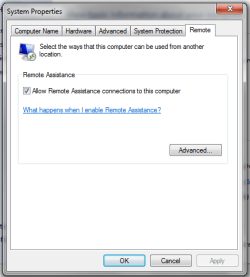
1. Go to Control Panel>System>Advanced System Settings
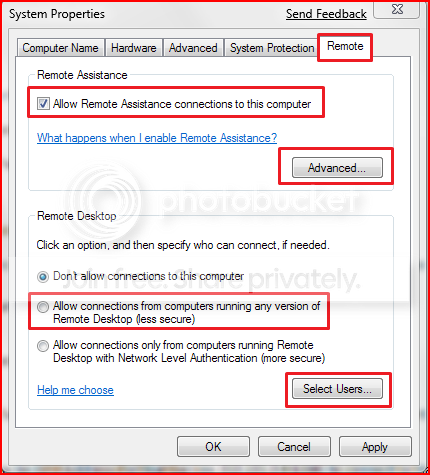
SystemProperties.png

2. Go to Remote tab.

3. Under Remote Assistance, put a check mark on Allow Remote Assistance connections to this computer.
Note: This automatically adds Remote Desktop exception to Windows Firewall.

4. Click on Apply.


OPTION ONE

To Connect to a Remote Desktop (Local Area Connectivity)


1. Go to Start>All Programs>Accessories>Remote Desktop Connection
NOTE: You could also press the Windows + R keys to open the Run dialog, type mstsc.exe, and press Enter.
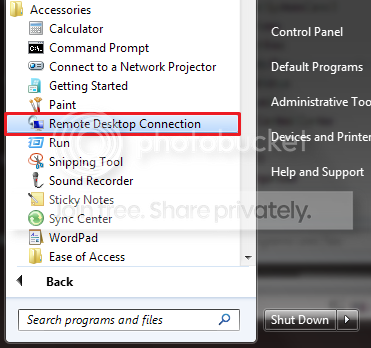
RDCLocation.png

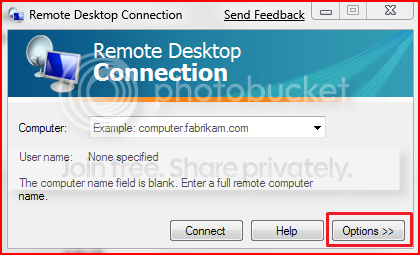
2. Enter the Computer Name or IP address of the computer you wish to connect to.
RemoteDesktopConnection.png

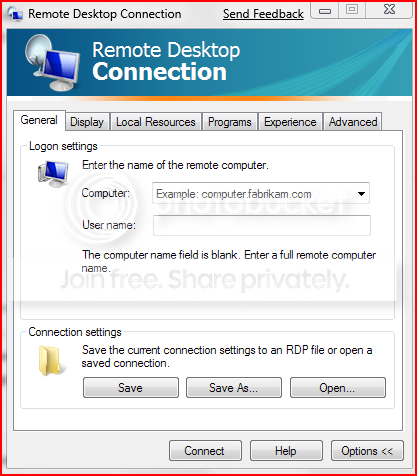
3. For more connection options, click on Options
NOTE: Here you can save the connection profile, adjust display properties, run specified programs upon connection, adjust connection bandwidth, etc. For more information on specific tabs, click on Help.
RemoteDesktopConnectionExpanded.png

4. Click on Connect.

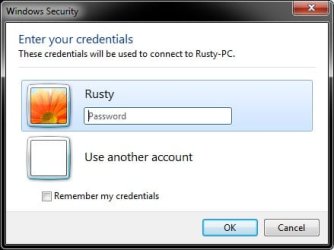
5. Enter your log in credentials of a user account on the remote computer that is allowed to do a remote desktop connection.
Credentials.jpg


OPTION TWO

Enable Windows to Accept Remote Desktop Connection (Local Area Connectivity)


1. Go to Control Panel>System>Advanced System Settings
SystemProperties.png

2. Go to Remote tab.

3. Under Remote Assistance, put a check mark on Allow Remote Assistance connections to this computer
Note: This automatically adds Remote Desktop exception in Windows Firewall.

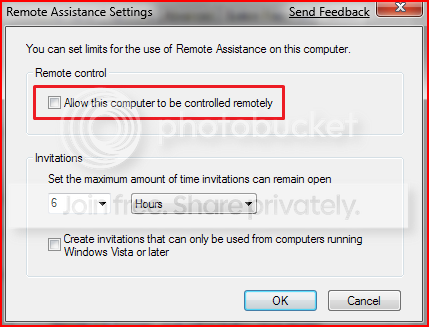
4. Click on Advanced...
RemoteAssistantSettings.png

5. Put a check mark on Allow this computer to be controlled remotely.

6. Click on OK.
Note: This automatically adds Remote Assistance exception in Windows Firewall.

7. Remote Desktop Connection behind a router (Single computer)
A) Configure your router's port forwarding to allow connections on port 3389
B) Now in RDC just type the IP address supplied by your ISP
8. Remote Desktop Connection behind a router (Multiple computers)
A) For each computer you want to remotely connect to you have to configure each computer to listen to different ports to avoid port conflicts by changing the registry key in:

HKEY_LOCAL_MACHINE\System\CurrentControlSet\Control\Terminal Server\WinStations\RDP-Tcp\PortNumber
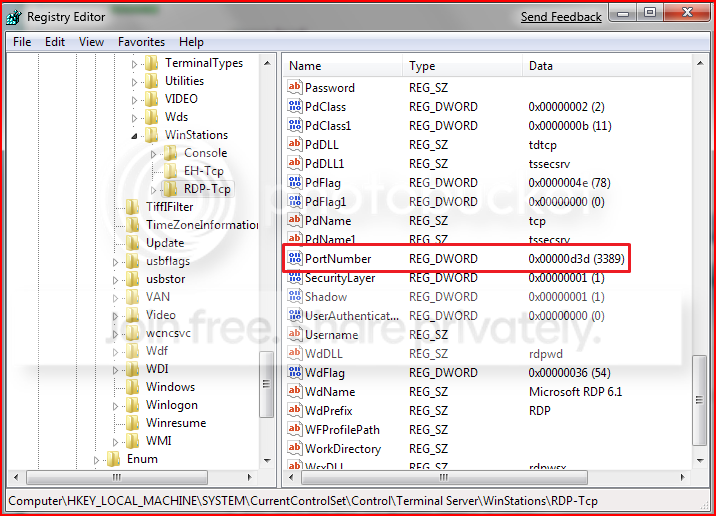
PortConfiguration.png

B) Port Numbers are in Decimal format
Note: To avoid conflict with other programs it is suggested to select a port between 49152 and 65535.

C) Now take that number you've chosen your computer to listen to and configure your router to port forward to that number

D) To connect to that computer your format will now be ISPIPAddress:PortNumber (ex. 222.222.2.8:1234) to connect to that specific computer behind the router
Important: If you have a firewall software running, that too has to be configured to allow communication to the port you opened in your router as well.

Note: The above steps assumes that you're not part of a domain.

 
Last edited by a moderator:
I'm having exactly the same problem. My laptop is 7 Ultimate and the desktop is 7 Pro. I disabled Kaspersky firewall on both thinking it might be a trusted zone thing, but still won't work through the router. Has anyone figure this out yet?

Thanks.

Yup, port 3389 is forwarding to the PC with Win7, and the PC with Win7 is accepting RDC automatically...

I beleive that the PC with Win7 is properly configured because I can use RDC from my laptop (WinXP) to connect to it if I input the Win7's local IP address to connect to...

so this works:

Laptop ---->LAN-----> Win7

but this doesnt:

Laptop----->Internet----->Router------>Win7

:cry:
 

My Computer

OS
7 Pro
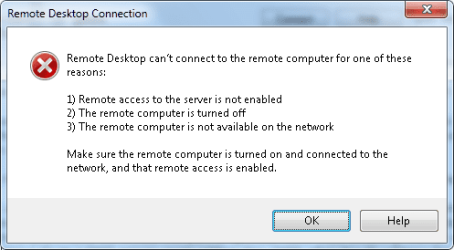
I seem to be getting a error, I'm running Windows 7 Ulimate on both my PC & Laptop but receive this error, I'm 100% sure I'm using the right IP since my ISP gave me a static IP, I've also portfowarded via my router.
 

Attachments

  • error.png
    error.png
    9.2 KB · Views: 1,284

My Computer

Computer Manufacturer/Model Number
Custom Build
OS
Windows 7 x64 Ultimate
CPU
AMD Phenom II X4 955 @ 3.72GHz
Motherboard
Gigabyte GA-MA770T-UD3P
Memory
Patriot 8GB DDR3 1333MHz
Graphics Card(s)
NVIDIA GTX560
Sound Card
-
Monitor(s) Displays
LG 23" W2343T
Screen Resolution
1920 x 1080
Hard Drives
256GB Crucial M4 SSD - OS/program files
250GB - Internal HDD - User files
500GB - Internal HDD - Storage #1
1.5TB - Internal HDD - Storage #2
500GB - External HDD - Portable Storage #1
2TB - External HDD - Portable Storage #2
PSU
TT450W
Case
Thermaltake V3
Cooling
Blue Orb II
Keyboard
Compaq.
Mouse
Logitech MX518
Internet Speed
7Mbps.
Other Info
Cooling (couldn't fit it above).
2 x 120mm LED Blue Fan
1 x Blue Orb II [CPU Cooler]
Everyone - I have read through the posts and seem to have a unique RDC problem. Could anyone help me?

When I initially started using a W7 computer to remotely access (using RDC) an XP computer, everything worked perfectly. I was able to view the remote computer and access the local drives and printer (from the remote computer). However, all of a sudden this stopped, namely, I suddently stopped being able to see the local W7 drives and printer while running RDC to the remote computer.

I have no idea why this would work at one point and then just suddenly stop. I definitely have the 'Options' set properly and these were never changed.

Some secret security setting in W7? So, does anyone have any ideas why a W7 computer would stop seeing local drives/printers when running RDC? I have tried rebooting to no avail.

Look forward to any help someone could offer - this is frustrating!

Thanks!
 

My Computer

Computer Manufacturer/Model Number
HP
OS
windows7
Can no one else help me? Any suggestions?
 

My Computer

Computer Manufacturer/Model Number
HP
OS
windows7
Have you done any windows updates on the target machine around the time the problem started?
 

My Computer

OS
7
I did not manually install any windows updates. How can I check to see if updates were installed automatically? Is there a listing of such updates on my computer?
 

My Computer

Computer Manufacturer/Model Number
HP
OS
windows7
Go to your start menu, then all programs, and look for Windows Update. It should let you check for updates, and will also tell you the last time updates were done. If there are any to do, update them then try again..
 

My Computer

OS
7
Here is what I am dealing with.

I had a XP Pro machine at work with a laptop at home with XP Pro. RDC worked fine for years connecting to work..........THEN......one of the computers did a windows update and I lost the ability to RDC.

I bought new computers for work with Win 7 Pro and I loaded Win 7 Ultimate on the same laptop and I still can't get RDC to work.

I have a wireless router at home on my laptop
I have a wired router upstairs that split to various locations in the shop (future plans etc) and then I have a router downstairs that run my two computers and my credit card machine.

Any idea why it would work fine and then just stop??

Thanks
 

My Computer

Computer Manufacturer/Model Number
IBM Thinkpad T60
OS
Windows 7 Ultimate
Here is what I am dealing with.

I had a XP Pro machine at work with a laptop at home with XP Pro. RDC worked fine for years connecting to work..........THEN......one of the computers did a windows update and I lost the ability to RDC.

Thanks

Was it Service Pack 3?
 

My Computer

OS
7
Remote Desktop settings greyed

I enabled Remote Desktop with "Allow connections from computers running any version of Remote Desktop (Less secure)" selected. Now when I go to remote desktop settings they are greyed out. I am not able to remote into the computer now either. Does anyone know if there is some pre-req to un-grey this? or how to un-grey it? so I can enable and get started.
 

My Computer

OS
Windows 7
This may sound obvious, but is your account an administrator account? Just making sure, I've never seen it do that..
 

My Computer

OS
7
Oh my - I made a mistake. My problem is different than I described. Here is a description of my current status using RDC to remotely access an XP computer.

1) I have three computers at home and each one (2 XP, 1 W7) has these same symptoms.
2) I can run the RDC successfully in terms of accessing the desktop and doing my usual work.
3) Problem A: when running RDC, I can not see drive letters of the local computer as I used to see. However, I have discovered that I can see and successfully access 'tsclientX on Entire Network' found under 'My Network Places'.
4) Problem B: I can not print from the remote computer to my local computer. The printers are not visible and thus not accessible. I would love to get access to the printers again but have no idea how to remedy this.

Thanks for your assistance!
 

My Computer

Computer Manufacturer/Model Number
HP
OS
windows7
Unable to Access with Remote Desktop Connection

I'm having trouble using Remote Desktop Connection from my Win7 device (32-bit Home Premium). I have used my home WinXP laptop device to access my office WinXP device through RDC for many years (and still can). I've recently upgraded my home WinXP desktop device to Win7 and would like to RDC into my office device as I have with my laptop. For both devices, I use Nortel VPN for contivity. This works fine on both home devices. I set up my RDC the same way on both home devices for access to the office device. When I start RDC, I get the full black-screen window and my office WinXP login panel (showing connection through to the office network). I enter my userid and password and the login screen disappears and I'm left with the full black-screen window. I assume the office device is busy authenticating my credentials. After 30 seconds, the window closes and the RDC time-out popup window is displayed. I can immediately attempt to RDC into the office device with my home WinXP device with success every time. Only the Win7 device seems to have the problem. What kind of things can I look into or attempt to resolve this problem?
 

My Computer

Computer Manufacturer/Model Number
Home built
OS
Windows 7 32bit Home Premium
CPU
Intel Celeron 2.80 HHz
Motherboard
MSI PM8PM-V
Memory
2 x 1024Gb
Graphics Card(s)
ATI Raytheon HD 2600 Pro AGP
Sound Card
Realtek AC'97 Onboard Audio
Monitor(s) Displays
eMachines Flat Screen E211h
Hard Drives
Seagate ST3160212ACE ATA
Maxtor 4D040H2 ATA
PSU
400 Watts
There is a hack to allow this but I don`t advise using it. Have a look on the internet for it
 

My Computer

Computer Manufacturer/Model Number
intel 8400
OS
windows 7
CPU
intel
Motherboard
msi
Memory
2 gig
Graphics Card(s)
9600
Sound Card
creatinve
Monitor(s) Displays
benq
Hard Drives
2 ter
PSU
340
Case
33000
Cooling
water
Why would a hack be needed to allow this? The RDC should just work as designed. It works fine for a co-worker using Windows7 64-bin Home Premium.
 

My Computer

Computer Manufacturer/Model Number
Home built
OS
Windows 7 32bit Home Premium
CPU
Intel Celeron 2.80 HHz
Motherboard
MSI PM8PM-V
Memory
2 x 1024Gb
Graphics Card(s)
ATI Raytheon HD 2600 Pro AGP
Sound Card
Realtek AC'97 Onboard Audio
Monitor(s) Displays
eMachines Flat Screen E211h
Hard Drives
Seagate ST3160212ACE ATA
Maxtor 4D040H2 ATA
PSU
400 Watts
Why would a hack be needed to allow this? The RDC should just work as designed. It works fine for a co-worker using Windows7 64-bin Home Premium.
I doubt that. The Home editions do not support hosting RD.
 

My Computer

Computer Manufacturer/Model Number
Custom
OS
Windows 7 Professional x64
CPU
Intel i7 2600K OC'd @ 4620 MHz
Motherboard
Asus P8Z68-V Pro
Memory
16GB GSkill Sniper 2133 Mhz (4x4GB)
Graphics Card(s)
EVGA GeForce GTX 480 SuperClocked+
Sound Card
Realtek High Definition Audio
Monitor(s) Displays
2x Acer S273HLbmii 27"
Screen Resolution
2 x 1920x1080
Hard Drives
64GB Crucial M4 SSD

Storage: Hitachi 1TB 5400RPM, Samsung 1.5TB 5400RPM
PSU
Corsair HW Series 750w (modular)
Case
Cooler Master HAF 932 Advanced Blue Edition
Cooling
CM Hyper 212+ CPU cooler, 3x 230mm + 1x 140mm case fans
Keyboard
Logitech MK320 (wireless)
Mouse
Logitech MK320 (wireless)
Internet Speed
30 Mb/s : 2 Mb/s
Neither he nor I are attempting to HOST remote desktop. We are using RDC to connect into our respective WinXP desktops at our offices.
 

My Computer

Computer Manufacturer/Model Number
Home built
OS
Windows 7 32bit Home Premium
CPU
Intel Celeron 2.80 HHz
Motherboard
MSI PM8PM-V
Memory
2 x 1024Gb
Graphics Card(s)
ATI Raytheon HD 2600 Pro AGP
Sound Card
Realtek AC'97 Onboard Audio
Monitor(s) Displays
eMachines Flat Screen E211h
Hard Drives
Seagate ST3160212ACE ATA
Maxtor 4D040H2 ATA
PSU
400 Watts
i have skimmed through the posts here, and i still can not find an answer to my problem. the picture says it all, but there is no remote desktop with the 3 options to choose from. can some1 help me please
 

Attachments

  • pic1.png
    pic1.png
    13.4 KB · Views: 413

My Computer

OS
Windows 7
i have skimmed through the posts here, and i still can not find an answer to my problem. the picture says it all, but there is no remote desktop with the 3 options to choose from. can some1 help me please
Unfortunately, only the Professional and higher editions allow RD hosting. The home editions can connect to a machine remotely, but not host a session.

I suggest the free program TeamViewer for Home users.
 

My Computer

Computer Manufacturer/Model Number
Custom
OS
Windows 7 Professional x64
CPU
Intel i7 2600K OC'd @ 4620 MHz
Motherboard
Asus P8Z68-V Pro
Memory
16GB GSkill Sniper 2133 Mhz (4x4GB)
Graphics Card(s)
EVGA GeForce GTX 480 SuperClocked+
Sound Card
Realtek High Definition Audio
Monitor(s) Displays
2x Acer S273HLbmii 27"
Screen Resolution
2 x 1920x1080
Hard Drives
64GB Crucial M4 SSD

Storage: Hitachi 1TB 5400RPM, Samsung 1.5TB 5400RPM
PSU
Corsair HW Series 750w (modular)
Case
Cooler Master HAF 932 Advanced Blue Edition
Cooling
CM Hyper 212+ CPU cooler, 3x 230mm + 1x 140mm case fans
Keyboard
Logitech MK320 (wireless)
Mouse
Logitech MK320 (wireless)
Internet Speed
30 Mb/s : 2 Mb/s
Back
Top