System Image Recovery

How to Do a System Image Recovery in Windows 7


   Information
This will show you how to restore your Windows 7 hard disk back to exactly how it was when you created a system image backup.
   Warning

  • You can only do a system image recovery to a HDD that is the same size or larger than the one the system image was created from. You will not be able to do a system image recovery to a smaller HDD.
  • When you restore your computer from a image backup, it is a complete restoration. You can't choose individual items to restore, and all of your current programs, system settings, and files are replaced.
  • If your backup image is on a external device (ex: USB drive), then make sure it is connected before starting. If USB drive, then also make sure that you have your BIOS settings (ex: Legacy USB) set to allow USB devices at boot.
  • A system image recovery will format everything on each hard drive that was included in a system image, and will only restore what is included (see steps 7-9 in STEP TWO below) in the system image back. Be sure to backup anything that you do not want to lose that is not included in the system image backup first.


STEP ONE

Only if You Renamed the "WindowsImageBackup" Folder


   Note
To be able to have multiple versions of system images saved on the same drive or partition, you would need to rename the older WindowsImageBackup folder from the previously created system image as described in the NOTE box at the top of this tutorial.

If you renamed the WindowsImageBackup folder for the system image version that you wanted to restore, then you will need to do the steps below before you will be able to restore that system image.

1. If you are "Able to Boot" into Windows 7 A) In Windows Explorer, navigate to the renamed (drive letter)\WindowsImageBackup folder location of the system image that you want to restore.

B) If you already have a folder named WindowsImageBackup that is not the system image version that you want to restore, then you will need to right click on it, click on Rename, and type in say WindowsImageBackup-Copy-2 as an example.

C) Now, right click on the renamed system image version (ex: WindowsImageBackup-Copy-1) that you did want to restore, click on Rename, type in WindowsImageBackup an press enter.

D) Go to the STEP TWO section below to do the System Image Recovery.
2. If you are "Not Able to Boot" into Windows 7 A) If you have the system image backup save to an external device, be sure that it is connected now.

B) Open a command prompt at boot.

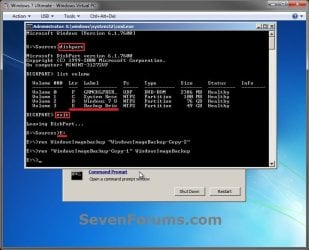
C) In the command prompt, type diskpart and press enter. (see screenshot below)

D) In the command prompt, type list volume and press enter. (see screenshot below)

E) Make note of the drive letter (ex: E: ) that you have the system image backup saved to.

F) In the command prompt, type exit and press enter. (see screenshot below)

G) In the command prompt, type the E: and press enter. (see screenshot below)
NOTE: Subsititute E: for your actual drive letter at step 2E instead.

H) If you already have a folder named "WindowsImageBackup"

NOTE: This is if you already have a folder named WindowsImageBackup that is not the system image version that you want to restore. If so, you would need to rename it to say WindowsImageBackup-Copy-2 as an example.
  • In the command prompt, type the command below and press enter. (see screenshot below)
    NOTE: Substitute WindowsImageBackup-Copy-2 in the command below with any name in quotes that you would like to rename it to instead.
Code:
[B]ren WindowsImageBackup "[COLOR=red]WindowsImageBackup-Copy-2[/COLOR]"[/B]
I) In the command prompt, type the command below and press enter. (see screenshot below)
NOTE: Substitute WindowsImageBackup-Copy-1 in the command below with the actual name of your renamed system image folder in quotes that you want to use to restore instead.
Code:
[B]ren "[COLOR=red]WindowsImageBackup-Copy-1[/COLOR]" WindowsImageBackup[/B]
J) Close the command prompt window. (see screenshot below)

K) Continue on to step 3B in the STEP TWO section below to do the System Image Recovery.
Rename-1.jpg


STEP TWO

To Do the System Image Recovery

1. If you have the system image backup save to an external device, be sure that it is connected and turned on (powered up) now.
A) Start with either step 2 or step 3 below first.
2. From "Backup and Restore" in the Control Panel while in Windows 7 A) Open the Control Panel (icons view), and click on Backup and Restore.

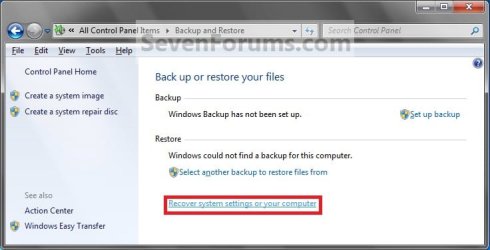
B) Click on the Recover system settings on your computer link. (see screenshot below) Step1.jpg
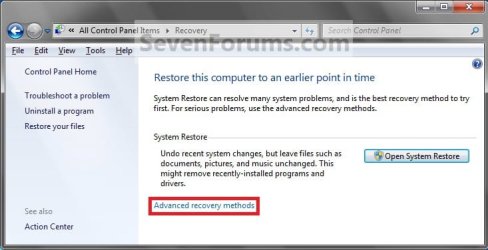
C) Click on the Advanced recovery methods link. (see screenshot below) Step2.jpg
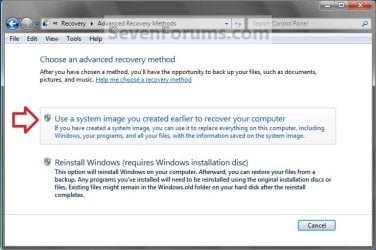
D) Select the Use a system image you created earlier to recover your computer option. (see screenshot below) Step3.jpg
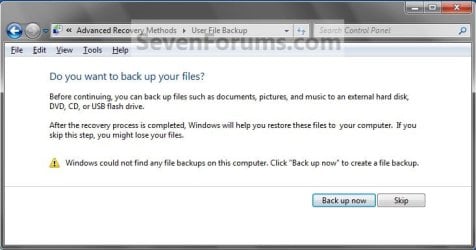
E) Select to either create a Back up now, or to Skip it and continue the system image recovery without backing up any of your current files.
NOTE: If you select Back up now, it will take you to step 6 in this tutorial link to create a User and System File back up of your current files first before continuing to step 1F. (see screenshot below) Step4A.jpg
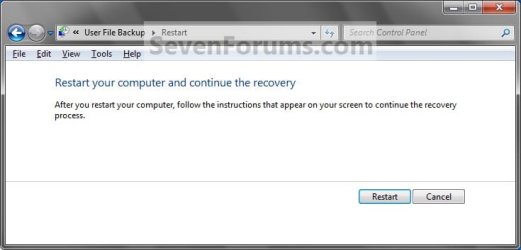
F) Click on Restart. (see screenshot below) Step5A.jpg
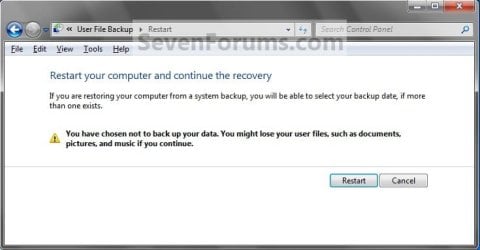
Step5B.jpg

G) Select a languange to be used for your keyboard input and click on Next. (see screenshot below) Step6.jpg
H) Go to step 4.
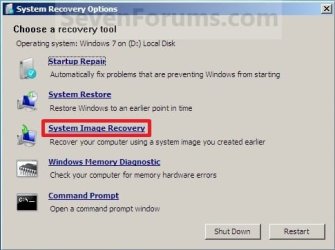
3. From the System Recovery Options Screen at Boot A) Boot to the System Recovery Options screen from your Windows 7 installation DVD/USB, or System Repair Disc.

B) Select the System Image Recovery option. (see screenshot below) System_Recovery_Options.jpg
4. If you saved the system image backup to a set of DVDs, then insert the last DVD from the set when prompted. If not, go to step 5 for a system image backup on a hard drive. A) Go to step 7 below.
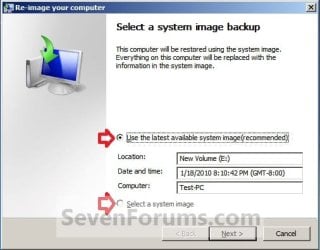
5. To Use the Latest System Image A) Select (dot) Use the latest available system image and click on Next. (see screenshot below) Step7.jpg
B) Go to step 7.
6. To Select a System Image A) Select (dot) Select a system image, and click on Next. (see screenshot above)
NOTE: This is if the system image that you want to use is not listed here and is at another location that you wish to choose from instead.

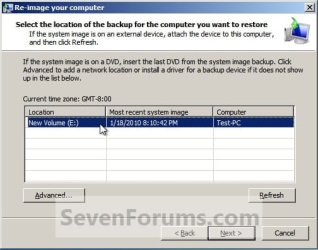
B) Select the location of the backup image for the computer you want to restore from the list, and click on Next. (see screenshot below)

   Note
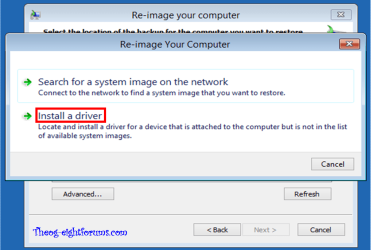
To add a image from a network location, click on the Advanced button, and on the Search for a system image on the network option.

If the drive cannot be seen to select a system image from, then you may need to use the tutorial below to load your SATA or RAID drivers before it will be seen. You would click on the Advanced button, and on the Install a driver option.

SATA Drivers - Load in Windows 8 System Image Recovery
RecoveryBackup004-8.PNG


Step8A.jpg
C) Select the date and time of the system image to restore, and click on Next. (see screenshot below) Step8B.jpg
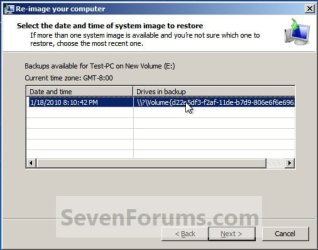
7. To Do a Full System Image Recovery
NOTE: This option will format everything on each hard disk drive that was included in the system image, then restore them as they were when the system image was created.

   Note
Format and repartition disks box:
NOTE: Special thanks to MJF for this addition. 1) Grayed out and selected
You are forced to have the whole disk formatted and repartitioned to match the partition structure of the disk the image was made from. This can occur when restoring an image to a new disk or the original disk with a modified partition structure. Data on other partitions on the disk you are restoring to will be lost.

2) Grayed out and unselected
You are not given the option to format and repartition the disk. This will occur if you are restoring Windows from a partition on the same disk.

3) Not grayed out and unselected
Here you have the option to select format the whole disk and repartition or not. In this case the disk the image was taken from has a matching partition structure to the disk you are restoring the image to. By not selecting the format and repartition option your image will be restored and other partitions untouched such as valuable data partitions.
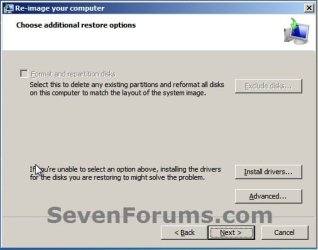
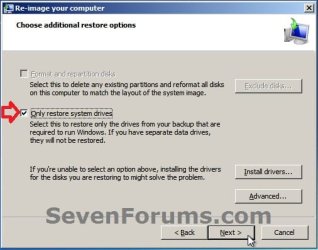
A) Check the Format and repartition disks box (if not grayed out) and uncheck Only restore system drives box (if available), and click on Next. (see screenshots below) Exclude_Disks.jpg
Step9.jpg
System_Drives.jpg
B) Go to step 10.
8. To Only Restore System Drives in System Image Recovery
NOTE: When restoring to the same disk containing data partitions, the Format and repartition disks option may format the data partitions as well. If this is the case and you have the option to leave the Format and repartition disks box unchecked, then initially attempt your image recovery with the Format and repartition disks box unchecked. If recovery is unsuccessful, repeat the process with the format box ticked. A) If available, check the Only restore system drives box, and click on Next. (see screenshot below) System_Drives.jpg
B) Go to step 10.
9. To Exclude Restoring Specific Drives in System Image Recovery
NOTE: Since a system image recovery will format everything on each hard disk drive that was included in a system image, this will allow you to exclude specific disks so that specific disk will not be formated or restored. A) Check the Format and repartition disks box , and click on the Exclude disks button (if not grayed out). (see screenshot below)
NOTE: If the Exclude disks button is grayed out, then the HDD that you are restoring to is empty, or you do not have any disks in the system image that are able to be excluded from being restored. Exclude 001.JPG
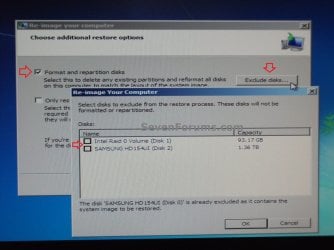
B) Unselect the drives that you want to exclude from being restored.

C) Click on Next.
10. Click on Finish. (see screenshot below) Step10.jpg
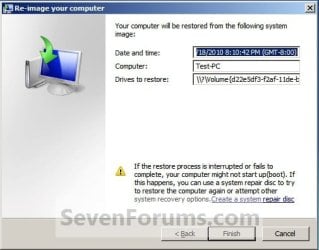
11. Click on Yes. (See screenshot below) Step11.jpg
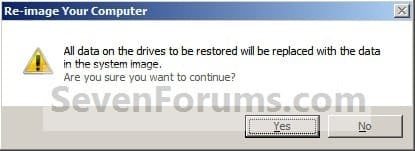
12. You will now see this screenshot below.
NOTE: If you have the backup image on DVDs, have them ready. See step 4 above. Step12.jpg
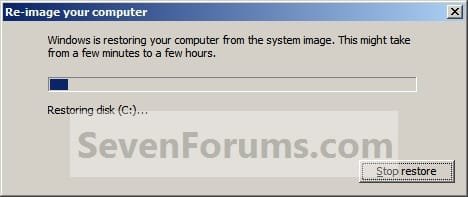
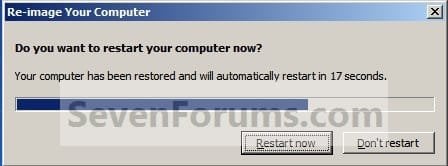
13. When it is through, click on Restart Now to finish. (see screenshot below)
NOTE: Your computer will restart and the backup image restoration will be done. Step13.jpg
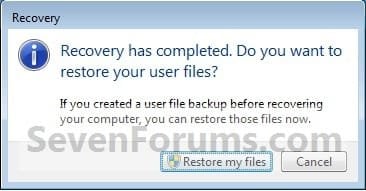
14. If you created a backup in step 1E, then you will now see this option to Restore my files after the computer restarts. (see screenshot below) Step14.jpg
That's it,
Shawn


Attachments

  • Step6A.jpg
    Step6A.jpg
    12.7 KB · Views: 244
Last edited:
I am sorry Brink,

Let me clarify....The system image is not going to be stored on the raid 0 drive..It is saved to an external usb hard drive.

The system image will contain the os hard drive plus the two drives that are set up as raid 0

Sorry about not saying this first,

Ron


Ah, ok. Sorry about that.

In that case, it makes no difference. The RAID 0 will be treated the same as any other hard drive that was included in the image, and can also be restored to any hard drive that is large enough for it.
 
Last edited:

My Computer

Computer type
PC/Desktop
Computer Manufacturer/Model Number
Self built custom
OS
64-bit Windows 11 Pro for Workstations
CPU
Intel i7-8700K OC'd to 5 GHz
Motherboard
ASUS ROG Maximus XI Formula Z390
Memory
64 GB (4x16GB) G.SKILL TridentZ RGB DDR4 3600 MHz
Graphics Card(s)
ASUS ROG-STRIX-GTX1080TI-O11G-GAMING
Sound Card
Integrated
Monitor(s) Displays
2 x Samsung Odyssey G7 27"
Screen Resolution
2560x1440
Hard Drives
1TB Samsung 990 PRO M.2,
4TB Samsung 990 PRO PRO M.2,
TerraMaster F8 SSD Plus NAS
PSU
Seasonic Prime Titanium 850W
Case
Thermaltake Core P3
Cooling
Corsair Hydro H115i
Keyboard
Logitech wireless K800
Mouse
Logitech MX Master 4
Internet Speed
2 Gb/s Download and 100 Mb/s Upload
Antivirus
Malwarebyte Anti-Malware Premium
Browser
Google Chrome
Other Info
Logitech Z625 speaker system,
Logitech BRIO 4K Pro webcam,
HP Color LaserJet Pro MFP M477fdn,
APC SMART-UPS RT 1000 XL - SURT1000XLI,
Galaxy S23 Plus phone
Thanks

Thank you very much Brink,

That is all I needed to know..Was worried about restoring the raid as I had problems with Acronis years ago..Not detecting the raid volume..

Again sorry about steering you in the wrong direction...

Ron
 

My Computer

Computer type
PC/Desktop
Computer Manufacturer/Model Number
Custom
OS
Windows 7 Home Premium 64-bit
CPU
Intel Core i5-2500K
Motherboard
Asus P8P67 Rev. 3.1
Memory
G.Skill F3-12800CL9D 8gb @ 1600
Graphics Card(s)
SAPPHIRE 100312-3SR Radeon HD 6950 Dirt3 Edition 2GB
Sound Card
RealTecK onboard
Monitor(s) Displays
Dell 24 Lcd
Screen Resolution
1920X1080
Hard Drives
Crucial M4 SSD 128 OS drive + Raid 0 array 2-WD 500 Drives
PSU
OCZ500MXSP
Case
ThermalTake
Cooling
XIGMATEK Aegir SD128264 Cooler
Keyboard
Dell
Mouse
Razor
Internet Speed
Download 52 Mbps - Upload 10.5 Mbps - ping 5ms
Antivirus
Microsoft Security Essentials
Browser
IE 9
You're most welcome. Don't worry about it. It gave me a chance to update the tutorial. :)
 

My Computer

Computer type
PC/Desktop
Computer Manufacturer/Model Number
Self built custom
OS
64-bit Windows 11 Pro for Workstations
CPU
Intel i7-8700K OC'd to 5 GHz
Motherboard
ASUS ROG Maximus XI Formula Z390
Memory
64 GB (4x16GB) G.SKILL TridentZ RGB DDR4 3600 MHz
Graphics Card(s)
ASUS ROG-STRIX-GTX1080TI-O11G-GAMING
Sound Card
Integrated
Monitor(s) Displays
2 x Samsung Odyssey G7 27"
Screen Resolution
2560x1440
Hard Drives
1TB Samsung 990 PRO M.2,
4TB Samsung 990 PRO PRO M.2,
TerraMaster F8 SSD Plus NAS
PSU
Seasonic Prime Titanium 850W
Case
Thermaltake Core P3
Cooling
Corsair Hydro H115i
Keyboard
Logitech wireless K800
Mouse
Logitech MX Master 4
Internet Speed
2 Gb/s Download and 100 Mb/s Upload
Antivirus
Malwarebyte Anti-Malware Premium
Browser
Google Chrome
Other Info
Logitech Z625 speaker system,
Logitech BRIO 4K Pro webcam,
HP Color LaserJet Pro MFP M477fdn,
APC SMART-UPS RT 1000 XL - SURT1000XLI,
Galaxy S23 Plus phone
System recovery from image with new hardware other than drives

I rebuilt my computer with a new motherboard, CPU and RAM. I had created a system image onto an external hard drive. I installed the new hardware with the old HDD, configured in the same way (2x 1tb striped together, giving a usable vol of about 1.8 tb). When I start the restore (step 12), it errors out saying that my drive is too small. I've read that the image needs to be restored to a volume of equal or greater size than the volume that was imaged. I figured that it would work for me because I'm trying restore the image to EXACTLY the same drives configured in exactly the same way as before. The only difference now being the motherboard/cpu/RAM, which are about 5 years newer than what I had before. Here are the things I have tried, cleaning/formatting the drives in between, and which didn't work:

1. Open up diskpart in the command prompt and clean the drives, restripe them, format to ntfs and assign a name and drive letter and make active. Make the new drive as top boot priority, or second to the dvd in BIOS.
2. Use the motherboard RAID utility to stripe the drives, use diskpart and BIOS to do the appropriate steps in #1
3. Same as 2, except without doing any of the diskpart steps. This led to different errors, as one could imagine
4. Span the drives with a 500gb drive to make a larger volume using diskpart, creating the partition, making active, BIOS priority, etc
5. Create a stripe with the motherboard RAID utility and spanning that volume (2tb) with the 500gb in diskpart (the utility doesn't do spanning, probably because spanning isn't a great way to use multiple hard drives), then formatting and assigning a drive letter, etc.

These are the basic variations. Even when I created a larger volume and the computer finds it, (I verified that the computer is finding the new volume by looking for drivers to install to see if the volume shows up under My Computer, which it does), it still won't restore.

What am I missing? Is it the new hardware? Can I get around having to do a clean install?
 

My Computer

Computer type
PC/Desktop
Computer Manufacturer/Model Number
Custom Build
OS
Windows 7 Home premium? 64 bit
CPU
Intel i5 ivy bridge 3.4 ghz
Motherboard
Gigabyte
Memory
Gskills ripjaw 8 gb
Graphics Card(s)
ATI firepro 512 mb
Hard Drives
2x 1 tb, 1x 500 gb
Here are some guidelines
http://www.sevenforums.com/tutorials/135077-windows-7-installation-transfer-new-computer.html
Frankly I would not bother. I'd definitely do a clean install deactivating programs like Photoshop before a clean install. MS will take care of most of the basic drivers but for graphics drivers I'd download from the manufacturer's website (eg.Nvidia). I think you are starting clean and less likely to have follow on problems. For Windows 7 of course do an SP1 install. Unless you have a multi use retail OS package it can only be installed on one PC. Retail OSs can be transferred.
OEM OS's can't be legally transferred between motherboards.
 

My Computer

Computer type
PC/Desktop
Computer Manufacturer/Model Number
Own build
OS
Windows 7x64 Home Premium SP1
CPU
Intel i7 2600k
Motherboard
ASUS P8Z68 Deluxe
Memory
G.Skill Ripjaws (DDR3-1600) 2x4GB
Graphics Card(s)
Nvidia GeForce GTS 450; Intel HD Graphics 3000(GT2+)
Monitor(s) Displays
Dell Ultrasharp IPS panel U2311H, Samsung SyncMaster P2350
Screen Resolution
1920x1080
Hard Drives
Samsung 850 Pro SSD 256GB, Samsung SSD 840 120GB, Seagates 1TB Barracuda ST31000528AS x2
PSU
Seasonic M12II 520W
Case
Lian Li Lancool PC-K60
Cooling
Case: 1x120mm, 3x140mm CPU: Hyper 212+
Keyboard
Logitech MK520 (wireless)
Mouse
Logitech MK520
Internet Speed
6-7 Mbps
Antivirus
Norton Security Premium, Malwarebytes on 2 (MSE on 3rd PC)
Browser
FireFox
Other Info
Audio: Logitech Z523 2.1
My wife's notebook has a keyboard problem I just can't fix. I will try some "extreme" solutions, but before I do I will create a system image backup.

The first solution I will try is to restore the system to the original factory settings. In case this doesn't work I will do the system image recovery covered here.

So I ask you: Will this restore the system to the state it was before, in spite of the original factory settings restoration?

TIA.
 

My Computer

OS
Windows 7
Hello Paul,

That's correct, doing a system image recovery will restore your complete system to how it was when the previously created system image was created.
 

My Computer

Computer type
PC/Desktop
Computer Manufacturer/Model Number
Self built custom
OS
64-bit Windows 11 Pro for Workstations
CPU
Intel i7-8700K OC'd to 5 GHz
Motherboard
ASUS ROG Maximus XI Formula Z390
Memory
64 GB (4x16GB) G.SKILL TridentZ RGB DDR4 3600 MHz
Graphics Card(s)
ASUS ROG-STRIX-GTX1080TI-O11G-GAMING
Sound Card
Integrated
Monitor(s) Displays
2 x Samsung Odyssey G7 27"
Screen Resolution
2560x1440
Hard Drives
1TB Samsung 990 PRO M.2,
4TB Samsung 990 PRO PRO M.2,
TerraMaster F8 SSD Plus NAS
PSU
Seasonic Prime Titanium 850W
Case
Thermaltake Core P3
Cooling
Corsair Hydro H115i
Keyboard
Logitech wireless K800
Mouse
Logitech MX Master 4
Internet Speed
2 Gb/s Download and 100 Mb/s Upload
Antivirus
Malwarebyte Anti-Malware Premium
Browser
Google Chrome
Other Info
Logitech Z625 speaker system,
Logitech BRIO 4K Pro webcam,
HP Color LaserJet Pro MFP M477fdn,
APC SMART-UPS RT 1000 XL - SURT1000XLI,
Galaxy S23 Plus phone
The first solution I will try is to restore the system to the original factory settings. In case this doesn't work I will do the system image recovery covered here.

TIA.
I'm not sure of the logic here. I would normally suggest restoring a system image before a factory restore. Also, what has this to do with a keyboard problem? You may want to try and boot a light weight linux or even a system repair CD and see if your keyboard problem persists. If the problem persists then it's more than likely you have a hardware problem. Does the notebook allow connection of an external keyboard? - If so then give that a go.
 

My Computer

Computer type
PC/Desktop
Computer Manufacturer/Model Number
Own build
OS
Windows 7x64 Home Premium SP1
CPU
Intel i7 2600k
Motherboard
ASUS P8Z68 Deluxe
Memory
G.Skill Ripjaws (DDR3-1600) 2x4GB
Graphics Card(s)
Nvidia GeForce GTS 450; Intel HD Graphics 3000(GT2+)
Monitor(s) Displays
Dell Ultrasharp IPS panel U2311H, Samsung SyncMaster P2350
Screen Resolution
1920x1080
Hard Drives
Samsung 850 Pro SSD 256GB, Samsung SSD 840 120GB, Seagates 1TB Barracuda ST31000528AS x2
PSU
Seasonic M12II 520W
Case
Lian Li Lancool PC-K60
Cooling
Case: 1x120mm, 3x140mm CPU: Hyper 212+
Keyboard
Logitech MK520 (wireless)
Mouse
Logitech MK520
Internet Speed
6-7 Mbps
Antivirus
Norton Security Premium, Malwarebytes on 2 (MSE on 3rd PC)
Browser
FireFox
Other Info
Audio: Logitech Z523 2.1
The first solution I will try is to restore the system to the original factory settings. In case this doesn't work I will do the system image recovery covered here.

TIA.
I'm not sure of the logic here. I would normally suggest restoring a system image before a factory restore. Also, what has this to do with a keyboard problem? You may want to try and boot a light weight linux or even a system repair CD and see if your keyboard problem persists. If the problem persists then it's more than likely you have a hardware problem. Does the notebook allow connection of an external keyboard? - If so then give that a go.
Oh, that was the advice LG's support gave me: restore to the factory settings to "remove drivers conflicts" (their words)...
 

My Computer

OS
Windows 7
Ok. But I assume you then go through the hassle of reinstalling your software which could be the source of any driver conflict.
I would still check the keyboard with a boot CD. The system repair cd should suffice.
Also, a safe mode boot will load minimal drivers and is worth a try. If the keyboard issue goes away then you have some justification for a driver conflict.
 

My Computer

Computer type
PC/Desktop
Computer Manufacturer/Model Number
Own build
OS
Windows 7x64 Home Premium SP1
CPU
Intel i7 2600k
Motherboard
ASUS P8Z68 Deluxe
Memory
G.Skill Ripjaws (DDR3-1600) 2x4GB
Graphics Card(s)
Nvidia GeForce GTS 450; Intel HD Graphics 3000(GT2+)
Monitor(s) Displays
Dell Ultrasharp IPS panel U2311H, Samsung SyncMaster P2350
Screen Resolution
1920x1080
Hard Drives
Samsung 850 Pro SSD 256GB, Samsung SSD 840 120GB, Seagates 1TB Barracuda ST31000528AS x2
PSU
Seasonic M12II 520W
Case
Lian Li Lancool PC-K60
Cooling
Case: 1x120mm, 3x140mm CPU: Hyper 212+
Keyboard
Logitech MK520 (wireless)
Mouse
Logitech MK520
Internet Speed
6-7 Mbps
Antivirus
Norton Security Premium, Malwarebytes on 2 (MSE on 3rd PC)
Browser
FireFox
Other Info
Audio: Logitech Z523 2.1
hi all just read all the post im new to sevenforrums very cood new to computers will be back thnk you all
 

My Computer

Computer type
PC/Desktop
Computer Manufacturer/Model Number
advent
OS
windows7 home premium x64
CPU
i5
Motherboard
foxcom
Memory
8.00gb dual-channel ddr3
Graphics Card(s)
2048mb ati adm redeon hd 6670
Hard Drives
1863gb seagate sata
Welcome to Seven forums pat222.
 

My Computer

Computer type
PC/Desktop
Computer Manufacturer/Model Number
Home Built Desktop By DataTech
OS
Windows 7 Ultimate X64 SP1
CPU
Intel i5-2550K, Differing ~4.4-4.8GHz No built in GPU
Motherboard
ASUS P8Z68-V PRO/GEN3
Memory
16GB G.Skill Sniper 1866MHz @ 2133MHz 2x8GB
Graphics Card(s)
ASUS GTX650TIB-DC2OC-2GD5, (650TI Boost)
Sound Card
Onboard Realtek 5-1
Monitor(s) Displays
Samsung P2570HD
Screen Resolution
1920x1080
Hard Drives
Samsung 840 Pro 256GB SSD for OS, 500GB Seagate Constellation (Enterprise drive) for Data
PSU
Corsair HX650W
Case
Inwin Dragon Rider
Cooling
Hyper 212 EVO w/two Noctua fans, push-pull, @1300 RPM
Keyboard
E-Z Eyes, bright yellow keys with large characters
Mouse
steelseries SENSEI Laser Pro Gaming
Internet Speed
48-51Mbs Mbs down, 11 Mbs up Xfinity Cable
Antivirus
Norton Internet Security 2013
Browser
IE 10, Opera, Pale Moon if needed
Other Info
4 case fans, LG BluRay-RE, ASUS DVD-RW, Mr. Fusion power supply, 1.21 gigawatts.
Manual renaming of system image files

I'm not understanding the need/method for renaming the System Image files in order to save multiple versions on a given media. If Windows creates multiple System Images (based on size allocation in System Protection) and the recovery has an option to Select the System Image that I want (other than the latest), then why would I ever bother to manually rename the System Image files?
 

My Computer

Computer type
PC/Desktop
Computer Manufacturer/Model Number
custom
OS
Windows 7 home premium 64-bit
Hello JGL, and welcome to Seven Forums.

It's just another option to be able to use to keep multiple saved system images without worry about them being deleted if the set max space in system protection is reached.

It really depends on your needs and how often you create system images for what option may work best for you, but I just like to give as many options as possible for those that may need it.

Hope this helps, :)
Shawn
 

My Computer

Computer type
PC/Desktop
Computer Manufacturer/Model Number
Self built custom
OS
64-bit Windows 11 Pro for Workstations
CPU
Intel i7-8700K OC'd to 5 GHz
Motherboard
ASUS ROG Maximus XI Formula Z390
Memory
64 GB (4x16GB) G.SKILL TridentZ RGB DDR4 3600 MHz
Graphics Card(s)
ASUS ROG-STRIX-GTX1080TI-O11G-GAMING
Sound Card
Integrated
Monitor(s) Displays
2 x Samsung Odyssey G7 27"
Screen Resolution
2560x1440
Hard Drives
1TB Samsung 990 PRO M.2,
4TB Samsung 990 PRO PRO M.2,
TerraMaster F8 SSD Plus NAS
PSU
Seasonic Prime Titanium 850W
Case
Thermaltake Core P3
Cooling
Corsair Hydro H115i
Keyboard
Logitech wireless K800
Mouse
Logitech MX Master 4
Internet Speed
2 Gb/s Download and 100 Mb/s Upload
Antivirus
Malwarebyte Anti-Malware Premium
Browser
Google Chrome
Other Info
Logitech Z625 speaker system,
Logitech BRIO 4K Pro webcam,
HP Color LaserJet Pro MFP M477fdn,
APC SMART-UPS RT 1000 XL - SURT1000XLI,
Galaxy S23 Plus phone
Thanks for the reply.
While experimenting with a new W7 Home Premium machine, I'm finding that your proposed
'renaming' of SystemImage folders is (maybe) the only way to go. I've been doing System Image backups
for over a week and have yet to find more than one system image folder on the backup drive, so it appears
that Windows is doing an incremental backup when I want it to create multiple system images
OR
System Image backups are created much like system backups where the folder name represents a 'backup
period' and Windows decides when a full system image backup will be created. If this is true, then I'd like to
see some documentation on it.
What I want (in case I've not fully described it) is to have multiple System Image backups on a (large) external
drive, so that I could restore the complete installation (via a W7 Rescue CD boot) in case of a virus attack that
leaves Windows dead (which has happened twice: moneypak and pr?ss.dll corrupt). This would act much like a System Restore if Windows wasn't dead.
My guess is that I'll need 3rd party software to do this - any suggestions?
Thanks again for your help and direction.
 

My Computer

Computer type
PC/Desktop
Computer Manufacturer/Model Number
custom
OS
Windows 7 home premium 64-bit

My Computer

Computer type
PC/Desktop
Computer Manufacturer/Model Number
Self built custom
OS
64-bit Windows 11 Pro for Workstations
CPU
Intel i7-8700K OC'd to 5 GHz
Motherboard
ASUS ROG Maximus XI Formula Z390
Memory
64 GB (4x16GB) G.SKILL TridentZ RGB DDR4 3600 MHz
Graphics Card(s)
ASUS ROG-STRIX-GTX1080TI-O11G-GAMING
Sound Card
Integrated
Monitor(s) Displays
2 x Samsung Odyssey G7 27"
Screen Resolution
2560x1440
Hard Drives
1TB Samsung 990 PRO M.2,
4TB Samsung 990 PRO PRO M.2,
TerraMaster F8 SSD Plus NAS
PSU
Seasonic Prime Titanium 850W
Case
Thermaltake Core P3
Cooling
Corsair Hydro H115i
Keyboard
Logitech wireless K800
Mouse
Logitech MX Master 4
Internet Speed
2 Gb/s Download and 100 Mb/s Upload
Antivirus
Malwarebyte Anti-Malware Premium
Browser
Google Chrome
Other Info
Logitech Z625 speaker system,
Logitech BRIO 4K Pro webcam,
HP Color LaserJet Pro MFP M477fdn,
APC SMART-UPS RT 1000 XL - SURT1000XLI,
Galaxy S23 Plus phone
I'll add my vote for Macrium too. You have much more control and makes a smaller image file.
 

My Computer

Computer type
PC/Desktop
Computer Manufacturer/Model Number
Home Built Desktop By DataTech
OS
Windows 7 Ultimate X64 SP1
CPU
Intel i5-2550K, Differing ~4.4-4.8GHz No built in GPU
Motherboard
ASUS P8Z68-V PRO/GEN3
Memory
16GB G.Skill Sniper 1866MHz @ 2133MHz 2x8GB
Graphics Card(s)
ASUS GTX650TIB-DC2OC-2GD5, (650TI Boost)
Sound Card
Onboard Realtek 5-1
Monitor(s) Displays
Samsung P2570HD
Screen Resolution
1920x1080
Hard Drives
Samsung 840 Pro 256GB SSD for OS, 500GB Seagate Constellation (Enterprise drive) for Data
PSU
Corsair HX650W
Case
Inwin Dragon Rider
Cooling
Hyper 212 EVO w/two Noctua fans, push-pull, @1300 RPM
Keyboard
E-Z Eyes, bright yellow keys with large characters
Mouse
steelseries SENSEI Laser Pro Gaming
Internet Speed
48-51Mbs Mbs down, 11 Mbs up Xfinity Cable
Antivirus
Norton Internet Security 2013
Browser
IE 10, Opera, Pale Moon if needed
Other Info
4 case fans, LG BluRay-RE, ASUS DVD-RW, Mr. Fusion power supply, 1.21 gigawatts.
There are several free 3rd party programs for imaging. They all work fine.

I started popularising macrium some years ago on Vista Forums. There wasn't much around back then, and only the higher editions of Vista including an imaging fuction. It is still a good program , does the job fine.

Paragon also do backup and recovery free. It is bit bigger than most , and doesn't include a way to make winpe media, but it does come with linux bootable media, which seems to support bios and efi boot, secre boot too. Paragon has an unusual ability to exclude files/folders from images. If that is important to you, you could give that a go.

Free Backup Software: Paragon Backup & Recovery Free Edition - Overview

There is also a newer entrant called Aomei Backupper. It offers much more than other free versions, and is noticeably faster too. It is so good, I now use it for my normal backup images, instead of the fancy paid programs I have.

FREE Backup software for Windows 7, 8 and Server 2008 R2, 2012
 

My Computers

System One System Two

  • Computer type
    PC/Desktop
    OS
    7 X64
    CPU
    i5 8400
    Motherboard
    gigabyte b365m ds3h
    Memory
    2x8gb 3200mhz
    Hard Drives
    various
    PSU
    pure power 11 400w cm
    Case
    Coolermaster
    Cooling
    cryorig m9i
  • Computer type
    PC/Desktop
    OS
    7x64
    CPU
    g5400
    Motherboard
    ga b365m ds3h
    Memory
    8gb ddr4 2400
    PSU
    xfx pro 450w
Yes, Aomei Backupper is a good one and seems to be more intuitive to use with a simpler interface.
 

My Computer

Computer type
PC/Desktop
Computer Manufacturer/Model Number
Home Built Desktop By DataTech
OS
Windows 7 Ultimate X64 SP1
CPU
Intel i5-2550K, Differing ~4.4-4.8GHz No built in GPU
Motherboard
ASUS P8Z68-V PRO/GEN3
Memory
16GB G.Skill Sniper 1866MHz @ 2133MHz 2x8GB
Graphics Card(s)
ASUS GTX650TIB-DC2OC-2GD5, (650TI Boost)
Sound Card
Onboard Realtek 5-1
Monitor(s) Displays
Samsung P2570HD
Screen Resolution
1920x1080
Hard Drives
Samsung 840 Pro 256GB SSD for OS, 500GB Seagate Constellation (Enterprise drive) for Data
PSU
Corsair HX650W
Case
Inwin Dragon Rider
Cooling
Hyper 212 EVO w/two Noctua fans, push-pull, @1300 RPM
Keyboard
E-Z Eyes, bright yellow keys with large characters
Mouse
steelseries SENSEI Laser Pro Gaming
Internet Speed
48-51Mbs Mbs down, 11 Mbs up Xfinity Cable
Antivirus
Norton Internet Security 2013
Browser
IE 10, Opera, Pale Moon if needed
Other Info
4 case fans, LG BluRay-RE, ASUS DVD-RW, Mr. Fusion power supply, 1.21 gigawatts.
Thanks for the help. Sounds like I have some good options to work with.
Just for curiosity, can some one answer the question I had previously about Windows System Image Backup:
does it do incremental backups rather than a full one each time, or are System Image backups are created much like system backups where the folder name represents a 'backup period' and Windows decides when a full system image backup will be created.
John L.
 

My Computer

Computer type
PC/Desktop
Computer Manufacturer/Model Number
custom
OS
Windows 7 home premium 64-bit
Back
Top