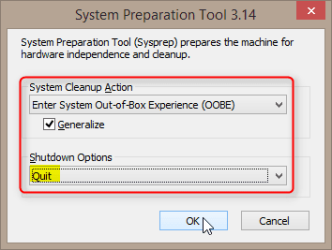
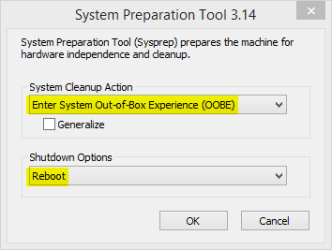
Note
More recent, complete walkthrough tutorial here: http://www.sevenforums.com/tutorials/319903-windows-7-image-customize-audit-mode-sysprep.html
How to Use Sysprep to Customize Windows 7 and Windows 8
Information
This tutorial is a short introduction to the wonderful world of Sysprep  .
.
The built-in Windows System Preparation Tool, Sysprep to put it short, is a tool not very well known outside the geek circles although it is quite easy and simple to use. Alone it can do quite little, basically only two tasks: boot Windows to a so called Audit Mode, and generalize your Windows setup by removing all hardware independent information and drivers to allow the Windows image be transfered to another computer.
Add an Answer File and everything is possible! An Unattended Answer File is an XML script containing settings information to be used during Windows Setup. You can for instance put the product key, your selected username and other such information in answer file, run it with Sysprep and capture the image created. Now when you want to install Windows on a new computer, you can use this image and let Windows install itself completely unattended, without it stopping to ask user information. This is why we call it Unattended Answer File.
Honestly, this will be a long and boring tutorial. I will try to show you how Sysprep works with a few simple self-explanatory examples. It would be impossible to explain sysprepping with an answer file with a few words.
Anyway, don't let funny words and strange acronyms fool you, sysprepping is quite easy as you will see.
This tutorial applies to both Windows 7 and Windows 8.
Kari
. The built-in Windows System Preparation Tool, Sysprep to put it short, is a tool not very well known outside the geek circles although it is quite easy and simple to use. Alone it can do quite little, basically only two tasks: boot Windows to a so called Audit Mode, and generalize your Windows setup by removing all hardware independent information and drivers to allow the Windows image be transfered to another computer.
Add an Answer File and everything is possible! An Unattended Answer File is an XML script containing settings information to be used during Windows Setup. You can for instance put the product key, your selected username and other such information in answer file, run it with Sysprep and capture the image created. Now when you want to install Windows on a new computer, you can use this image and let Windows install itself completely unattended, without it stopping to ask user information. This is why we call it Unattended Answer File.
Honestly, this will be a long and boring tutorial. I will try to show you how Sysprep works with a few simple self-explanatory examples. It would be impossible to explain sysprepping with an answer file with a few words.
Anyway, don't let funny words and strange acronyms fool you, sysprepping is quite easy as you will see.
This tutorial applies to both Windows 7 and Windows 8.
Kari
Warning
Notice that as an upgraded Windows cannot be sysprepped and as a so called repair install is also considered as an upgrade (in-place upgrade to same edition), you cannot sysprep an existing Windows installation as shown in Part 3 of this tutorial if your Windows is either in-place upgraded from an earlier version, or if you have done an Anytime Upgrade from a minor edition of same Windows version, or if you have done a repair installation.
When sysprepping an existing Windows setup, it only works if the Windows was installed clean and has never been upgraded or repaired using repair install.
If you have Internet Explorer 10 installed on a Windows 7 system, please read this first: Sysprep Fatal Error With IE 10 (FIX) | System Administration
IE10 has no issues on Windows 8 with sysprep.
When sysprepping an existing Windows setup, it only works if the Windows was installed clean and has never been upgraded or repaired using repair install.
If you have Internet Explorer 10 installed on a Windows 7 system, please read this first: Sysprep Fatal Error With IE 10 (FIX) | System Administration
IE10 has no issues on Windows 8 with sysprep.
If you get easily bored when reading background information you can jump into action in Part 2. If you decide to get into boredom instead and read the whole tutorial, keep in mind that although this might sound complicated and there are so many strange and comical words, at the end sysprepping really is no rocket science
 .
. First a few words good to know before proceeding:
- Sysprep
- (Noun) Commonly used short name for Windows System Preparation Tool
- To sysprep
- (Verb) prepare (customize) a new Windows Image or existing Windows setup using Sysprep tool
- Answer File
- A settings file written in XML containing instructions for Sysprep
- Audit Mode
- A special mode of Windows (compare to normal and Safe Mode) to allow preparing a Windows image with user customizations and modifications
- Welcome (OOBE) Mode
- A special mode of Windows, normally run only once after installation, first boot after installation is finished. Initial User Account is created, PC named, network location and time zone set during OOBE boot
- OOBE
- Out-of-Box Experience, first boot after installation, welcoming user
- Windows PE
- Windows Preinstallation Environment, a reduced and very limited "mini operating system" to be used to prepare a computer for Windows installation. PE images can be used for computer rescue and much more but usually a normal user has ever seen only one version of PE, the one which starts when you boot with Windows installation DVD and asks you if you want to start Windows installation and accept the license terms. The installation runs on Windows PE until first reboot during installation
Part 1:
Sysprep Basics
1.1. Answer File
Sysprep works with Unattended Answer Files, without an answer file it can only those two simple tasks mentioned in Introduction above. When you sysprep you tell the system that the settings you will change and tasks you want Sysprep to do are listed in an answer file. The answer file consists of two different sections, Components and Packages.
Answer File Components Section
The components section of an answer file has one or more from a total of 7 different groups or as they are called Configuration Passes. Each Configuration Pass contains information for different parts of Windows system and setup.
Table here below shows name of the Configuration Pass on left column and description on right.
offlineServicing | Applies updates to a Windows image. Also applies packages, including software fixes, language packs, and other security updates. During this pass, you can add drivers to a Windows image before that image is installed and processes out-of-box device drivers during Windows Setup.
specialize | Creates and applies system-specific information. For example, you can configure network settings, international settings, and domain information.
generalize | Enables you to minimally configure the sysprep /generalize command, as well as configure other Windows settings that must persist on your reference image. The sysprep /generalize command removes system-specific information. For example, the unique security ID (SID) and other hardware-specific settings are removed from the image. The generalize pass runs only if you run the sysprep /generalize command.
auditSystem | Processes unattended Setup settings while Windows is running in system context, before a user logs onto the computer in Audit mode. The auditSystem pass runs only if you boot to Audit mode.
auditUser | Processes unattended Setup settings after a user logs onto the computer in Audit mode. The auditUser pass runs only if you boot to Audit mode.
oobeSystem | Applies settings to Windows before Windows Welcome (OOBE) starts.
Answer File Packages Section
The most important of all Windows distribution packages is the Windows Foundation Package which is included in all Windows installation medias by default and includes all basic Windows features like Media Player, games, gadgets (Vista & 7) and so on.
Using Sysprep you can add various packages to your Windows image. Language Packs, Service Packs, Windows and third party updates and so on. These packages will be added to answer file's Packages section.
Answer files are created with Windows System Image Manager.
1.2. Sysprep usage
Sysprep can be used from command line (command prompt) or with graphical user interface. The GUI is very limited only allowing user to boot to Audit Mode, Welcome (OOBE) Mode and generalize the Windows setup by removing all hardware related information and drivers to allow Windows image to be moved or deployed to different hardware setup.
Sysprep GUI:
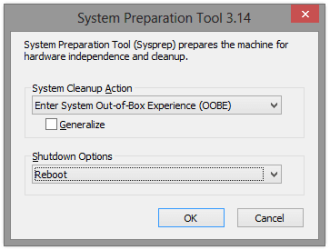
You can run it by typing %windir%\system32\sysprep\sysprep.exe to Run dialog (Win + R), or by browsing to folder C:\Windows\system32\sysprep\ and double clicking Sysprep icon. Be careful, though; if you do not want to do a Welcome (OOBE) boot as if the PC and Windows were totally new, close that dialog by clicking Cancel. Once you click OK there's no way to interrupt Sysprep.
Command line usage lets you use more options. To see the usage of sysprep command, type %windir%\system32\sysprep\sysprep /? to command prompt or Run dialog:
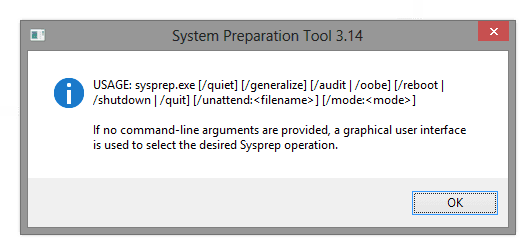
Be sure to close all open applications including browser windows before running Sysprep! Do not launch any applications or processes while Sysprep is running.
Tip
Sysprep really hates sharing . The single most common reason for Sysprep errors after typos in answer file is that user has Windows Media Player Network Sharing Service (WMPNetworkSvc) running causing a fatal error when sysprepping. To be sure this Windows service does not interfere with your sysprepping, stop the service before running the Sysprep command. You can stop it by typing net stop WMPNetworkSvc to command prompt and hitting Enter.
. The single most common reason for Sysprep errors after typos in answer file is that user has Windows Media Player Network Sharing Service (WMPNetworkSvc) running causing a fatal error when sysprepping. To be sure this Windows service does not interfere with your sysprepping, stop the service before running the Sysprep command. You can stop it by typing net stop WMPNetworkSvc to command prompt and hitting Enter. Part 2:
Sysprep Windows Image during installation
2.1. Install Windows
Install Windows (clean, fresh install) using valid original install media. If needed consult respective tutorial for installation help and tips:
- http://www.sevenforums.com/tutorials/1649-clean-install-windows-7-a.html
- http://www.sevenforums.com/tutorials/31402-clean-install-upgrade-windows-7-version.html
- Clean Install - Windows 8
- Clean Install with Windows 8 Upgrade
- UEFI (Unified Extensible Firmware Interface) - Install Windows 8 with
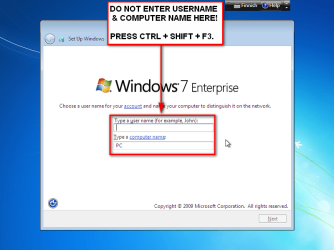
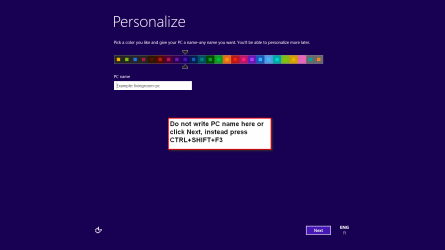
When installation after last reboot stops for user and computer name (Win 7) or Personalize page (Win 8), do not enter any information and do not click Next! We will now interrupt the last phase of Windows installation (Welcome (OOBE) boot) and reboot to Audit Mode. When we have sysprepped the image, installation automatically continues from here
Press CTRL + SHIFT + F3 when you see this window to reboot Windows to Audit Mode:
Windows 7
Windows 8
(Click to enlarge images.)
Note
If you have got a new PC with pre-installed Windows, enter Audit Mode as told above when you see the respective Enter User and Computer Name or Personalize screens during the first time boot.
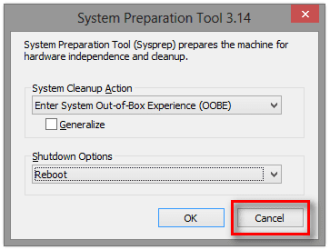
Windows reboots now and enters Audit Mode. As no user profiles are yet created it uses the built-in administrator account.
On Windows 7 you will see an empty desktop, Sysprep GUI in the middle of it. On Windows 8 you need to click the Desktop tile on Start Screen to enter desktop.
Before anything else close the Sysprep GUI by clicking Cancel:
2.3. Install Windows System Image Manager
To create your first answer file you will need Windows System Image Manager (Windows SIM or simply SIM). Windows SIM is part of the Windows Automated Installation Kit (AIK) for Windows 7, and part of the Windows Assessment and Deployment Kit (ADK) for Windows 8.
Download respective AIK or ADK. You can use Internet totally normally in Audit Mode. Use the native built-in Internet Explorer for this download, do not install any third party browsers yet:
- Seven > Download Windows® AIK for Windows® 7 from Official Microsoft Download Center
- Eight > Download Windows Assessment and Deployment Kit (ADK) for Windows® 8 from Official Microsoft Download Center
You can install AIK or ADK on any Windows computer to create answer files, it don't have to be done with the computer you are sysprepping. Install AIK on PC1, prepare an answer file, save it to a USB stick and use when sysprepping PC2.
Windows 7 AIK is an ISO file. Burn it to a CD or USB and run setup application. Alternatively you can download and install a virtual drive application and mount the image on a virtual CD drive.
Windows 8 ADK is an executable install package, simply run it to start installation.
2.3.1. Install on Windows 7
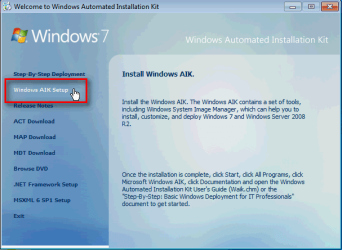
If the autorun does not automatically run the setup launch it manually by double clicking the executable StartCD.exe on the WAIK CD.
Click Windows AIK Setup:
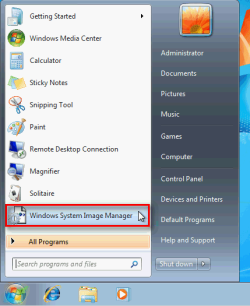
Accept all default settings, install WAIK. After installation you will find Windows SIM in Start Menu:
2.3.2. Install on Windows 8
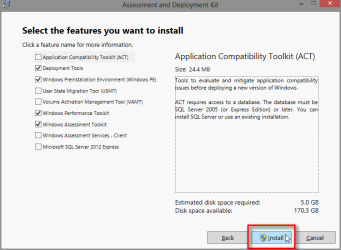
Run the downloaded ADK executable file. Click Install accepting default setup settings:
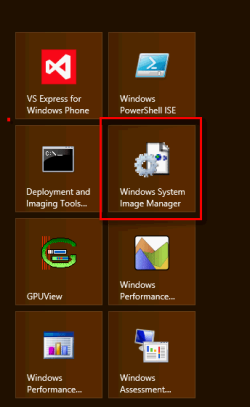
After installation you will find Windows SIM tile on Start Screen:
2.4. Create an Answer File
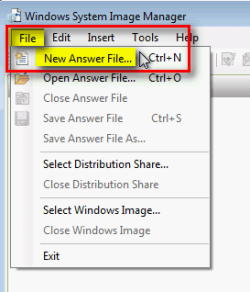
Open the File Menu in SIM, select New Answer File:
Click Yes to open a Windows Image to be sysprepped:
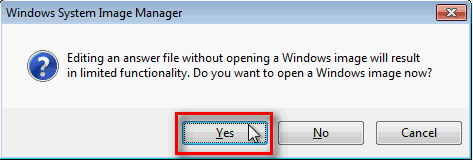
Browse to your Windows install media (DVD or USB), open the folder Source and select the file install.wim. Click Open:

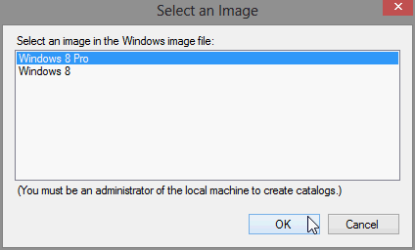
Select the correct Windows edition according to the one you have installed:

-- OR --
Note
I will use Windows 7 Ultimate in this tutorial. I will create an image which does the following changes during Windows installation to various settings and variables:
If I leave the product key out of the answer file, I could also use this image to install Windows 7 Ultimate on to any and as many computers I'd like to with my user account already created, computer named, Default User Profile for all new user accounts set as I want to. However, for this tutorial I am creating this image only to be used on this Windows setup we interrupted in 2.2. to enter Audit mode, therefore I can automate the product key input.
This, deployment of hardware independent tailor-made Windows image is the main purpose of Sysprep, Windows SIM and AIK / ADK. It makes the IT department's job easier in company environment where they install identical images (Windows setups) to various hardware. This, however, is no reason for a normal user not to use the same method; even though created and meant for business use, the same tools can make an individual user's computing easier.
- Relocates the Main User Profile folder and all future user accounts including all user specific files and folders to drive D: from default location C:\Users to save space on system drive
- Modifies the Default User Profile so that all accounts when created have desktop settings as I want to have them
- Names the PC
- Creates my personal user account
- Enters the product key
If I leave the product key out of the answer file, I could also use this image to install Windows 7 Ultimate on to any and as many computers I'd like to with my user account already created, computer named, Default User Profile for all new user accounts set as I want to. However, for this tutorial I am creating this image only to be used on this Windows setup we interrupted in 2.2. to enter Audit mode, therefore I can automate the product key input.
This, deployment of hardware independent tailor-made Windows image is the main purpose of Sysprep, Windows SIM and AIK / ADK. It makes the IT department's job easier in company environment where they install identical images (Windows setups) to various hardware. This, however, is no reason for a normal user not to use the same method; even though created and meant for business use, the same tools can make an individual user's computing easier.
After you have created a new empty answer file you will see this:
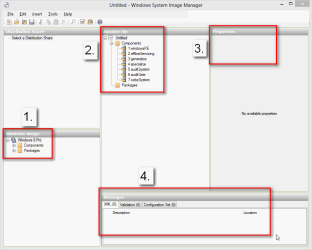
- A list of Components and Packages for your selected Windows version and edition
- Content of the answer file, still empty
- Properties of selected answer file content
- System messages
Let's work in that order I listed my chosen modifications above. Click the + sign to open Microsoft Windows Shell Setup component group, right click FolderLocations:
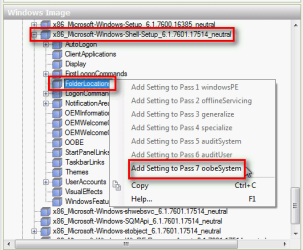
You remember the table of different Component Passes earlier in this tutorial? As it explains, the oobeSystem pass is the one which will be done when Windows is started first time after installation. Logical place to change system variables is here, before the user gets control, so the pass 7 oobeSystem is only selectable here, all others being grayed out.
I select Add Setting to Pass 7 oobeSystem. Now the Answer File pane got its first content. As Microsoft does not recommend relocating other system folders than Users and ProgramData I will see those two folders here. Users folder is where all future user accounts will be stored, and ProgramData folder contains application settings for all users. As the Users folder can take a lot of space I want it located away from the system drive C:, so let's change the value (location) here. Default is C:\Users, I want to have D:\Users.
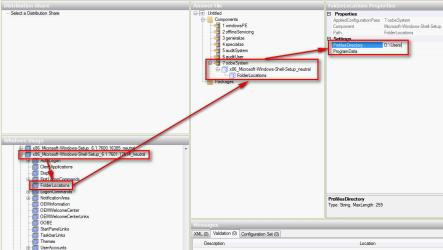
To edit or add a value first right click the component in Components list in Windows Image pane, select correct pass from context menu (for this component we selected Pass 7 oobeSystem), click the component name in Answer File pane, in this case FolderLOcations, click the subcomponent ProfilesDirectory in Properties pane and enter the value, in this case now D:\Users.
Next on my list of modifications is to copy Default User Profile settings. The Default User Profile in Windows is a reference profile; when a new user account is created it gets settings like desktop background and settings, IE favorites and home page, theme and default program shortcuts from this profile.
After we have created the answer file, we can modify the desktop and other settings while still in Audit Mode. These modifications will then be copied to Default User Profile when we finally sysprep.
To do this, we need to go back upwards a bit on components list and select the the main component Microsoft Windows Shell Setup, right click it and select Add Setting to pass 4 specialize. As you can see the Properties pane is now showing variable CopyProfile among othe things. This is the variable we need to set to True to copy our personalization settings to Default User Profile. As this variable only has two possible values, True and False (default), we do not have to type anything. Simply click the variable and select correct value from drop down list. We want it to be True:
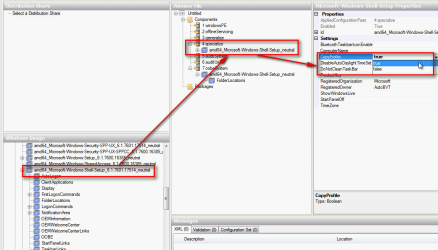
Note
Do not panic! There are literally hundreds of components and settings, you do not have to remember where each of them are and which component pass it belongs. The nice thing with Windows SIM and answer files is that you can keep trying and practicing. An answer file does nothing if it is not used in sysprepping so you can create as many practice answer files as you need to.
Keep clicking those components selecting different passes to see which values can be changed. Searching Internet for a component name usually gives you enough information to see what that component is for. Read this article to get to know the most important components: Walkthrough: Build a Simple Answer File
Keep clicking those components selecting different passes to see which values can be changed. Searching Internet for a component name usually gives you enough information to see what that component is for. Read this article to get to know the most important components: Walkthrough: Build a Simple Answer File
Tip
If you are familiar with virtualization it is a good idea to create a virtual machine to be used as a sandbox. Create the vm, install Windows as described in 2.1. above, enter Audit Mode (2.2) and install Windows SIM (2.3). Now shut down the vm and create a snapshot (image).
Run the VM and create your first answer file. Sysprep using your answer file, see how it works. Restore the snapshot and create a new answer file to test.
The same can of course also be done with an extra PC if you have one lying around. Instead of a snapshot as when using virtual machine, create a system image after installing Windows Sim to be able to restore system when needed and start playing!
Run the VM and create your first answer file. Sysprep using your answer file, see how it works. Restore the snapshot and create a new answer file to test.
The same can of course also be done with an extra PC if you have one lying around. Instead of a snapshot as when using virtual machine, create a system image after installing Windows Sim to be able to restore system when needed and start playing!
OK, let's move on. The next change on my list is giving the PC a name. Luckily it can also be found on Microsoft Windows Shell Setup as above the Default Profile, using the same pass 4 specialize so the only thing I need to do now is to click ComputerName variable in Properties pane and type the name for my PC. I also set Registered Organization and Registered Owner values as they are very practically also available here:
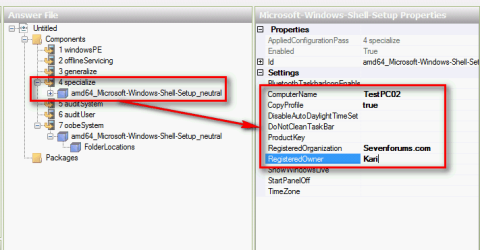
Next my personal main user account, next item on my wishlist. We are still staying in main component group Microsoft Windows Shell Setup, this time we will need component UserAccounts > LocalAccounts > LocalAccount:
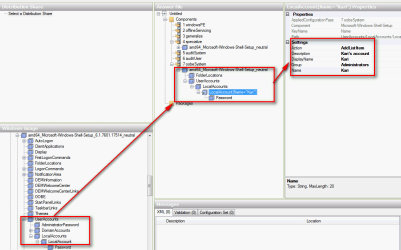
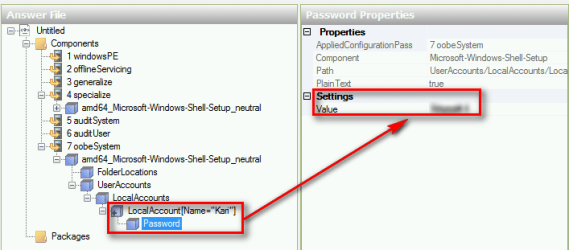
That's done! Username Kari belonging to Administrators group. I also set password although it's blurred in this screenshot:
Last item on my wishlist is the Product Key. It belongs to Microsoft Windows Setup main component group. Open the main group, right click UserData > ProductKey component and select Add Setting to pass 1 windowsPE. Set the key:
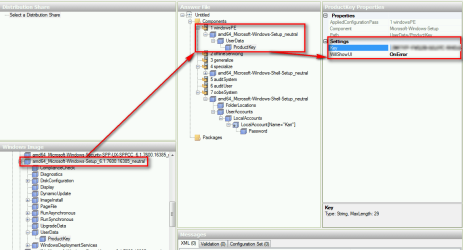
We are almost there. Now the automatic acceptance of End User License Agreement, EULA. Just one step upwards where we were above with Product Key, the EULA acceptance can be found in Microsoft Windows Setup > UserData. As the Product Key it belongs to pass 1 windowsPE, too. Set value to True

Below tip shows how to partition your hard disks with Sysprep. If at this point you would rather continue with our project, skip it and jump to 2.5. to validate your answer file.
Tip
As we are now preparing our partly installed Windows to be sysprepped, main core of Windows is already installed on C:. For this Windows setup it is not a good idea to change disk and partition information with Sysprep, for this setup modifiying partitions should be done with Windows Disk Manager.
However, if we were now creating a general Windows image to be deployed, used in installing Windows to other computers, we could also automatize the partitioning of the hard disk or disks. To give you an example how easy it is, here below you can see what would be needed to automatically partition a system with two 500GB hard disks creating a 250GB partition C: for system with name OS and a 250GB partition D: for user profiles named as UserProfiles, both these partition on first hard disk, and then use the second hd completely for one partition called Data and giving it a drive letter X:.
All partitioning components can be found in component group Microsoft Windows Setup > DiskConfiguration. We need one component for creating each partition and one component to modify each partition as follows (all settings in Pass 1 windowsPE):
Hard disk numbers start from 0, partition numbers from 1 therefore in this example C: = Disk 0 Partition 1, D: = Disk 0 Partition 2 and X: = Disk 1 Partition 1. Remembering this I need to browse to component group Microsoft-Windows-Setup > DiskConfiguration and start configuring. (Remember: all following components to Pass 1 windowsPE!)
First we create two disks and wipe them to be able to start from empty disks, Microsoft-Windows-Setup > DiskConfiguration > Disk, values to Pass 1 windowsPE
Microsoft-Windows-Setup > DiskConfiguration > Disk > ModifyPartitions > ModifyPartition, values to Pass 1 windowsPE:
Microsoft-Windows-Setup > DiskConfiguration > Disk > ModifyPartitions > ModifyPartition, values to Pass 1 windowsPE:
Microsoft-Windows-Setup > DiskConfiguration > Disk > ModifyPartitions > ModifyPartition, values to Pass 1 windowsPE:
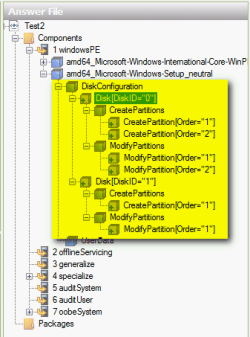
These components with correct values would then create our two disk three partition system when Windows would be installed using our sysprepped image.
However, if we were now creating a general Windows image to be deployed, used in installing Windows to other computers, we could also automatize the partitioning of the hard disk or disks. To give you an example how easy it is, here below you can see what would be needed to automatically partition a system with two 500GB hard disks creating a 250GB partition C: for system with name OS and a 250GB partition D: for user profiles named as UserProfiles, both these partition on first hard disk, and then use the second hd completely for one partition called Data and giving it a drive letter X:.
All partitioning components can be found in component group Microsoft Windows Setup > DiskConfiguration. We need one component for creating each partition and one component to modify each partition as follows (all settings in Pass 1 windowsPE):
Hard disk numbers start from 0, partition numbers from 1 therefore in this example C: = Disk 0 Partition 1, D: = Disk 0 Partition 2 and X: = Disk 1 Partition 1. Remembering this I need to browse to component group Microsoft-Windows-Setup > DiskConfiguration and start configuring. (Remember: all following components to Pass 1 windowsPE!)
First we create two disks and wipe them to be able to start from empty disks, Microsoft-Windows-Setup > DiskConfiguration > Disk, values to Pass 1 windowsPE
- DiskID = 0
- WillWipeDisk = true (this will erase the hard disk so partitions are created on an empty disk)
- DiskID = 1
- WillWipeDisk = true
- Extend = false
- Order = 1
- Size = 250000 (size in Megabytes)
- Type = Primary
- Extend = false
- Order = 2
- Size = 250000
- Type = Primary
- Extend = false
- Order = 1 (first partition of second HD)
- Size = 500000
- Type = Primary
Microsoft-Windows-Setup > DiskConfiguration > Disk > ModifyPartitions > ModifyPartition, values to Pass 1 windowsPE:
- Active = true
- Extend = false
- Format = NTFS
- Label = OS (any name you want to give to your system partition)
- Letter = C
- Order = 1
- PartitionID = 1
Microsoft-Windows-Setup > DiskConfiguration > Disk > ModifyPartitions > ModifyPartition, values to Pass 1 windowsPE:
- Active = false (only one partition can be active)
- Extend = false
- Format = NTFS
- Label = UserProfiles (any name you want to)
- Letter = D
- Order = 2
- PartitionID = 2
Microsoft-Windows-Setup > DiskConfiguration > Disk > ModifyPartitions > ModifyPartition, values to Pass 1 windowsPE:
- Active = false
- Extend = false
- Format = NTFS
- Label = Data
- Letter = X
- Order = 1
- PartitionID = 1
These components with correct values would then create our two disk three partition system when Windows would be installed using our sysprepped image.
2.5. Review and Validate your Answer File
Time to check we didn't forget something. The Answer File pane shows your content, small + sign in the component box before its name tells that component has modified (non-default) values:
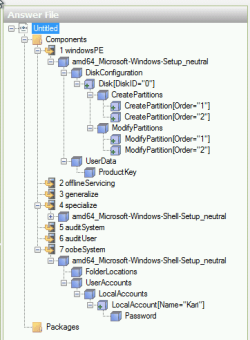
When you are satisfied, you need to validate the answer file. Select Validate Answer File in Tools menu:
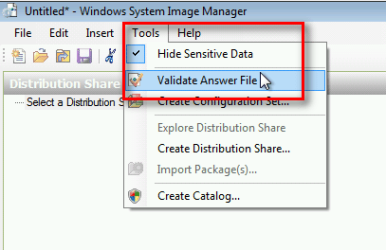
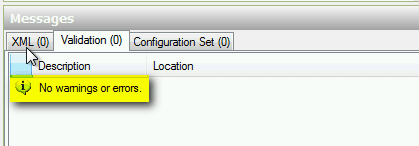
If validation finds errors it shows them on Messages pane. Check the components that produced error messages and try to fix errors. In our case now everything seems OK:
Now save the answer file, name it as you wish. Extension must be xml. The file can of course be saved anywhere you want to but when used with Sysprep it must be on root of a removable media, USB, CD, floppy or such.
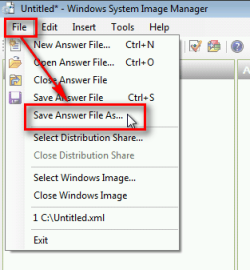
I save this answer file as MyAnswerFile.xml on a USB Flash Stick, drive F:.
I am used to do one extra check at this point: I open the answer file from where I saved it with IE and read it through to see if my eyes can catch a typo. You can open XML files with IE and open & edit with Notepad if you want to see results of your hard work yourself. If not, here's an example, the answer file we created together:
Code:
<?xml version="1.0" encoding="utf-8"?>
<unattend xmlns="urn:schemas-microsoft-com:unattend">
<settings pass="oobeSystem">
<component name="Microsoft-Windows-Shell-Setup" processorArchitecture="amd64" publicKeyToken="31bf3856ad364e35" language="neutral" versionScope="nonSxS" xmlns:wcm="http://schemas.microsoft.com/WMIConfig/2002/State" xmlns:xsi="http://www.w3.org/2001/XMLSchema-instance">
<FolderLocations>
<ProfilesDirectory>D:\Users</ProfilesDirectory>
</FolderLocations>
<UserAccounts>
<LocalAccounts>
<LocalAccount wcm:action="add">
<Password>
<Value>VABpAHQAeQBzAG8AZgB0ADEAUABhAHMAcwB3AG8AcgBkAA==</Value>
<PlainText>false</PlainText>
</Password>
<Description>Kari's account</Description>
<DisplayName>Kari</DisplayName>
<Group>Administrators</Group>
<Name>Kari</Name>
</LocalAccount>
</LocalAccounts>
</UserAccounts>
</component>
</settings>
<settings pass="specialize">
<component name="Microsoft-Windows-Shell-Setup" processorArchitecture="amd64" publicKeyToken="31bf3856ad364e35" language="neutral" versionScope="nonSxS" xmlns:wcm="http://schemas.microsoft.com/WMIConfig/2002/State" xmlns:xsi="http://www.w3.org/2001/XMLSchema-instance">
<CopyProfile>true</CopyProfile>
<ComputerName>TestPC02</ComputerName>
<RegisteredOrganization>Sevenforums.com</RegisteredOrganization>
<RegisteredOwner>Kari</RegisteredOwner>
</component>
</settings>
<settings pass="windowsPE">
<component name="Microsoft-Windows-Setup" processorArchitecture="amd64" publicKeyToken="31bf3856ad364e35" language="neutral" versionScope="nonSxS" xmlns:wcm="http://schemas.microsoft.com/WMIConfig/2002/State" xmlns:xsi="http://www.w3.org/2001/XMLSchema-instance">
<UserData>
<AcceptEula>true</AcceptEula>
<FullName>Kari The Finn</FullName>
<Organization>SevenForums.com</Organization>
</UserData>
</component>
<component name="Microsoft-Windows-International-Core-WinPE" processorArchitecture="amd64" publicKeyToken="31bf3856ad364e35" language="neutral" versionScope="nonSxS" xmlns:wcm="http://schemas.microsoft.com/WMIConfig/2002/State" xmlns:xsi="http://www.w3.org/2001/XMLSchema-instance">
<SetupUILanguage>
<UILanguage>en-US</UILanguage>
</SetupUILanguage>
<InputLocale>fi-FI</InputLocale>
<UILanguage>en-US</UILanguage>
<SystemLocale>en-US</SystemLocale>
<UserLocale>en-US</UserLocale>
</component>
</settings>
<cpi:offlineImage cpi:source="wim:x:/sources/install.wim#Windows 7 ULTIMATE" xmlns:cpi="urn:schemas-microsoft-com:cpi" />
</unattend>Before proceeding I need to create a partition D: using Disk Management (see tutorial); as you remember I changed the value of the component ProfilesDirectory to a yet non-existing partition D:. Creating it now will save me a lot of problems, sysprepping would have stopped for an error if it hadn't found the partition needed.
I also change some desktop settings like wallpaper and theme, create shortcuts and install a few gadgets, also I will set IE home page to Seven Forums and save Windows 8 Forums to Favorites. All these modifications will be copied to Default User Profile with CopyProfile component we used above so each and every user account that will be created on this Windows will have the wallpaper, icons and shortcuts, gadgets, home page and favorites as I want to have them.
2.6. Sysprep Windows using your Answer File
Time to do something with our Answer File, put it in action. Close all open applications and browsers and open command prompt.
First let's jump to Sysprep folder which is a subfolder of System32 in C:\Windows. Type following to command prompt and hit Enter:
Code:
CD C:\Windows\System32\SysprepNow the sysprep command. Sysprep get's the instructions from various switches. In this case we need four switches to tell Sysprep what to do:
- Generalize
- The CopyProfile component we used does not work without generalizing, removing all hardware related information. This is not a problem for us, our Windows is freshly installed and hardware specific drivers will first be installed when we do the OOBE boot
- OOBE
- This switch tells Sysprep to prepare computer for a Welcome (OOBE) mode boot i.e. first time boot. The other alternative here is Audit, to boot to Audit Mode but as we are finishing here and want to continue installing Windows, OOBE is our choice
- Reboot
- We ask Sysprep to reboot after it has finished. Other alternatives here are Shutdown which is practical if you want to sysprep then capture the image to be moved to another computer, and Quit, asking Sysprep to keep Windows on and stay in Audit Mode after sysprepping
- Unattend
- This switch tells Sysprep we want to use an answer file. To tell which answer file, add a colon after switch name Unattend, then the full path to answer file. Remember that if the answer file path contains any spaces you must put it in between quotation marks. Path F:\MyAnswerFile.xml does not need quotation marks but path "F:\My Answer File.xml" does
Our command for now is:
Code:
sysprep.exe /generalize /oobe /reboot /unattend:F:\MyAnswerFile.xml
Type the command and Hit Enter. You will see that Sysprep is working:

After a while Sysprep finishes and reboots to Welcome (OOBE) mode. So far so good, Windows starts to prepare computer for first time use:
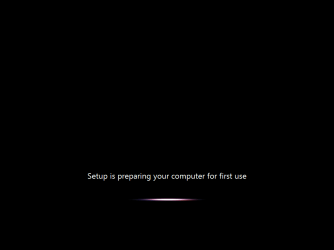
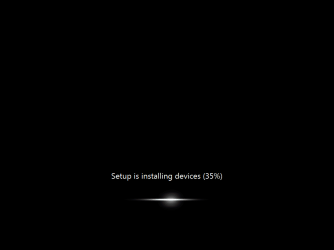
As normal in OOBE boot, Windows install devices it found:
As my username and password were already set using respective components Windows stops for asking my credentials:

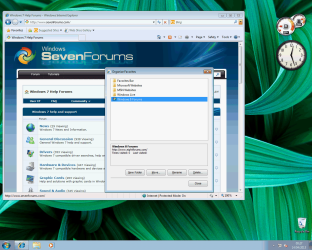
Finally there! As our CopyProfile component has told Windows, all user accounts get the walpaper, gadgets, theme, shortcuts, colors etc. from the new Default Profile. IE has also got a new default home page, every new user account has Seven Forums as home page and Eight Forums in Favorites as the CopyProfile component copied all changes made to built-in administrator account to Default User Profile:
Part 3:
Sysprep existing Windows setup
3.1. Boot to Audit Mode
Warning
After sysprepping an existing Windows setup it needs to be reactivated. For this you will need your valid original product key.
Do not proceed without backing up your system. The Seven Forums, Eight Forums nor me as the author of this tutorial cannot be held liable if you lose data or functionality of your Windows due failed sysprepping. If the instructions are followed to the letter this is highly unlikely but as a small user error or typo can cause a malfunctioning system I feel it is important to point this out.
For a complete system image backup consult this tutorial: http://www.sevenforums.com/tutorials/663-backup-complete-computer-create-image-backup.html
Do not proceed without backing up your system. The Seven Forums, Eight Forums nor me as the author of this tutorial cannot be held liable if you lose data or functionality of your Windows due failed sysprepping. If the instructions are followed to the letter this is highly unlikely but as a small user error or typo can cause a malfunctioning system I feel it is important to point this out.
For a complete system image backup consult this tutorial: http://www.sevenforums.com/tutorials/663-backup-complete-computer-create-image-backup.html
To boot Windows from normal mode to Audit Mode there can't be any pending reboots due updates. If Windows Update has a pending update reboot, do it now.
Close all applications. Type this to Run dialog or command prompt and hit Enter:
Code:
C:\Windows\System32\Sysprep\Sysprep.exe /audit /rebootWindows reboots now to Audit Mode.
3.2. Install Windows System Image Manager
Follow the instructions given in 2.3. above.
3.3. Create an Answer File
Follow the instructions given in 2.4. above.
Notice that if you want to use the CopyProfile component when sysprepping an existing Windows setup, you need to delete all user accounts except the built-in administrator account while in Audit Mode. Executing the CopyProfile component will fail if any user accounts exists.
See more: http://www.sevenforums.com/tutorials/285983-user-profile-customize-during-installation.html
3.4. Review and Validate your Answer File
Follow the instructions given in 2.5. above.
3.5. Sysprep Windows using your Answer File
Follow the instructions given in 2.6. above.
Part 4:
Use the Sysprepped Image to install Windows on another Computer
To capture the Windows image and deploy it to another computer, Sysprep needs to be run with Shutdown switch (see 2.6).
The procedure is quite simple:
- Create the answer file
- Run Sysprep with Shutdown switch
- Boot the PC with a WinPE CD/DVD or with a third party imaging application. Macrium reflect is free and easy to use, check these tutorials:
- Create (capture) an image of your Windows setup
- Install Windows using the captured image on another PC
- http://www.sevenforums.com/tutorial...w-create-general-system-image-audit-mode.html
- http://www.sevenforums.com/tutorials/135077-windows-7-installation-transfer-new-computer.html
. Part 5:
Recommended Reading
From Microsoft:
Seven Forums & Eight Forums Tutorials about various Sysprep scenarios:
- http://www.sevenforums.com/tutorials/285983-user-profile-customize-during-installation.html
- http://www.sevenforums.com/tutorial...reate-move-during-windows-7-installation.html
- User Profiles - Relocate to another Partition or Disk
- http://www.sevenforums.com/tutorials/197255-windows-7-installation-prepare-pc-sold.html
- http://www.sevenforums.com/installa...pproach-installing-setting-up-windows-pc.html
Kari
Footnote: For those interested this tutorial took 36 straight hours, from a Friday afternoon to early Sunday morning, interrupted only for a few hours sleep Saturday afternoon and occasional toilet and coffee breaks. It took almost a bottle of whisky, a few liters coffee, about the same amount of water, over 30 cigarettes, a dozen or so Mars bars, 10 oranges, two liters of orange juice and two family size deep-frozen pizzas.
Last edited: