View attachment 325805
Thank you very much..you really helped me and I learned something new...now I can watch movies with no problem...
Excellent.
Don't know what customization you've played with yet in PotPlayer, to make it look nice. Of course it works by default, but adjusting its "appearance" and "playback" settings gets it to look just the way you'd like it to while playing a video. For example, my own tastes want to ELIMINATE THE WINDOW around the video, so that when I maximize it (say I'm watching a 1920x1080 HDTV clip and I want it to appear in full-size) I want it to fill the screen with no re-sizing (since my monitor is physically 1920 wide). By eliminating the program window around the video, the full horizontal 1920 width of the video is possible on my 1920 wide screen with no re-sizing.
Then, while watching the video there may be "player controls" visible at the bottom of the screen. If you press the ENTER key at this point, the "player control" bar at the bottom disappears.
So, at this point you're truly watching nothing but a full-screen 1920x1080 video, with nothing else distracting on your screen or causing re-sizing (and thus possible reduction of original video quality).
Etc., etc. It will take you some time to explore all of the controls and playback options for PotPlayer, but you should explore these for yourself to learn what can be done so that you can get what you want on the screen.
To get you started, here is a ZIP file of the PotPlayer INI file (right-click on the program window, select Preferences from the popup menu, select the "General" group, and check the "store settings to INI file" box). The program can work the same with or without an INI file, but using an INI file allows you to preserve your own customizations across new version updates, share INI files (e.g. as I'm doing here), etc.
Once checked, the INI file is created in:
C:\Users\<username>\AppData\Roaming\PotPlayerMini64\PotPlayerMini64.ini
When a new program version is installed, you have to again go into Preferences -> General and check the "store settings to INI file" box). This will rename your existing INI file to BAK, and will create a brand new default INI file which potentially might contain new settings for new features, etc. However you can also just delete this new INI file, and rename the BAK file version to INI again (i.e. to use your old customizations with the new version of the program) and that works just fine. I suppose potentially any new features which had defaults in the new INI file might be missing from your renamed BAK->INI version, but they'll still work just fine (using default actions from the program, even without default values in the INI file).
Every so often I actually will re-create a brand new INI file from the most current default. I've got a collection of screenshots showing each of my Preferences customizations, so I manually just go through the process all over again (starting from a brand new INI default setup), thus guaranteeing I will end up with all of my customizations combined with everything that should be in the latest INI file.
Anyway, I'm attaching here (now at bottom of this post) a ZIP of my own customized PotPlayerMini64.ini file. You can try it out for yourself simply by (1) first rename your existing C:\Users\<username>\AppData\Roaming\PotPlayerMini64\PotPlayerMini64.ini to .BAK to save it, and then (2) paste my provided INI file into that folder. Then open the program and you'll be using my INI file. Reverse the process if you want to back out my customizations and revert back to your own set.
And GSpot is very useful program to see which codecs I have or do not have installed.
It's more than just that. It's also a "renderer", where you can play audio/video clips inside it, to determine which of your audio/video codecs actually WORKS properly for the specific clip you're trying to play.
You first "open" the file in question, using either the Menu bar (File -> Open) of there's a "..." button to the right side of the File section in the GUI (upper-left area of the program window) to trigger the same File -> Open dialog.
Information about the audio and video portions of the file are presented in the appropriate panes of the GUI, including information about the "container" (i.e. "wrapper"), like AVI, MP4, etc., which is of course the same type of information shown in much more detail by MediaInfo.
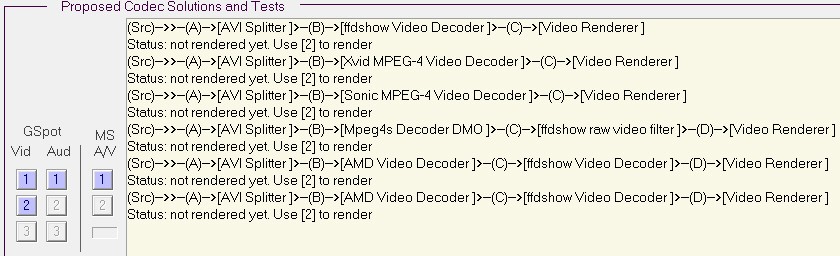
Then, down in the lower-left section in the GUI there is the "Proposed codec solutions and tests" area. There are three columns of buttons: (1) video, (2) audio, (3) audio/video. Once you've opened the selected file, if you push the 1 button in the video column you'll see all of the potentially usable splitters and codecs that might be usable to decode the video and play it.
If you then push the 2 button in the video column, you'll see GSpot attempt to use all of these possibles, some number of which may fail (could also be ALL) and some number which may work (could also be NONE).
If at least one works, you can then push the 3 button in the video column and the video should now begin playing up in the TEST pane area, with some simple player controls below it to play, pause and stop.
You can repeat this same process with the audio column of buttons, to see whether you can decode sound on your system. Again, there may be multiple possible mechanisms available (revealed by pushing the 1 button in the audio column), and some/none but not all may actually work (revealed by pushing the 2 button in the audio column). And again, assuming there's at least one audio codec on your system that will work you can actually listen to the audio by pushing the 3 button in the audio column.
Finally, you can combine both the audio and video search/try/test mechanisms together, using the buttons in the A/V column. Same approach as with audio and video separately.