
Shortcut Arrow - Change, Remove, or Restore

How to Change, Remove, or Restore the Shortcut Arrow Overlay Icon in Windows


   Information
This tutorial will show you how to change, remove, or restore the default shortcut arrow overlay on all shortcut icons in Vista, Windows 7, and Windows 8.

You must be logged in as an administrator to be able to do the steps in this tutorial.

   Warning
Removing the shortcut arrow will make it harder to tell which files are shortcuts or not.

You can still tell by right clicking or press and hold on the file, and click/tap on Properties to see if you have a Shortcut tab or not.


OPTION ONE

Change Shortcut Arrow using "Vista Shortcut Overlay Remover"


1. If you have not already, click/tap on the Download button below to download the Vista Shortcut Overlay Remover (Vista Shortcut Overlay Manager) program below for the 32-bit or 64-bit Windows you have installed. Save the .msi file to your desktop, and install it.
32-bit (x86) Windows

Download


64-bit (x64) Windows

Download


2. Double click/tap on the program's shortcut to run the program.

3. To Change, Restore, or Remove the Arrow for All Shortcuts
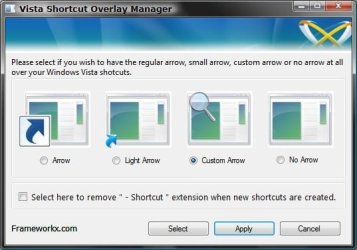
A) Select (dot) the arrow option you want for the shortcut arrow. (See screenshot below)
NOTE: If you selected Custom Arrow to change the shortcut arrow, then click on Select and navigate to and choose a ICO (icon) file you have downloaded to use as the shortcut arrow.
4. To Remove the "Shortcut" Name from All Shortcuts
NOTE: See also: http://www.sevenforums.com/tutorials/804-shortcut-extension-remove-restore.html
A) Check the box to also remove the - Shortcut name extension for new shortcuts that are created.
5. Click/tap on Apply.
Frameworkx.jpg
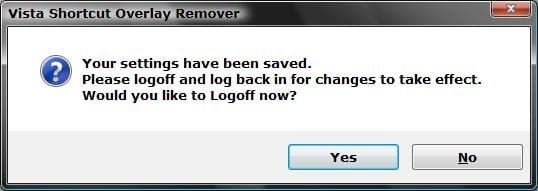
6. Click/tap on Yes to log off to apply the changes. (See screenshot below)
NOTE: If you like, you could also just restart explorer instead to apply your changes.
Logoff_Confirmation.jpg
7. Log back on and your done.


   Warning
If you used the Light Arrow or No Arrow option and uninstall "Vista Shortcut Overlay Remover", then they will be undone the next time you log off/on or restart the computer/explorer.

The Arrow (default) and Custom Arrow options will not be undone if you uninstall "Vista Shortcut Overlay Remover".


OPTION TWO

To Change Shortcut Arrow Overlay Icon in Registry Editor


1. Press the Windows + R keys to open the Run dialog, type regedit, and press Enter.

2. In regedit, navigate to the location below:
NOTE: If Shell Icons it is not in the left pane under Explorer, right click on Explorer, and click on New and Key. Type Shell Icons for the new keys's name, and press Enter.

Code:
HKEY_LOCAL_MACHINE\SOFTWARE\Microsoft\Windows\CurrentVersion\Explorer\Shell Icons

3. In the right pane of Shell Icons, right click on an empty area, and click/tap on New and String Value, and name it 29.

4. Double click/tap on the 29 sting value to modify it.

5. Type in the full path of your custom .ico file within quotes, OR copy and paste the path below for what overlay icon you would like to use, and click/tap on OK.
   Tip
If you like, you can download a transparent.ico file here to use instead.


(No arrow - Transparent) %windir%\System32\shell32.dll,-50

XP_Arrow.png (Classic) %windir%\System32\shell32.dll,-30

Arrow.png (Default) %windir%\System32\shell32.dll,-16769
6. Log off and on, or restart the computer to apply.


OPTION THREE

To Change Shortcut Arrow Overlay Icon using a REG File


NOTE: This option does the same thing as OPTION TWO above, but automatically for you using a .reg file.
1. Do step 2, 3, or 4 below for what you would like to do.

2. To Restore Default Shortcut Arrow Overlay Icon
NOTE: This is the default setting.
A) Click/tap on the Download button below to download the .reg file below, and go to step 5 below.

Arrow.png Default_Shortcut_Arrow.reg


Download


3. To Use Classic Shortcut Arrow Overlay Icon
A) Click/tap on the Download button below to download the .reg file below, and go to step 5 below.

XP_Arrow.png Classic_Shortcut_Arrow.reg


Download


4. To Have No Shortcut Arrow Overlay Icon
A) Click/tap on the Download button below to download the .reg file below, and go to step 5 below.

No_Shortcut_Arrow.reg


Download


5. Log off and log on, or restart the computer to apply.

6. You can now delete the downloaded .reg file if you like.
That's it,
Shawn


Attachments

Last edited:
Shortcut Arrow - Change

   Note
The shortcut icon arrows in Win 7 are actually overlaid icons. These icons live in the shell32.dll file. As it happens, the old winxp shortcut arrow also lives in this file.
   Warning
Please only attempt this if you are comfortable making changes to the registry. Usual disclaimer etc,etc.


1. Open the Start Menu, and type regedit in the search line and pres Enter.

2. In regedit, navigate to the location below:
NOTE: If Shell Icons it is not in the left pane under Explorer, then right click on Explorer and click on New and Key. Type Shell Icons for the new keys's name and press Enter.

Code:
HKEY_LOCAL_MACHINE\SOFTWARE\Microsoft\Windows\CurrentVersion\Explorer\Shell Icons

3. In the right pane of Shell Icons, right click on a empty area and click on New and String Value, and name it 29.

4. Right click on 29 and click on Modify.

5. Type in C:\Windows\System32\shell32.dll,29 and click on OK.
NOTE: The 29 is the XP standard shortcut arrow number. Substitute a different ‘number’ in the data value field for other overlays or set the path to an ico file somewhere else on the hard drive.

6. Restart the computer to apply the small XP arrow, or the one you have selected, will show on all your shortcut icons.

 
Last edited by a moderator:

My Computer

OS
Win 7 32 bit , Win xp Sp3
Much Better .. Many Thanks
 

My Computer

Computer Manufacturer/Model Number
HP d4996t (upgraded)
OS
XP MCE .... XP Pro 64 .... W7 U x64
CPU
E6750, 2.67GHz C2D
Memory
4GB, PC2 6400
Graphics Card(s)
GeForce 9400GT
Monitor(s) Displays
Twin Samsung 2443BWT
Screen Resolution
1920x1200
Hard Drives
Many .. 3 Installed
PSU
460W
Internet Speed
Cable
To whom it may concern.
Thank you very much for the work done on my post.
Much better.
 

My Computer

OS
Win 7 32 bit , Win xp Sp3
You're most welcome Nosmo. Thank you for posting the tutorial. :)
 
Last edited:

My Computer

Computer type
PC/Desktop
Computer Manufacturer/Model Number
Self built custom
OS
64-bit Windows 11 Pro for Workstations
CPU
Intel i7-8700K OC'd to 5 GHz
Motherboard
ASUS ROG Maximus XI Formula Z390
Memory
64 GB (4x16GB) G.SKILL TridentZ RGB DDR4 3600 MHz
Graphics Card(s)
ASUS ROG-STRIX-GTX1080TI-O11G-GAMING
Sound Card
Integrated
Monitor(s) Displays
2 x Samsung Odyssey G7 27"
Screen Resolution
2560x1440
Hard Drives
1TB Samsung 990 PRO M.2,
4TB Samsung 990 PRO PRO M.2,
TerraMaster F8 SSD Plus NAS
PSU
Seasonic Prime Titanium 850W
Case
Thermaltake Core P3
Cooling
Corsair Hydro H115i
Keyboard
Logitech wireless K800
Mouse
Logitech MX Master 4
Internet Speed
2 Gb/s Download and 100 Mb/s Upload
Antivirus
Malwarebyte Anti-Malware Premium
Browser
Google Chrome
Other Info
Logitech Z625 speaker system,
Logitech BRIO 4K Pro webcam,
HP Color LaserJet Pro MFP M477fdn,
APC SMART-UPS RT 1000 XL - SURT1000XLI,
Galaxy S23 Plus phone
wow, much better than vista xD

thanks guys!
 

My Computer

Computer Manufacturer/Model Number
Custom Build
OS
Windows 7 Ultimate x64
CPU
Intel Core 2 Quad Q6600
Motherboard
ASUS P5K-E
Memory
8GB DDR2
Graphics Card(s)
GeForce 8800 GTS 512
all that is past and too much work, so here I have discovered and made much more practical.​

save to any name.reg​
Windows Registry Editor Version 5.00

[HKEY_LOCAL_MACHINE\SOFTWARE\Microsoft\Windows\CurrentVersion\Explorer]
"link"=hex:00,00,00,00
[HKEY_CURRENT_USER\Software\Microsoft\Windows\CurrentVersion\Explorer]
"link"=hex:00,00,00,00
[HKEY_LOCAL_MACHINE\SOFTWARE\Microsoft\Windows\CurrentVersion\Explorer\Shell Icons]
"29"="%SystemRoot%\\system32\\imageres.dll,-121"
 

My Computer

OS
Windows seven OEM Ultimate x64
None of this is working in Windows 7 RTM. There is no folder "Shell Icons" anymore.

Is there any other (easy) way?
 

My Computer

Computer Manufacturer/Model Number
hp
OS
win7.7100x64
CPU
core2duo t5870
Memory
4gb
Monitor(s) Displays
l2245w
Read the Tutorial again ... You have to make the "Shell Icons" Folder .. If it's not there.

NOTE: If Shell Icons it is not in the left pane under Explorer, then right click on Explorer and click on New and Key. Type Shell Icons for the new keys's name and press Enter.
Don't feel bad ... I missed this on my first pass also.
 

My Computer

Computer Manufacturer/Model Number
HP d4996t (upgraded)
OS
XP MCE .... XP Pro 64 .... W7 U x64
CPU
E6750, 2.67GHz C2D
Memory
4GB, PC2 6400
Graphics Card(s)
GeForce 9400GT
Monitor(s) Displays
Twin Samsung 2443BWT
Screen Resolution
1920x1200
Hard Drives
Many .. 3 Installed
PSU
460W
Internet Speed
Cable
Not working for me. I put it in the keys listed here as well as in the explorer section of the "Wow6432Node" key which has the same structure. Running Windows 7 Ultimate RTM 64-bit.

I'm trying to link it to an icon called "larrow.ico" in "C:\Shortcuts", so the "29" bit has the data:
"C:\Shortcuts\larrow.ico,0"

Any ideas? I just want the same arrow that you get with a TweakUI'd XP.
 

My Computer

OS
Windows 7 Ultimate 64-bit
CPU
Intel Core 2 Duo E6600 @ 3.2GHz
Motherboard
Gigabyte GA-P35-DS3R
Memory
4GB DDR2
Graphics Card(s)
1GB GeForce GTX 285
Monitor(s) Displays
22" AOC 2216Vw
Hello Passa, and welcome to Seven Forums.

The program in METHOD TWO of the tutorial below will still work in Windows 7. You might see if it can help you.

Shortcut Arrow - Vista Forums

Hope this helps,
Shawn
 

My Computer

Computer type
PC/Desktop
Computer Manufacturer/Model Number
Self built custom
OS
64-bit Windows 11 Pro for Workstations
CPU
Intel i7-8700K OC'd to 5 GHz
Motherboard
ASUS ROG Maximus XI Formula Z390
Memory
64 GB (4x16GB) G.SKILL TridentZ RGB DDR4 3600 MHz
Graphics Card(s)
ASUS ROG-STRIX-GTX1080TI-O11G-GAMING
Sound Card
Integrated
Monitor(s) Displays
2 x Samsung Odyssey G7 27"
Screen Resolution
2560x1440
Hard Drives
1TB Samsung 990 PRO M.2,
4TB Samsung 990 PRO PRO M.2,
TerraMaster F8 SSD Plus NAS
PSU
Seasonic Prime Titanium 850W
Case
Thermaltake Core P3
Cooling
Corsair Hydro H115i
Keyboard
Logitech wireless K800
Mouse
Logitech MX Master 4
Internet Speed
2 Gb/s Download and 100 Mb/s Upload
Antivirus
Malwarebyte Anti-Malware Premium
Browser
Google Chrome
Other Info
Logitech Z625 speaker system,
Logitech BRIO 4K Pro webcam,
HP Color LaserJet Pro MFP M477fdn,
APC SMART-UPS RT 1000 XL - SURT1000XLI,
Galaxy S23 Plus phone
Most Successful Shortcut Arrow Overlay Killer

Passa,
I understand you fully. Registry modification did not work in my case too - in Windows 7 Ultimate x64. I went my own way and replaced the arrow icon in shell32.dll (icon no. 264) with blank one. Make a copy of shell32.dll, modify with any tool e.g. ResourceHacker or IconWorkshop, then place the file back to system32 and SysWOW64. Unfortunately you cannot do this directly - Windows prevents any change in system32 folder. I have two systems on my machine so I simply enter the other system and change this which is not used. You may use live CD e.g. any Lunux to perform replacing dll file. In the end you should kill icon cache file residing in user\AppData\Local\IconCache.db.
This method is not easy but you are free of funny overlay forever.
JS
 

My Computer

OS
Windows 7
CPU
Intel Core2 Duo E8400
Motherboard
Asus P5QL Pro
Memory
Corsair XMS2-6400 800MHz 6GB
Graphics Card(s)
ATI Radeon HD4870
Sound Card
Realtek High Definition Audio
Monitor(s) Displays
Acer X243W 24''
Hard Drives
2 x Samsung SATA2 HD103UJ 1TB
Case
Chieftech Big Tower
Cooling
Zalman Reservator 2
Here you go Shawn, seemed to work for me. View attachment 2839

Thanks Mr. Grimm, this did the trick. Don't skim the read me file to quickly though, I did three restarts before I re-read it and realized I hadn't relocated the blank.ico file :confused:

Eliminate the user error, however, and it works perfect.

Thanks again.
 

My Computer

Computer Manufacturer/Model Number
HP-Pavilion
OS
Windows 7 Home Premium x64
CPU
Intel Core i7 920 @ 2.67 GHz Quad Core
Memory
6 GB
Graphics Card(s)
Nvidia GeForce 9600 GS 768 MB
Sound Card
Realtek High Definition Audio
Screen Resolution
1920 x 1080
Any chance of getting rid of them altogether?
 

My Computer

Computer Manufacturer/Model Number
Compaq Presario F700
OS
Windows 7 x32
CPU
AMD Turion 64 Mobile TK-53
Motherboard
Quanta 30EA
Memory
DDR2 - 2048 Mbytes
Graphics Card(s)
NVIDIA GeForce 7000M/nForce 610M
Sound Card
?
Monitor(s) Displays
Normal Laptop Screen
Hard Drives
?
PSU
?
Case
?
Cooling
?

My Computer

Computer type
PC/Desktop
Computer Manufacturer/Model Number
Self built custom
OS
64-bit Windows 11 Pro for Workstations
CPU
Intel i7-8700K OC'd to 5 GHz
Motherboard
ASUS ROG Maximus XI Formula Z390
Memory
64 GB (4x16GB) G.SKILL TridentZ RGB DDR4 3600 MHz
Graphics Card(s)
ASUS ROG-STRIX-GTX1080TI-O11G-GAMING
Sound Card
Integrated
Monitor(s) Displays
2 x Samsung Odyssey G7 27"
Screen Resolution
2560x1440
Hard Drives
1TB Samsung 990 PRO M.2,
4TB Samsung 990 PRO PRO M.2,
TerraMaster F8 SSD Plus NAS
PSU
Seasonic Prime Titanium 850W
Case
Thermaltake Core P3
Cooling
Corsair Hydro H115i
Keyboard
Logitech wireless K800
Mouse
Logitech MX Master 4
Internet Speed
2 Gb/s Download and 100 Mb/s Upload
Antivirus
Malwarebyte Anti-Malware Premium
Browser
Google Chrome
Other Info
Logitech Z625 speaker system,
Logitech BRIO 4K Pro webcam,
HP Color LaserJet Pro MFP M477fdn,
APC SMART-UPS RT 1000 XL - SURT1000XLI,
Galaxy S23 Plus phone
:o Oops, didn't see that!! Thanks.
 

My Computer

Computer Manufacturer/Model Number
Compaq Presario F700
OS
Windows 7 x32
CPU
AMD Turion 64 Mobile TK-53
Motherboard
Quanta 30EA
Memory
DDR2 - 2048 Mbytes
Graphics Card(s)
NVIDIA GeForce 7000M/nForce 610M
Sound Card
?
Monitor(s) Displays
Normal Laptop Screen
Hard Drives
?
PSU
?
Case
?
Cooling
?
LOL, you're welcome. :)
 

My Computer

Computer type
PC/Desktop
Computer Manufacturer/Model Number
Self built custom
OS
64-bit Windows 11 Pro for Workstations
CPU
Intel i7-8700K OC'd to 5 GHz
Motherboard
ASUS ROG Maximus XI Formula Z390
Memory
64 GB (4x16GB) G.SKILL TridentZ RGB DDR4 3600 MHz
Graphics Card(s)
ASUS ROG-STRIX-GTX1080TI-O11G-GAMING
Sound Card
Integrated
Monitor(s) Displays
2 x Samsung Odyssey G7 27"
Screen Resolution
2560x1440
Hard Drives
1TB Samsung 990 PRO M.2,
4TB Samsung 990 PRO PRO M.2,
TerraMaster F8 SSD Plus NAS
PSU
Seasonic Prime Titanium 850W
Case
Thermaltake Core P3
Cooling
Corsair Hydro H115i
Keyboard
Logitech wireless K800
Mouse
Logitech MX Master 4
Internet Speed
2 Gb/s Download and 100 Mb/s Upload
Antivirus
Malwarebyte Anti-Malware Premium
Browser
Google Chrome
Other Info
Logitech Z625 speaker system,
Logitech BRIO 4K Pro webcam,
HP Color LaserJet Pro MFP M477fdn,
APC SMART-UPS RT 1000 XL - SURT1000XLI,
Galaxy S23 Plus phone
I want something mark my shortcuts, but not the default arrow. Is there any way to change my arrow into something else? Like a little heart or grenade or something.
 

My Computer

OS
Windows 7 Retail
Hello Crimson,

Other than using the tutorial on the first page, the program in METHOD TWO of the tutorial below will still work in Windows 7.

Shortcut Arrow - Vista Forums

Hope this helps,
Shawn
 

My Computer

Computer type
PC/Desktop
Computer Manufacturer/Model Number
Self built custom
OS
64-bit Windows 11 Pro for Workstations
CPU
Intel i7-8700K OC'd to 5 GHz
Motherboard
ASUS ROG Maximus XI Formula Z390
Memory
64 GB (4x16GB) G.SKILL TridentZ RGB DDR4 3600 MHz
Graphics Card(s)
ASUS ROG-STRIX-GTX1080TI-O11G-GAMING
Sound Card
Integrated
Monitor(s) Displays
2 x Samsung Odyssey G7 27"
Screen Resolution
2560x1440
Hard Drives
1TB Samsung 990 PRO M.2,
4TB Samsung 990 PRO PRO M.2,
TerraMaster F8 SSD Plus NAS
PSU
Seasonic Prime Titanium 850W
Case
Thermaltake Core P3
Cooling
Corsair Hydro H115i
Keyboard
Logitech wireless K800
Mouse
Logitech MX Master 4
Internet Speed
2 Gb/s Download and 100 Mb/s Upload
Antivirus
Malwarebyte Anti-Malware Premium
Browser
Google Chrome
Other Info
Logitech Z625 speaker system,
Logitech BRIO 4K Pro webcam,
HP Color LaserJet Pro MFP M477fdn,
APC SMART-UPS RT 1000 XL - SURT1000XLI,
Galaxy S23 Plus phone
Yes they tell you how to change to a custom arrow by installing that program, but don't say anything about where to get custom arrows.
 

My Computer

OS
Windows 7 Retail
Back
Top