HELP!! Windows 7 on SSD failed to boot, goes into UEFI BIOS.

2ndIdentity

New member
Local time
3:59 AM
Messages
8
Hi all,

I have just recently installed Windows 7 on the Plextor M6 Pro 128GB SSD. Everything went fine for the first few boots, and Windows will not boot up after that. The computer automatically goes into UEFI BIOS as if there is no Windows installed on any of the hard disks.

I removed the SSD and inserted it into the external enclosure and hook it up to my laptop via USB. Windows (on my laptop) did not show any removable media under My Computer. Upon firing up Disk Management, the following screenshot (Screen1.jpg) can be seen.

I humbly seek for advices of anyone out there who might be able to help me regarding this issue. I have previously successfully installed Windows 7 on all my older PC/Laptops. But this is the first time I have installed it on an SSD. My previous installation on HDD works well without issue (used it for 6 months before I reinstalled it onto the SSD). I ran into this issue twice within the same day (I reformatted and reinstalled Windows after my first encouter).

I will post whatever details required to solve the above issue. Also, any explanation and information regarding the issue as well as how to prevent it from coming back would be very useful.

Many thanks in advance!!
 

Attachments

  • Screen1.jpg
    Screen1.jpg
    113.1 KB · Views: 16

My Computer My Computer

At a glance

Windows 7 Ultimate x64INTEL i5-46902x Kingston 4GB 1600MHZASUS R9 290-4GD5
Computer type
PC/Desktop
Computer Manufacturer/Model Number
Custom Build
OS
Windows 7 Ultimate x64
CPU
INTEL i5-4690
Motherboard
ASUS H97M-PLUS
Memory
2x Kingston 4GB 1600MHZ
Graphics Card(s)
ASUS R9 290-4GD5
Hard Drives
PLEXTOR M6 PRO 128GB
WESTERN DIGITAL BLUE 1TB 7200RPM
Antivirus
AVAST 2014
Browser
OPERA 20.0
Hi there

In all cases ensure LEGACY BOOT is enabled if that option exists in BIOS.

1) First ensure PROTECTED BOOT is DISABLED -- this doesn't mean turning off UEFI.
2) Ensure the SSD is formatted to GPT and NOT MBR
3) Ensure your W7 install media will handle UEFI boot and install.

If you Don't want to use UEFI boot

1) Disable UEFI in BIOS.
2) Format SSD as MBR
3) Install W7 - default mode will be non UEFI.

Cheers
jimbo
 

My Computer My Computer

At a glance

Linux CENTOS 7 / various Windows OS'es and se...Intel i7 Intel i58GB, 16GBOn Motherboard
Computer type
PC/Desktop
Computer Manufacturer/Model Number
Custom built, several laptops HP/ASUS
OS
Linux CENTOS 7 / various Windows OS'es and servers
CPU
Intel i7 Intel i5
Memory
8GB, 16GB
Graphics Card(s)
On Motherboard
Sound Card
Realtek HD audio
Monitor(s) Displays
Apple Cinema display, Samsung LCD
Screen Resolution
1920 X 1080
Hard Drives
4 X 1TB SATA
Mouse
Toshiba wireless laser
Internet Speed
> 20MB up
Hi there

In all cases ensure LEGACY BOOT is enabled if that option exists in BIOS.

1) First ensure PROTECTED BOOT is DISABLED -- this doesn't mean turning off UEFI.
2) Ensure the SSD is formatted to GPT and NOT MBR
3) Ensure your W7 install media will handle UEFI boot and install.

If you Don't want to use UEFI boot

1) Disable UEFI in BIOS.
2) Format SSD as MBR
3) Install W7 - default mode will be non UEFI.

Cheers
jimbo

Hi, thanks for the advice. Does this mean, if I enable Legacy Boot, I will be able to boot into Windows without having to go through a clean installation?
 

My Computer My Computer

At a glance

Windows 7 Ultimate x64INTEL i5-46902x Kingston 4GB 1600MHZASUS R9 290-4GD5
Computer type
PC/Desktop
Computer Manufacturer/Model Number
Custom Build
OS
Windows 7 Ultimate x64
CPU
INTEL i5-4690
Motherboard
ASUS H97M-PLUS
Memory
2x Kingston 4GB 1600MHZ
Graphics Card(s)
ASUS R9 290-4GD5
Hard Drives
PLEXTOR M6 PRO 128GB
WESTERN DIGITAL BLUE 1TB 7200RPM
Antivirus
AVAST 2014
Browser
OPERA 20.0
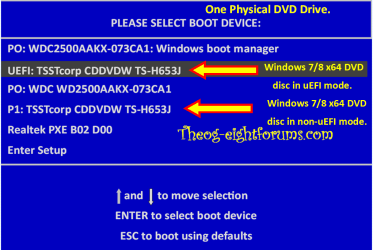
Are you booting the Windows 7 x64 DVD in Legacy or UEFI mode?

Windows 8 Downgrade-006 SB for posting.PNG
 

My Computer My Computer

At a glance

ME/XP/Vista/Win7
OS
ME/XP/Vista/Win7
Are you booting the Windows 7 x64 DVD in Legacy or UEFI mode?

View attachment 331394

Hi, I believed I most likely installed the Windows in Legacy mode.

On a side note, I am wondering does this only happen when using SSD? As I have managed to boot with no problem when I installed using the exactly same method on a HDD.
 

My Computer My Computer

At a glance

Windows 7 Ultimate x64INTEL i5-46902x Kingston 4GB 1600MHZASUS R9 290-4GD5
Computer type
PC/Desktop
Computer Manufacturer/Model Number
Custom Build
OS
Windows 7 Ultimate x64
CPU
INTEL i5-4690
Motherboard
ASUS H97M-PLUS
Memory
2x Kingston 4GB 1600MHZ
Graphics Card(s)
ASUS R9 290-4GD5
Hard Drives
PLEXTOR M6 PRO 128GB
WESTERN DIGITAL BLUE 1TB 7200RPM
Antivirus
AVAST 2014
Browser
OPERA 20.0
Yes you did install in Legacy mode judging by your screenshot which shows a System Active Reserved partition which can only be issued on an Legacy install to an MBR formatted disk. I'm not sure how you were able to do this if Legacy wasn't enabled in BIOS unless the settings changed somehow.

There may be other BIOS settings besides turning off Secure Boot, enabling some level of Legacy or Compatibility (CSM) and then booting as a non-UEFI device. If you'll post back pictures of the settings choices for UEFI, CSM, Legacy and BIOS Boot order we can help steer you.

You can also read the Manual for your mobo on it's Support Downloads webpage to see if it explains what settings are needed for a Legacy install of Win7. Sometimes for example it's necessary to Reset to Defaults, or a specialized version of Defaults, e.g. Reset To WIndows 8 Defaults, Reset to Legacy OS defaults.

It may not be necessary to reinstall, but if you do be sure to first unplug all other drives and during the booted install use the Drive Options to delete all partitions to create and format new as you wish.
 
Hi there, I will be able to post some snaps from the BIOS when I get home from work.

If you are referring to Disk 0, yes it is installed in Legacy because it holds the Windows for my laptop which runs on Legacy BIOS. The Disk 1 however is the SSD which I unplugged from the PC (which gave me issues) and slapped it onto a USB enclosure to be hooked onto the laptop where this screenshot is taken from.

The reason I believe I have installed the Windows in Legacy mode on the SSD is due to:
1. I have not prepare the USB drive to boot in UEFI mode (yes, I installed the Windows through a thumb drive);
2. I have not format the SSD to FAT32, GPT;
3. While I still managed to boot from the SSD I looked at the Disk Management and it looked similar to the above with the System Reserved partition and no EFI partition.

However, what bothers me is why does this issue only happen when I used SSD because I installed the Windows in Legacy mode on the HDD on the same machine and this issue does not happen. Could it be that my SSD is faulty? That the motherboard can boot into Legacy mode without issues but the SSD somehow corrupts the partition table as it is now Unallocated Space as shown above.
 

My Computer My Computer

At a glance

Windows 7 Ultimate x64INTEL i5-46902x Kingston 4GB 1600MHZASUS R9 290-4GD5
Computer type
PC/Desktop
Computer Manufacturer/Model Number
Custom Build
OS
Windows 7 Ultimate x64
CPU
INTEL i5-4690
Motherboard
ASUS H97M-PLUS
Memory
2x Kingston 4GB 1600MHZ
Graphics Card(s)
ASUS R9 290-4GD5
Hard Drives
PLEXTOR M6 PRO 128GB
WESTERN DIGITAL BLUE 1TB 7200RPM
Antivirus
AVAST 2014
Browser
OPERA 20.0
Since there's nothing on the SSD now there is nothing for us to see. It apparently needs to be initialized as an MBR disk then you can try install again.

But it's possible it just isn't being read from the enclosure on that PC so if you want to try to repair it because you know it wasn't wiped or deleted, put it back in its PC, check BIOS settings and run a few Startup Repairs from disk.

If that fails boot Partition Wizard CD to post back a picture taken of its drive map showing every listing which is what we'd need to see to spot a problem.
 
Hi all, I have decided to reinstall the Windows, this time by doing the following:
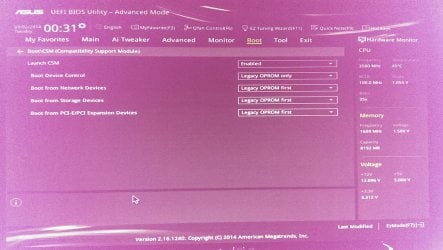
  1. In CSM, the settings are (refer attachment IMAG1641.jpg):
    • Launch CSM : Enabled;
    • Boot Device Control : Legacy OPROM only;
    • Boot from Network Devices : Legacy OPROM first;
    • Boot from Storage Devices : Legacy OPROM first;
    • Boot from PCI-E/PCI Expansion Devices : Legacy OPROM first;
  2. In Secure Boot, the settings are (refer attachment IMAG1642.jpg):
    • Secure Boot State : Disabled;
    • Platform Key (PK) State : Unloaded;
    • OS Type : Other OS
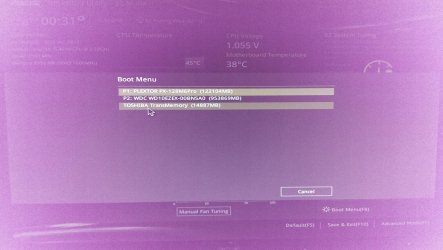
  3. Finally, I booted from the USB in Legacy by choosing the option without [UEFI] (refer attachment IMAG1643.jpg). I believe after applying the above BIOS settings and restarted, the option with [UEFI] is no longer present. Anyways, I am sure my USB drive is able to install only Legacy Windows as I tried to boot it in UEFI (when Legacy OPROM or UEFI boot is still enabled in BIOS) and nothing happened.
Hopefully, this time I have set everything right and kindly advise what I have missed out. :)
 

Attachments

  • IMAG1641.jpg
    IMAG1641.jpg
    513.4 KB · Views: 6
  • IMAG1642.jpg
    IMAG1642.jpg
    474.5 KB · Views: 5
  • IMAG1643.jpg
    IMAG1643.jpg
    446.9 KB · Views: 3

My Computer My Computer

At a glance

Windows 7 Ultimate x64INTEL i5-46902x Kingston 4GB 1600MHZASUS R9 290-4GD5
Computer type
PC/Desktop
Computer Manufacturer/Model Number
Custom Build
OS
Windows 7 Ultimate x64
CPU
INTEL i5-4690
Motherboard
ASUS H97M-PLUS
Memory
2x Kingston 4GB 1600MHZ
Graphics Card(s)
ASUS R9 290-4GD5
Hard Drives
PLEXTOR M6 PRO 128GB
WESTERN DIGITAL BLUE 1TB 7200RPM
Antivirus
AVAST 2014
Browser
OPERA 20.0
What is Toshiba Transmemory in BIOS Boot order? Read the manual if necessary to find out.

Everything else looks good. Remember to delete all partitions during install. If that fails work through Overcoming tutorial linked below.

Let us know how it goes.
 
Toshiba is the Windows installation USB. I unplugged my HDD, deleted the partitions on the SSD and recreated the partition. Hopefully everything goes well. I will report back on how things are doing. Thanks a lot!!
 

My Computer My Computer

At a glance

Windows 7 Ultimate x64INTEL i5-46902x Kingston 4GB 1600MHZASUS R9 290-4GD5
Computer type
PC/Desktop
Computer Manufacturer/Model Number
Custom Build
OS
Windows 7 Ultimate x64
CPU
INTEL i5-4690
Motherboard
ASUS H97M-PLUS
Memory
2x Kingston 4GB 1600MHZ
Graphics Card(s)
ASUS R9 290-4GD5
Hard Drives
PLEXTOR M6 PRO 128GB
WESTERN DIGITAL BLUE 1TB 7200RPM
Antivirus
AVAST 2014
Browser
OPERA 20.0
Alright, the same thing is back to plague me again. My pc crashed into bluescreen and failed to load up. It shows a winload.exe error (refer screen 1) when being restarted. I fired up the windows installation disk and tried the windows startup repair and it failed (refer to screen 2 and 3). I tried the command prompt and found out there are no partition in my ssd, again (refer to screen 4). Is there a way to repair the partition? May it be a corrupted partition table?
 

Attachments

  • Screen_1[1].jpg
    Screen_1[1].jpg
    338.4 KB · Views: 1
  • Screen_2[1].jpg
    Screen_2[1].jpg
    260.3 KB · Views: 2
  • Screen_3[1].jpg
    Screen_3[1].jpg
    260.8 KB · Views: 1
  • Screen_4[1].jpg
    Screen_4[1].jpg
    398.1 KB · Views: 0

My Computer My Computer

At a glance

Windows 7 Ultimate x64INTEL i5-46902x Kingston 4GB 1600MHZASUS R9 290-4GD5
Computer type
PC/Desktop
Computer Manufacturer/Model Number
Custom Build
OS
Windows 7 Ultimate x64
CPU
INTEL i5-4690
Motherboard
ASUS H97M-PLUS
Memory
2x Kingston 4GB 1600MHZ
Graphics Card(s)
ASUS R9 290-4GD5
Hard Drives
PLEXTOR M6 PRO 128GB
WESTERN DIGITAL BLUE 1TB 7200RPM
Antivirus
AVAST 2014
Browser
OPERA 20.0
Partition Wizard Partition Recovery Wizard interesting but useless bits of partitions (5-6 "boot" partitions with ~3mb sizes despite the full windows previously installed onto it). Sadly, this SSD is a new one after i RMA the previous one. My guess is the problem lies somewhere outside the SSD but not sure. Guess I will give it a few more tries before I RMA again.
 

My Computer My Computer

At a glance

Windows 7 Ultimate x64INTEL i5-46902x Kingston 4GB 1600MHZASUS R9 290-4GD5
Computer type
PC/Desktop
Computer Manufacturer/Model Number
Custom Build
OS
Windows 7 Ultimate x64
CPU
INTEL i5-4690
Motherboard
ASUS H97M-PLUS
Memory
2x Kingston 4GB 1600MHZ
Graphics Card(s)
ASUS R9 290-4GD5
Hard Drives
PLEXTOR M6 PRO 128GB
WESTERN DIGITAL BLUE 1TB 7200RPM
Antivirus
AVAST 2014
Browser
OPERA 20.0
I'm having similar issues. After I install Windows 7 Home Premium x64, my pc does the system reboot but then it does not reboot to Windows and I'm stuck in bios. It's gives me the choice to boot Windows normally or in safe mode, booting to safe mode works but booting normally fails. Any help ASAP would be greatly appreciated.
 

My Computer My Computer

At a glance

Windows 7 Home Premium x64AMD FD6300WMHKBOX FX-6300 6-Core Processor Bl...Crucial 8GB Single DDR3 1600 MT/s PC3-12800 C...Sapphire Technology Sapphire Radeon R9 270X 2...
Computer type
PC/Desktop
Computer Manufacturer/Model Number
Custom build
OS
Windows 7 Home Premium x64
CPU
AMD FD6300WMHKBOX FX-6300 6-Core Processor Black Edition
Motherboard
MSI Socket AM3+/AMD 760G/DDR3/CrossFireX/SATA3 and USB 3.0
Memory
Crucial 8GB Single DDR3 1600 MT/s PC3-12800 CL11 Unbuffered
Graphics Card(s)
Sapphire Technology Sapphire Radeon R9 270X 2GB GDDR5 DVI-I
Hard Drives
Seagate 1TB Desktop HDD SATA 6Gb/s 64MB Cache 3.5-Inch Internal Bare Drive (ST1000DM003
Antivirus
Norton
Browser
Google Chrome
Back
Top