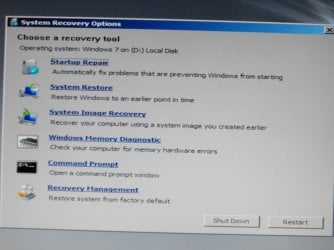
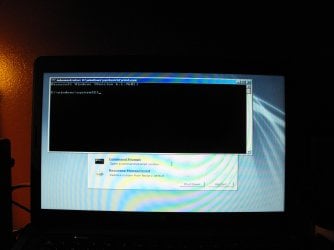
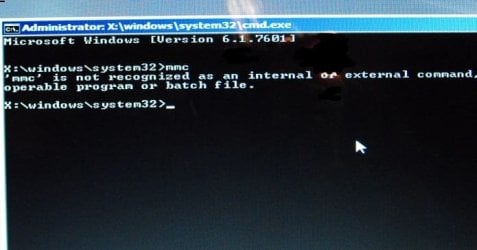
#3 attachment shows I can open the command prompt...and it is blinking. (maybe that doesn't mean anything.)

It just might.
I saw this earlier, but hesitated because I didn't know if you could get to a command (CMD) prompt. Its from the last post on this page:
How do I RESTORE my system to the original factory settings - HP Support Forum - 50113
There are some differences that I will get to in a moment, but I wanted to show you her way.
From CherylG:
1. Right-click on "Computer" icon and select manage.
2. This will launch the Microsoft Management Console.
3. On the left side of the MMC, click on "Disk Management" and it will show you all of the partitions.
4. Right-click on the "HP Recovery" partition and select "Mark as Active Partition."
5. When the warning prompt appears, select "Yes" - Reboot and it will automatically boot into the Recovery Manager (without pressing F11).
Note
Because you can't get to the Desktop to get to the "computer" icon to get to the Microsoft Management Console, I'll make the changes so you can get there with a CMD prompt.
Step #3 has become step #2a in the first, and second attachment, because of that the numbering has changed.
If you remember, please take a picture of the Disk Management after it populates, and if this works, after the recovery process. I'm very curious as to what is showing.
When you reboot to start the recovery process in step 4, I don't know if the recovery program will ask you if you want to backup your settings and Files. Since you already have backed them up that's your call if you want to make a second backup or not; Because of the condition your machine is in, the optical drive may not work or you could send it to that shiny new external drive.
I'm unfamiliar with HP products, If you can't mark the recovery partition active we're going to have to try diskpart or something similar.
If this doesn't work, we'll have to go with either a repair or clean install.
1. Open your command (CMD) prompt, type in mmc at the blinking cursor and touch the Enter key. You will probably see a
User Account Control (UAC) box pop-up, click on yes, allow this program to make changes.
1a.
If you don't see the UAC, it should go directly to the console.
2. This will launch the Microsoft Management Console. On the left side of the MMC, click on "Disk Management"
2a.
If it doesn't show Disk Management, please read the instructions on the attachment. Then click on Disk Management and it will show you all of the partitions after its done populating.
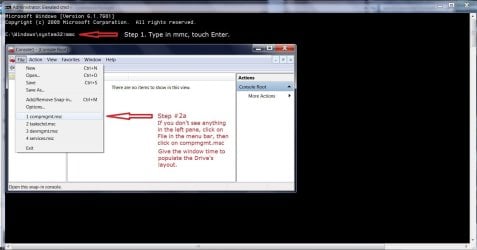
You should see this without my notes and orange highlight, but please read my notes, and take picture here:
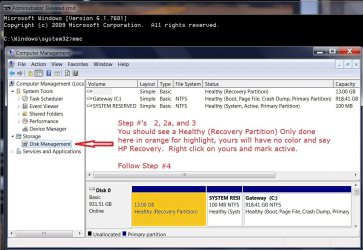
3. Right-click on the "HP Recovery" partition and select "Mark as Active Partition."
4. When the warning prompt appears, select "Yes" - Reboot and it will automatically boot into the Recovery Manager (
without pressing F11).