Transfering Windows XP and 7 to one hdd

ziro1337

New member
Local time
12:16 AM
Messages
5
Hello!
First i am sorry for my bad english.
Here is my problem- i have 3 hdds,first with XP,second with 7 and third empty(new).XP and 7 are not in dual boot,usually i use 7 and once a month or less i unplug the cable from 7 hdd and plug in to xp hdd for about 3-4hours.Now i have got a new bigger hdd and want to transfer them to him and make them dual boot.
I want xp to be c: drive and 7 d:.I format the new hdd what to do now?
 

My Computer My Computer

At a glance

Windows XP SP3 x86
Computer type
PC/Desktop
OS
Windows XP SP3 x86
Welcome to SevenForums.

I would suggest using two utilities: (1) Partition Wizard (PW), and (2) EasyBCD. There is also a standalone boot CD version of PW available on ISO that you should download and burn. The standalone boot CD version has all the functionality of the Windows version but can do things immediately and completely all in one place, rather than possibly requiring a re-boot to complete operations on the Windows C partition itself as the running-under-Windows version does.

Anyway (and this is all theoretical since I haven't actually done this myself, but it should be possible) you can use PW to copy the two existing bootable Windows partitions from their existing two hard drives over to your new larger third hard drive where you want to put them both, and make them bootable via Boot Manager selection menu. PW is used to make one of the two bootable OS partitions now on the larger drive as "active", and EasyBCD constructs the Boot Manager menu so that both bootable Windows systems appear.

I assume you don't want to (or can't) have the two hard drives both installed simultaneously in your computer, and that's why you have taken this approach... based on a single large hard drive to allow booting both XP and 7? Because if you could actually have both of the existing drives inside your PC at once, you could do what you want right now... without needing a third larger drive to hold both partitions from your existing two drives. Two bootable Windows systems can in fact be on two different drives... they don't need to be on the same physical drive.

But unless you can get to TWO DRIVES AT THE SAME TIME (let's call the XP drive "A" and the 7 drive "B"), how can you even copy the partitions off of the existing drives and onto the target larger drive (let's call it "C")? And if you can actually have two internal drives connected at the same time, why don't you just have the A and B drives installed, and create a Boot Manager menu listing both (since the two bootable OS's don't actually need to physically be on the same drive... they can be on different drives)? In other words, did you get the larger C because you really need more space? Or was it because your computer can only hold one internal drive and not two?

So, before continuing on with how you can use PW and EasyBCD to construct a new drive C that contains the two bootable partitions from your A and B drives and allows you to use Boot Manager to select which OS you wish to boot to, please tell me if you can actually have two internal drives in your PC at the same time?

If so, we can proceed without a problem.

If not, you'll need to have some external USB adapter gizmo to allow temporary connection of the second drive externally via USB connection. We need to have two drives usable simultaneously in order to copy A to C, and then B to C.

Please clarify your actual PC setup and drive connectivity capability. Exactly what is the size of all three drives A, B and C.

Also please post a screenshot of DISKMGMT.MSC from both your WinXP and Win7 systems when those drives are installed, so that I can see exactly what you have right now on both A and B drives. Please be sure to maximize the DISKMGMT.MSC output, and spread the columns so that all the text in each cell is visible and readable in the screenshot.

I need to see those screenshots before continuing with any instructions. I want to be sure I give you the correct recipe for accomplishing what you want to accomplish.

NOTE: if you prefer, you can post screenshots of your existing two A and B drives using Partition Wizard's GUI window. That will show me the same info that DISKMGMT.MSC would. PW runs under both WinXP and Win7, so you can get those screenshots that way... if you want. Either way will work for me.
 

My Computer My Computer

At a glance

Windows 7 Pro x64 (1), Win7 Pro X64 (2)i5-3350p 3.1Ghz/6MB-cache (1); E8400 3.0Ghz/6...8GB PC3-12800 DDR3 (1); 4GB PC3-10600 DDR3 (2)ATI HD7750 (1), (see TV cards); ATI R7 250 (2)
Computer type
PC/Desktop
Computer Manufacturer/Model Number
Home-built, two systems (1) and (2)
OS
Windows 7 Pro x64 (1), Win7 Pro X64 (2)
CPU
i5-3350p 3.1Ghz/6MB-cache (1); E8400 3.0Ghz/6MB-cache (2)
Motherboard
ASUS P8Z77-V Pro (1); ASUS P5Q3 (2)
Memory
8GB PC3-12800 DDR3 (1); 4GB PC3-10600 DDR3 (2)
Graphics Card(s)
ATI HD7750 (1), (see TV cards); ATI R7 250 (2)
Sound Card
Realtek ALC892 HD Audio (1); Realtek ALC1200 HD Audio (2)
Monitor(s) Displays
Eizo HD2441W LCD, Eizo S2433W (1); Eizo 24" S2433W (2)
Screen Resolution
1920x1200, 1920x1200 (1); 1920x1200 (2)
Hard Drives
(1) 1TB SATA-II (7200RPM), 2x2TB SATA-III (7200RPM), 250GB SATA-III (10000RPM) for OS; 2x2TB external USB 3.0

(2) 320GB SATA-II (7200RPM), 750GB SATA-II (7200RPM), 150GB SATA-II (10000RPM) for OS; 2TB external USB 3.0
PSU
Nesteq ECS-6001 600W (1); Nesteq ECS-5001 500W (2)
Case
Acousti-Case 360 (1) and (2)
Cooling
Noctua NH-U12P SE2 for CPU, 2x120mm case fans (1) and (2)
Keyboard
IBM PS/2 (1) and (2)
Mouse
Logitech MX Revolution wireless (1); Microsoft wired (2)
Internet Speed
100mbps down / 10mbps up
Antivirus
Microsoft Security Essentials; Malwarebyte Anti-Malware Pro
Browser
Firefox
Other Info
Ceton InfiniTV 4-tuner cablecard-enabled TV card as well as Hauppauge HVR-2250 OTA/ATSC 2-tuner TV card in (1), running under Win7 WMC
Or use Macrium reflect.

Why do you unplug one of the drives ? Just keep them both plugged in and use the one time boot menu to choose which OS you want to use.

Not enough connections from the power supply ? Just buy a splitter.

What is your purpose for moving XP and 7 off 2 separate drives, then combining them onto 1 drive ?

The way it is now is the best possible scenario. And you can always make it a dual boot using EasyBCD.
 

My Computer My Computer

At a glance

Windows 10 Pro x64Intel Core i7 6700KGSkill TridentZ RGB 16GB 3600 16-16-16-36EVGA GTX 980 Ti SC x2
Computer type
PC/Desktop
Computer Manufacturer/Model Number
Skylake Special #666
OS
Windows 10 Pro x64
CPU
Intel Core i7 6700K
Motherboard
Asus Sabertooth Z170 Mark 1
Memory
GSkill TridentZ RGB 16GB 3600 16-16-16-36
Graphics Card(s)
EVGA GTX 980 Ti SC x2
Sound Card
Realtek High Definition
Monitor(s) Displays
AOC G2460PG
Screen Resolution
1920 x 1080 144Hz
Hard Drives
Samsung 860 Pro 256GB, Seagate Barracuda 4TB x2
PSU
EVGA 1000 P2, EVGA White Custom Braided Cables
Case
Corsair Vengeance C70 Gunmetal Black
Cooling
Corsair H100i v2, Corsair ML120 x2, Thermal Grizzly Kryonaut
Keyboard
Logitech G910 Orion Spectrum
Mouse
Logitech G700s
Internet Speed
Verizon Fios Quantum Gateway 75/75
Antivirus
Windows Defender, Malwarebytes Free 3.8.3
Browser
Chrome
Other Info
Corsair SP120 x4, LG Blu-ray Drive, Durabrand HT-395 100 Watt Dolby Digital Amp, Corsair H2100 Wireless 7.1 Headset
I want to transfer them because my current hdds are very old and small.
XP hdd is 20gb,7 is 40gb,both are IDE,new hdd is 500gb sata.
 

Attachments

  • xp.jpg
    xp.jpg
    33.1 KB · Views: 4
  • 7.jpg
    7.jpg
    72.9 KB · Views: 3

My Computer My Computer

At a glance

Windows XP SP3 x86
Computer type
PC/Desktop
OS
Windows XP SP3 x86
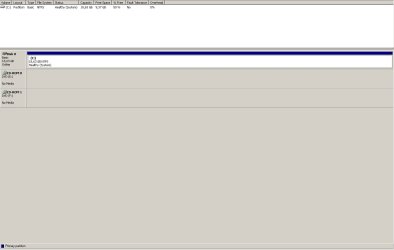
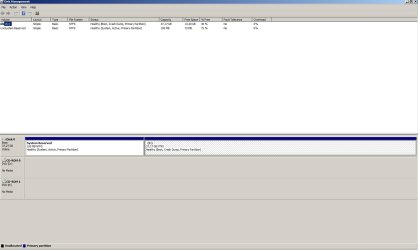
Ok.

Your XP drive looks perfectly normal, other than the fact that I don't see your C-partition saying "active" as I would have expected. This is what the BIOS looks for when booting the machine as THE partition to go to (and where Boot Manager and its menu would normally reside). But perhaps if there is no such partition then maybe the BIOS just defaults to the first (and in your case, only) partition on the drive. That certainly would work in your case when you have the XP drive installed and want to boot to it.

And your 7 drive looks truly perfectly normal. The "system reserved" is the normal default size of 100MB and is marked "active". That's where Boot Manager is living, with the second C-partition (where Windows actually lives) taking up the remainder of the drive.


So, final preliminary question which you didn't answer: can you have TWO drives installed together at one time in your case?

The plan is to first use either (a) Partition Wizard or (b) Macrium Reflect to copy both of your existing Win7 drive partitions (both "system reserved" as well as the C-partition) over to the new drive, and that will need both drives to be present for that copy process to take place. Both PW and Reflect can do what we want, so either one will be acceptable. But we do need two drives to be available simultaneously, as SOURCE and TARGET for the copy process.

Again, for convenience let's talk about your XP drive as A, your Win7 drive as B, and your new large drive as C.

If you can install two drives at once in your case then it's easy. If you only have room for one drive, you're going to require some external media (say an external USB drive?) to be used for an intermediate storage location, for the COPY-OUT from B. Then you swap the internal drive B out of your case, and install your new larger drive C, and do a COPY-BACK from the intermediate storage to the new drive C.

Alternatively, with a IDE/SATA-to-USB adapter you can actually use the new large drive C as your external USB device directly, so the COPY-OUT from B will go to C directly.

So that's what we're trying to do first... just copy both partitions from your existing Win7 drive B to the new large drive C, exactly as is.


Please explain how you plan to have two drives (B and C, first) available for us to do the needed copy.

(1) Can we have them both installed internally at one time in your case?

(2) Or if not, we must we go through an intermediate "out-to-USB-drive" approach and you'll need an adapter gizmo something like this one.
 

My Computer My Computer

At a glance

Windows 7 Pro x64 (1), Win7 Pro X64 (2)i5-3350p 3.1Ghz/6MB-cache (1); E8400 3.0Ghz/6...8GB PC3-12800 DDR3 (1); 4GB PC3-10600 DDR3 (2)ATI HD7750 (1), (see TV cards); ATI R7 250 (2)
Computer type
PC/Desktop
Computer Manufacturer/Model Number
Home-built, two systems (1) and (2)
OS
Windows 7 Pro x64 (1), Win7 Pro X64 (2)
CPU
i5-3350p 3.1Ghz/6MB-cache (1); E8400 3.0Ghz/6MB-cache (2)
Motherboard
ASUS P8Z77-V Pro (1); ASUS P5Q3 (2)
Memory
8GB PC3-12800 DDR3 (1); 4GB PC3-10600 DDR3 (2)
Graphics Card(s)
ATI HD7750 (1), (see TV cards); ATI R7 250 (2)
Sound Card
Realtek ALC892 HD Audio (1); Realtek ALC1200 HD Audio (2)
Monitor(s) Displays
Eizo HD2441W LCD, Eizo S2433W (1); Eizo 24" S2433W (2)
Screen Resolution
1920x1200, 1920x1200 (1); 1920x1200 (2)
Hard Drives
(1) 1TB SATA-II (7200RPM), 2x2TB SATA-III (7200RPM), 250GB SATA-III (10000RPM) for OS; 2x2TB external USB 3.0

(2) 320GB SATA-II (7200RPM), 750GB SATA-II (7200RPM), 150GB SATA-II (10000RPM) for OS; 2TB external USB 3.0
PSU
Nesteq ECS-6001 600W (1); Nesteq ECS-5001 500W (2)
Case
Acousti-Case 360 (1) and (2)
Cooling
Noctua NH-U12P SE2 for CPU, 2x120mm case fans (1) and (2)
Keyboard
IBM PS/2 (1) and (2)
Mouse
Logitech MX Revolution wireless (1); Microsoft wired (2)
Internet Speed
100mbps down / 10mbps up
Antivirus
Microsoft Security Essentials; Malwarebyte Anti-Malware Pro
Browser
Firefox
Other Info
Ceton InfiniTV 4-tuner cablecard-enabled TV card as well as Hauppauge HVR-2250 OTA/ATSC 2-tuner TV card in (1), running under Win7 WMC
I can connect Win7 and free hd at one time.I try to connect winxp+win7+free but it stuck in bios,i unplug xp drive and windows starts 7.Now i am running win7 hdd and new free hdd.
 

My Computer My Computer

At a glance

Windows XP SP3 x86
Computer type
PC/Desktop
OS
Windows XP SP3 x86
I can connect Win7 and free hd at one time.I try to connect winxp+win7+free but it stuck in bios,i unplug xp drive and windows starts 7.Now i am running win7 hdd and new free hdd.
Perfect. So you're now booted to Win7 running from drive B, and you also have your new 500GB drive (C) installed and accessible.

(1) Please download and install BOTH of the following programs, as you will want them in your arsenal of software tools forever. They're wonderful, and highly recommended.

(a) Partition Wizard for running under Windows. Also, download the ISO for standalone Partition Wizard boot CD and burn it to CD. This boot CD will be used on occasion, and having it available will make some future operations easier than running them under Windows (which may result in a re-boot required to complete the operation as I explained previously, when working on the operating Windows C partition itself).

(b) Macrium Reflect Free

(2) Please download and install EasyBCD. It is free for non-commercial use.


We can either use Partition Wizard to "copy" the two partitions from you Win7 B drive over to the new large C drive, or we can use Macrium Reflect to "clone this disk", copying your existing Win7 B drive over to the new large C drive.

Either approach will work. Both programs can accomplish the task.

Let's just go with Partition Wizard, since it is a bit simpler to use. Just start the program, and first select the "system reserved" partition on your old Win7 B drive. Then on the left side of the GUI window select the "copy partition" function, which will produce a popup window asking where you want to copy it to. Select your new large C drive (which is currently all unallocated and available, presumably). The GUI will then change to reflect the apparent newly copied "system reserved" partition that now appears to be duplicated at the start of the new C drive.

Next, select your C-partition from the Win7 B drive, and again select the "copy partition" function on the left side. Again, specify that the output location is on your new large C drive. Again, PW will update the GUi picture to show the Win7 C-partition following the "system reserved" partition on the large C drive.

Note that nothing has actually happened yet. It just shows the results of the sequence of operations that you have prescribed. If everything is fine, you can now push the APPLY button (upper-left on the menu bar) and it will happen. Or, if something isn't quite right to your eye, you can use the UNDO button to step backward one by one through the series of operations you've set up. So you can make whatever corrections you want and re-do the sequence of operations. Nothing will actually take place until and unless you push the APPLY button.

Ok. Do it. This is the first step, to copy your Win7 B drive partitions over to the new large C drive. When you complete the operation can you please post a screenshot from Partition Wizard showing where we stand right now. There may be a drive letter of D assigned to the copied Win7 C-partition as it now lives copied onto the large C drive, but that's fine.

It is critical that the "system reserved" partition on the new large C drive appear as "active", same as it currently does on your Win7 B drive. Does it?

Let me know if you have any questions. Otherwise, have at it, for this first step.


Of course you've probably guessed that when this first step is done, you will then remove your Win7 B drive and reinstall the WinXP A drive (leaving the target large C drive still installed). You will then boot to the standalone Partition Wizard boot CD and you should see both your WinXP A drive as well as your new large C drive (with the two Win7 partitions you have already copied over there).

When it finishes initializing and stabilizes, you will again be able to click on the WinXP system partition, and again click on "copy partition" on the left side. Then again specify your new large C drive as the output target, and the GUI will update to reflect the copying of the WinXP system partition over to the new large C drive, following the Win7 system partition which is already there. There should also be unallocated space to the right of where the WinXP partition will be placed, since your new large C drive is 500GB.
 

My Computer My Computer

At a glance

Windows 7 Pro x64 (1), Win7 Pro X64 (2)i5-3350p 3.1Ghz/6MB-cache (1); E8400 3.0Ghz/6...8GB PC3-12800 DDR3 (1); 4GB PC3-10600 DDR3 (2)ATI HD7750 (1), (see TV cards); ATI R7 250 (2)
Computer type
PC/Desktop
Computer Manufacturer/Model Number
Home-built, two systems (1) and (2)
OS
Windows 7 Pro x64 (1), Win7 Pro X64 (2)
CPU
i5-3350p 3.1Ghz/6MB-cache (1); E8400 3.0Ghz/6MB-cache (2)
Motherboard
ASUS P8Z77-V Pro (1); ASUS P5Q3 (2)
Memory
8GB PC3-12800 DDR3 (1); 4GB PC3-10600 DDR3 (2)
Graphics Card(s)
ATI HD7750 (1), (see TV cards); ATI R7 250 (2)
Sound Card
Realtek ALC892 HD Audio (1); Realtek ALC1200 HD Audio (2)
Monitor(s) Displays
Eizo HD2441W LCD, Eizo S2433W (1); Eizo 24" S2433W (2)
Screen Resolution
1920x1200, 1920x1200 (1); 1920x1200 (2)
Hard Drives
(1) 1TB SATA-II (7200RPM), 2x2TB SATA-III (7200RPM), 250GB SATA-III (10000RPM) for OS; 2x2TB external USB 3.0

(2) 320GB SATA-II (7200RPM), 750GB SATA-II (7200RPM), 150GB SATA-II (10000RPM) for OS; 2TB external USB 3.0
PSU
Nesteq ECS-6001 600W (1); Nesteq ECS-5001 500W (2)
Case
Acousti-Case 360 (1) and (2)
Cooling
Noctua NH-U12P SE2 for CPU, 2x120mm case fans (1) and (2)
Keyboard
IBM PS/2 (1) and (2)
Mouse
Logitech MX Revolution wireless (1); Microsoft wired (2)
Internet Speed
100mbps down / 10mbps up
Antivirus
Microsoft Security Essentials; Malwarebyte Anti-Malware Pro
Browser
Firefox
Other Info
Ceton InfiniTV 4-tuner cablecard-enabled TV card as well as Hauppauge HVR-2250 OTA/ATSC 2-tuner TV card in (1), running under Win7 WMC
If you truly want a dual boot on your new drive and you really want it done right then......

I would partition the new drive into 2 primary partitions using a Partition Wizard boot cd. ( just my preferred tool )

Bootable Partition Manger | MiniTool Partition Wizard Bootable Edition

Make the 1st 100 GB for XP, use the rest for W7.

Clean install XP to the 1st partition, clean install W7 to the 2nd partition.

ds has given you great instructions. :)
 

My Computer My Computer

At a glance

Windows 10 Pro x64Intel Core i7 6700KGSkill TridentZ RGB 16GB 3600 16-16-16-36EVGA GTX 980 Ti SC x2
Computer type
PC/Desktop
Computer Manufacturer/Model Number
Skylake Special #666
OS
Windows 10 Pro x64
CPU
Intel Core i7 6700K
Motherboard
Asus Sabertooth Z170 Mark 1
Memory
GSkill TridentZ RGB 16GB 3600 16-16-16-36
Graphics Card(s)
EVGA GTX 980 Ti SC x2
Sound Card
Realtek High Definition
Monitor(s) Displays
AOC G2460PG
Screen Resolution
1920 x 1080 144Hz
Hard Drives
Samsung 860 Pro 256GB, Seagate Barracuda 4TB x2
PSU
EVGA 1000 P2, EVGA White Custom Braided Cables
Case
Corsair Vengeance C70 Gunmetal Black
Cooling
Corsair H100i v2, Corsair ML120 x2, Thermal Grizzly Kryonaut
Keyboard
Logitech G910 Orion Spectrum
Mouse
Logitech G700s
Internet Speed
Verizon Fios Quantum Gateway 75/75
Antivirus
Windows Defender, Malwarebytes Free 3.8.3
Browser
Chrome
Other Info
Corsair SP120 x4, LG Blu-ray Drive, Durabrand HT-395 100 Watt Dolby Digital Amp, Corsair H2100 Wireless 7.1 Headset
If you truly want a dual boot on your new drive and you really want it done right then......

I would partition the new drive into 2 primary partitions using a Partition Wizard boot cd. ( just my preferred tool )

Bootable Partition Manger | MiniTool Partition Wizard Bootable Edition

Make the 1st 100 GB for XP, use the rest for W7.

Clean install XP to the 1st partition, clean install W7 to the 2nd partition.

ds has given you great instructions. :)
Surely he doesn't want to do a clean reinstall of both XP and Win7. He just wants to migrate what he has on two separate standlone-bootable partitions to a single large C drive that then has both bootable OS's on it. And he just wants a usable Boot Manager method to boot to either one.

Yes, doing two fresh reinstalls to the new drive of both XP followed by Win7 (pre-partitioned with PW as you suggest, before starting the OS installs, in order to get all partitions sized properly to start in the first place... and thus not have to come back after the fact with PW to resize partitions, although obviously that could be done as well) is something that could be done. But then all currently installed 3rd-party software and customizations would need to be done. That's outside of the scope of this project, I'm sure he'd say.

My recipe (described so far, anyway) will get the two drives A and B consolidated onto the new 500GB drive C, reflecting the three source partitions from the two source drives. The two Win7 partitions from B and the one XP partition from A will end up on C, and they will in fact all be primary by virtue of simply using PW to "copy partition" from source to target. And since the Win7 "system reserved" partition is "active", once the old drives A and B are physically removed and the new C is all that is left, the BIOS will go there at boot time and it will be Win7 that is booted by default, at the moment with no knowledge of the other WinXP system partition.

There will also be a bunch of remaining unallocated space on the new 500GB drive, which we can use to create a "data" partition that could be accessible (say as drive E) to both Win7 and WinXP.

I then will tell him how to use EasyBCD to ADD an entry to the Boot Manager menu (which lives on the "system reserved" partition along with the Win7 Boot Manager program), to point to WinXP. Bingo, presto, he now has a 2-Windows Boot Manager menu with Win7 being the default and WinXP being available as an option.

When this is all done, we can review the drive letters for both Win7 and WinXP (since the CD drive will also be in there) and probably change things so that there is consistency in the way things look when booted to either system. It's always desirable in a multi-boot setup to have the other drive letters look the same no matter which system you're booted to (which will always be C, in that booted environment).
 

My Computer My Computer

At a glance

Windows 7 Pro x64 (1), Win7 Pro X64 (2)i5-3350p 3.1Ghz/6MB-cache (1); E8400 3.0Ghz/6...8GB PC3-12800 DDR3 (1); 4GB PC3-10600 DDR3 (2)ATI HD7750 (1), (see TV cards); ATI R7 250 (2)
Computer type
PC/Desktop
Computer Manufacturer/Model Number
Home-built, two systems (1) and (2)
OS
Windows 7 Pro x64 (1), Win7 Pro X64 (2)
CPU
i5-3350p 3.1Ghz/6MB-cache (1); E8400 3.0Ghz/6MB-cache (2)
Motherboard
ASUS P8Z77-V Pro (1); ASUS P5Q3 (2)
Memory
8GB PC3-12800 DDR3 (1); 4GB PC3-10600 DDR3 (2)
Graphics Card(s)
ATI HD7750 (1), (see TV cards); ATI R7 250 (2)
Sound Card
Realtek ALC892 HD Audio (1); Realtek ALC1200 HD Audio (2)
Monitor(s) Displays
Eizo HD2441W LCD, Eizo S2433W (1); Eizo 24" S2433W (2)
Screen Resolution
1920x1200, 1920x1200 (1); 1920x1200 (2)
Hard Drives
(1) 1TB SATA-II (7200RPM), 2x2TB SATA-III (7200RPM), 250GB SATA-III (10000RPM) for OS; 2x2TB external USB 3.0

(2) 320GB SATA-II (7200RPM), 750GB SATA-II (7200RPM), 150GB SATA-II (10000RPM) for OS; 2TB external USB 3.0
PSU
Nesteq ECS-6001 600W (1); Nesteq ECS-5001 500W (2)
Case
Acousti-Case 360 (1) and (2)
Cooling
Noctua NH-U12P SE2 for CPU, 2x120mm case fans (1) and (2)
Keyboard
IBM PS/2 (1) and (2)
Mouse
Logitech MX Revolution wireless (1); Microsoft wired (2)
Internet Speed
100mbps down / 10mbps up
Antivirus
Microsoft Security Essentials; Malwarebyte Anti-Malware Pro
Browser
Firefox
Other Info
Ceton InfiniTV 4-tuner cablecard-enabled TV card as well as Hauppauge HVR-2250 OTA/ATSC 2-tuner TV card in (1), running under Win7 WMC
Thank you! I make it.I clone 7, then clone xp,boot into 7 use easybcd and make Dual boot!Now i have few other questions-
1.Now i have 2 drives-one with xp-20gb and one with 7-40gb,how to make them bigger?
2.When i boot into XP i see system reserved drive,can i hide it? and last
3.How to fix drive letters-i want xp to be c:,7 - d: , e: for data?now when i boot win7 7 is c;xp is g: ; when boot in xp xp is c:.I want everywhere xp to be c:,7 to be d:,and make up new drive e: for data


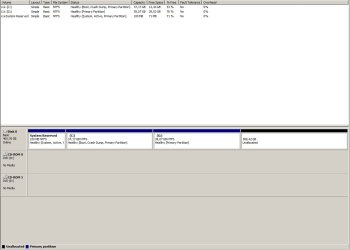
...and here is it win7 disk manager image ,have i done the job correct?
 

Attachments

  • asd.jpg
    asd.jpg
    47.3 KB · Views: 3

My Computer My Computer

At a glance

Windows XP SP3 x86
Computer type
PC/Desktop
OS
Windows XP SP3 x86
I would have cloned to larger partitions for each OS, but we have a tool we use here a lot that can do just what you want.

I would use the Boot Disk which is safest, although you can use the installed version in Win7 since you have the original source drives in the rare case it fails.

Download CD version of Partition Wizard to burn to CD using WIndows Image Burner.

Boot into CD, rightclick on C, choose Extend, add as much of the Unallocated Space to C as you want, click OK.

Then rightlick D to do the same, click OK. Preview what you've done. If you want to change it then click Undo. If not then Apply.

If you want to create a data partition save some of the Unallocated Space toCreate Partition - Partition Wizard Video Help
 
Thank you! I make it.I clone 7, then clone xp,boot into 7 use easybcd and make Dual boot!
Excellent! Mission accomplished.

You used the word "clone", so does that mean you actually used the "clone" function of Macrium Reflect that I offered you? Or did you actually use the "copy partition" function of Partition Wizard? I'd like to know which approach you actually used.

Both of these programs (and EasyBCD as well) are easy to use and intuitive and contain superb functionality, so I'm glad you had success with whatever tools you ended up using.


Now i have few other questions-

1.Now i have 2 drives-one with xp-20gb and one with 7-40gb,how to make them bigger?
I don't quite follow. Are you asking about resizing the partitions in their new locations on your large 500GB drive as shown in your final screenshot from DISKMGMT.MSC?

You can use Partition Wizard to "resize" any partition, and you can also use it to "move" (i.e. to slide a partition to the left or right making use of adjacent freespace), and you can also use it to "extend" (i.e. to enlarge it by taking freespace from anywhere on the drive and sliding whatever is necessary left or right in order to enlarge the partition you are trying to enlarge).

Personally, I like to do it simply and very straightforward. Since the GUI picture of the drive shows exactly what you have specified before you push the APPLY button, you really can't make a mistake if you do it one step at a time and understand exactly what you're doing by looking at the GUI picture which is being redrawn for you.

So, if you select a partition or unallocated space with Partition Wizard, and then right-click on it, you can select the appropriate operation from the resulting popup context menu. You can also specify a sequence of operations to accomplish what you want. For example, if you right-click on the 389GB unallocated space at the right side of the drive, and you select "create" from the popup menu, and you'll be presented with a dialog to specify the type of partition you want to create (i.e. primary or logical), format (i.e. NTFS, FAT32, etc.), label for the partition, and size of the partition. If you don't want to use the entire space for the new partition, you can specify how big you want the partition to be and how large a remaining unallocated free space you want either in front of or following your new partition. Specifying 0 for the freespace on either side means that partition boundary edge will start at the extreme left or extreme right of the free space. Completely intuitive.

You can then again right click on either this newly created partition (which remember, hasn't actually been created yet until you push the APPLY button, at which time the entire sequence of steps you're building up in a queue will be performed) or any other partition, and specify another operation. For example, you can choose "move/resize". You'll be presented with another GUI dialog that allows you to move the mouse to one edge or the other of the GUI partition, and then click-and-drag that edge left or right to shrink or enlarge the partition as appropriate. If you shrink the partition on left or right, you'll generate some new unallocated freespace there, thus making your partition smaller. If you enlarge the partition left or right where unallocated freespace currently exists, you'll use up some or all of that freespace thus making your partition larger by using up currently unallocated freespace. Again, completely intuitive.

Again, as you add another process to the accumulating queue of operations, the GUI presentation of your drives and partitions is changed accordingly to correspond to what you've specified so far. You can always UNDO stepping backward one operation at a time if you want to change or eliminate a previously entered operation. And nothing will happen for real until you finally push the APPLY button.

That's how you create partitions from unallocated freespace, and also slide the partitions left or right, and also enlarge/shrink partitions to be however small or large you want.


2.When i boot into XP i see system reserved drive,can i hide it?
I haven't been into WinXP for a while, but I know for a fact that you can "remove a drive letter" in Win7 using DISKMGMT.MSC.

Just run DISKMGMT.MSC while you are booted to WinXP, and then right-click on that "system reserved" drive and select "change drive letter and paths..." from the popup menu. On the resulting window, in Win7 there is a "remove" button which if you push it will eliminate the drive letter for that partition. In WinXP if there is a "remove" button, push it. Or, perhaps there is simply a "change" button, in which case you select the drive letter shown in the window and push the "change" button, and then select "none" which hopefully is there for WinXP.

Note that you can also use Partition Wizard to accomplish this un-lettering, and I believe this should work in WinXP as well as Win7. Just run Partition Wizard while booted to WinXP (you'll have to install it in WinXP, if you haven't already done so), select the "system reserved" partition and right-click on it, select "change letter" from the popup menu, and then choose "NONE" to un-letter it.


and last
3.How to fix drive letters-i want xp to be c:,7 - d: , e: for data?now when i boot win7 7 is c;xp is g: ; when boot in xp xp is c:.I want everywhere xp to be c:,7 to be d:,and make up new drive e: for data
First, you cannot change the boot partition from being C from the perspective of the specific Windows you are booted to. So if you're booted to WinXP, then that system partition will always be C. If you are instead booted to Win7, then that system partition will again always be C. You can't change that.

So it's just the other partitions (and CD drives) where you can change letters, which I recommend doing for consistency to make it easiest for your brain to keep track of. Again you can use Partition Wizard or DISKMGMT.MSC to change drive letters. But PW can only change drive letters for your hard drive partitions, whereas DISKMGMT.MSC can also change drive letters on your CD drives.

Just select the partition or CD drive you want to change the letter of, and right-click on it. Then select "change drive letter" from the popup menu. Then select the drive and push the CHANGE button, and select an available drive letter from the dropdown list and push the OK button. And OK to confirm the change.

You can change all drive letters other than C which cannot be changed. Personally, my own multi-boot setups have all CD drive letters and other-than-C partitions lettered consistently no matter which Windows I am booted to. So for example, my CD drive is always changed to be letter N. Since you have two CD drives, you might change them to be M and N... in both WinXP and Win7. Once you change those letters then their existing letters of D and E become available for use in re-lettering your hard drive partitions.

Next, I always letter P to be the "other Windows partition", no matter which Windows I'm booted to. So if you're booted to WinXP then C is the WinXP system partition and P is the "other Windows partition", i.e. the Win7 system partition. If you're booted to Win7, then P is again the "other Windows partition", i.e. the WinXP system partition. You need to do something like this since you can't change C. C will always be the system partition for the currently operational Windows partition, so you have to come up with some other letter for all other partitions... so why not just always choose P for "the other Windows partition".

And finally, it's easy to remember that your "data" partition will always be D no matter which Windows you're booted to. So if you make that 389GB space all one partition, why not just letter it D for both WinXP and Win7. Or, if you create two data partitions, why not letter them D and E for both WinXP and Win7. That way no matter which Windows you're booted to, at least your data partitions will always have the identical drive letter... making things at least that much easier to remember. And of course, P is your "other Windows" no matter which Windows you're booted to, and M/N are your CD drives no matter which Windows you're booted to.


Questions?

Remember that as long as you're not resizing or moving the C partition, you can use Partition Wizard running under either WinXP or Win7 to do anything you want to other partitions. If you do want to work on the C partition you can start it under windows but you'll need to OK its prompt for reboot when you push the APPLY button, so that it can finish the maintenance on C while Windows is re-booting and not yet operational.

Or, you can always use that standalone boot CD for Partition Wizard to do whatever you want all at one time, and only exit the program to re-boot to Windows when you're all finished.

 

My Computer My Computer

At a glance

Windows 7 Pro x64 (1), Win7 Pro X64 (2)i5-3350p 3.1Ghz/6MB-cache (1); E8400 3.0Ghz/6...8GB PC3-12800 DDR3 (1); 4GB PC3-10600 DDR3 (2)ATI HD7750 (1), (see TV cards); ATI R7 250 (2)
Computer type
PC/Desktop
Computer Manufacturer/Model Number
Home-built, two systems (1) and (2)
OS
Windows 7 Pro x64 (1), Win7 Pro X64 (2)
CPU
i5-3350p 3.1Ghz/6MB-cache (1); E8400 3.0Ghz/6MB-cache (2)
Motherboard
ASUS P8Z77-V Pro (1); ASUS P5Q3 (2)
Memory
8GB PC3-12800 DDR3 (1); 4GB PC3-10600 DDR3 (2)
Graphics Card(s)
ATI HD7750 (1), (see TV cards); ATI R7 250 (2)
Sound Card
Realtek ALC892 HD Audio (1); Realtek ALC1200 HD Audio (2)
Monitor(s) Displays
Eizo HD2441W LCD, Eizo S2433W (1); Eizo 24" S2433W (2)
Screen Resolution
1920x1200, 1920x1200 (1); 1920x1200 (2)
Hard Drives
(1) 1TB SATA-II (7200RPM), 2x2TB SATA-III (7200RPM), 250GB SATA-III (10000RPM) for OS; 2x2TB external USB 3.0

(2) 320GB SATA-II (7200RPM), 750GB SATA-II (7200RPM), 150GB SATA-II (10000RPM) for OS; 2TB external USB 3.0
PSU
Nesteq ECS-6001 600W (1); Nesteq ECS-5001 500W (2)
Case
Acousti-Case 360 (1) and (2)
Cooling
Noctua NH-U12P SE2 for CPU, 2x120mm case fans (1) and (2)
Keyboard
IBM PS/2 (1) and (2)
Mouse
Logitech MX Revolution wireless (1); Microsoft wired (2)
Internet Speed
100mbps down / 10mbps up
Antivirus
Microsoft Security Essentials; Malwarebyte Anti-Malware Pro
Browser
Firefox
Other Info
Ceton InfiniTV 4-tuner cablecard-enabled TV card as well as Hauppauge HVR-2250 OTA/ATSC 2-tuner TV card in (1), running under Win7 WMC
Agreed, now he still has 2 tiny partitions he has to fix. As I said earlier, I would have pre partitioned the large drive. Even if I was cloning to it.

Of course you can hide the partitions you don`t want to see, just remove the drive letters in disk management.

The Operating system you are booted into will always be C, you can`t change that and you don`t want to, trust me, leave it alone. It`s supposed to be C ;)

To free up the D and E letters you have to re letter your dvd/cd drives, I always re name them to the last letters of the alphabet X, Y, or Z depending on how many you have, in your case you have 2, so re name the 1st Y and the 2nd Z.

I only have 1 in each of my 3 PC`s so I just use X

Lastly, no you can`t hide the System Reserved partition from your XP shot of disk management, forget about it, do not touch it. Don`t worry about it. You said you hardly use XP anyway.

Is that shot of disk management from Windows 7 ? It looks like you put 7 on the left which is good. As suggested I would slide the XP partition all the way to the right since you will rarely use it, then add mega space to 7.

You had excellent help by ds and you did a great job :thumbsup:
 
Last edited:

My Computer My Computer

At a glance

Windows 10 Pro x64Intel Core i7 6700KGSkill TridentZ RGB 16GB 3600 16-16-16-36EVGA GTX 980 Ti SC x2
Computer type
PC/Desktop
Computer Manufacturer/Model Number
Skylake Special #666
OS
Windows 10 Pro x64
CPU
Intel Core i7 6700K
Motherboard
Asus Sabertooth Z170 Mark 1
Memory
GSkill TridentZ RGB 16GB 3600 16-16-16-36
Graphics Card(s)
EVGA GTX 980 Ti SC x2
Sound Card
Realtek High Definition
Monitor(s) Displays
AOC G2460PG
Screen Resolution
1920 x 1080 144Hz
Hard Drives
Samsung 860 Pro 256GB, Seagate Barracuda 4TB x2
PSU
EVGA 1000 P2, EVGA White Custom Braided Cables
Case
Corsair Vengeance C70 Gunmetal Black
Cooling
Corsair H100i v2, Corsair ML120 x2, Thermal Grizzly Kryonaut
Keyboard
Logitech G910 Orion Spectrum
Mouse
Logitech G700s
Internet Speed
Verizon Fios Quantum Gateway 75/75
Antivirus
Windows Defender, Malwarebytes Free 3.8.3
Browser
Chrome
Other Info
Corsair SP120 x4, LG Blu-ray Drive, Durabrand HT-395 100 Watt Dolby Digital Amp, Corsair H2100 Wireless 7.1 Headset
Last q-can i move xp bootloader to system reserved or hide nst folder in c;?
 

Attachments

  • qwdq.jpg
    qwdq.jpg
    39.8 KB · Views: 7

My Computer My Computer

At a glance

Windows XP SP3 x86
Computer type
PC/Desktop
OS
Windows XP SP3 x86
Last q-can i move xp bootloader to system reserved or hide nst folder in c;?
WinXP installed Boot Manager in its own system partition (i.e. in C), so there was no second small "system reserved" partition as there is with Win7. The C-partition for XP was itself marked "active" (so that the BIOS would go there looking for Boot Manager). If you had additional bootable Windows partitions (e.g. for the even older Win98), they were added to the WinXP Boot Manager boot menu when you installed WinXP and the installer discovered you already had a previous Windows installed.

Now if you then installed Win7, in an environment where you already had WinXP installed (and thus had its WinXP C-partition marked as "active" and containing WinXP Boot Manager and boot menu), the Win7 installer would now replace the WinXP Boot Manager on the WinXP C-partition with its own new Win7 Boot Manager and boot menu. The existing boot menu (with its one or more Windows systems on it, e.t. Win98 and WinXP) would be updated to add Win7 (installed into a separate partition) as yet another bootable OS , and this Win7 system (on what will be C when you boot to Win7) was set to be the new default OS to boot.

On the other hand, if you installed Win7 on a clean brand new empty drive, and the installer couldn't find any other bootable OS's on this or any other hard drive, then the Win7 installer would create the small 100MB "system reserved" partition and place the Win7 Boot Manager there, along with its boot menu. The true Win7 system is placed into a second partition on the drive, normally occupying the entire drive unless you do pre-partitioning to keep it smaller. Of course the boot menu only had one bootable OS on it so it doesn't stop at boot time but simply defaults to that one-and-only bootable Win7 system (which again, will be C when you boot to Win7). But in fact, there is truly a boot menu with just one bootable OS in it.

When we consolidated your two old drives onto your one new 500GB drive, and used EasyBCD to get the boot menu to reflect what you wanted, you were really updating the Win7 boot menu that lives in the 100MB "system reserved" partition along with Win7 Boot Manager. So it now shows the two bootable Windows partitions per your screenshot.


I have just re-booted to my own WinXP system (where I haven't been for almost a year), and investigated whether or not there is a REMOVE button from the WinXP version of DISKMGMT.MSC, when getting into the "change drive letter" dialog.

And the answer is YES... there IS a REMOVE button, same as there is in Win7.

So when you're booted to WinXP, you should be able to eliminate the drive letter you say you're seeing for that small 100MB "system reserved" partition (which really is only used for Boot Manager and the boot menu), using the REMOVE button. That is what I would recommend.


NOTE: EasyBCD has the ability to relocate Boot Manager into another partition, if you should want to do that (although I strongly feel it is unnecessary for you to do that, if you can simply remove the drive letter you currently see for it when booted to WinXP through the REMOVE button in DISKMGMT.MSC).

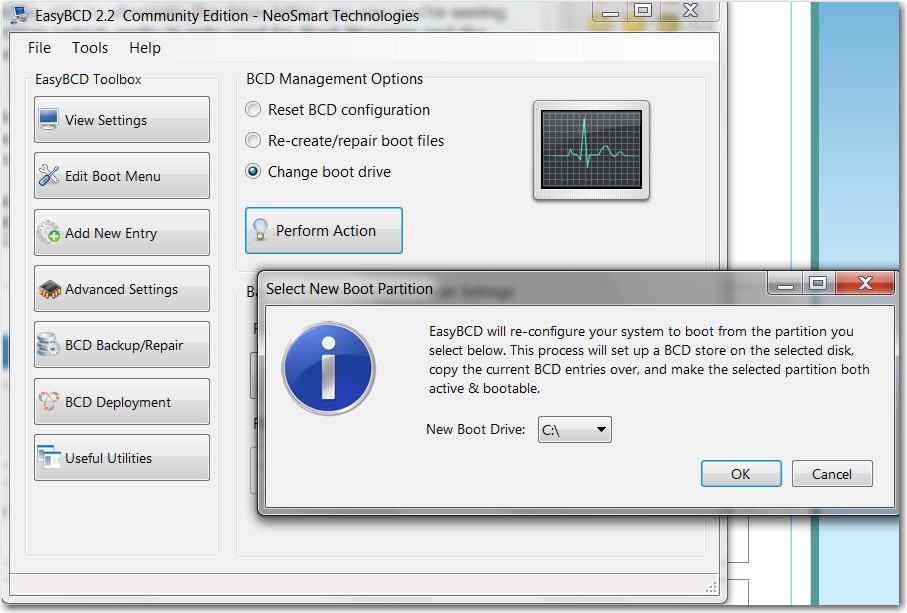
That function is in EasyBCD's "Backup/Repair" button. While you are booted to Win7, when you push that button you get a dialog that shows three "BCD Management Options", with the third one shown as "change boot drive". When you then push the "perform action" button you'll get another dialog window that allows you to pick your new boot partition... for example, C (i.e. the Win7 system partition itself):

0bjKgi.jpg


Then push the OK button and EasyBCD will write a new copy of Boot Manager into C, and will copy the boot menu (from your "system reserved" partition) into C. It will also mark C as "active" (and will remove the "active" flag for "system reserved") so that the BIOS will now go to C the next time you re-boot.

You can read EasyBCD's HELP contents about the "change boot partition" subject, to get complete details about this.

EasyBCD does NOT delete your existing "active" partition (i.e. your 100MB "system reserved" partition on the 500GB drive), so that just in case something goes wrong during this process you can revert back to your original "active" partition location. But if everything now goes right, and you truly can boot with Boot Manager in the Win7 C-partition which is now marked "active", then you can delete the original and now unneeded "system reserved" partition (using Partition Wizard or DISKMGMT.MSC while running under Win7).

You don't actually need that "system reserved" to boot Win7, same as you didn't need a "system reserved" to boot WinXP. You only need Win7's Boot Manager and its boot menu living in the "active" partition, whatever that partition is.


But honestly, why do this? Just remove the drive letter for "system reserved" when you are next in WinXP and it will never bother you again, but will still be there quietly for booting. And it's only 100MB.
 

My Computer My Computer

At a glance

Windows 7 Pro x64 (1), Win7 Pro X64 (2)i5-3350p 3.1Ghz/6MB-cache (1); E8400 3.0Ghz/6...8GB PC3-12800 DDR3 (1); 4GB PC3-10600 DDR3 (2)ATI HD7750 (1), (see TV cards); ATI R7 250 (2)
Computer type
PC/Desktop
Computer Manufacturer/Model Number
Home-built, two systems (1) and (2)
OS
Windows 7 Pro x64 (1), Win7 Pro X64 (2)
CPU
i5-3350p 3.1Ghz/6MB-cache (1); E8400 3.0Ghz/6MB-cache (2)
Motherboard
ASUS P8Z77-V Pro (1); ASUS P5Q3 (2)
Memory
8GB PC3-12800 DDR3 (1); 4GB PC3-10600 DDR3 (2)
Graphics Card(s)
ATI HD7750 (1), (see TV cards); ATI R7 250 (2)
Sound Card
Realtek ALC892 HD Audio (1); Realtek ALC1200 HD Audio (2)
Monitor(s) Displays
Eizo HD2441W LCD, Eizo S2433W (1); Eizo 24" S2433W (2)
Screen Resolution
1920x1200, 1920x1200 (1); 1920x1200 (2)
Hard Drives
(1) 1TB SATA-II (7200RPM), 2x2TB SATA-III (7200RPM), 250GB SATA-III (10000RPM) for OS; 2x2TB external USB 3.0

(2) 320GB SATA-II (7200RPM), 750GB SATA-II (7200RPM), 150GB SATA-II (10000RPM) for OS; 2TB external USB 3.0
PSU
Nesteq ECS-6001 600W (1); Nesteq ECS-5001 500W (2)
Case
Acousti-Case 360 (1) and (2)
Cooling
Noctua NH-U12P SE2 for CPU, 2x120mm case fans (1) and (2)
Keyboard
IBM PS/2 (1) and (2)
Mouse
Logitech MX Revolution wireless (1); Microsoft wired (2)
Internet Speed
100mbps down / 10mbps up
Antivirus
Microsoft Security Essentials; Malwarebyte Anti-Malware Pro
Browser
Firefox
Other Info
Ceton InfiniTV 4-tuner cablecard-enabled TV card as well as Hauppauge HVR-2250 OTA/ATSC 2-tuner TV card in (1), running under Win7 WMC
It seems correct in your Disk Management screenshot, but can we see the view from XP Disk Mgmt to know for sure? To do this use Prnt Scrn button, paste into Paint, save and attach file using paper clip in Reply box. Screenshot with Paint

If you added XP from Win7 then it is almost certainly correct and needs no adjusting.

I'm assuming your screenshot is from Win7 although you have that hideous Win2000 government-file-cabinet graphics instead of Win7's elegant Aero themes. Why? This is like taking all the paintings off the wall in a museum to avoid clutter. Right click on the desktop to Personalize, choose a Theme with a slideshow to enjoy Win7 beauty.
 
He probly didn`t even do his updates yet or graphics driver when he posted that shot Greg.

Post the shot of disk management from XP as requested please.


hideous Win2000 government-file-cabinet graphics :roflmao:
 

My Computer My Computer

At a glance

Windows 10 Pro x64Intel Core i7 6700KGSkill TridentZ RGB 16GB 3600 16-16-16-36EVGA GTX 980 Ti SC x2
Computer type
PC/Desktop
Computer Manufacturer/Model Number
Skylake Special #666
OS
Windows 10 Pro x64
CPU
Intel Core i7 6700K
Motherboard
Asus Sabertooth Z170 Mark 1
Memory
GSkill TridentZ RGB 16GB 3600 16-16-16-36
Graphics Card(s)
EVGA GTX 980 Ti SC x2
Sound Card
Realtek High Definition
Monitor(s) Displays
AOC G2460PG
Screen Resolution
1920 x 1080 144Hz
Hard Drives
Samsung 860 Pro 256GB, Seagate Barracuda 4TB x2
PSU
EVGA 1000 P2, EVGA White Custom Braided Cables
Case
Corsair Vengeance C70 Gunmetal Black
Cooling
Corsair H100i v2, Corsair ML120 x2, Thermal Grizzly Kryonaut
Keyboard
Logitech G910 Orion Spectrum
Mouse
Logitech G700s
Internet Speed
Verizon Fios Quantum Gateway 75/75
Antivirus
Windows Defender, Malwarebytes Free 3.8.3
Browser
Chrome
Other Info
Corsair SP120 x4, LG Blu-ray Drive, Durabrand HT-395 100 Watt Dolby Digital Amp, Corsair H2100 Wireless 7.1 Headset
Back
Top