"open with" selects microsoft photo editor, opens file w/wrong thing

LaurieAnn

New member
Local time
4:17 AM
Messages
4
"open with" selects microsoft photo editor, opens file w/wrong thing

I've been so sad since I finally had to leave my beloved XP behind and lose Microsoft Photo Editor. I downloaded it 9from one of your forum members) to a laptop which has Win7 64 bits and I think I ran/installed it ok, but when I right click on a photo (.jpg) and go for the "open with" and select Microsoft Photo Editor, it actually opens with Microsoft Photo Viewer. I tried restarting the computer and tried with several photos. BUT if I open Microsoft Photo Editor first, and ask it to open a photo, it will open it and let me edit it. I can't figure out how to make it my default "opener" (if I double-click on a photo) and I can't figure out why it shows up on the list of options ("open with") but when selected, my photo opens with what I didn't select. Do you think you could help me with some advice? Thank you!
 

My Computer My Computer

Computer type
Laptop
Computer Manufacturer/Model Number
Toshiba
OS
windows 7 64 bit
Hi and welcome to SevenForums,
Could you please post where you downloaded this photo viewer/ editor from I can't thing of what it is

Regardless you can use the search option or browse and go to either programs x86 or programs files and find the editor you downloaded if you find it simply click on the .exe file which usually shows a small icon same as the program would show on the taskbar or desktop shortcut,
Then check the box to always use this program to open this file type = test it first to make sure it's the correct file to open the program
In other words Uncheck the box to always do that if the program opens the file then repeat and check the box :)
Cheers.
 

My Computer My Computer

Computer type
PC/Desktop
Computer Manufacturer/Model Number
Custom assembled by me :}
OS
Win-7-Pro64bit 7-H-Prem-64bit
CPU
i7-5930K 2nd i9-9940x both water blocked VRM's too
Motherboard
ASUS SABERTOOTH X99 2nd ASUS x299 Apex
Memory
Trident-z 3200C14 2nd Trident-z 3600C16
Graphics Card(s)
EVGA 1080ti ftw3 2nd Titan Xp both water blocked
Sound Card
Built-in Realtek
Monitor(s) Displays
1-AOC G2460PG 24"G-Sync 144Hz/ 2nd 1-ASUS VG248QE 24" 144Hz
Screen Resolution
1920 x 1080 144Hz
Hard Drives
2-Samsung M.2 Evo & Evo Plus
2-Samsung 850 EVO 500GB SSD's/ 3-2.5 W.D. Black 1tb-&3-1tb/3-3.5 WD Black 1tb hdd's
PSU
EVGA SuperNOVA 1000-P2 2nd 1200-P2
Case
2-Corsair Obsidian Series 450D Black ATX Mid Tower
Cooling
Custom water loops
Keyboard
Logitech G710+/ 2nd Logitech G910
Mouse
2-RedDragon M901 Perdition 16400 dpi Gaming mouse = wired
Internet Speed
Comcast Ping 19ms 89.31mbps download speed 6.12mbps upload
Antivirus
Malwarebytes Pro/ Superantispyware Pro
Browser
FireFox & Pale moon
Other Info
2nd ASUS X299 Apex/Intel i9-9940x with Custom water loop/7H-Prem-x64/Corsair 450D case/Ram Trident-z 3600C16 4x8gb / Samsung970Evo plus 500gb SSD/Dual ssd EZ swap evo/PSU EVGA SuperNova 1200w-P2 80+Platinum/GPU Titan Xp /8-ML-140 on push-pull on 2-280GTX rads
Hi and welcome to SevenForums,
Could you please post where you downloaded this photo viewer/ editor from I can't thing of what it is

Her other post...

Here's the link: DStealth's 7Forums Page

I had some how misplaced the index file which was why the page didn't load for you previously. It's there now, should work :)

I know I'm extremely late to this party, but I've been so sad since I finally had to leave my beloved XP behind and lose Microsoft Photo Editor. I downloaded it to a laptop which has Win7 64 bits and I think I ran/installed it ok, but when I right click on a photo (.jpg) and go for the "open with" and select Microsoft Photo Editor, it actually opens with Microsoft Photo Viewer. I even tried restarting the computer and tried with several photos. BUT if I open Microsoft Photo Editor first, and ask it to open a photo, it will open it and let me edit it. I can't figure out how to make it my default "opener" (if I double-click on a photo) and I can't figure out why it shows up on the list of options (open with) but when selected, my photo opens with what I didn't select. Do you think you could help me with some advice? p.s. I'm not smart. Thank you!
 

My Computer My Computer

Computer type
PC/Desktop
Computer Manufacturer/Model Number
Self Built
OS
Win 10 Pro x64
CPU
Intel I5-2500K @3.3GHz
Motherboard
Asrock P67 Extreme4
Memory
16GB G.Skill Ripjaws X (4x4GB)
Graphics Card(s)
EVGA GeForce 750 Ti SC 2GB
Sound Card
ASUS Xonar DG 5.1 Channels 24-bit 96KHz PCI Interface Sound
Monitor(s) Displays
auria eq2367
Screen Resolution
1920 x 1080
Hard Drives
250GB Samsung 850 EVO SSD
1TB WD Blue
1TB Hitachi
PSU
SeaSonic X 650W 80 Plus Gold
Case
Corsair Obsidian 750D
Cooling
Corsair H60, Three 140mm case fans
Keyboard
Logitech Wireless Keyboard K520
Mouse
Logitech Wireless Mouse M310
Internet Speed
Wave Broadband ~ 100 dn 5 up
Antivirus
Windows Defender, Malwarebytes Premium
Browser
Edge, IE11, Chrome
Other Info
Laptop specs: HP g7-1365dx /
CPU: AMD A6-3420M APU with Radeon(tm) HD Graphics /
RAM: Crucial 8Gb (2x4Gb) /
SSD: Crucial M4-CT128M4SSD2 ATA Device/ FW 000F /
GFX: AMD Radeon HD 6520G /
OS: Windows 10 Pro x64

Attachments

  • 2015-03-24_0135.png
    2015-03-24_0135.png
    24.7 KB · Views: 1

My Computer My Computer

Computer Manufacturer/Model Number
HP, Dell, Gateway, Toshiba - 4 laptops and 2 desktops
OS
Vista, Windows7, Mint Mate, Zorin, Windows 8
CPU
from 1.6GHz Duo to i7
Monitor(s) Displays
2x HP w2207
Hard Drives
5x HDD, 7x SSD, 12x Externals
Keyboard
with trackball - no mices
Mouse
Trackball mice
Internet Speed
DSL 6000
Hi, thank you all for responding to my post. I wish selecting Microsoft Photo Editor as my default opener would work, but it won't. I tried 3 ways -- one way was going into control panel and selecting the options to set defaults, and Microsoft Photo Editor wasn't even on that list, even though it's installed on the computer. Second, I tried opening Microsoft Photo Editor and clicking the box which says "use this as the default" and then went and double clicked on a .jpg and it didn't open with Microsoft Photo Editor. I tried restarting, to see if that would make my change take effect, but it didn't. It still opens ,jpgs with Microsoft Photo Viewer, even if I right click and select Microsoft Photo Editor from the list. I went to Microsoft Photo Editor and ran the compatibility checker but that didn't help either. I know I ought to resign myself to losing this program but I'm being stubborn and trying not to give up without a good fight. If anyone has gotten it to work after seeing issues like mine, I would love to hear their advice! Thank you!

Laurie
 

My Computer My Computer

Computer type
Laptop
Computer Manufacturer/Model Number
Toshiba
OS
windows 7 64 bit
Please confirm you downloaded the 64 bit version from the previous link posted.
 

My Computer My Computer

Computer type
PC/Desktop
Computer Manufacturer/Model Number
Custom assembled by me :}
OS
Win-7-Pro64bit 7-H-Prem-64bit
CPU
i7-5930K 2nd i9-9940x both water blocked VRM's too
Motherboard
ASUS SABERTOOTH X99 2nd ASUS x299 Apex
Memory
Trident-z 3200C14 2nd Trident-z 3600C16
Graphics Card(s)
EVGA 1080ti ftw3 2nd Titan Xp both water blocked
Sound Card
Built-in Realtek
Monitor(s) Displays
1-AOC G2460PG 24"G-Sync 144Hz/ 2nd 1-ASUS VG248QE 24" 144Hz
Screen Resolution
1920 x 1080 144Hz
Hard Drives
2-Samsung M.2 Evo & Evo Plus
2-Samsung 850 EVO 500GB SSD's/ 3-2.5 W.D. Black 1tb-&3-1tb/3-3.5 WD Black 1tb hdd's
PSU
EVGA SuperNOVA 1000-P2 2nd 1200-P2
Case
2-Corsair Obsidian Series 450D Black ATX Mid Tower
Cooling
Custom water loops
Keyboard
Logitech G710+/ 2nd Logitech G910
Mouse
2-RedDragon M901 Perdition 16400 dpi Gaming mouse = wired
Internet Speed
Comcast Ping 19ms 89.31mbps download speed 6.12mbps upload
Antivirus
Malwarebytes Pro/ Superantispyware Pro
Browser
FireFox & Pale moon
Other Info
2nd ASUS X299 Apex/Intel i9-9940x with Custom water loop/7H-Prem-x64/Corsair 450D case/Ram Trident-z 3600C16 4x8gb / Samsung970Evo plus 500gb SSD/Dual ssd EZ swap evo/PSU EVGA SuperNova 1200w-P2 80+Platinum/GPU Titan Xp /8-ML-140 on push-pull on 2-280GTX rads
Hi, I just checked it and yes I downloaded the version for 64 bit from DStealth.
 

My Computer My Computer

Computer type
Laptop
Computer Manufacturer/Model Number
Toshiba
OS
windows 7 64 bit
Hi, thank you all for responding to my post. I wish selecting Microsoft Photo Editor as my default opener would work, but it won't. I tried 3 ways -- one way was going into control panel and selecting the options to set defaults, and Microsoft Photo Editor wasn't even on that list, even though it's installed on the computer. Second, I tried opening Microsoft Photo Editor and clicking the box which says "use this as the default" and then went and double clicked on a .jpg and it didn't open with Microsoft Photo Editor. I tried restarting, to see if that would make my change take effect, but it didn't. It still opens ,jpgs with Microsoft Photo Viewer, even if I right click and select Microsoft Photo Editor from the list. I went to Microsoft Photo Editor and ran the compatibility checker but that didn't help either. I know I ought to resign myself to losing this program but I'm being stubborn and trying not to give up without a good fight. If anyone has gotten it to work after seeing issues like mine, I would love to hear their advice! Thank you!

Laurie


Hi Laurie -

I had the same problem and wasn't having it so here's what you do..

Install the 64 bit MS Photo Editor clean from DStealth. Then go to:

C:\Program Files (x86)\Common Files\microsoft shared\

Then highlight the entire < PhotoEd > folder, cut it and paste the whole folder back in:

C:\Program Files (x86) so it looks like this: C:\Program Files (x86)\PhotoEd

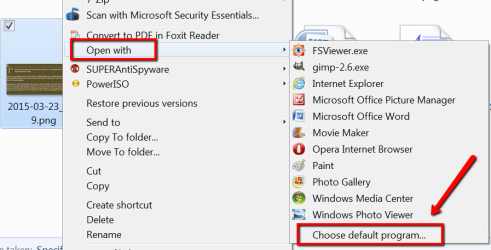
Then right click on a .jpg pic - choose <Open With> then <Choose Default Program> then <Browse> and navigate back to:

C:\Program Files (x86)\PhotoEd and select PhotoEd.exe

That should should do it! It's up to you if you want to select "Always use the selected program to open this kind of file"

p.s. I would also recommend renaming the original photoed.exe you find in this folder to photoed.exe.orig and then copy/ paste the other photoed.exe contained in the PhotoEd Patch download folder (outlined in the readme.txt) to resolve any noise issues when zooming in on a photo.

Regards, Bruce
 
Last edited:

My Computer My Computer

Computer type
PC/Desktop
OS
Win7 Ultimate x64
Thanks "Win7 x64". Great first post!
It worked for me. I might add that after you follow the steps, you can then go back to another program as the default one. MS Photo Editor will remain on the right-click menu and everything works as it should.
 

My Computer My Computer

Computer type
PC/Desktop
Computer Manufacturer/Model Number
Custom
OS
Windows 7 Professional 64-bit
Back
Top