Screen Saturates when unplugged

MaxQ

New member
Local time
11:43 PM
Messages
9
Hello all!!
I am so glad I found this place, thank you.
Here is my issue:
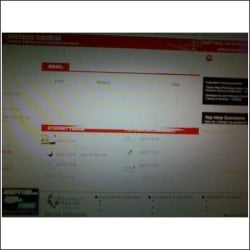
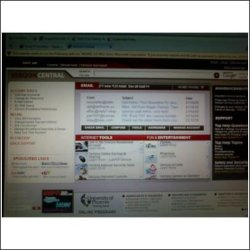
I loaded Windows 7 on my laptop and everything works just perfect. However, when I unplug from power the screen saturates or goes to a white screen with only the darkest colors showing up. Impossible to do anything while unplugged. But as soon as I plug back into power, about
3-5 seconds later the resolution comes back. Here are a couple pics of the same screen plugged/unplugged.
Any thoughts?
Thanks,
MaxQ
 

Attachments
  • pic1.jpg
    pic1.jpg
    41.3 KB · Views: 135
  • pic2.jpg
    pic2.jpg
    29.3 KB · Views: 93

My Computer

OS
Windows 7
Hi MaxQ,

This is by design on a laptop, its the power saving kicking in.
There sould be a keyboard option to increase brightness/contrast (functionkey)
You could also change your power options in control panel but you will use your battery quicker.
 

My Computer

Computer type
PC/Desktop
Computer Manufacturer/Model Number
Self Build
OS
MS Windows 7 Professional 64-bit SP1
CPU
AMD FX(tm)-6100 Six-Core Processor Socket AM3+ (942)
Motherboard
ASUSTeK COMPUTER INC. SABERTOOTH 990FX (AM3r2)
Memory
8.00 GB Dual-Channel DDR3 @ 802MHz (11-11-11-36) 1.5Volts
Graphics Card(s)
NVIDIA GeForce GTX 560 Ti
Sound Card
Onboard Realtek HD
Monitor(s) Displays
shimian (1920x1080@60Hz)
Screen Resolution
1920*1080
Hard Drives
OCZ-AGIL ITY3 SATA Disk Device 120GB
PSU
Corsair TX 750
Case
Corsair
Cooling
WaterCooled
Keyboard
Microsoft Wired
Mouse
Logitech USB Optical TiltWheel Mouse
Internet Speed
Realtek PCIe GBE Family Controller 20MB*1MB
Antivirus
Avast
Browser
Firefox
Other Info
150GB Internal Hard Drive for Backing Up Important Files -
Hauppauge Nova-DT Dual DVB-T Tuner Device (+IR) -
USB PC Camera with Mic (SN9C105)
Thanks Anthony for the quick reply. But I have change my power options to "High Performance" and no change.
 

My Computer

OS
Windows 7
Hi MaxQ

Try typing "mobility" into the Start Menu search bar or go to Mobility Centre via Control panel an see if there is an option there. If not it may be a utility that was supplied by the laptop manufacturer
 

My Computers

System One System Two

  • Computer type
    PC/Desktop
    Computer Manufacturer/Model Number
    ChillBlast - Custom to my design
    OS
    Windows 11 Pro x64 [Latest Release and Release Preview]
    CPU
    Ryzen 9 5950X, 3.8 - 5.2 MHz
    Motherboard
    Asus Prime X570-Pro
    Memory
    64GB [2 x 32GB] DDR4 3200MHz
    Graphics Card(s)
    4GB NVIDIA GEFORCE GTX 1650 Ti
    Sound Card
    On-board SPDIF to 5.1 System + HDMI [5.1 system]
    Monitor(s) Displays
    32" UHD 32 Bit HDR Monitor + 43" UHD 4K 32Bit HDR TV
    Screen Resolution
    2 x 3840 x 2160 @60Hz
    Hard Drives
    1TB M2 SSD OS, 500GB Fast Access SSD, 2 x 8TB Data + Various Externals from 1TB to 4TB, 10TB NAS
    PSU
    NZXT C750 80 PLUS Gold 750W Modular PSU
    Case
    Workstation Case [Matt Black]
    Cooling
    NZXT Kraken X63 280mm CPU Cooler +2x Quiet Case fans
    Keyboard
    Logitech Wireless MX Keys & K400 + others
    Mouse
    Logitech Wireless MX Master 3S
    Internet Speed
    920 MB Down 50 MB Up
    Antivirus
    BitDefender Total Security Pro
    Browser
    Chrome (always run latest Non-Beta)
    Other Info
    Also run ...
    Laptop - Quad 8GB - Windows 10 Pro x64
    Nexus 7 Android tablet x2
    Samsung 10.2" tablet
    Blackview TAB 8 4G Android Tablet c/w Keyboard
    Wacom Intuos Pro Medium Pen Pad
    Wacom Intuos Pro Small Pen Pad
    Wacom Expresskeys Remote
    Loopdeck+ Graphics Controller
    Shuttle Pro v2 Control
  • Computer type
    Laptop
    System Manufacturer/Model Number
    Dell XPS 17 10750H
    OS
    Windows 11 Pro x64 Latest RP
    CPU
    Intel I7 10750H 5.0GHz
    Motherboard
    Dell XPS
    Memory
    32GB [2x16GB] DDR4 2933 MHz
    Graphics Card(s)
    nVidia GTX1650Ti 4 GB GDDR6
    Sound Card
    Stock [Realtek] 4 Speaker
    Monitor(s) Displays
    17" IPS UHD+ Infinity Edge Touchscreen
    Screen Resolution
    3840 x 2400
    Hard Drives
    2TB M2 NVMe, 4TB External + various 500GB & 1TB External NVMe (also have access to spinner HDD from
    PSU
    Stock
    Case
    Stock XPS Aluminium & Carbon Fibre
    Cooling
    Stock - Active Fan Control
    Keyboard
    Backlit + Various Logitech
    Mouse
    Stock Track Pad + Logitech MX Trackball
    Internet Speed
    72 MB Down 18MB Up
    Browser
    Chrome
    Other Info
    Also run ...
    Laptop - Quad 8GB - Windows 10 Pro x64
    Nexus 7 Android tablet x2
    10.2" tablet
    Sony Z3 Android Smartphone
    Wacom Intuos Pro Medium Pen Pad
    Wacom Intuos Pro Small Pen Pad
    Wacom Expresskeys Remote
    Loopdeck+ Graphics Controller
    Shuttle Pro v2 Control Pad
    10TB NAS
Have you updated all your drivers? chipset, gfx, sound etc.
 

My Computer

Computer type
PC/Desktop
Computer Manufacturer/Model Number
Self Build
OS
MS Windows 7 Professional 64-bit SP1
CPU
AMD FX(tm)-6100 Six-Core Processor Socket AM3+ (942)
Motherboard
ASUSTeK COMPUTER INC. SABERTOOTH 990FX (AM3r2)
Memory
8.00 GB Dual-Channel DDR3 @ 802MHz (11-11-11-36) 1.5Volts
Graphics Card(s)
NVIDIA GeForce GTX 560 Ti
Sound Card
Onboard Realtek HD
Monitor(s) Displays
shimian (1920x1080@60Hz)
Screen Resolution
1920*1080
Hard Drives
OCZ-AGIL ITY3 SATA Disk Device 120GB
PSU
Corsair TX 750
Case
Corsair
Cooling
WaterCooled
Keyboard
Microsoft Wired
Mouse
Logitech USB Optical TiltWheel Mouse
Internet Speed
Realtek PCIe GBE Family Controller 20MB*1MB
Antivirus
Avast
Browser
Firefox
Other Info
150GB Internal Hard Drive for Backing Up Important Files -
Hauppauge Nova-DT Dual DVB-T Tuner Device (+IR) -
USB PC Camera with Mic (SN9C105)
Hi MaxQ

Try typing "mobility" into the Start Menu search bar or go to Mobility Centre via Control panel an see if there is an option there. If not it may be a utility that was supplied by the laptop manufacturer


Yes ok, under Windows Mobility Center I have four options.

Volume

Battery Status: Set to High Performance then tried Balanced no difference.

Sync Center

Presentation Settings

Not sure what to change. Under the battery I have tried all three options
High Performance, Balanced and Power Saver. None of these has fixed the problem.
Also,
I have re-installed the video driver from Dell and no fix.
 

My Computer

OS
Windows 7
have you tried going into: control panel, performance information and tools,adjust visual performace(ensure its on let windows decide), then adjust power settings,(at the bottom the brightness slide should be to the right),choose what the power buttons do,should be set to balanced, click change plan settings it should then give you the option to change brightness etc when on battery power.
 

My Computer

Computer Manufacturer/Model Number
home built PC. Laptop studio1557
OS
windows 7 64 bit and dual boot Pinguyos
CPU
PC, intel i7 920 2.7ghz, laptop i7 720
Motherboard
PC, Asus P6t .laptop probably rubbish from dell
Memory
PC 6GB, laptop 2GB, me 2 seconds after 6 pints
Graphics Card(s)
PC Asus eah5870,laptop, ati hd 4580
Monitor(s) Displays
Sharp 42" HD TV using HDMI + HDMI to onkyo surround amp
Screen Resolution
1920x1080
Hard Drives
1x ssd OCZ 60GB, 2x250GB raid0, 2x1TB (storage),2TB
PSU
OCZ 700w
Case
antec 902
Cooling
antec khuler h20 920
Keyboard
logitek wave
Mouse
x8 sidewinder
Internet Speed
dog slow
Ok I tried that. I couldn't find the Brightness slide though. But I did go into my turn ON/OFF contrast and turned on High contrast. Now this let me see all the text on screen but everything else was black. Not the visual experience you see even looking at this page.
 

My Computer

OS
Windows 7
Hello all!!
I am so glad I found this place, thank you.
Here is my issue:
I loaded Windows 7 on my laptop and everything works just perfect. However, when I unplug from power the screen saturates or goes to a white screen with only the darkest colors showing up. Impossible to do anything while unplugged. But as soon as I plug back into power, about
3-5 seconds later the resolution comes back. Here are a couple pics of the same screen plugged/unplugged.
Any thoughts?
Thanks,
MaxQ
That looks like you have more problems than power saving settings. I could not get my laptop to look that bad with the power saving options if I tried to make it look bad, Impossible.
What are your specs and how old is your laptop? I think you have a driver issue.
 

My Computer

OS
Windows 7 7022 x86
Dell XPS laptop 2.5 yrs Intel 1.73GHz processor, 1 GB memory, 80 GB Hard drive running WinXP no issues until I got a virus/worm that took over my pc. re-formatted and Loaded Win7 to try. I really like this O/S it's a lot faster than my Vista system desktop. I know this issue is gotta be some sort of setting or tweaking to make it work properly.
 

My Computer

OS
Windows 7
Video card and driver version?
 

My Computer

OS
Windows 7 7022 x86
Boot into your bios while plugged in.
When you are in the bios pull the plug and see what happens.
If the same thing happens this will tell you it has nothing to do with software.
How good is the battery on your laptop, a battery will never give the same reliability as mains power.
 

My Computer

Computer Manufacturer/Model Number
Self built
OS
Windows 7 64bit home premium
CPU
I5 3570K
Motherboard
Gigabyte Z77-DS3H
Memory
4 x 4GB Crucial Ballistix Sport DDR3 1600 Mhz
Graphics Card(s)
Gigabyte Geforce 660 TI
Sound Card
creative x-fi
Monitor(s) Displays
Primary CiBox 22" Widescreen LCD ,Secondary Dell 22" Widescr
Screen Resolution
Both 1680 x 1050
Hard Drives
2 x 500G HD (SATA) 1 x 2 TB USB
PSU
Corsair HX 620W ATX2.2 Modular SLI Complient PSU
Case
Antec 900 Ultimate Gaming Case
Cooling
3xfront 1xside 1xrear blue fan, 1 200mm blue top fan 1
Keyboard
Trust ds-3200 Wireless keyboard and mouse
Mouse
Trust ds-3200 Wireless keyboard and mouse
Internet Speed
288 / 4000
Other Info
Creative Inspire 7.1 T7900 Speakers
Trust Graphics Tablet
Hello all!!
I am so glad I found this place, thank you.
Here is my issue:
I loaded Windows 7 on my laptop and everything works just perfect. However, when I unplug from power the screen saturates or goes to a white screen with only the darkest colors showing up. Impossible to do anything while unplugged. But as soon as I plug back into power, about
3-5 seconds later the resolution comes back. Here are a couple pics of the same screen plugged/unplugged.
Any thoughts?
Thanks,
MaxQ

Terribly sorry to be so late to the party, mate. That's Intel power saving with an integrated GPU. You've got a 910/915GM(S), yes?

Untick this box here:

Untitled.jpg
 

My Computer

Computer type
Laptop
Computer Manufacturer/Model Number
Apple
OS
El Capitan / Windows 10
CPU
i7-4980HQ
Memory
16GB
Graphics Card(s)
Iris 5200
How do I find that? I did a search for Intel graphics, Intel power, Intel
But nothing with that Intel Power saving.
Yes, Mobile Intel(R) 915GM/GMS,910GML Express Chipset Family
 

My Computer

OS
Windows 7
OMG!!! I fixed it! Horraayy!!! Thank you guys for all your time and help. This was the issue:
In Device Manager I found two of these:
Mobile Intel® 915GM/GMS, 910GML Express Chipset Family

Wondering why I had 2 running at the same time I just right clicked on the second one and disabled it. And Boom all is good.
Although, things aren't as sharp or crisp i.e. text is slightly blurry.
 

My Computer

OS
Windows 7
1) Right click the desktop, a shortcut menu displays.
2) Select "Graphic Properties..." from the menu.
3) The Intel Graphics Media Accelerator Driver for Mobile window displays.
4) Select the "Display Settings" tab on the left of the window.

You should now see the dialog in the screen shot I posted earlier.

Edit: Response to last post.

The blurry text is due to the fact that your display is not set to the native resolution of the flat panel. Re-enable the secondary display interface in Device Manager and perform the steps above as well as setting the flat panel resolution to the native settings displayed here:

Untitled2.jpg
 

My Computer

Computer type
Laptop
Computer Manufacturer/Model Number
Apple
OS
El Capitan / Windows 10
CPU
i7-4980HQ
Memory
16GB
Graphics Card(s)
Iris 5200
OK this what I did. I did not have Intel Graphics Media Accelerator for Mobile. So I google it and downloaded/installed the one for Intel 915GM/GMS, 910GML Express Chipset Family. Then I unchecked the Intel Power Saving mode.
Thank you that worked perfectly!:D

Clicked on the Information button and then Notebook tab.
Maybe I'm blind but I do not see where I can change Flat Panel resolution to the native settings displayed?
 

My Computer

OS
Windows 7
OK this what I did. I did not have Intel Graphics Media Accelerator for Mobile. So I google it and downloaded/installed the one for Intel 915GM/GMS, 910GML Express Chipset Family. Then I unchecked the Intel Power Saving mode.
Thank you that worked perfectly!:D

Clicked on the Information button and then Notebook tab.
Maybe I'm blind but I do not see where I can change Flat Panel resolution to the native settings displayed?

You don't change it there. Use the Windows 7 Screen resolution control panel to change it to the best value shown on the Notebook tab. In my case it was 1400x1050.
 

My Computer

Computer type
Laptop
Computer Manufacturer/Model Number
Apple
OS
El Capitan / Windows 10
CPU
i7-4980HQ
Memory
16GB
Graphics Card(s)
Iris 5200
Thank you so much Baarod. You really helped me out. Your the bomb!:D
 

My Computer

OS
Windows 7
That's what I show up for. :geek:
 

My Computer

Computer type
Laptop
Computer Manufacturer/Model Number
Apple
OS
El Capitan / Windows 10
CPU
i7-4980HQ
Memory
16GB
Graphics Card(s)
Iris 5200
Back
Top