Questions about backup on windows 7. Wanting to test out win10

ringo14

New member
Member
Local time
4:06 AM
Messages
74
1.What's the best method of backing up? I never actual have backed up my laptop due to the fact I hardly ever mess around with it. I checked the windows 7 back up options and I am confused. I have an external hard drive(With around 12 gb left). Can I back it up to that? Or can I create a partition of lets say around 60 gb and back it up to that? Also what is the difference between a normal back up and an system image back up.


2.What back up should I use if I do not like win10 and want to downgrade and go back to how my win7 os was left. With all my personal files still in tack. Which backup would I need or does it matter?
Hope my questions make sense. TL;DR: Which backup should I use if I want to downgrade from win10 to win7 and have my windows 7 os remain the same before I did the update.

Running windows 7 ultimate 64 bit on a 500 gb hdd
 

My Computer My Computer

At a glance

Windows 7 and Vista basic
Computer Manufacturer/Model Number
Dell Inspiron 1545
OS
Windows 7 and Vista basic
1.What's the best method of backing up? I never actual have backed up my laptop due to the fact I hardly ever mess around with it. I checked the windows 7 back up options and I am confused. I have an external hard drive(With around 12 gb left). Can I back it up to that? Or can I create a partition of lets say around 60 gb and back it up to that? Also what is the difference between a normal back up and an system image back up.


2.What back up should I use if I do not like win10 and want to downgrade and go back to how my win7 os was left. With all my personal files still in tack. Which backup would I need or does it matter?
Hope my questions make sense. TL;DR: Which backup should I use if I want to downgrade from win10 to win7 and have my windows 7 os remain the same before I did the update.

Running windows 7 ultimate 64 bit on a 500 gb hdd
I rely on Windows 7's Backup and Restore, plus additional automatic backups of Pictures, Movies, Music and Documents and some other precious stuff, made to a 1 TB external USB drive by Second Copy (a backup program.)

W7's BU and Restore makes an image (a snapshot, called a System Image) of the C: drive. The idea is that if your C: drive gets heavily corrupted you load the system image on to the drive and get back to where you were when the system image was made (unless of course your C: drive is itself faulty, in which case you could install a new drive and load the system image on to it.). Because the system image is a block all-or-nothing thing rather then a set of your various files, you cannot choose to restore individual files separately. Go to Start button and type Backup. Choose Backup and Restore.

On my machine the system image is 146 GB in size, so your external HD with 12 GB left is far too small. Ext. USB drives are not expensive, even at 2 TB size.

With Windows 7's Backup and Restore you can create Restore Points now and again (Start > type system restore). These record the features of the OS at that time and allow you to return to that point later on if a fault occurs.

Moving from a Mac I was totally ignorant of the Windows world, but I bought a guide (Visual Quickstart Guide, there are others) which explained a lot. It takes time but it became clear. Incidentally, asking friends for advice was useless. All of them hadn't a clue on how Windows works and most of them knew nothing about backing up!. Microsoft's site has many excellent help files including on backups at:

https://support.microsoft.com/en-us/search?query=backup%20in%20Windows%207

I can't help on your second question, about reverting from 10 (backing up) to 7. Perhaps others could advise on whether a system image made in 10 could be used on 7 (I doubt it, because the systems must be significantly different.
 

My Computer My Computer

At a glance

Windows 7 Home Premium 64bitIntel Pentium Edition G3220 3.0 GHz8 GB DDR3 1600 MHz DIMMNot Known
Computer type
PC/Desktop
Computer Manufacturer/Model Number
Gigabyte ATX case with 500 W power supply GZ-M1
OS
Windows 7 Home Premium 64bit
CPU
Intel Pentium Edition G3220 3.0 GHz
Motherboard
Gigabyte Socket 1150 MicroATX Mot Ultra Durable, GA-H81M-S2H
Memory
8 GB DDR3 1600 MHz DIMM
Graphics Card(s)
Not Known
Sound Card
Not known
Monitor(s) Displays
Samsung LS24D590 23.6"
Screen Resolution
1920 x 1080
Hard Drives
256 GB Solid State Drive (C: on which Windows 7 is installed)-
1 TB internal conventional HD (X:)-
Two WD "Elements" " 2TB USB drives as backups
PSU
500 W
Case
Gigabyte ATX case
Cooling
Several fans!
Keyboard
Accuratus 301 USB Compact, white.
Mouse
Microsoft Basic Optical Mouse v2.0, two-button, tethered
Internet Speed
10 to 12 Mb per second
Antivirus
Kaspersky Internet Security 2016, Malwarebytes (paid)
Browser
Firefox (ocassionally Safari)
Other Info
The 256 GB SSD (C:) also has Adobe Photoshop CS6 and InDesign CS6, MS Office, Adobe Lightroom, and other small programs.
I think you can go back from Win 10 to Win 7 by simply making choices in a menu in within Win 10 if you don't like it. I think that is good for 30 days. Can you decide on Windows 10 within 30 days? I think the term they use is "revert".

But you should make a system image of 7 before you move to Win 10 just in case. That would work indefinitely, not just for 30 days. I'd use Macrium.

"Backup" means different thing to different people.

A "system image" would include Windows and all of your applications. Other forms of backup might not.
 

My Computer My Computer

At a glance

Windows 7 Home Premium SP1, 64-bitIntel Skylake i5-6600K, not overclocked8 GB HyperX DDR4-2666 (2 x 4 GB)none; graphics are integrated on CPU
Computer type
PC/Desktop
Computer Manufacturer/Model Number
Ignatz Special; 4 speed manual gearbox; factory air conditioning; one of one
OS
Windows 7 Home Premium SP1, 64-bit
CPU
Intel Skylake i5-6600K, not overclocked
Motherboard
AsRock Z170M Extreme 4, micro ATX
Memory
8 GB HyperX DDR4-2666 (2 x 4 GB)
Graphics Card(s)
none; graphics are integrated on CPU
Sound Card
onboard: Realtek ALC1150; external: USB Behringer UF0-202
Monitor(s) Displays
Dell S2340M 23 inch IPS
Screen Resolution
1600 x 900
Hard Drives
System: Crucial MX100 series SSD, 128 GB;
Data: Samsung Spinpoint 103SJ, 1 TB;
Backup: WD Caviar Green WD30EZRX-00D8PB0, 3 TB
PSU
Rosewill SilentNight 500 watt fanless, semi-modular
Case
Antec Solo II
Cooling
Noctua NH-U12S; Noctua F12 intake, Noctua S12A exhaust
Keyboard
Microsoft 200 6JH-00001 USB
Mouse
Dell or Microsoft optical wired; USB
Antivirus
Microsoft Security Essentials and Malwarebytes Premium
Browser
Pale Moon
Other Info
All fans PWM; speeds at idle: CPU circa 500 rpm; intake circa 600 rpm; exhaust circa 600 rpm; CPU temps 27 idle and 47 C load in a warm room (27 C/81 F) when running Intel Extreme Tuning Utility stress test.
I think you can go back from Win 10 to Win 7 by simply making choices in a menu in within Win 10 if you don't like it. I think that is good for 30 days. Can you decide on Windows 10 within 30 days? I think the term they use is "revert".

But you should make a system image of 7 before you move to Win 10 just in case. That would work indefinitely, not just for 30 days. I'd use Macrium.

"Backup" means different thing to different people.

A "system image" would include Windows and all of your applications. Other forms of backup might not.
Many people advise using Macrium, but what does it offer extra to Windows 7's Backup and Restore, which allows you to make a System Image at any time?
 

My Computer My Computer

At a glance

Windows 7 Home Premium 64bitIntel Pentium Edition G3220 3.0 GHz8 GB DDR3 1600 MHz DIMMNot Known
Computer type
PC/Desktop
Computer Manufacturer/Model Number
Gigabyte ATX case with 500 W power supply GZ-M1
OS
Windows 7 Home Premium 64bit
CPU
Intel Pentium Edition G3220 3.0 GHz
Motherboard
Gigabyte Socket 1150 MicroATX Mot Ultra Durable, GA-H81M-S2H
Memory
8 GB DDR3 1600 MHz DIMM
Graphics Card(s)
Not Known
Sound Card
Not known
Monitor(s) Displays
Samsung LS24D590 23.6"
Screen Resolution
1920 x 1080
Hard Drives
256 GB Solid State Drive (C: on which Windows 7 is installed)-
1 TB internal conventional HD (X:)-
Two WD "Elements" " 2TB USB drives as backups
PSU
500 W
Case
Gigabyte ATX case
Cooling
Several fans!
Keyboard
Accuratus 301 USB Compact, white.
Mouse
Microsoft Basic Optical Mouse v2.0, two-button, tethered
Internet Speed
10 to 12 Mb per second
Antivirus
Kaspersky Internet Security 2016, Malwarebytes (paid)
Browser
Firefox (ocassionally Safari)
Other Info
The 256 GB SSD (C:) also has Adobe Photoshop CS6 and InDesign CS6, MS Office, Adobe Lightroom, and other small programs.
I also highly recommend Macrium Reflect Free. Many people here on Seven forums have found it to be easier to use and more reliable than Windows Backup and Restore. I also find it more reliable than Windows Restore (the latter I could never get to work properly in Win 7).

While win 10 has a provision to allow one to roll back to the original OS for one month after the change to Win 10, I have seen several reports of people having problems doing so. It would be much safer to make an image with Macrium Reflect and save it to an external drive and make a rescue CD or USB stick (Macrium Reflect will do that for you) before you make the change to Win 10.
 

My Computer My Computer

At a glance

Win 7 Ultimate 64 bitIntel i7-3930KKingston HyperX Genesis 32GB Kit (8x4GB Modul...MSI R7850 Twin Frozr 2GD5/OC Radeon HD 7850 2...
Computer type
PC/Desktop
Computer Manufacturer/Model Number
Custom Build
OS
Win 7 Ultimate 64 bit
CPU
Intel i7-3930K
Motherboard
ASUS P9X79 WS
Memory
Kingston HyperX Genesis 32GB Kit (8x4GB Modules) 1600MHz DDR
Graphics Card(s)
MSI R7850 Twin Frozr 2GD5/OC Radeon HD 7850 2GB 256-bit GDDR
Sound Card
Asus Xonar Essence STX
Monitor(s) Displays
3x Asus VG248QE 24", Vizio 32" TV
Screen Resolution
1920 x 1080, ?
Hard Drives
Samsung 128GB 840 Pro SSD (1),
Samsung 4TB 850 EVO SSDs (4)
Samsung 4TB 850 EVO SSDs (16) external backup drives used in 2.5" hot swap bays in the computer.
PSU
Corsair HX750w
Case
Antec Two Hundred v2 (modified)
Cooling
Cooler Master GeminII S524 120mm (fan replaced with a 140mm)
Keyboard
Logitech G510s
Mouse
Logitech M525 (two in use)
Internet Speed
=< 32Mbps down, 8Mbps up
Antivirus
AVAST!, MBAM, SAS, Spybot S&D (all but MBAM free) Glary Util
Browser
IE11
Other Info
LSI 9211-8i HBA card (8 SATA III ports), 2.5" & 3.5" Hot Swap Bays, HooToo HT-CR001 PCI-E to USB 3.0 Internal Hub + 6 Slot Card Reader, and LG Model CH12LS28 BD-ROM Optical Drive. Also, ScanSnap S1500 ADF duplexing scanner, Canon 9000F flat bed scanner, Corsair SP2500 2.1 speakers, Samsung CLP 415nw laser color printer, Cyberpower PP2200SW UPS
Nothing wrong with Windows Backup and Restore.

If you understand it.

Some people do.

The rubber meets the road when you attempt a restore. Most people who "back up" have never done a restore. Many of them are in for a rude awakening, regardless of what imaging application they use. They post on this forum all the time after they have awakened from a false sense of security.

You certainly can't understand how to use an imaging application until you do a restore. Without that experience, the only purpose such applications have is to allow you to live in a Fool's Paradise, which has its merits.
 

My Computer My Computer

At a glance

Windows 7 Home Premium SP1, 64-bitIntel Skylake i5-6600K, not overclocked8 GB HyperX DDR4-2666 (2 x 4 GB)none; graphics are integrated on CPU
Computer type
PC/Desktop
Computer Manufacturer/Model Number
Ignatz Special; 4 speed manual gearbox; factory air conditioning; one of one
OS
Windows 7 Home Premium SP1, 64-bit
CPU
Intel Skylake i5-6600K, not overclocked
Motherboard
AsRock Z170M Extreme 4, micro ATX
Memory
8 GB HyperX DDR4-2666 (2 x 4 GB)
Graphics Card(s)
none; graphics are integrated on CPU
Sound Card
onboard: Realtek ALC1150; external: USB Behringer UF0-202
Monitor(s) Displays
Dell S2340M 23 inch IPS
Screen Resolution
1600 x 900
Hard Drives
System: Crucial MX100 series SSD, 128 GB;
Data: Samsung Spinpoint 103SJ, 1 TB;
Backup: WD Caviar Green WD30EZRX-00D8PB0, 3 TB
PSU
Rosewill SilentNight 500 watt fanless, semi-modular
Case
Antec Solo II
Cooling
Noctua NH-U12S; Noctua F12 intake, Noctua S12A exhaust
Keyboard
Microsoft 200 6JH-00001 USB
Mouse
Dell or Microsoft optical wired; USB
Antivirus
Microsoft Security Essentials and Malwarebytes Premium
Browser
Pale Moon
Other Info
All fans PWM; speeds at idle: CPU circa 500 rpm; intake circa 600 rpm; exhaust circa 600 rpm; CPU temps 27 idle and 47 C load in a warm room (27 C/81 F) when running Intel Extreme Tuning Utility stress test.
One thing that's nice about Macrium Reflect is you can verify an image after making it. I have never had a verified image fail to restore. I've only had one image fail to verify and all I did was make another image and it verified.
 

My Computer My Computer

At a glance

Win 7 Ultimate 64 bitIntel i7-3930KKingston HyperX Genesis 32GB Kit (8x4GB Modul...MSI R7850 Twin Frozr 2GD5/OC Radeon HD 7850 2...
Computer type
PC/Desktop
Computer Manufacturer/Model Number
Custom Build
OS
Win 7 Ultimate 64 bit
CPU
Intel i7-3930K
Motherboard
ASUS P9X79 WS
Memory
Kingston HyperX Genesis 32GB Kit (8x4GB Modules) 1600MHz DDR
Graphics Card(s)
MSI R7850 Twin Frozr 2GD5/OC Radeon HD 7850 2GB 256-bit GDDR
Sound Card
Asus Xonar Essence STX
Monitor(s) Displays
3x Asus VG248QE 24", Vizio 32" TV
Screen Resolution
1920 x 1080, ?
Hard Drives
Samsung 128GB 840 Pro SSD (1),
Samsung 4TB 850 EVO SSDs (4)
Samsung 4TB 850 EVO SSDs (16) external backup drives used in 2.5" hot swap bays in the computer.
PSU
Corsair HX750w
Case
Antec Two Hundred v2 (modified)
Cooling
Cooler Master GeminII S524 120mm (fan replaced with a 140mm)
Keyboard
Logitech G510s
Mouse
Logitech M525 (two in use)
Internet Speed
=< 32Mbps down, 8Mbps up
Antivirus
AVAST!, MBAM, SAS, Spybot S&D (all but MBAM free) Glary Util
Browser
IE11
Other Info
LSI 9211-8i HBA card (8 SATA III ports), 2.5" & 3.5" Hot Swap Bays, HooToo HT-CR001 PCI-E to USB 3.0 Internal Hub + 6 Slot Card Reader, and LG Model CH12LS28 BD-ROM Optical Drive. Also, ScanSnap S1500 ADF duplexing scanner, Canon 9000F flat bed scanner, Corsair SP2500 2.1 speakers, Samsung CLP 415nw laser color printer, Cyberpower PP2200SW UPS
Nothing wrong with Windows Backup and Restore.

If you understand it.

Some people do.

The rubber meets the road when you attempt a restore. Most people who "back up" have never done a restore. Many of them are in for a rude awakening, regardless of what imaging application they use. They post on this forum all the time after they have awakened from a false sense of security.

You certainly can't understand how to use an imaging application until you do a restore. Without that experience, the only purpose such applications have is to allow you to live in a Fool's Paradise, which has its merits.
I have thought about the Fools Paradise issue. I have been reluctant to do a restore from a system image for fear (based on years of desktop computing) that it won't work and I will be in trouble. Therefore, (my system is working perfectly) should I be brave and take the issue by the spherical objects and do a restore from a system image and get it out of my system?

A note: my C: drive is on an SSD while all my Documents, Pictures etc. are on the internal HD and also backed up externally. However, the SSD contains some important programs (Photoshop, InDesign, MS Office). I think I would need to re-install those (is that correct?) and that is another source of trouble (I have installation files).
 

My Computer My Computer

At a glance

Windows 7 Home Premium 64bitIntel Pentium Edition G3220 3.0 GHz8 GB DDR3 1600 MHz DIMMNot Known
Computer type
PC/Desktop
Computer Manufacturer/Model Number
Gigabyte ATX case with 500 W power supply GZ-M1
OS
Windows 7 Home Premium 64bit
CPU
Intel Pentium Edition G3220 3.0 GHz
Motherboard
Gigabyte Socket 1150 MicroATX Mot Ultra Durable, GA-H81M-S2H
Memory
8 GB DDR3 1600 MHz DIMM
Graphics Card(s)
Not Known
Sound Card
Not known
Monitor(s) Displays
Samsung LS24D590 23.6"
Screen Resolution
1920 x 1080
Hard Drives
256 GB Solid State Drive (C: on which Windows 7 is installed)-
1 TB internal conventional HD (X:)-
Two WD "Elements" " 2TB USB drives as backups
PSU
500 W
Case
Gigabyte ATX case
Cooling
Several fans!
Keyboard
Accuratus 301 USB Compact, white.
Mouse
Microsoft Basic Optical Mouse v2.0, two-button, tethered
Internet Speed
10 to 12 Mb per second
Antivirus
Kaspersky Internet Security 2016, Malwarebytes (paid)
Browser
Firefox (ocassionally Safari)
Other Info
The 256 GB SSD (C:) also has Adobe Photoshop CS6 and InDesign CS6, MS Office, Adobe Lightroom, and other small programs.
A safer way to try it out would be to create an image of an external drive, saving the image on a drive in their computer, then delete everything on the external drive and try to restore the image made back to the external drive (one needs only a few files on the external drive to do the test which will keep the image size small and creation and restoration time short).

Some people create a test partition on one of the drives in their computers to test image restoration but that's too much work for me since I have plenty of unused 2.5" drives knocking about that I can use in a dock as guinea pigs.

When a restoration of your C: drive is successful, you will not need to reinstall your programs.

Since you mentioned that you already have your data segregated from your OS and programs, I would suggest imaging only your C: drive and using a folder/file syncing program to back up your data. Although imaging (or cloning) is necessary for backing up System files (OS and programs), using a folder/file syncing program is faster, more efficient, and requires less space than imaging.
 

My Computer My Computer

At a glance

Win 7 Ultimate 64 bitIntel i7-3930KKingston HyperX Genesis 32GB Kit (8x4GB Modul...MSI R7850 Twin Frozr 2GD5/OC Radeon HD 7850 2...
Computer type
PC/Desktop
Computer Manufacturer/Model Number
Custom Build
OS
Win 7 Ultimate 64 bit
CPU
Intel i7-3930K
Motherboard
ASUS P9X79 WS
Memory
Kingston HyperX Genesis 32GB Kit (8x4GB Modules) 1600MHz DDR
Graphics Card(s)
MSI R7850 Twin Frozr 2GD5/OC Radeon HD 7850 2GB 256-bit GDDR
Sound Card
Asus Xonar Essence STX
Monitor(s) Displays
3x Asus VG248QE 24", Vizio 32" TV
Screen Resolution
1920 x 1080, ?
Hard Drives
Samsung 128GB 840 Pro SSD (1),
Samsung 4TB 850 EVO SSDs (4)
Samsung 4TB 850 EVO SSDs (16) external backup drives used in 2.5" hot swap bays in the computer.
PSU
Corsair HX750w
Case
Antec Two Hundred v2 (modified)
Cooling
Cooler Master GeminII S524 120mm (fan replaced with a 140mm)
Keyboard
Logitech G510s
Mouse
Logitech M525 (two in use)
Internet Speed
=< 32Mbps down, 8Mbps up
Antivirus
AVAST!, MBAM, SAS, Spybot S&D (all but MBAM free) Glary Util
Browser
IE11
Other Info
LSI 9211-8i HBA card (8 SATA III ports), 2.5" & 3.5" Hot Swap Bays, HooToo HT-CR001 PCI-E to USB 3.0 Internal Hub + 6 Slot Card Reader, and LG Model CH12LS28 BD-ROM Optical Drive. Also, ScanSnap S1500 ADF duplexing scanner, Canon 9000F flat bed scanner, Corsair SP2500 2.1 speakers, Samsung CLP 415nw laser color printer, Cyberpower PP2200SW UPS
see comments in bold:

I have been reluctant to do a restore from a system image for fear (based on years of desktop computing) that it won't work and I will be in trouble. Therefore, (my system is working perfectly) should I be brave and take the issue by the spherical objects and do a restore from a system image and get it out of my system?

"it won't work and I will be in trouble". If it won't work, would you rather know that now, when you are not under pressure and all hardware is working fine---or later, when you are in a jam with a failed hard disk?

Put another way: Is it better to be in a Fool's Paradise and be blissfully unaware of it or to be aware that you are, in fact, living in a Fool's Paradise?

Better to know or not know that, as a matter of fact, you don't really have car or medical insurance? etc etc.

You could certainly do this:

Make a temporary partition on your SSD. Call it F. Put something on it--pictures of your cat or whatever. Make an image of it. Restore that image to some other drive--an external, another internal, etc. Can you then find and open your cat pictures on this restored partition? If not, you don't have the know-how to restore an image of Windows.

This leaves aside the additional issue of whether or not your imaging application has in fact backed up the necessary files to restore Windows---as opposed to pictures of your cat. The cat pictures partition is not bootable, does not contain Windows, is not expected to ever be bootable, etc.

You could also make an image of your SSD, store the image on your external drive, then temporarily replace the SSD with a standard hard drive and try to restore the SSD image to the temporary internal and see if you can boot from it. Your SSD would be unharmed because you removed it for the test.


A note: my C: drive is on an SSD while all my Documents, Pictures etc. are on the internal HD and also backed up externally. However, the SSD contains some important programs (Photoshop, InDesign, MS Office). I think I would need to re-install those (is that correct?) and that is another source of trouble (I have installation files).

If I understand you correctly, no, that is not correct.

C is a partition. Not a drive. Images are typically made on a partition by partition basis. All partitions, some partitions, 2 of 5 partitions, etc. If you wanted to "make an image of everything on the drive", you'd have to select all partitions on that drive--one way or another, manually or automatically, knowingly or not. That in itself can lead to surprises for the uninitiated.

And images are typically of EVERYTHING on a partition. Not just some of it. Not just the Windows part. Not just the cat pictures. Not just the applications.

Therefore--if you in fact make an image of the C partition (who knows?), it will include EVERYTHING on C--Windows, cat pictures, applications, licensing information, minute details of the configuration, etc. Whatever is on C, in its entirety.

This is complicated by the fact that your so-called "system files" aka "Windows files" may not be just on C. It's up to you to know where they are and see to it that you have an image of that partition as well as C.

Windows Backup and Restore has its own idea of what the "system files" are and tries to include the partition on which they are found. I've only read about this, but it has confused some users. On the other hand, Macrium is more flexible and gives you direct control over what partitions are to be imaged.
 

My Computer My Computer

At a glance

Windows 7 Home Premium SP1, 64-bitIntel Skylake i5-6600K, not overclocked8 GB HyperX DDR4-2666 (2 x 4 GB)none; graphics are integrated on CPU
Computer type
PC/Desktop
Computer Manufacturer/Model Number
Ignatz Special; 4 speed manual gearbox; factory air conditioning; one of one
OS
Windows 7 Home Premium SP1, 64-bit
CPU
Intel Skylake i5-6600K, not overclocked
Motherboard
AsRock Z170M Extreme 4, micro ATX
Memory
8 GB HyperX DDR4-2666 (2 x 4 GB)
Graphics Card(s)
none; graphics are integrated on CPU
Sound Card
onboard: Realtek ALC1150; external: USB Behringer UF0-202
Monitor(s) Displays
Dell S2340M 23 inch IPS
Screen Resolution
1600 x 900
Hard Drives
System: Crucial MX100 series SSD, 128 GB;
Data: Samsung Spinpoint 103SJ, 1 TB;
Backup: WD Caviar Green WD30EZRX-00D8PB0, 3 TB
PSU
Rosewill SilentNight 500 watt fanless, semi-modular
Case
Antec Solo II
Cooling
Noctua NH-U12S; Noctua F12 intake, Noctua S12A exhaust
Keyboard
Microsoft 200 6JH-00001 USB
Mouse
Dell or Microsoft optical wired; USB
Antivirus
Microsoft Security Essentials and Malwarebytes Premium
Browser
Pale Moon
Other Info
All fans PWM; speeds at idle: CPU circa 500 rpm; intake circa 600 rpm; exhaust circa 600 rpm; CPU temps 27 idle and 47 C load in a warm room (27 C/81 F) when running Intel Extreme Tuning Utility stress test.
This is a reply to both ignatzatsonic and Lady Fitzgerald.

Things are looking clearer. Its Macrium Reflect Free for me now.

You both made it clear that a system image of C: would include my three programs. Good. That's now settled.

Q 1: But does that mean that they will be restored so that they appear to the OS as fully installed as though by their install files and ready to run?

Lady Fitz said "create an image of an external drive, saving the image on a drive in the computer, then delete everything on the external drive and try to restore the image made back to the external drive."

I will do that. It will give me confidence (hopefully) that I have mastered the technique (it seems simple!). Then, I will make a system image of my C: drive, restore it on to an external USB drive and inspect that to see what has arrived.

It should look in Windows Explorer exactly like my C: drive - everything there.

Q 2: True?

Presumably, that drive will not be bootable. I suspect that only the C: drive allows booting unless special steps are taken to make another drive bootable. Therefore, one purpose of making a system image is to have saved the boot area before a crash and then allow everything to be loaded back on to the C: drive for booting and getting back to normal (as at the date of the system image).

Q 3: But can a system image be placed on an external USB HD which is then bootable?

ignatzatsonic said "C is a partition. Not a drive. Images are typically made on a partition by partition basis." and "Therefore, if you in fact make an image of the C partition (who knows?), it will include EVERYTHING on C, Windows, cat pictures, applications, licensing information, minute details of the configuration, etc. Whatever is on C, in its entirety."

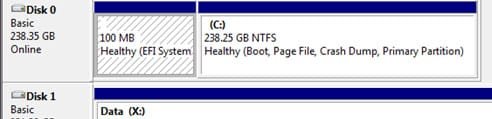
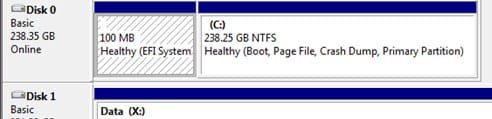
Please see a clip of my SSD. It contains two partitions: one, 100 MB in size, (which contains the EFI system which I think is concerned with Input/Output), and the second which is bigger. I have looked at Macrium's instructions and its video and it seems clear that all I have to do to make a system image image is to drag my two partitions on the the target drive which appears in the Macrium window. Then, I could restore that image to my C: drive using Macrium and that C: drive will be bootable, as before.

Q4: True?

By the way, I don't want to roll back from W10. I am happy with 7. (W10 was mentioned because the OP mentioned it.)

Thanks for all the help.
 

Attachments

  • C drive.jpg
    C drive.jpg
    24.8 KB · Views: 9

My Computer My Computer

At a glance

Windows 7 Home Premium 64bitIntel Pentium Edition G3220 3.0 GHz8 GB DDR3 1600 MHz DIMMNot Known
Computer type
PC/Desktop
Computer Manufacturer/Model Number
Gigabyte ATX case with 500 W power supply GZ-M1
OS
Windows 7 Home Premium 64bit
CPU
Intel Pentium Edition G3220 3.0 GHz
Motherboard
Gigabyte Socket 1150 MicroATX Mot Ultra Durable, GA-H81M-S2H
Memory
8 GB DDR3 1600 MHz DIMM
Graphics Card(s)
Not Known
Sound Card
Not known
Monitor(s) Displays
Samsung LS24D590 23.6"
Screen Resolution
1920 x 1080
Hard Drives
256 GB Solid State Drive (C: on which Windows 7 is installed)-
1 TB internal conventional HD (X:)-
Two WD "Elements" " 2TB USB drives as backups
PSU
500 W
Case
Gigabyte ATX case
Cooling
Several fans!
Keyboard
Accuratus 301 USB Compact, white.
Mouse
Microsoft Basic Optical Mouse v2.0, two-button, tethered
Internet Speed
10 to 12 Mb per second
Antivirus
Kaspersky Internet Security 2016, Malwarebytes (paid)
Browser
Firefox (ocassionally Safari)
Other Info
The 256 GB SSD (C:) also has Adobe Photoshop CS6 and InDesign CS6, MS Office, Adobe Lightroom, and other small programs.
see comments in bold:

I have been reluctant to do a restore................................
This is a reply to both ignatzatsonic and Lady Fitzgerald.

Things are looking clearer. Its Macrium Reflect Free for me now.

You both made it clear that a system image of C: would include my three programs. Good. That's now settled.

Q 1: But does that mean that they will be restored so that they appear to the OS as fully installed as though by their install files and ready to run?

Lady Fitz said "create an image of an external drive, saving the image on a drive in the computer, then delete everything on the external drive and try to restore the image made back to the external drive."

I will do that. It will give me confidence (hopefully) that I have mastered the technique (it seems simple!). Then, I will make a system image of my C: drive, restore it on to an external USB drive and inspect that to see what has arrived. It should look in Windows Explorer exactly like my C: drive - everything there.

Q 2: True?

Presumably, that drive will not be bootable. I suspect that only the C: drive allows booting unless special steps are taken to make another source bootable. Therefore, one purpose of making a system image is to have saved the boot area before a crash and then allow everything to be loaded back on to the C: drive for booting and getting back to normal (as at the date of the system image).

Q 3: But can a system image be placed on an external USB HD which is then bootable?

ignatzatsonic said "C is a partition. Not a drive. Images are typically made on a partition by partition basis." and "Therefore, if you in fact make an image of the C partition (who knows?), it will include EVERYTHING on C, Windows, cat pictures, applications, licensing information, minute details of the configuration, etc. Whatever is on C, in its entirety."

Please see a clip of my SSD. It contains two partitions: one, 100 MB in size, (which contains the EFI system which I think is concerned with Input/Output), and the second which is bigger. I have looked at Macrium's instructions and its video and it seems clear that all I have to do to make a system image image is to drag my two partitions on the the target drive which appears in the Macrium window. Then, I could restore that image to my C: drive using Macrium and that C: drive will be bootable, as before.

Q4: True?

By the way, I don't want to roll back from W10. I am happy with 7. (W10 was mentioned because the OP mentioned it.)

Thanks for all the help.
 

Attachments

  • C drive.jpg
    C drive.jpg
    24.8 KB · Views: 9

My Computer My Computer

At a glance

Windows 7 Home Premium 64bitIntel Pentium Edition G3220 3.0 GHz8 GB DDR3 1600 MHz DIMMNot Known
Computer type
PC/Desktop
Computer Manufacturer/Model Number
Gigabyte ATX case with 500 W power supply GZ-M1
OS
Windows 7 Home Premium 64bit
CPU
Intel Pentium Edition G3220 3.0 GHz
Motherboard
Gigabyte Socket 1150 MicroATX Mot Ultra Durable, GA-H81M-S2H
Memory
8 GB DDR3 1600 MHz DIMM
Graphics Card(s)
Not Known
Sound Card
Not known
Monitor(s) Displays
Samsung LS24D590 23.6"
Screen Resolution
1920 x 1080
Hard Drives
256 GB Solid State Drive (C: on which Windows 7 is installed)-
1 TB internal conventional HD (X:)-
Two WD "Elements" " 2TB USB drives as backups
PSU
500 W
Case
Gigabyte ATX case
Cooling
Several fans!
Keyboard
Accuratus 301 USB Compact, white.
Mouse
Microsoft Basic Optical Mouse v2.0, two-button, tethered
Internet Speed
10 to 12 Mb per second
Antivirus
Kaspersky Internet Security 2016, Malwarebytes (paid)
Browser
Firefox (ocassionally Safari)
Other Info
The 256 GB SSD (C:) also has Adobe Photoshop CS6 and InDesign CS6, MS Office, Adobe Lightroom, and other small programs.
see comments:

Q 1: But does that mean that they will be restored so that they appear to the OS as fully installed as though by their install files and ready to run?

Yes. That's what restoring a system image is intended to do.

But it could fail. It isn't foolproof. Know what you would do if it fails.

What you would typically do if it fails is do a clean install. The point of system imaging is to save you TIME. The time required to reinstall Windows, reinstall programs, and then reconfigure both.


Lady Fitz said "create an image of an external drive, saving the image on a drive in the computer, then delete everything on the external drive and try to restore the image made back to the external drive."

I will do that. It will give me confidence (hopefully) that I have mastered the technique (it seems simple!). Then, I will make a system image of my C: drive, restore it on to an external USB drive and inspect that to see what has arrived.

It should look in Windows Explorer exactly like my C: drive - everything there.

Q 2: True?

True if the imaging and restoration process works as advertised.


Q 3: But can a system image be placed on an external USB HD which is then bootable?

Do you mean "can a system image be restored to an external USB HD and would it be bootable?

I don't think so, without a lot of hassle. Windows doesn't like to boot from a USB drive.

BUT---you can restore to an external connected by eSATA. I've done that myself by using an external docking station into which I'd placed an ordinary "internal" type drive. I had an image of C sitting on an internal drive inside the PC and restored it to the docking station drive and was then able to boot my PC directly from that docking station drive. I operated my PC in this way for a week a few months ago when my SSD failed and had to be replaced.


Please see a clip of my SSD. It contains two partitions: one, 100 MB in size, (which contains the EFI system which I think is concerned with Input/Output), and the second which is bigger. I have looked at Macrium's instructions and its video and it seems clear that all I have to do to make a system image image is to drag my two partitions on the the target drive which appears in the Macrium window. Then, I could restore that image to my C: drive using Macrium and that C: drive will be bootable, as before.

Q4: True?

I don't use UEFI yet, so the following refers to a standard MBR installation and what I would do to make an image in that situation:

I never use the "drag and drop" method. I use Macrium by opening it and using menus.

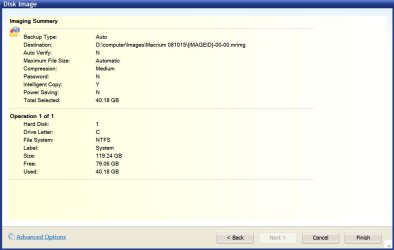
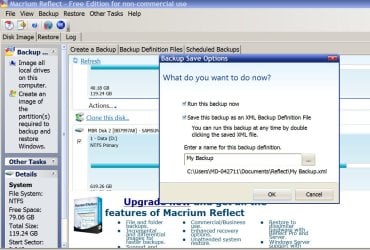
1: Open Macrium. All drives are displayed. Choose "image this disc" directly under the C drive.
2: A new screen pops up. Here is where you select the destination folder. You can make a new folder if you want. Poke "next".
3: A new screen pops up, displaying a summary of your intentions. Examine it. If OK, poke "finish".
4: A new screen pops up entitled "What do you want to do now". Here you choose whether to just run the backup now or to save the backup as an XML file", which is effectively a short-cut so it could be run many times in the future without doing steps 1, 2, and 3 again. I always select "run this backup now" and uncheck the XML choice. Then click OK. The imaging begins and takes about 8 minutes for my C drive, which has about 40 GB occupied.

I don't know how or if UEFI complicates anything, but I've been told by reliable sources that it does NOT and that Macrium is fully compatible.

My boot drive has exactly 1 partition: C. I'm not sure what the screen for step 1 above looks like if you have multiple partitions on the boot drive. You'd presumably have to include all partitions necessary to boot Windows.

The restoration process is something else entirely. The most important point about it is to make sure your "recovery disk" aka "rescue disk" will in fact boot your PC.


My Computer My Computer

At a glance

Windows 7 Home Premium SP1, 64-bitIntel Skylake i5-6600K, not overclocked8 GB HyperX DDR4-2666 (2 x 4 GB)none; graphics are integrated on CPU
Computer type
PC/Desktop
Computer Manufacturer/Model Number
Ignatz Special; 4 speed manual gearbox; factory air conditioning; one of one
OS
Windows 7 Home Premium SP1, 64-bit
CPU
Intel Skylake i5-6600K, not overclocked
Motherboard
AsRock Z170M Extreme 4, micro ATX
Memory
8 GB HyperX DDR4-2666 (2 x 4 GB)
Graphics Card(s)
none; graphics are integrated on CPU
Sound Card
onboard: Realtek ALC1150; external: USB Behringer UF0-202
Monitor(s) Displays
Dell S2340M 23 inch IPS
Screen Resolution
1600 x 900
Hard Drives
System: Crucial MX100 series SSD, 128 GB;
Data: Samsung Spinpoint 103SJ, 1 TB;
Backup: WD Caviar Green WD30EZRX-00D8PB0, 3 TB
PSU
Rosewill SilentNight 500 watt fanless, semi-modular
Case
Antec Solo II
Cooling
Noctua NH-U12S; Noctua F12 intake, Noctua S12A exhaust
Keyboard
Microsoft 200 6JH-00001 USB
Mouse
Dell or Microsoft optical wired; USB
Antivirus
Microsoft Security Essentials and Malwarebytes Premium
Browser
Pale Moon
Other Info
All fans PWM; speeds at idle: CPU circa 500 rpm; intake circa 600 rpm; exhaust circa 600 rpm; CPU temps 27 idle and 47 C load in a warm room (27 C/81 F) when running Intel Extreme Tuning Utility stress test.
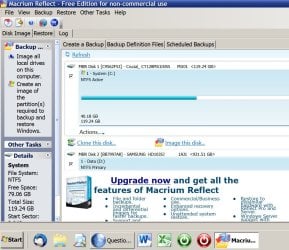
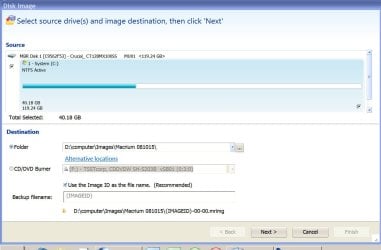
Here's the screen shots:
 

Attachments

  • Untitled-1.jpg
    Untitled-1.jpg
    169.4 KB · Views: 0
  • Untitled-2.jpg
    Untitled-2.jpg
    103.9 KB · Views: 0
  • Untitled-3.jpg
    Untitled-3.jpg
    82.1 KB · Views: 0
  • Untitled-4.jpg
    Untitled-4.jpg
    167.5 KB · Views: 0

My Computer My Computer

At a glance

Windows 7 Home Premium SP1, 64-bitIntel Skylake i5-6600K, not overclocked8 GB HyperX DDR4-2666 (2 x 4 GB)none; graphics are integrated on CPU
Computer type
PC/Desktop
Computer Manufacturer/Model Number
Ignatz Special; 4 speed manual gearbox; factory air conditioning; one of one
OS
Windows 7 Home Premium SP1, 64-bit
CPU
Intel Skylake i5-6600K, not overclocked
Motherboard
AsRock Z170M Extreme 4, micro ATX
Memory
8 GB HyperX DDR4-2666 (2 x 4 GB)
Graphics Card(s)
none; graphics are integrated on CPU
Sound Card
onboard: Realtek ALC1150; external: USB Behringer UF0-202
Monitor(s) Displays
Dell S2340M 23 inch IPS
Screen Resolution
1600 x 900
Hard Drives
System: Crucial MX100 series SSD, 128 GB;
Data: Samsung Spinpoint 103SJ, 1 TB;
Backup: WD Caviar Green WD30EZRX-00D8PB0, 3 TB
PSU
Rosewill SilentNight 500 watt fanless, semi-modular
Case
Antec Solo II
Cooling
Noctua NH-U12S; Noctua F12 intake, Noctua S12A exhaust
Keyboard
Microsoft 200 6JH-00001 USB
Mouse
Dell or Microsoft optical wired; USB
Antivirus
Microsoft Security Essentials and Malwarebytes Premium
Browser
Pale Moon
Other Info
All fans PWM; speeds at idle: CPU circa 500 rpm; intake circa 600 rpm; exhaust circa 600 rpm; CPU temps 27 idle and 47 C load in a warm room (27 C/81 F) when running Intel Extreme Tuning Utility stress test.
Here's the screen shots:
[FONT=&quot]I'm using Macrium Reflect 6.0.753.0 (Free) 64 bit.[/FONT]

[FONT=&quot]First, please note that my SSD drive C: has two partitions.[/FONT]

[FONT=&quot]With your help and after reading some help files and Macrium’s tutorial, I have had some success in testing my ability to make and restore my C: drive.[/FONT]
[FONT=&quot]
[/FONT]
[FONT=&quot]WHAT I DID (I started at a slightly different point than ignatzatronic did at post no. 14 but the result is, I think, the same.) I Right Clicked on a system image of C: which I made with Macrium Reflect (free) and chose Explore Image. I loaded the image to an external HD because (obviously) I didn't want to risk overwriting my C: drive.) (I avoid the word "restored" because my real C: drive was not restored). [/FONT]

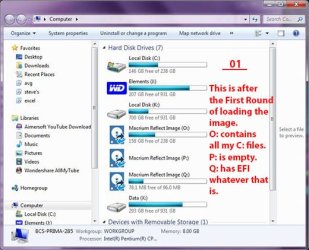
[FONT=&quot]RESULTS After the loading I could see three more drives: O:, P: and Q:, one for each of the THREE partitions (Macrium found a third) on C: (Image01). P was described as "inaccessible) (Image02 shows other messages). All my C: drive folders were listed in the new O: drive(two Program folders, Intel, Users, Windows etc.). In Program Files I could run and use Adobe Photoshop CS6; InDesign CS6; Bridge and also Lightroom, and the few other simple programs and personal files I keep on C:. Programs (x86) opened as well, with, for example, Thunderbird opening and I could run it and see the Address Book was complete. I am sure all the programs I ran were running from the loaded version of C: because while running each produced a copy of their icon on the Task Bar at the right-hand end (the originals are all at the left hand end), and I could hear the external HD exercising. However, MS Office components (Word etc.) failed to open (just the activity pointer going round until it stopped[/FONT]

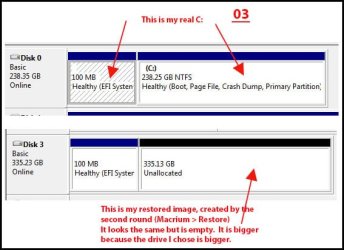
[FONT=&quot]After restarting the computer I entered a second round by repeating the above but instead chose Restore after Right Clicking on the same System Image. This went through the same stages as in the first round, ending as before with the 12 minute process of assembling the files for O: (the window with two long progress bars at the bottom) but immediately it started the activity lights on the external HD and on the computer were off and when I tried to open O: the drive would not respond and Start > Computer did not show it. One time I had a struggle to re-format it because Disc Management at first did not find it but the second time there was a healthy drive in Disc Management that looked like an empty C drive (that is, two partitions). (Image03)[/FONT]

[FONT=&quot]I have gone through the procedures for both rounds a countless number of times with minor changes (and in creating the image itself I sometimes selected only the first and third of the three partitions that Macrium found).[/FONT]

[FONT=&quot]CONCLUSION[/FONT][FONT=&quot]I succeeded in making an image, also in the first round (above) I succeeded in producing a disc (O[FONT=&quot]: )[/FONT] with all my C: files but MS Office failed to run. The second round was a failure. Consequently, although the test was on an external HD rather than by overwriting and booting on C:, I have not been able to confirm that Macrium and I would be able actually to restore a failed C: so I must continue to rely on Windows Backup and restore system (although I have read that its image does not include everything on the C: drive.)But I would like to master Macrium.[/FONT]

[FONT=&quot]Here is an oddity. Disc Management shows my C: having two partitions while Macrium thought I have three partitions, the extra one being empty and when asked to format it, it would not.[/FONT]

[FONT=&quot]QUESTIONS[/FONT]

[FONT=&quot]Q1. Why does Macrium add a third partition to its C:?[/FONT]

[FONT=&quot]I expected to get a disc copy working as well as looking exactly like my C: drive. It is good that it failed early and not after I had overwritten my C: drive if I had done a real restore of my C: This does not give me confidence.[/FONT]

[FONT=&quot]Q2. Why was the attempt to create a drive in the second round a complete failure(Macrium > Restore rather than > Explore).[/FONT]

[FONT=&quot]Q3. Why did Microsoft Office components not work (Word etc.)?

Help appreciated on how I can produce a restoreable copy of my imaged C: drive which will run all programs etc.[/FONT]
[FONT=&quot]
[/FONT]
[FONT=&quot] Thanks. [/FONT]
 

Attachments

  • 01.jpg
    01.jpg
    67.5 KB · Views: 6
  • 02.jpg
    02.jpg
    51.2 KB · Views: 6
  • 03.jpg
    03.jpg
    55.9 KB · Views: 6

My Computer My Computer

At a glance

Windows 7 Home Premium 64bitIntel Pentium Edition G3220 3.0 GHz8 GB DDR3 1600 MHz DIMMNot Known
Computer type
PC/Desktop
Computer Manufacturer/Model Number
Gigabyte ATX case with 500 W power supply GZ-M1
OS
Windows 7 Home Premium 64bit
CPU
Intel Pentium Edition G3220 3.0 GHz
Motherboard
Gigabyte Socket 1150 MicroATX Mot Ultra Durable, GA-H81M-S2H
Memory
8 GB DDR3 1600 MHz DIMM
Graphics Card(s)
Not Known
Sound Card
Not known
Monitor(s) Displays
Samsung LS24D590 23.6"
Screen Resolution
1920 x 1080
Hard Drives
256 GB Solid State Drive (C: on which Windows 7 is installed)-
1 TB internal conventional HD (X:)-
Two WD "Elements" " 2TB USB drives as backups
PSU
500 W
Case
Gigabyte ATX case
Cooling
Several fans!
Keyboard
Accuratus 301 USB Compact, white.
Mouse
Microsoft Basic Optical Mouse v2.0, two-button, tethered
Internet Speed
10 to 12 Mb per second
Antivirus
Kaspersky Internet Security 2016, Malwarebytes (paid)
Browser
Firefox (ocassionally Safari)
Other Info
The 256 GB SSD (C:) also has Adobe Photoshop CS6 and InDesign CS6, MS Office, Adobe Lightroom, and other small programs.
Back
Top