Dual Boot Installation with Windows 7 and XP

How to Setup a Dual Boot Installation with Windows 7 and XP


   Information
This will show you how to install Windows 7 and XP to dual boot with when you already have either Windows 7 or XP installed first.
   Note
With a dual boot installaton, you will have two operating systems (OS) installed. When you start the computer, you will have the choice to choose which OS you would like to start up to. This method is the easiest way of doing a dual boot with these two operating systems.
   Tip
When dual booting with another OS (ex: Vista or XP), you may not always have that OS partition show up in Computer with a driver letter in Windows 7. If this happens, then you will just need to add a drive letter to the OS (ex: Vista or XP) partition in Windows 7 Disk Management for it to show up in Computer with a driver letter.
   Warning
To stop XP from deleting your Windows 7 System Restore Points everytime XP is started, then see System Restore Points - Stop XP Dual Boot Delete to hide Windows 7 from XP.

Windows 7 Minimum Hardware Requirements


NOTE: For more information on this, see: Windows 7 system requirements
  • 1 GHz 32-bit or 64-bit processor
  • 1 GB RAM for 32-bit Windows 7 OR 2 GB RAM for 64-bit Windows 7
  • 16 GB available disk space 32-bit Windows 7 OR 20 GB for 64-bit Windows 7
  • Support for DirectX 9 graphics with 128 MB memory (in order to enable Aero theme)
  • DVD-R/W Drive
  • Internet or phone access to activate Windows 7.
Windows XP Minimum Hardware Requirements

NOTE: For more information on this, see: System requirements for Windows XP operating systems
  • PC with 300 megahertz (MHz) or higher processor clock speed recommended; 233-MHz minimum required;* Intel Pentium/Celeron family, AMD K6/Athlon/Duron family, or compatible processor recommended
  • 128 megabytes (MB) of RAM or higher recommended (64 MB minimum supported; may limit performance and some features)
  • 1.5 gigabyte (GB) of available hard disk space.*
  • Super VGA (800 × 600) or higher resolution video adapter and monitor
  • CD-ROM or DVD drive
  • Keyboard and Microsoft Mouse or compatible pointing device
EXAMPLE: Windows Boot Manager
NOTE: This is the boot screen where you select what operating system that you would like to start. By default, you have 30 seconds to choose another operating system before the default operating system will start automatically.
Example.jpg


OPTION ONE

When XP is Installed First


NOTE: If you have a RAID setup, you will need to have the Windows 7 RAID drivers on a USB flash drive available to select and load while installing Windows 7.
1. Do step 2 or 3 below for where you wanted to install Windows 7 at.

2. To Create a New Partition from the XP Hard Disk Drive
A) With your Windows 7 installation disc boot into the Command Prompt from the System Recovery Options screen.
NOTE: Make sure that the CD/DVD drive is selected first in the boot order in the BIOS.

B) In the command prompt, select and shrink the XP volume by how many MB (1024 MB = 1 GB) you want to have for this Windows 7 partition. (See screenshot below)
NOTE: You would do steps 2 to 9 in METHOD TWO at that link. Windows 7 will need a minimum of 16 GB (16384 MB).

XP-W7_1.jpg
C) Click on the X at the top right corner to close the command prompt. (See screenshot above)

D) Click on the X at the top right corner to close System Recovery Options. (See screenshot below)
XP-W7_2.jpg
E) Go to step 4.
3. To Use a Separate Hard Disk Drive than the XP Drive
A) Boot from your Windows 7 installation disc.
NOTE: Make sure that the CD/DVD drive is selected first in the boot order in the BIOS.
4. Click on the Install now button. (See screenshot below)

XP-W7_3.jpg
5. When you get to this point, select the partition (step 2) or hard drive to install Windows 7 on. (See screenshot below)

XP-W7_4.jpg
6. Finish installing Windows 7.
NOTE: You would start at step 9 in that link to finish installing Windows 7.

7. When finished, restart the computer to have the option to boot from XP (Earlier Verision of Windows) or Windows 7. (See screenshot below)

   Note
If you are only booting into Windows 7 and do not have XP listed in the Windows Boot Manager, then you can install only EasyBCD (step 8 Option Two below) to add XP (or Windows 7) while started in Windows 7 the same way to the boot list.

Example.jpg


OPTION TWO

When Windows 7 is Installed First


   Warning

1. To Create a New Partition from the Windows 7 Hard Disk Drive
NOTE: If you want to install XP on a separate internal hard drive instead, then skip this step and go to step 2.
A) In Windows 7, select and shrink the Windows 7 volume in Disk Management by how many MB (1024 MB = 1 GB) you want to have for this XP partition. (See screenshots below)
NOTE: You would do all of Method One at that link.

W7-XP-1.jpg

W7-XP-2.jpg

W7-XP-3.jpg
2. Insert your XP installation disc, then restart the computer and press any key to boot from it when prompted. (See screenshot below)
NOTE: Make sure that the CD/DVD drive is selected first in the boot order in the BIOS.

Step1.jpg
3. From XP Setup, Press Enter. (See screenshot below)


   Warning

W7-XP-4.jpg
4. Press F8. (See screenshot below)
NOTE: On some multimedia keyboards, you may need to press the F-Lock or Function key before pressing F8.
W7-XP-5.jpg
5. Select the partition (step 1) or hard drive that you want to install XP on using the arrow keys and press Enter.

W7-XP-6.jpg
6. Finish installing XP.


   Tip
If you get Error loading Operating System after XP restarts:
  • Using your Windows 7 installation disc, boot to the command prompt at startup.
  • Type in these comands below, and press enter after each one.
    • bootrec /FixMbr
    • bootrec /FixBoot
    • bootrec /RebuildBcd
  • Exit the command prompt and restart the computer.
  • At this point, Windows 7 should boot up the same way before trying to install XP.
  • Continue to step 8 below and run EasyBCD from Windows 7 instead.

7. In XP, download and install .Net Framework 2.0 (32-bit) version or .Net Framework 2.0 (64-bit) version first, and EasyBCD (free version) for your 32-bit (x86) or 64-bit (x86) XP.
NOTE: In XP, Net Framework is required to be installed to run EasyBCD. After you click on Register (at bottom of link) for the free EasyBCD, registration is not required to download it.

8. Run EasyBCD (free version).
NOTE: This is required to repair the Windows 7 boot file and add XP to the Windows Boot Manager list.

9. On the left side of EasyBCD, click on the Add New Entry button. (See screenshot below)
A) In the top section under Operating Systems, click on the Windows tab. (See screenshot below)
B) To the right of Type, select Windows NT/2k/XP/2k3 from the drop down menu. (See screenshot below)
:warn:WARNING: Be sure to leave the Automatically detect correct drive box checked.

C) To the right of Name, you can leave the default Microsoft Windows XP as the name to be displayed in the Windows Boot Manager, or you can type whatever name you would like to have instead. (See screenshot below)
D) Click on the Add Entry button. (See screenshot below)
W7-XP-7.jpg
10. On the left side of EasyBCD, click on the BCD Deployment button, select (dot) the Install the Windows Vista/7 bootloader to the MBR option, and click on the Write MBR button. (See screenshot below)

W7-XP-9.jpg
11. Close EasyBCD.

12. Restart the computer to have the option to boot from Microsoft Windows XP or Windows 7. (See screenshot below)

Example2.jpg
   Tip
If Windows 7 will not start up when selected, then use your Windows 7 installation DVD to do a Startup Repair.

That's it,
Shawn


Last edited:

My Computer My Computer

At a glance

64-bit Windows 11 Pro for WorkstationsIntel i7-8700K OC'd to 5 GHz64 GB (4x16GB) G.SKILL TridentZ RGB DDR4 3600...ASUS ROG-STRIX-GTX1080TI-O11G-GAMING
Computer type
PC/Desktop
Computer Manufacturer/Model Number
Self built custom
OS
64-bit Windows 11 Pro for Workstations
CPU
Intel i7-8700K OC'd to 5 GHz
Motherboard
ASUS ROG Maximus XI Formula Z390
Memory
64 GB (4x16GB) G.SKILL TridentZ RGB DDR4 3600 MHz
Graphics Card(s)
ASUS ROG-STRIX-GTX1080TI-O11G-GAMING
Sound Card
Integrated
Monitor(s) Displays
2 x Samsung Odyssey G7 27"
Screen Resolution
2560x1440
Hard Drives
1TB Samsung 990 PRO M.2,
4TB Samsung 990 PRO PRO M.2,
TerraMaster F8 SSD Plus NAS
PSU
Seasonic Prime Titanium 850W
Case
Thermaltake Core P3
Cooling
Corsair Hydro H115i
Keyboard
Logitech wireless K800
Mouse
Logitech MX Master 4
Internet Speed
2 Gb/s Download and 100 Mb/s Upload
Antivirus
Malwarebyte Anti-Malware Premium
Browser
Google Chrome
Other Info
Logitech Z625 speaker system,
Logitech BRIO 4K Pro webcam,
HP Color LaserJet Pro MFP M477fdn,
APC SMART-UPS RT 1000 XL - SURT1000XLI,
Galaxy S23 Plus phone
Hello Budge, and welcome to Seven Forums. :)

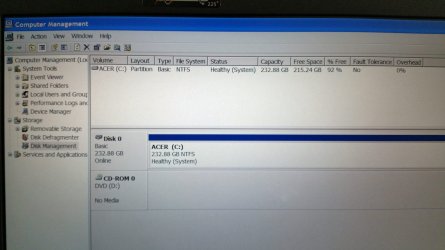
Please post a screenshot showing the full layout of your drives in Disk Management to see what the issue may be.

Here you go. And I should have been more clear. The querymax command in diskpart showed only 115GB available.

I think my problem may be explained on this page http://www.sevenforums.com/tutorials/2672-partition-volume-shrink.html If so, what program should I use?

UPDATE: I tried using the Disk Defragmenter in Windows XP. Sure enough, it showed that most of my data was stored to the left side of the image. However, I had a tiny bit stored exactly near the center, and none of them appear to be green (unmovable). So I'm trying to defrag now to see if I can move those files over and free up space. If this works, defragmenting the disk should be listed in step 1.

UPDATE #2: One block of data could not be moved. It's sitting all my itself in the middle of the hard drive. It is not listed as unmovable, just contiguous. I have an old copy of Partition Magic that I can try next, unless there is something better/safer to try.

Thanks.
 

Attachments

  • DiskManage.jpg
    DiskManage.jpg
    172.4 KB · Views: 208
Last edited:

My Computer My Computer

At a glance

Windows XP 32 - Windows 7 Pro x64 Dual Boot (...Upgraded to Intel T7600 (x64)2 GBATI Mobility X1600
Computer type
PC/Desktop
Computer Manufacturer/Model Number
Acer Travelmate 8204
OS
Windows XP 32 - Windows 7 Pro x64 Dual Boot (Attempting)
CPU
Upgraded to Intel T7600 (x64)
Memory
2 GB
Graphics Card(s)
ATI Mobility X1600
Screen Resolution
1680 x 1050
Hard Drives
Upgraded to Samsung 850 EVO 250GB SSD
If you go ahead and shrink the partition, does it give you the correct size?
 

My Computer My Computer

At a glance

64-bit Windows 11 Pro for WorkstationsIntel i7-8700K OC'd to 5 GHz64 GB (4x16GB) G.SKILL TridentZ RGB DDR4 3600...ASUS ROG-STRIX-GTX1080TI-O11G-GAMING
Computer type
PC/Desktop
Computer Manufacturer/Model Number
Self built custom
OS
64-bit Windows 11 Pro for Workstations
CPU
Intel i7-8700K OC'd to 5 GHz
Motherboard
ASUS ROG Maximus XI Formula Z390
Memory
64 GB (4x16GB) G.SKILL TridentZ RGB DDR4 3600 MHz
Graphics Card(s)
ASUS ROG-STRIX-GTX1080TI-O11G-GAMING
Sound Card
Integrated
Monitor(s) Displays
2 x Samsung Odyssey G7 27"
Screen Resolution
2560x1440
Hard Drives
1TB Samsung 990 PRO M.2,
4TB Samsung 990 PRO PRO M.2,
TerraMaster F8 SSD Plus NAS
PSU
Seasonic Prime Titanium 850W
Case
Thermaltake Core P3
Cooling
Corsair Hydro H115i
Keyboard
Logitech wireless K800
Mouse
Logitech MX Master 4
Internet Speed
2 Gb/s Download and 100 Mb/s Upload
Antivirus
Malwarebyte Anti-Malware Premium
Browser
Google Chrome
Other Info
Logitech Z625 speaker system,
Logitech BRIO 4K Pro webcam,
HP Color LaserJet Pro MFP M477fdn,
APC SMART-UPS RT 1000 XL - SURT1000XLI,
Galaxy S23 Plus phone
If you go ahead and shrink the partition, does it give you the correct size?

I don't know. I wasn't willing to try it because I didn't understand why it was happening. I wonder now if I could shrink it by 115GB the first time, then go back and try again to shrink it more. Probably not.

Anyway, right now I am trying PerfectDisk to do a Boot Time Defrag with the "Prep for Shrink" setting. I'll let you know how it goes.
 

My Computer My Computer

At a glance

Windows XP 32 - Windows 7 Pro x64 Dual Boot (...Upgraded to Intel T7600 (x64)2 GBATI Mobility X1600
Computer type
PC/Desktop
Computer Manufacturer/Model Number
Acer Travelmate 8204
OS
Windows XP 32 - Windows 7 Pro x64 Dual Boot (Attempting)
CPU
Upgraded to Intel T7600 (x64)
Memory
2 GB
Graphics Card(s)
ATI Mobility X1600
Screen Resolution
1680 x 1050
Hard Drives
Upgraded to Samsung 850 EVO 250GB SSD
I could not get GParted to load, so I used PerfectDisk. You have to do a Boot Time Defrag, then diskpart shrink by half, then another Boot Time Defrag, then diskpart shrink by half again, and keep repeating till you get the size partition that you want. Just FYI.
 
Last edited:

My Computer My Computer

At a glance

Windows XP 32 - Windows 7 Pro x64 Dual Boot (...Upgraded to Intel T7600 (x64)2 GBATI Mobility X1600
Computer type
PC/Desktop
Computer Manufacturer/Model Number
Acer Travelmate 8204
OS
Windows XP 32 - Windows 7 Pro x64 Dual Boot (Attempting)
CPU
Upgraded to Intel T7600 (x64)
Memory
2 GB
Graphics Card(s)
ATI Mobility X1600
Screen Resolution
1680 x 1050
Hard Drives
Upgraded to Samsung 850 EVO 250GB SSD
If attempting to try this tutorial on a fresh SSD, do we need to take into account the Disk Alignment and partition offsets?
 

My Computer My Computer

At a glance

Windows XP 32 - Windows 7 Pro x64 Dual Boot (...Upgraded to Intel T7600 (x64)2 GBATI Mobility X1600
Computer type
PC/Desktop
Computer Manufacturer/Model Number
Acer Travelmate 8204
OS
Windows XP 32 - Windows 7 Pro x64 Dual Boot (Attempting)
CPU
Upgraded to Intel T7600 (x64)
Memory
2 GB
Graphics Card(s)
ATI Mobility X1600
Screen Resolution
1680 x 1050
Hard Drives
Upgraded to Samsung 850 EVO 250GB SSD
No need to when you only have a single partition to shrink.
 

My Computer My Computer

At a glance

64-bit Windows 11 Pro for WorkstationsIntel i7-8700K OC'd to 5 GHz64 GB (4x16GB) G.SKILL TridentZ RGB DDR4 3600...ASUS ROG-STRIX-GTX1080TI-O11G-GAMING
Computer type
PC/Desktop
Computer Manufacturer/Model Number
Self built custom
OS
64-bit Windows 11 Pro for Workstations
CPU
Intel i7-8700K OC'd to 5 GHz
Motherboard
ASUS ROG Maximus XI Formula Z390
Memory
64 GB (4x16GB) G.SKILL TridentZ RGB DDR4 3600 MHz
Graphics Card(s)
ASUS ROG-STRIX-GTX1080TI-O11G-GAMING
Sound Card
Integrated
Monitor(s) Displays
2 x Samsung Odyssey G7 27"
Screen Resolution
2560x1440
Hard Drives
1TB Samsung 990 PRO M.2,
4TB Samsung 990 PRO PRO M.2,
TerraMaster F8 SSD Plus NAS
PSU
Seasonic Prime Titanium 850W
Case
Thermaltake Core P3
Cooling
Corsair Hydro H115i
Keyboard
Logitech wireless K800
Mouse
Logitech MX Master 4
Internet Speed
2 Gb/s Download and 100 Mb/s Upload
Antivirus
Malwarebyte Anti-Malware Premium
Browser
Google Chrome
Other Info
Logitech Z625 speaker system,
Logitech BRIO 4K Pro webcam,
HP Color LaserJet Pro MFP M477fdn,
APC SMART-UPS RT 1000 XL - SURT1000XLI,
Galaxy S23 Plus phone
No need to when you only have a single partition to shrink.

I followed option 1, where Windows XP was loaded first on Partition 1, the partition was then shrunk, and W7 was put on partition 2. Now my offsets in Diskpart are listed at 31KB and 33GB, respectively.
 

My Computer My Computer

At a glance

Windows XP 32 - Windows 7 Pro x64 Dual Boot (...Upgraded to Intel T7600 (x64)2 GBATI Mobility X1600
Computer type
PC/Desktop
Computer Manufacturer/Model Number
Acer Travelmate 8204
OS
Windows XP 32 - Windows 7 Pro x64 Dual Boot (Attempting)
CPU
Upgraded to Intel T7600 (x64)
Memory
2 GB
Graphics Card(s)
ATI Mobility X1600
Screen Resolution
1680 x 1050
Hard Drives
Upgraded to Samsung 850 EVO 250GB SSD
Is everything running smoothly?
 

My Computer My Computer

At a glance

64-bit Windows 11 Pro for WorkstationsIntel i7-8700K OC'd to 5 GHz64 GB (4x16GB) G.SKILL TridentZ RGB DDR4 3600...ASUS ROG-STRIX-GTX1080TI-O11G-GAMING
Computer type
PC/Desktop
Computer Manufacturer/Model Number
Self built custom
OS
64-bit Windows 11 Pro for Workstations
CPU
Intel i7-8700K OC'd to 5 GHz
Motherboard
ASUS ROG Maximus XI Formula Z390
Memory
64 GB (4x16GB) G.SKILL TridentZ RGB DDR4 3600 MHz
Graphics Card(s)
ASUS ROG-STRIX-GTX1080TI-O11G-GAMING
Sound Card
Integrated
Monitor(s) Displays
2 x Samsung Odyssey G7 27"
Screen Resolution
2560x1440
Hard Drives
1TB Samsung 990 PRO M.2,
4TB Samsung 990 PRO PRO M.2,
TerraMaster F8 SSD Plus NAS
PSU
Seasonic Prime Titanium 850W
Case
Thermaltake Core P3
Cooling
Corsair Hydro H115i
Keyboard
Logitech wireless K800
Mouse
Logitech MX Master 4
Internet Speed
2 Gb/s Download and 100 Mb/s Upload
Antivirus
Malwarebyte Anti-Malware Premium
Browser
Google Chrome
Other Info
Logitech Z625 speaker system,
Logitech BRIO 4K Pro webcam,
HP Color LaserJet Pro MFP M477fdn,
APC SMART-UPS RT 1000 XL - SURT1000XLI,
Galaxy S23 Plus phone
Anybody still paying attention to this page? Because XP & 7 properly installed and tweaked are awesome together.

After several years of research (Trail & error), I have found the most stable way to dual boot these two is:

1.) Start with a freshly formatted hard drive, either a new drive or one you reformatted with your XP disc, and when you load XP it will ask you about partitioning. Then you can set the desired size. Many of you have been talking about "repartitioning" software, and that works good too. Ideally though, the fresher the better.

2.) When installing XP, partition the new drive for not more then 100GB, (Unless you are installing a Terabyte drive then give it more). I partitioned my WD2502AYBS 250GB drive for 40GB for XP for two reasons:

A.) No matter how many programs I load on XP it never uses more then 18-24GB.

B.) When installing Windows 7 SP1, it uses about 180GB of space to do the install, then deletes
all that when it's done. But that 180GB must be there for it to install Service Pack 1.

3.) Try as best as you can to use only one drive. Several attempts at using two hard drives for dual boot ended in disaster. With two hard drives you have two separate interfaces to the BIOS. This causes Windows 7 to always want to be the "C:" drive and it will crash XP, (And itself). Having both systems on one partitioned hard drive allowed the two to live together harmoniously. When XP is booted up, it is the C drive and 7 is the F drive. When 7 is booted up, it is the C drive and XP becomes the F drive. They play nice together.

4.) As you might have guest by now, load XP first. I tried loading XP on a 7 machine and 7 laughed so I persisted and 7 went ahead and crashed the whole system. Curious how today you can find all kinds of info on the Internet about the work around for loading XP on a 7 box. I beat that with great stability by loading XP first.

Also, I found that being in a hurry was a disaster. Loading XP and all it's software, then loading 7 and other software all on the same day almost guaranteed instabilities and crashes. Don't be afraid to use XP for a couple of days before loading 7. Load software and reboot XP after EVERY program you load. After loading 3 or 4 programs and rebooting 3 or 4 times, shut XP completely down. You will find that XP's stability settles in nicely when you do that. (Shut down completely every night for better stability.)

5.) 64bit and 32bit software packages are going to react differently depending on how your system's architecture is laid out, and the way things like the BIOS and "handlers" crunch data. Fortunately most motherboards and 64bit CPUs in systems are the norm today... Also, not to spoil your anticipation of my experience, but both of my systems, XP & 7, are 32bit. I don't have any reason to go to 64bit yet, but I imagine someday everything will be 64bit. I have 64bit XP & 7 operating systems, I just haven't found a reason to install them yet. The reason I said, "going to react differently..." above, is because I found that the warning below I wrote has become priceless in teaching people about dual boot systems.

WARNING: DO NOT CROSS POLLINATE SYSTEM FUNCTIONS!!! DO NOT RUN defrag on the 7 drive from XP, DO NOT RUN defrag on the XP drive from 7. DO NOT try to change ANY permissions or take ownership of ANYTHING on the XP drive with 7 and visa-versa. When you are booted into XP leave the 7 drive alone, when you are booted into 7 leave the XP drive alone. This will save you from crashes and major headaches of all kinds. As far as data goes... The reason XP takes up so little space on my system is, I save EVERYTHING on data drives. I have a 2TB data drive that ALL documents, music, pictures, etc... get stored on. Leaving the system drives alone prolongs their lives and stability. If any of my OS' crash, ALL my data is saved on data drives. I just have to reinstall the OS. Get yourself a Western Digital "MyBook" external drive. They come in all sizes. --> DO NOT cross systems functions, and get yourself a data drive. <--

---

Disclaimer: Do some research, ask a pro, or at the very least someone you trust with your children. Everything written here is my opinion based on some serious experience. Nothing I write is carved in stone and I encourage you to seek professional service and advice when working on your own computer. I've been a tech for 24 years and this is all second nature to me. I don't want you to get stuck because I wrote this information in a way that made it look easy. You could take this post I wrote and print it out, go to a PROFESSIONAL computer store and speak to a technician, (NOT a salesman). Retail stores will just try and sell you something. They will tell you that I'm don't know what I'm talking about and you need to bring your computer to them...(WRONG). Cousin Wilbur who enjoys working on a "Brain Box" from time to time is not likely the solution as well. Your computer is important, and having XP & 7 together in a dual boot is really great. Get in there. Talk to good technicians.

Best of luck too you.
 

My Computer My Computer

At a glance

Dual Boot - Windows XP Pro SP3 x32 / Windows ...8088640K128k CGA (Color)
Computer type
PC/Desktop
Computer Manufacturer/Model Number
Custom Build
OS
Dual Boot - Windows XP Pro SP3 x32 / Windows 7 Ultimate x32
CPU
8088
Motherboard
XT
Memory
640K
Graphics Card(s)
128k CGA (Color)
Hard Drives
20MB Miniscribe MFM
40MB Seagate RLL
Antivirus
Penicillin twice a day
Browser
Part Browser on my mother's side
I have 7 64bit Ultimate and XP 32 bit installed on different drives and they both show C as the main drive. This only happens if you install XP first.
Good post though.
 

My Computer My Computer

At a glance

Windows 7 Ultimate x64intel i7 3610QM8GBNvidia 630 M 2GB
Computer type
PC/Desktop
Computer Manufacturer/Model Number
ASUS N56VM
OS
Windows 7 Ultimate x64
CPU
intel i7 3610QM
Memory
8GB
Graphics Card(s)
Nvidia 630 M 2GB
Sound Card
Realtek HD Audio
Monitor(s) Displays
Laptop Display
Screen Resolution
1920 x1080 Native Resolution
Hard Drives
Seagate ST500LM012 HN-M500MBB 500GB
Keyboard
English UK
Mouse
Microsoft Trackball Explorer, Synaptics Touchpad
Internet Speed
17 Meg Broadfband
Browser
Chrome
This all seems overly complicated to me from the ones I read. I highly recommend using Paragon Drive Copy which is meant to deal with all these issues.
I have an old Toshiba Windows Xp machine. I presently have Windows 7, Windows Xp and Ubuntu all working on it. I still need advice on activation of keys though if both windows are OEM.

My advice on the issue of getting XP on a Windows 7 machine would be this:

Completely wipe the hard drive. Do this by rebooting using the boot disk that you had to create with the Drive Copy software, which would have been set up before hand. Then using the software.
Install Windows XP. Partition size doesn't matter at this stage. Make sure it is working okay by rebooting enough. If it doesn't work, then I don't know.
Reboot using the boot disk.
Backup the partition with XP to an external hard drive using the software. It won't be very big.
Then install Windows 7. Delete any existing drives first. Set the size appropriately for everything.
Then reboot with the boot disk. Copy partition with XP from the backup to an appropriate size.
Reboot machine. Windows 7 will detect Windows XP and have it in the boot manager.

Also, the boot.ini file in XP will be wrong and should be corrected before starting Windows 7 in dual boot. It gets copied over to Windows 7 system partition automatically by Windows 7 itself. The partition should be set to '3', the last number in the line. I never managed to edit it in Windows 7, it won't give me permission. The Paragon boot disk might fix it but I wouldn't count on it with Windows 7 installed. What I did though was edit it before copying it over. The way it is done as I described above, you would have to edit it before closing XP, then saving the image. All this might be fixable in BCDedit anyway, I never had to try it. If you can get to XP's boot.ini in anything except Windows 7, you can change it. The boot disk software has ways you can edit boot files, but I'm not sure it can do this.

If you develop boot issues, the boot disk has software that is meant to deal with that.
You have to realize there can be compatibility issues with XP and newer hard drives because of different sector sizes. There are fixes you can get. But the Drive Copy software should deal with it when you copy XP over. You shouldn't use drive management software on XP on newer hard drives. Though I do use the defragmenter in XP.

You can also backup Windows 7 that is already there. You can do things without installing Windows 7 but you would have to clone a hard drive with it installed, not just copy a partition over. You could install Windows 7, then copy back the saved partition of Windows 7 also. Ubuntu can't find Windows if there are no Windows installations, not just a partition. I think if you just copy partitions over with only Windows and no Linux, everything might work okay.
I ended up with 3 boot managers, Grub for Ubuntu, Windows 7 dual boot, and XP. Windows has no idea Linux is there. Ubuntu detects everything else. The Grub Ubuntu boot manager comes up first.

If everything is right but not booting. You can run the boot disk to fix boot problems. A Windows 7 start up disk is meant to fix it too. Then use BCDEdit in Windows 7 to tweak the booting.

And I gather from web research there are bad complications from newer systems not using Bios normally, which is another story.
 
Last edited:

My Computer My Computer

At a glance

Windows 7 Ultimate x86, Windows Xp x86, Ubuntu
Computer type
PC/Desktop
Computer Manufacturer/Model Number
Toshiba
OS
Windows 7 Ultimate x86, Windows Xp x86, Ubuntu
EasyBCD warning I'm not sure how to handle

First, apologies if this question has been asked and answered. There are over 220 notes in this thread :eek:, and I haven't read through them all. If already answered, a pointer to the answer would be fine.

I'm attempting Option 2, Win7 first then WinXP. When I get to Step 10 "BCD Deployment" and click "Write MBR", EasyBCD presents an imposing warning message (see attachment). This warning isn't described in the tutorial so perhaps it's new to EasyBCD (I have EasyBCD V2.3).

I have lots of computer experience (application development), but don't mess with boot stuff very often, so I'm not sure what this message is telling me.

First, it's asking if I'm sure I want to uninstall something ("BOOTMGR"), but I don't know what it means to uninstall that thing. Is it safe? Can I get it back if I unininstall it and then change my mind? The way the message is worded, it seems to be asking if I'm sure I want to uninstall something that's required to boot Windows 7.

The message goes on to imply there's some other step I must do first ("...only boot into Windows XP if the proper boot files are already in place") but I don't know what files it's referring to or how to ensure they're "in place". And what "place" should they be in?

In short, what happens if I click "Yes" in this warning dialog? I'm concerned of course that I'll render my system inoperative.

FWIW I'm also attaching a screen shot of Disk Management in case it's relevant. Installation locations for Win7 & WinXP can be inferred from the drive labels. (And you can't see it but my System Reserved partition is assigned drive letter "B:").
 

Attachments

  • EasyBCD warning.png
    EasyBCD warning.png
    7.6 KB · Views: 855
  • Disk management.png
    Disk management.png
    33.8 KB · Views: 248

My Computer My Computer

At a glance

Windows 7 Home Premium 64 bitIntel i5 quad core8 GBNvidia GeForce GTS 250
Computer type
PC/Desktop
Computer Manufacturer/Model Number
custom
OS
Windows 7 Home Premium 64 bit
CPU
Intel i5 quad core
Motherboard
Gigabyte P55A-UD3
Memory
8 GB
Graphics Card(s)
Nvidia GeForce GTS 250
Sound Card
SoundBlaster Audigy 2 ZS
Screen Resolution
1920x1200
Antivirus
Kaspersky
Hi, I am a late comer to this thread. I haven't had the difficulties that others seemed to have. I am not familiar with the methods that were outlined. My method in my last post was because I had XP OEM preinstalled, and I was backing up and restoring a partition of it. I cannot praise Paragon Drive Copy enough for helping with this. It even deals with the Advanced Format of later hard drives. This difference might create issues. If you install XP on a newer hard drive using Advanced Format without using a backup as I said I did, then you would have to obtain the fix tool by going to the web site for you hard drive brand.

As to dual booting XP and W7 generally: Microsoft on a page I happened across a while ago said to install the older OS first, then the newer one. I have only been dealing with 32 bit if that makes a difference, I would doubt it but I don't know. I am assuming if you tried a dual boot with one 32 bit and one 64 bit, you shouldn't go from one to the other by restarting the computer, you would have to shutdown first each time. This is relates to experience I had with the dual booting problem where the sound goes away in XP, solved by shutting down Windows 7 first, not restarting.

I have been setting up computers with older hard drives for XP and W7 dual booting and have had no problems. First I removed all partitions from the hard drive, leaving it all as unallocated, using the Paragon boot disk. I install XP first using a Microsoft disc, then install W7 using a disc. There is no system partition added by W7 for some reason this way, but it works fine.

I have also set up a triple boot with Ubuntu, on a hard drive that uses Advanced Format. In my last effort at this particular situation, I installed XP first, using the recovery discs with my laptop, then recovered an archive backup with Paragon Drive Copy eliminating issues with Advanced Format. Then I installed Windows 7, then I installed Ubuntu, which is a bit different to what I described before because XP is first to be added to the hard drive this time. The problem with installing Ubuntu is that it has to detect Windows installed and seems to need information in the MBR to know this. Oddly it didn't seem to mention detecting XP but only Win7. When I previously had set up the hard drive with Windows 7 first and then XP from a backup as I described in my last post, it detected both. Which says something, I don't know what, about the MBR, but a difference I should mention was that Windows 7 had created a system partition at this time.

Changing the MBR seems excessive, and is usually only affected by the act of installing an OS, unless you use advanced tools for changing it. Ubuntu gave me a little experience with the MBR because of some issues that occurred, Ubuntu takes over the first startup of the computer. I am only concerned with the MBR because of Ubuntu, Windows seems much easier going. I could wipe a hard drive, then restore a Windows partition and it will start, but Ubuntu won't detect Windows and can't be used for a multi boot this time.
 

My Computer My Computer

At a glance

Windows 7 Ultimate x86, Windows Xp x86, Ubuntu
Computer type
PC/Desktop
Computer Manufacturer/Model Number
Toshiba
OS
Windows 7 Ultimate x86, Windows Xp x86, Ubuntu
First, apologies if this question has been asked and answered. There are over 220 notes in this thread :eek:, and I haven't read through them all. If already answered, a pointer to the answer would be fine.

I'm attempting Option 2, Win7 first then WinXP. When I get to Step 10 "BCD Deployment" and click "Write MBR", EasyBCD presents an imposing warning message (see attachment). This warning isn't described in the tutorial so perhaps it's new to EasyBCD (I have EasyBCD V2.3).

I have lots of computer experience (application development), but don't mess with boot stuff very often, so I'm not sure what this message is telling me.

First, it's asking if I'm sure I want to uninstall something ("BOOTMGR"), but I don't know what it means to uninstall that thing. Is it safe? Can I get it back if I unininstall it and then change my mind? The way the message is worded, it seems to be asking if I'm sure I want to uninstall something that's required to boot Windows 7.

The message goes on to imply there's some other step I must do first ("...only boot into Windows XP if the proper boot files are already in place") but I don't know what files it's referring to or how to ensure they're "in place". And what "place" should they be in?

In short, what happens if I click "Yes" in this warning dialog? I'm concerned of course that I'll render my system inoperative.

FWIW I'm also attaching a screen shot of Disk Management in case it's relevant. Installation locations for Win7 & WinXP can be inferred from the drive labels. (And you can't see it but my System Reserved partition is assigned drive letter "B:").

Hello Javic, and welcome to Seven Forums. :)

Clicking on yes should confirm the operation.

If you have any issues with booting to Windows 7, you can do a startup repair of Windows 7.
 

My Computer My Computer

At a glance

64-bit Windows 11 Pro for WorkstationsIntel i7-8700K OC'd to 5 GHz64 GB (4x16GB) G.SKILL TridentZ RGB DDR4 3600...ASUS ROG-STRIX-GTX1080TI-O11G-GAMING
Computer type
PC/Desktop
Computer Manufacturer/Model Number
Self built custom
OS
64-bit Windows 11 Pro for Workstations
CPU
Intel i7-8700K OC'd to 5 GHz
Motherboard
ASUS ROG Maximus XI Formula Z390
Memory
64 GB (4x16GB) G.SKILL TridentZ RGB DDR4 3600 MHz
Graphics Card(s)
ASUS ROG-STRIX-GTX1080TI-O11G-GAMING
Sound Card
Integrated
Monitor(s) Displays
2 x Samsung Odyssey G7 27"
Screen Resolution
2560x1440
Hard Drives
1TB Samsung 990 PRO M.2,
4TB Samsung 990 PRO PRO M.2,
TerraMaster F8 SSD Plus NAS
PSU
Seasonic Prime Titanium 850W
Case
Thermaltake Core P3
Cooling
Corsair Hydro H115i
Keyboard
Logitech wireless K800
Mouse
Logitech MX Master 4
Internet Speed
2 Gb/s Download and 100 Mb/s Upload
Antivirus
Malwarebyte Anti-Malware Premium
Browser
Google Chrome
Other Info
Logitech Z625 speaker system,
Logitech BRIO 4K Pro webcam,
HP Color LaserJet Pro MFP M477fdn,
APC SMART-UPS RT 1000 XL - SURT1000XLI,
Galaxy S23 Plus phone
johnnpj: Thanks for the thoughful reply. (And I didn't mention it but I'm running Win7 64 bit and WinXP 32 bit). If I was starting from scratch I most certainly would install WinXP first as that approach seems to work better for most folks. Unfortunately, I started with a system on which Win7 was already installed (dual boot was an afterthought :confused:), and rebuilding that system was more work than I cared to take on. Plus, as I understand it, using EasyBCD is supposed to make this easy, right? :)

brink: You've reassured me that clicking "yes" is safe. But what about the "proper boot files" the EasyBCD message refers to? Is there some other work I need to do besides just clicking "yes"? I've seen notes in this thread about copying ntldr and related files onto my "System Reserved" partition. Is that what this message is talking about?

And in general, if I can't get this to work, I'll just use the BIOS option to switch between boot drives. Having the two OSes installed in different drives makes that almost as easy as having a boot menu.
 

My Computer My Computer

At a glance

Windows 7 Home Premium 64 bitIntel i5 quad core8 GBNvidia GeForce GTS 250
Computer type
PC/Desktop
Computer Manufacturer/Model Number
custom
OS
Windows 7 Home Premium 64 bit
CPU
Intel i5 quad core
Motherboard
Gigabyte P55A-UD3
Memory
8 GB
Graphics Card(s)
Nvidia GeForce GTS 250
Sound Card
SoundBlaster Audigy 2 ZS
Screen Resolution
1920x1200
Antivirus
Kaspersky
You shouldn't have to do anything else other than click on yes to confirm.

Depending on what you wanted to do with XP, you might also consider if running XP in a virtual machine may work for you. This way you wouldn't have to worry about dual booting with XP and the boot manager.
 

My Computer My Computer

At a glance

64-bit Windows 11 Pro for WorkstationsIntel i7-8700K OC'd to 5 GHz64 GB (4x16GB) G.SKILL TridentZ RGB DDR4 3600...ASUS ROG-STRIX-GTX1080TI-O11G-GAMING
Computer type
PC/Desktop
Computer Manufacturer/Model Number
Self built custom
OS
64-bit Windows 11 Pro for Workstations
CPU
Intel i7-8700K OC'd to 5 GHz
Motherboard
ASUS ROG Maximus XI Formula Z390
Memory
64 GB (4x16GB) G.SKILL TridentZ RGB DDR4 3600 MHz
Graphics Card(s)
ASUS ROG-STRIX-GTX1080TI-O11G-GAMING
Sound Card
Integrated
Monitor(s) Displays
2 x Samsung Odyssey G7 27"
Screen Resolution
2560x1440
Hard Drives
1TB Samsung 990 PRO M.2,
4TB Samsung 990 PRO PRO M.2,
TerraMaster F8 SSD Plus NAS
PSU
Seasonic Prime Titanium 850W
Case
Thermaltake Core P3
Cooling
Corsair Hydro H115i
Keyboard
Logitech wireless K800
Mouse
Logitech MX Master 4
Internet Speed
2 Gb/s Download and 100 Mb/s Upload
Antivirus
Malwarebyte Anti-Malware Premium
Browser
Google Chrome
Other Info
Logitech Z625 speaker system,
Logitech BRIO 4K Pro webcam,
HP Color LaserJet Pro MFP M477fdn,
APC SMART-UPS RT 1000 XL - SURT1000XLI,
Galaxy S23 Plus phone
Thanks.

And just FYI I tried XP under VMPlayer but could never get my SoundBlaster Audigy 5.1 sound system working properly (for games). So I figured I'd try dual boot to get direct hardware access for sound. But it's been a few years since I tried the VM approach so maybe I should give it another go.
 

My Computer My Computer

At a glance

Windows 7 Home Premium 64 bitIntel i5 quad core8 GBNvidia GeForce GTS 250
Computer type
PC/Desktop
Computer Manufacturer/Model Number
custom
OS
Windows 7 Home Premium 64 bit
CPU
Intel i5 quad core
Motherboard
Gigabyte P55A-UD3
Memory
8 GB
Graphics Card(s)
Nvidia GeForce GTS 250
Sound Card
SoundBlaster Audigy 2 ZS
Screen Resolution
1920x1200
Antivirus
Kaspersky
Please let us know how it goes.
 

My Computer My Computer

At a glance

64-bit Windows 11 Pro for WorkstationsIntel i7-8700K OC'd to 5 GHz64 GB (4x16GB) G.SKILL TridentZ RGB DDR4 3600...ASUS ROG-STRIX-GTX1080TI-O11G-GAMING
Computer type
PC/Desktop
Computer Manufacturer/Model Number
Self built custom
OS
64-bit Windows 11 Pro for Workstations
CPU
Intel i7-8700K OC'd to 5 GHz
Motherboard
ASUS ROG Maximus XI Formula Z390
Memory
64 GB (4x16GB) G.SKILL TridentZ RGB DDR4 3600 MHz
Graphics Card(s)
ASUS ROG-STRIX-GTX1080TI-O11G-GAMING
Sound Card
Integrated
Monitor(s) Displays
2 x Samsung Odyssey G7 27"
Screen Resolution
2560x1440
Hard Drives
1TB Samsung 990 PRO M.2,
4TB Samsung 990 PRO PRO M.2,
TerraMaster F8 SSD Plus NAS
PSU
Seasonic Prime Titanium 850W
Case
Thermaltake Core P3
Cooling
Corsair Hydro H115i
Keyboard
Logitech wireless K800
Mouse
Logitech MX Master 4
Internet Speed
2 Gb/s Download and 100 Mb/s Upload
Antivirus
Malwarebyte Anti-Malware Premium
Browser
Google Chrome
Other Info
Logitech Z625 speaker system,
Logitech BRIO 4K Pro webcam,
HP Color LaserJet Pro MFP M477fdn,
APC SMART-UPS RT 1000 XL - SURT1000XLI,
Galaxy S23 Plus phone
I have an old Dell that originally came with XP. I upgraded it to Windows 7 Professional 64-bit. I now would like to reload XP and its almost impossible to find any motherboards that will run XP. So, I followed another forum's instructions but they left out a few of the EasyBCD steps. I have an 125MB OEM partiion, then the Windows 7 partition and finally the Windows XP partition. I have another disc with several partitions so I end up with the Windows 7 in the C: partition and Windows XP in the J: partition. I checked the bootloader using the BCDEdit and it looks OK but then I went to the directory where ntldr should be and there is no ntldr. I tried running the XP install again but it always tells me:
"Windows failed to start"....... File: \NTLDR
Status: 0xc000000f

I have run EasyBCD numerous times but I am assuming since ntldr is not where it should be this will do nothing. I have started over numerous times but end up at the same place. Any idea how to proceed?
Thank you,
 

My Computer My Computer

At a glance

Windows 7 64-bit
Computer type
Laptop
Computer Manufacturer/Model Number
Dell
OS
Windows 7 64-bit
Back
Top