Okay this will be a long post. Here's how I reset and reinstall Windows Updates Client/ Agent.
Check for and remove any/ all of the following if found.
Update for Windows 7 for x64-based Systems (KB2990214)
Update for Windows 7 for x64-based Systems (KB3050265)
Update for Windows 7 for x64-based Systems (KB3065987)
Update for Windows 7 for x64-based Systems (KB3075851)
Update for Windows 7 for x64-based Systems (KB3083324)
Update for Windows 7 for x64-based Systems (KB3083710)
Update for Windows 7 for x64-based Systems (KB3102810)
Open an
Elevated Command Prompt
Type powershell and hit enter.
Use the command get-hotfix -id to find out whether the update is installed
Query for all of the above updates in a single command like this:
get-hotfix -id KB2990214,KB3050265,KB3065987,KB3075851,KB3083324,KB3083710,KB3102810
Use the command wusa /uninstall /kb: to remove any of the above if found.
Example: To remove KB2990214 the command is wusa /uninstall /kb:2990214
Note the colon.
Once all are removed disable windows update service (via services.msc) and reboot.
Download MS Fixit Tool 50202
Code:
https://www.winhelp.us/files/MicrosoftFixit50202.msi
If you are using a modified HOSTS file or using any ip address range blocker disable those temporarily.
Run MicrosoftFixit50202 in aggressive mode and reboot when done.
Disable Windows Update Service. Switch off router.
Run MicrosoftFixit50202 in aggressive mode (offline this time) and reboot when done.
Stay offline.
Reset Windows Update Components.
Code:
:: Created by: Shawn Brink
:: http://www.sevenforums.com
:: Tutorial: http://www.sevenforums.com/tutorials/91738-windows-update-reset.html


net stop bits
net stop wuauserv
net stop appidsvc
net stop cryptsvc
Ipconfig /flushdns

del /f /q "%ALLUSERSPROFILE%\Application Data\Microsoft\Network\Downloader\qmgr*.dat"
del /f /s /q %SystemRoot%\SoftwareDistribution\*.*
del /f /s /q %SystemRoot%\system32\catroot2\*.*
del /f /q %SystemRoot%\WindowsUpdate.log

sc.exe sdset bits D:(A;;CCLCSWRPWPDTLOCRRC;;;SY)(A;;CCDCLCSWRPWPDTLOCRSDRCWDWO;;;BA)(A;;CCLCSWLOCRRC;;;AU)(A;;CCLCSWRPWPDTLOCRRC;;;PU)
sc.exe sdset wuauserv D:(A;;CCLCSWRPWPDTLOCRRC;;;SY)(A;;CCDCLCSWRPWPDTLOCRSDRCWDWO;;;BA)(A;;CCLCSWLOCRRC;;;AU)(A;;CCLCSWRPWPDTLOCRRC;;;PU)
cd /d %windir%\system32
Ren %systemroot%\system32\catroot2 catroot2.bak
regsvr32.exe /s atl.dll
regsvr32.exe /s urlmon.dll
regsvr32.exe /s mshtml.dll
regsvr32.exe /s shdocvw.dll
regsvr32.exe /s browseui.dll
regsvr32.exe /s jscript.dll
regsvr32.exe /s vbscript.dll
regsvr32.exe /s scrrun.dll
regsvr32.exe /s msxml.dll
regsvr32.exe /s msxml3.dll
regsvr32.exe /s msxml6.dll
regsvr32.exe /s actxprxy.dll
regsvr32.exe /s softpub.dll
regsvr32.exe /s wintrust.dll
regsvr32.exe /s dssenh.dll
regsvr32.exe /s rsaenh.dll
regsvr32.exe /s gpkcsp.dll
regsvr32.exe /s sccbase.dll
regsvr32.exe /s slbcsp.dll
regsvr32.exe /s cryptdlg.dll
regsvr32.exe /s oleaut32.dll
regsvr32.exe /s ole32.dll
regsvr32.exe /s shell32.dll
regsvr32.exe /s initpki.dll
regsvr32.exe /s wuapi.dll
regsvr32.exe /s wuaueng.dll
regsvr32.exe /s wuaueng1.dll
regsvr32.exe /s wucltui.dll
regsvr32.exe /s wups.dll
regsvr32.exe /s wups2.dll
regsvr32.exe /s wuweb.dll
regsvr32.exe /s qmgr.dll
regsvr32.exe /s qmgrprxy.dll
regsvr32.exe /s wucltux.dll
regsvr32.exe /s muweb.dll
regsvr32.exe /s wuwebv.dll
regsvr32.exe /s wudriver.dll

REG DELETE "HKLM\SOFTWARE\Microsoft\Windows\CurrentVersion\WindowsUpdate" /v SusClientId /f

netsh winsock reset
net start bits
net start wuauserv
net start appidsvc
net start cryptsvc
bitsadmin.exe /reset /allusers
Use Elevated Command Prompt though. Run one line of the script at a time and switch to Powershell if you see an error message then run the next line. To exit Powershell type Exit then run the next line and so on.
After running the script manually check that the following have actually been deleted:
%ALLUSERSPROFILE%\Application Data\Microsoft\Network\Downloader\qmgr*.dat
%SystemRoot%\SoftwareDistribution\*.*
%SystemRoot%\system32\catroot2\*.*
%SystemRoot%\WindowsUpdate.log
If any remnants refuse to be deleted - use file unlocking software to delete them or else force delete them on boot.
Stay offline.
Use
Extended Disk Cleanup (to include Windows Updates cleanup) and you
must run this as administrator.
Completely Reset Internet Explorer:
http://www.sevenforums.com/tutorials/1222-internet-explorer-reset.html
Check that Windows Update service is still disabled.
Switch on your router and reboot.
Use IE to visit this link:
https://catalog.update.microsoft.com/v7/site/Home.aspx
Search for KB3075851 and add to basket then download it to your desktop.
Switch off your router (go offline)
Manually install KB3075851 using the command line from Start> Run dialog box with admin rights:
Code:
"C:\Users\Username\Desktop\"C:\Users\Chris\Desktop\Full path to installer.msu" /wuforce" /wuforce
Replace Username with your username. Replace Full path to installer with the path to the .msu file you downloaded so in my case as an example it would be
Code:
"C:\Users\Chris\Desktop\AMD64-all-windows6.1-kb3075851-x64_5a748d6f403e548c985c81778c1c8e5967bf7c58.msu" /wuforce
Reconfigure Windows Update settings:
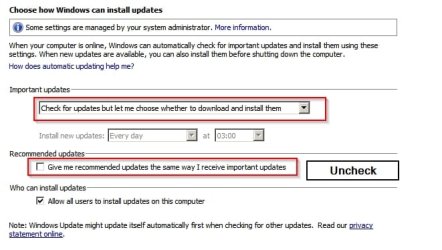
Check that windows update service is disabled. Use your computer as normal but wait 24hours before re-enabling Windows Update Service (after scheduled update check time has passed)
Enable Windows Update Service, reboot and run a check for updates manually:
All Programs> Windows Updates> Check
The first check will take a long time.
When the check is complete hide any Windows Update Client Upgrade Updates.
Update for Windows 7 for x64-based Systems (KB2990214)
Update for Windows 7 for x64-based Systems (KB3050265)
Update for Windows 7 for x64-based Systems (KB3065987)
Update for Windows 7 for x64-based Systems (KB3083324)
Update for Windows 7 for x64-based Systems (KB3083710)
Update for Windows 7 for x64-based Systems (KB3102810)
Hide any Window 10 Upgrade Updates if you are concerned about those. Review the rest and install them.
The next update check should go smoothly and in no time at all.



