Windows 7 Installation - Transfer to a New Computer

How to Transfer your Complete Windows 7 Installation to New Computer

To start, a warning from Microsoft:

   Note
Important

You must use the Sysprep /generalize command to generalize a complete Windows installation before you can use the installation for deployment to a new computer, whether you use imaging, hard disk duplication, or another method. Moving or copying a Windows image to a different computer without running the Sysprep /generalize command is not supported.

This tutorial will show you how to do the transfer.

   Information
Windows 7 System Preparation Tool is a powerful, native Windows tool. When for instance used in so called Audit Mode, it let's you to freely configure Windows 7 to be then deployed to other computers as hardware independent image.

In this tutorial we use System Preparation Tool (sysprep) to prepare your Windows 7 installation to be moved to a new computer, keeping all your installed applications, program settings and user profiles. You can use this method for instance when you have bought a new PC and want to transfer your existing setup completely, without need to reinstall everything, or when you want to make major hardware changes like change the motherboard or GPU, which would usually cause Windows to stop booting normally.

   Warning
Using this method causes Windows 7 to lose all activation information, and it needs to be reactivated afterwards. If your Windows 7 is an OEM version, you might not be able to reactivate it, at least not without phone activation option.

I do not recommend to use this method on RAID systems. All experiments on RAID I know have failed.

With the speed of today's hardware evolution, most of us geeks are upgrading the hardware more often than operating system. Upgrading hardware can be painfully slow process if we need to reinstall the operating system and all our installed applications, plus transfer program settings and user profiles.

Using sysprep makes this easy. Changing the motherboard, or for instance an old ATI GPU to a new nVidia GPU quite often causes Windows 7 not to be able to boot anymore. This fact is usually accepted by the user, who then reinstalls the OS and all applications and transfers user profiles from a backup location.

Same thing when buying a new computer with completely different hardware setup compared to the old one, or trying to restore a system image to different hardware setup. Normally this would include a complete reinstallation of Windows 7 and all applications.

Why not use sysprep to avoid reinstalling? Here are the different scenarios where you can use it.


   Warning

An upgraded Windows cannot be sysprepped. As this method is based in sysprepping, this tutorial is valid only for Windows setups which have not been upgraded.

This means that if you have for instance in-place upgraded Vista to Seven, or using Anytime Upgrade upgraded for instance a Home Premium to Ultimate, you cannot sysprep and this tutorial cannot be used in your case.

Notice that a repair install is also an upgrade install, so if you have ever done a repair install (= in-place upgrade to same edition), you cannot sysprep.


PLEASE DO NOT FORGET TO CREATE A SYSTEM IMAGE BEFORE PROCEEDING!​


As you can read on this thread, on rare occasions this method does not work. If this happens, you can always restore your system using your backup image.

Backup Complete Computer - Create an Image Backup
System Image Recovery

IE10 Users: Please read this article first: Sysprep Fatal Error With IE 10 (FIX) | System Administration


METHOD ONE

Changing hardware components but keeping old hard disk(s)


Use this method if you:
- Change other hardware components but keep your old HD containing Windows 7
- Move the HD containing Windows 7 to another computer
  1. Before installing new hardware, boot Windows 7 normally
  2. Disconnect all external hardware except mouse, keyboard and main display. If your system folders are located only on C: drive, disconnect all other hard disks except that containing the C:. In case of relocated system folders, for instance the profile folder Users located in another drive and other system folders on C:, first move the relocated system folders back to C: then disconnect all other drives. Reboot after this
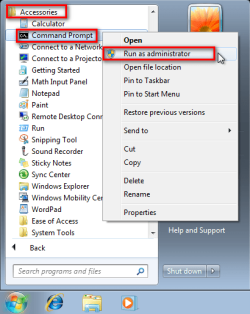
  3. Run Command Prompt as administrator
    .
    Audit_1.png
    .
  4. Type to Command Prompt: %windir%\System32\Sysprep\Sysprep.exe, and hit Enter
    .
    sysprep_start.png
    .
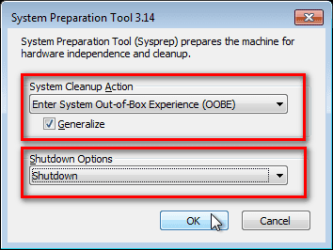
  5. In sysprep dialog that opens, choose System Cleanup Action as Enter System Out-of-Box-Experience (OOBE), select Generalize, select Shutdown Options Shutdown. Click OK
    .
    Sysprep_Run_and_generalize.png
    .
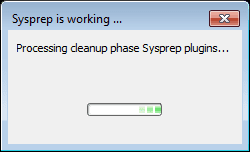
  6. Sysprep generalizes now your Windows 7 setup and shuts down your computer. Do not run any other programs during this phase!
    .
    Sysprep_Run_and_generalize_2.png
    .
    Sysprep_Run_and_generalize_3.png
    .
  7. Switch the main power of your PC off and install the new hardware OR dismount the hard disk(s) and mount it (them) to a new computer
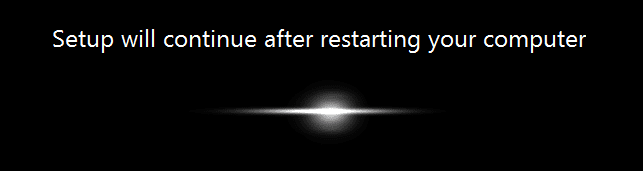
  8. Boot the PC from sysprep generalized hard disk. You will notice Windows booting as if it was the first boot after installation, installing default drivers and updating registry. One or two reboots are needed, depending on your system specifications
    .

    Sysprep_Reinstalling_devices.png
    .
    Sysprep_Registry_settings.png
    .
    Sysprep_Reboot_needed.png
    .
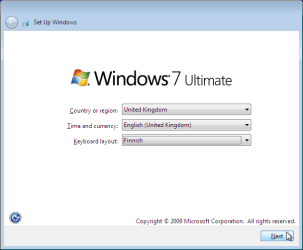
  9. When Windows finally boots up, you will need to enter all information as if this really was a new, fresh installation
    .
    Sysprep_First_boot_2.png
    .
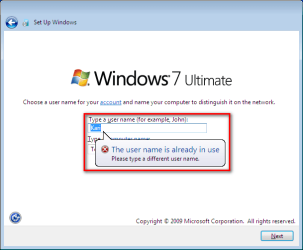
  10. Because your old user profiles already exist, Windows does not accept your normal username, but instead you have to create a new temporary user. I use username Test for this purpose
    .
    Sysprep_First_boot_3.png
    .
  11. When login screen appears, choose your old user account to login
    .

    Sysprep_First_boot_5.png
    .
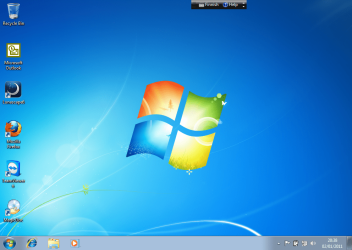
  12. Windows boots now to default OOBE first boot desktop, with default 800*600 resolution and default theme. All your installed applications are there, as well as your old user profiles and folders. Windows has installed the default drivers for your setup, you can update them if needed
    .
    Sysprep_First_boot_6.png
    .
  13. Go to Control Panel > User Accounts and delete the temporary user account (in this case Test) that you just created


METHOD TWO

Change the hard disk(s) or move Windows 7 setup to a new computer using third party imaging software

Use this method if you:
- Replace the HD containing Windows 7 on your old computer
- Move Windows 7 to a new HD on another computer
  1. Follow steps 1 through 5 above (method 1)
  2. Boot PC with an imaging CD/DVD (Paragon, Macrium etc.). See Macrium Reflect Free:at our sister site TenForums.com: Backup and Restore with Macrium Reflect Windows 10 Backup Restore Tutorials . Also see this post for a practical tip to create a Macrium system image.
  3. Create an image of your system
  4. Turn PC off, change the hard disk(s) and reboot with imaging application, restoring the image OR boot the new computer with imaging software and restore the image
  5. Continue from step 7 above (method 1)

This procedure is failsafe, and works every time. There is nothing to worry, but of course it is recommended to make a backup before trying this. I have even used this method when some serious driver issues caused the PC to constantly crash (BSOD), to reset all drivers to Windows defaults and then reinstalling them one by one to find the culprit.

   Note
What does Sysprep generalizing do to my Windows 7 setup?
  • All system specific information is removed or uninstalled
  • Security ID (SID) of your hardware setup is reseted
  • All system restore points are deleted
  • All event logs are deleted
  • All personalization is removed (taskbar, toolbars, folder options, start orb etc.)
  • Built-in administrator account is disabled (if it was enabled) and needs to be re-enabled after the transfer if needed

What happens when booting first time after sysprep generalizing?
  • First boot configuration is run
  • New SID is created
  • Re-arm counter is reseted if not already re-armed three times
  • Windows 7 is booted using first boot default drivers and settings


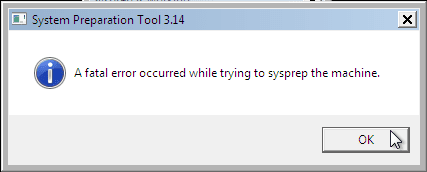
I have tested all above mentioned methods with all versions of Windows 7, from Starter to Enterprise. It works every time, with one exception: for reasons unknown to me, sysprep seems sometimes dislike Windows Media Player networking service, which is by default started every time Windows 7 starts. In about every third time I've done this, I've got an error message when trying to generalize:
Sysprep_Fatal_Error.png

However, this is not a big problem. You just need to stop the WMP networking service, and run sysprep with generalize option again. You can stop the service in question by typing net stop WMPNetworkSvc to command prompt, and hitting Enter:

Sysprep_Stop_WMP_service.png

If you have any questions, do not hesitate to ask.

Happy computing!

Kari

EDIT: A Useful tip from xxxwea, as later confirmed by Victor:
Kari, just a suggestion.

You might note in the tutorial that if on first booting Windows can't finish configuring, a reboot into safe mode, then a normal reboot will allow it to finish successfully.

This has happened to me both times I used a sysprepped system drive in a new computer. I found the answer to this problem buried deep in this thread the first time I ran into it, and the same thing happened yesterday on a different computer.

It's a seemingly very silly solution, but it works. I do believe many people have abandoned their sysprep work when they encounter the problem.

I think the solution deserves more visibility.
 
Last edited:
I am sorry but I am totally unable to find anything useful to help you. I tested this once again and I have no issues to get the USB mouse and keyboard to work.

A workaround that might work for you is to simple use the PS2 keyboard or on-screen keyboard when setting the PC up, USB mouse and keyboard being disconnected. When Windows then boots to desktop first time, install the chipset drivers, reboot and now install the USB drivers. Again reboot and connect the USB mouse and keyboard.

It should work and works in my tests.

You might also want to see if some third party software would be better for you. Here's an example: System restore to new hardware to upgrade your computer or migrate system

I will continue trying to find something.

Thanks Kari,

Let me have a look at ''EaseUS Todo Backup" until I try the method(Sysprep) again in the weekend.

Rgds,
APK

Do share your experiences on this front once you have tried it.
 

My Computer My Computer

Computer Manufacturer/Model Number
Mac Book Pro | Thinkpads T61 X61T W510
OS
WinXP/ Win7x64/ Mac OSX Snow Leopard - Multi Boot
Anyone, know of a direct ISO download Section, restore laptop,1GBUSB

Need a direct download section, people done fukked up the internet way to bad to download legit anything, especially a direct iso download, should be super simple and fast to get an iso, i am in a library that has no security so it makes it very difficult, they dont even have HOSTS protection, so its quite interesting., any and all help would be greatly appreciated.thanks much!


:)
!
 

My Computer My Computer

Computer type
Laptop
Computer Manufacturer/Model Number
Toshiba
OS
windows 7 starter factory, ATM, no O.S.
CPU
intel, approx 1.2ghz
Motherboard
dunno yet
Memory
2 gb sdram
Graphics Card(s)
dunno yet
Hard Drives
a drive from hp computer wiped with quick format, most if not all secure data saved and backed up
Antivirus
not yet, usually mse, and/or eset
Browser
would be chrome typically
Kari and other Contributors;

I registered here with the sole purpose to say thank you for taking the time to create this tutorial, and patiently respond to all the needs of nearly 1000 posts thereafter !!
My situation was VERY difficult to deal with, I eventually found a cure after reading through these (nearly) 1000 posts.. but it was the most frustrating time in my recent life :)

My many attempts at SYSPREP failed, leaving my desired user profile un-usable. The frustrating part waswith every attempt I was left locked out of all profiles. :(

I'm going to go out on a limb and blame that on my profile hive, this is a company laptop with no less than four other ADMIN accounts in addition to my own.

The only method that finally worked for me was to nullify (disable) or change every driver on the cloned HDD to generic drivers. I had to be very meticulous to not miss ANY since the clone was moving from a more powerful (three years newer) laptop with more modern hardware etc., to a less powerful and older laptop with older hardware.

Even the BIOS on the older machine was a pain to deal with but that was the ultimate key, getting the recipient BIOS to recognize the cloned HDD.

Once that was done my personal Admin User Profile was intact and first to come up, all drivers began changing to match the old laptop.. several re-boots later you cant tell the difference between the source and recipient laptops.. they are identical in every way!

HUGE THANK YOU TO ALL INVOLVED IN THIS TUTORIAL !!
AND SPECIAL THANKS TO KARI !!

Steven
 
Last edited:

My Computer My Computer

Computer type
Laptop
Computer Manufacturer/Model Number
Lenovo
OS
Windows 7 Ultimate x64
CPU
i7
Memory
8GB
Hard Drives
500GB 7200RPM
Antivirus
NORTON
Browser
FIREFOX
Welcome to Seven Forums Steven. Yes, Kari is a keeper ;) Currently working his magic at Windows 10 Forums as well

A Guy
 

My Computer My Computer

Computer type
PC/Desktop
OS
Windows 10 Home x64
CPU
INTEL Core i5-750 Quad-Core 3.37GHz
Motherboard
ASUS P7P55D
Memory
HyperX Fury Black Series 8GB (2 x 4GB) 1866Mhz
Graphics Card(s)
EVGA GeForce GTX 750 Superclocked 1GB 128-Bit GDDR5
Monitor(s) Displays
LG 32MA68HY 32" IPS
Screen Resolution
1920 x 1080
Hard Drives
Samsung 840 Evo 120GB, SEAGATE 500GB Barracuda® 7200.12, SATA 3 Gb/s, 7200 RPM, 16MB cache
PSU
ANTEC TruePower New TP-550, 80 PLUS, 550W
Case
ANTEC Three Hundred Illusion
Cooling
COOLER MASTER Hyper 212 Plus, 4 x 120mm 1 x 140mm Noctua's
Internet Speed
85 + Mbps
Antivirus
Avast
Browser
Vivaldi
Hi Way2Cool, welcome to the Seven Forums.

Feedback like yours is always nice to read. Thank you :)

Kari
 

My Computer My Computer

Computer type
Laptop
Computer Manufacturer/Model Number
HP ENVY 17-1150eg
OS
Windows 10 Pro x64 EN-GB
CPU
1.6 GHz Intel Core i7-720QM Processor
Memory
6 GB
Graphics Card(s)
ATI Mobility Radeon HD 5850 Graphics
Sound Card
Beats sound system with integrated subwoofer
Monitor(s) Displays
17" laptop display, 22" LED and 32" Full HD TV through HDMI
Screen Resolution
1600*900 (1), 1920*1080 (2&3)
Hard Drives
Internal: 2 x 500 GB SATA Hard Disk Drive 7200 rpm
External: 2TB for backups, 3TB USB3 network drive for media
Cooling
As Envy runs a bit warm, I have it on a Cooler Master pad
Keyboard
Logitech diNovo Media Desktop Laser (bluetooth)
Mouse
Logitech Performance Mouse MX
Internet Speed
50/10 Mbps VDSL
Antivirus
Windows Defender 4.3.9431.0
Browser
Maxthon 3.5.2., IE11
Kari and other Contributors;

I registered here with the sole purpose to say thank you for taking the time to create this tutorial, and patiently respond to all the needs of nearly 1000 posts thereafter !!
My situation was VERY difficult to deal with, I eventually found a cure after reading through these (nearly) 1000 posts.. but it was the most frustrating time in my recent life :)

My many attempts at SYSPREP failed, leaving my desired user profile un-usable. The frustrating part waswith every attempt I was left locked out of all profiles. :(

I'm going to go out on a limb and blame that on my profile hive, this is a company laptop with no less than four other ADMIN accounts in addition to my own.

The only method that finally worked for me was to nullify (disable) or change every driver on the cloned HDD to generic drivers. I had to be very meticulous to not miss ANY since the clone was moving from a more powerful (three years newer) laptop with more modern hardware etc., to a less powerful and older laptop with older hardware.

Even the BIOS on the older machine was a pain to deal with but that was the ultimate key, getting the recipient BIOS to recognize the cloned HDD.

Once that was done my personal Admin User Profile was intact and first to come up, all drivers began changing to match the old laptop.. several re-boots later you cant tell the difference between the source and recipient laptops.. they are identical in every way!

HUGE THANK YOU TO ALL INVOLVED IN THIS TUTORIAL !!
AND SPECIAL THANKS TO KARI !!

Steven

Thanks for posting. Steven, I am currently going through this as well, It'd be great if you could detail out a bit more on how/ what you were doing with the drivers.

In my case, I've un-installed most Hardware / OEM drivers (but they seem to hide places in the OS).
I've been making Sys Restore snapshots between each driver uninstall.
Did you go through Device Mgr and uninstall devices there (they come back) or did you DISABLE them?

Please do share specifics of the 'meticulous' ness. I am being meticulous as well, I just want to ensure I dont miss anything and LEARN something from your APPROACH & MANUAL METHODS, that I may be missing.
 

My Computer My Computer

Computer Manufacturer/Model Number
Mac Book Pro | Thinkpads T61 X61T W510
OS
WinXP/ Win7x64/ Mac OSX Snow Leopard - Multi Boot
Hi all

I am posting this as a possible solution only, based on the myriad hardware\software configurations which could influence the outcome of a SYSPREP exercise:

I helped a friend upgrade his buggy mainboard\CPU. The old and new mainboards both had Intel chipsets so I hoped we might avoid SYSPREP,,,. Alas, it was not to be, so after tripping over the WMPNETWK.EXE problem, we finally got an OOBE + Generalize SYSPREP to run through to completion.

We placed the prepped hard-drive into the rebuilt system and.... it halted with the dreaded 'Windows could not finish customizing your machine' error, followed by 'Will continue after restart'.

So - in the pursuit of insanity we re-booted 3 times and got the same gut-wrenching result.

We then tried Safe Mode only to be informed that this process cannot be done in Safe Mode.

In total desperation, I re-booted the machine and kept the LEFT-SHIFT key depressed.

I remember this from Windows 95 days of preventing startup items from interfering with problematic boot issues,,, and would you believe it - IT ACTUALLY WORKED!

The PC is now up and running perfectly after updating drivers.

I cannot guarantee that this will work for everyone experiencing these startup errors, but what have you got to lose by trying? After all the alternative is several hours of format\reloading Windows7 + apps + everything else....

http://www.sevenforums.com/general-...4-bit-new-cpu-mb-post2294889.html#post2294889

Found this here..

Is this a valid "key press" even for Windows 8/ 8.x? I remember using 'Esc' Key way back in the XP/2000 or 98 days to prevent lot of stuff from starting up (during normal startup, after fixing things in safe modes).

What would be the equivalent for Windows 8?
 

My Computer My Computer

Computer Manufacturer/Model Number
Mac Book Pro | Thinkpads T61 X61T W510
OS
WinXP/ Win7x64/ Mac OSX Snow Leopard - Multi Boot
I finally got a successful run on Win 8.1. Some additional changes to Win 7 thingy.

Windows 8.1 Sysprep .. Reset all my Chrome Cookies and Passwords.. and Outlook + Windows Live Mail passwords. Thankfully, I can copy these files from my backup Image Partition :)

Thanks Kari for this thread. Kudos to you. This time I went through the 70/80 pages before I started.

With all due respect and love for you.. and the people who posted the solutions in here.. I think we need to UPDATE the first page with ISSUES and RESOLUTIONS that people have encountered in these pages.

It is way too much pain to sort through and read through for anyone - especially newbies who dont have the patience or energy to go through 100 pages when One page of collected things would do the job.

Its very easy to Sysprep.exe / /.. but dealing with
- UN-Installing funky OEM drivers / So many ways to find and disable and then remove them..
- Removing Win 8 Apps
- Running Sysprep on Upgraded Windows (yes.. simple registry stuff).
- Restarting after Sysprep!!!..
.. The issues of rebooting, Numerous endless re booting, not able to get to Safe Mode, various ways to get to Safe Mode.. Boot Repairs (if needed) and other Registry Hacks while Rebooting (I didn't need this one, but its good to know before one starts).

It wouldn't take a lot as you know the main hacks & ways out already.

PS:
I kept doing Multi Quote on those posts. I figured I'd REPLY to them with QUOTE at the end and then COPY all of them out into a Word Doc to organize. But the multi quote did not survive 80+ pages :)
 

My Computer My Computer

Computer Manufacturer/Model Number
Mac Book Pro | Thinkpads T61 X61T W510
OS
WinXP/ Win7x64/ Mac OSX Snow Leopard - Multi Boot
Hello!
I used sysprep to tranfer windows from one HDD to another and have one question.
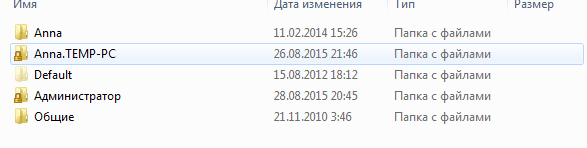
image.PNG
I want to use my folder named "Anna", not "Anna-Temp PC". How can i do it? Thanks.
In control panel its only 2 users - Anna and Guest. If I select Anna - I select folder "anna-temp pc"
 

My Computer My Computer

Computer type
PC/Desktop
OS
Windows 7
Hi Anna, welcome to the Seven Forums.

See the tutorial, Method One, steps 10 to 13. Assuming that Anna was your existing user account before replacing the HDD, then the Anna.TEMP-PC should be the new account. IF you sign out from that account, can you see the old account Anna in login screen?
 

My Computer My Computer

Computer type
Laptop
Computer Manufacturer/Model Number
HP ENVY 17-1150eg
OS
Windows 10 Pro x64 EN-GB
CPU
1.6 GHz Intel Core i7-720QM Processor
Memory
6 GB
Graphics Card(s)
ATI Mobility Radeon HD 5850 Graphics
Sound Card
Beats sound system with integrated subwoofer
Monitor(s) Displays
17" laptop display, 22" LED and 32" Full HD TV through HDMI
Screen Resolution
1600*900 (1), 1920*1080 (2&3)
Hard Drives
Internal: 2 x 500 GB SATA Hard Disk Drive 7200 rpm
External: 2TB for backups, 3TB USB3 network drive for media
Cooling
As Envy runs a bit warm, I have it on a Cooler Master pad
Keyboard
Logitech diNovo Media Desktop Laser (bluetooth)
Mouse
Logitech Performance Mouse MX
Internet Speed
50/10 Mbps VDSL
Antivirus
Windows Defender 4.3.9431.0
Browser
Maxthon 3.5.2., IE11
Hi guys this is the best forum.

I have C Drive 64gb SSD (OS), E Drive 500gb SSD for games Origin and Steam installed on it and F Drive 1.5tb HHD with some programs installed on it. I am upgrading my Motherboard (Fatality X99X Killer), CPU (i7-5820K), 32gb Corsair Ram and a SAPPHIRE NITRO Radeon R9 390.
So my existing board has Windows 7 OEM on it, I have a new copy of Windows 7 (the same Microsoft Windows 7 Home Premium SP1 64-Bit - OEM). What i'd like to do is the following;
1. Transfer my existing C Drive (OS)to a Samsung SSD EVO 840 120gb (Got it last X-Mass never installed it) on my existing PC, use sysprep.
2. Install new components
3. Install SSD EVO 840 120gb with the OS Windows 7 from my old rig and use the activation code from the new copy of Windows 7.
4. Then hook up my other 2 drives (E & F) hopefully without having to reinstall the programs that are on those drives or losing any of their data.
Will this work?

Thanks in advance.
 

My Computer My Computer

Computer Manufacturer/Model Number
Cyberpower, INF8800PROSE
OS
Windows 7 Home Premium 64bit
CPU
i7-975 extreme
Motherboard
Asus P6T SE
Memory
Corsair 3 x 2GB DDR3 / 1600 MHZ MEMORY
Graphics Card(s)
Visiontek HD 4870
Sound Card
onboard
Monitor(s) Displays
Acer 22" widescreen
Hard Drives
1.5TB SATA-II 3.0GB/S 32MB CACHE 7200
PSU
Corsair 1000HX
Case
IN-WIN MAELSTROM FULL CASE
Cooling
Stock fans & ASETEK 510LC 120MM WATERCOOLER (CPU)
Looks like it should work. Make sure you backup image your original state of Windows before starting and if anything fails you can revert back.
 

My Computer My Computer

Computer type
PC/Desktop
Computer Manufacturer/Model Number
Custom Build
OS
Windows 7 Ultimate x64 SP1
CPU
AMD Phenom 2 1090T
Motherboard
Gigabyte GA-890FXA-UD5
Memory
2x8GB Kingston HyperX Fury Black 1600Mhz Unganged
Graphics Card(s)
MSI GTX 970 Gaming 4G
Sound Card
Realtek On-Board HD 7.1 Audio / Logitech G35
Monitor(s) Displays
3xAcer GD245HQ
Screen Resolution
1920x1080
Hard Drives
Samsung 850 Pro 512GB SSD - OS /
WD Caviar Black SATA 3 - 1 TBx2 - Dynamic RAID 0 /
WD Caviar Green SATA 2 - 640GBx2 - Dynamic RAID 0 /
WD Caviar Green SATA 2 - 640GB - Internal Backup /
Seagate Barracude SATA 3 - 3TB - External Backup/ Sync
PSU
HighPower 1000W
Case
Cooler Master HAF 932
Cooling
Noctua NH-D14
Keyboard
Logitech G19
Mouse
Logitech G500
Internet Speed
100/4 Mbit Cable (100GB quota)
Antivirus
ZoneAlarm Extreme Security / MBAM Pro / MBAE Free / SAS Free
Browser
IE 11 - Firefox - Chrome
Other Info
Logitech F710/ G27/ G940/ Z5500 // TrackIR 5 // Nvidia 3D Surround Vision
in case anyone else is as incompetent as me

I hope this makes sense, and if needed it can be followed, I realize this may have been addressed previously, but this post is quite long to read every page.

I used method 1, got the system error "Sysprep - Fatal error occurred while trying to sysprep the machine"

did this in regedit from another forum: HKEY_LOCAL_MACHINE\SYSTEM\Setup\Status\SysprepStatus to 7 (mine was set at 4)

still couldn't make sysprep work, so I tried the work around (given on the first page of this forum), but I couldn't run the "net stop WMPNetworkSvc". I had a prompt saying C:users\myname, so that is probably the reason, although I am the administrator.

so I followed this method to turn off all "Media Features"

How to Disable Windows Media Player in Windows 7

and then sysprep worked! Whew! now I can begin my new component installation and see how things work. I will report back.

And, Thank You for this posting of how to save an operating system when updating equipment.
 

My Computer My Computer

Computer type
PC/Desktop
Computer Manufacturer/Model Number
homebuilt
OS
Windows 7 64 bit professional
I had a prompt saying C:users\myname, so that is probably the reason, although I am the administrator.

This means you did it wrong, not following the instructions. You being an admin and using your account has nothing to do with doing this right, using the built-in administrator account.

Next time, follow the instructions and open the command prompt as clearly told in the tutorial. This quote from the instructions in the tutorial:

Run Command Prompt as administrator
128593d1294005433-windows-7-installation-transfer-new-computer-audit_1.png

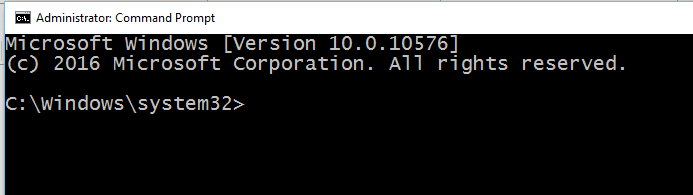
This opens the built-in administrator command prompt, which shows the current folder in prompt as C:\Windows\System32 instead of your C:\Users\Your_Username, and shows the label Administrator: Command Prompt in the title bar:

Capture.PNG

Your own admin user account and the built-in administrator account are two totally different things. I suggest all users who do not understand the instructions but want to proceed anyway to follow the instructions to the letter!

A plain and simple user error, caused by the user not following the instructions.

Kari
 

My Computer My Computer

Computer type
Laptop
Computer Manufacturer/Model Number
HP ENVY 17-1150eg
OS
Windows 10 Pro x64 EN-GB
CPU
1.6 GHz Intel Core i7-720QM Processor
Memory
6 GB
Graphics Card(s)
ATI Mobility Radeon HD 5850 Graphics
Sound Card
Beats sound system with integrated subwoofer
Monitor(s) Displays
17" laptop display, 22" LED and 32" Full HD TV through HDMI
Screen Resolution
1600*900 (1), 1920*1080 (2&3)
Hard Drives
Internal: 2 x 500 GB SATA Hard Disk Drive 7200 rpm
External: 2TB for backups, 3TB USB3 network drive for media
Cooling
As Envy runs a bit warm, I have it on a Cooler Master pad
Keyboard
Logitech diNovo Media Desktop Laser (bluetooth)
Mouse
Logitech Performance Mouse MX
Internet Speed
50/10 Mbps VDSL
Antivirus
Windows Defender 4.3.9431.0
Browser
Maxthon 3.5.2., IE11
I had no choice when things go right it's nice, but my system wouldn't allow me to follow your path. I would go to "Accessories", then "Command Prompt" but I was given no choice just the command prompt window opening, I tried it several times. I was doing this on a backup image on a separate hard drive connected as the only hard drive so I can use it for the new build, the original drive wouldn't stay open long enough before it gave a BSOD, which is the reason I am doing this in the first place.

Why the system started giving the BSOD I don't know, it's been a dual boot system with W7/Xp for several years. One recent day running W7 for several hours the BSOD started shutting down the system, I found I could run XP indefinitely, and also W7 in safe mode. Instead of spending hours tracking down the problem I will do an upgrade with a new motherboard, cpu, and video card. I would like to have the previous Windows 7 setup with the new components which is why I found your tutorial.

Even though I didn't follow the instructions the tutorial helped, Thank You!
 

My Computer My Computer

Computer type
PC/Desktop
Computer Manufacturer/Model Number
homebuilt
OS
Windows 7 64 bit professional
I had no choice when things go right it's nice, but my system wouldn't allow me to follow your path. I would go to "Accessories", then "Command Prompt" but I was given no choice just the command prompt window opening, I tried it several times.

I take the blame, it is apparently my fault; I assumed that context or so called right click menus is so basic Windows feature that every user knows how to right click the Command Prompt or any other command in Start Menu to get the context menu shown as in the screenshot, and can then select Run as administrator from it.

I've now added specific instructions to right click, here's the edited part from the tutorial:
Run Command Prompt as administrator by right clicking it in Start Menu and selecting Run as administrator.

Main thing is you got it done.
 

My Computer My Computer

Computer type
Laptop
Computer Manufacturer/Model Number
HP ENVY 17-1150eg
OS
Windows 10 Pro x64 EN-GB
CPU
1.6 GHz Intel Core i7-720QM Processor
Memory
6 GB
Graphics Card(s)
ATI Mobility Radeon HD 5850 Graphics
Sound Card
Beats sound system with integrated subwoofer
Monitor(s) Displays
17" laptop display, 22" LED and 32" Full HD TV through HDMI
Screen Resolution
1600*900 (1), 1920*1080 (2&3)
Hard Drives
Internal: 2 x 500 GB SATA Hard Disk Drive 7200 rpm
External: 2TB for backups, 3TB USB3 network drive for media
Cooling
As Envy runs a bit warm, I have it on a Cooler Master pad
Keyboard
Logitech diNovo Media Desktop Laser (bluetooth)
Mouse
Logitech Performance Mouse MX
Internet Speed
50/10 Mbps VDSL
Antivirus
Windows Defender 4.3.9431.0
Browser
Maxthon 3.5.2., IE11
LOL, I guess I'm the last person on the planet to learn this about Windows.

Thank you for updating the tutorial.
 

My Computer My Computer

Computer type
PC/Desktop
Computer Manufacturer/Model Number
homebuilt
OS
Windows 7 64 bit professional
Came across this thread after a Google search.

I have a problem with a DELL 15 3552 laptop that had Ubuntu installed and wanted to load up Windows 7 as my father want 7 rather than 8,10. The laptop does not have a DVD device so connected a external drive (USB) and also loading from Bootable USB.

When I try to install (from DVD/USB) I get a message early on that a CD/DVD device drivers is missing and cant carry on with install. I've thrown many drivers at it but cant find what it wants. This is a known problem from MS (who didn't fix it !) - note, strangely Windows 8 installed from USB correctly (but I dont have a WIN8 licence to install a working machine).

Do you think that if I install Windows 7 from a DVD (using laptop disk) on a PC, then SYSPREP the installation produced then put disk back into laptop and load it will work ???? (without SYSPREP I'm getting a problem on CHECKPNP.SYS and system reboots).

Please consider this scenario to fix the problem as I've been working on this problem (a very long time, long hours).

JoJo
29 December 2015
 

My Computer My Computer

Computer type
PC/Desktop
OS
Windows 7 Ultimate 64bit
Hi All,

This is a greatly helpful post and very helpful community in general, so firstly let me say thanks for that.

I have a couple of questions which pertain to this specific sysprep procedure. I am planning to do an upgrade of the core components of a machine but want to keep as much of the installation in place so I can get back to work as quickly as possible - sysprep looks to be the best way for me to achieve that. I do however note that there are several things which cannot be transferred, the ones of note are:

All system specific information is removed or uninstalled
All personalization is removed (taskbar, toolbars, folder options, start orb etc.)
Built-in administrator account is disabled (if it was enabled) and needs to be re-enabled after the transfer if needed

Being mindful of the above what things specifically do I need to remember/take note of to restore after the transfer - would a screenshot of my taskbar and start menu suffice?

As for the administrator account being disabled, I assume that after I make the "test" account to get started I can then delete that and switch back to my existing account and simply set it to administrator?

Finally, when it removes all system specific information is this limited to the internal hardware (eg. motherboard drivers) or does it include drivers for other peripherals attached to the current machine. The reason I ask is that we use a wide format printer which has a complicated installation and setup that I'm hoping I won't have to carry out again from scratch?

Thanks for any help.
 

My Computer My Computer

Computer Manufacturer/Model Number
Dell
OS
Windows 7 Home Premum 32bit
CPU
Intel P4 3.2Ghz
Motherboard
Unknown
Memory
Generic 2x512MB DDR
Graphics Card(s)
Nvidia Quadro FX 500 [NV34]
Sound Card
Onboard
Monitor(s) Displays
Dell
Hard Drives
Samsung F3 1Tb
PSU
Generic
Case
Dell
Cooling
Generic
Ok guys so I took the plunge and followed method one to migrate the HDD from my existing PC to the one I have just built, unfortunately things haven't gone smoothly.

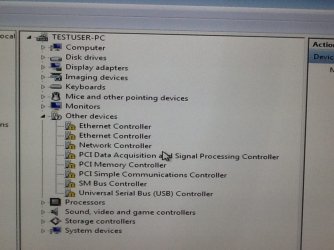
First thing I noticed was that when I reached the language selection screen my mouse and keyboard would not work. After some plugging and unplugging I had to resort to a restart to get my PS2 keyboard to be recognised and managed to wade my way through the first time setup process with keyboard only. However, once I reached the desktop I noticed that I had no USB and no internet. I went to the device manager to investigate and I am seeing these errors and not quite sure how to resolve them.

Would really appreciate some pointers on this - I tried to going to Action>Scan for Hardware Changes and it gave an error that it had failed to install the hardware :S
 

Attachments

  • driver-issue.JPG
    driver-issue.JPG
    71.5 KB · Views: 253

My Computer My Computer

Computer Manufacturer/Model Number
Dell
OS
Windows 7 Home Premum 32bit
CPU
Intel P4 3.2Ghz
Motherboard
Unknown
Memory
Generic 2x512MB DDR
Graphics Card(s)
Nvidia Quadro FX 500 [NV34]
Sound Card
Onboard
Monitor(s) Displays
Dell
Hard Drives
Samsung F3 1Tb
PSU
Generic
Case
Dell
Cooling
Generic
Back
Top