Windows Mail

How to Reinstate Windows Mail in Windows 7

   Warning
Microsoft no longer supports Windows Mail, aka WinMail. It's recommended you use another well known supported email client. This Tutorial is for Advanced users who importantly have the Technical Ability to make the changes, have backups of everything including your OS, and to be your own tech support for WinMail going forward. If you decide to complete this tutorial you accept the fact that you are using WinMail as-is. It might be necessary to uninstall other email clients to resolve any WinMail conflicts in some environments. Understand it's likely that new OS updates from Microsoft will break WinMail's operation, and to fix make it necessary to rerun the tutorial again to reinstate it. With those things in mind, this tutorial was written so that you can rerun it without affecting WinMail user data.
Please see this Errata (Bug List) post before you install, to be aware of the current information about known issues using WinMail within Windows 7, these issues are programmatic and in most cases cannot be resolved by this tutorial, and will never be fixed.

Having said all of that disclaimer, if you have the technical ability, and can put up with the annoying minor byproduct bugs, then like so many of us still enjoy using WinMail on Windows 7 ...ymmv!


   Tip
As of January, 2025, the instructions given here supersede all other instructions given in forthcoming older posts. Realize some of the posts that follow are over 16 years old, and many of the link pointers within have become mislinked over time, many of the files or information within them is outdated, incomplete, or superseded with more accurate information - and so be careful. However you can always be sure that the latest info from all research is incorporated into this tutorial post, and its downloads are the latest available. This post is continuously kept up-to-date, and so..
...Always refer to this Tutorial post for the very latest updated information

This is the 4th iteration of the Windows 7, WinMail tutorial.

The process of this tutorial Will Not work to reinstate WinMail on Windows 8/10 !
Windows 8/10 users please go Here


Start here
  1. Download tutorial package TutReWinMail.zip

    Download

  2. Extract the TutReWinMail.zip into your user Downloads folder
    • Note: Be sure once extracted this is the address of the ''TutReWinMail'' folder:
    • C:\Users\username\Downloads\TutReWinMail... ... (if it's not there please put it there)
  3. Navigate to your user Downloads\TutReWinMail folder to be sure the above is correct.
    • (..if you need more verbose install instructions to follow, download this WinMail Local Tutorial.zip)
    • Advanced Users can proceed below:
      (..log in for Full Access, being able to get support, remove ads, like, and even to post, etc..)
Advanced Users: ..use this easy excellent overview of the steps in the local tutorial:
  • Open an Administrator Command Prompt. (screenshot showing in Administrator mode)
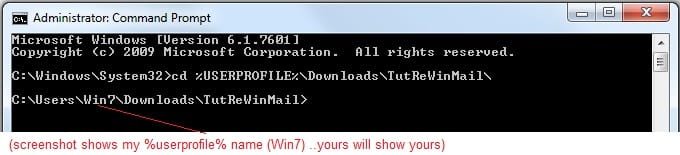
  • copy/paste this line into the command prompt: cd %USERPROFILE%\Downloads\TutReWinMail\
  • Your command prompt must now be showing you are at That Same Folder Address ..which contains the tutorial files that the batch file in the next step executes programs and copies files specifically from that folder address - if it's not there the batch file will fail since it cannot find what it needs!
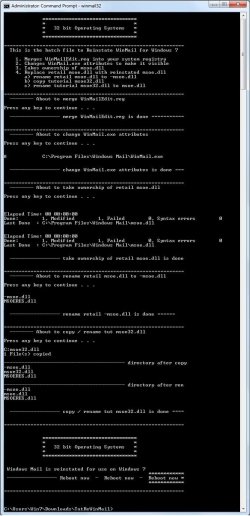
  • Next type in either winmail32 or win64mail <matching OS bit, to interactively process These Next Steps
  • If you've finished to the bottom as shown in last screenshot, restart your machine (sets registry)
  • Create a shortcut from WinMail.exe to your Desktop
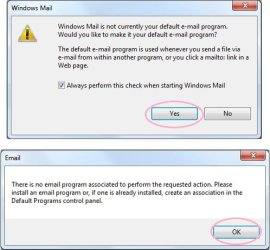
  • Open WinMail - it may prompt you one (or both) of These Two Notices ..click yes, and okay.
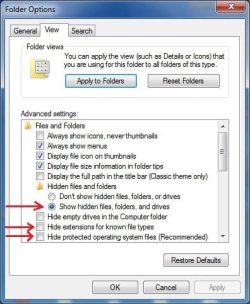
  • They now should be already set, but you can manually check/set at any time These Default Settings
  • That's pretty much all there is to it, and from here you setup the rest of the Windows Mail client (aka: WinMail) as normal within its various tab menus for Accounts, Options, Layout, etc, etc, to suit your individual needs.
  • Lastly, but should be the First thing you do, is to Create A WinMail Backup (new version) ..Go to this next link and when you get there scroll down to the heading: Backup/Restore Procedures for further instructions.
   Information
See How to open an elevated Administrator Command Prompt
Important: The exact text provided by the tutorial must be entered into the Administrator Command Prompt.
Hint: to avoid typos, copy/paste the entire line containing the command into the Command Prompt window.
Also see: How to Enable Copy to Clipboard from the Windows 7 Command Prompt

Every effort has been made to make this a step-by-step process, however, it is beyond the scope of a single tutorial to provide information on every command or concept. Search the Main Tutorial Section if you need greater detail on a concept or command presented in this tutorial.


Good luck, and long live WinMail :thumbsup:


   Note
Made possible by members:
Mark (aka Mr GRiM) - provided the original tutorial
Poppa Bear - continued Mark's work within the 2nd version
endeavor - provided continuous feedback, changes, invaluable testing instrumental to tutorial operations
EKManitis - propose the batch code that made operations easier
Slartybart - updated, tested, and consolidated all of the above into the 3rd version
endeavor - reviewed, updated, tested, and incorporated all of the above into this 4th version
...and also a special thanks to All the other members who presented discovery for this project


Attachments

  • TutReWinMail.zip
    TutReWinMail.zip
    1.8 MB · Views: 4,994
  • msoe_32.zip
    msoe_32.zip
    404 bytes · Views: 1,052
  • msoe_64.zip
    msoe_64.zip
    404 bytes · Views: 1,531
  • WinMailEdit.zip
    WinMailEdit.zip
    404 bytes · Views: 6
  • Win74umsZip.zip
    Win74umsZip.zip
    404 bytes · Views: 106
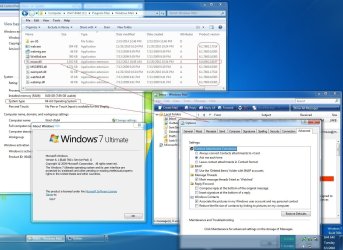
  • ACP.jpg
    ACP.jpg
    19.6 KB · Views: 1,083
  • DefaultClickYes-OkayAssociation.jpg
    DefaultClickYes-OkayAssociation.jpg
    52.8 KB · Views: 899
  • ProcessingBatch.jpg
    ProcessingBatch.jpg
    194.2 KB · Views: 1,147
  • PasteCDCommand.jpg
    PasteCDCommand.jpg
    33.1 KB · Views: 696
  • WinMail_Local_Tutorial.zip
    WinMail_Local_Tutorial.zip
    6.1 KB · Views: 1,202
  • FolderOptionsSet.jpg
    FolderOptionsSet.jpg
    61.5 KB · Views: 695
  • WinMailAdvanceOptionsBlank.jpg
    WinMailAdvanceOptionsBlank.jpg
    276.4 KB · Views: 93
  • Win7x64AdvancedTab+FileVersions.jpg
    Win7x64AdvancedTab+FileVersions.jpg
    298.9 KB · Views: 112
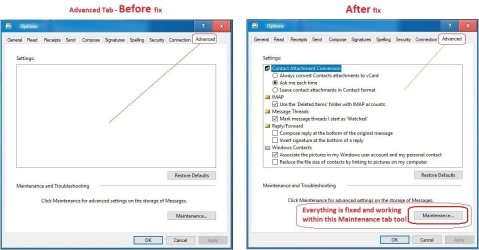
  • AdvancedTabBefore&After_fixed.jpg
    AdvancedTabBefore&After_fixed.jpg
    106.9 KB · Views: 50
  • CheckManually.jpg
    CheckManually.jpg
    209.5 KB · Views: 136
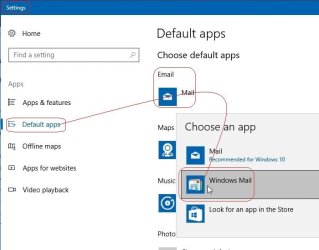
  • Win10_SetDefault.jpg
    Win10_SetDefault.jpg
    66.2 KB · Views: 33
Last edited by a moderator:
reviving WinMail aft running sfc

Okay I had some time this morning to fire up my test bench Windows 7 64bit, with WinMail installed, and do some testing, and here are the results:
100% Confirmed, that on Windows x64 using a working WinMail installation, with this registry entry present:
amd64_microsoft-windows-mail-core-dll_31bf3856ad364e35_none_c3c1597075bcd214
..and running sfc /scannow - it does break a working WinMail installation - WinMail just won't start afterwards and hangs open under processes (end task on WinMail.exe to release)

So as this was happening I did complete Software/Registry tracking of all the changes that SFC did, but I only outline here just what it did to 'to WinMail' to break it, which btw was pretty simple, it just overwrote the 64 bit msoe.dll to its cached version - no big deal at all.
I simply overwrote that msoe.dll back to the working version (which btw is v6.0.6002.18197) ..and WinMail started up again just fine.
So going forward then to stop SFC from doing that for 64 bit users, you can use this simple registry folder key I revised below in a reg file to remove it, or delete it by hand via regedit - and SFC works fine leaving the working msoe.dll alone.
For Tutorial users in future usage, all you need to do is enter this into you current WinMailEdit.reg, right under the other similar x86 SideBySide entry that's in there already right at the bottom:

[-HKEY_LOCAL_MACHINE\SOFTWARE\Microsoft\Windows\CurrentVersion\SideBySide\Winners\amd64_microsoft-windows-mail-core-dll_31bf3856ad364e35_none_c3c1597075bcd214]

Note: the exact same proofing procedure I had done with Windows7 x86, and in the same way it was proven to be 100% effective using that x86 SideBySide registry entry that's ''already in'' the current WinMailEdit.reg taking care of that.

Slartybart (Bill) if you want to add this x64 registry entry to the current WinMailEdit.reg that people download from your Page1 post, that would be great.

@ NoMatterWho, thank you again for bringing this x64 to our attention.
Also to your other questions, I can't yet say for sure what the registry folder key is in Windows 8 or Windows 10 since honestly I haven't checked yet; actually I never even use SFC anywhere, I used other methods for repairs.
I do run 32 bit versions of those Win8 & Win10 OS's, and so next time I have a chance I could check them out running SFC and see if the same thing happens to WinMail, and then easily isolate the registry keys involved and detail it. As for 64 bit versions I would have to install test bench setups for each of those (I need to do that anyway for other software testings) and do the same procedure, which should be pretty easy to detail the results.

Thank you

Ok, I'm a tad lost as to how to get my WinMail to open back up aft I foolishly ran sfc. It's still on my Windows 7 computer, and I can see the new mail notification but can't open the program. These registry fixes make it not happen again, but I'm lost on how to get WM back open, once it's lost thru running sfc. If I run the tutorial install again; will I keep all my emails?
Please help--as long as I keep Windows 7, want to use Windows Mail, which you guys made possible for me with your great tutorial! Thanks.
 
Last edited:

My Computer

Computer type
PC/Desktop
Computer Manufacturer/Model Number
HP pavillion 7-1054
OS
windows 7 home premium 64 bit
CPU
6gb
Ok, I'm a tad lost as to how to get my WinMail to open back up aft I foolishly ran sfc. It's still on my Windows 7 computer, and I can see the new mail notification but can't open the program. These registry fixes make it not happen again, but I'm lost on how to get WM back open, once it's lost thru running sfc. If I run the tutorial install again; will I keep all my emails?
Please help--as long as I keep Windows 7, want to use Windows Mail, which you guys made possible for me with your great tutorial! Thanks.

Hi terri,

Everything is fine so do not worry, it's a small matter, and aamof, the answer to fix it is all right there within everything you quoted that I said! ...So why have you not have it fixed yet? <g>

I did ask him already, but I see Slartybart did not edit the WinMailEdit.reg yet to include adding the registry key for x64 users yet so that this would not happen!
....And so if you manually remove/delete that registry key mentioned, then in the future you can run SFC all you want and it will not affect WinMail on specifically ''Windows 7'' any more!

And so the rest of the answer is, all you need to do copy the correct msoe.dll back in place - and it's fixed right back to where it was before your ran SFC. You see by you running SFC it deleted your proper msoe.dll is all, it's no big deal.

If your not sure how to replace the msoe.dll (which is simple) then yes as you asked, you can go the long way around route and run the tutorial again and that will do it for you, and no it will not change any settings or lose any emails.

(you may have to reboot to clear running WinMail process first if you've been clicking WinMail numerous times opening it trying to get it going)

No matter which way you do it, which replaces the msoe.dll again, don't forget to manually delete that registry key if you want to run SFC again without any 'future' WinMail problems with running SFC

I will PM Slartybart again and remind him to make the additional WinMailEdit.reg edit going forward.
 

My Computer

Computer type
PC/Desktop
Computer Manufacturer/Model Number
..all towers built from scratch
OS
Vista/Win7/8/10/11 (x86/x64)
CPU
i7
replacing msoe.dll..

Ok, I'm a tad lost as to how to get my WinMail to open back up aft I foolishly ran sfc. It's still on my Windows 7 computer, and I can see the new mail notification but can't open the program. These registry fixes make it not happen again, but I'm lost on how to get WM back open, once it's lost thru running sfc. If I run the tutorial install again; will I keep all my emails?
Please help--as long as I keep Windows 7, want to use Windows Mail, which you guys made possible for me with your great tutorial! Thanks.

Hi terri,

Everything is fine so do not worry, it's a small matter, and aamof, the answer to fix it is all right there within everything you quoted that I said! ...So why have you not have it fixed yet? <g>

I did ask him already, but I see Slartybart did not edit the WinMailEdit.reg yet to include adding the registry key for x64 users yet so that this would not happen!
....And so if you manually remove/delete that registry key mentioned, then in the future you can run SFC all you want and it will not affect WinMail on specifically ''Windows 7'' any more!

And so the rest of the answer is, all you need to do copy the correct msoe.dll back in place - and it's fixed right back to where it was before your ran SFC. You see by you running SFC it deleted your proper msoe.dll is all, it's no big deal.

If your not sure how to replace the msoe.dll (which is simple) then yes as you asked, you can go the long way around route and run the tutorial again and that will do it for you, and no it will not change any settings or lose any emails.

(you may have to reboot to clear running WinMail process first if you've been clicking WinMail numerous times opening it trying to get it going)

No matter which way you do it, which replaces the msoe.dll again, don't forget to manually delete that registry key if you want to run SFC again without any 'future' WinMail problems with running SFC

I will PM Slartybart again and remind him to make the additional WinMailEdit.reg edit going forward.
Since the new WinMailEdit. isn't there yet, maybe it wd be easier for you to tell me how exactly I replace the msoe.dll? I wd surely appreciate your help and hope I'm not going out of the bounds of this post by asking you--I wd much prefer that to taking the 'long way around'! Thanks, Terri
 
Last edited:

My Computer

Computer type
PC/Desktop
Computer Manufacturer/Model Number
HP pavillion 7-1054
OS
windows 7 home premium 64 bit
CPU
6gb
Since the new WinMailEdit. isn't there yet, maybe it wd be easier for you to tell me how exactly I replace the msoe.dll? I wd surely appreciate your help and hope I'm not going out of the bounds of this post by asking you--I wd much prefer that to taking the 'long way around'! Thanks, Terri
Hi!
1. Go to the 1st page and proceed steps 1&2
2. Stop with zip unpacked into You folder
3. Go http://www.sevenforums.com/3074957-post1646.html and select which one file You need 32bit or 64bit; You should to know which Windows You have: 32bit or 64 bit accordingly. PLEASE BE SHURE YOU SELECTED RIGHT FILE
4. Dowload and move that file into folder You made on step 2
5. Delete old WinMailEdit.rar file
6. Rename new file from step 4 as WinMailEdit.rar
7. Return to page 1 and go further from that step 3 until the end
 
Last edited:

My Computer

Computer type
Laptop
OS
Windows 7 Professional
Since the new WinMailEdit. isn't there yet, maybe it wd be easier for you to tell me how exactly I replace the msoe.dll? I wd surely appreciate your help and hope I'm not going out of the bounds of this post by asking you--I wd much prefer that to taking the 'long way around'! Thanks, Terri
Hi!
1. Go to the 1st page and proceed steps 1&2
2. Stop with zip unpacked into You folder
3. Go http://www.sevenforums.com/3074957-post1646.html and select which one file You need 32bit or 64bit; You should to know which Windows You have: 32bit or 64 bit accordingly. PLEASE BE SHURE YOU SELECTED RIGHT FILE
4. Dowload and move that file into folder You made on step 2
5. Delete old WinMailEdit.rar file
6. Rename new file from step 4 as WinMailEdit.rar
7. Return to page 1 and go further from that step 3 until the end

Bear with me, but this seems like a new install of WM and I was hoping for instruction on simply replacing the msoe.dll that got changed w/the sfc. The list of files for my current WM installation has both a msoe.dll and a -msoe.dll (note the dash on second one), so do I replace one of those? I still have the files in my download folder from my original installation of Windows Mail, and see a msoe64.dll there, which I assume is the 64-bit version I need. Is that what I use to replace whichever of the dlls, or both, that are now in my program file? I'm afraid I'm rusty on all this as haven't had a serious glitch to repair in awhile! So I was hoping someone could tell me exactly how to just replace the faulty dll file.
Thanks for your reply.
 

My Computer

Computer type
PC/Desktop
Computer Manufacturer/Model Number
HP pavillion 7-1054
OS
windows 7 home premium 64 bit
CPU
6gb
Well, You are quiet lucky if You have original folder :) Just rename msoe64.dll into msoe.dll, then replace existing one in Program Files, NOT IN PROGRAM FILES (86)!!! and deal is done! Don't forget download and run WinMailEdit_64.rar which will make trick with stopping problems from time to time on Your 64-bit machine
 

My Computer

Computer type
Laptop
OS
Windows 7 Professional
Other email clients have been mentioned so just thought I'd toss this into the mix. I've been running OE now for quite some time. It's been working great! I had one experience when an update from Windows 10 knocked it out of commission, but my folders were still there. I had to find them again, so when I reinstalled OE I went to those folders to reload everything I had. If you do download it, you have to give a small donation, but I didn't mind that since it's not a set price. You have to download the language pack also so spell check works. It will stop WM from working. But if you're already having trouble with it, then OE might be the answer for you. Fidolook works with it too and it can be set up with IMAP settings if you want. I don't understand Fidolook much, but some do. I'm running MS Outlook 2007 right along with it and have no problems with that. The guy who has done this is good with support, too.

Here is the link for it if you're interested. Run As XP - Outlook Express compatibility forum

Ron K
 

My Computer

OS
Windows 7
Since the new WinMailEdit. isn't there yet, maybe it wd be easier for you to tell me how exactly I replace the msoe.dll? I wd surely appreciate your help and hope I'm not going out of the bounds of this post by asking you--I wd much prefer that to taking the 'long way around'! Thanks, Terri

I did not mean the term the long way around the way it sounded. The instructions what to do have already been clearly given.
If you are asking me the basics of how to you replace the msoe.dll, which is simply to Copy/Paste the 'correct' one on top of the other to replace it, which takes 5 seconds - to run the tutorial just takes a few minutes, so you see the term 'long way around' I used was relative. If you don't know how to proceed then that's why the tutorial is there that does everything for you so just use the tutorial process.

You mention new tutorial but it is the new tutorial already, again the only thing missing is the one simple registry key added to the WinMailEdit.reg that then deletes the one registry key as you run the tutorial process, that then stops SFC from overwriting the proper msoe.dll going forward 'specifically' on Win7 x64. You terri don't need to do that to make 'your' WinMail run again, it's only needed if you want to run SFC again as mentioned.

The list of files for my current WM installation has both a msoe.dll and a -msoe.dll (note the dash on second one), so do I replace one of those? I still have the files in my download folder from my original installation of Windows Mail, and see a msoe64.dll there, which I assume is the 64-bit version I need. Is that what I use to replace whichever of the dlls, or both, that are now in my program file? I'm afraid I'm rusty on all this as haven't had a serious glitch to repair in awhile! So I was hoping someone could tell me exactly how to just replace the faulty dll file.
Thanks for your reply.

Well, if you feel you want to do it manually, I see you have everything you need already from your second post quote above.
Be sure WinMail is closed before you begin.
Now just delete both the msoe.dll and the -msoe.dll you mentioned above thats in your WinMail programs folder now.
Now copy/paste that msoe64.dll you mentioned that's still in your downloads folder, into your WinMail programs folder which is:
C:\Program Files\Windows Mail
..of course then Be Sure to rename that file now to just msoe.dll
..and that's it, WinMail should start right up
(fwiw, terri, if you had run the first page Tutorial again on your setup, in the end, the only changes made, ends up to do the exact same thing! - so both way are good)


Now to fix SFC, if you wanted to add the registry key yourself, then for now until Slartybart adds the entry to the WinMailEdit.reg, then to do it manually make a registry file of that same key and merge it, is done by opening a new blank .txt file in notepad, copy/paste this entry (within the quote) into it:

Windows Registry Editor Version 5.00

[-HKEY_LOCAL_MACHINE\SOFTWARE\Microsoft\Windows\CurrentVersion\SideBySide\Winners\amd64_microsoft-windows-mail-core-dll_31bf3856ad364e35_none_c3c1597075bcd214]

Save the notepad file as anything.txt ... then rename the extension from .txt to .reg, and then double click this new reg file to merge its contents - done. SFC wont bother x64 WinMail msoe.dll anymore.
 

My Computer

Computer type
PC/Desktop
Computer Manufacturer/Model Number
..all towers built from scratch
OS
Vista/Win7/8/10/11 (x86/x64)
CPU
i7
Since the new WinMailEdit. isn't there yet, maybe it wd be easier for you to tell me how exactly I replace the msoe.dll? I wd surely appreciate your help and hope I'm not going out of the bounds of this post by asking you--I wd much prefer that to taking the 'long way around'! Thanks, Terri

I did not mean the term the long way around the way it sounded. The instructions what to do have already been clearly given.
If you are asking me the basics of how to you replace the msoe.dll, which is simply to Copy/Paste the 'correct' one on top of the other to replace it, which takes 5 seconds - to run the tutorial just takes a few minutes, so you see the term 'long way around' I used was relative. If you don't know how to proceed then that's why the tutorial is there that does everything for you so just use the tutorial process.

You mention new tutorial but it is the new tutorial already, again the only thing missing is the one simple registry key added to the WinMailEdit.reg that then deletes the one registry key as you run the tutorial process, that then stops SFC from overwriting the proper msoe.dll going forward 'specifically' on Win7 x64. You terri don't need to do that to make 'your' WinMail run again, it's only needed if you want to run SFC again as mentioned.

The list of files for my current WM installation has both a msoe.dll and a -msoe.dll (note the dash on second one), so do I replace one of those? I still have the files in my download folder from my original installation of Windows Mail, and see a msoe64.dll there, which I assume is the 64-bit version I need. Is that what I use to replace whichever of the dlls, or both, that are now in my program file? I'm afraid I'm rusty on all this as haven't had a serious glitch to repair in awhile! So I was hoping someone could tell me exactly how to just replace the faulty dll file.
Thanks for your reply.

Well, if you feel you want to do it manually, I see you have everything you need already from your second post quote above.
Be sure WinMail is closed before you begin.
Now just delete both the msoe.dll and the -msoe.dll you mentioned above thats in your WinMail programs folder now.
Now copy/paste that msoe64.dll you mentioned that's still in your downloads folder, into your WinMail programs folder which is:
C:\Program Files\Windows Mail
..of course then Be Sure to rename that file now to just msoe.dll
..and that's it, WinMail should start right up
(fwiw, terri, if you had run the first page Tutorial again on your setup, in the end, the only changes made, ends up to do the exact same thing! - so both way are good)


Now to fix SFC, if you wanted to add the registry key yourself, then for now until Slartybart adds the entry to the WinMailEdit.reg, then to do it manually make a registry file of that same key and merge it, is done by opening a new blank .txt file in notepad, copy/paste this entry (within the quote) into it:

Windows Registry Editor Version 5.00

[-HKEY_LOCAL_MACHINE\SOFTWARE\Microsoft\Windows\CurrentVersion\SideBySide\Winners\amd64_microsoft-windows-mail-core-dll_31bf3856ad364e35_none_c3c1597075bcd214]

Save the notepad file as anything.txt ... then rename the extension from .txt to .reg, and then double click this new reg file to merge its contents - done. SFC wont bother x64 WinMail msoe.dll anymore.

Thank you so much for setting me straight, Endeavor--yes, I did need your instructions on the actual process of replacing that msoe file and it worked like a charm. I have my Win Mail back and it's working fine, which is a shock as I expected to see the problem it had which (foolishly) made me run the sfc in the first place.
Then I went to follow your last instructions, Endeavor, on adding the reg fix to prevent the sfc from doing it again. I'm sure I'm missing some little thing, but when I go to change extension to reg, after renaming and saving notepad file, I get a warning that 'if you change file extension, it may become unstable,' and also 'windows explorer has a problem' box comes up. So it won't let me--I know it's user error and I'm missing something.
Nevermind, I saw what I missed--didn't fully paste, left out title Windows Reg Editor, so now I have successfully added that entry into my registry.
Thanks so much for all your help! Terri
 
Last edited:

My Computer

Computer type
PC/Desktop
Computer Manufacturer/Model Number
HP pavillion 7-1054
OS
windows 7 home premium 64 bit
CPU
6gb
Good for you Terri, I am proud of you!
You see it was easy, and if you had to do that again you could do it in 1 minute, same thing if you had to run the tutorial after the first time, would only take a few minutes.
Again though if you ran the Tutorial instead of doing it manually like you just did, the end result would of been the exact same thing! (except for the 'extra' reg file merge you had to do to get that new entry in, but I'll get that added into the WinMailEdit.reg shortly via Slartybart)

By the way, that warning about changing file names is just a generic prompt is all, and no matter what you typed in the reg file it would have saved; but I think when you renamed it the first time you left out that single period (.) is all and that's why it did that.

Oh, and btw, just to make sure you have the right value merged, and fwiw, that line wrap problem that shows on the 'second line' of my quote as:

[-
HKEY_LOCAL_MACHINE...<snip>

..should be all on one line, which however when you copy/pasted it all properly into notepad, that line wrap issue should of fixed itself automatically! ..and so just to check yourself, right click that reg file again and choose 'edit' this time, and look at it all and it should be exactly the same as my quote but that wrap issue should be fixed now being all on one line, and the beginning of that second line should look like this:

[-HKEY_LOCAL_MACHINE\SOFTWARE...<snip>


Nice job Terri
 

My Computer

Computer type
PC/Desktop
Computer Manufacturer/Model Number
..all towers built from scratch
OS
Vista/Win7/8/10/11 (x86/x64)
CPU
i7
Thanks, Endeavor, I did get typical warning prompt about changing registry, and also the verification prompt that I had changed the registry, so felt good about success on that. I can always verify that the key is in registry when I have time.
Now, I may be breaking rules(hijacking?) or in wrong thread, but I've always had a problem in Windows Mail that I've just lived with, much like the not highlighting a word to spell check, but didn't see it mentioned in your list of known problems. So I wanted to ask if there's any workaround to not being able to click on urls within Windows Mail. It starts a whole string of Internet Explorer errors that you must close out and you never do get to the link. Is this another thing you just must live with, using WinMail? I have all my defaults set to WinMail.
Most importantly, thanks for helping me get my beloved WinMail back!
 

My Computer

Computer type
PC/Desktop
Computer Manufacturer/Model Number
HP pavillion 7-1054
OS
windows 7 home premium 64 bit
CPU
6gb
So I wanted to ask if there's any workaround to not being able to click on urls within Windows Mail. It starts a whole string of Internet Explorer errors that you must close out and you never do get to the link. Is this another thing you just must live with, using WinMail? I have all my defaults set to WinMail.
Most importantly, thanks for helping me get my beloved WinMail back!

You're welcome for the previous help.
Make time please and don't put off checking the validity of your reg file that you merged please, it's important!
If it is not exactly like I mentioned, don't delete it, but I need to know what it is you merged, as we don't want to cause unintended problems, and that is Exactly why we always stick to the rule of having people running the Tutorial to fix things, and not post random fixes for the end user to perform, which if they don't do it right can cause other unintentional problems.

About the new problem you bring to light about clicking IE links within WinMail. I've never seen or heard of that problem in Windows 7 & WinMail, and I use WinMail on Windows 7 every single day! for the last many many years. Mine works fine and so does everyone else I know that uses it clicking links within. And so it seems whatever the issue on your computer is unique to you, but is not on anyone else's computer. I will have to think about it for a bit how to help you properly.
Naturally don't click links in it for now if it causes problems, if I can figure out a fix I will let you know, but I need to see the problem to be able to figure out what it is and how to fix it.
Did it ever work right for you?
 

My Computer

Computer type
PC/Desktop
Computer Manufacturer/Model Number
..all towers built from scratch
OS
Vista/Win7/8/10/11 (x86/x64)
CPU
i7
So I wanted to ask if there's any workaround to not being able to click on urls within Windows Mail. It starts a whole string of Internet Explorer errors that you must close out and you never do get to the link. Is this another thing you just must live with, using WinMail? I have all my defaults set to WinMail.
Most importantly, thanks for helping me get my beloved WinMail back!

You're welcome for the previous help.
Make time please and don't put off checking the validity of your reg file that you merged please, it's important!
If it is not exactly like I mentioned, don't delete it, but I need to know what it is you merged, as we don't want to cause unintended problems, and that is Exactly why we always stick to the rule of having people running the Tutorial to fix things, and not post random fixes for the end user to perform, which if they don't do it right can cause other unintentional problems.

About the new problem you bring to light about clicking IE links within WinMail. I've never seen or heard of that problem in Windows 7 & WinMail, and I use WinMail on Windows 7 every single day! for the last many many years. Mine works fine and so does everyone else I know that uses it clicking links within. And so it seems whatever the issue on your computer is unique to you, but is not on anyone else's computer. I will have to think about it for a bit how to help you properly.
Naturally don't click links in it for now if it causes problems, if I can figure out a fix I will let you know, but I need to see the problem to be able to figure out what it is and how to fix it.
Did it ever work right for you?
First to resolve registry entry--following that tree in regedit, I'm not seeing the exact thing I thought I copied/pasted--there's 2 mail core entries in registry, following that string to that point, but they don't match the rest of string--one says 'mail.core resources, the other just mail core, and neither have 'dll' or matching string of numbers/letters.
Is there a way to find what I added, or even a search function in registry?
 
Last edited:

My Computer

Computer type
PC/Desktop
Computer Manufacturer/Model Number
HP pavillion 7-1054
OS
windows 7 home premium 64 bit
CPU
6gb
I asked for you to look inside the anything.reg file you made is all, see post# 1691 last paragraph for task, definitely did not ask you to traipse through the actually registry.

Also if you would please not to include so much quote in replies if it's not necessary, thank you Terri.
 

My Computer

Computer type
PC/Desktop
Computer Manufacturer/Model Number
..all towers built from scratch
OS
Vista/Win7/8/10/11 (x86/x64)
CPU
i7
Sorry, ok, now I did what you had asked, and even making it full screen, it's in 2 lines, the second line starting after the dash after core...but maybe you're referring to the bracket--yes the { part is on same line as HkEY string. Sorry if I'm still not answering your question, but I am looking at it as you advised in 1691, at least...no more traipsing thru registry for me!
 

My Computer

Computer type
PC/Desktop
Computer Manufacturer/Model Number
HP pavillion 7-1054
OS
windows 7 home premium 64 bit
CPU
6gb
No you're not answering me I'm not sure what you mean, and I don't know how to ask any better than that. It's so blessed simple. I'm sorry, it's not your fault I'm not blaming you, but all of this WinMail procedure is for Advanced and or seasoned computer users only really. I don't mean to make it sound complicated, it's not.
Let's try it this way with an image, if your anyname.reg file when you edit to look at it, looks exactly like this (no line wrap around) then you are fine. (click image to open full if necessary)

ebdee882afb21ff9c491515737091077.jpg
 

My Computer

Computer type
PC/Desktop
Computer Manufacturer/Model Number
..all towers built from scratch
OS
Vista/Win7/8/10/11 (x86/x64)
CPU
i7
Mine is broken into 2 lines as I mentioned before, second line beginning after 'core-' this is looking at it as instructed at anyname.reg file, edit to look at.
BTW, I do have word wrap checked in notepad--is that the problem?
 
Last edited:

My Computer

Computer type
PC/Desktop
Computer Manufacturer/Model Number
HP pavillion 7-1054
OS
windows 7 home premium 64 bit
CPU
6gb
Ok, at risk of oversimplifying, taking word wrap off does indeed have everything in one line when I view it this way, and I believe you said it wd go thru as one line even w/word wrap. So, I think it's just my viewing it where it's broken up, hopefully?
 

My Computer

Computer type
PC/Desktop
Computer Manufacturer/Model Number
HP pavillion 7-1054
OS
windows 7 home premium 64 bit
CPU
6gb
There are so many little basic things with understanding computer operations, and implications, and it seems we are touching many of the basics already.
WinMail re-instating is really only for Advanced users, and I mean no offense - you are great.
But yes I suppose one way is if you use no wrap and it's exactly as shown in that image I posted, and was merged as that value shown, you are fine.

I don't know what's wrong with your other WinMail link within email opening problem, it's only pertinent to your setup so must be something you did amiss along the way, and I'm afraid you won't be able to trouble shoot it with your understandings, and I imagine if you have no backups, etc, etc, so perhaps I've done all I can here.
At least you have WinMail itself working, and good for you, you fixed it fine.

The last paragraphs of my post #1693 still are as it is.
 

My Computer

Computer type
PC/Desktop
Computer Manufacturer/Model Number
..all towers built from scratch
OS
Vista/Win7/8/10/11 (x86/x64)
CPU
i7
I'm sorry for not thinking about the word-wrap setting the first time I checked as you asked--the 2 entries are indeed alike in every respect, mine and yours.
I do have everything backed up now, and will also do a separate back-up of all my emails.
The not being able to click on links has always been true since I installed WM w/the tutorial a few years ago; I was just so thrilled to have WM, and didn't realize it was a problem unique to me, but thought it was just something that didn't work like the highlighting of words for spell-check. I suspect it must be a mistake in my default settings and wish I could compare. Also, is there an IE setting that needs to be changed? I do remember at one time I changed a setting and Windows Mail disappeared, but fortunately I had set the appropriate restore point before messing w/it and so got everything back.
I do thank you for all your help and sorry you feel my 'understandings' make me unable to trouble shoot it. Thanks, Terri
 

My Computer

Computer type
PC/Desktop
Computer Manufacturer/Model Number
HP pavillion 7-1054
OS
windows 7 home premium 64 bit
CPU
6gb
Back
Top