
Make bootable iso from student d/l

How to Create a Bootable ISO from a Student Windows 7 Download


If you get the student d/l and have 3 files :


Here's how:

1. Rt click each file, Properties > Unblock>Apply>OK.
NOTE: Make sure read only boxes are clear.

2. Rt click and run as admin on the .exe. You will get a folder called expandedsetup on your dektop with these inside:
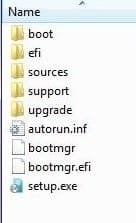
EXPANDEDSETUPCONTENTS-2009-10-22_061340.jpg
   Note

If you receive this error:

We are unable to create or save new files in the folder in which this application was downloaded. Please check the folder properties to make sure that you have security permission on the folder to write files and that the folder is not read-only.

Continue.


3. D/L this zip, extract it and copy/move oscdimg.exe into C:\Windows\system32.
View attachment oscdimg.zip
4. Assuming expandedsetup is on your Desktop:

Vista/7 users open an elevated command prompt ( rt click cmd and run as admin) and type :

Code:
Oscdimg.exe –u2 –b"C:\Users\your_username\Desktop\expandedSetup\boot\etfsboot.com" –h "C:\Users\your_username\Desktop\expandedSetup" C:\7.iso


XP users commands are:

Code:
cd /d C:\windows\system32


Code:
oscdimg -u2 -b"C:\Documents and Settings\USER\Desktop\expandedSetup\boot\etfsboot.com" -h "C:\Documents and Settings\USER\Desktop\expandedSetup" C:\7.iso


5. You can copy and paste the above into elevated cmd.

Vista/7 users- replace your_username with your actual username.

XP users - replace USER with your actual username

6. Then press enter. Xp users press enter after each of their two commands.

7. If the expandedsetup folder is not on your desktop, replace with appropriate paths.

   Tip
You may wish to copy the expandedsetup folder directly onto the root of C:

The paths will be shorter and the command will be:

Code:
Oscdimg.exe –u2 –bC:\expandedSetup\boot\etfsboot.com –h C:\expandedSetup C:\7.iso

If your folder is elsewhere, to get the paths easily, press shift and rt click on etfsboot.com - select copy as path ( paste into notepad )

Shift and rt click on expanded setup - select copy as path - paste into notepad ) Use those instead of the above.

The spacing needs to be exact.
   Warning
When the .iso is created you will get this message:

WARNING: This image contains UDF file system structures.

That is normal as you are creating the udf filesystem.


8. A) You can burn the .iso to dvd as an image with an isoburner.
View attachment isoburner.zip
OR

B) You can use the Microsoft DVD/USB tool to burn the .iso to dvd or to use the .iso to make a bootable flash drive. Download the tool:
View attachment Windows7-USB-DVD-tool.exe
   Tip
To make a copy of your Windows 7 ISO file:

1. Click the Start button, and click Windows 7 USB/DVD Download tool in the All Programs list to open the USB/DVD Download tool.
2. Click Browse and select the file in the Open dialog box.
3. Select USB to create a copy on a USB flash drive or DVD to create a copy on a DVD disk, then click Next.
4. If you are copying the file to a USB flash drive, select your USB device in the dropdown list and click Begin copying. If you are copying the file up to a DVD, click Begin burning.

Microsoft Store: Download Manager Help

   Note

Microsoft’s ISO Image for Windows 7 Now Available

There is additional information regarding the Windows 7 64-bit download process. For those customers of the Student Offer, who wish to install the 64-bit version of Windows 7, but are currently running a 32-bit Operating System, there is now an optional downloadable ISO file of Windows 7 64-bit to allow for install.

- If you have already purchased the 64-bit version of Windows 7 from the Windows 7 Student Offer Online Store, please contact Digital River at the following link: http://windows7.digitalriver.com/servlet/PromoServlet/promoID.46354000
· In the Web form select the Download Option in the drop down menu and include "64-bit Windows 7 Solution" in the first line of your problem description.


Have fun.


Last edited by a moderator:
This has got be the most ridiculous thing ever. I should have just bought the upgrade disc. Digital River should have at least told us that this would be an .exe and we would have to hack it to get it to work the way it should.


Sorry to hear you are having trouble with your downloaded files. Are you able to download again?
 

My Computers

System One System Two

  • Computer type
    PC/Desktop
    OS
    7 X64
    CPU
    i5 8400
    Motherboard
    gigabyte b365m ds3h
    Memory
    2x8gb 3200mhz
    Hard Drives
    various
    PSU
    pure power 11 400w cm
    Case
    Coolermaster
    Cooling
    cryorig m9i
  • Computer type
    PC/Desktop
    OS
    7x64
    CPU
    g5400
    Motherboard
    ga b365m ds3h
    Memory
    8gb ddr4 2400
    PSU
    xfx pro 450w
Seems to be working. Installing with Windows.old files.
i had bios set up to boot from disc first but i had to actively do it by mashing all my F# keys during startup.

is the windows.old a necessary evil? i thought i had read something about how this could be avoided.

windows.old is the old windows you had on the drive and Windows is keeping it for you if you want to recover it, or in case there are some files in it that you may need.

After a while (maybe a few months) you can delete it, if you never have any use for it anymore.
 

My Computer

OS
Windows 7
@ kk405

Well I burned the ISO (got that far) but it's not bootable. It says it can't find the boot.wim file. I tried it within Vista and after a restart of the computer. I noticed that the ISO file and the disc that I burned with Nero is only 205MB though. Did I do something wrong?

you definitely did something wrong. The image file that gets created, called '7.iso' is a single file that is 3.09GB in size.

ok. Then I'm going to redownload again. Sigh....
 

My Computer

OS
Vista
figured it out!!!!


ran command prompt as administrator

these are the type of differences between individual's PCs that crate many of these errors...

for exmpale I did NOT need to run the command prompt as an administrator, but apparently some have to.

It is in the original tutorial.
 

My Computers

System One System Two

  • Computer type
    PC/Desktop
    OS
    7 X64
    CPU
    i5 8400
    Motherboard
    gigabyte b365m ds3h
    Memory
    2x8gb 3200mhz
    Hard Drives
    various
    PSU
    pure power 11 400w cm
    Case
    Coolermaster
    Cooling
    cryorig m9i
  • Computer type
    PC/Desktop
    OS
    7x64
    CPU
    g5400
    Motherboard
    ga b365m ds3h
    Memory
    8gb ddr4 2400
    PSU
    xfx pro 450w
its not working for me it says oscdimg.exe is not recognized as an internal or external command, operable program or batch file

Move/copy oscdimg.exe into the C:\windows\Sytem32 folder

as in the original tutorial.


that folder has so many files in there though. im not sure i understand why i would put these files in there if i want to burn a boot dvd so that i can format my computer and then install a clean version of windows 7
 

My Computer

OS
vista
This has got be the most ridiculous thing ever. I should have just bought the upgrade disc. Digital River should have at least told us that this would be an .exe and we would have to hack it to get it to work the way it should.

+1...I would blame MSFT for this for the way they are delivering this to Digital River. MSFT should ahve sent them the exact image, and or packaged it in a way that it would be self-extracting and easily copied on a DVD...

for gods sake, this is 2009 and they still don't get this right...now, if Apple was doing this...
 

My Computer

OS
Windows 7
Well I take the folder off read only, then go to create the disc image. This error message keeps showing up:

ERROR: Unable to create file "C:\7.iso" of 3242131456 bytes
Error 5: Access is denied.

And when I go back to the properties of the folder, Read-only is still checked. Every time after I uncheck it and hit apply, after the dialog box closes it automatically makes the folder read only again.


I am having the same issue. and removing the read only attributes through the command prompt is rejected to. I can't make the iso. I have Windows Vista Home Premium 32 bit.
 

My Computer

OS
Windows 7 Profession x64
CPU
Cored 2 Quad
Memory
4 GB
Just that one file oscdimg.exe.

rt click on it and copy it, then rt click on the yellow folder System32 and paste.

Open an elevated command and by deafult it opens at C:\Windows \System32 which, by happy coincidence, is where you have just put the oscdimg.exe program you are about to run.
 

My Computers

System One System Two

  • Computer type
    PC/Desktop
    OS
    7 X64
    CPU
    i5 8400
    Motherboard
    gigabyte b365m ds3h
    Memory
    2x8gb 3200mhz
    Hard Drives
    various
    PSU
    pure power 11 400w cm
    Case
    Coolermaster
    Cooling
    cryorig m9i
  • Computer type
    PC/Desktop
    OS
    7x64
    CPU
    g5400
    Motherboard
    ga b365m ds3h
    Memory
    8gb ddr4 2400
    PSU
    xfx pro 450w
Well I take the folder off read only, then go to create the disc image. This error message keeps showing up:

ERROR: Unable to create file "C:\7.iso" of 3242131456 bytes
Error 5: Access is denied.

And when I go back to the properties of the folder, Read-only is still checked. Every time after I uncheck it and hit apply, after the dialog box closes it automatically makes the folder read only again.


I am having the same issue. and removing the read only attributes through the command prompt is rejected to. I can't make the iso. I have Windows Vista Home Premium 32 bit.

Create the .iso somewhere other than the root of the C drive.

If you have a D: drive, use D:\7.iso instead.

Otherwise, put it on e.g. the desktop, use

C:\Users\USERNAME\Desktop\7.iso
 

My Computers

System One System Two

  • Computer type
    PC/Desktop
    OS
    7 X64
    CPU
    i5 8400
    Motherboard
    gigabyte b365m ds3h
    Memory
    2x8gb 3200mhz
    Hard Drives
    various
    PSU
    pure power 11 400w cm
    Case
    Coolermaster
    Cooling
    cryorig m9i
  • Computer type
    PC/Desktop
    OS
    7x64
    CPU
    g5400
    Motherboard
    ga b365m ds3h
    Memory
    8gb ddr4 2400
    PSU
    xfx pro 450w
Seems to be working. Installing with Windows.old files.
i had bios set up to boot from disc first but i had to actively do it by mashing all my F# keys during startup.

is the windows.old a necessary evil? i thought i had read something about how this could be avoided.

windows.old is the old windows you had on the drive and Windows is keeping it for you if you want to recover it, or in case there are some files in it that you may need.

After a while (maybe a few months) you can delete it, if you never have any use for it anymore.

Thanks, i find this odd tho as im going from 32 to 64 so i thuoght it would be a clean wipe.
 

My Computer

OS
vista 32
Just that one file oscdimg.exe.

rt click on it and copy it, then rt click on the yellow folder System32 and paste.

Open an elevated command and by deafult it opens at C:\Windows \System32 which, by happy coincidence, is where you have just put the oscdimg.exe program you are about to run.


i dont know what an elevated command is. where do i put the expanded setup folder then? im sorry im lost.
 

My Computer

OS
vista
My mistake there is suppose to be no space between -bC:\User

Just there is suppose to be no space in etfsboot.com

I end up making my own line to use

oscdimg -bC:\Users\USERNAME\Desktop\expandedSetup\boot\etfsboot.com -h -u2 -m -lWIN_EN_DVD C:\Users\USERNAME\Desktop\expandedSetup\ C:\7.iso

That worked for me

Burning the ISO now :D Thanks!
 

My Computer

Computer Manufacturer/Model Number
Dell XPS M1530
OS
W7 64 Bit Home Premium
Graphics Card(s)
8600 M GT
After I burn the disk it says there is over 3 GB of stuff in it but I see no files whe nI click on it. Any I dea how I am messing this up????? Im using ImgBurn to burn the img on disk but this is just frustrating me now.
 

My Computer

Computer Manufacturer/Model Number
Cutsom
OS
Vista
CPU
3.ghz
Well I take the folder off read only, then go to create the disc image. This error message keeps showing up:

ERROR: Unable to create file "C:\7.iso" of 3242131456 bytes
Error 5: Access is denied.

And when I go back to the properties of the folder, Read-only is still checked. Every time after I uncheck it and hit apply, after the dialog box closes it automatically makes the folder read only again.


I am having the same issue. and removing the read only attributes through the command prompt is rejected to. I can't make the iso. I have Windows Vista Home Premium 32 bit.

Create the .iso somewhere other than the root of the C drive.

If you have a D: drive, use D:\7.iso instead.

Otherwise, put it on e.g. the desktop, use

C:\Users\USERNAME\Desktop\7.iso

The D drive gives error 5 access is denied
My username is 2 words: Jones Family, when I replace the username with Jones Family I get the response - unable to create file "C:\Users\Jones" of xxxx bytes Access is denied


What a mess
 

My Computer

OS
Windows 7 Profession x64
CPU
Cored 2 Quad
Memory
4 GB
Just that one file oscdimg.exe.

rt click on it and copy it, then rt click on the yellow folder System32 and paste.

Open an elevated command and by deafult it opens at C:\Windows \System32 which, by happy coincidence, is where you have just put the oscdimg.exe program you are about to run.


i dont know what an elevated command is. where do i put the expanded setup folder then? im sorry im lost.

Elevated Command Prompt- is just a technical term for running CMD.EXE in administrator mode. Start > Accessories > System tools(?) > Command Prompt (Right-Click/Run As Administrator). Or so I'm led to believe. Anyway that should help ya.
 

My Computer

Computer Manufacturer/Model Number
Dell XPS M1530
OS
W7 64 Bit Home Premium
Graphics Card(s)
8600 M GT
oscdimg -bC:\Users\Mike\Desktop\expandedSetup\boot\etfsboot.com -h -u2 -m -lWIN_EN_DVD C:\Users\Mike\Desktop\expandedSetup\ C:\7.iso

after trying that now it says.

error 5. access is denied :(
 

My Computer

OS
vista
Can I use the Windows Automated Installation Kit to upgrade from Vista 32 bit Home premium to windows 7 64 bit pro?
 

My Computer

OS
Windows 7 Profession x64
CPU
Cored 2 Quad
Memory
4 GB
After I burn the disk it says there is over 3 GB of stuff in it but I see no files whe nI click on it. Any I dea how I am messing this up????? Im using ImgBurn to burn the img on disk but this is just frustrating me now.

An ISO is a disc image, you need to trick your computer into thinking that there's an image > [ISO] in the drive by using an .ISO mounter, I use PowerISO for example. I believe that's what we're supposed to do. :cool:
 

My Computer

Computer Manufacturer/Model Number
Dell XPS M1530
OS
W7 64 Bit Home Premium
Graphics Card(s)
8600 M GT
Just that one file oscdimg.exe.

rt click on it and copy it, then rt click on the yellow folder System32 and paste.

Open an elevated command and by deafult it opens at C:\Windows \System32 which, by happy coincidence, is where you have just put the oscdimg.exe program you are about to run.


i dont know what an elevated command is. where do i put the expanded setup folder then? im sorry im lost.

Elevated Command Prompt- is just a technical term for running CMD.EXE in administrator mode. Start > Accessories > System tools(?) > Command Prompt (Right-Click/Run As Administrator). Or so I'm led to believe. Anyway that should help ya.


That worked for me!!!!
 

My Computer

OS
Windows 7 Profession x64
CPU
Cored 2 Quad
Memory
4 GB
ok so now it was doing the iso file, but idk where it is. all it says on cmd is done.
 

My Computer

OS
vista
Back
Top