Where are the Most Recently Used Lists?

TDKMate

New member
Member
VIP
Local time
8:15 PM
Messages
335
I hope I'm putting this in the right forum...

I remember in prior Windows versions, there were programs you could use that would find and remove/edit MRU lists *for specific programs.*

In other words (pick any program here), if I wanted to clear the MRU list for VLC, or Word, I could do so without affecting any other MRU list.

I've Googled this and not only can I find a program to do this, I can't even find where Windows keeps the lists so I can groom them manually.

Any idea on how I can do this?
 

My Computer

Computer type
PC/Desktop
Computer Manufacturer/Model Number
home built
OS
Win 7 Pro 64 SP1
CPU
i7 6700K SkyLake
Motherboard
MSI Gaming M7
Memory
32 GB
Graphics Card(s)
nVidia GTX 970
Sound Card
onboard
Monitor(s) Displays
DELL U2711
Screen Resolution
2560x1440
Hard Drives
1 SSD OS, 2 WD Black Caviar data harddrives
PSU
EVGA Super Nova 850W G2 'Gold'
Case
Thermaltake Soprano Snow Edition
Cooling
Cooler Master Hyper 212 evo
Keyboard
Logitech K350
Mouse
Mad Kats RATT
Antivirus
Avast
Browser
Firefox
Well I'm not sure about an MRU List cleaner that only deals with MRU Lists.

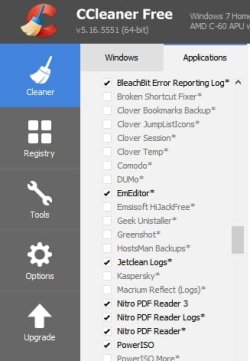
Personally I use Ccleaner with CCEnhancer add on and manually edit the winapp2.ini file to make MRU List entries appear as an option that can be cleaned.

See examples from winapp2.ini:

Code:
[EmEditor*]
LangSecRef=3024
Detect=HKCU\Software\EmSoft\EmEditor v3
Default=False
RegKey1=HKCU\Software\EmSoft\EmEditor v3\[B]Recent[/B] File List
RegKey2=HKCU\Software\EmSoft\EmEditor v3\Recent Folder List
RegKey3=HKCU\Software\EmSoft\EmEditor v3\Recent Font List
Unfortunately even the winapp2.ini file doesn't include all MRU locations for all software and sometimes isn't up to date and needs to be modified manually.

Example:

Default entry for Nitro PDF recent docs list:

Code:
[Nitro PDF Reader*]

LangSecRef=3024

Detect=HKCU\Software\Nitro PDF\Reader

RegKey1=HKCU\Software\Nitro PDF\Reader\1.0\Recent File List

RegKey2=HKCU\Software\Nitro PDF\Reader\2.0\Recent File List
Well it doesn't include detections for Nitro PDF 3.0 and would need to be modified in order to work as follows:

Code:
[Nitro PDF Reader*]
LangSecRef=3024
Detect=HKCU\Software\Nitro\Reader
Default=False
RegKey1=HKCU\Software\Nitro\Reader\3.0\Recent File List
See this post for a little more info:

http://www.sevenforums.com/software...version-released-post2947947.html#post2947947

I would recommend using CCEnhancer to trim winapp2.ini automatically.
CCEnhancer.jpg
It is possible to just trim winapp2.ini on demand via "Advanced Settings"

Now the problem is that for some lesser known programs you need to hunt down the MRU list and manually add the location to the winapp2.ini file but once you've done that it works okay.

Once you've added the entries they appear as "added applications" to clean in Ccleaner's list. The ones follwed by an asterisk (*) are not default in Ccleaner and have been added.
Piriform CCleaner.jpg
Other interesting utilities to deal with Windows MRU Lists:

RecentFilesView - View the list of recently opened files

CleanAfterMe - Clean Registry entries and files in your system

EDIT: To answer your question more speciffically - to clean an individual lists check or uncheck the checkboxes in Ccleaner before running.

For those entries with an asterisk (added entries) you can't clean individual entries.

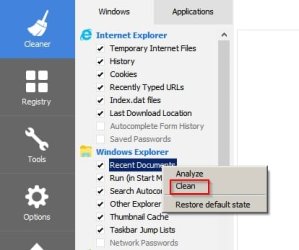
You can right click and choose to clean individual items.
Clean Entry.jpg

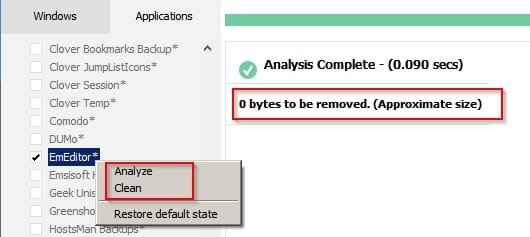
EDIT: Just tested and you can clean individual lists but for me Ccleaner shows no results and reports 0 bytes cleaned in the results window but it still cleans individual lists.

Example:

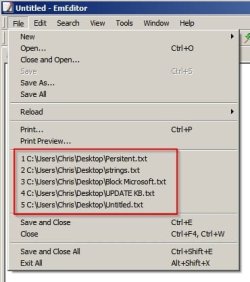
EMeditor before cleaning:
EmEditor MRU.jpg
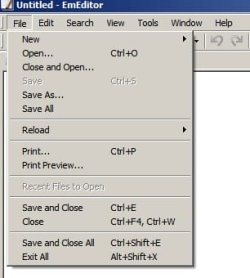
After:
EmEditor MRU 2.jpg
It's confusing because Ccleaner shows no results when EMeditor is selected for either analysis or cleaning but indeed it does remove the MRU list.
EMeditor CCleaner.jpg

Actually there are no results displayed as only registry entries are being deleted rather than files! :)
 
Last edited:

My Computer

Computer type
Laptop
Computer Manufacturer/Model Number
ASUS
OS
Microsoft Windows 7 Home Premium 64-bit 7601 Multiprocessor Free Service Pack 1
CPU
AMD C-60 APU with Radeon(tm) HD Graphics
Motherboard
ASUSTeK COMPUTER INC. X501U
Memory
4.00 GB
Graphics Card(s)
AMD Radeon HD 6290 Graphics
Sound Card
(1) AMD High Definition Audio Device (2) Realtek High Defi
Screen Resolution
1366 x 768 x 32 bits (4294967296 colors) @ 60 Hz
Hard Drives
Hitachi HTS545050A7E380 SATA Disk Device
Antivirus
Comodo CIS & FW, SecureAplus App Whitelisting, Threatfire
Browser
Cyberfox 64bit, Opera 64bit, Airfox
Other Info
Spy-The-Spy, HitmanPro.Alert, Norton Connect Safe, MJRegWatcher, BitDefender TrafficLight, Voodoo Shield, Zemana AntiMalware
Hi Callender. I installed CCEnhancer after updating CCleaner and 'played' with it some, even looking into the .ini file. I used your 'trim' trick, too. Editing it as in your examples I think is over my head. And scary for me, actually.

Using your example, I searched the registry for HKCU\Software, and combinations, and didn't find anything. And that's after using CCleaner/CCEhance.

I did spend a lot of time, today and in the past, trying to find MRU info and locations in the registry, but no luck, not even close.

I also looked into your link for RecentFilesView and even searched the registry for the location they say the lists should be, but no luck again.

Don't get me wrong, I do like most MRU lists. Like when I took another look at the winapp2.ini file, I just right clicked and picked it from the list. The annoying part of the lists is like VLC video player where I'm just going thru and organizing hundreds of my home video files that are scattered all over, and then move the files. And things like photo editor lists where I edit for friends and don't need their stuff mixed in with my lists, and often no longer on my computer.

What I have been doing is simply right clicking and clicking on 'remove from this list' for each item I want to remove. It's just a pain but not overbearing.


Nothing simpler I assume :(
 

My Computer

Computer type
PC/Desktop
Computer Manufacturer/Model Number
home built
OS
Win 7 Pro 64 SP1
CPU
i7 6700K SkyLake
Motherboard
MSI Gaming M7
Memory
32 GB
Graphics Card(s)
nVidia GTX 970
Sound Card
onboard
Monitor(s) Displays
DELL U2711
Screen Resolution
2560x1440
Hard Drives
1 SSD OS, 2 WD Black Caviar data harddrives
PSU
EVGA Super Nova 850W G2 'Gold'
Case
Thermaltake Soprano Snow Edition
Cooling
Cooler Master Hyper 212 evo
Keyboard
Logitech K350
Mouse
Mad Kats RATT
Antivirus
Avast
Browser
Firefox
Okay I see what you mean. I thought you needed a way to clean the entire MRU file list of specific programs rather than edit the contents of specific MRU lists for various programs.

Well the problem with that approach is that they are stored in different ways depending upon the program.

Examples include:

Stored in lists in the registry
Stored in .ini files
Stored in .xml files
Stored in .dpl files

Then probably a lot more that I don't know about!

If anyone has created a program that can index the default locations for all recently used file lists and read and edit individual entries then would anyone reading this thread please post details.

As you described the way to clear individual entries is from within the program itself but that is really time consuming.

I actually stopped using VLC some time ago and swithched to PotPlayer so I don't even have VLC installed.

For VLC there is a program that I used previously that can index all your videos and create and manage playlists. I still use it with PotPlayer but it only has full functionality when used with VLC installed so I can't help much with instructions or screenshots.

If you move videos around you can just include paths and rescan.

Video Manager.jpg

File Safety Check:

VideoManager_SigcheckGUI.jpg

You might want to try it so here's the link if you want to test it.

Saleen Video Manager (WMV, MPEG, FLV...)

EDIT: Avoid downloading codec packs as VLC should contain everything that is needed for the software to work.
 
Last edited:

My Computer

Computer type
Laptop
Computer Manufacturer/Model Number
ASUS
OS
Microsoft Windows 7 Home Premium 64-bit 7601 Multiprocessor Free Service Pack 1
CPU
AMD C-60 APU with Radeon(tm) HD Graphics
Motherboard
ASUSTeK COMPUTER INC. X501U
Memory
4.00 GB
Graphics Card(s)
AMD Radeon HD 6290 Graphics
Sound Card
(1) AMD High Definition Audio Device (2) Realtek High Defi
Screen Resolution
1366 x 768 x 32 bits (4294967296 colors) @ 60 Hz
Hard Drives
Hitachi HTS545050A7E380 SATA Disk Device
Antivirus
Comodo CIS & FW, SecureAplus App Whitelisting, Threatfire
Browser
Cyberfox 64bit, Opera 64bit, Airfox
Other Info
Spy-The-Spy, HitmanPro.Alert, Norton Connect Safe, MJRegWatcher, BitDefender TrafficLight, Voodoo Shield, Zemana AntiMalware
Hi Callender. Sorry I wasn't more clear on what I was after. Sure seems like not much is simple anymore... Oh well.


I checked into Saleen Video Manager as you suggested. It's nice but has the same problem my current 'video manager' has (and why I don't use it!): You can't rename and move files around in it. Yes, you can build/rebuild libraries, playlists, etc, but I don't really need that. Here's a link to a forum page on it:

Saleen Software - Topic Messages

While I use Windows Explorer a lot in my photo shuffling, I'm also use to my photo editors having built-in functions to rename and move photos, and create folders/sub-folders and the like. So that's pretty much what I expect in a 'video manager.'


So I guess I have to stick with my current method until something better comes along: go thru all the multiple folders all over my HDDs, view each video (most with the cryptic camera file name like 12345678.mov or the like), rename it appropriately, then move it to the folder/drive the general category is located in.

Yes, I've been terribly disorganized over the year in my both my photos and videos, but I'm working on it, LOL.

VLC works fine for me, but I'll still check out PotPlayer.
 

My Computer

Computer type
PC/Desktop
Computer Manufacturer/Model Number
home built
OS
Win 7 Pro 64 SP1
CPU
i7 6700K SkyLake
Motherboard
MSI Gaming M7
Memory
32 GB
Graphics Card(s)
nVidia GTX 970
Sound Card
onboard
Monitor(s) Displays
DELL U2711
Screen Resolution
2560x1440
Hard Drives
1 SSD OS, 2 WD Black Caviar data harddrives
PSU
EVGA Super Nova 850W G2 'Gold'
Case
Thermaltake Soprano Snow Edition
Cooling
Cooler Master Hyper 212 evo
Keyboard
Logitech K350
Mouse
Mad Kats RATT
Antivirus
Avast
Browser
Firefox
I never noticed that files couldn't be moved around using Saleen Video Manager. It is possible to rename them though!

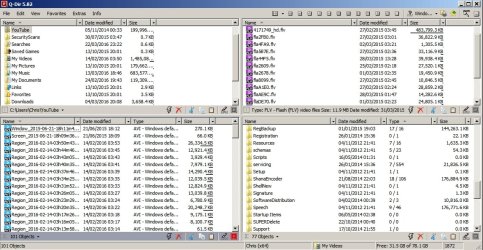
Regarding Windows Explorer for photo shuffling - or moving any types of files in groups - I pretty much never use Explorer. Instead I'll use Q-Dir (Portable so no install) with four windows open and move files around by selecting them and dragging them either one at a time or in groups.

Q-Dir 5.82.jpg

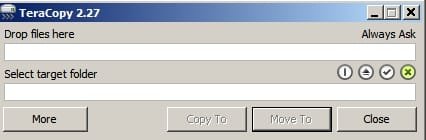
For large video files I tend to use TeraCopy. You can drop multiple files into it from multiple locations but you can only move them to a single selected folder.

Teracopy.jpg

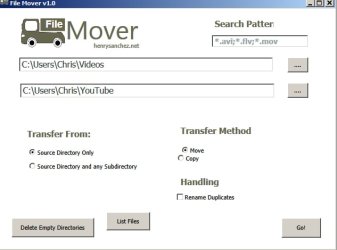
For moving all files of a particular type (or types) I use File Mover.

File Mover v1.0.jpg

I guess we all have our own methods but I find these programs work well!
 

My Computer

Computer type
Laptop
Computer Manufacturer/Model Number
ASUS
OS
Microsoft Windows 7 Home Premium 64-bit 7601 Multiprocessor Free Service Pack 1
CPU
AMD C-60 APU with Radeon(tm) HD Graphics
Motherboard
ASUSTeK COMPUTER INC. X501U
Memory
4.00 GB
Graphics Card(s)
AMD Radeon HD 6290 Graphics
Sound Card
(1) AMD High Definition Audio Device (2) Realtek High Defi
Screen Resolution
1366 x 768 x 32 bits (4294967296 colors) @ 60 Hz
Hard Drives
Hitachi HTS545050A7E380 SATA Disk Device
Antivirus
Comodo CIS & FW, SecureAplus App Whitelisting, Threatfire
Browser
Cyberfox 64bit, Opera 64bit, Airfox
Other Info
Spy-The-Spy, HitmanPro.Alert, Norton Connect Safe, MJRegWatcher, BitDefender TrafficLight, Voodoo Shield, Zemana AntiMalware
Manually edit VLC's recent file list

Okay so here's what I found:

(Installed VLC as non default media player to get Saleen Video Manager to display thumbnails but still use PotPlayer as default player)

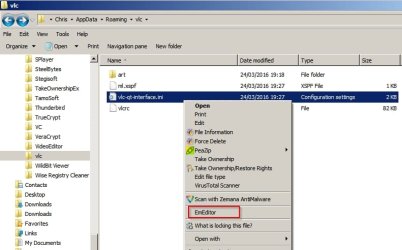
VLC stores it's recent file list here:

Start> Run then type

%AppData%\vlc

Press Enter.

In that folder there should be a file named vlc-qt-interface.ini

VLC recent files 2.jpg

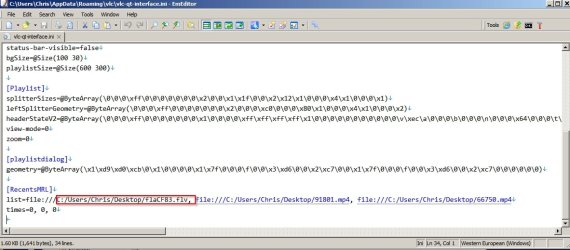
Make sure that VLC is not running then open vlc-qt-interface.ini using your text editor and scroll down to:

[RecentsMRL]

You can delete entries at will and save the file.

VLC recent files 3.jpg

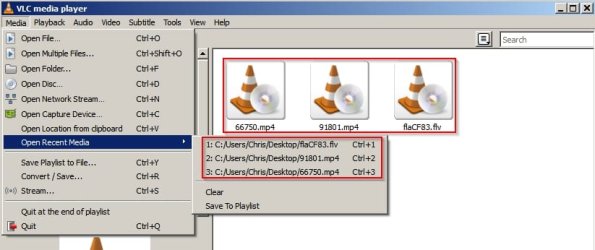
The removed entries will no longer appear in VLC's recent file list.


Before editing vlc-qt-interface.ini
VLC recent files.jpg

After editing vlc-qt-interface.ini
VLC recent files 4.jpg

There is a mistake in the screenshot I posted:
VLC recent files 3.jpg

For the first file in the list - deleting the entry involves deleting everything in the path shown in the red box but also should have included the trailing file:/// or in other words everything up to the second drive letter. Sorry if that's not clear!

For anything other than the first entry in the list just delete everything between the space and the following comma.

Don't forget to save the file!

Hopefully that helps. :)

EDIT: I should state that I used the 64bit version of VLC when looking for the recent files list. I guess it's the same in the 32bit version but am not entirely sure.
 
Last edited:

My Computer

Computer type
Laptop
Computer Manufacturer/Model Number
ASUS
OS
Microsoft Windows 7 Home Premium 64-bit 7601 Multiprocessor Free Service Pack 1
CPU
AMD C-60 APU with Radeon(tm) HD Graphics
Motherboard
ASUSTeK COMPUTER INC. X501U
Memory
4.00 GB
Graphics Card(s)
AMD Radeon HD 6290 Graphics
Sound Card
(1) AMD High Definition Audio Device (2) Realtek High Defi
Screen Resolution
1366 x 768 x 32 bits (4294967296 colors) @ 60 Hz
Hard Drives
Hitachi HTS545050A7E380 SATA Disk Device
Antivirus
Comodo CIS & FW, SecureAplus App Whitelisting, Threatfire
Browser
Cyberfox 64bit, Opera 64bit, Airfox
Other Info
Spy-The-Spy, HitmanPro.Alert, Norton Connect Safe, MJRegWatcher, BitDefender TrafficLight, Voodoo Shield, Zemana AntiMalware
I never noticed that files couldn't be moved around using Saleen Video Manager. It is possible to rename them though!

Regarding Windows Explorer for photo shuffling - or moving any types of files in groups - I pretty much never use Explorer. Instead I'll use Q-Dir (Portable so no install) with four windows open and move files around by selecting them and dragging them either one at a time or in groups.For large video files I tend to use TeraCopy. You can drop multiple files into it from multiple locations but you can only move them to a single selected folder.For moving all files of a particular type (or types) I use File Mover.I guess we all have our own methods but I find these programs work well!

Hi Callender. Thanks for mentioning you can rename files in Saleen Video Manager. That alone will save a lot of hassle and time. Currently, I view the files in VLC, then I have to exit VLC so I can rename the file, then on to the next file, rinse and repeat. That's one of the reasons I'm so far behind in organizing; I don't have 'all day' to sit around and rename files, so I just do a few at a time.

I've downloaded Saleen Video Manager and will be giving it a try :)

I checked out Q-Dir and it, too, seems real handy. I've downloaded the 64 bit portable version and will be giving it a try too.

I'll hold off on the file movers for a bit. I want to give the above a try first, and see how things work.

Thanks!
 

My Computer

Computer type
PC/Desktop
Computer Manufacturer/Model Number
home built
OS
Win 7 Pro 64 SP1
CPU
i7 6700K SkyLake
Motherboard
MSI Gaming M7
Memory
32 GB
Graphics Card(s)
nVidia GTX 970
Sound Card
onboard
Monitor(s) Displays
DELL U2711
Screen Resolution
2560x1440
Hard Drives
1 SSD OS, 2 WD Black Caviar data harddrives
PSU
EVGA Super Nova 850W G2 'Gold'
Case
Thermaltake Soprano Snow Edition
Cooling
Cooler Master Hyper 212 evo
Keyboard
Logitech K350
Mouse
Mad Kats RATT
Antivirus
Avast
Browser
Firefox
Okay so here's what I found:

(Installed VLC as non default media player to get Saleen Video Manager to display thumbnails but still use PotPlayer as default player)

VLC stores it's recent file list here:

Start> Run then type

%AppData%\vlc

Press Enter.

In that folder there should be a file named vlc-qt-interface.iniMake sure that VLC is not running then open vlc-qt-interface.ini using your text editor and scroll down to:

[RecentsMRL]

You can delete entries at will and save the file.The removed entries will no longer appear in VLC's recent file list.


Before editing vlc-qt-interface.iniAfter editing vlc-qt-interface.iniThere is a mistake in the screenshot I posted:
View attachment 384078

For the first file in the list - deleting the entry involves deleting everything in the path shown in the red box but also should have included the trailing file:/// or in other words everything up to the second drive letter. Sorry if that's not clear!

For anything other than the first entry in the list just delete everything between the space and the following comma.

Don't forget to save the file!

Hopefully that helps. :)

EDIT: I should state that I used the 64bit version of VLC when looking for the recent files list. I guess it's the same in the 32bit version but am not entirely sure.

Hi Callender. Good detective work! I found the .ini file, but I don't have the [RecentMRL] section. I think that's because, in trying to figure it out, I turned off the 'Save recently played items' option under Preferences, Interface tab.

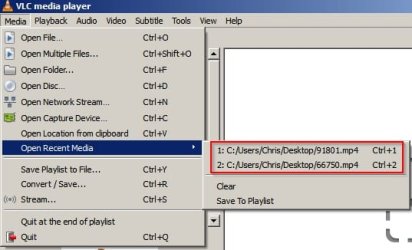
However, Windows still saves the list of files played: if I click on the Start button and then hover over VLC the list still accumulates and shows. :(

I don't know... I think I'll give up on this as there's no easy fix. I'll just keep deleted the unwanted entries manually.

I do appreciate all your time and effort!!

Thanks :)
 

My Computer

Computer type
PC/Desktop
Computer Manufacturer/Model Number
home built
OS
Win 7 Pro 64 SP1
CPU
i7 6700K SkyLake
Motherboard
MSI Gaming M7
Memory
32 GB
Graphics Card(s)
nVidia GTX 970
Sound Card
onboard
Monitor(s) Displays
DELL U2711
Screen Resolution
2560x1440
Hard Drives
1 SSD OS, 2 WD Black Caviar data harddrives
PSU
EVGA Super Nova 850W G2 'Gold'
Case
Thermaltake Soprano Snow Edition
Cooling
Cooler Master Hyper 212 evo
Keyboard
Logitech K350
Mouse
Mad Kats RATT
Antivirus
Avast
Browser
Firefox
I found the .ini file, but I don't have the [RecentMRL] section. I think that's because, in trying to figure it out, I turned off the 'Save recently played items' option under Preferences, Interface tab.

If you turn that off it clears the entire list.

However, Windows still saves the list of files played: if I click on the Start button and then hover over VLC the list still accumulates and shows. :(

Okay that's totally different. You wanted to clear individual items from a program's list of recently used files. That's not the same as Windows recent files list.

The only easy option for Windows recent files is to clear the lists entirely. If you delete individual items the list just gets repopulated showing older items.

See the tutorial here:

How to Clear Recent Items List in Windows 7

if I click on the Start button and then hover over VLC the list still accumulates and shows.

That sounds like a jumplist. Try unpinning VLC fom the Start Menu.

Of clear jumplists:

http://www.sevenforums.com/tutorials/81483-jump-lists-reset-clear-all-items.html

Again - it's a clear all or clear nothing approach.
 
Last edited:

My Computer

Computer type
Laptop
Computer Manufacturer/Model Number
ASUS
OS
Microsoft Windows 7 Home Premium 64-bit 7601 Multiprocessor Free Service Pack 1
CPU
AMD C-60 APU with Radeon(tm) HD Graphics
Motherboard
ASUSTeK COMPUTER INC. X501U
Memory
4.00 GB
Graphics Card(s)
AMD Radeon HD 6290 Graphics
Sound Card
(1) AMD High Definition Audio Device (2) Realtek High Defi
Screen Resolution
1366 x 768 x 32 bits (4294967296 colors) @ 60 Hz
Hard Drives
Hitachi HTS545050A7E380 SATA Disk Device
Antivirus
Comodo CIS & FW, SecureAplus App Whitelisting, Threatfire
Browser
Cyberfox 64bit, Opera 64bit, Airfox
Other Info
Spy-The-Spy, HitmanPro.Alert, Norton Connect Safe, MJRegWatcher, BitDefender TrafficLight, Voodoo Shield, Zemana AntiMalware
I found the .ini file, but I don't have the [RecentMRL] section. I think that's because, in trying to figure it out, I turned off the 'Save recently played items' option under Preferences, Interface tab.

If you turn that off it clears the entire list.

However, Windows still saves the list of files played: if I click on the Start button and then hover over VLC the list still accumulates and shows. :(

Okay that's totally different. You wanted to clear individual items from a program's list of recently used files. That's not the same as Windows recent files list.

The only easy option for Windows recent files is to clear the lists entirely. If you delete individual items the list just gets repopulated showing older items.

See the tutorial here:

How to Clear Recent Items List in Windows 7

if I click on the Start button and then hover over VLC the list still accumulates and shows.

That sounds like a jumplist. Try unpinning VLC fom the Start Menu.

Of clear jumplists:

http://www.sevenforums.com/tutorials/81483-jump-lists-reset-clear-all-items.html

Again - it's a clear all or clear nothing approach.
Hi Callender. Thanks for all the info :) - I'll check it out and go from there.
.
 

My Computer

Computer type
PC/Desktop
Computer Manufacturer/Model Number
home built
OS
Win 7 Pro 64 SP1
CPU
i7 6700K SkyLake
Motherboard
MSI Gaming M7
Memory
32 GB
Graphics Card(s)
nVidia GTX 970
Sound Card
onboard
Monitor(s) Displays
DELL U2711
Screen Resolution
2560x1440
Hard Drives
1 SSD OS, 2 WD Black Caviar data harddrives
PSU
EVGA Super Nova 850W G2 'Gold'
Case
Thermaltake Soprano Snow Edition
Cooling
Cooler Master Hyper 212 evo
Keyboard
Logitech K350
Mouse
Mad Kats RATT
Antivirus
Avast
Browser
Firefox
I never noticed that files couldn't be moved around using Saleen Video Manager. It is possible to rename them though!

Regarding Windows Explorer for photo shuffling - or moving any types of files in groups - I pretty much never use Explorer. Instead I'll use Q-Dir (Portable so no install) with four windows open and move files around by selecting them and dragging them either one at a time or in groups.For large video files I tend to use TeraCopy. You can drop multiple files into it from multiple locations but you can only move them to a single selected folder.For moving all files of a particular type (or types) I use File Mover.I guess we all have our own methods but I find these programs work well!

I downloaded Q-Dir and in just a few moments I can tell it'll be a great time saver! And it seems to have a lot of features I'll have to explore. One thing I love right off-the-bat is that it remembers where you were the last time you used it! That alone saves some frustration in trying to remember where you left off in multiple Explorer windows :)

Thanks!

The Saleen Video Manager is a different story, though. I just can't get it to work. I've have a bad case of the flu symptoms the last couple of days, so I'm a little foggy and may be missing something simple...

Before I mention what it isn't doing, I should mention that you, understandably, still can't rename a file with the video viewer open. So, since you still have to close the viewer/player, Q-Dir will work just fine for my renaming needs. And I don't need catalogs or playlists. So even if I get it working, I don't know if I'll keep it installed; it'll have to have a feature I can't live without.

So the three easy steps given when you start Saleen Video Manager sure seem easy enough, but nothing happens. The rendering is VLC. I've manually typed the location to 'Add Folders,' as well as using copy-n-paste of the location, and used the Browse for location.

The added Folders do show up in Library Paths. I click on Rescan as directed. And nothing appears other than the video files the program found in the "Videos" folder when it started for the first time.

Frame generation is set to Auto.

In looking (again) for some sort of help file, I just now noticed an 'Unlock' option under the Menu. I clicked on it and it said, "To unlock the program please enter the email you used to make payment."

I didn't buy it; I thought it was free...?
 

My Computer

Computer type
PC/Desktop
Computer Manufacturer/Model Number
home built
OS
Win 7 Pro 64 SP1
CPU
i7 6700K SkyLake
Motherboard
MSI Gaming M7
Memory
32 GB
Graphics Card(s)
nVidia GTX 970
Sound Card
onboard
Monitor(s) Displays
DELL U2711
Screen Resolution
2560x1440
Hard Drives
1 SSD OS, 2 WD Black Caviar data harddrives
PSU
EVGA Super Nova 850W G2 'Gold'
Case
Thermaltake Soprano Snow Edition
Cooling
Cooler Master Hyper 212 evo
Keyboard
Logitech K350
Mouse
Mad Kats RATT
Antivirus
Avast
Browser
Firefox
It is free and you don't need to register it.

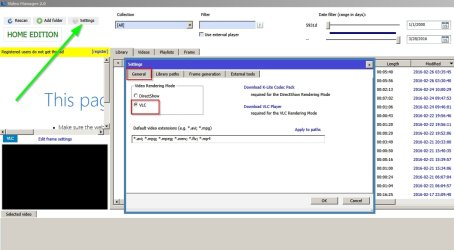
Here's what I see:

Settings> General tab
Video Manager Settings 1.jpg

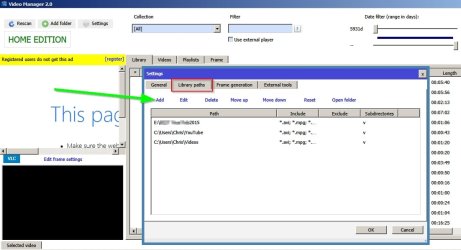
Add Library Path (where green arrow is pointing)
Video Manager Settings 2.jpg

Rescan Library and 135 new videos now included from added Llbrary path
Video Manager Settings 3.jpg
 

My Computer

Computer type
Laptop
Computer Manufacturer/Model Number
ASUS
OS
Microsoft Windows 7 Home Premium 64-bit 7601 Multiprocessor Free Service Pack 1
CPU
AMD C-60 APU with Radeon(tm) HD Graphics
Motherboard
ASUSTeK COMPUTER INC. X501U
Memory
4.00 GB
Graphics Card(s)
AMD Radeon HD 6290 Graphics
Sound Card
(1) AMD High Definition Audio Device (2) Realtek High Defi
Screen Resolution
1366 x 768 x 32 bits (4294967296 colors) @ 60 Hz
Hard Drives
Hitachi HTS545050A7E380 SATA Disk Device
Antivirus
Comodo CIS & FW, SecureAplus App Whitelisting, Threatfire
Browser
Cyberfox 64bit, Opera 64bit, Airfox
Other Info
Spy-The-Spy, HitmanPro.Alert, Norton Connect Safe, MJRegWatcher, BitDefender TrafficLight, Voodoo Shield, Zemana AntiMalware
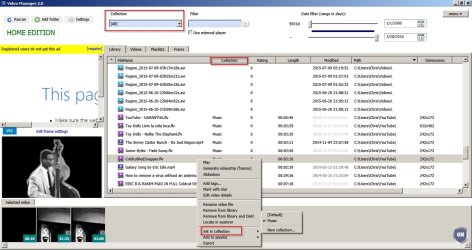
What works for me is:

Add videos to collections (create a name for the collection)

Additionally add all folder paths to any videos that you want to index and optionally sort by path.

Video Manager Settings 4.jpg

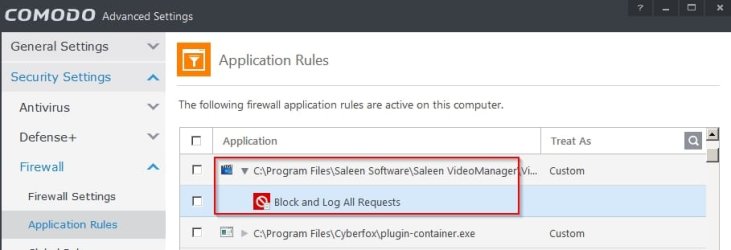
I suppose that I should add that the program is blocked from the internet via my firewall.

COMODO Advanced Settings.jpg
 

My Computer

Computer type
Laptop
Computer Manufacturer/Model Number
ASUS
OS
Microsoft Windows 7 Home Premium 64-bit 7601 Multiprocessor Free Service Pack 1
CPU
AMD C-60 APU with Radeon(tm) HD Graphics
Motherboard
ASUSTeK COMPUTER INC. X501U
Memory
4.00 GB
Graphics Card(s)
AMD Radeon HD 6290 Graphics
Sound Card
(1) AMD High Definition Audio Device (2) Realtek High Defi
Screen Resolution
1366 x 768 x 32 bits (4294967296 colors) @ 60 Hz
Hard Drives
Hitachi HTS545050A7E380 SATA Disk Device
Antivirus
Comodo CIS & FW, SecureAplus App Whitelisting, Threatfire
Browser
Cyberfox 64bit, Opera 64bit, Airfox
Other Info
Spy-The-Spy, HitmanPro.Alert, Norton Connect Safe, MJRegWatcher, BitDefender TrafficLight, Voodoo Shield, Zemana AntiMalware
What works for me is:

Add videos to collections (create a name for the collection)

Additionally add all folder paths to any videos that you want to index and optionally sort by path.I suppose that I should add that the program is blocked from the internet via my firewall.
Hi Callender.

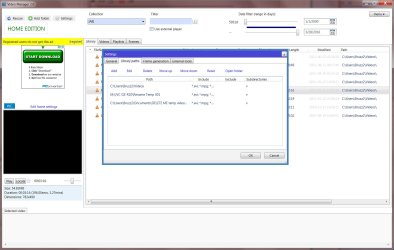
I don't get anything like you get :( -- See attachments.

On your two posts above, Yes I have it set to VLC, and I've added Paths under Library Paths.

However, when I hit Rescan, nothing happens. I don't get the Scanning Library window popup you show.

On your post above, I don't get any files listed from other 'paths.' You'll see in the attachment I have 3 paths, but only the default 'Videos' path is showing. And there's no 'preview' on the left, or on the bottom.

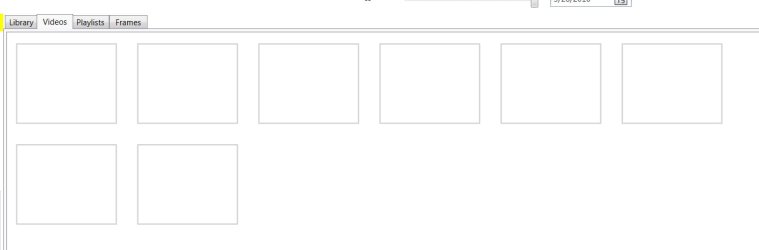
I also have only blank squares under the Videos tab, as in the second attachment.
.
 

Attachments

  • video manager 1.jpg
    video manager 1.jpg
    628 KB · Views: 0
  • video manager 2.jpg
    video manager 2.jpg
    61 KB · Views: 0

My Computer

Computer type
PC/Desktop
Computer Manufacturer/Model Number
home built
OS
Win 7 Pro 64 SP1
CPU
i7 6700K SkyLake
Motherboard
MSI Gaming M7
Memory
32 GB
Graphics Card(s)
nVidia GTX 970
Sound Card
onboard
Monitor(s) Displays
DELL U2711
Screen Resolution
2560x1440
Hard Drives
1 SSD OS, 2 WD Black Caviar data harddrives
PSU
EVGA Super Nova 850W G2 'Gold'
Case
Thermaltake Soprano Snow Edition
Cooling
Cooler Master Hyper 212 evo
Keyboard
Logitech K350
Mouse
Mad Kats RATT
Antivirus
Avast
Browser
Firefox
The added Folders do show up in Library Paths. I click on Rescan as directed. And nothing appears other than the video files the program found in the "Videos" folder when it started for the first time.

Frame generation is set to Auto.

In looking (again) for some sort of help file.

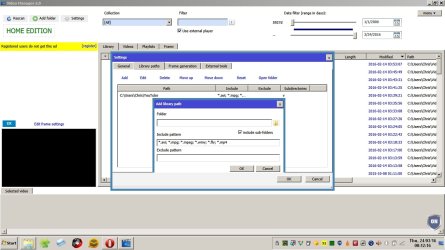
I wonder if your videos are in formats other than those listed? If so you will need to define the extensions.

Video Manager 2.0.jpg

Example - adding .m4v and .ogv

Code:
*.avi; *.mpg; *.mpeg; *.wmv; *.flv; *.mp4; [B]*.m4v; *.ogv[/B]

There's no help file but there are a few "help buttons"
 

My Computer

Computer type
Laptop
Computer Manufacturer/Model Number
ASUS
OS
Microsoft Windows 7 Home Premium 64-bit 7601 Multiprocessor Free Service Pack 1
CPU
AMD C-60 APU with Radeon(tm) HD Graphics
Motherboard
ASUSTeK COMPUTER INC. X501U
Memory
4.00 GB
Graphics Card(s)
AMD Radeon HD 6290 Graphics
Sound Card
(1) AMD High Definition Audio Device (2) Realtek High Defi
Screen Resolution
1366 x 768 x 32 bits (4294967296 colors) @ 60 Hz
Hard Drives
Hitachi HTS545050A7E380 SATA Disk Device
Antivirus
Comodo CIS & FW, SecureAplus App Whitelisting, Threatfire
Browser
Cyberfox 64bit, Opera 64bit, Airfox
Other Info
Spy-The-Spy, HitmanPro.Alert, Norton Connect Safe, MJRegWatcher, BitDefender TrafficLight, Voodoo Shield, Zemana AntiMalware
Okay sorry for all the posts on this but I had never needed to look at the program in any depth as it worked okay for me.

It is possible to define video file extensions to be monitored without needing to manually type them each time.

If you open the following folder:

%Userprofile%\AppData\Roaming\Saleen VideoManager

You should find a file named VideoManagerWpf.ini

If you open it with your text editor you can view or edit monitored paths. You can also permanently define the list of extensions to be included when adding Library Paths via the program's GUI.

Scroll down to: [edVideoExtensions.Text]

Then add extensions:
[edVideoExtensions.Text]
>*.avi; *.mpg; *.mpeg; *.wmv; *.flv; *.mp4; *.m4v; *.ogv

Save the file!
 

My Computer

Computer type
Laptop
Computer Manufacturer/Model Number
ASUS
OS
Microsoft Windows 7 Home Premium 64-bit 7601 Multiprocessor Free Service Pack 1
CPU
AMD C-60 APU with Radeon(tm) HD Graphics
Motherboard
ASUSTeK COMPUTER INC. X501U
Memory
4.00 GB
Graphics Card(s)
AMD Radeon HD 6290 Graphics
Sound Card
(1) AMD High Definition Audio Device (2) Realtek High Defi
Screen Resolution
1366 x 768 x 32 bits (4294967296 colors) @ 60 Hz
Hard Drives
Hitachi HTS545050A7E380 SATA Disk Device
Antivirus
Comodo CIS & FW, SecureAplus App Whitelisting, Threatfire
Browser
Cyberfox 64bit, Opera 64bit, Airfox
Other Info
Spy-The-Spy, HitmanPro.Alert, Norton Connect Safe, MJRegWatcher, BitDefender TrafficLight, Voodoo Shield, Zemana AntiMalware
I don't get anything like you get :( -- See attachments.

On your two posts above, Yes I have it set to VLC, and I've added Paths under Library Paths.

However, when I hit Rescan, nothing happens. I don't get the Scanning Library window popup you show.

On your post above, I don't get any files listed from other 'paths.' You'll see in the attachment I have 3 paths, but only the default 'Videos' path is showing. And there's no 'preview' on the left, or on the bottom.

I also have only blank squares under the Videos tab, as in the second attachment.
.

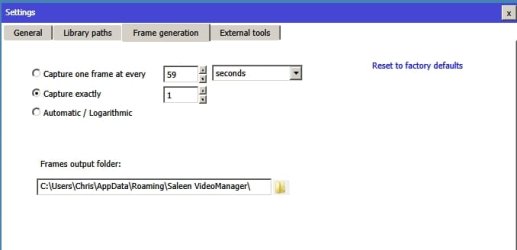
I have Frame Generation settings like this to avoid multiple thumbnails per video:

Frame Settings.jpg

I see thumbnail previews but not for .avi files. I'll see if I can figure out why.
 

My Computer

Computer type
Laptop
Computer Manufacturer/Model Number
ASUS
OS
Microsoft Windows 7 Home Premium 64-bit 7601 Multiprocessor Free Service Pack 1
CPU
AMD C-60 APU with Radeon(tm) HD Graphics
Motherboard
ASUSTeK COMPUTER INC. X501U
Memory
4.00 GB
Graphics Card(s)
AMD Radeon HD 6290 Graphics
Sound Card
(1) AMD High Definition Audio Device (2) Realtek High Defi
Screen Resolution
1366 x 768 x 32 bits (4294967296 colors) @ 60 Hz
Hard Drives
Hitachi HTS545050A7E380 SATA Disk Device
Antivirus
Comodo CIS & FW, SecureAplus App Whitelisting, Threatfire
Browser
Cyberfox 64bit, Opera 64bit, Airfox
Other Info
Spy-The-Spy, HitmanPro.Alert, Norton Connect Safe, MJRegWatcher, BitDefender TrafficLight, Voodoo Shield, Zemana AntiMalware
"I see thumbnail previews but not for .avi files. I'll see if I can figure out why."

Okay I have to say sorry! :o

As stated I personally prefer PotPlayer above VLC. I liked Saleen Video Manager as a way of indexing and displaying a list all video files.

In attempting to get full functionality in Saleen Video Manager I installed the 64bit version of VLC as the non default player. So when I open a video from within Saleen Video Manager's GUI it actually plays in PotPlayer.

However it would appear that the 32bit version of VLC is the one that's required for the program to work correctly. I've just removed 64bit VLC and replaced it with the 32bit version. All thumbnail previews are now working including those .avi file thumbnails!

:)
 

My Computer

Computer type
Laptop
Computer Manufacturer/Model Number
ASUS
OS
Microsoft Windows 7 Home Premium 64-bit 7601 Multiprocessor Free Service Pack 1
CPU
AMD C-60 APU with Radeon(tm) HD Graphics
Motherboard
ASUSTeK COMPUTER INC. X501U
Memory
4.00 GB
Graphics Card(s)
AMD Radeon HD 6290 Graphics
Sound Card
(1) AMD High Definition Audio Device (2) Realtek High Defi
Screen Resolution
1366 x 768 x 32 bits (4294967296 colors) @ 60 Hz
Hard Drives
Hitachi HTS545050A7E380 SATA Disk Device
Antivirus
Comodo CIS & FW, SecureAplus App Whitelisting, Threatfire
Browser
Cyberfox 64bit, Opera 64bit, Airfox
Other Info
Spy-The-Spy, HitmanPro.Alert, Norton Connect Safe, MJRegWatcher, BitDefender TrafficLight, Voodoo Shield, Zemana AntiMalware
The added Folders do show up in Library Paths. I click on Rescan as directed. And nothing appears other than the video files the program found in the "Videos" folder when it started for the first time.

Frame generation is set to Auto.

In looking (again) for some sort of help file.

I wonder if your videos are in formats other than those listed? If so you will need to define the extensions.Example - adding .m4v and .ogv

Code:
*.avi; *.mpg; *.mpeg; *.wmv; *.flv; *.mp4; [B]*.m4v; *.ogv[/B]
There's no help file but there are a few "help buttons"
I actually did notice that when I did my first 'Add Folder.' I added *.mts and .mov, but it is still turns out to be an "ID Ten T" error, which was solved by your example above! My poor eyes saw the delimiter as a comma. I changed them to a semi-colon, which is clearly visible in your example, and voila, it works now!

I'm sure glad I don't claim to be too bright. :o
.
 

My Computer

Computer type
PC/Desktop
Computer Manufacturer/Model Number
home built
OS
Win 7 Pro 64 SP1
CPU
i7 6700K SkyLake
Motherboard
MSI Gaming M7
Memory
32 GB
Graphics Card(s)
nVidia GTX 970
Sound Card
onboard
Monitor(s) Displays
DELL U2711
Screen Resolution
2560x1440
Hard Drives
1 SSD OS, 2 WD Black Caviar data harddrives
PSU
EVGA Super Nova 850W G2 'Gold'
Case
Thermaltake Soprano Snow Edition
Cooling
Cooler Master Hyper 212 evo
Keyboard
Logitech K350
Mouse
Mad Kats RATT
Antivirus
Avast
Browser
Firefox
Back
Top