How to make a bootable UEFI system repair USB

bendipa

New member
Member
Local time
5:37 PM
Messages
49
For those (like myself) who have stuck rigidly with Windows 7 you will probably be aware that if you have ever made a Windows CD repair disk (Windows RE) or on a flash drive, and you run a UEFI BIOS computer (not in CSM mode) you will get a "non compatible" error when you try to boot from it. Despite wading through this forum and Microsoft forums, no-one seems to have ever come up with a solution, since all articles deal with the case of running your computer on an MBR system where Windows RE works fine.

if you have a UEFI BIOS system which is not running in CSM mode , I've finally found a way of creating a Windows 7 RE on a flash drive which works like a charm. If you want details of how to do this let me know and I'll post up the procedure, which is easy to do manually.
 

My Computer My Computer

At a glance

Windows 7 Pro 64 Bit, Windows 10 Pro 64 Bit, ...Intel Core i5-3470 3.2 GHz6GB RAMIntel HD Graphics
Computer type
PC/Desktop
Computer Manufacturer/Model Number
Dell Vostro
OS
Windows 7 Pro 64 Bit, Windows 10 Pro 64 Bit, Linux Mint 20.1 LTS
CPU
Intel Core i5-3470 3.2 GHz
Motherboard
Intel 7 Series C/216 Chipset
Memory
6GB RAM
Graphics Card(s)
Intel HD Graphics
Monitor(s) Displays
Asus VC239 (23.5")
Hard Drives
Western Digital WD10EZEX 1TB
Western Digital WD3200AAKS 320GB
PSU
Corsair 500W
Antivirus
Microsoft Essentials, Malwarebytes, Kapersky Rescue Disk
Browser
Firefox 87 64 Bit
Thanks. Most people will either download my boot media, then extract to flash using rufus, or similar.Th x64 boots on efi and bios systems.

They include explorer, disk management, audio, net connection, Aomei Backupper and Aomei Part Assist included.

17514x86.iso

17514x64-v9.iso

Alternatively, they can use my little program in this zip file for creating winpe and copy the files created by that to formatted flash drive.

New7x64upd.zip

it can create efi/bios bootable winpe from the files on your hard drive - no installation media required.It works fine even if you have updates included in your installation.
 
Last edited:

My Computers My Computers

  • At a glance

    7 X64i5 84002x8gb 3200mhz
    Computer type
    PC/Desktop
    OS
    7 X64
    CPU
    i5 8400
    Motherboard
    gigabyte b365m ds3h
    Memory
    2x8gb 3200mhz
    Hard Drives
    various
    PSU
    pure power 11 400w cm
    Case
    Coolermaster
    Cooling
    cryorig m9i
  • At a glance

    7x64g54008gb ddr4 2400
    Computer type
    PC/Desktop
    OS
    7x64
    CPU
    g5400
    Motherboard
    ga b365m ds3h
    Memory
    8gb ddr4 2400
    PSU
    xfx pro 450w
Hi,
Bendipa - if you're still around - I'd really like to know what you did!!!

I've spent hours and hours trying to do it, and still not there.

(I have an HP Envy 750-175se with Win 7 pro. It takes such a long time to boot with the CD to system repair...)

I have got it booting in UEFI from USB with the recovery .wim, but instead of asking me about the keyboard and going to the normal screen, it's trying (I think) to load HP's custom system restore (that would give option to restore to factory defaults) - but it only partially loads that - I get the graphic wallpaper and only the X to close/reboot....

Can't figure it out yet.

For those (like myself) who have stuck rigidly with Windows 7 you will probably be aware that if you have ever made a Windows CD repair disk (Windows RE) or on a flash drive, and you run a UEFI BIOS computer (not in CSM mode) you will get a "non compatible" error when you try to boot from it. Despite wading through this forum and Microsoft forums, no-one seems to have ever come up with a solution, since all articles deal with the case of running your computer on an MBR system where Windows RE works fine.

if you have a UEFI BIOS system which is not running in CSM mode , I've finally found a way of creating a Windows 7 RE on a flash drive which works like a charm. If you want details of how to do this let me know and I'll post up the procedure, which is easy to do manually.
 

My Computer My Computer

At a glance

Windows 7 64bit Pro
Computer type
PC/Desktop
OS
Windows 7 64bit Pro
Didn't you read the post above yours?

it's trying (I think) to load HP's custom system restore

If you are using the HP winre.wim, there is an HP program included in it.

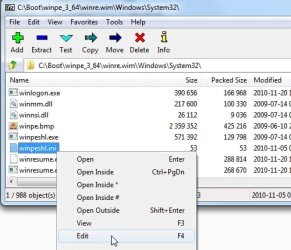
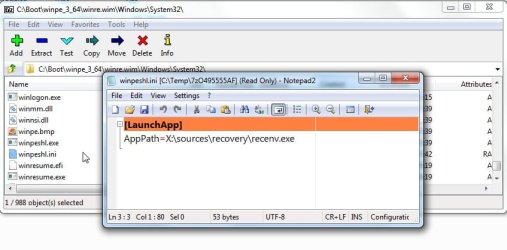
The HP program is most likely being loaded by a little text file called winpeshl.in That file is is in winre.wim in the windows\system32 folder.

You can change it to point at the MS recovery program. Easiest to use 7-zip.

https://www.7-zip.org/

This how the regular MS winre.wim looks

7z1.jpg

7z2.jpg

7z3.jpg

7z4.jpg


This is the standard MS entry.

winpeshl.ini is a text file, so you can change it with notepad. Click file>save. 7-zip will ask if you want to update it in the wim, click Yes.
 

My Computers My Computers

  • At a glance

    7 X64i5 84002x8gb 3200mhz
    Computer type
    PC/Desktop
    OS
    7 X64
    CPU
    i5 8400
    Motherboard
    gigabyte b365m ds3h
    Memory
    2x8gb 3200mhz
    Hard Drives
    various
    PSU
    pure power 11 400w cm
    Case
    Coolermaster
    Cooling
    cryorig m9i
  • At a glance

    7x64g54008gb ddr4 2400
    Computer type
    PC/Desktop
    OS
    7x64
    CPU
    g5400
    Motherboard
    ga b365m ds3h
    Memory
    8gb ddr4 2400
    PSU
    xfx pro 450w
I have got it booting in UEFI from USB with the recovery .wim, but instead of asking me about the keyboard and going to the normal screen, it's trying (I think) to load HP's custom system restore (that would give option to restore to factory defaults) - but it only partially loads that - I get the graphic wallpaper and only the X to close/reboot....

Maybe it can't find the recovery.wim

Is the layout on your usb the same as the layout of the recovery partition?
 

My Computers My Computers

  • At a glance

    7 X64i5 84002x8gb 3200mhz
    Computer type
    PC/Desktop
    OS
    7 X64
    CPU
    i5 8400
    Motherboard
    gigabyte b365m ds3h
    Memory
    2x8gb 3200mhz
    Hard Drives
    various
    PSU
    pure power 11 400w cm
    Case
    Coolermaster
    Cooling
    cryorig m9i
  • At a glance

    7x64g54008gb ddr4 2400
    Computer type
    PC/Desktop
    OS
    7x64
    CPU
    g5400
    Motherboard
    ga b365m ds3h
    Memory
    8gb ddr4 2400
    PSU
    xfx pro 450w
Didn't you read the post above yours?


If you are using the HP winre.wim, there is an HP program included in it.

The HP program is most likely being loaded by a little text file called winpeshl.in That file is is in winre.wim in the windows\system32 folder......

THANK YOU THANK YOU THANK YOU for your useful post! This was the issue - the winpeshl.ini on the CD, which was created from Win7 Backup/Create a System Repair Disk, looks like this:
Code:
[LaunchApps]
X:\Windows\System32\wpeinit.exe, --unattend=X:\Windows\panther\unattend\unattend.xml
X:\Windows\RM\Launcher.exe

So, I replaced it with what you posted, and now my USB Repair Disk boots!!
(I'm not 100% sure what I had done earlier that got the USB to boot at all using UEFI, because when I follow the normal instructions to copy from the System Repair Disk, the USB does not show up as UEFI boot option. I found a YouTube video that had some instructions about creating a 'boot' folder in the USB's 'efi' folder (which on the CD only has a 'microsoft' folder) and copying a 'bcd' and a 'bootx64.efi' file there and that seemed to be the thing that worked to make the USB boot with UEFI.

Maybe it can't find the recovery.wim

Is the layout on your usb the same as the layout of the recovery partition?

That's one thing I still don't totally understand - my layout was exactly same as the System Repair CD created from Windows Backup, which, when booting from it, shows up as a UEFI entry, and goes to the normal Microsoft Repair environment. This HP was installed with Win7 Pro at factory, and no Windows install disk provided. The C:\Recovery folder is totally empty. There is a Recovery folder on the System Restore Partition, but it loads the HP Recovery envirornment.
But, I guess I don't need to understand it as with your help, I got what I wanted!!

I do have 1 more question for you, though: Since the price for the new Samsung 970 evo M.2 drive became attractive, I purchased one since the HP has M.2 slot. I installed it today, and booted up from old drive. Downloaded the Samsung M.2 driver, and the disk recognized in Windows. Then, booted Ghost4Linux and cloned my Windows drive to the M.2. (I had a SATA 256gb SSD as my Windows drive, and a 2nd SATA SSD for data, and the M.2 drive is 500gb, so no problem to Click'n'Clone.) Then, disconnected the old Windows drive, and the system booted up just fine from the M.2 drive!
BUT, the System Repair disk will not work now - whether it be the USB or CD - pretty sure that's because it doesn't include an M.2 slot driver. I'm thinking it might be possible to add that to the .wim?

Thanks again SIW2! I really appreciate your post!!!
 

My Computer My Computer

At a glance

Windows 7 64bit Pro
Computer type
PC/Desktop
OS
Windows 7 64bit Pro
You need to integrate nvme drivers into your .wim

You can do it with dism++ Dism++ | New Windows Utility
Preferably, Copy the .wim ( it might be called boot.wim, but if it only contains 1 image it is the same as winre.wim) from your usb to a hard drive.
Mount the wim image to any empty folder ( just create a folder named MOUNT )
Add the drivers.

Save the updated image by clicking Save Image > select Direct Save.

Don't forget to Unmount the image after saving.

Then copy the updated .wim back into the sources folder of your usb.

Here are some drivers:

View attachment Windows_7_x64_nvme_17-07-18.zip

View attachment Windows_7_x64_usb3_1_17-07-18.zip

View attachment 404696
 

My Computers My Computers

  • At a glance

    7 X64i5 84002x8gb 3200mhz
    Computer type
    PC/Desktop
    OS
    7 X64
    CPU
    i5 8400
    Motherboard
    gigabyte b365m ds3h
    Memory
    2x8gb 3200mhz
    Hard Drives
    various
    PSU
    pure power 11 400w cm
    Case
    Coolermaster
    Cooling
    cryorig m9i
  • At a glance

    7x64g54008gb ddr4 2400
    Computer type
    PC/Desktop
    OS
    7x64
    CPU
    g5400
    Motherboard
    ga b365m ds3h
    Memory
    8gb ddr4 2400
    PSU
    xfx pro 450w
Hi kimcheee,

Bit late to reply, and see you've already solved the Windows RE issue, which seemed to be a different one to what others were experiencing. You seemed to be getting an HP boot override whereby your BIOS was forcing a factory default on you on boot-up. This is down to your system recovery partition which is a waste of space AFAIC.This peculiarity of HP machines can be useful, but also a nuisance when it's not wanted. It doesn't help you either should your drive fail. If you don't have a back-up on an external drive, you've lost all means of recovering your system and will have to do a reinstall. And if you have an external back-up then no need for a recovery partition.

My method of providing a repair disk/UFD for Windows 7 uses exactly the same files as you would find on a standard W7 repair disk without any interference from HP.

I don't own an HP machine (thankfully) but I would have thought somewhere in your BIOS settings is a means of disabling this HP feature.
 

My Computer My Computer

At a glance

Windows 7 Pro 64 Bit, Windows 10 Pro 64 Bit, ...Intel Core i5-3470 3.2 GHz6GB RAMIntel HD Graphics
Computer type
PC/Desktop
Computer Manufacturer/Model Number
Dell Vostro
OS
Windows 7 Pro 64 Bit, Windows 10 Pro 64 Bit, Linux Mint 20.1 LTS
CPU
Intel Core i5-3470 3.2 GHz
Motherboard
Intel 7 Series C/216 Chipset
Memory
6GB RAM
Graphics Card(s)
Intel HD Graphics
Monitor(s) Displays
Asus VC239 (23.5")
Hard Drives
Western Digital WD10EZEX 1TB
Western Digital WD3200AAKS 320GB
PSU
Corsair 500W
Antivirus
Microsoft Essentials, Malwarebytes, Kapersky Rescue Disk
Browser
Firefox 87 64 Bit
You need to integrate nvme drivers into your .wim

You can do it with dism++ Dism++ | New Windows Utility
Preferably, Copy the .wim ( it might be called boot.wim, but if it only contains 1 image it is the same as winre.wim) from your usb to a hard drive.
Mount the wim image to any empty folder ( just create a folder named MOUNT )
Add the drivers.

Save the updated image by clicking Save Image > select Direct Save.

Don't forget to Unmount the image after saving.

Then copy the updated .wim back into the sources folder of your usb.

Here are some drivers:

View attachment 404694

View attachment 404695

View attachment 404696

THANK YOU AGAIN! - This did the trick and I was able to make the M.2 Nvme drive Windows boot drive!!!
And while benchmarks show I'm getting 5x or more disk speeds than with the SSD I was using, there's not much noticeable difference in regular usage as I was using only SSDs and 48gb RAM on 6th gen i7....

Hi kimcheee,

Bit late to reply, and see you've already solved the Windows RE issue, which seemed to be a different one to what others were experiencing. You seemed to be getting an HP boot override whereby your BIOS was forcing a factory default on you on boot-up. This is down to your system recovery partition which is a waste of space AFAIC.This peculiarity of HP machines can be useful, but also a nuisance when it's not wanted. It doesn't help you either should your drive fail. If you don't have a back-up on an external drive, you've lost all means of recovering your system and will have to do a reinstall. And if you have an external back-up then no need for a recovery partition.

My method of providing a repair disk/UFD for Windows 7 uses exactly the same files as you would find on a standard W7 repair disk without any interference from HP.

I don't own an HP machine (thankfully) but I would have thought somewhere in your BIOS settings is a means of disabling this HP feature.

Thank you!
 

My Computer My Computer

At a glance

Windows 7 64bit Pro
Computer type
PC/Desktop
OS
Windows 7 64bit Pro
Back
Top